How to Fix App Store Missing on iPhone?
The App Store icon is missing from your iPhone, leaving you with no obvious way to download apps. Removing its Home Screen icon does not uninstall it. An app-installation restriction, however, can also remove it from Search and App Library.
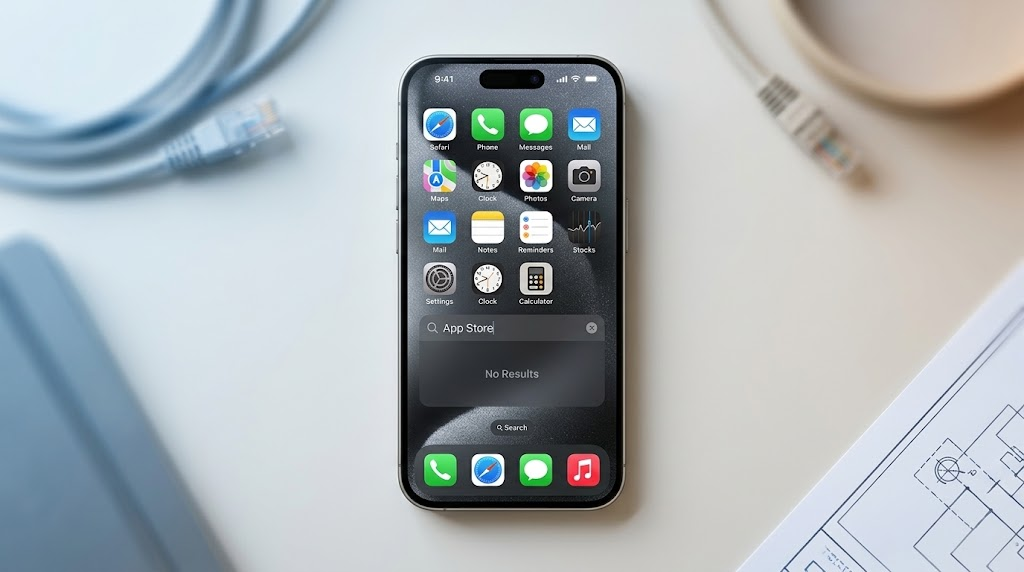
On most iPhones, the App Store cannot be deleted, so its disappearance does not mean you need to download it again. Eligible European Union users are an exception: Apple allows them to remove it after setting up an alternative marketplace.
| What you notice | Where to check |
|---|---|
| App Store appears in Search or App Library | Move its icon back to the Home Screen. |
| It is missing from both | Check app-installation restrictions. |
| It disappears again on a child’s iPhone | Review the parent’s Family settings. |
| You deleted it after setting up another marketplace in the EU | Use Restore App Store in Settings. |
| The iPhone belongs to a school or employer | Ask the administrator about App Store access. |
1. Find the App Store in Search or App Library
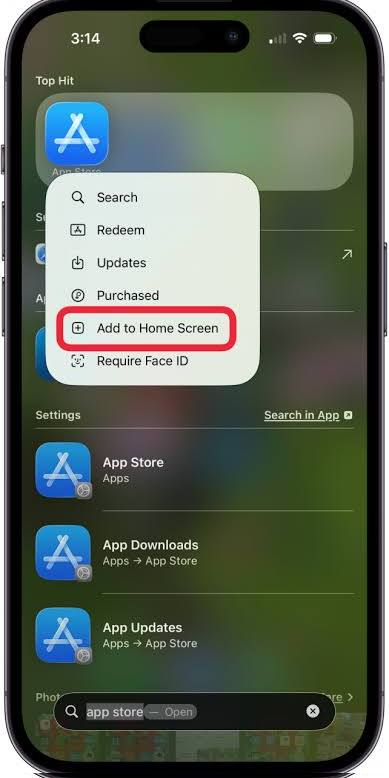
Removing an app from the Home Screen, hiding a page or moving the icon into a folder can leave the App Store installed but out of sight. You can put it back without resetting the phone.
- Swipe down from the middle of the Home Screen. Search for App Store and tap its blue app icon, not the separate Apple Store shopping app.
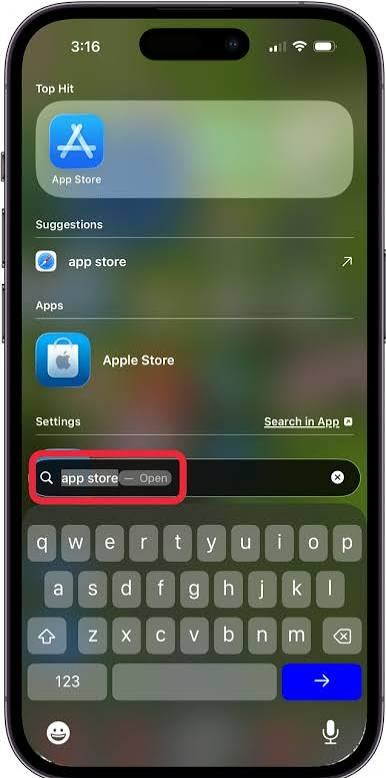
Capture Search with App Store typed in. Redact Siri suggestions, contacts, messages, and private app results. - Swipe left past all Home Screen pages to open App Library. Tap the search field and enter App Store.
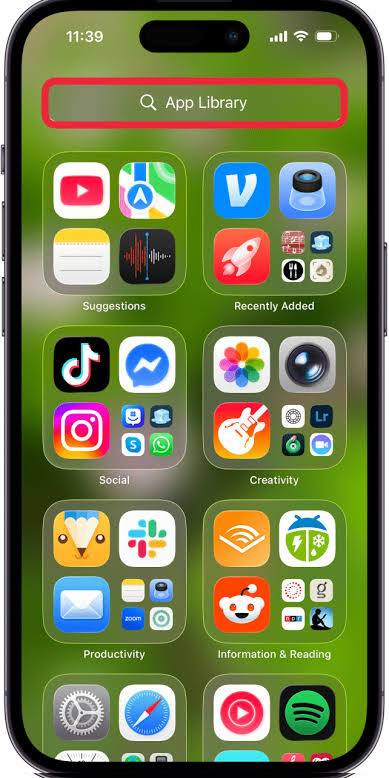
Show the App Library alphabetical list or category view with App Store visible. Hide unrelated personal apps where possible. - Touch and hold its icon in App Library, then drag it onto the Home Screen.
- To recover an entire hidden page instead, hold an empty Home Screen area. Tap Edit > Edit Pages or the page dots, then select any unchecked page and finish editing.
Capture the page selector with checkmarks visible. Avoid showing personal app layouts if possible.
Apple’s missing-app instructions cover both options. The Face ID-protected Hidden folder is different: Apple’s built-in App Store cannot be hidden there.
Once the App Store opens, its icon is no longer the issue. A Cannot Connect message needs the separate App Store connection checks, not a Home Screen reset.
2. Allow App Installation in Screen Time
Screen Time can block app installation and make the App Store unavailable. Apple specifically recommends checking Installing Apps when the store is missing; allowing purchases or app deletion is not required.
- Open Settings > Screen Time > Content & Privacy Restrictions.
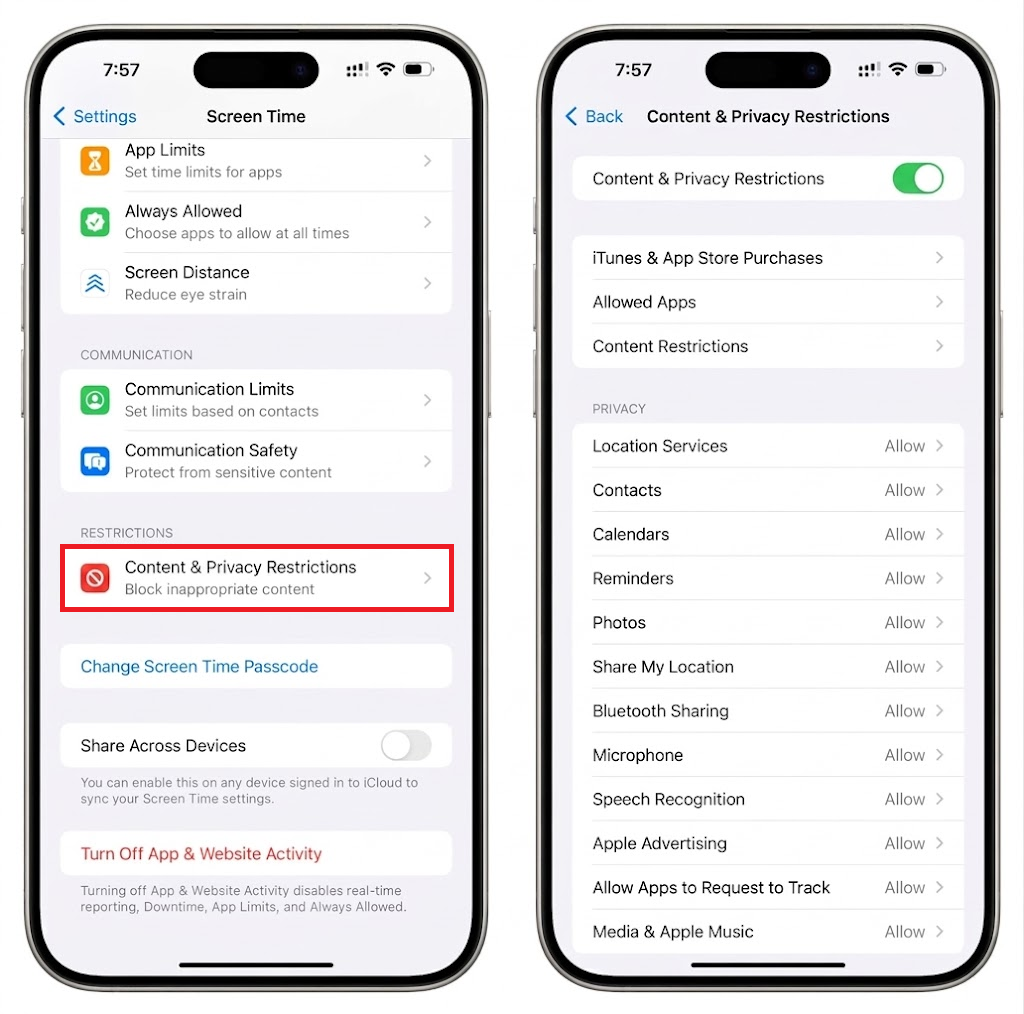
Show Screen Time settings without exposing family member names, Screen Time passcodes, or child account details. - Open iTunes & App Store Purchases > Installing Apps, then choose Allow.
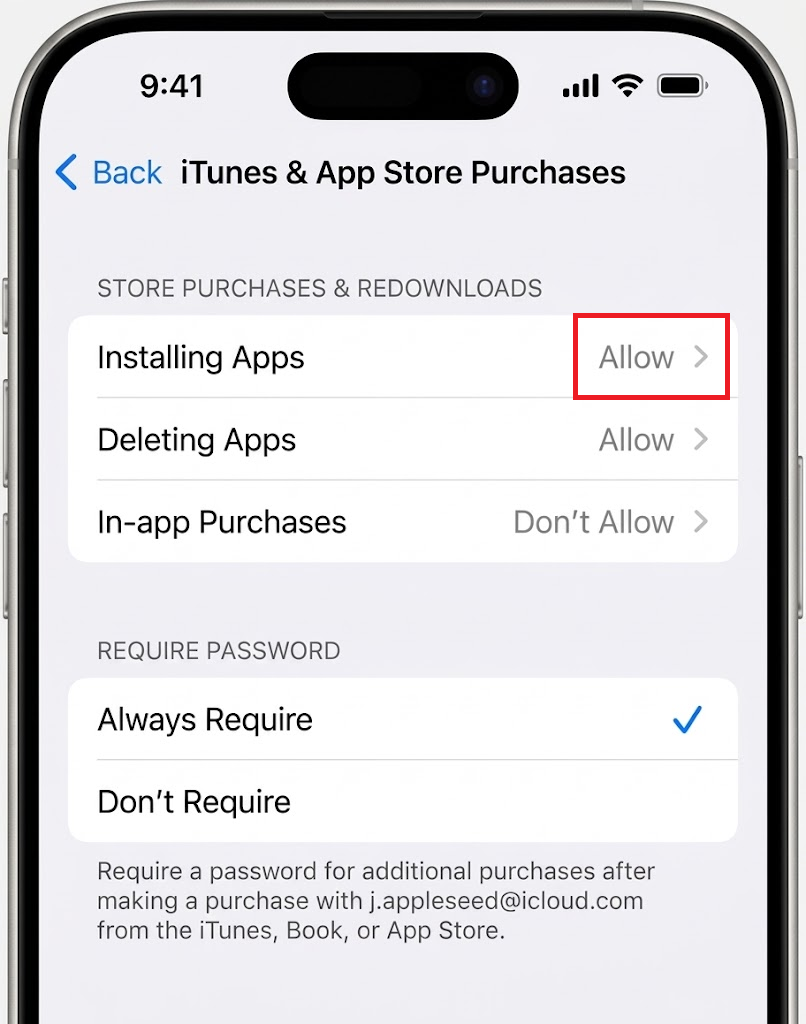
Show Installing Apps set to Allow. Do not reveal Screen Time passcodes or family account information. - Leave Deleting Apps and In-App Purchases unchanged. Search for the App Store again; restart the iPhone once if the icon has not refreshed.
This is the installation setting Apple documents. Newer family controls use a different menu, shown below. If a passcode is required, the person managing Screen Time must authorize the change.
3. Check Family Controls on the Parent’s iPhone
A child’s iPhone can remain restricted even after its own settings appear correct. The parent or guardian should check the installation rule from their device, rather than repeatedly changing the child’s phone.
- With the iOS 27 or later family controls, open Settings > Family > [child] > Apps & Websites > App Store > Installing Apps. Select Allowed if installation is intended.
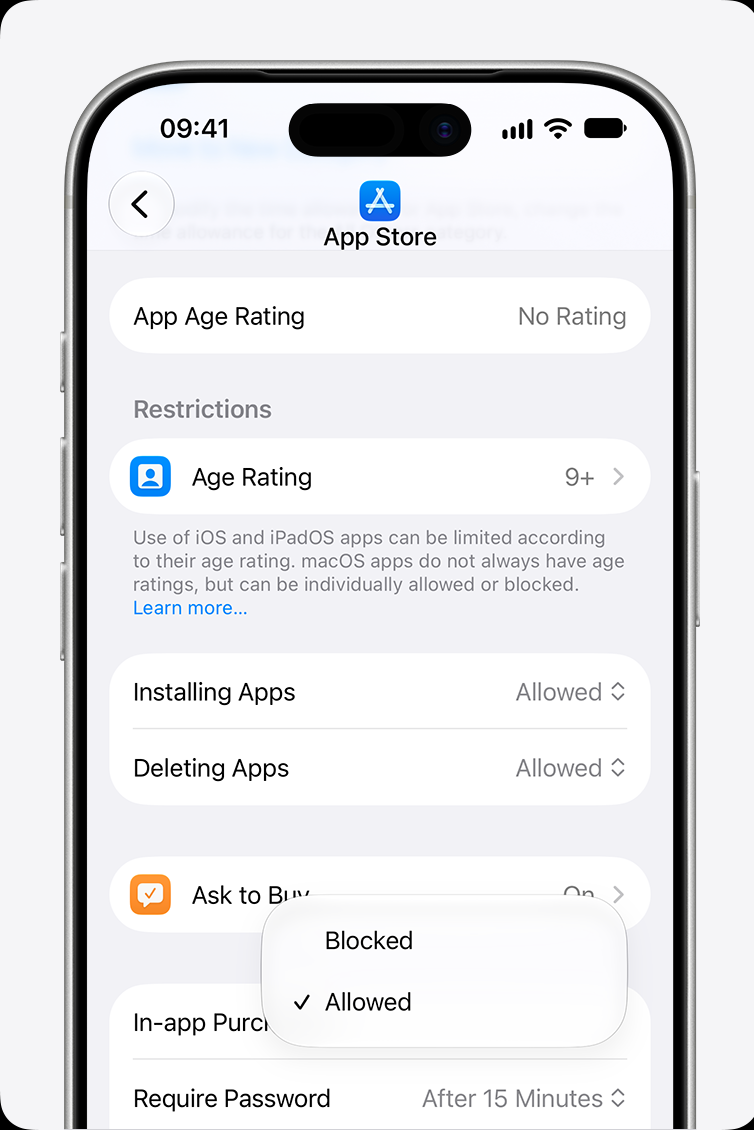
On updated iOS 27 family controls, show Family > child > Apps & Websites > App Store > Installing Apps. Hide the child’s name and account details. - For the older controls, select the child under Settings > Screen Time. Open Content & Privacy Restrictions > iTunes & App Store Purchases > Installing Apps > Allow instead.
- Keep download approval if required. In the newer controls, it is under Family > [child] > Apps & Websites > Restrictions > Ask to Buy.
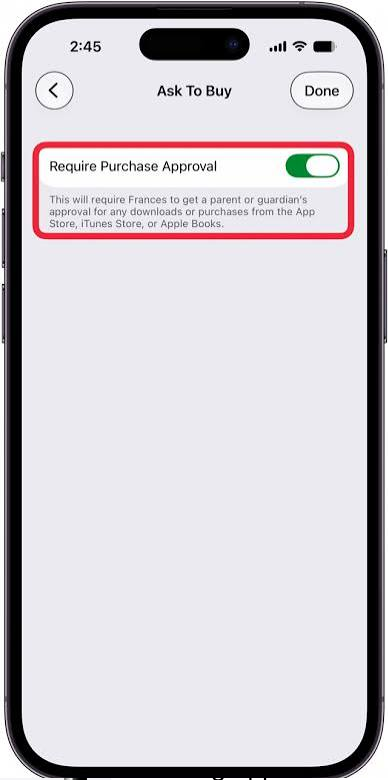
Show the parent-side Ask to Buy control only on an updated family test device. Hide child names and purchase details
Ask to Buy is separate from blocking installation. It lets the child request eligible downloads for approval; turning it off is not necessary to restore the icon.
If settings differ between devices, check Settings > Screen Time > Manage Screen Time > Share Across Devices. Older versions place the switch directly under Screen Time.
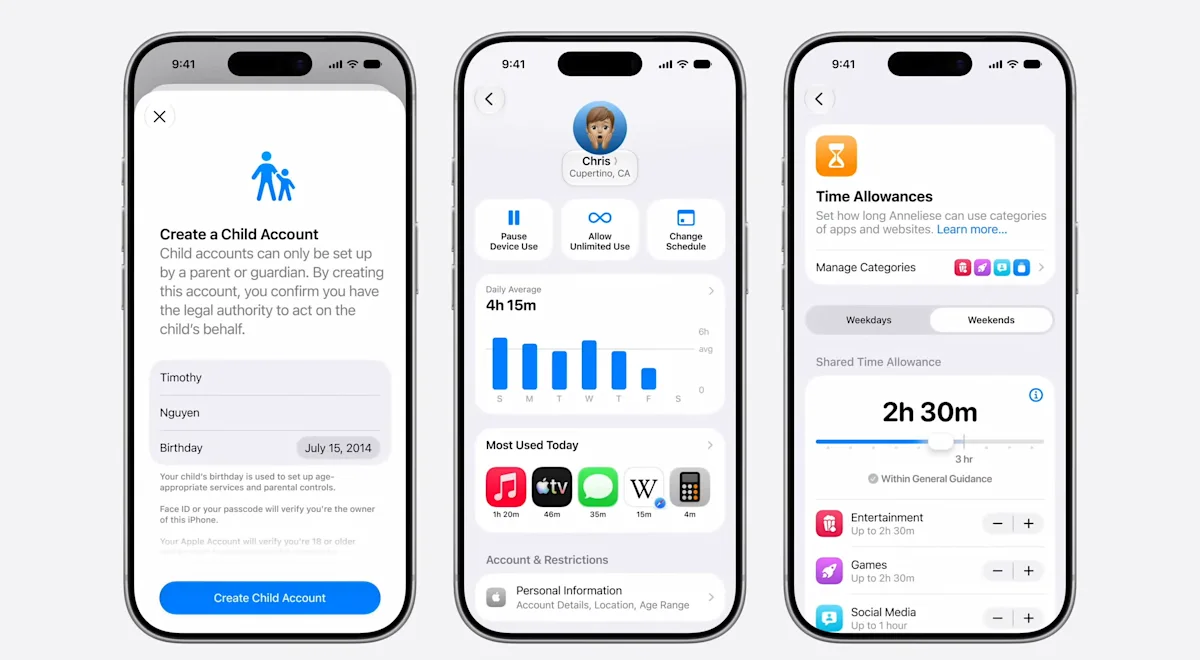
Share Across Devices syncs Screen Time settings for the same Apple Account. Check the intended rules on the devices involved and keep their software updated. Turning off all parental protections is not necessary to restore app access.
Apple explains the new family-control menus and the supported Screen Time passcode recovery. After the parent updates the rule, check that the store remains available on the child’s phone.
4. Restore a Deleted App Store in the European Union
Eligible EU users can delete the App Store after installing an alternative marketplace and setting it as the default. Elsewhere, a missing icon is not normally an App Store uninstall.
Apple’s official restoration procedure is Settings > Apps > App Installation > Restore App Store, at the bottom of the page. After restoring it, search for the icon again.
A missing Restore App Store button does not establish that Screen Time is responsible. If you know the store was deleted but cannot restore it, contact Apple rather than changing account regions.
5. Check Work or School Management
An administrator can make the App Store unavailable on a managed iPhone. Changing your Home Screen layout cannot override that rule.
- Open Settings > General > VPN & Device Management. Look for an organization or management profile; supervision may also be identified near the top of Settings.
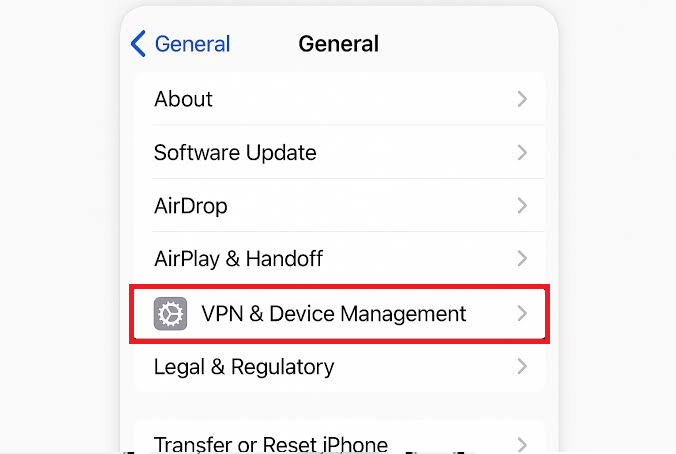
Show whether the iPhone is managed. Hide organization names, certificate details, profile identifiers, and enrollment data. - Ask the administrator whether App Store installation is blocked and how to request approved apps.
Leave organization profiles installed. Removing one can also remove managed apps and data or disrupt work email, Wi-Fi and VPN access. The administrator must resolve an intentional restriction.
6. Reset the Home Screen Layout, if Needed
On a personal iPhone with installation allowed, a layout reset can put built-in app icons back in their original positions. It is optional and does not reinstall a deleted store or remove restrictions.
- Open Settings > General > Transfer or Reset iPhone > Reset.
- Tap Reset Home Screen Layout.
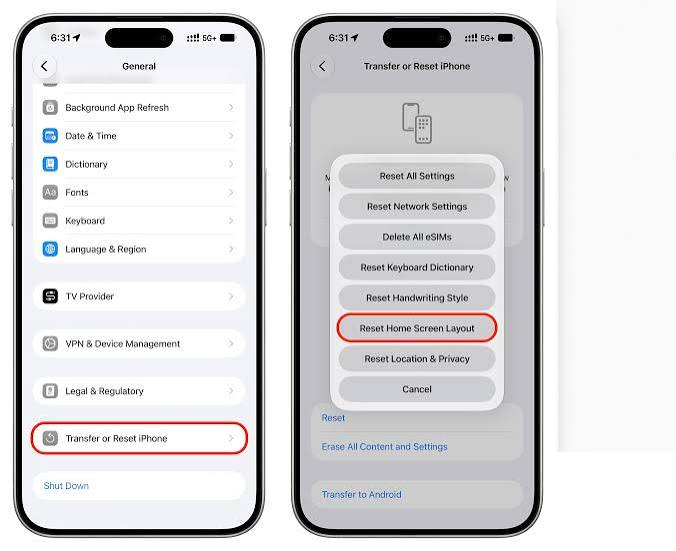
Show the confirmation screen before tapping Reset Home Screen. Explain that folders and custom app order will change - Confirm Reset Home Screen, then look for the App Store again.
Apple describes the layout changes this reset makes. If preserving your folders matters more, skip it.
If the store returns but downloads show This Apple ID has not yet been used in the iTunes Store, follow the account setup instructions for that message. Resetting the layout again will not complete account setup.
For a store still missing on an updated, unrestricted personal iPhone, contact Apple Support. Include your iPhone model, iOS version and the results of the Search, installation-permission and management checks. Redact family names and account details from screenshots.


