How to Fix iPhone “Error Performing Request: Unknown Error”?
Your iPhone can make ordinary calls but show “Error performing request” followed by “Unknown Error” when checking a service code or opening Call Voicemail. Instead of returning the requested information or connecting to your mailbox, the Phone app leaves you with a Dismiss button.
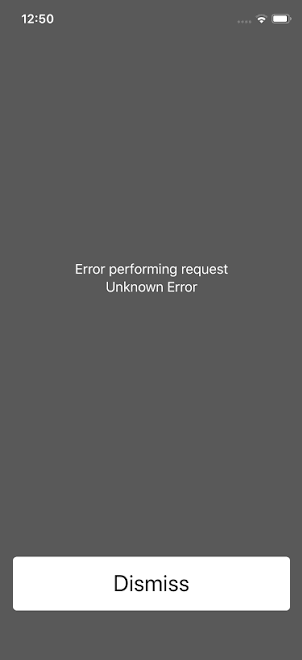
Carrier services handle these requests. A wrong or unsupported code can be rejected, while a failed voicemail button may still leave messages available by direct dial. The alert alone does not mean your messages are gone.
| Where the error appears | What to check |
|---|---|
| After a balance, forwarding or voicemail-setting code | Confirm the command with your carrier. |
| After tapping Call Voicemail or holding 1 | Try the carrier’s direct mailbox number. |
| Ordinary calls also fail | Check for a wider calling problem using Apple’s calling troubleshooting, rather than changing voicemail codes. |
1. Check the Code and Required Number
A service code copied from another network can fail even when your iPhone has service. The carrier’s instructions must match your plan and the task you are trying to perform.
- Tap Dismiss and note the code that failed. Find your carrier’s official instructions for that specific task, such as checking a balance or changing the time before voicemail answers.
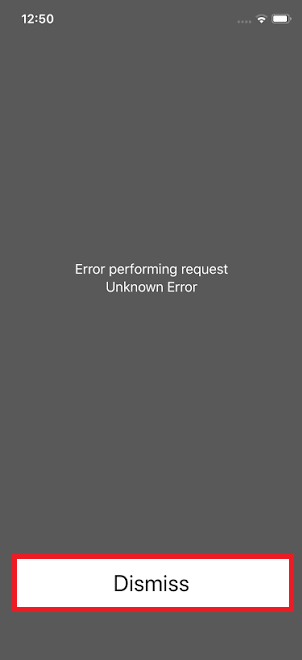
Match the carrier, plan and purpose before entering a code. - Compare every *, # and digit. Check what any placeholder requires: a voicemail access number can be the carrier’s mailbox number, not your own mobile number.
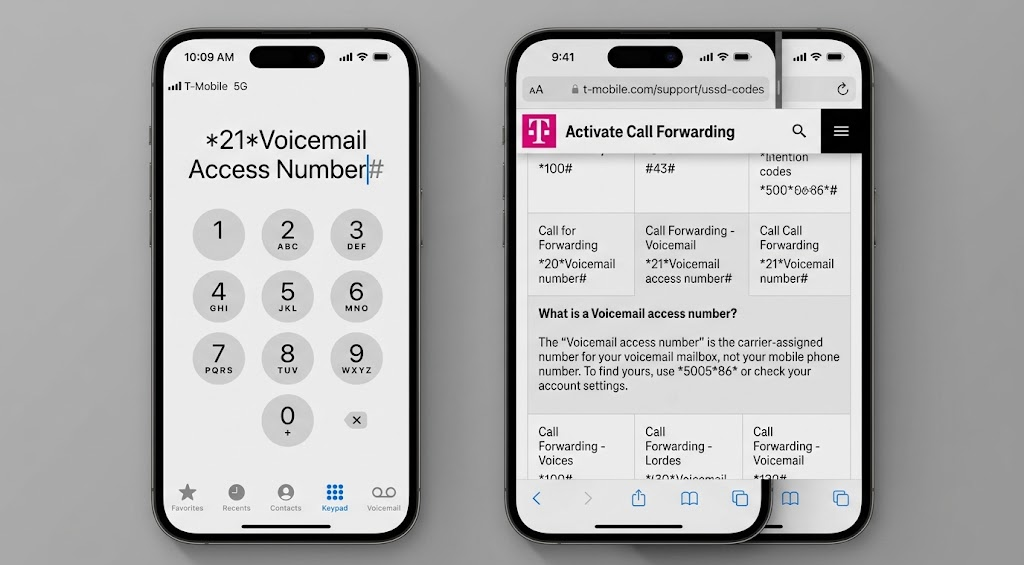
A voicemail access number and your mobile number serve different purposes - For Koodo ring-time changes, use its voicemail instructions. If its number-checking code returns an error or no access number, ask Koodo for that number instead of substituting your own.
- Enter the confirmed command in Phone > Keypad, review it, then tap Call if the carrier’s instructions require it. With two SIMs, make sure the intended line is selected before sending the request.
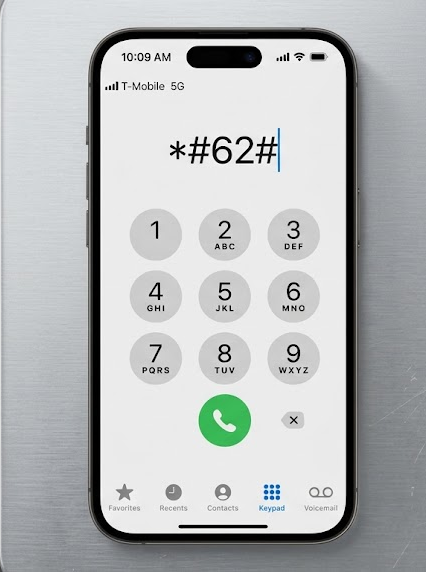
Enter only the command for the service you intend to use
For codes that change settings: record the original setting and how to restore it before sending the command. Cancelling all call diversions can affect voicemail; it is not a necessary step for a failed information query.
A successful query should return the information you requested. After a forwarding or ring-time change, make a test call from another phone to confirm the result.
If the exact supported command still fails, ask the carrier to check your line or provide an alternative through its app or account service.
2. Use Direct Voicemail Access When the Button Fails
Voicemail notifications can arrive even though Call Voicemail does not connect. Dialing the mailbox directly lets you listen to messages without relying on that button.
A new mailbox may need initial voicemail setup. Your plan must support carrier voicemail; direct dialing does not add Visual Voicemail. Live Voicemail records on the iPhone and does not prove that the carrier mailbox is set up.
- Open Phone > Keypad and enter the mailbox number specified by your carrier. Koodo’s instructions use 1 + your area code + your mobile number; other providers may use a different number or procedure.
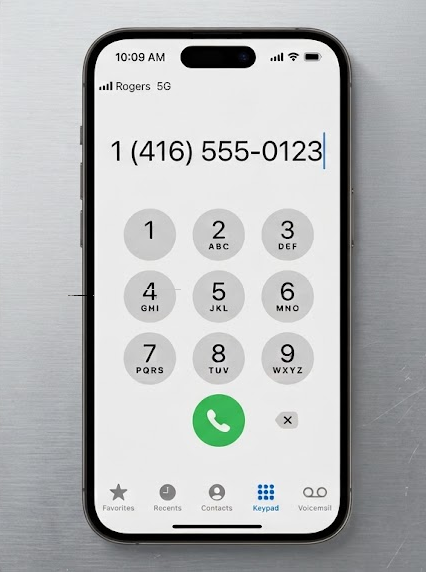
Use your carrier’s direct access instructions when the voicemail shortcut fails. - On a Dual SIM iPhone, enter the number, tap the calling number near the top of the keypad, and select the line associated with that mailbox. Skip this selection on a single-line iPhone.
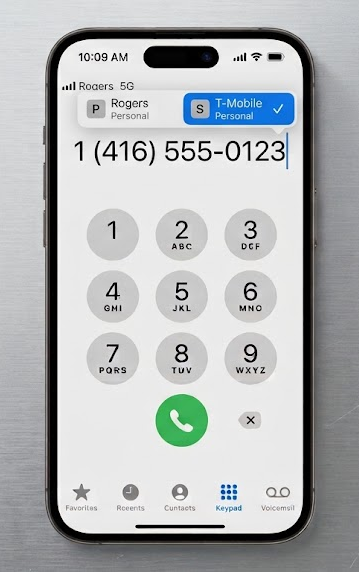
Use your carrier’s direct access instructions when the voicemail shortcut fails. - Tap Call and follow the spoken prompts. Enter your voicemail password when requested. Confirm that you reach your own mailbox menu and can play a message if one is available.
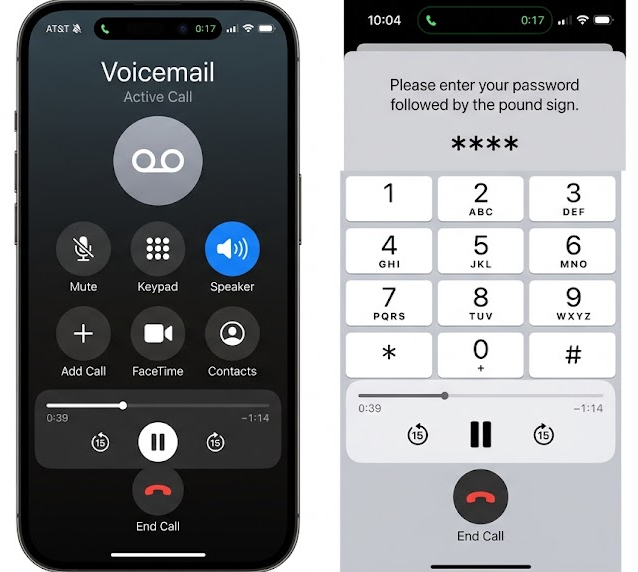
A connected mailbox call is an access workaround; it does not repair the shortcut. - Optional, if direct access fails: try your carrier’s remote-access procedure from another phone. Call your own mobile number and wait for the greeting, then enter the carrier’s specified access key and your voicemail password.
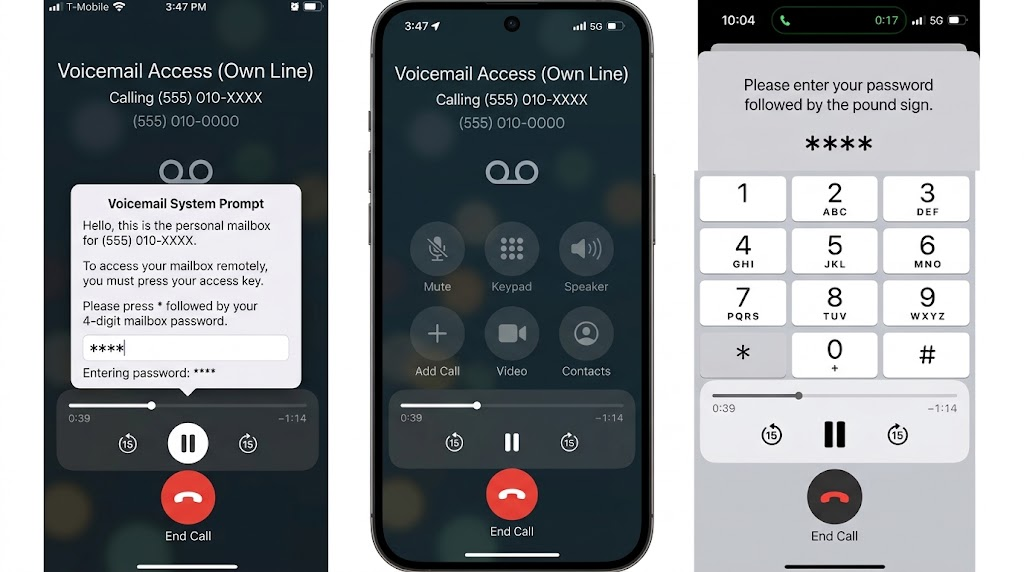
Wait for the greeting before entering the carrier’s access key
Apple’s remote voicemail instructions use * or # depending on the carrier. Press the correct key during the call, not as part of the dialed number. Calling or roaming charges may apply. Keep your mailbox password private.
If the mailbox answers, you can use direct access while the carrier investigates the original button. If neither method reaches it, report both results rather than assuming the shortcut alone is faulty.
3. Restore Voicemail Access with Your Carrier
Changing phones or SIMs can leave the voicemail button unable to reach an existing mailbox. Your carrier can check the access number and whether voicemail is enabled correctly for the current line.
- Connect to Wi-Fi or cellular service, then open Settings > General > About. Install a carrier settings update if prompted. Note your iPhone model, iOS version and carrier settings version for support.
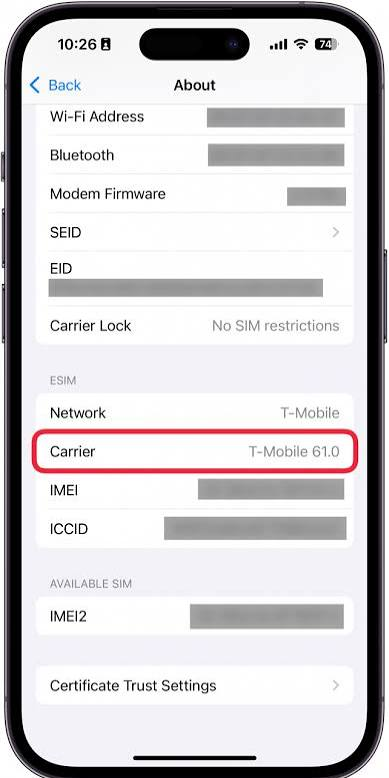
The carrier may need your iPhone model and software version - Contact the provider that issued your SIM or eSIM through its official app or support page. Give the exact error, whether ordinary calls work, the direct-dial result, and whether the phone or SIM recently changed.
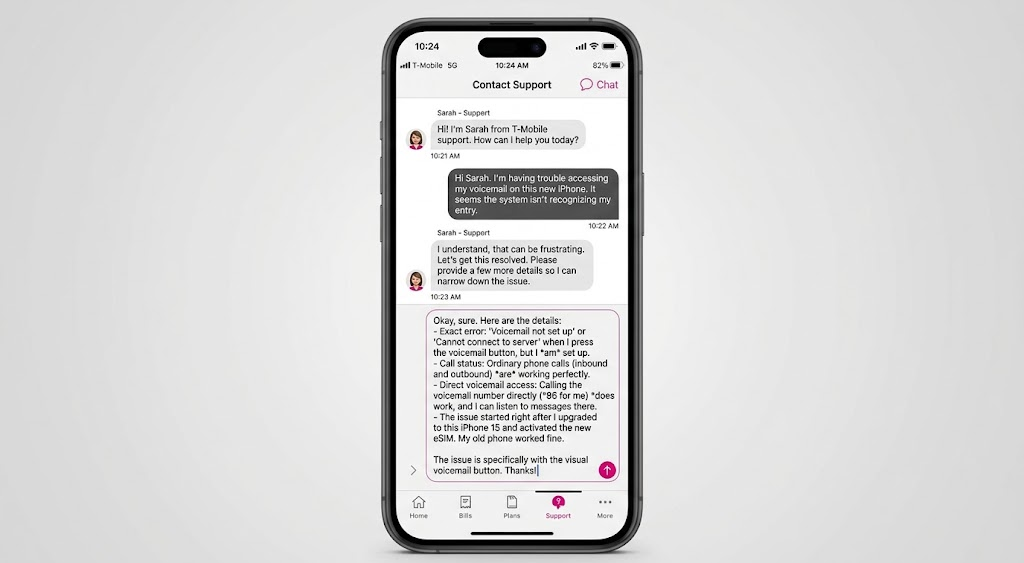
Explain whether direct mailbox access works and whether the phone or SIM changed - Ask it to check voicemail service and the access number for your current line before resetting the mailbox. If direct dialing works, specify that the button or long-press shortcut still fails.
- Follow the carrier’s restart or setup instructions, then retry the original button or long-press action. Confirm that it opens your mailbox, not just that a manually dialed call connects.
If the original control still fails after the carrier’s changes, keep the support case open and report the retest.
If the Request Still Fails
A forwarding command that succeeds but sends calls to the wrong destination needs a call-forwarding configuration check, not repeated activation attempts.
For a rejected code, give the carrier the exact command and response so it can confirm whether the feature is supported. Report SOS, No Service or failed ordinary calls as a wider service problem.
One rejected request is not enough to diagnose an iPhone hardware fault or justify erasing the phone.


