Fix: Can’t Open TXT Files Due to File System Error (-2143322111)
A File system error can appear instead of your text document when Windows tries to open a .txt file in Notepad. The wording sounds like a storage problem, but the failure can happen before Notepad reads the file.
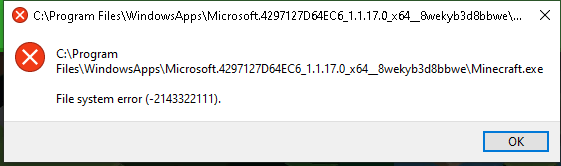
A document that opens in another editor is still accessible; Notepad or the way Windows launches it needs attention. Keep the full error number, such as -2143322111, because different codes with the same wording do not necessarily have the same cause.
The example dialog above names Minecraft. The steps here address text files and Notepad, not that game’s installation.
| What works? | What to check |
|---|---|
| Notepad opens the file through File > Open, but double-clicking fails. | Check the .txt default app. |
| Notepad itself will not open, or says it is unavailable in your account. | Check Microsoft Store, then repair Notepad. |
| Only one file fails in every editor. | Compare another small .txt file from the same folder. Keep the failing original unchanged rather than resetting Notepad. |
1. Open the File Directly and Check Its Default App
Opening a document from inside Notepad avoids the default-app selection used by File Explorer. It is a useful way to regain access without changing the document or resetting the app.
- Search for Notepad in Start and open it. If it will not launch, leave the document unchanged and check the Store in the next section.
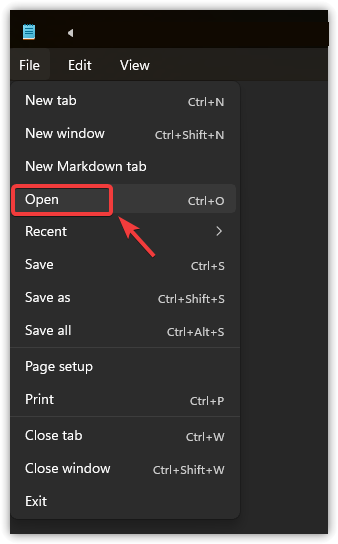
- Select File > Open, or press Ctrl + O.
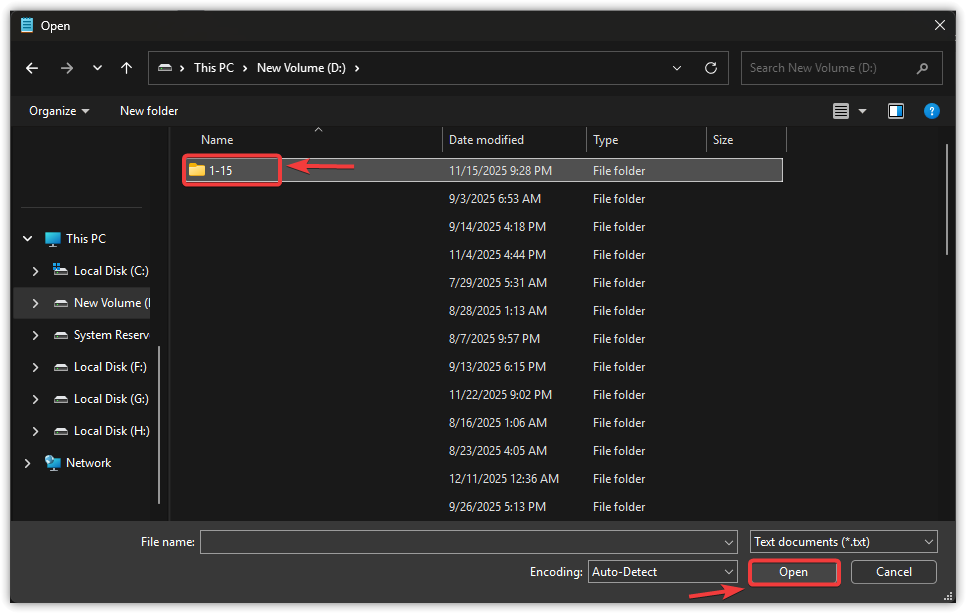
- Browse to your document’s folder, select the .txt file, and choose Open. The folder highlighted below is only an example.
If it opens, save any unsaved work before closing Notepad, then test double-clicking the file again.
When only double-clicking still fails: set the file type’s default through Windows Default apps.
- Open Settings > Apps > Default apps.
- Search for .txt and select its current app. On older layouts, choose Choose default apps by file type first.
- Select Notepad and confirm with Set default or OK if prompted. Test the file again.
Normal opening now means there is no need to reset Notepad. If another trusted editor already installed on the PC can read the file, it can also provide temporary access through Open with.
2. Update Notepad and Check Microsoft Store Sign-In
A Store-installed Notepad can fail to launch with an account or app-access message even though your documents remain in their folders. This deserves a check before removing the app, especially when Paint or Snipping Tool also stops opening.
- Connect to the internet and open Microsoft Store.
- Select the profile icon. If prompted, sign in with the Microsoft account normally used for Store apps on this PC.
- Open Library and check for updates to Windows Notepad and Microsoft Store. Install available updates, then test Notepad again.
- Check Settings > Windows Update for pending updates. Save work and restart if an update requires it.
These checks follow Microsoft’s Store app troubleshooting. If Microsoft Store itself cannot open, the separate Microsoft Store repair guide addresses that problem.
If the same file opens normally after the update or sign-in, no app reset is needed. If it still fails, note any account message before attempting further repairs.
If several Store apps fail together, check for a wider service problem with Microsoft Support before resetting each app. On a managed PC, ask IT about Store restrictions rather than downloading replacement installers.
3. Repair Notepad, Then Consider Reset
Repair attempts to fix the app without deleting its data. Reset returns it to its default state and can remove saved session data, including unsaved tabs. They are not interchangeable.
If Notepad cannot open and unsaved notes matter, preserve its session data first. For the Store version, press Windows + R and open:
%LocalAppData%\Packages\Microsoft.WindowsNotepad_8wekyb3d8bbwe\LocalState\TabStateIf present, copy that folder to a separate safe location without moving, editing, or deleting the original. This preserves possible recovery material, not a guaranteed restore. If those notes are irreplaceable, get recovery help before proceeding with Reset or Uninstall.
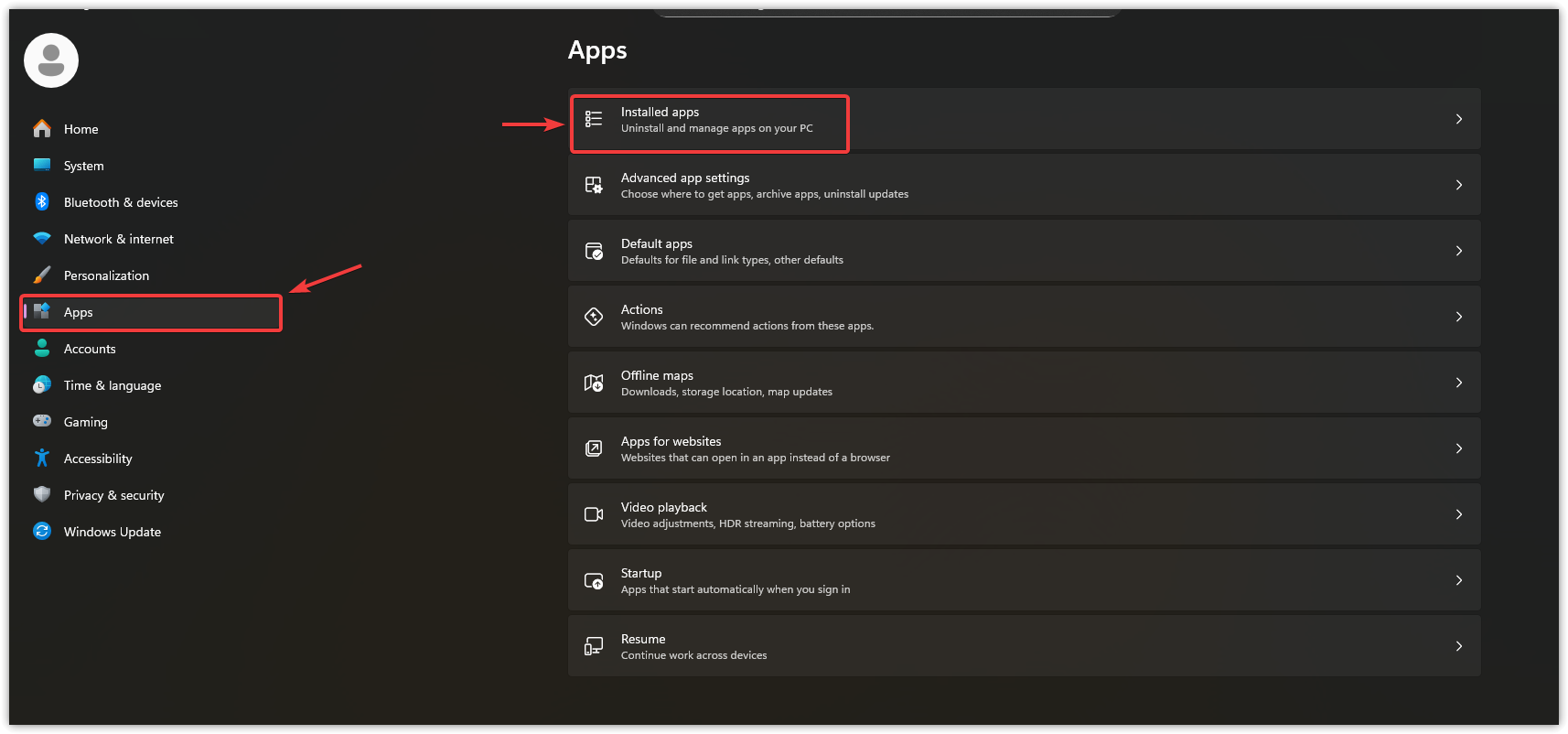
- Open Settings > Apps > Installed apps. On Windows 10, the list is called Apps & features.
- Find Notepad, open its three-dot menu, and select Advanced options.
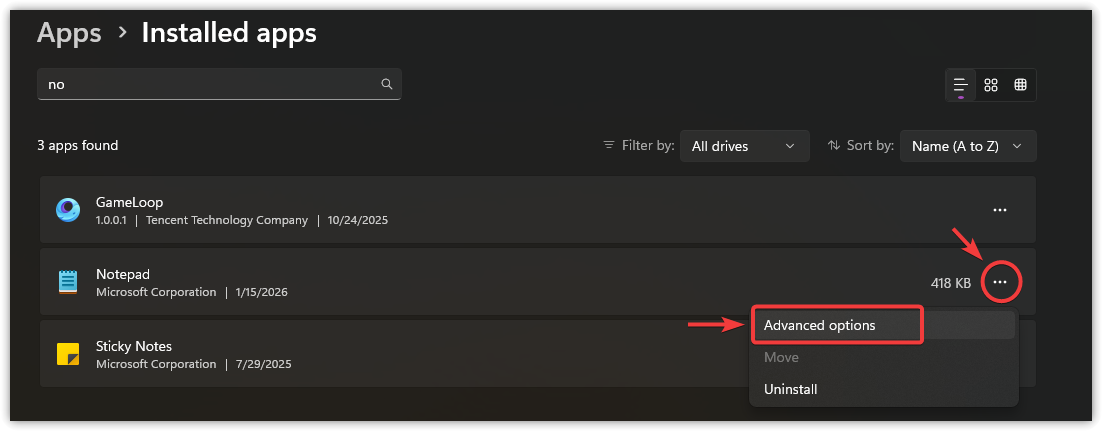
- Select Repair. When it finishes, test Notepad and the same text file.

- If Repair fails and your notes are protected, select Reset on the same page and confirm.
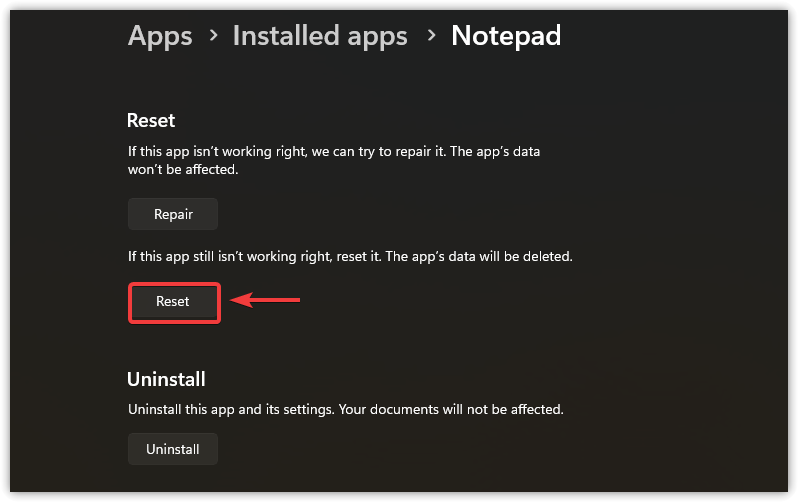
Reopen Notepad and test the file. Restore any preferences cleared by Reset. When normal opening returns, stop here.
These controls apply to the Store app. Older built-in Notepad versions may not offer Advanced options; do not edit the registry to force that screen.
4. Reinstall the Microsoft Notepad App
When Notepad still will not open after app repair, reinstalling replaces its installed package. The same unsaved-tab warning applies. Confirm that Microsoft Store works and offers Notepad for this device before uninstalling it.
- In Settings > Apps > Installed apps, find Notepad, open its menu, and select Uninstall.
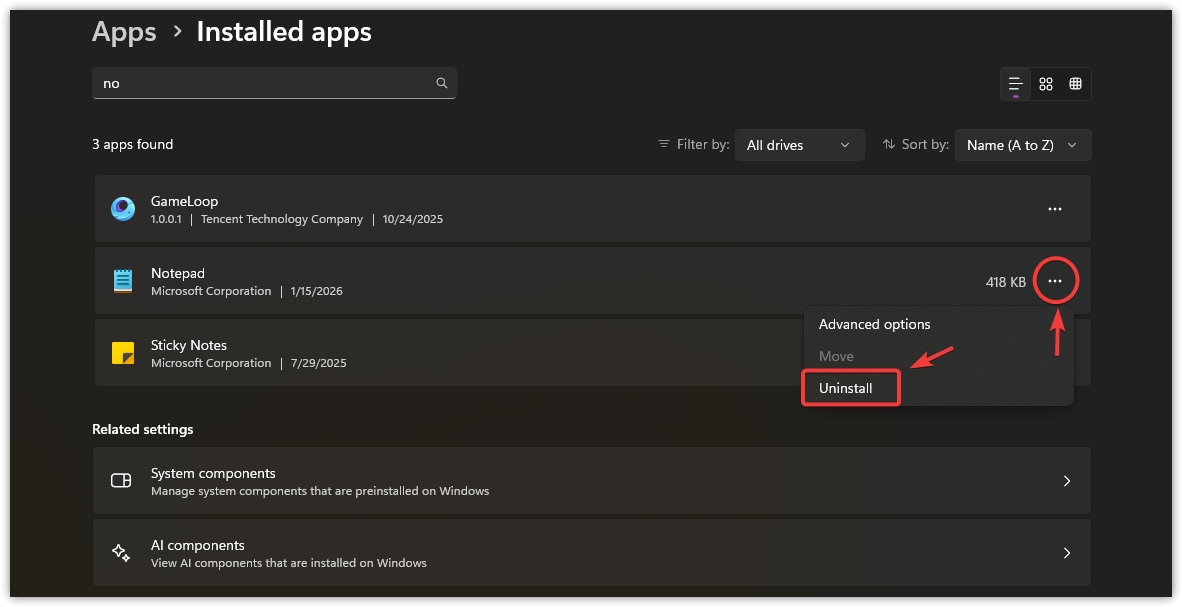
- Restart Windows, then open Microsoft Store and find Windows Notepad published by Microsoft Corporation.
- Select Install and wait for it to finish.
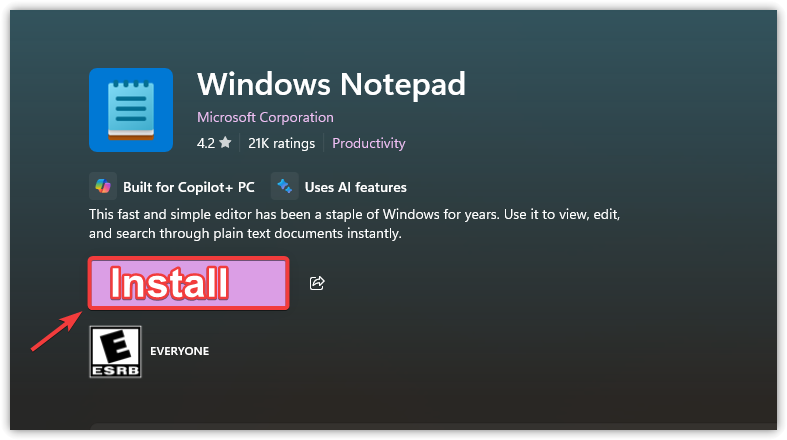
- Open Notepad and test a saved text file. Recheck the .txt default app if necessary.
If Notepad works again, Windows-wide repairs are unnecessary. If installation fails, record the Store error rather than repeating the uninstall. Avoid commands that remove app packages for every user of the PC.
5. Repair Windows Components with DISM and SFC
Several failing Windows features, or persistent errors after the app repairs, can justify checking system components. These tools repair Windows files, not the contents of your text document. They are not a first response to one unreadable file.
Microsoft recommends DISM before SFC. Save work, keep the PC powered and connected to the internet, and ask IT to handle this on a managed device.
- Press Windows + X > Terminal (Admin). Alternatively, search for Command Prompt and choose Run as administrator if Terminal will not open.
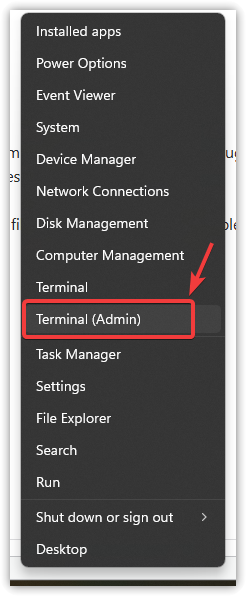
- Optional quick check: this reports whether corruption has already been flagged; it does not repair anything.
DISM /Online /Cleanup-Image /CheckHealth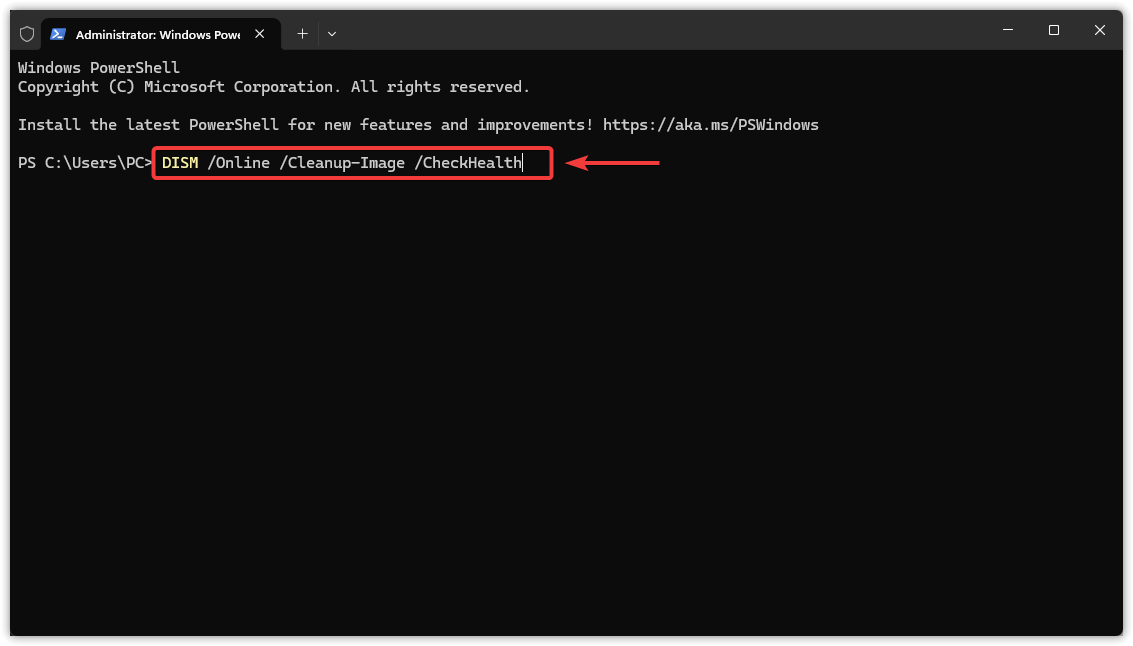
- Optional full check: this scans the component store without repairing it. You can skip both checks and run RestoreHealth directly.
DISM /Online /Cleanup-Image /ScanHealth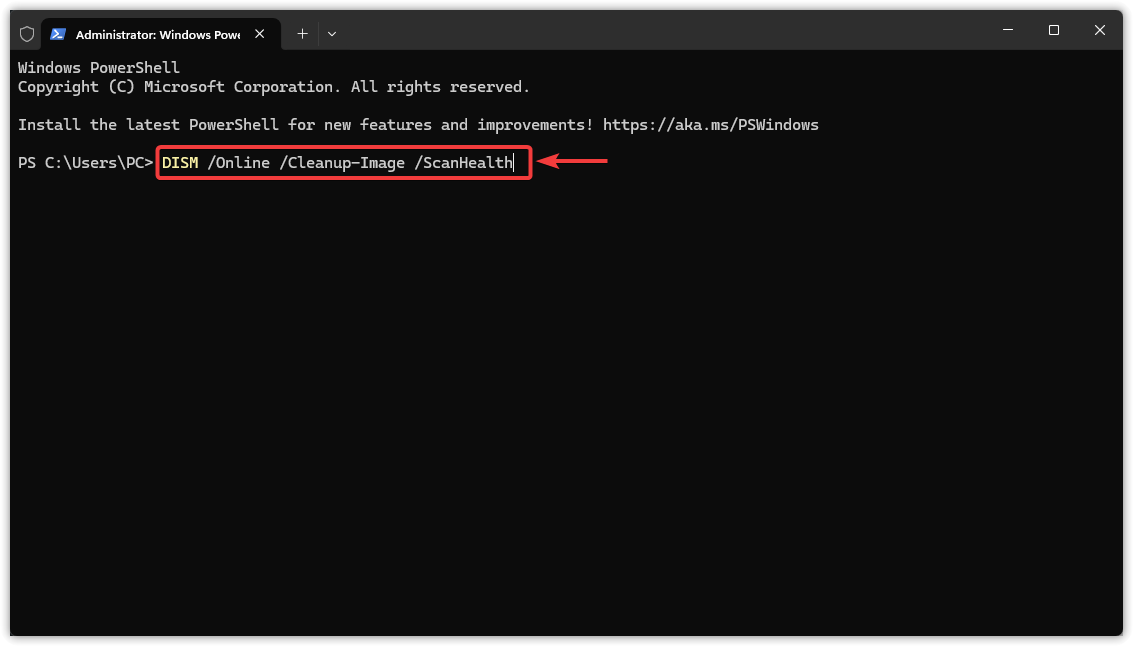
- Run the repair command and wait for its result:
DISM /Online /Cleanup-Image /RestoreHealth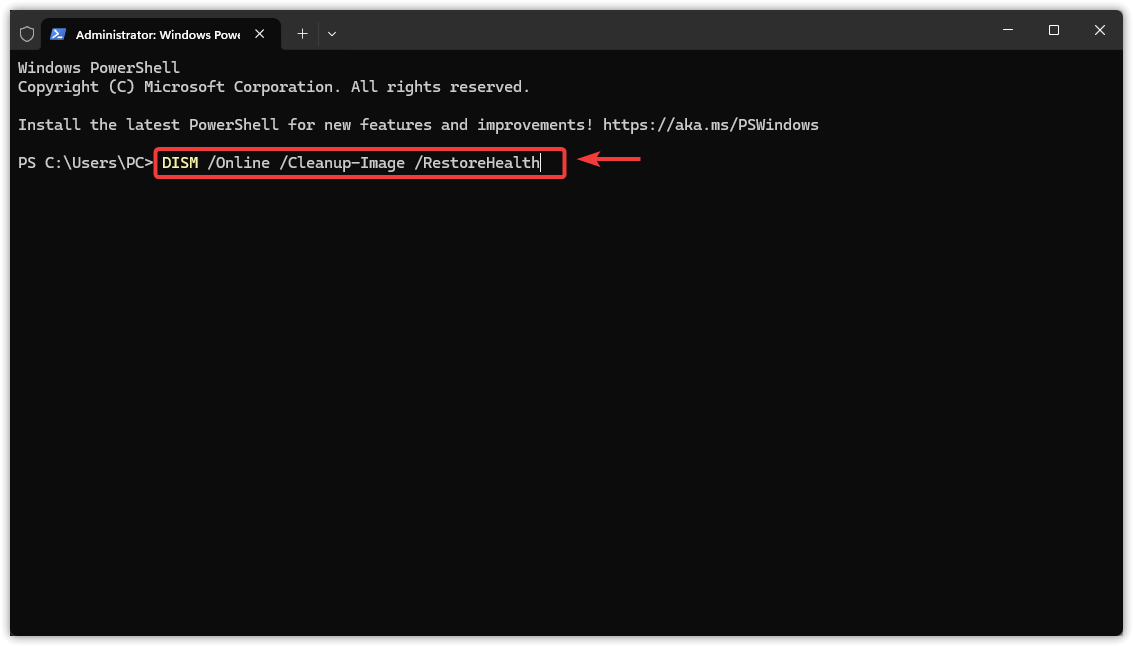
- After DISM completes successfully, use the same administrator window for SFC. If you closed it, reopen an administrator terminal.
- Run the following command and leave the window open until verification finishes:
sfc /scannow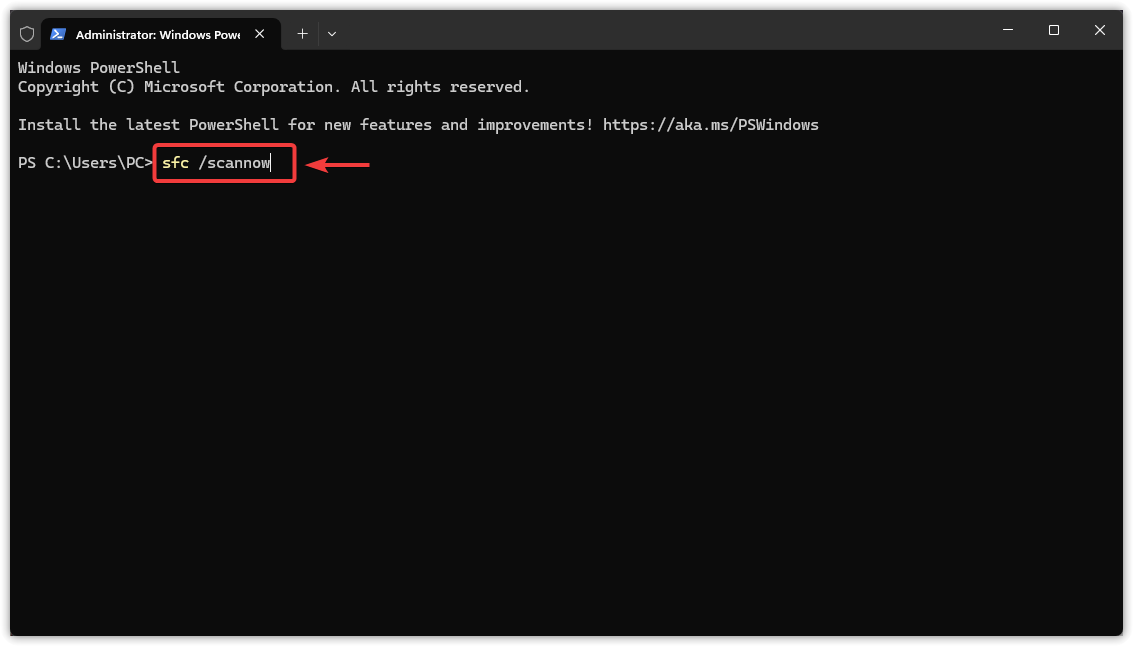
The commands and order follow Microsoft’s Windows system-file repair instructions. Restart afterward and test Notepad.
- No integrity violations: SFC found no corruption in the protected files it checked; that does not rule out an app or account problem.
- Files repaired: test whether the original opening error is gone.
- Unable to repair some files, or DISM fails: keep the full result. The SFC results and log walkthrough explains how to inspect it.
If the error persists, contact Microsoft Support with the exact code, Windows version, and whether Notepad opens by itself or another editor reads the same file. Mention any unsaved tabs before agreeing to further resets.
Actual read/write errors affecting other files or drives need separate storage troubleshooting. Preserve accessible data before disk repairs; a Notepad launch error alone is not a reason to format a drive or reset Windows.


