How to Fix Dell HTTP Boot Error on Windows 11?
A Dell PC that opens HTTP(s) Boot instead of Windows 11 is trying to start from a network server. It may ask for Wi-Fi, report Failed to find IP Address, or show HTTPSBoot failed to initialize network connection.
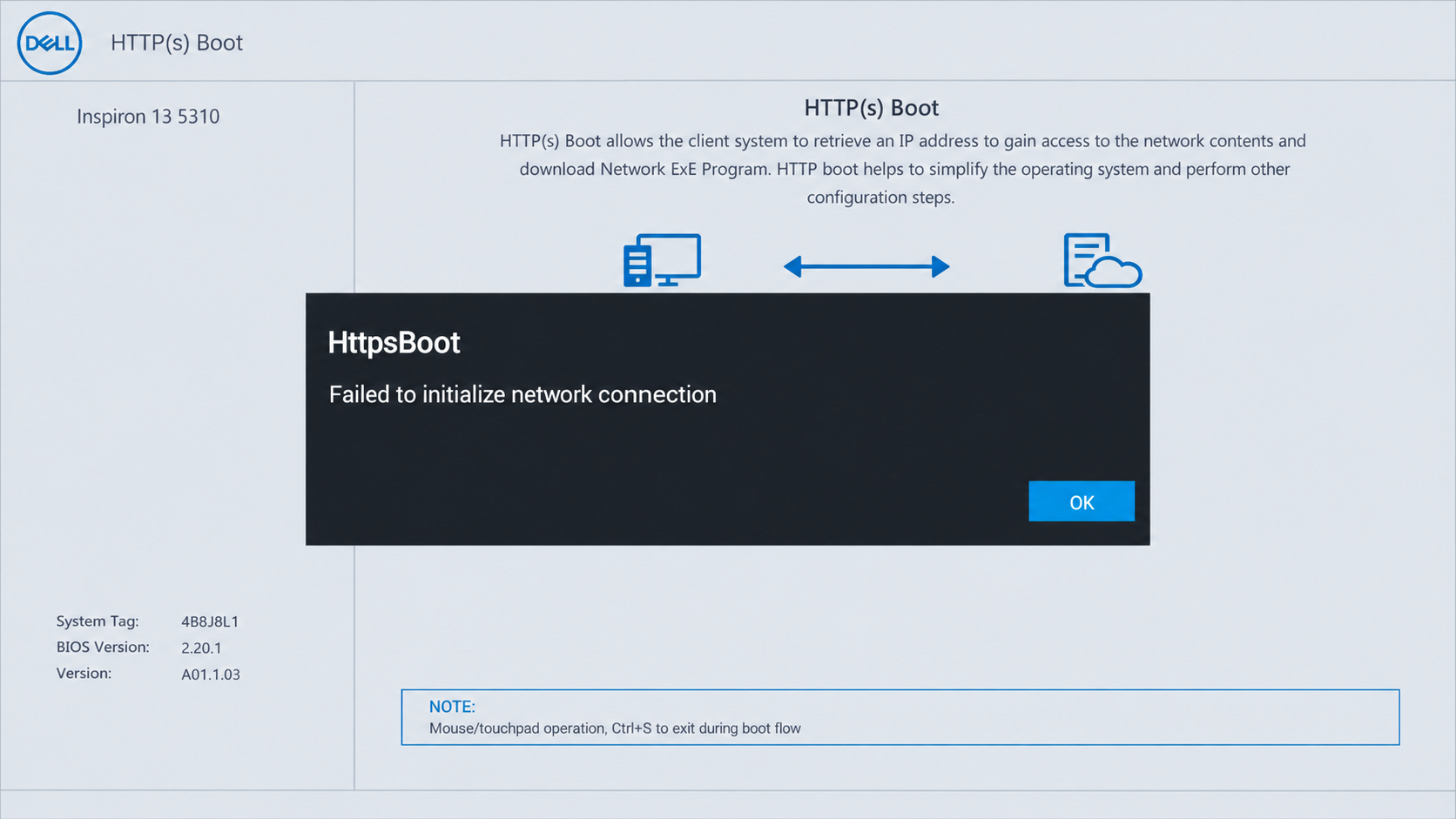
The network message does not prove that Windows was deleted or the SSD has failed. The computer may be choosing network boot before a working Windows installation, or falling back to it because the local Windows boot entry is missing or cannot start.
For a PC that normally starts Windows from its internal SSD, connecting this screen to Wi-Fi does not repair that local boot problem. An intentionally configured work or school network-boot setup belongs with your IT team.
Before Changing BIOS Settings
Microsoft’s recovery-key instructions cover finding it from another device, through your Microsoft account, a saved copy, or your organization’s IT team.
Photograph the current boot settings. Leave Secure Boot, TPM, UEFI/Legacy mode, and RAID/AHCI unchanged; loading BIOS defaults can alter settings Windows depends on. Follow your organization’s policy on a managed PC.
With the PC off, disconnect USB installers or external drives you do not normally boot from, then try startup once. Keep required startup keys connected. If the same HTTP screen returns, check the Windows boot entry.
1. Try Windows Boot Manager from the F12 Menu
The one-time boot menu lets you try the existing Windows entry without changing the saved boot order. A successful boot here confirms that Windows can start before you change its priority.
- Restart and tap F12 repeatedly at the Dell logo to open the One Time Boot Menu.
- Select Windows Boot Manager under the UEFI options and press Enter. Wait for the Windows sign-in screen.
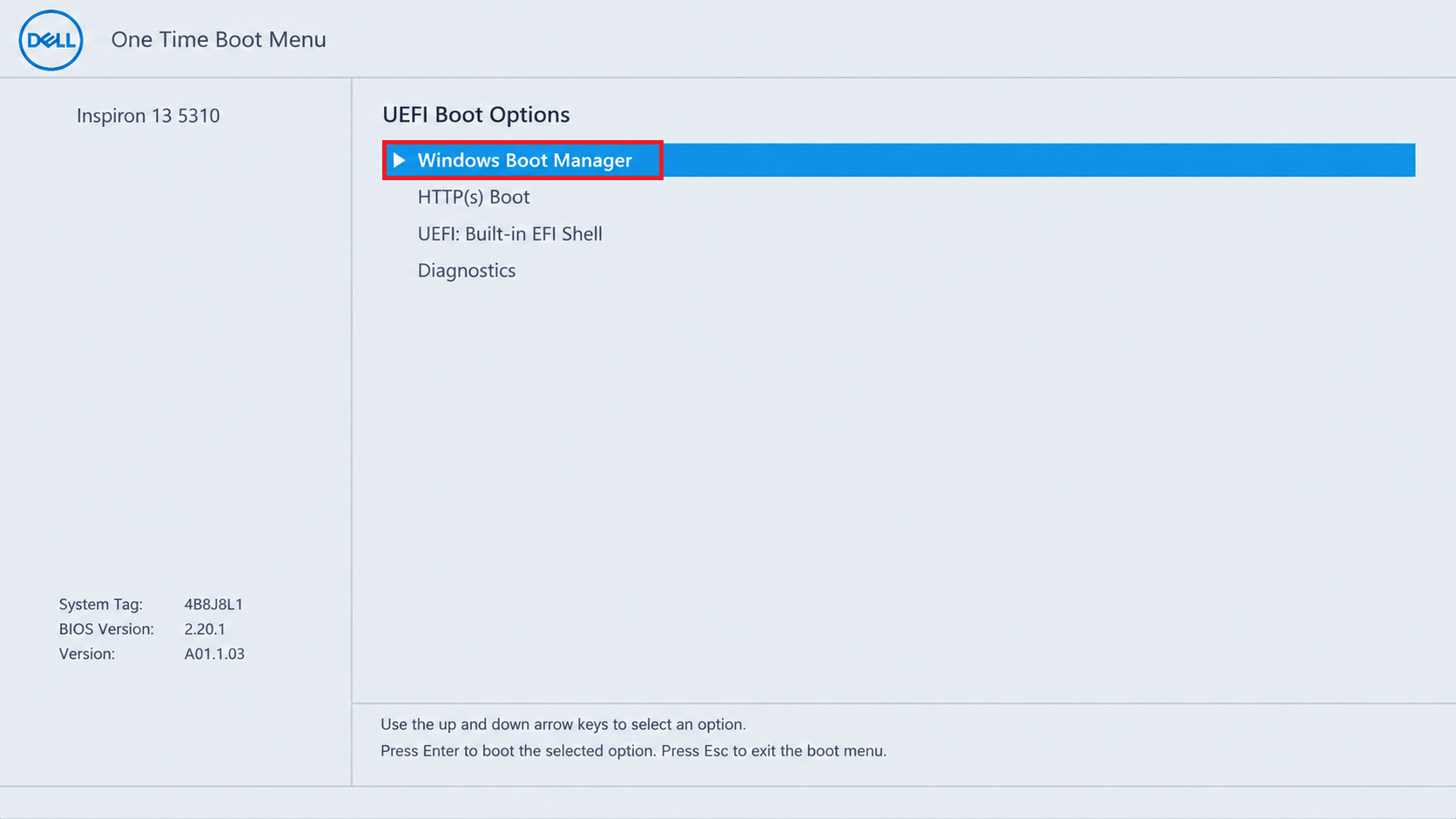
Depending on the model, this page is called Boot Configuration, Boot Sequence, or Boot.
Never force a shutdown during a BIOS update or firmware recovery. Otherwise, if the HTTP screen is unresponsive, hold the power button for about 10 seconds, then start the PC and try F12 again.
When Windows opens, back up important files. F12 affects only that startup; the BIOS setting below makes the choice persistent. If Windows Boot Manager is absent or fails, check the SSD rather than repeatedly selecting HTTP Boot.
2. Put the Working Windows Entry First
After a successful F12 boot, give Windows priority over the network entries. This changes which loader the firmware tries first; it does not repair an entry that failed the F12 test.
- Restart and tap F2 at the Dell logo. Open Boot Configuration, General > Boot Sequence, or Boot, depending on your model.
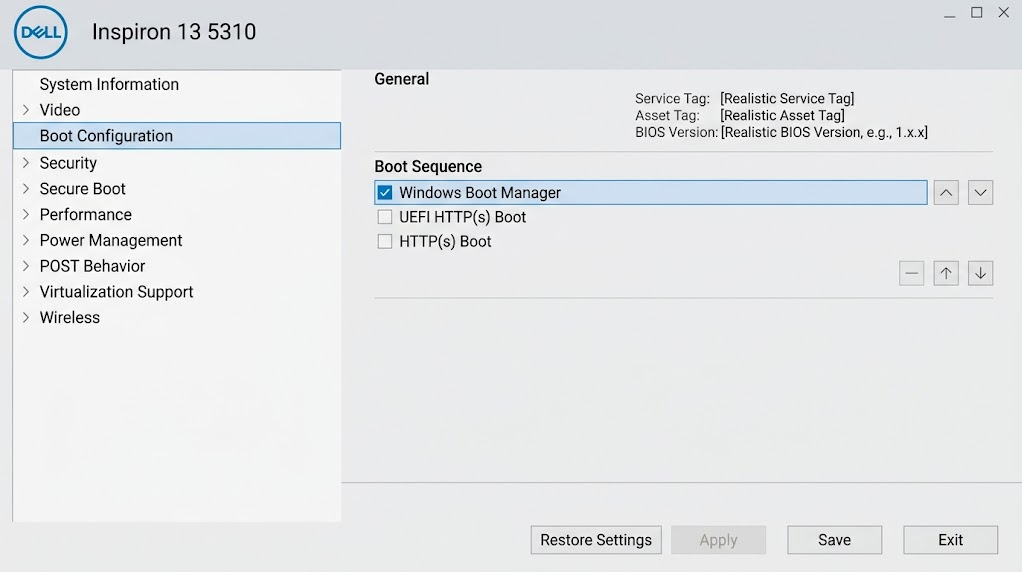
Depending on the model, this page is called Boot Configuration, Boot Sequence, or Boot. - Keep Windows Boot Manager enabled. Select it and use the displayed ordering controls to place it above UEFI HTTPs Boot, PXE, and other network entries. You do not need to copy every checkbox shown in the illustration.
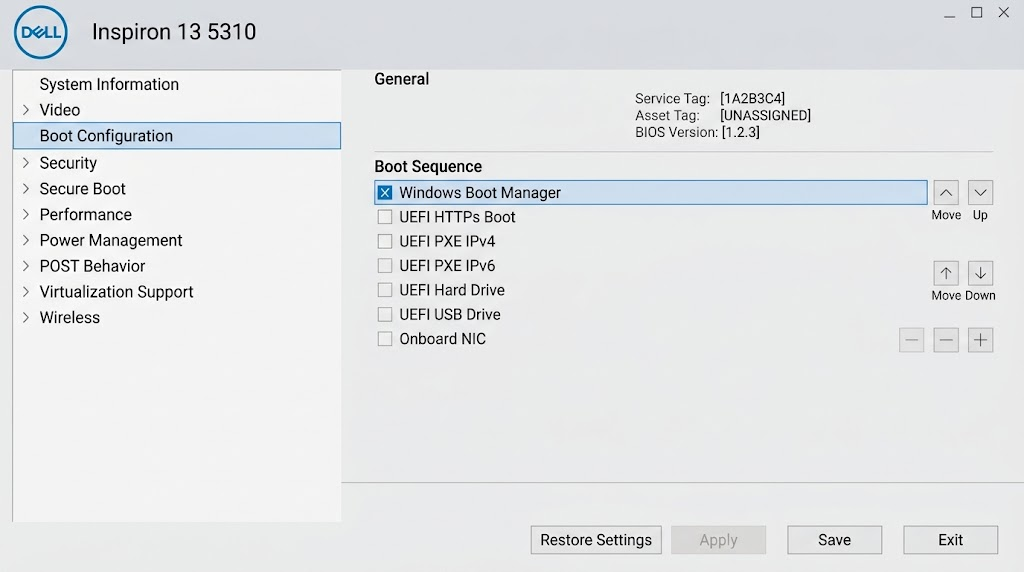
Save the priority change after confirming this entry successfully starts Windows. - Choose Apply Changes and Exit, or your BIOS’s Save and Exit option. Allow normal startup without pressing F12.
The BIOS access instructions can help if you keep missing the startup-key window.
Restart once more to confirm the order stays saved. Network boot can remain available below Windows Boot Manager. Disabling HTTP Boot alone merely removes that fallback; it cannot fix a local Windows entry that will not start.
3. Check Whether the SSD Is Detected
A missing Windows boot entry is not the same as a missing SSD. The drive can still be present even when the firmware has lost its Windows entry. Storage information and Dell’s hardware test help distinguish these cases before you add anything.
- Enter BIOS with F2. In Overview, System Information, or Storage, look for the internal SSD’s model and capacity. Check the installed drive, not an unused slot marked None.
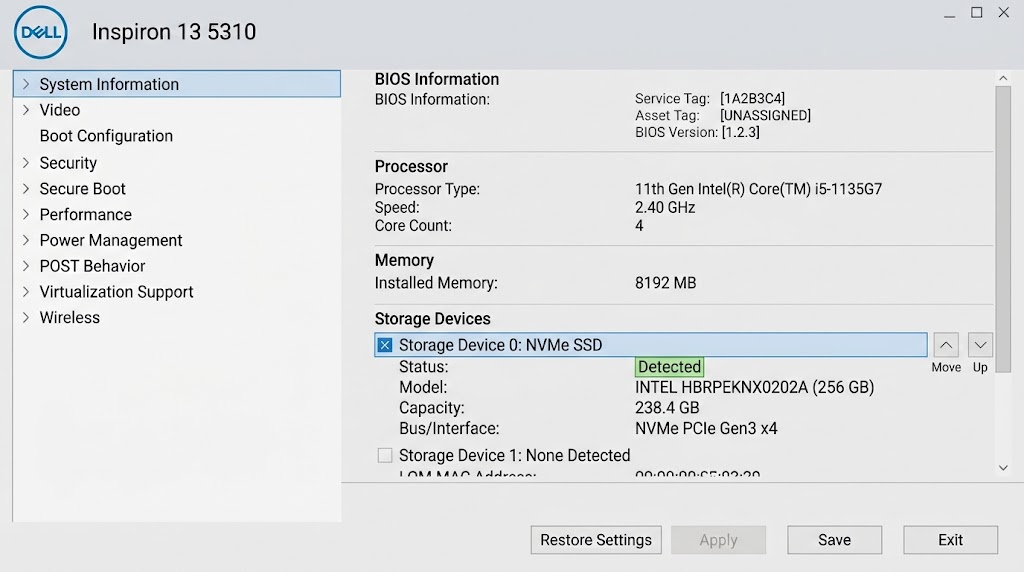
A missing boot entry and a missing storage device are different findings. If the installed SSD is absent or appears only intermittently, stop and contact Dell or a technician. Adding a boot entry cannot make an undetected drive accessible.
- For a detected drive, exit without changing settings. Restart, tap F12, and select Diagnostics. Complete the quick test and answer its prompts, following Dell’s preboot diagnostic instructions.
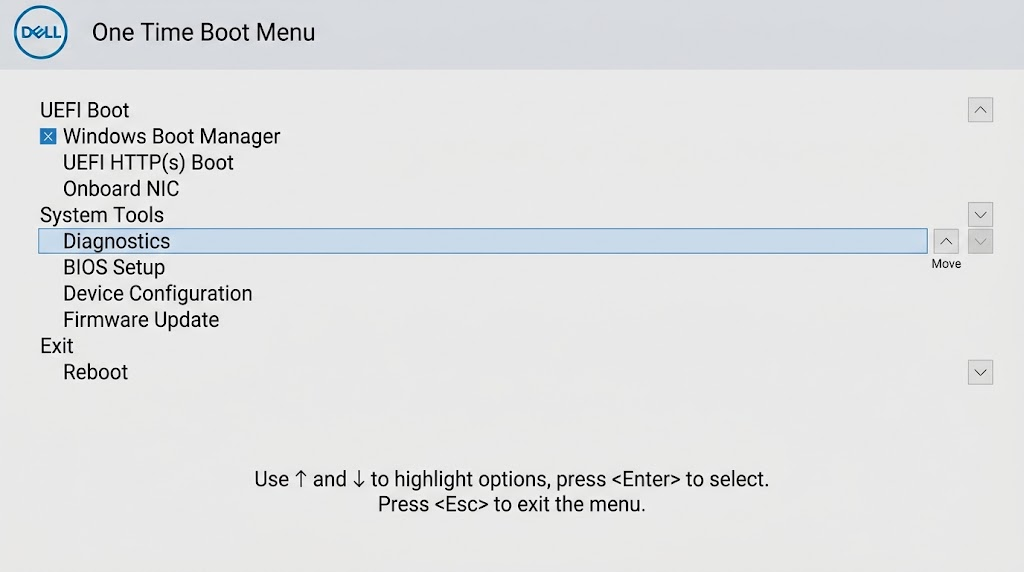
Record any storage error and validation code, a passing test does not prove Windows boot files are intact.
| Result | What to do |
|---|---|
| A storage error appears. | Record the error and validation codes. Prioritize file recovery and hardware assessment before boot repairs. |
| A Secure Boot signature error appears. | Leave Secure Boot enabled and give Dell the exact error. Do not bypass the signature check or treat it like a missing boot entry. |
| The drive passes, but an existing Windows Boot Manager fails with another error. | Keep that entry. Use the Windows recovery guidance at the end rather than adding a duplicate. |
| The drive passes and Windows Boot Manager is missing. | Check for the existing Windows EFI file as described below. A passing hardware test does not prove the boot files are intact. |
4. Restore a Missing Windows Boot Manager Entry
Advanced step: continue only when the SSD is detected, storage diagnostics report no fault, and Windows Boot Manager is absent. Adding an entry points the firmware to an existing Windows boot file; it does not recreate that file or reinstall Windows.
Illustrations show example layouts, not settings to copy wholesale. Some show Windows Boot Manager already listed: do not add another entry if yours is present.
For unavailable or password-protected controls, consult your exact Dell model’s manual or IT.
To undo an unsuccessful addition, remove or disable only the new entry and restore your photographed order. This restores the old settings, not necessarily a working startup.
- Enter BIOS with F2 and open the UEFI boot configuration page. Choose Add Boot Option or File Browser Add Boot Option. Do not switch to Legacy mode to expose different controls.
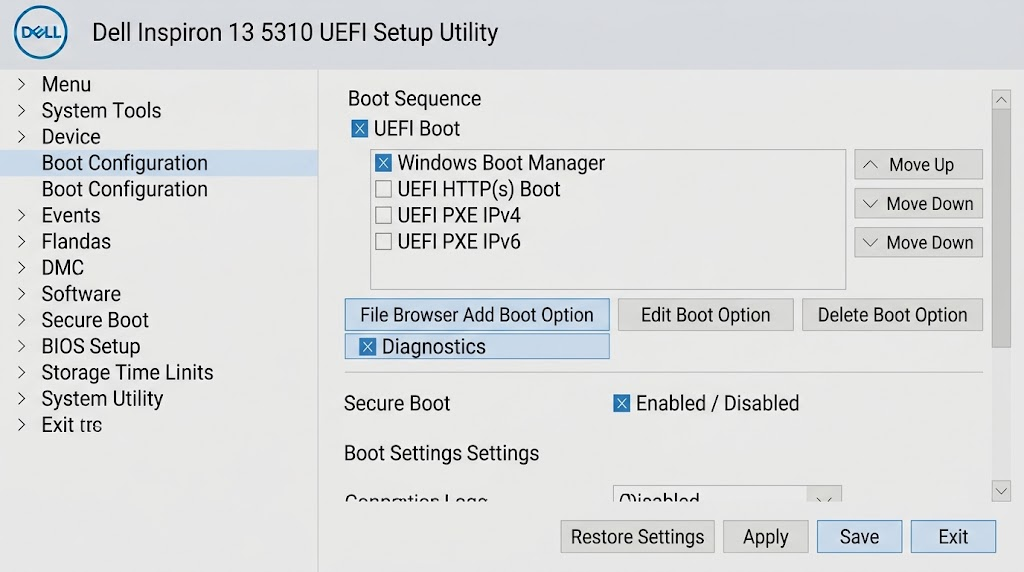
Some Dell firmware uses the label File Browser Add Boot Option. - Open Browse or the … file-picker button. Identify the internal Windows disk’s EFI file system, then open EFI > Microsoft > Boot.
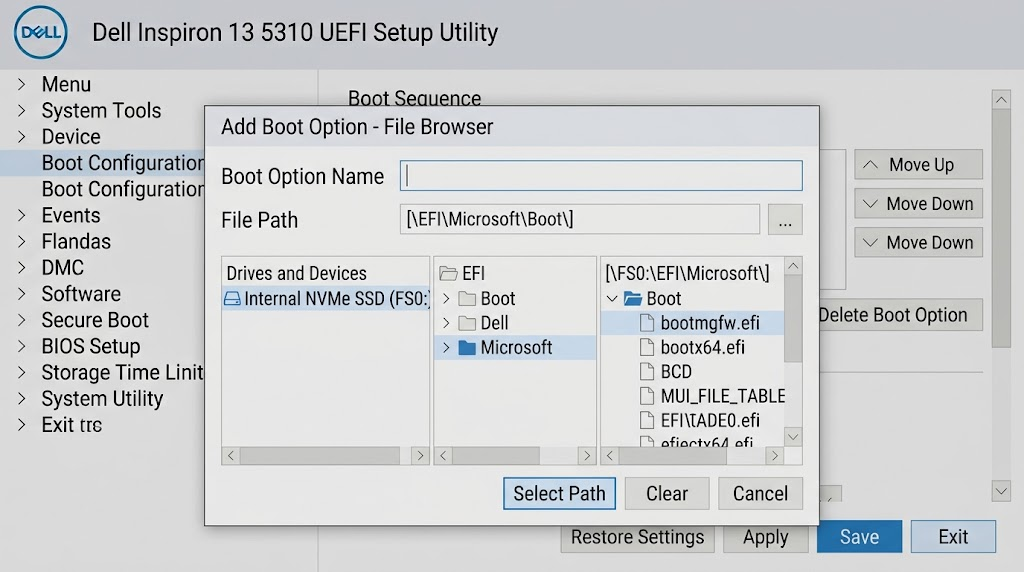
Continue only when you can identify the internal Windows disk and its existing EFI files. Firmware may use identifiers such as FS0 instead of drive letters. Do not assume FS0 is always the right disk. With several disks or Windows installations, cancel if you cannot identify the correct one.
- Select the existing bootmgfw.efi file. Microsoft’s UEFI documentation identifies its location as
\EFI\Microsoft\Boot\bootmgfw.efi.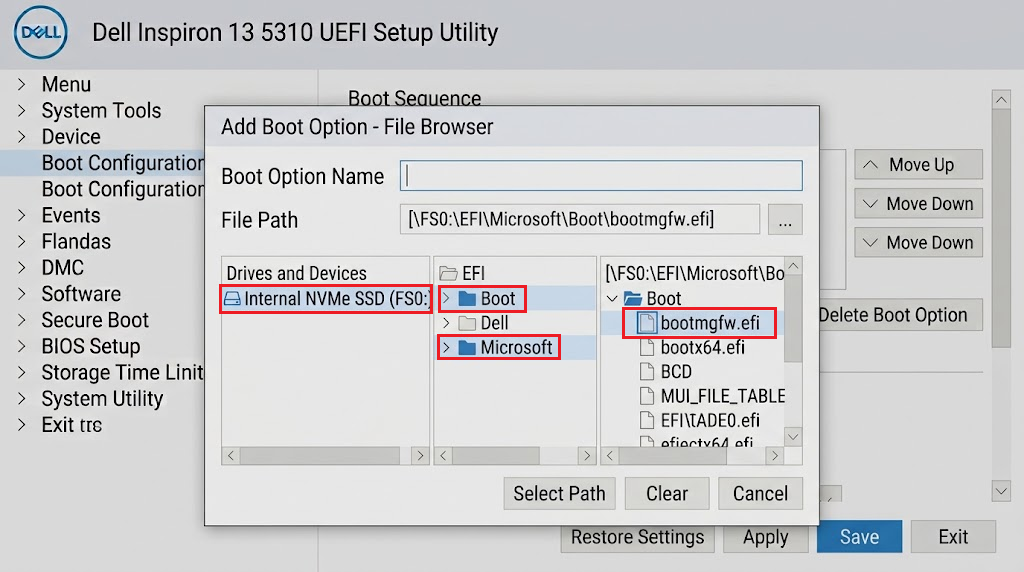
The required file is bootmgfw.efi under EFI, Microsoft, and Boot. If that folder or file is missing, cancel. Typing its name will not recreate it. Do not format the EFI partition or download a replacement from an unofficial site.
- Name the entry Windows Boot Manager, confirm it points to the selected file, and accept the dialog with OK or its equivalent.
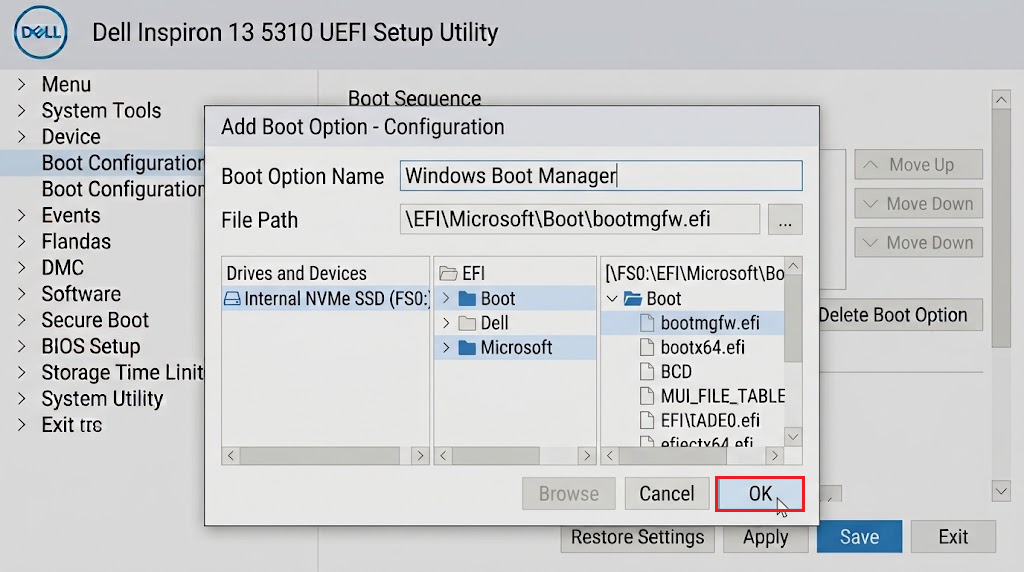
Naming an entry alone is insufficient, it must refer to the existing Windows EFI file. - Enable the new entry, move it to the top, then save and exit.
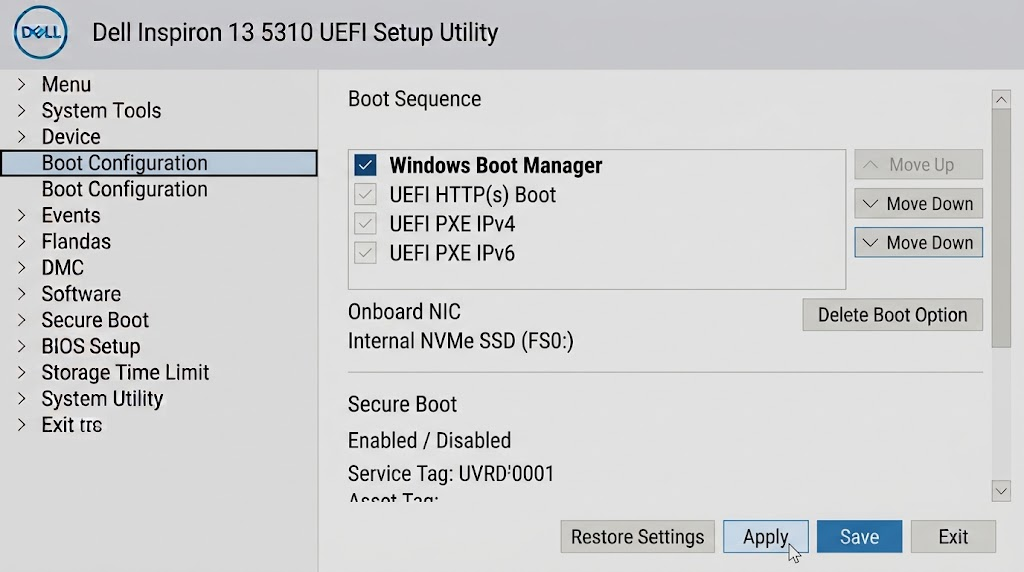
Apply the change and test normal startup, then restart once more to check that it persists.
If Windows starts, restart once to check that the entry persists. If BitLocker appears, match the displayed recovery-key ID to your saved key. If the new entry still fails, stop adding entries and record the new error for support.
If Windows Still Will Not Start
A detected SSD with missing or damaged boot files may need Windows recovery rather than more BIOS changes. Ask Dell or IT to guide this repair, especially if important files are not backed up.
Microsoft’s recovery-media instructions explain creating a USB on another working PC. Use an empty USB: creating installation media erases its contents.
Boot the recovery USB from F12. In Windows Setup, choose Repair my PC or Repair your computer, then Troubleshoot > Advanced options > Startup Repair. Choose repair, not installation or reset.
Startup Repair can attempt boot-file repairs, but it cannot fix an undetected or failing drive. Preserve recoverable files first.
An I/O device error during copying needs storage troubleshooting; avoid repair writes to that drive.
Give support your Dell model, BIOS version, SSD detection result, diagnostic codes, and any recent update, cloning, or drive replacement. Photograph the exact new error.


