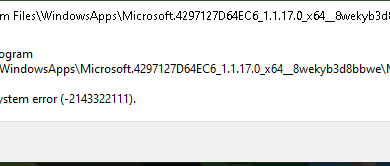
How to Fix the Visual C++ Runtime Error in Non-Steam Games on Steam Deck?
A non-Steam Windows game on Steam Deck can refuse to open with “The following components are required to run this program: Microsoft Visual C++ Runtime”. The game needs Microsoft’s runtime libraries, but cannot find a usable installation.
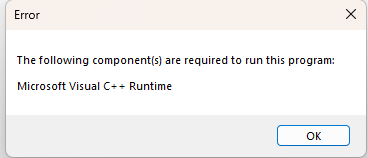
Installing the runtime can appear to work while the game keeps asking for it. On SteamOS, Windows games run inside compatibility folders called prefixes. A separate installer shortcut can use a different prefix, leaving the affected game’s libraries unchanged.
These instructions cover SteamOS. A Deck running Windows needs the Windows runtime components instructions instead.
compatdata or pfx, recreate the Steam shortcut, or reset the Deck to install a runtime.| How you launch the game | Where to install the runtime |
|---|---|
| A Windows executable added directly to Steam | Its existing Steam shortcut, using Method 1 or the Protontricks alternative. |
| A game installed through Heroic, including its Steam shortcut | The game’s Wine settings in Heroic, in Method 3. |
Match the game’s stated runtime requirement. The current v14 package does not replace Visual C++ 2013 or earlier; those have separate downloads on Microsoft’s page.
1. Run Microsoft’s Installer Through the Existing Steam Shortcut
Adding the installer as another non-Steam game can give it its own prefix. Running it through the affected game’s shortcut keeps the installation with that game.
- Close the game. Press Steam > Power > Switch to Desktop.
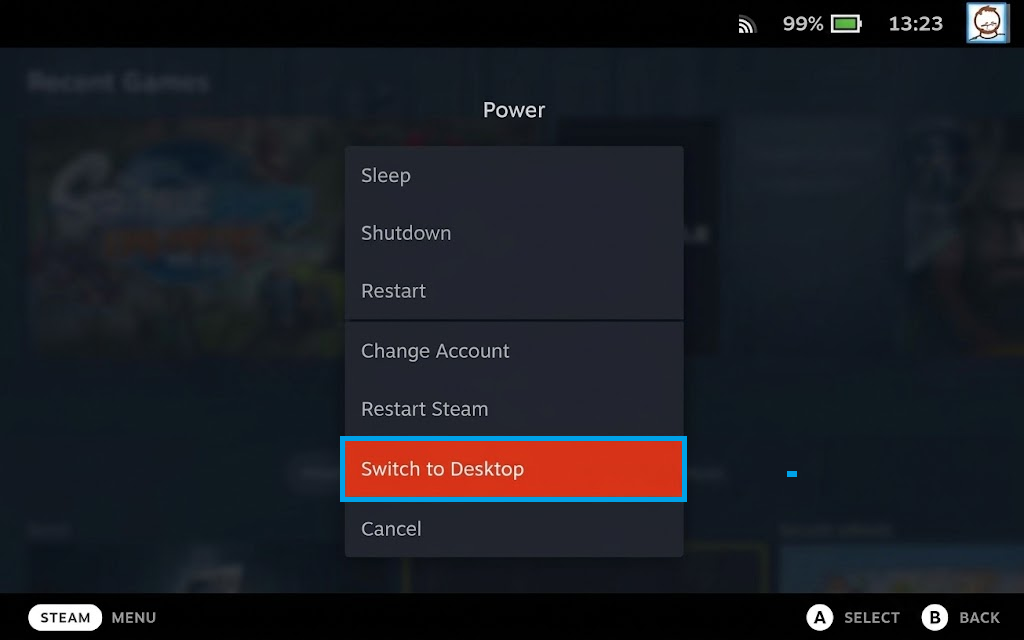
Use the desktop to download and run the Microsoft installers. - From Microsoft’s Visual C++ downloads, download the X64 and X86 v14 installers, not ARM64.
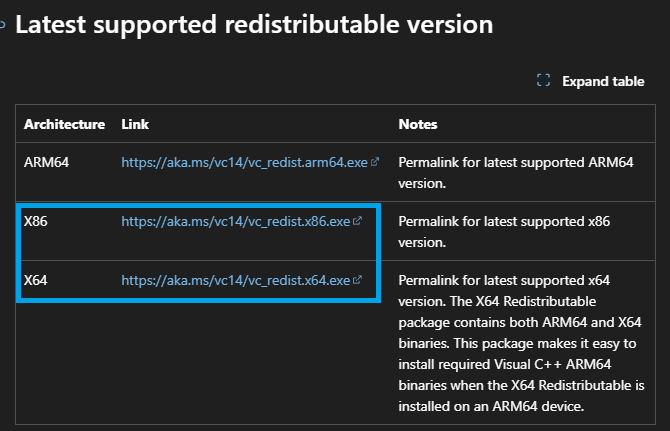
A 64-bit game can also use a 32-bit launcher or helper. - In desktop Steam, right-click the affected game and open Properties > Shortcut. Copy Target, Start In, and Launch Options into a note. Leave its name unchanged.
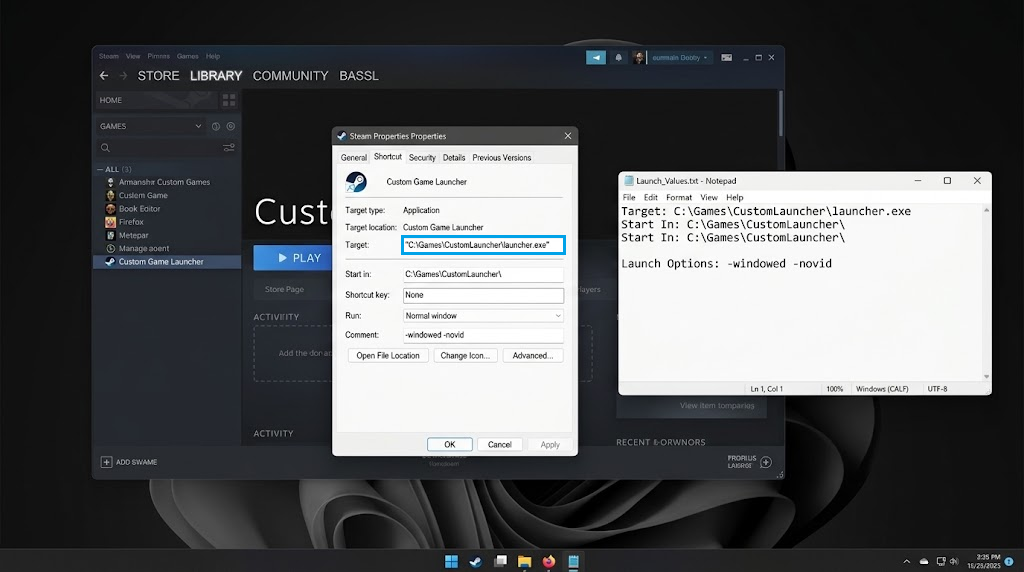
Keep a copy of the original values before temporarily changing the executable. - In Compatibility, record and retain the Proton version that already displays the error. Keep the compatibility tool enabled for the Windows executable; do not copy the old version pictured.
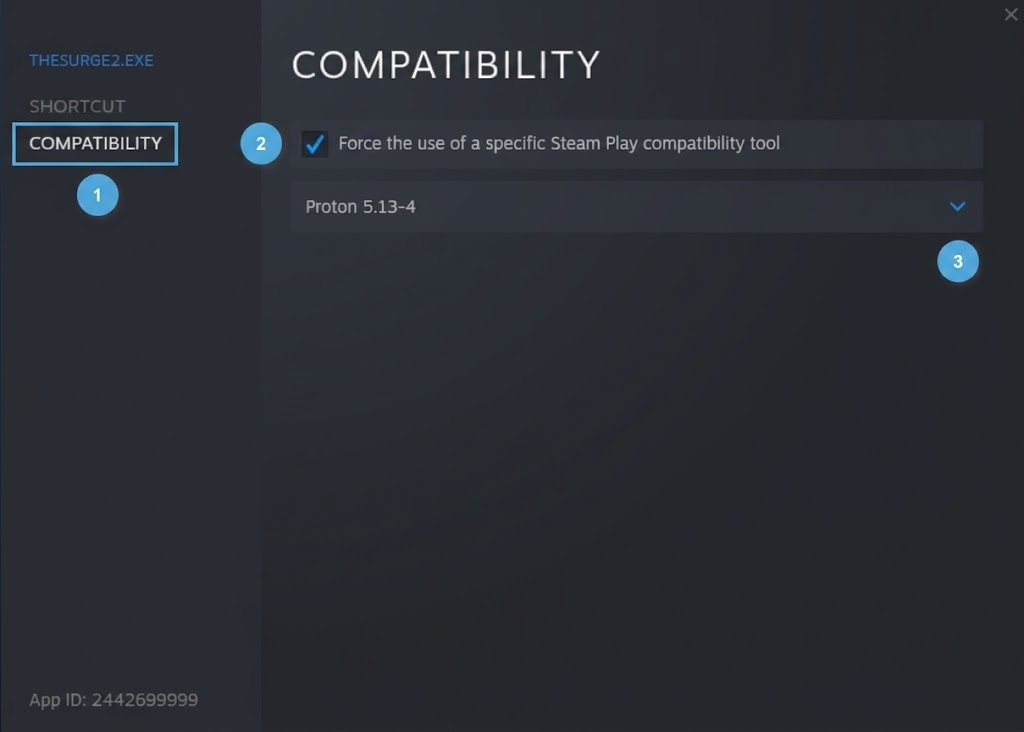
Use the Proton version that already reaches the runtime message. - Check Launch Options before making changes. Remove game-only arguments temporarily, but keep any existing
STEAM_COMPAT_DATA_PATHoverride and its%command%. If custom launcher options are unclear, leave the shortcut unchanged and use Protontricks instead. - Under Shortcut, temporarily point Target to the downloaded x64 installer and Start In to its folder. Quote both full locations:
Target: "/home/deck/Downloads/vc_redist.x64.exe"
Start In: "/home/deck/Downloads"
Use your actual filename and location, not Windows
C:\paths from an illustration.Keep the existing prefix selected; do not introduce a new
STEAM_COMPAT_DATA_PATHlocation.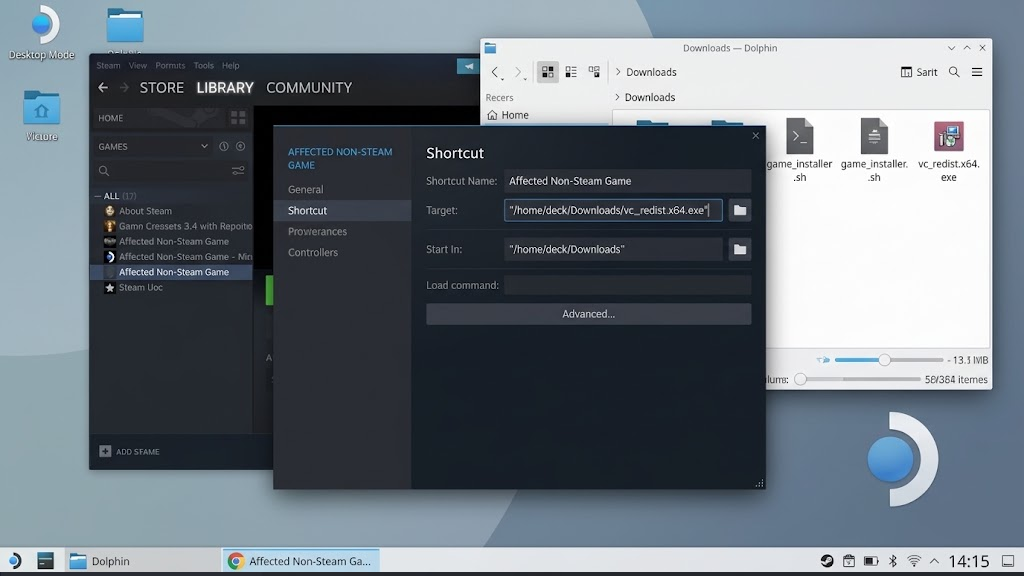
Target points to the installer; Start In points to the folder containing it. - Close Properties and press Play on that shortcut. Choose Install, or Repair if offered, and wait for actual completion. The illustration shows the Install screen, not confirmation that setup finished.
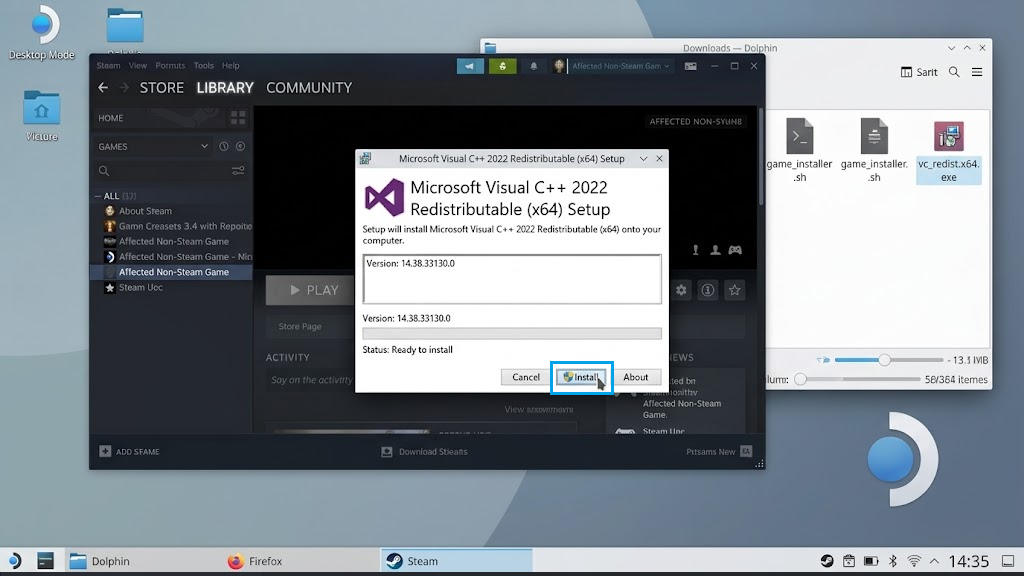
Wait for setup to finish before closing it or starting the other package. - Repeat with vc_redist.x86.exe through the same shortcut. Keep a newer installed version if setup reports one; record other errors rather than treating a closed window as success.
- Restore your original Target, Start In, and Launch Options, even if installation failed.
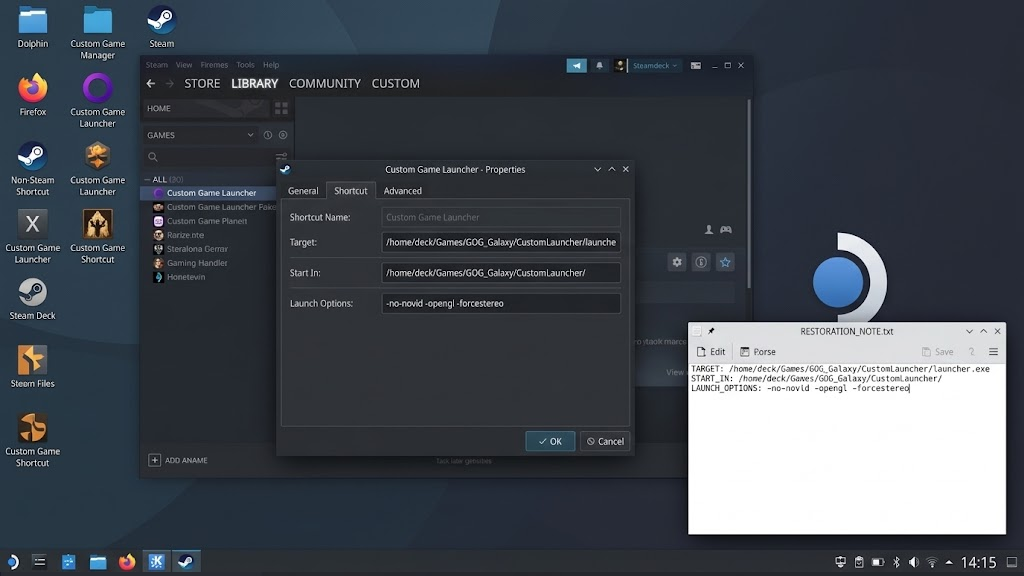
Restore Target, Start In and Launch Options before testing the game. - Launch the restored game. After it opens in Desktop Mode, test the same entry in Gaming Mode.
Once the runtime message disappears, no further runtime installation is needed. If setup failed, Protontricks offers another way to install the component without replacing the game prefix.
2. Install the Matching Component with Protontricks
Protontricks lets you select the Steam game before installing Windows components. It is an alternative to editing the shortcut, not an extra installation required after a successful repair.
Match the game’s published requirement. vcrun2022 covers Visual C++ 2015-2022; newer games may need a newer v14 package from Microsoft. Do not select overlapping vcrun versions or replace a newer installed runtime with an older one.
- In Desktop Mode, open Discover, search for Protontricks, and install its Flathub package. The official Protontricks project identifies the supported package. Open it when installation finishes.
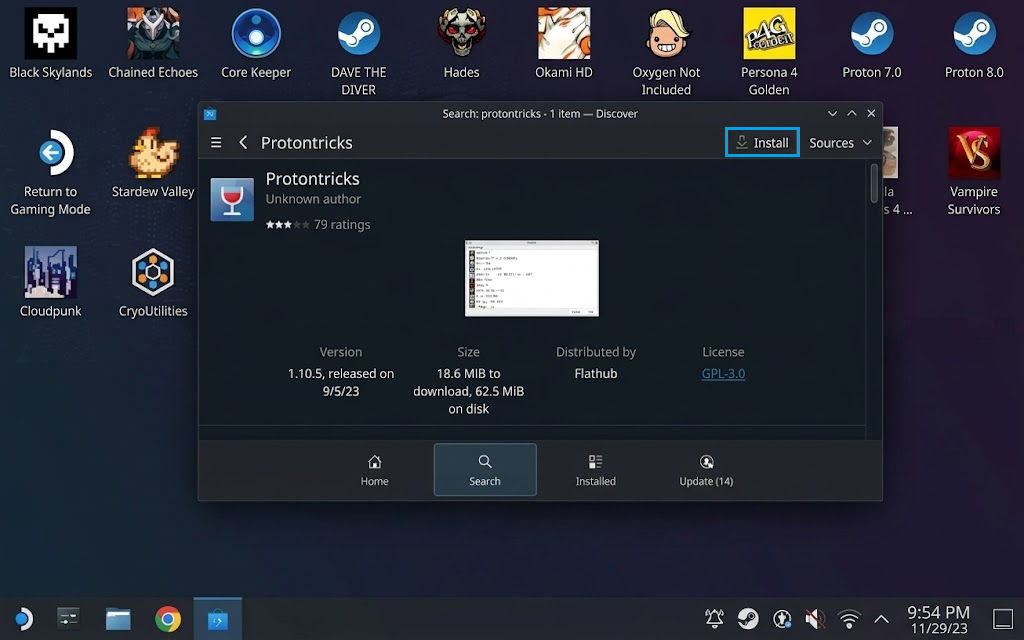
The Flatpak package provides a graphical way to manage a game’s runtime components. - Select the affected game, not the sample title shown. If missing, launch that existing Steam shortcut once with Proton, close the error, and reopen Protontricks.
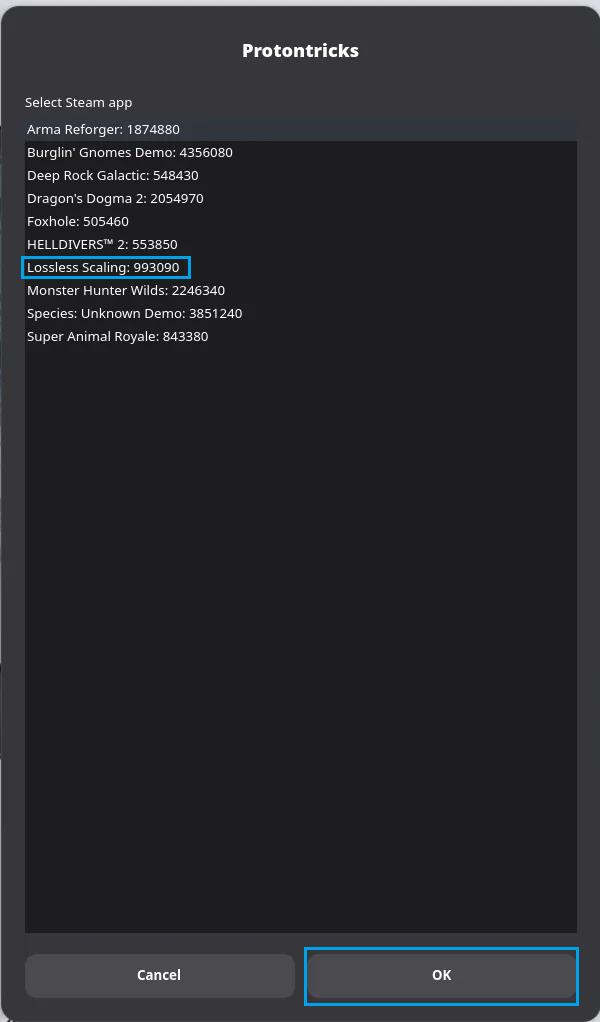
Choose the same Steam entry that produces the runtime error. - Choose Select the default wineprefix > OK.
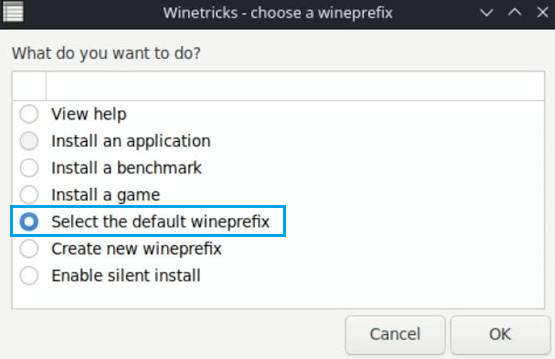
Here, the default wineprefix belongs to the game selected in Protontricks. - Choose Install a Windows DLL or component > OK.
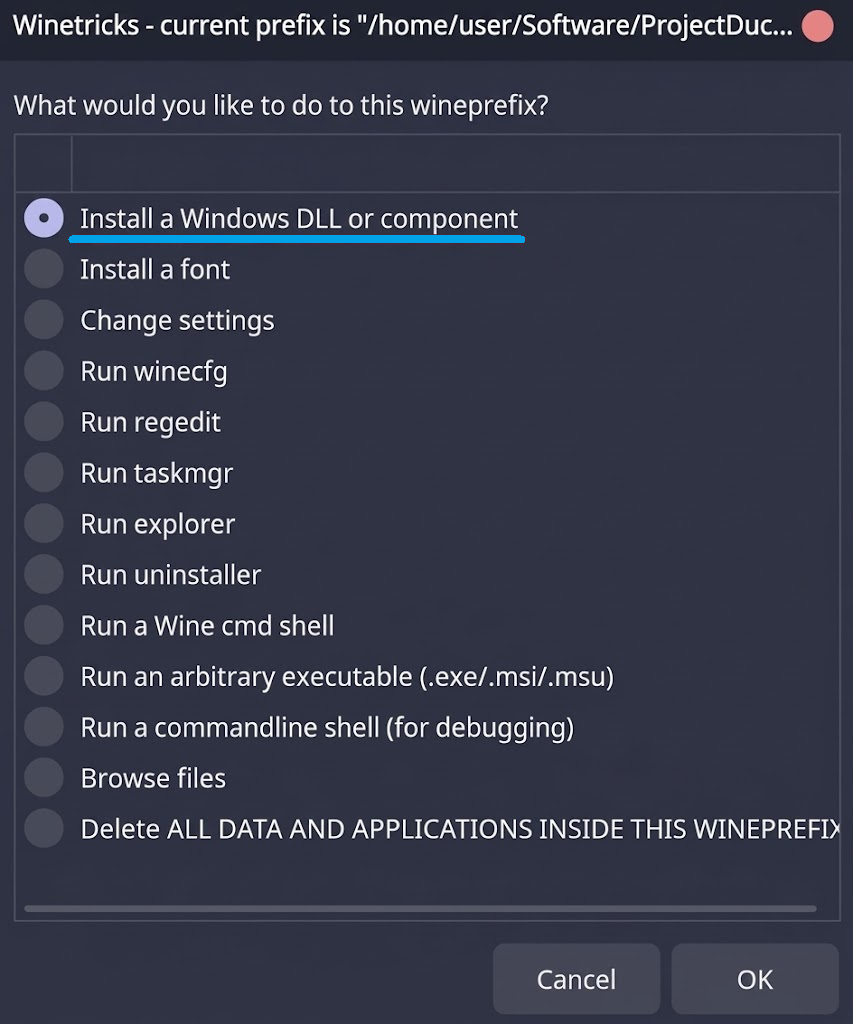
Visual C++ packages are listed with the other Windows components. - For a matching 2015-2022 requirement, select vcrun2022 only, then OK. Leave unrelated entries unselected. If already installed, do not keep adding older packages.
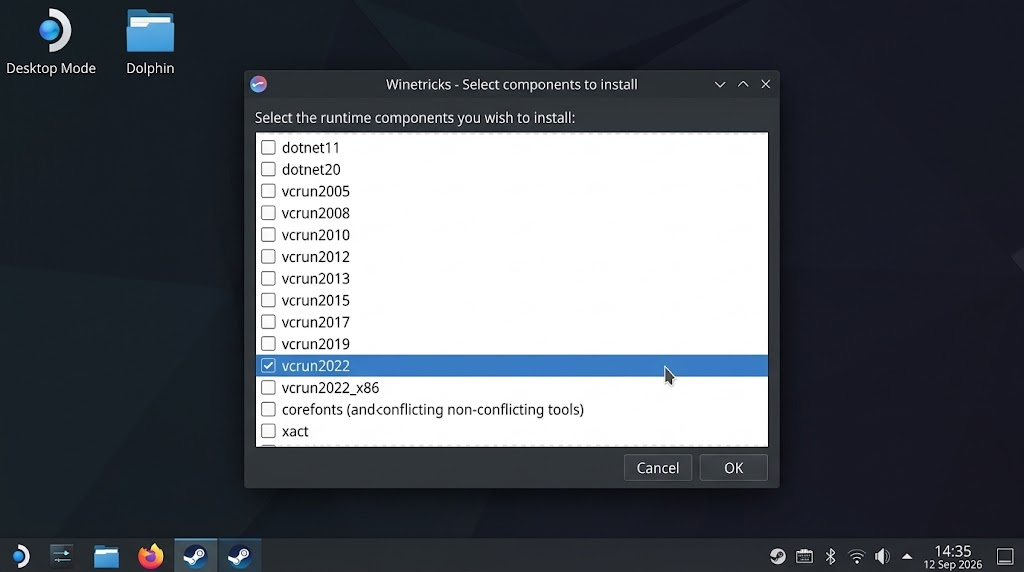
Use vcrun2022 for a matching requirement, without replacing a newer installed runtime. - Finish every Microsoft installer that opens. Stop and record any setup error rather than forcing past it.
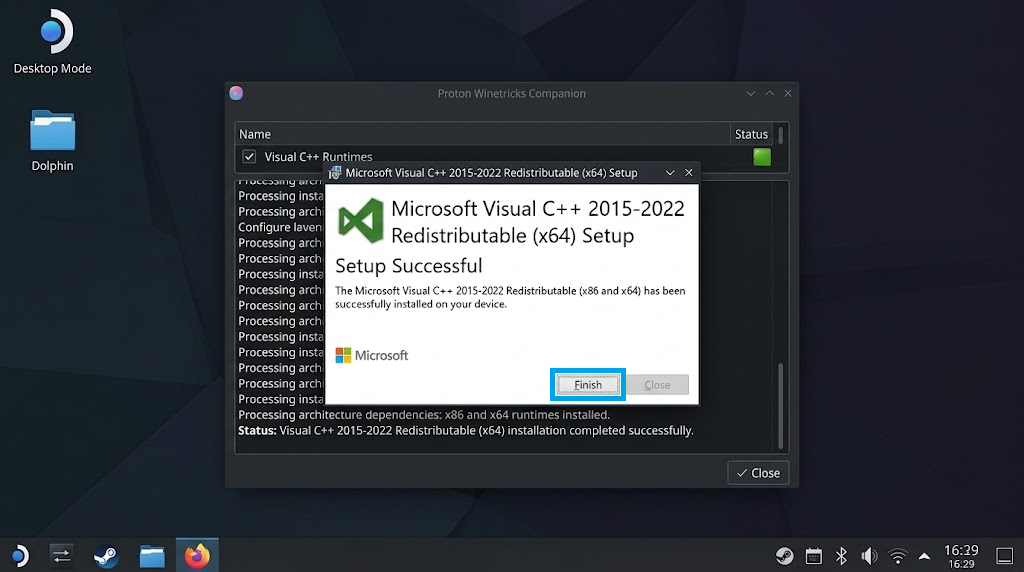
Protontricks can run more than one setup window for a runtime component. - Close Protontricks and launch the original game in Steam. If it opens normally, leave the other runtime packages alone.
A library on an SD card may need additional Protontricks Flatpak folder permissions. Grant access to that specific library folder, not the entire filesystem; moving or deleting the prefix is unnecessary.
3. Install the Runtime in the Heroic Game’s Prefix
A Heroic game can appear in Steam but still use the prefix managed by Heroic. Its Run EXE in Prefix procedure installs the runtime there, without redirecting the game elsewhere.
- In Desktop Mode, close the game and open Heroic > your game > Settings > Wine. Keep its existing runner and prefix location.
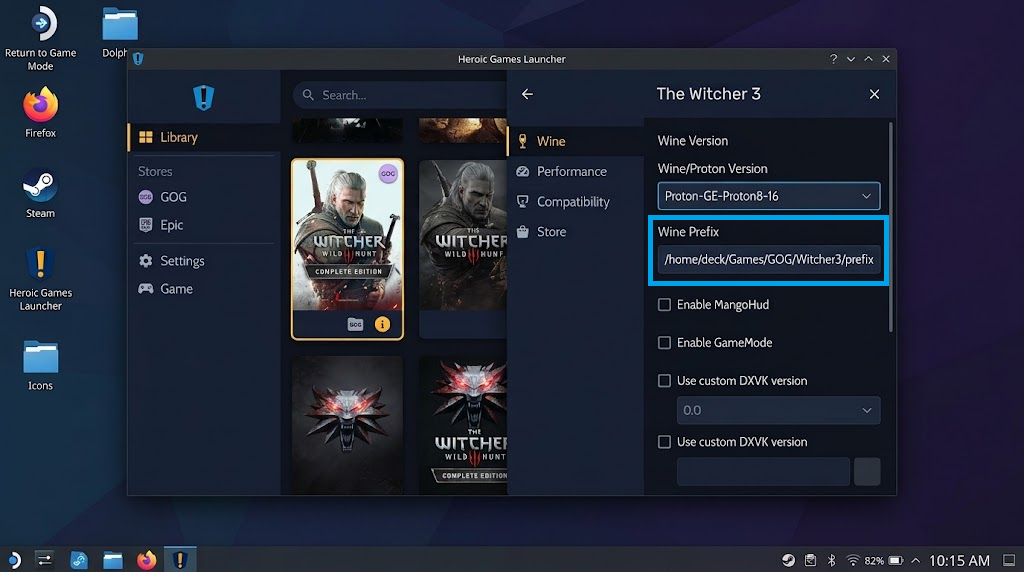
Use the existing game entry so the runtime reaches its current prefix. - Download the x64 and x86 v14 installers from Microsoft if needed. Select Run EXE in Prefix.
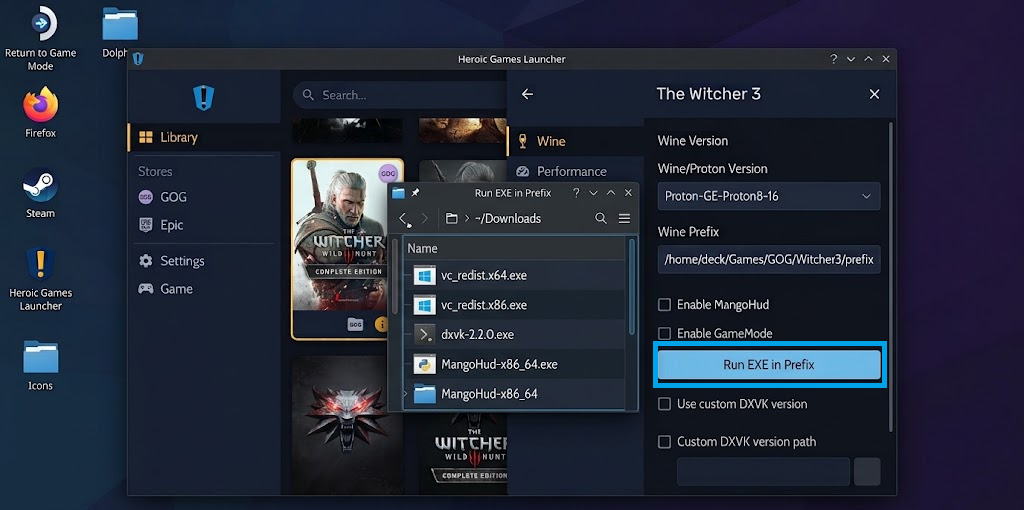
Some versions label the control Run EXE on Prefix. - Select the downloaded x64 installer. Complete Install or Repair; keep a newer version if already present.
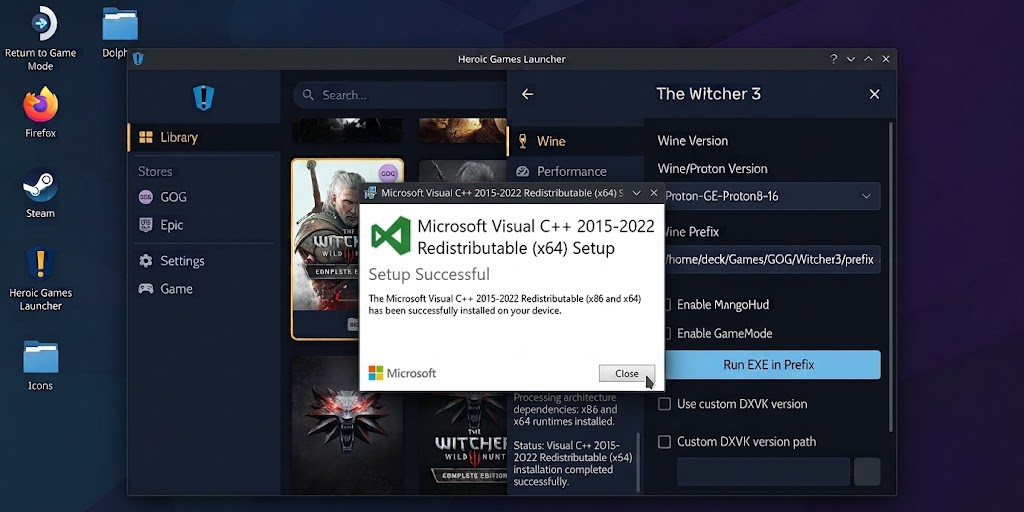
Install the x64 and x86 packages one at a time. - Run the x86 installer using that same control. Wait for setup to finish, then launch the game from Heroic.
- After it works there, test its existing Steam shortcut in Gaming Mode.
If Heroic works but Steam still shows the error, check that Steam launches the game through Heroic, not an independent Windows executable with another prefix. Follow Heroic’s Steam shortcut instructions; do not force Proton on the Linux Heroic launcher.
If the Runtime Message Remains
Check the game’s stated runtime version and the installer’s result before repeating setup. Avoid individual DLL downloads or all-in-one packages from unofficial sites.
Ask the game’s support team or launcher project for help with the exact error, game, launcher, SteamOS and Proton/Wine versions, prefix location, and installer result. A successful installation in another game’s prefix will not resolve this prompt.
A new Compatibility Tool Failed message needs Proton compatibility troubleshooting, not more C++ packages. A crash after the prompt disappears is also a different failure. Installing a runtime cannot bypass an unsupported anti-cheat requirement.