How to Fix Call of Duty Mobile Controller Connected but Not Working?
A controller marked Connected in COD Mobile can still leave your character unable to move, aim or fire. The phone may accept the Bluetooth connection without the game responding to its sticks and buttons.
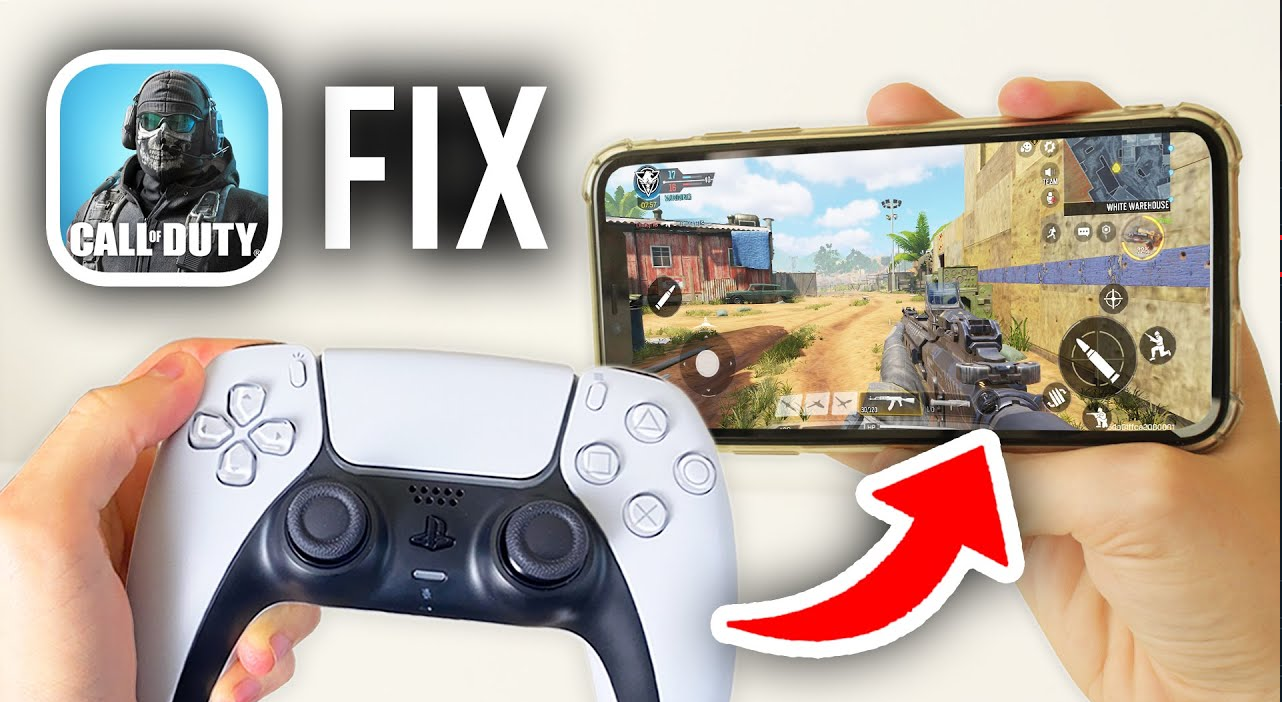
The lobby, settings and loadout screens normally require touch controls. Activision describes controller support as available during matches, so being unable to select a menu item is not the same as losing movement or aiming in a match.
Check the Controller Model
Activision’s supported-controller list includes official Xbox One and Xbox Series X|S controllers, DualShock 4 except first-generation models, DualSense and Backbone One. Other models may connect, but pairing alone does not establish official game support.
Phone compatibility matters too. Sony lists Android 12 or iOS/iPadOS 14.5 and later for DualSense; the controller appearing in Bluetooth does not override its software requirements.
These steps cover COD Mobile on Android, iPhone and iPad, not a PC emulator or another Call of Duty game.
1. Enable Controller Support and Reopen COD Mobile
A controller connected after the game opened may not respond until COD Mobile is reopened. Enabling support and opening the game with the controller already connected gives it another chance to detect the device.
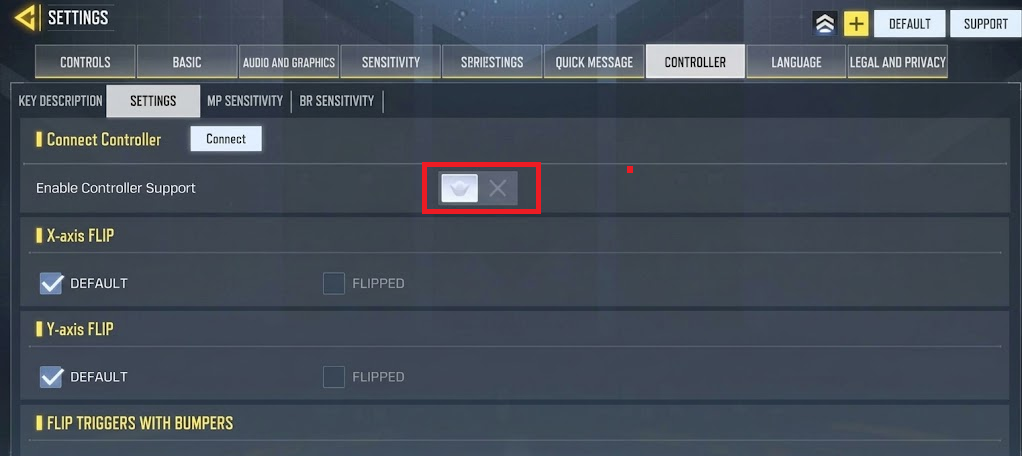
- Use the touchscreen to open the gear icon > Controller > Settings. Look for the controller-support switch, not the sensitivity sliders.
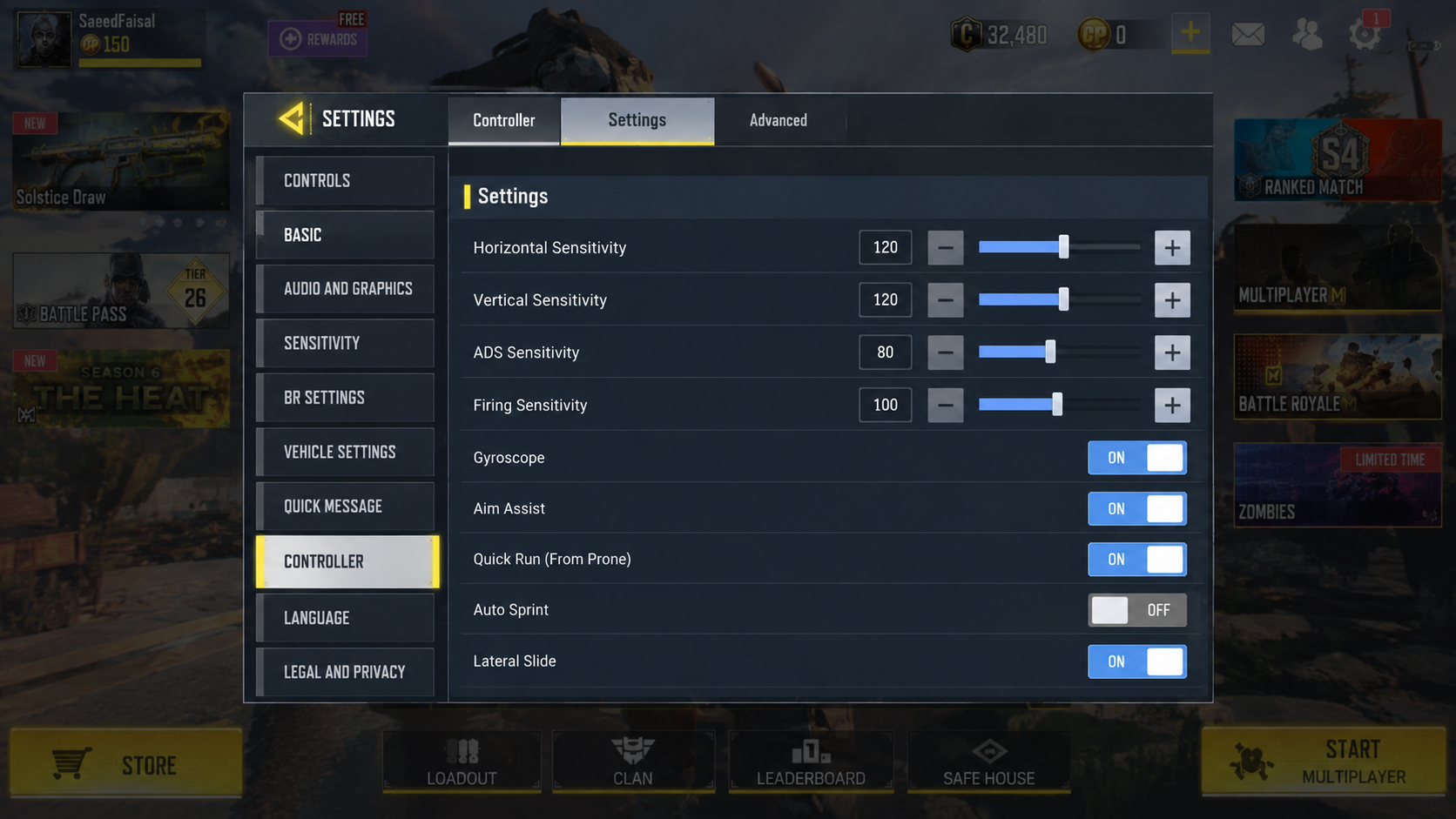
Use the touchscreen to reach Controller, then Settings. - Turn Enable Controller Support on. Check the connection status inside the game as well as in the phone’s Bluetooth settings.
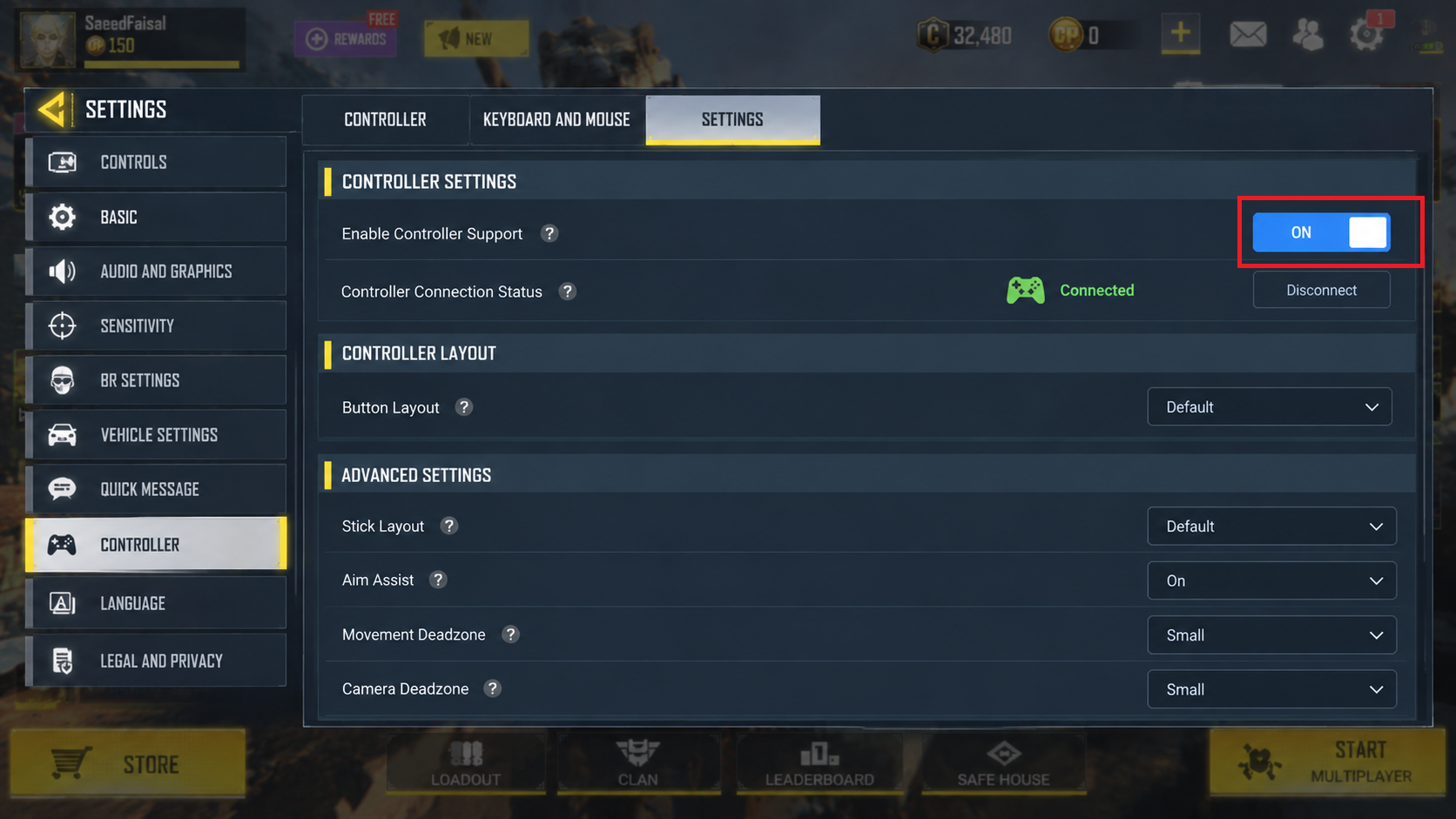
The game must recognize the controller as well as the phone. - Outside an active match, close COD Mobile from the recent-apps screen or app switcher. Keep the controller connected, then reopen the game.
- Use touch to enter practice, such as Practice vs. AI if available. Test movement, aiming, firing and a face button. Note whether all inputs fail or only certain controls.
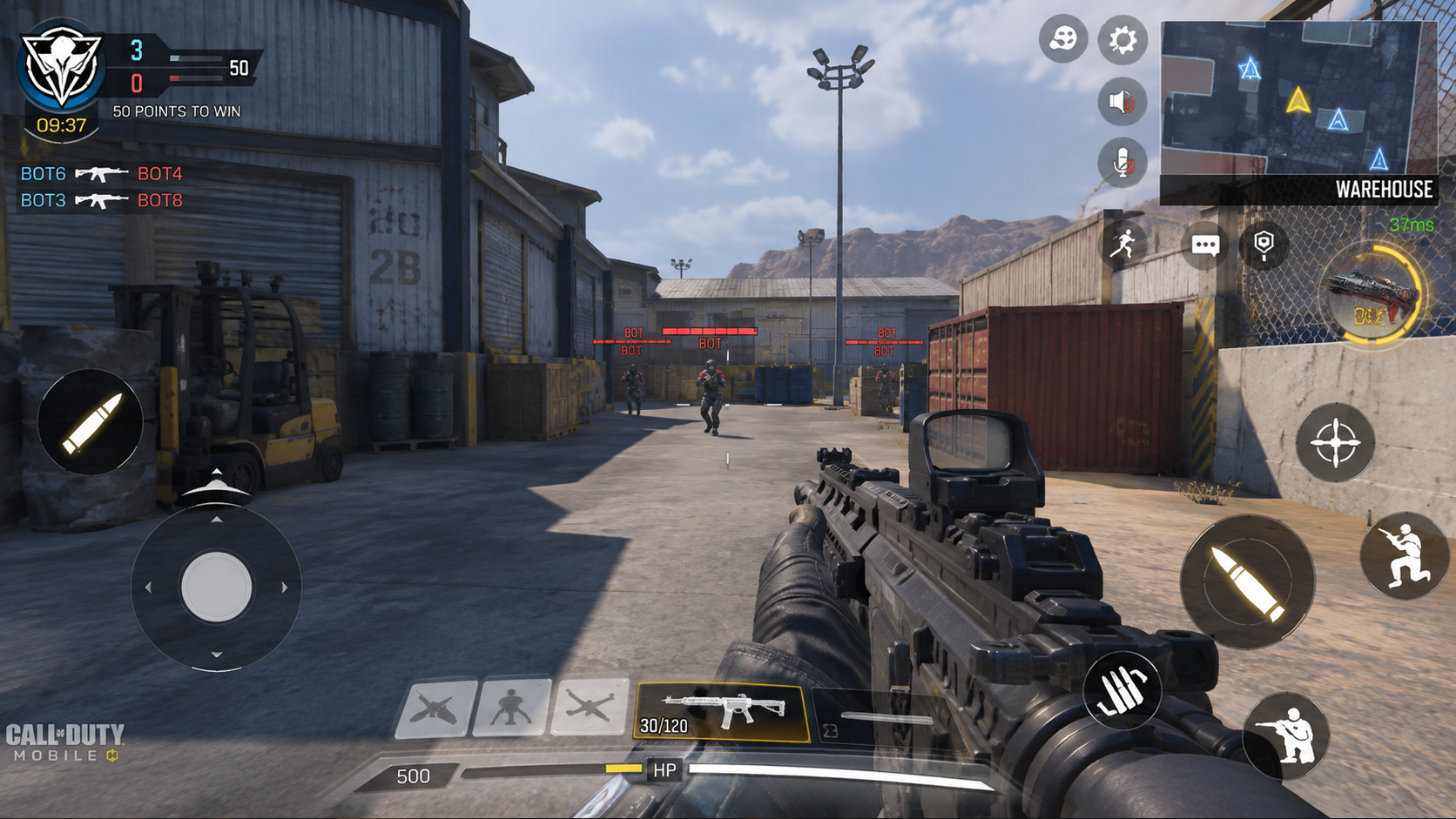
Check both sticks and the main action buttons in the same practice session.
If reopening restores input, connect the controller before opening COD Mobile in future. Working controls in practice also confirm that touchscreen-only menus are not a controller fault.
2. Refresh the Controller’s Bluetooth Pairing
When the phone stays connected but COD Mobile still ignores the controller, remove the saved pairing and reconnect with game support switched off. Turning support back on afterward can help even when re-pairing alone did not.
This requires pairing the controller again but does not erase COD Mobile progress. A directly attached Backbone One or another wired controller has no Bluetooth pairing to remove.
Forget the Controller on Your Phone
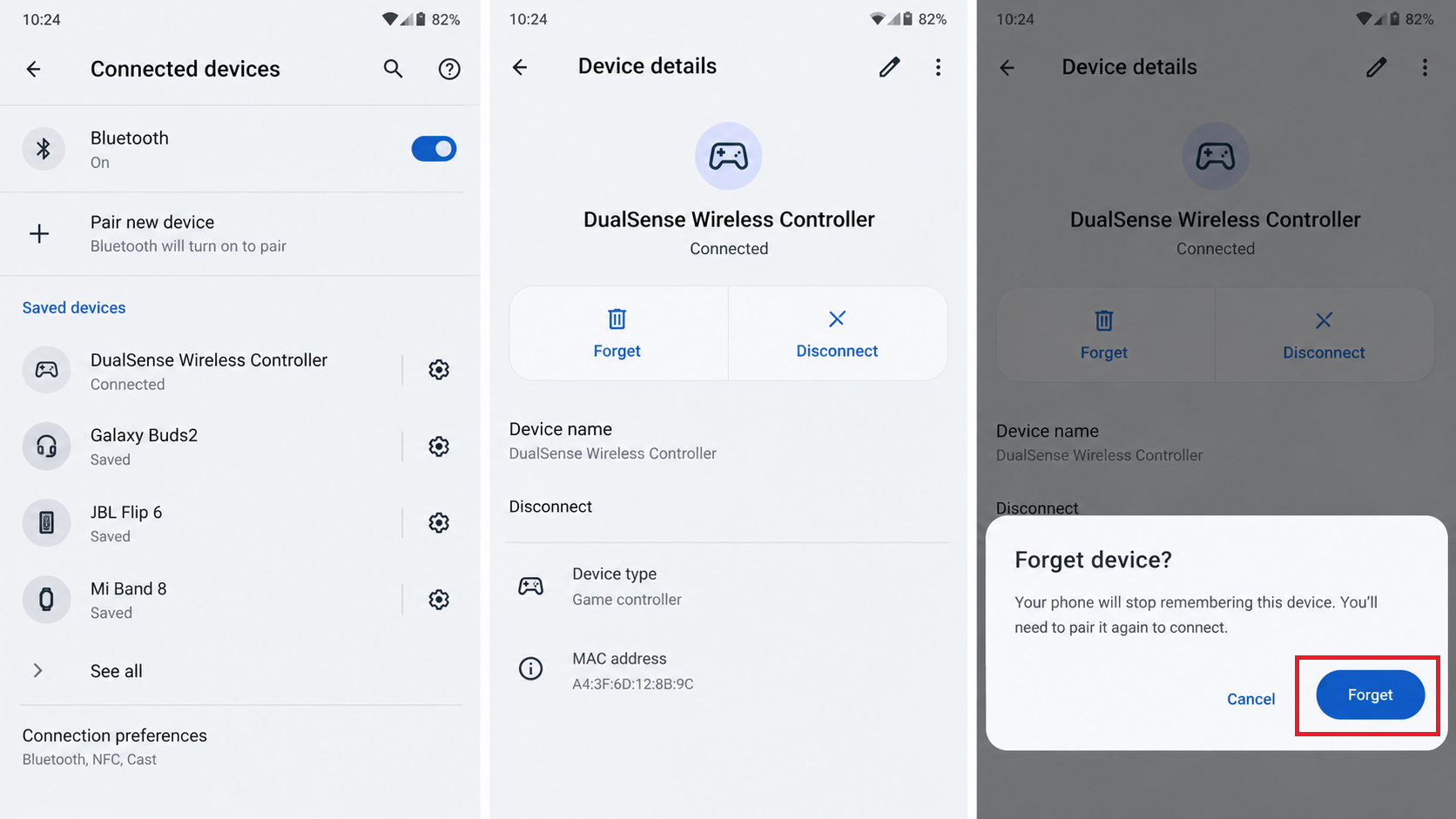
Android: open Settings > Connected devices, or search Settings for Bluetooth. Open the affected controller’s details and select Forget or Unpair. Leave other paired devices unchanged.
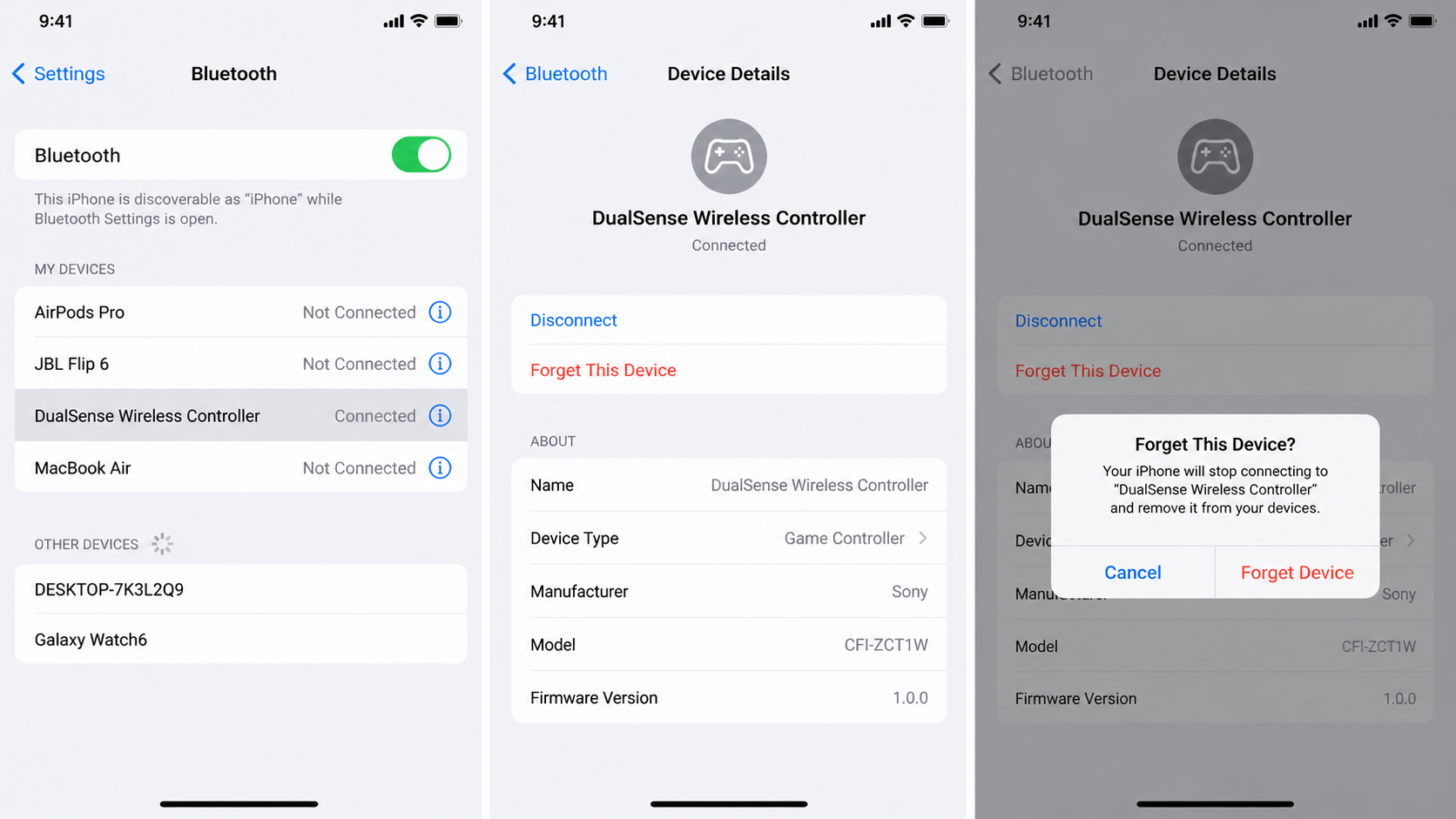
iPhone/iPad: open Settings > Bluetooth, tap the information button beside the controller, then Forget This Device and confirm. Apple’s controller connection guidance also explains re-pairing when a controller is not working as expected.
Reconnect with Game Support Switched Off
- In COD Mobile > Controller > Settings, turn Enable Controller Support off, then close the game.
After forgetting the pairing, turn support off and close the game. - Disconnect any USB cable and put the controller into pairing mode using the buttons below.
| Controller | Pairing buttons |
|---|---|
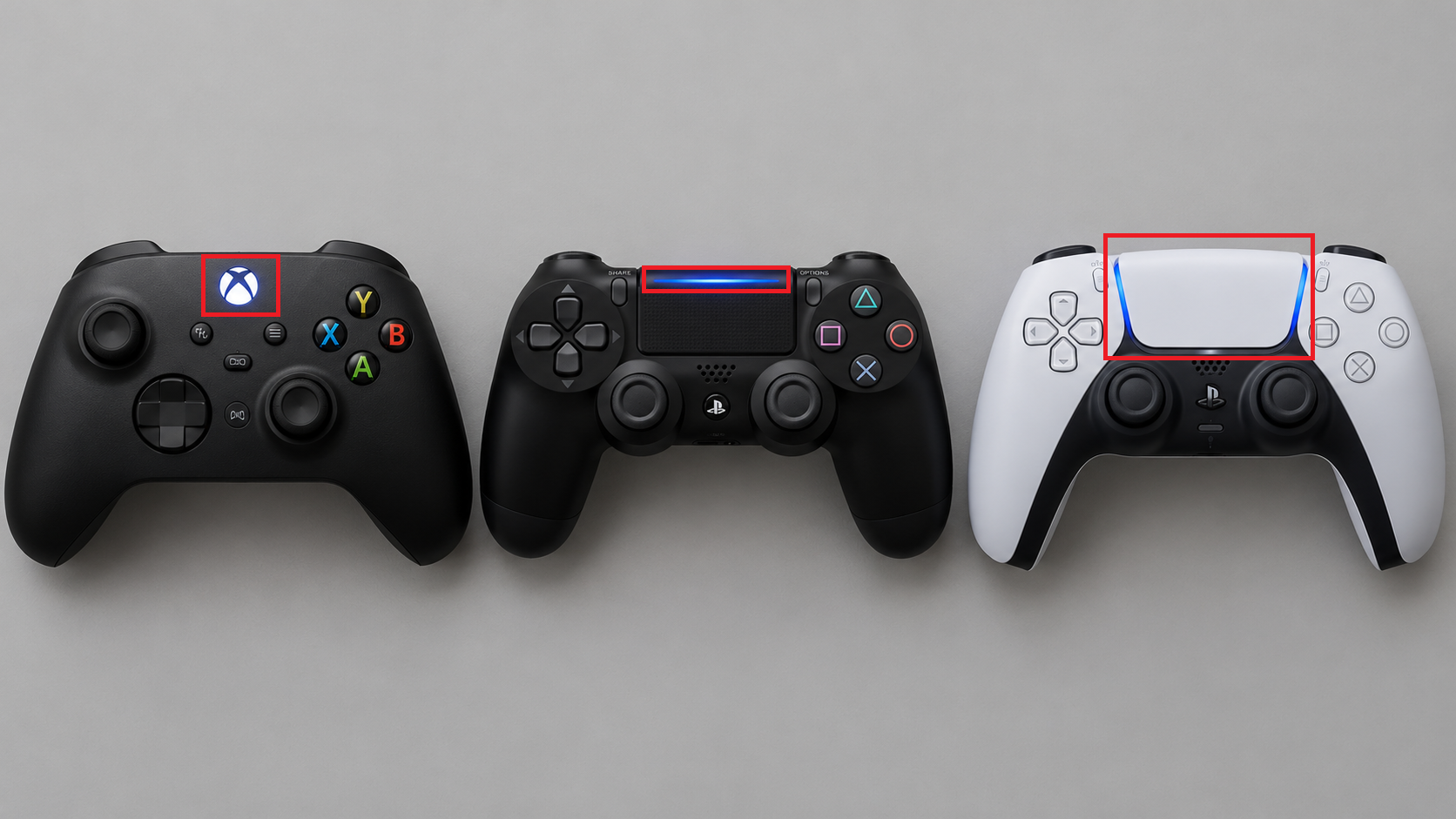
| Xbox Wireless Controller | Turn it on with the Xbox button, then hold the small Pair/Connect button for about three seconds, until the Xbox light flashes. |
| DualShock 4 | With the controller off, hold Share + PS until the light bar flashes. |
| DualSense | With the controller off, hold Create + PS until the light bar blinks. Sony’s DualSense pairing diagram identifies these buttons. |
- Select the controller in the phone’s available Bluetooth devices and finish pairing. Confirm it shows Connected before opening COD Mobile.
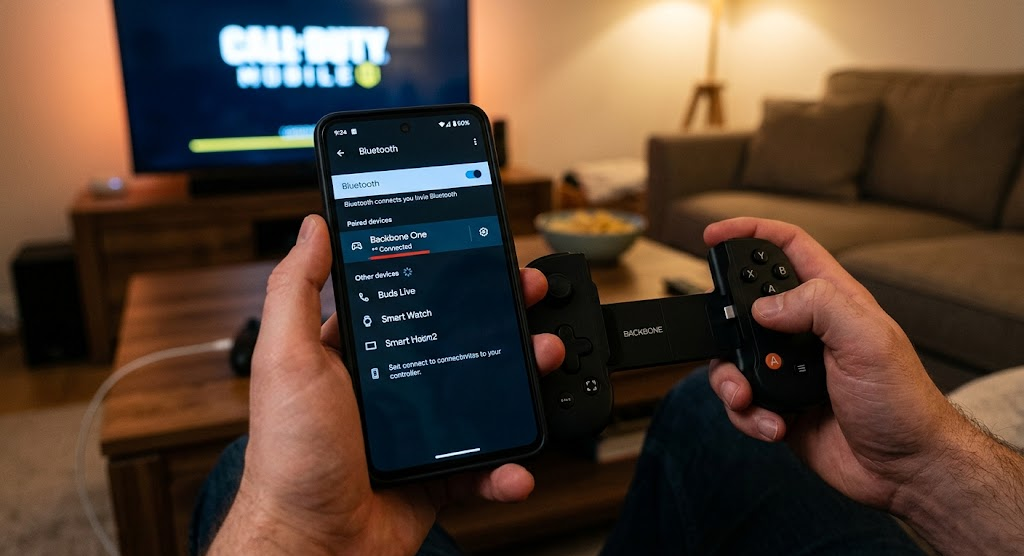
Confirm the phone shows Connected before reopening COD Mobile.
Image clarification: the Backbone One pictured above attaches directly to a phone; it is not a Bluetooth controller. Follow the Bluetooth steps for your wireless controller, not the pictured Backbone One.
- Open COD Mobile, turn Enable Controller Support on, and repeat the practice test. Check the in-game connection status and actual movement, aiming and buttons.
The game must recognize the controller as well as the phone.
Optional: Restart the Phone Once
If input is still missing, close COD Mobile and restart the phone. On Android, use Restart. On iPhone/iPad, open Settings > General > Shut Down and drag the slider.
Turn an iPhone back on with its side button, or an iPad with its top button. Reconnect the controller before opening COD Mobile, then repeat the same practice test.
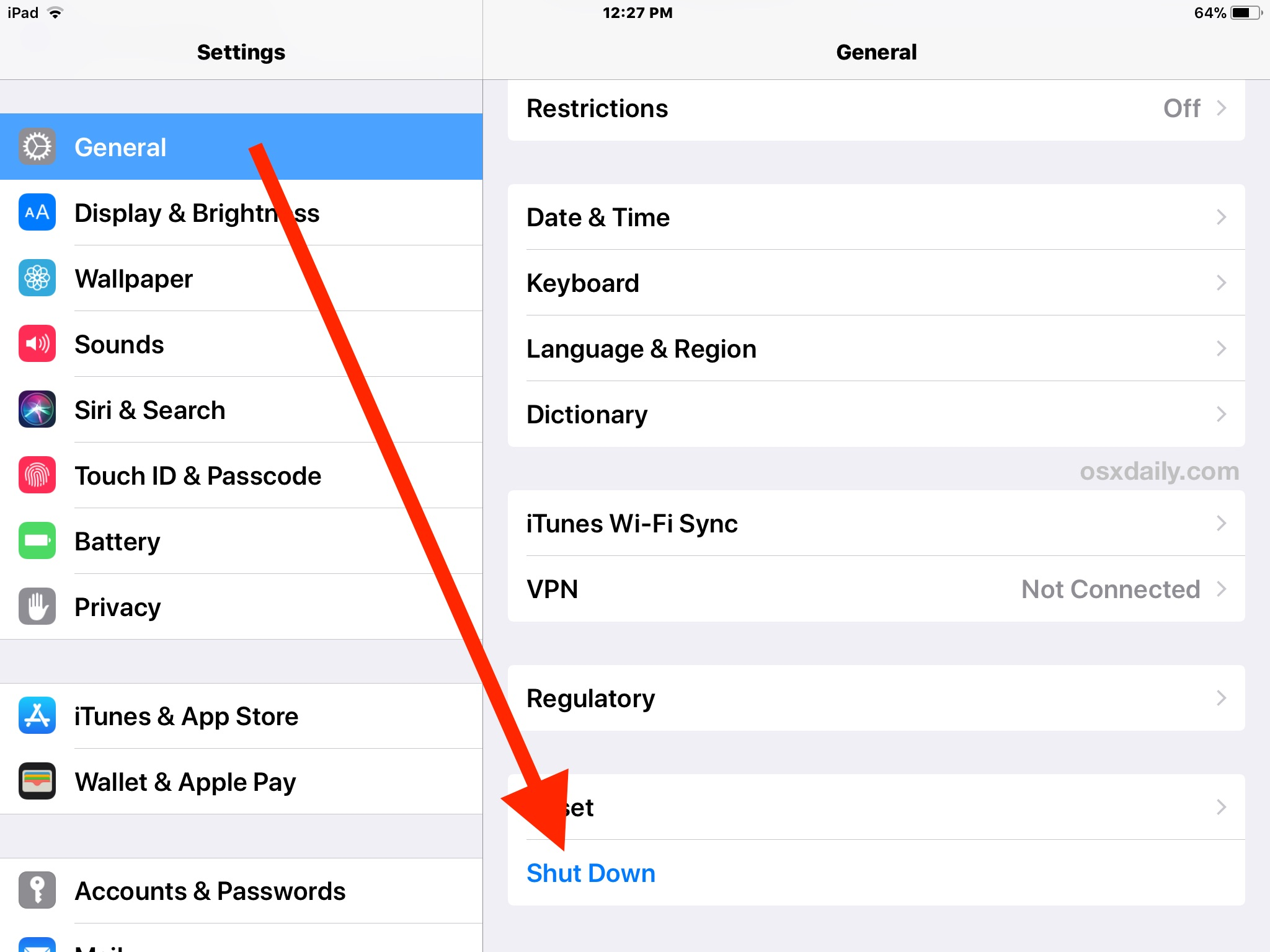
If controls return in practice, keep the new pairing and leave controller support on. Persistent failure on Android can also be related to an optional input app, as described below.
3. Check Optional Android Remapping or Automation Services
On Android, a controller can stop responding in COD Mobile while an auto-clicker or remapping app has accessibility access. Pausing that optional service provides a useful comparison, particularly when input stopped after you enabled the app.
- Open Settings > Accessibility and find Installed apps or Installed services; the name varies. Look for the optional tool you enabled. In the image, choose Accessibility, not the arrow pointing to Apps.
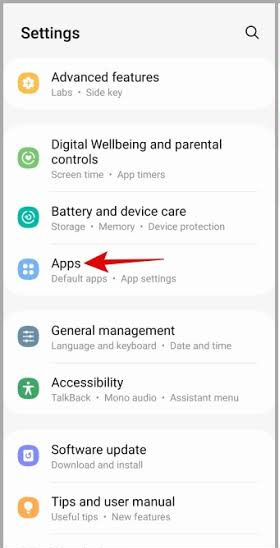
Look for a remapper or automation service you enabled, without changing essential accessibility tools. - Record its current setting, then turn off that service only if the phone remains safe to use without it.
- Reopen COD Mobile with the controller connected. Test the same sticks and buttons that failed previously.
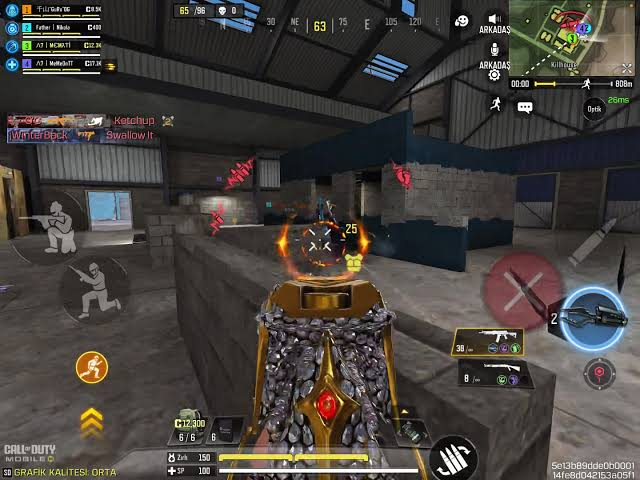
Check whether the previously unresponsive sticks or triggers now respond.
Restore the setting if nothing changes. If controls return, re-enable the service once, only if safe, to check whether the problem follows it.
If the problem returns, leave that optional service off during play only if safe, or ask its developer about the conflict. There is no need to disable unrelated accessibility services.
If the Controller Still Does Not Respond
Try another mobile game that supports your controller. Failure there too makes the phone or controller connection worth investigating. Working elsewhere narrows the problem, but does not prove COD Mobile supports that exact controller or every feature.
- Wired controller: check the manufacturer’s phone, connector and software requirements. Backbone publishes Android compatibility guidance, with a link to its iPhone guidance. Bluetooth re-pairing cannot fix a direct wired connection.
- Only one action or mode fails: check that mode’s controls in the Controller menu. Report the exact button and mode rather than treating partial input as a total connection failure.
For the global release, follow Activision’s COD Mobile bug-report guidance; other editions may have their own in-game support. Include:
- Phone model, OS version, COD Mobile version and region/edition.
- Exact controller model, Bluetooth or wired connection, and the failed buttons or modes.
- What changed before the problem, the result in another game, and a short clip showing connection status and missing input.
An authorization error 270FD309 or COD Mobile network error that prevents a match from loading needs separate attention. Neither message establishes a controller fault, and repeated reinstalls are not a reliable fix for unsupported hardware or a mode-specific bug.


