How to Fix Vibrant Visuals Greyed Out in Minecraft Bedrock?
Minecraft Bedrock can run normally while Vibrant Visuals stays gray in Settings > Video > Graphics Mode. A disabled option does not always mean your device is too old: Minecraft can also prevent graphics changes during play or disable the mode for incompatible content.
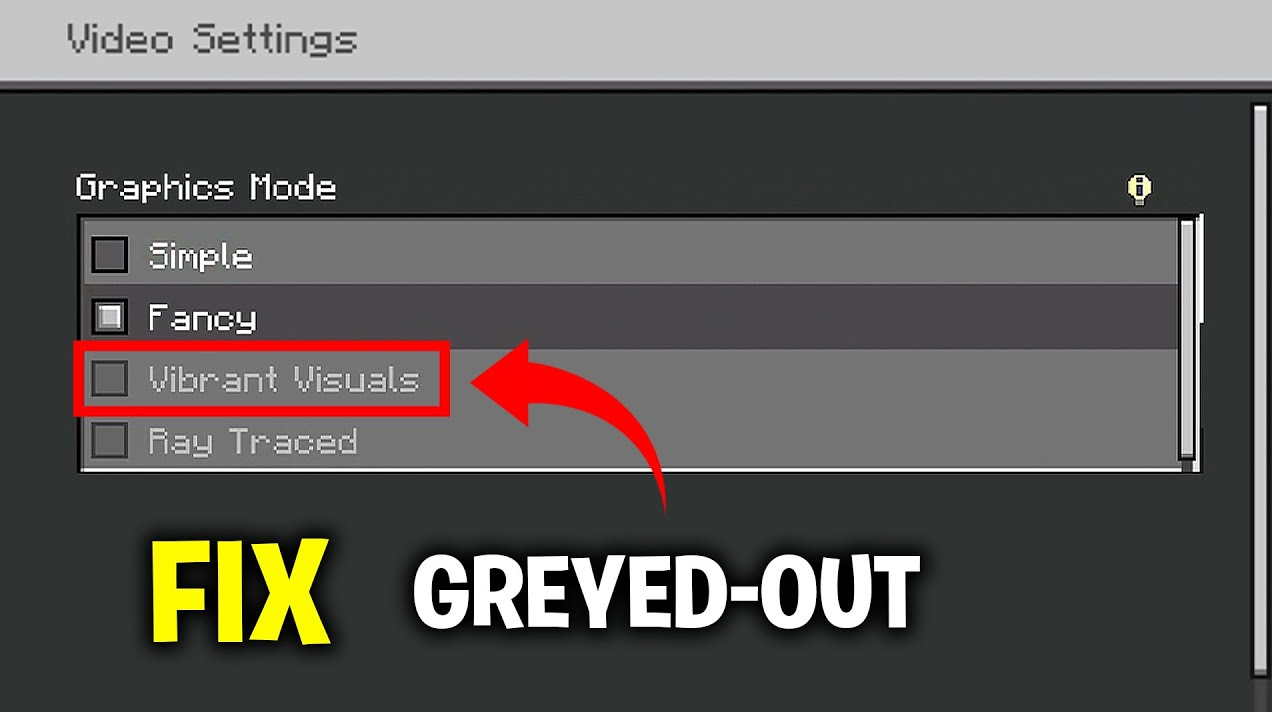
Vibrant Visuals is built into Bedrock. It does not need a separate shader download or a Marketplace purchase to work in an ordinary world.
A message about compatible Marketplace content is not an instruction to buy a pack: any content you use must be compatible. Ray Traced is a separate graphics mode with different requirements.
1. Select Vibrant Visuals Before Opening a World
The same option can be unavailable in a world’s pause menu but selectable at the title screen. Leaving the world lets you change the graphics mode without relying on in-game switching.
- Save your progress and choose Save & Quit. Wait until the Minecraft title screen appears.
- Open Settings > Video from that screen, not from the paused world.
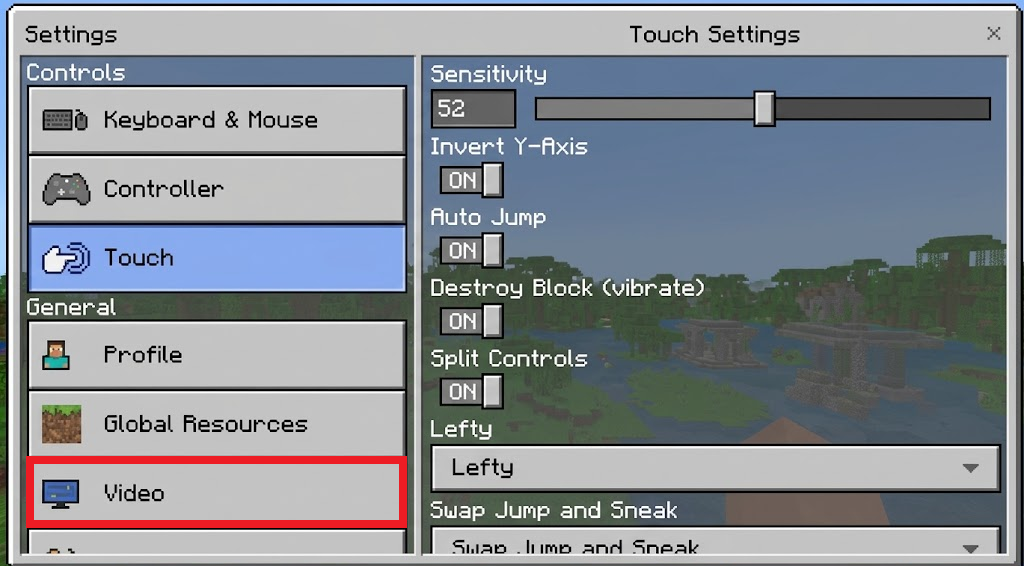
Show Settings > Video opened before a world is loaded. Hide the Microsoft account, gamertag, Realm names, and notifications. - Under Graphics Mode, select Vibrant Visuals, then load your world.
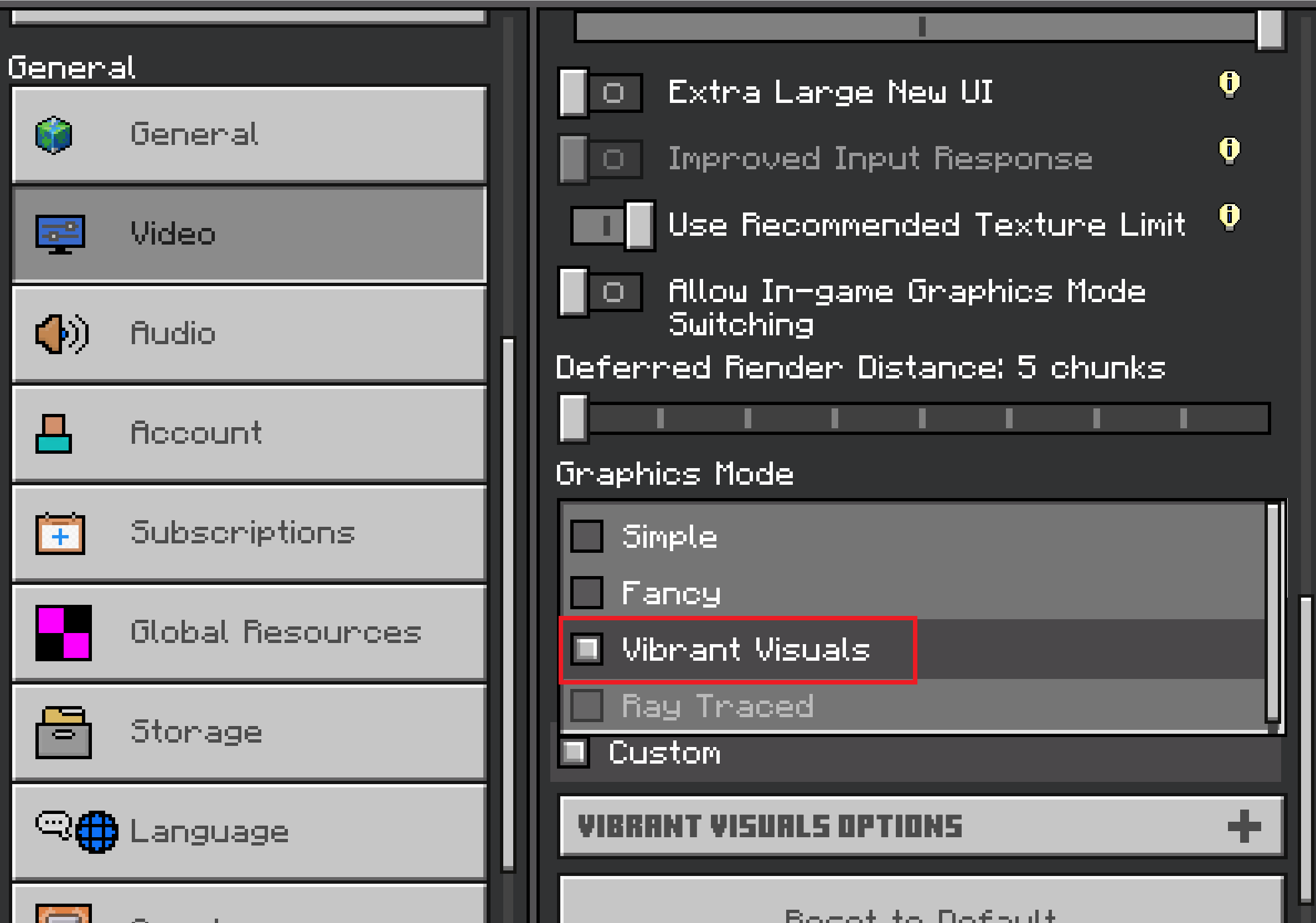
Show Vibrant Visuals selected in the Graphics Mode menu on a supported device. Do not imply that the mode is available on unsupported hardware.
Changed lighting and shadows confirm that the mode is running. Where available, Allow In-Game Graphics Mode Switching lets you change modes during play, but it cannot make unsupported hardware or content compatible.
2. Check Your Device Against the Requirements
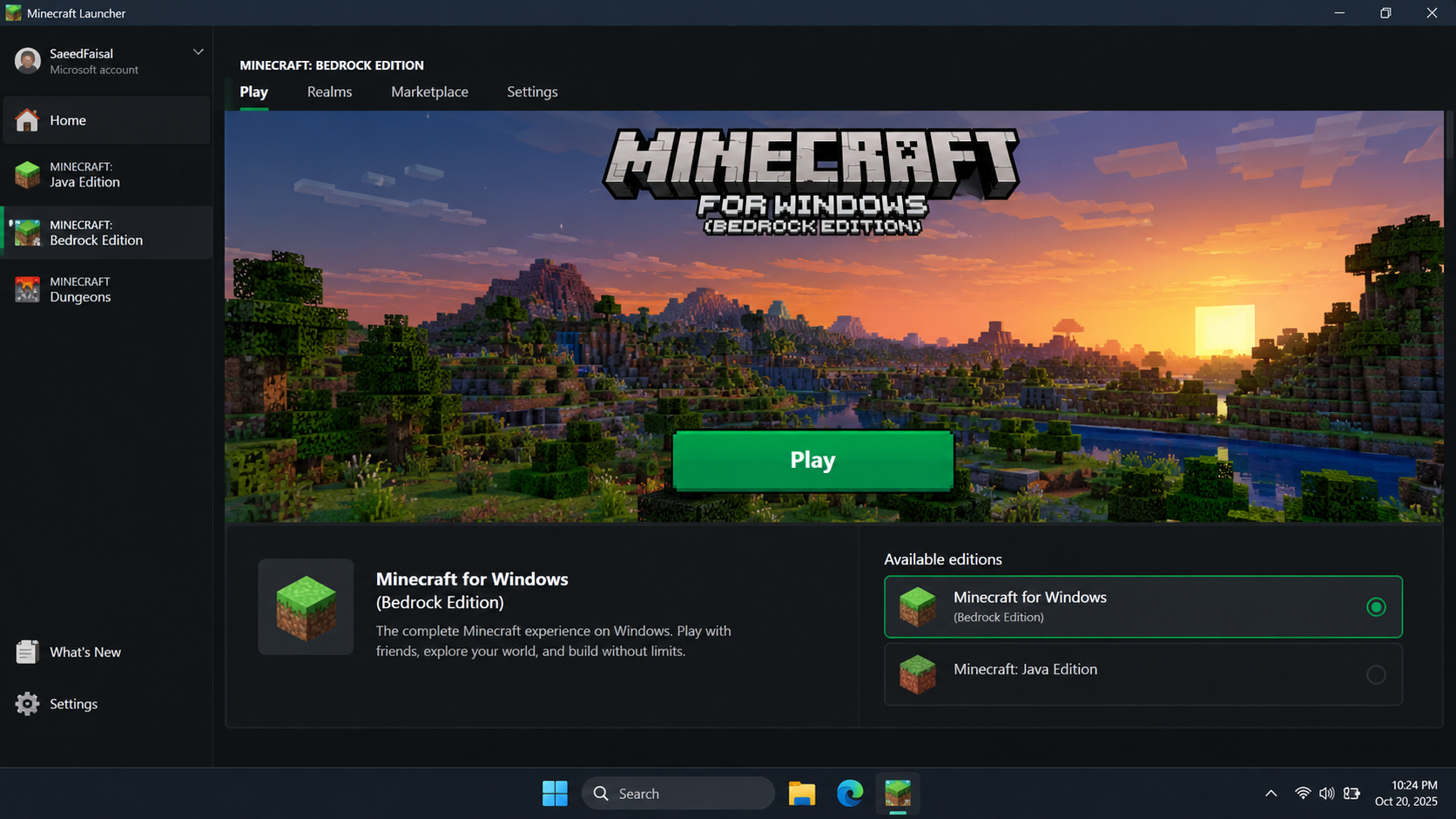
Running Bedrock does not guarantee support for its enhanced graphics. On Windows, select Minecraft for Windows in the launcher, rather than Java Edition. Compare your exact device or graphics chip with Mojang’s Vibrant Visuals requirements.
| Platform | Published requirement |
|---|---|
| Windows | Minecraft running on DirectX 12; the GPU and driver must support the required graphics features. |
| Android | Adreno 640, Mali-G68, Mali-G77, Xclipse 530 or higher, as listed by Mojang. |
| iPhone or iPad | A12, M1 or newer chip. |
| Xbox or PlayStation | Xbox One, Xbox Series X|S, PS4 or PS5. |
| Nintendo Switch 2 | The native Switch 2 version, not the original Switch game running through backward compatibility. |
Mojang separately confirms Vibrant Visuals support in the native Switch 2 version. The original Switch version does not gain it merely by running on newer hardware.
- Check the device model in its system settings. For a phone or tablet, use the manufacturer’s specifications to identify the chip rather than judging by price or age.
- On Windows, press Win + R, enter
dxdiagand press Enter. Check DirectX Version under System, then the GPU name and driver under each Display tab.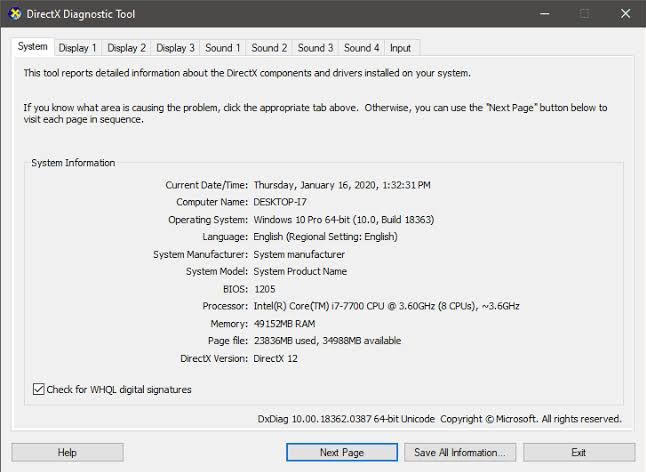
Show the DirectX version and GPU name only. Hide the computer name, user name, machine ID, BIOS serial, and any saved diagnostic file.
The System tab’s DirectX 12 line identifies the installed DirectX version, not a guarantee that Minecraft can use every required GPU feature. An unsupported device cannot be fixed by reinstalling the game; use Fancy or Simple graphics instead.
3. Update Minecraft and the Graphics Driver
A capable device can still be missed by an older game build. Mojang has released updates expanding mobile GPU support, so updating the released game may correct its support detection.
- Note the version on Minecraft’s title screen. The older screenshot below shows where to find it, not a recommended version.
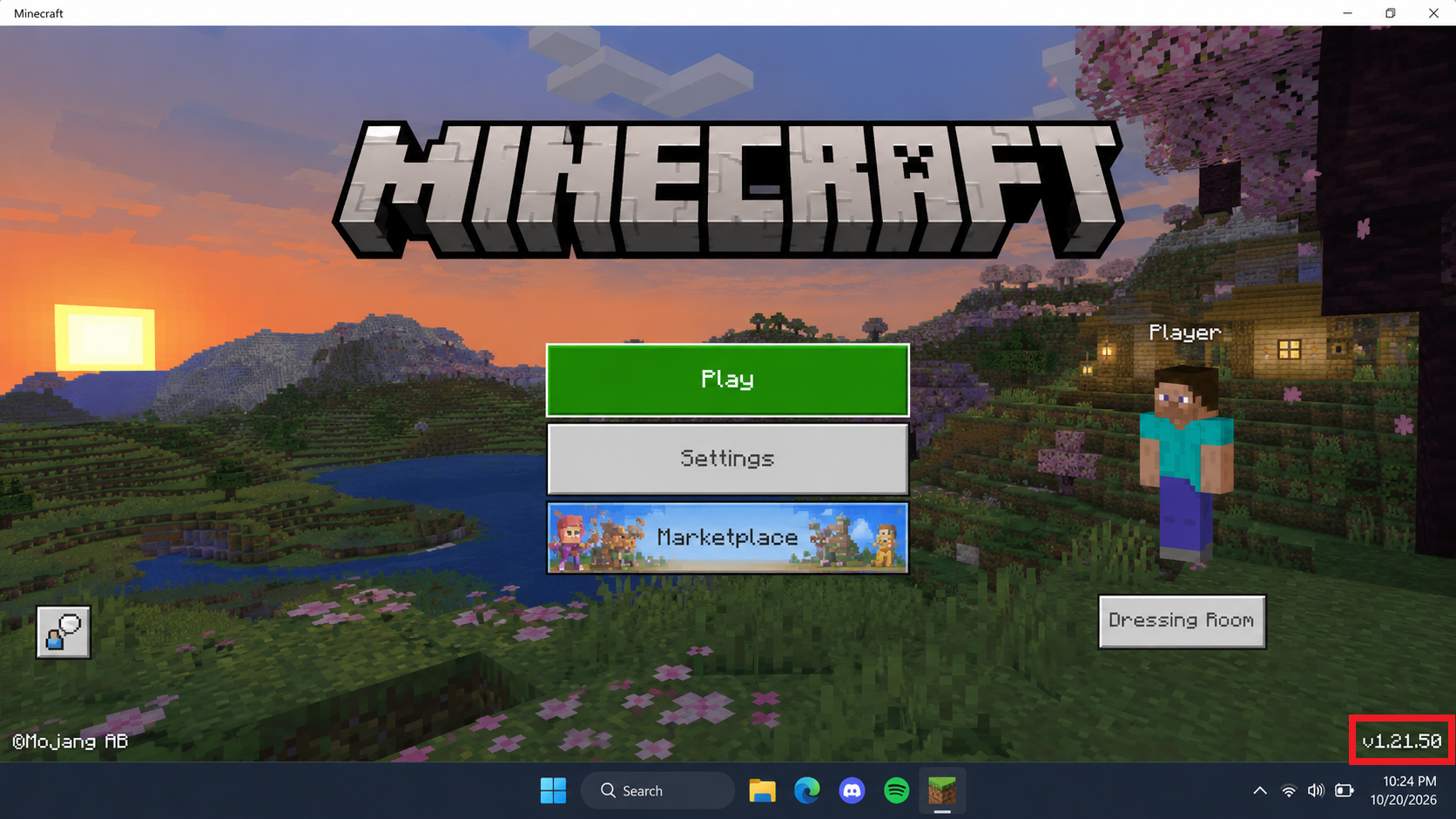
Show the installed Minecraft version and the official store Update control if present. Hide account, payment, device, and subscription details. - Install the available stable Minecraft update from your platform’s official store. On Windows, the Microsoft Store and Xbox app update steps cover both places to check.
- Install any applicable system update. On Windows, check the PC or GPU manufacturer’s compatible graphics driver. The NVIDIA, AMD and Intel driver-update instructions explain those options. Use your own model’s current download, not the old driver pictured below.
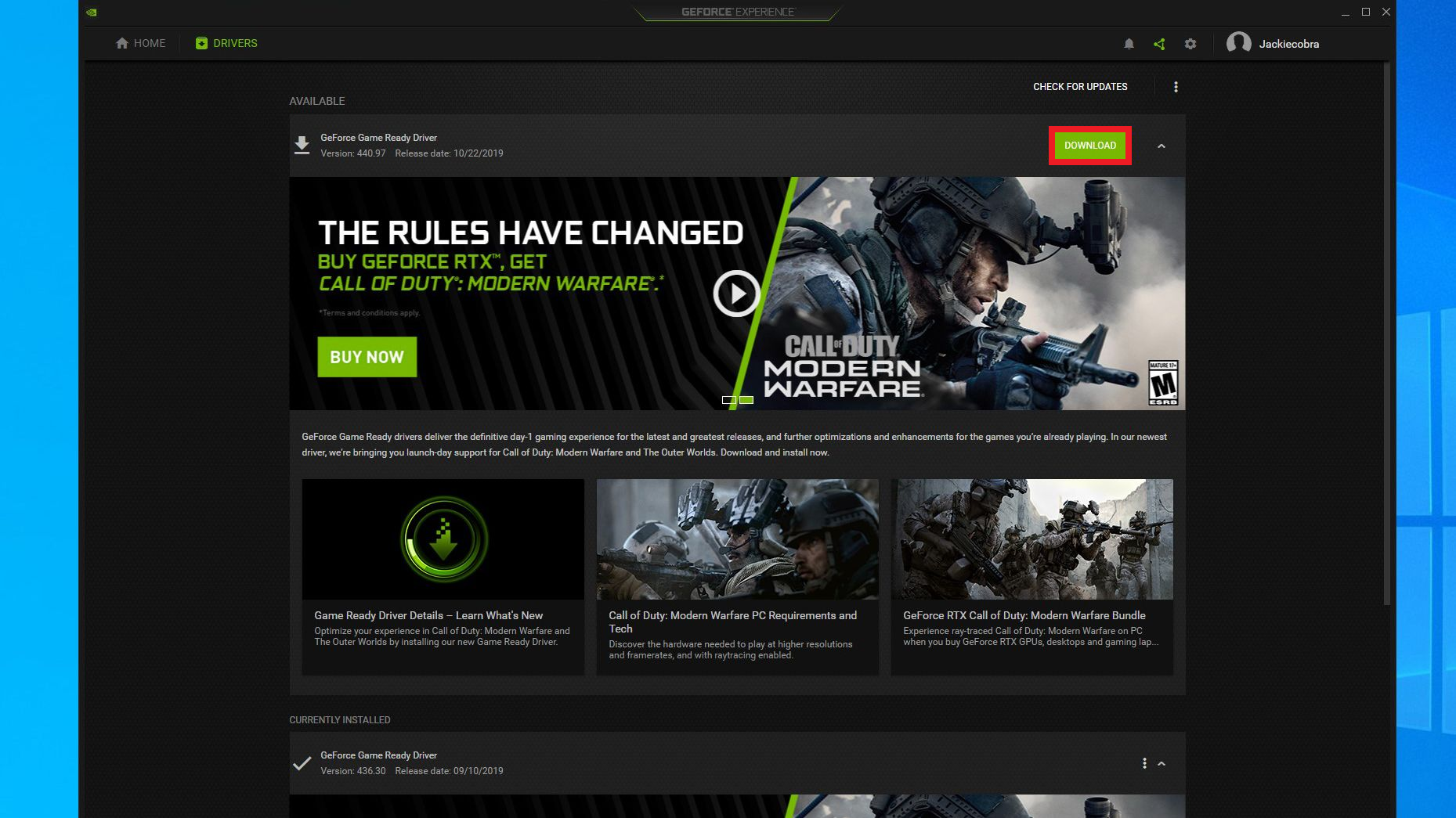
Show a trusted Windows or GPU-vendor update screen with the graphics model and driver version. Hide the device name, account, serial number, and unrelated updates. - Restart the device, then retry Graphics Mode from the title screen.
An update can correct support detection, but cannot add missing hardware features. The normal released game does not require joining Preview, installing an unofficial client or enabling an old Vibrant Visuals experiment.
4. Check Texture Packs and World Content
Incompatible packs can disable Vibrant Visuals even on supported hardware. Marketplace packs updated for the mode carry a Vibrant Visuals label. Check for an update to the pack you already own before changing your world.
- Create a separate test world using the default template, with no optional packs or experiments. Global Resources can still affect it, so check those below before judging the result.
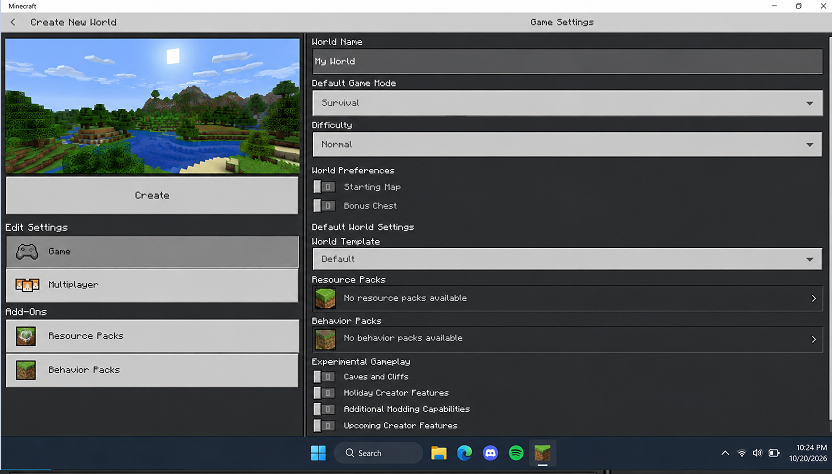
Show a new disposable world with no optional resource pack, behavior pack, template, or experiment enabled. Hide the gamertag and Realm information. - For the affected world’s copy, open Resource Packs and record the active packs. Deactivate optional texture packs one at a time. Leave dependent behavior packs alone unless you understand what removing the add-on changes.
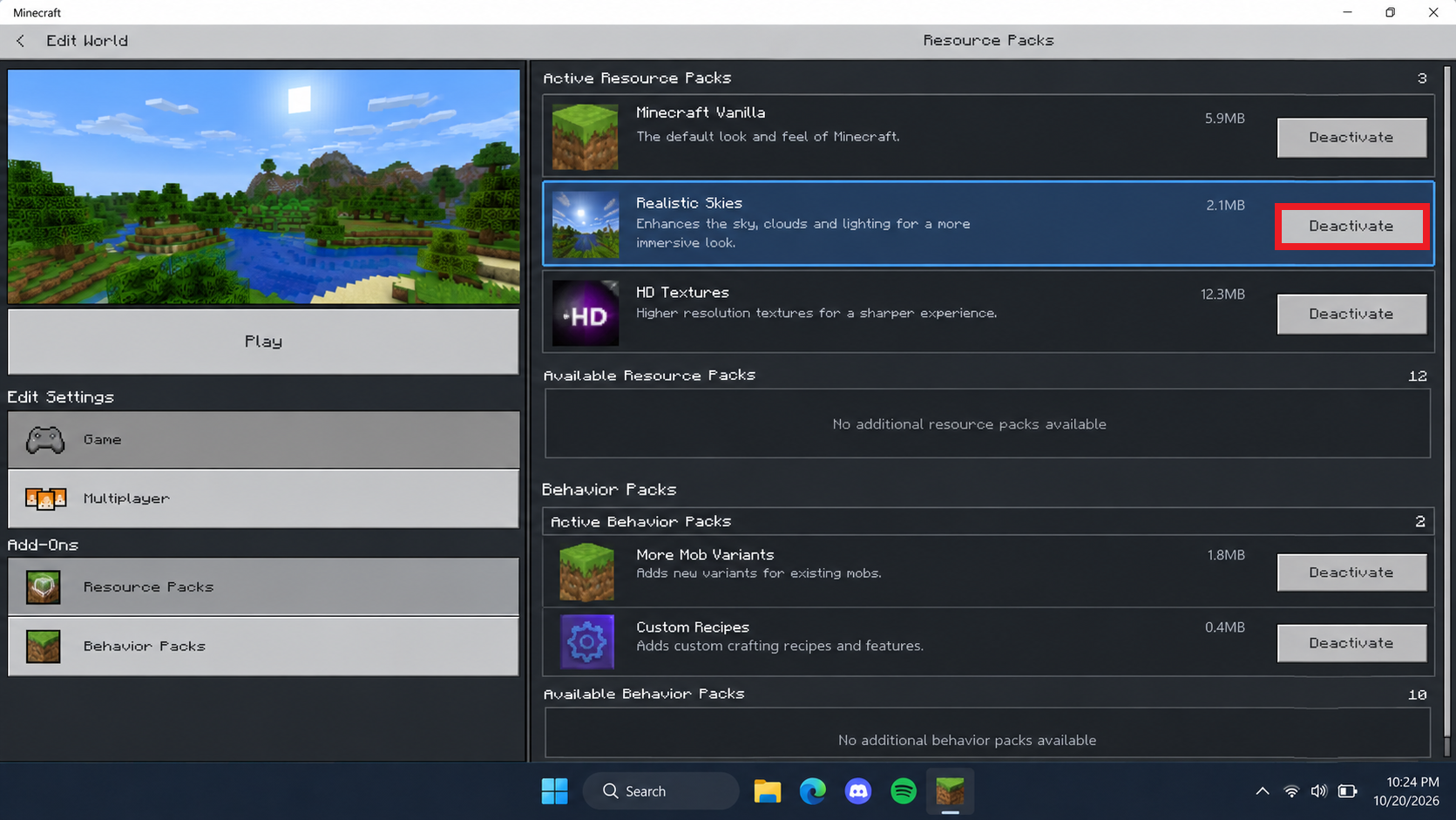
Show the affected world’s Resource Packs and Behavior Packs lists after a safety copy is made. Do not delete purchased content or expose private Realm details. - From the title screen, open Settings > Global Resources. Record the active packs and their order, then temporarily deactivate optional packs there. Deactivate them rather than deleting downloaded content.
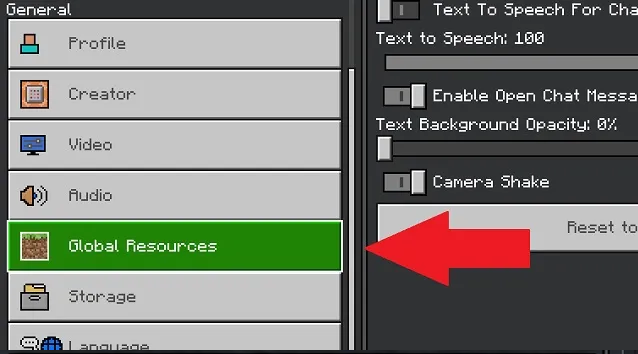
Show the active Global Resources list before temporarily deactivating a texture pack. Keep a note of the original order so it can be restored. - Fully close and reopen Minecraft. Select Vibrant Visuals at the title screen and load the default test world first, then compare the affected copy.
If it works without a particular pack, restore the others and leave that pack disabled or use its compatible update. A new world working does not, by itself, prove the old save is damaged.
For required server or Realm content, ask its owner about compatibility rather than trying to remove it yourself.
5. Leave Split-Screen to Use Vibrant Visuals
Minecraft switches to Fancy or Simple graphics when another player joins locally. Vibrant Visuals does not support split-screen; online multiplayer is different and does not require everyone to use the same graphics mode.
- Save and exit the world, then end the second local player’s split-screen session.
- With one local player active, return to Settings > Video > Graphics Mode and select Vibrant Visuals.
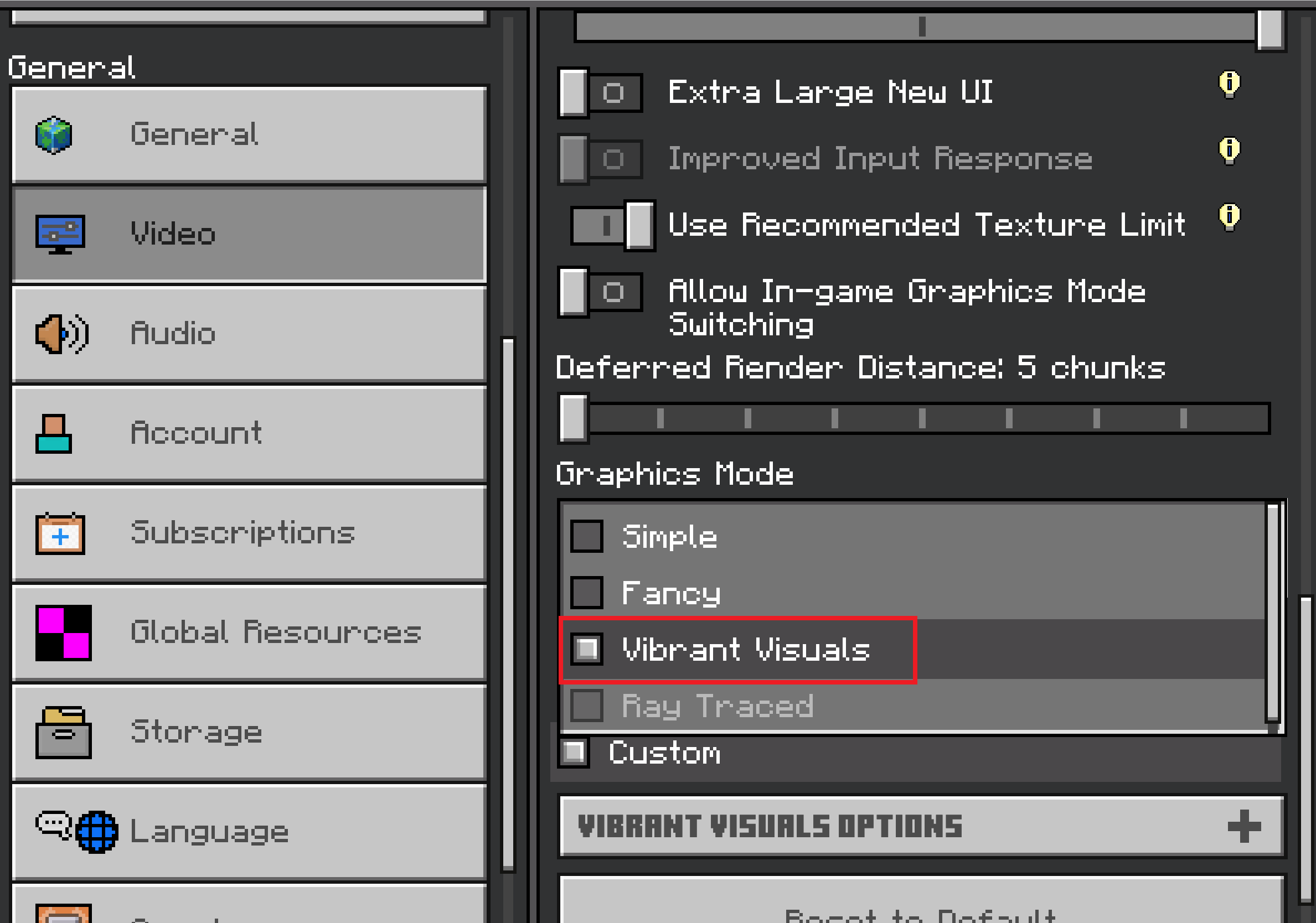
Show the console at the title screen with only one local player active. Hide profile names, friend activity, messages, and notifications. - Load the world again with one local player.
If the mode works alone and switches off when split-screen returns, that is the feature’s limitation, not a fault requiring a console reset.
Still Unavailable on a Supported Device?
A gray option on supported hardware, even at the title screen with default content and one local player, needs a device-specific report rather than more changes to your saves.
- Record the exact device or GPU, operating system, Minecraft version and, on Windows, graphics-driver version.
- Include the full disabled message and whether the mode works in the new test world, your existing world or a Realm.
- Attach a screenshot of the disabled selector with account and server details hidden.
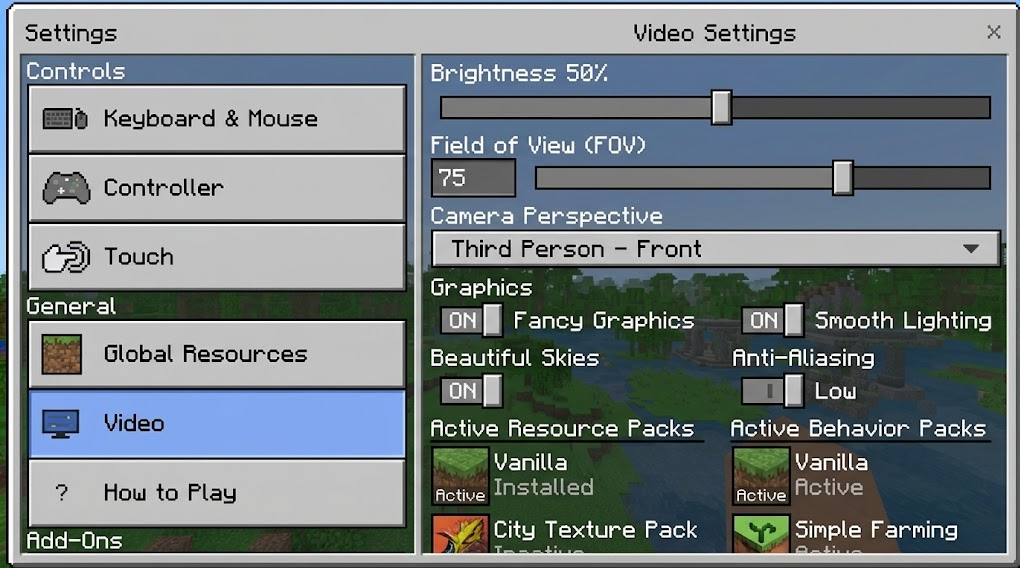
Search the Mojang bug tracker for a matching device and version before filing a report. Keep your worlds and purchases intact: deleting saves or factory-resetting the device is not a remedy for an unsupported graphics mode.


