How to Fix Free Fire Google Account Login Problems on Android?
Free Fire or Free Fire MAX returns to the login screen after Google sign-in, sometimes showing Login failed, please try logging out first. The same Google account may still open in a browser, but your saved character never loads.
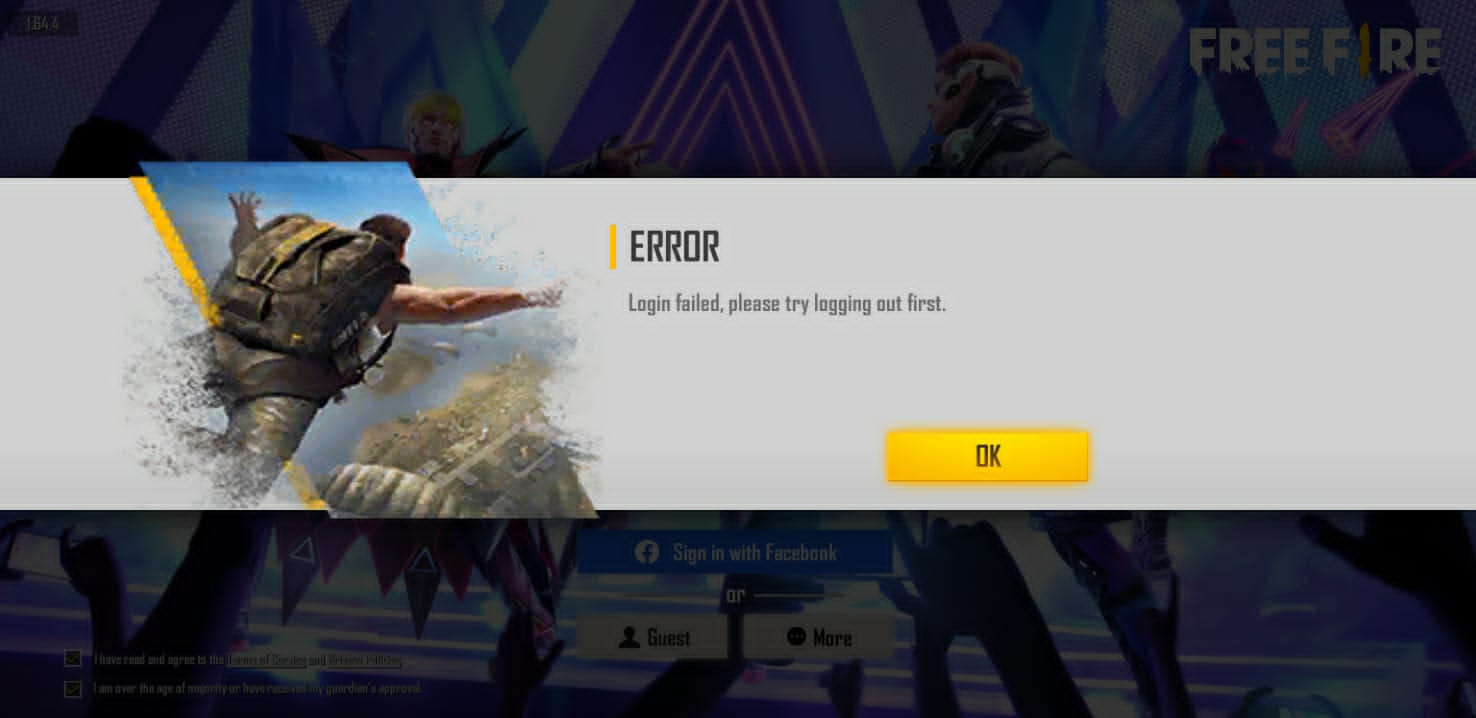
A prompt to choose a new nickname does not prove your progress was deleted. The selected email or login method may not match the original profile, and a failed sign-in can also prevent that profile from loading.
The phone settings below are for Android.
1. Confirm the Google Account Used for Your Old Profile
Another Google account can open Free Fire without loading your old character. Use the original sign-in method too: a Facebook login registered with a Gmail address is not automatically a Google login.
- Open your Google Account in a browser and check the email against the one used for Free Fire. Use a familiar device; keep any working game session on another device signed in.
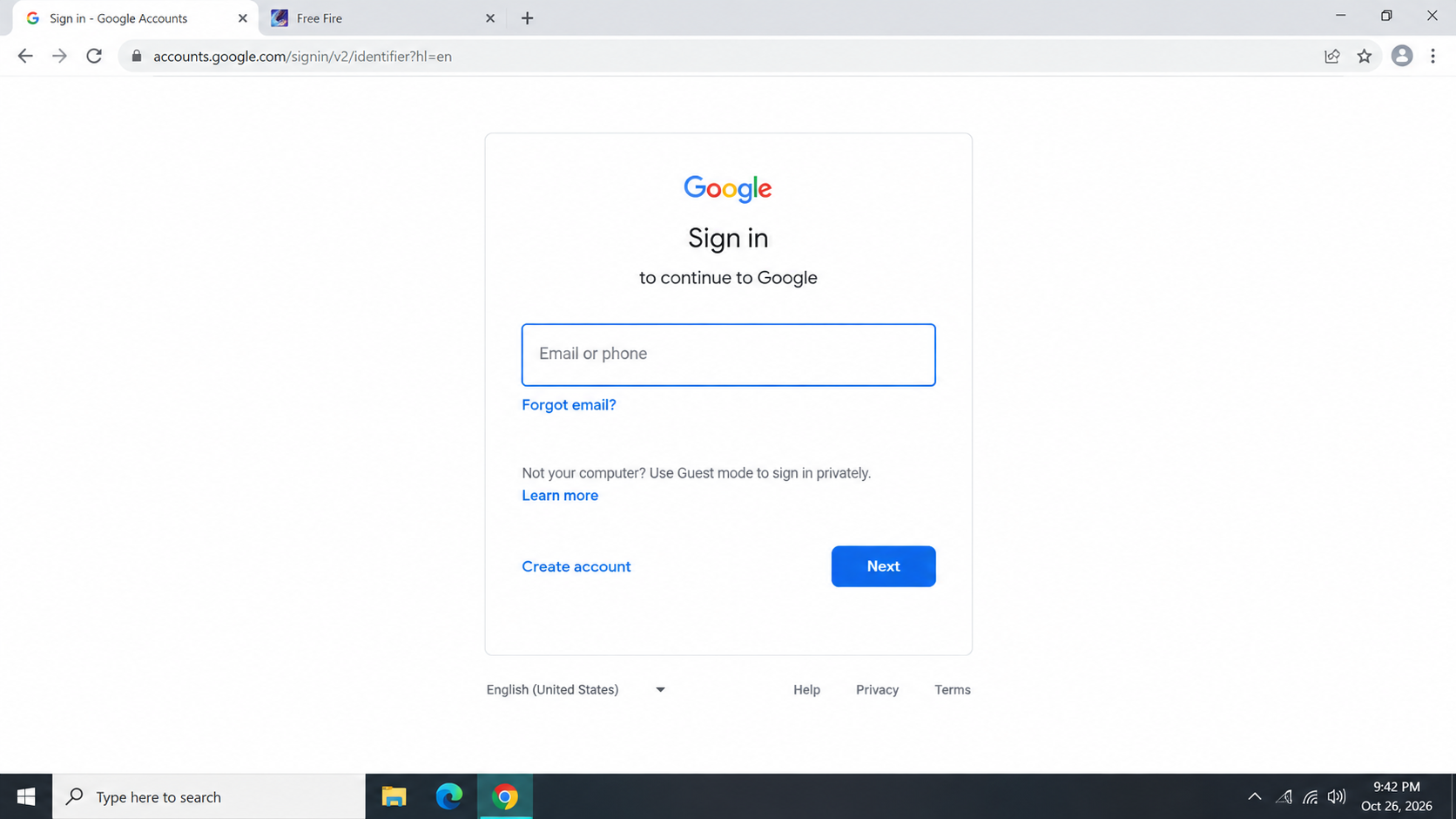
Show a successful Google Account sign-in with the email address and all personal information hidden. Never display a password, passkey, or verification code. - Review Google’s third-party connections for Free Fire or Garena. Treat an entry as a clue, not proof of a particular UID. Leave the connection intact; an absent entry is not conclusive either.
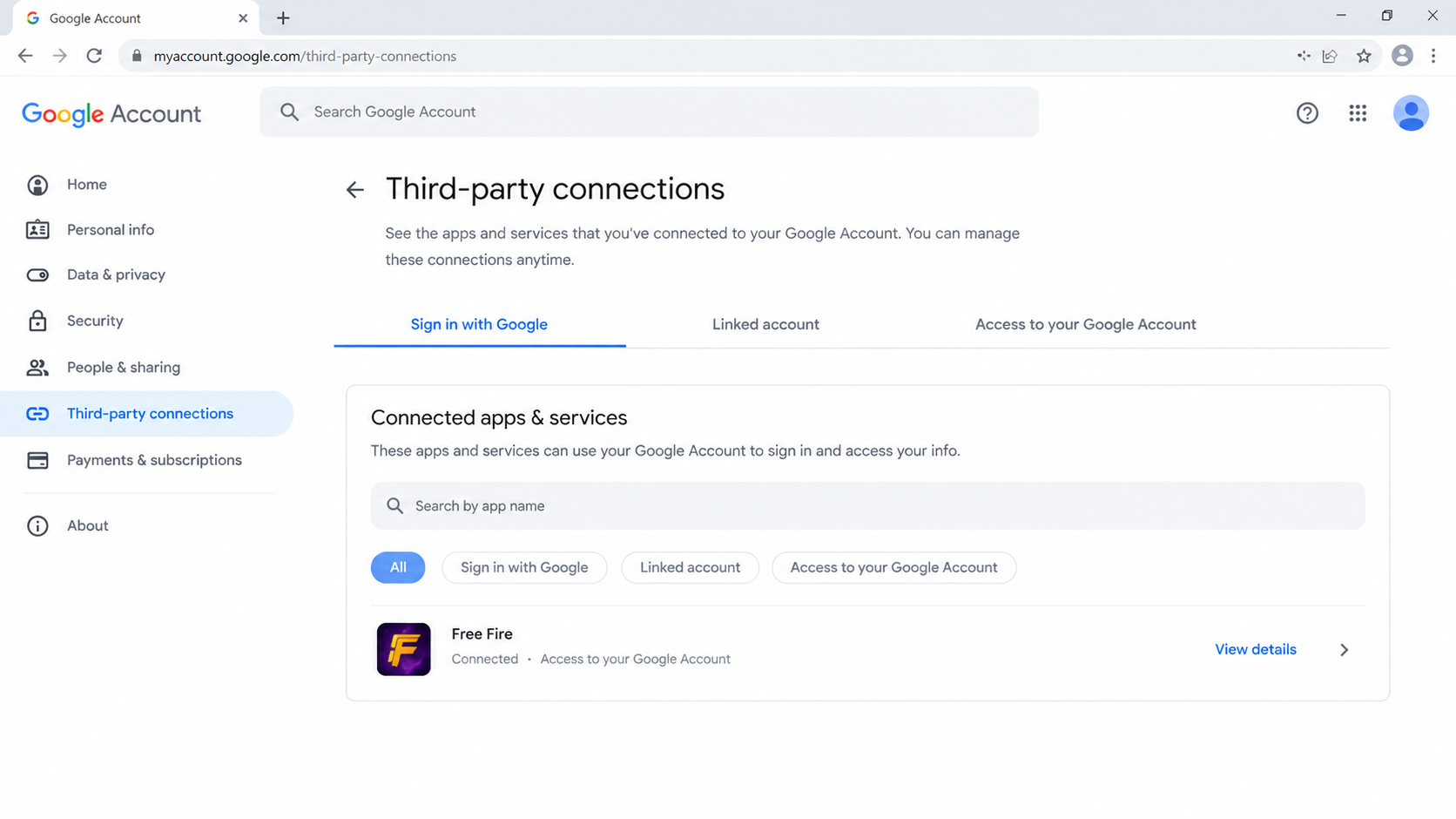
Show the Google Account connections page and a Free Fire entry if present. Hide the email address and do not remove the connection for the screenshot. - If Google itself will not let you sign in, use Google Account recovery. For a work or school account, ask the administrator. Complete security checks only through Google’s own pages.
Once Google opens, retry the original account in Free Fire. A working Google login with the wrong character still needs the account selection checked, not another password reset.
2. Select the Right Profile in Google Play Games
Android can remember a different Play Games profile from the one you intended. Google’s per-game setting applies only to supported games; Free Fire may instead use its own Google account picker.
- Open Settings > Google > All services > Settings for Google apps > Play Games > Sign in account. Menu labels vary by phone.
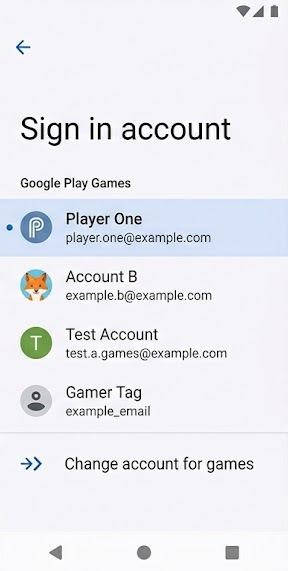
Show Settings > Google > All services > Settings for Google apps > Play Games > Sign in account on the tested Android version. - Under Change the account by game, find the installed Free Fire edition. Choose Change, select the original account and tap Save. Leave other games’ settings unchanged.
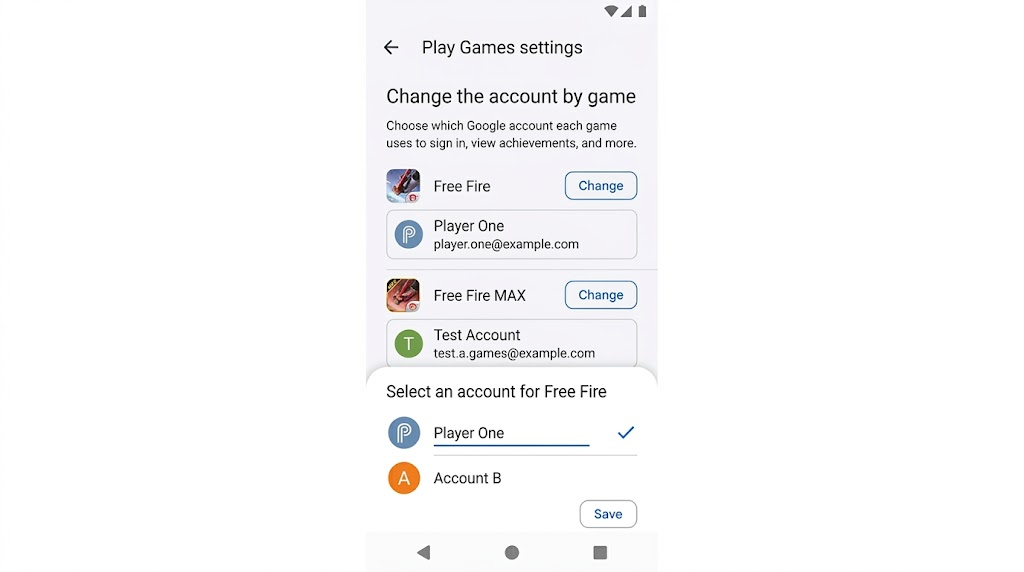
Show Free Fire under Change the account by game and the intended profile selected. Fully hide every email address and unrelated game profile. - If the game is absent, leave this setting alone and select the correct email in Free Fire’s Google picker. On supported devices, long-pressing the game icon may also offer Choose profile.
- For a supervised child account, the parent can review requested profile approval in Family Link > child > Controls > Google Play > Google Play Games. Do not delete the profile or bypass parental controls.
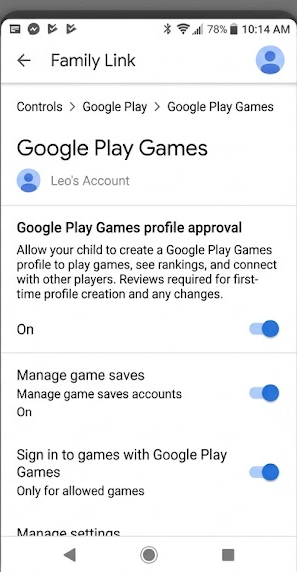
Show the parent-side Play Games profile approval screen with the child’s name, email, family details, and notifications hidden.
Google documents these profile-switching controls. The parent setting appears after consent is requested, and not every game supports supervised automatic sign-in. Check the returning nickname and UID before playing.
3. Update the Game and Clear Cache Only
A picker that closes or repeatedly returns to login can persist even with the right account selected. Google’s sign-in troubleshooting recommends refreshing temporary files in the game and related services, without clearing saved app data.
- In Google Play, install any offered update for the official Free Fire or Free Fire MAX app. Update Google Play Games if installed; avoid third-party APKs.
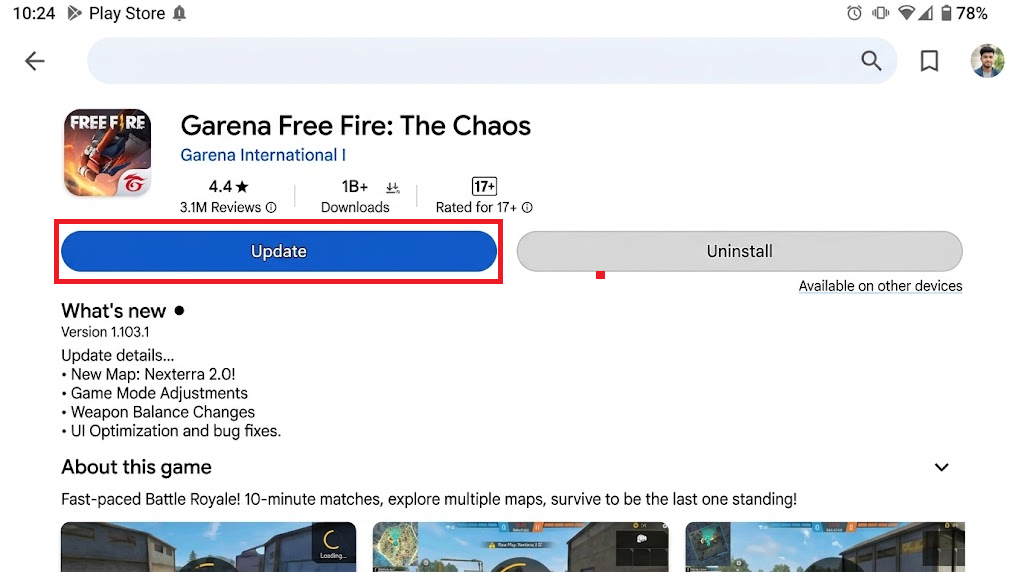
Show the official Free Fire or Free Fire MAX and Play Games listings with Update if available. Hide the Google account and payment information. - Open Settings > Apps > Free Fire > Storage & cache and choose Clear cache only. Return to App info and select Force stop.
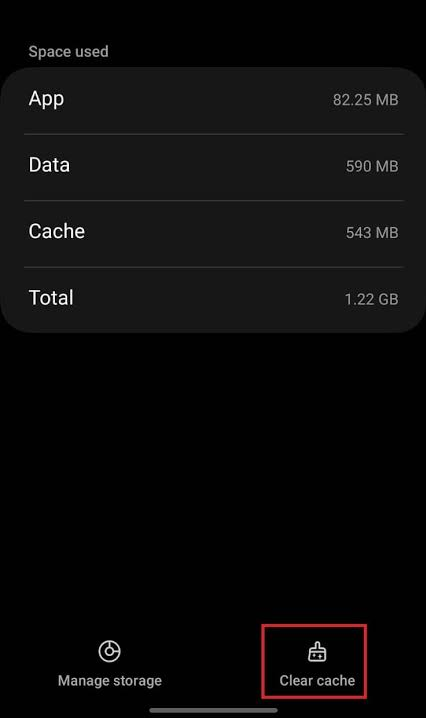
Show the Free Fire app storage screen before tapping Clear cache. Do not tap Clear storage or Clear data on a real account for the image. - Clear cache for Google Play Games, if installed, and Google Play services from their app settings. Leave Clear storage, Clear all data and account-removal controls untouched.
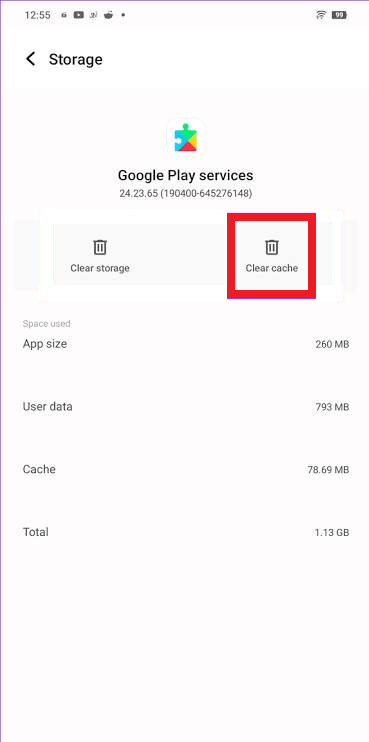
Use a composite of the Play Games and Google Play services cache screens. Do not clear storage, remove accounts, or expose device identifiers. - Restart the phone, reopen the game and try the original Google account once. If Play Games is installed, check whether its profile loads too.
If other games also fail to sign in, use Google’s Play Games sign-in checks. A Free Fire-only failure needs game-specific attention.
Failed to Retrieve Version is a separate startup error; keep the data-loss warning above in mind before following reinstall advice.
4. Compare Connections and Check for Login Notices
A working browser does not rule out a connection problem between the game and Garena. One network comparison is useful; changing accounts repeatedly during a service interruption is not.
- Close Free Fire, switch once between Wi-Fi and mobile data, and retry the same account. Use a trusted connection rather than public Wi-Fi that still requires browser sign-in.
- Check your region’s official Free Fire announcements for maintenance or login notices. Reports from other players are supporting clues, not official confirmation of an outage or ban.
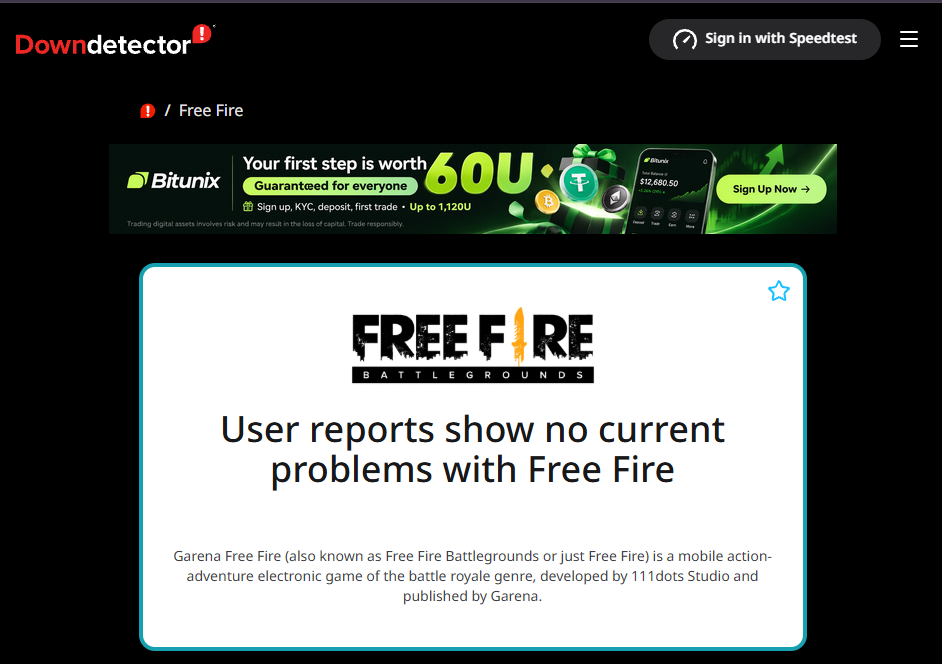
Show one safe network comparison and an official regional Free Fire notice if available. Hide carrier, Wi-Fi, location, account, and notification details.
If only one connection works, keep that result for your provider or Garena. For an explicit Network Connection Error, compare connections before considering wider changes. A VPN or region change is not required for these checks.
5. Recover a Lost Login with a Previously Bound Recovery Email
Garena’s Account Recovery is for a lost linked login, not a routine fix for a temporary error.
You must have linked the recovery email inside Free Fire before losing access, and Garena’s 15-day waiting period must be over.
| Email setting | What it recovers |
|---|---|
| Google Account recovery email | Access to Google. It does not automatically enable Free Fire recovery. |
| Recovery email bound inside Free Fire | The verified game profile through Garena’s Account Recovery. |
- From Free Fire’s login screen, choose Account Recovery, read the instructions and select Go to. Use the recovery option available for your region and client.
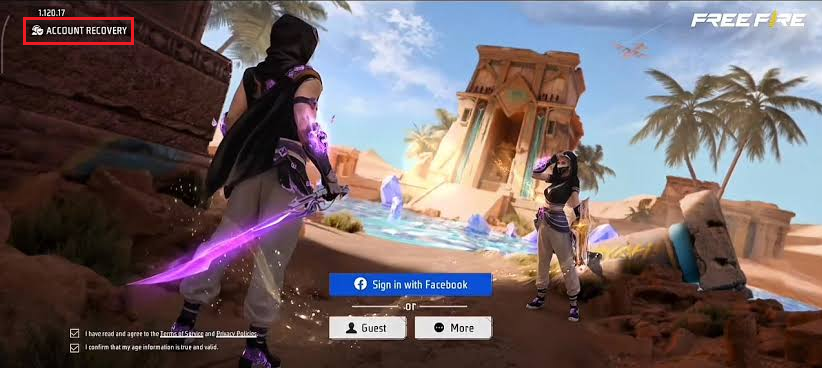
Show the Account Recovery button before entering any information. Hide saved account names, UIDs, and login notifications. - Enter the previously bound recovery email, tap Send, and enter the received code in the official game. Choose Verify. Stay in Account Recovery; Change Recovery Email is a different task.
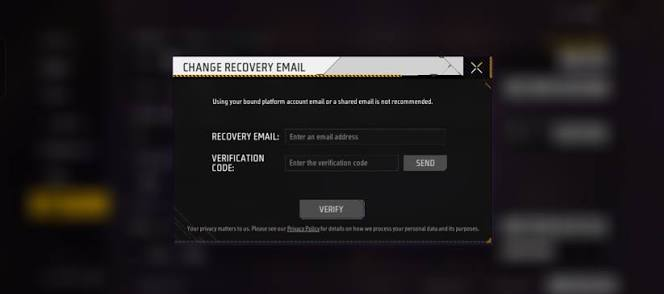
Show the verification screen with the email and code fully hidden. Never publish a one-time code or security code. - On Account Information, confirm the old player name and UID. Stop if either differs. Only then bind a secure, accessible platform account different from the lost one, following Garena’s prompts.
Never send anyone the verification or security code. After binding, sign in through the new platform and confirm the original UID is restored.
If no recovery email was bound, use Google’s recovery process for the original login. An inaccessible recovery mailbox or mismatched UID needs official help, not repeated binding attempts.
6. Report a Free Fire-Only Login Failure to Garena
Google cannot repair a game-managed profile binding. When Google works but Free Fire still rejects the correct account, Garena needs the exact error and account details.
- Open the official customer-service portal for your region in a browser; Garena lists its regional support teams. Choose Sign in or Login and the original Google account.
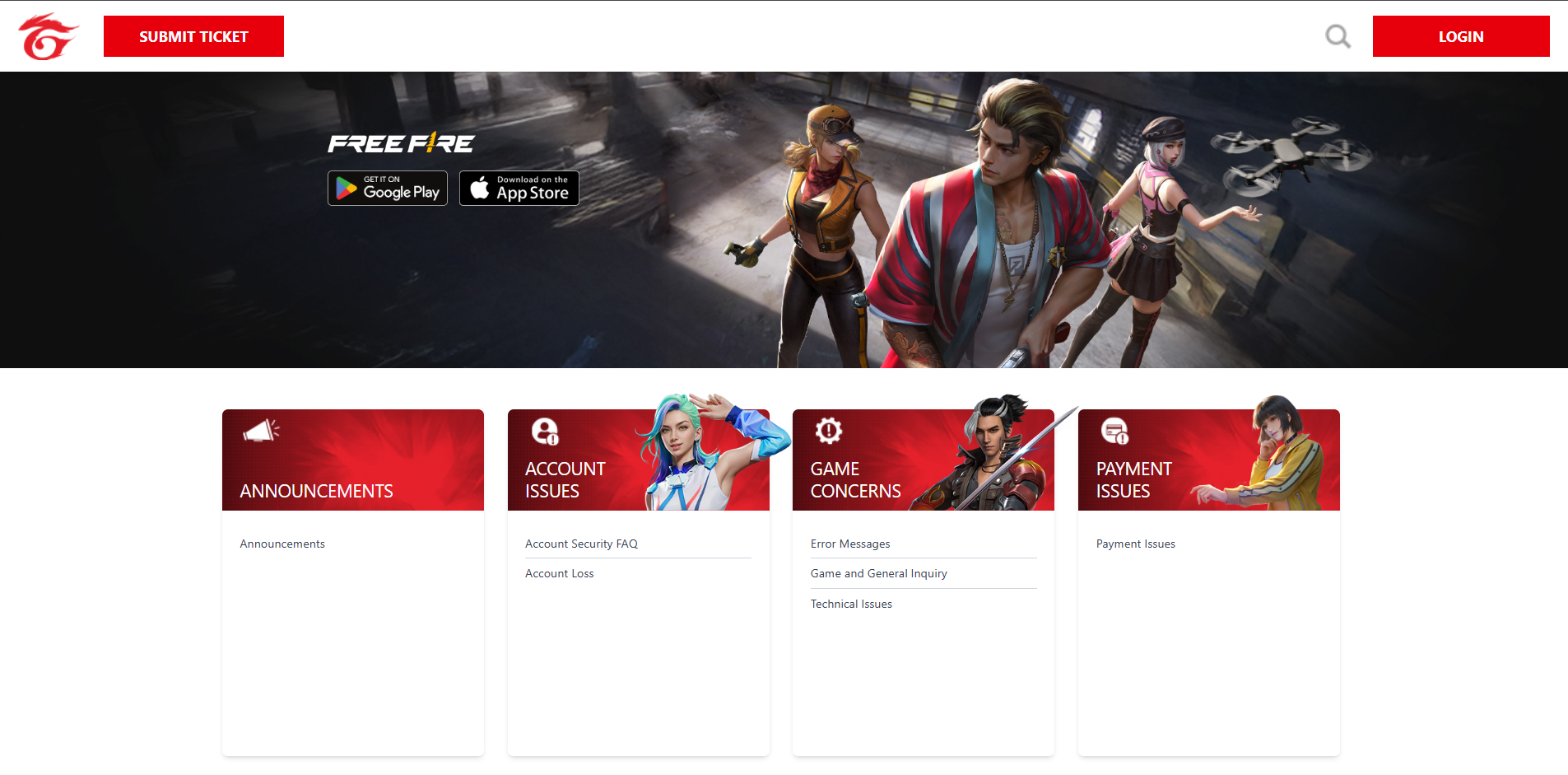
Show the official regional Garena Support sign-in page. Hide the email address, profile, UID, cookies, and browser account details. - Check that the portal shows the intended UID and nickname. Choose Submit a request, often under your nickname menu, and select the matching technical or recovery category.
- Include the exact error, phone/Android version, game edition/version, region, last successful login and network-test results. Add a redacted screenshot or short recording. Provide account identifiers or receipts only when the verified support form requests them.
A browser portal that also fails does not prove your Google password is wrong. If the correct profile remains signed in on another device, open Customer Service from Free Fire’s settings there instead.
Keep the error details for your region’s official support. Never post passwords, verification codes or full recovery details publicly.


