How to Fix Free Fire Gun Skins or Bundles Not Showing?
Free Fire can display a weapon’s default appearance even though its skin is in your inventory. The game downloads some cosmetic files separately, so an owned item can remain invisible until those downloads finish.
A newly won outfit can also be waiting inside an unopened bundle instead of appearing among your clothes. An item missing from the account altogether needs its claim or purchase checked; downloading more resources will not deliver it.
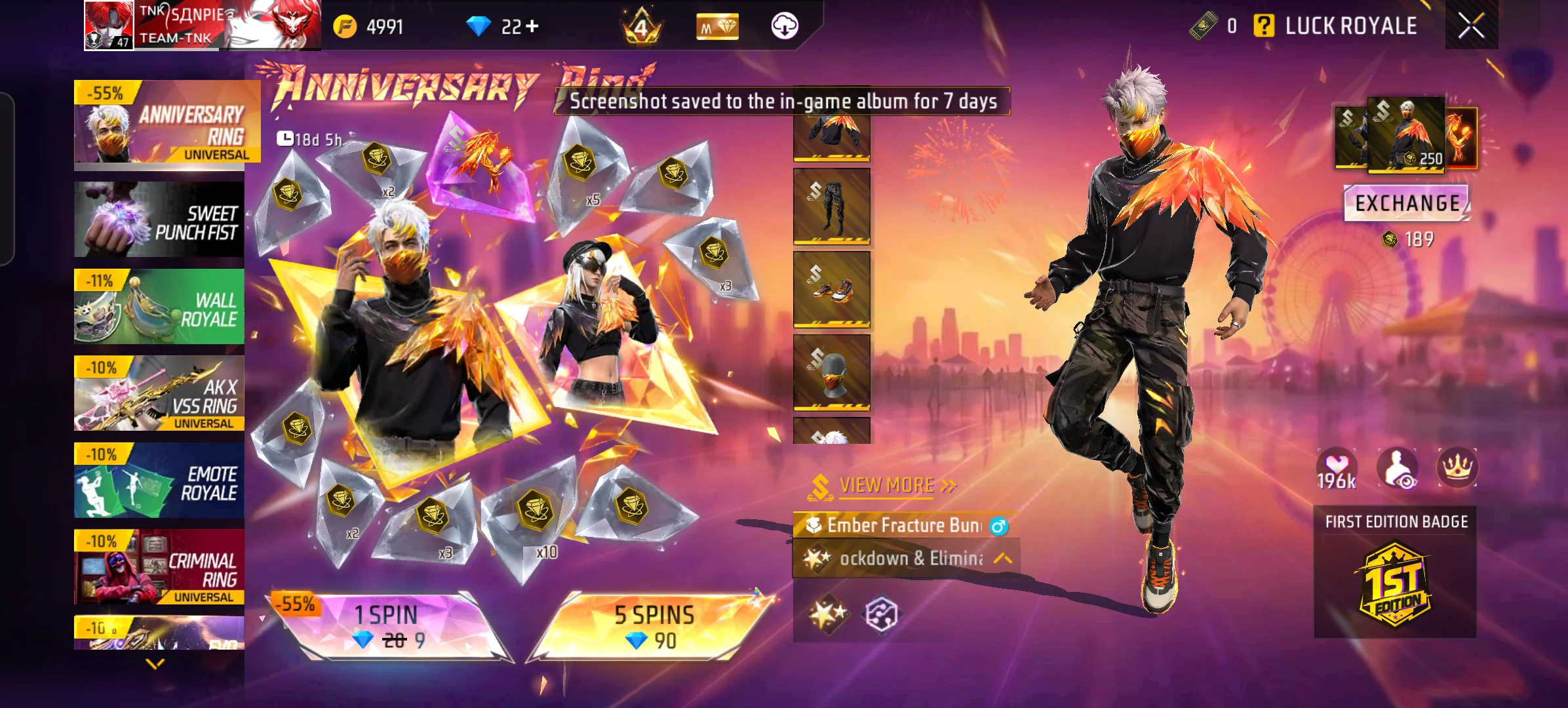
| What is missing? | Where to check |
|---|---|
| A bundle’s clothing pieces | Vault or Inventory > Others; look for an unopened package. |
| The appearance of an owned skin | Resource downloads and the item’s display setting. |
| A reward or paid item, everywhere | The receiving UID, claim record and purchase status. |
1. Find the Item in the Correct Account and Inventory
A reward can reach your account without appearing in the clothing tab. Some bundles open automatically; others remain boxed. Garena’s bundle-opening guide (Spanish) shows where to find them.
- Open your profile and compare its UID with an older screenshot or reward record. If it differs, sign in with the original linked account rather than creating a new profile.
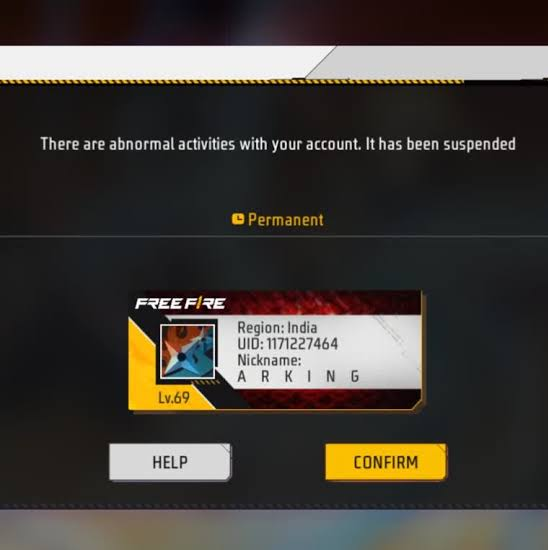
Capture the UID and sign-in provider area without exposing the full UID, linked account name, email address, or social profile. - For Free Fire and Free Fire MAX, confirm the same linked account and UID. Guest profiles do not carry between the apps.
- Check Mail and the original Events page for an unclaimed reward. Claim it before the displayed deadline.
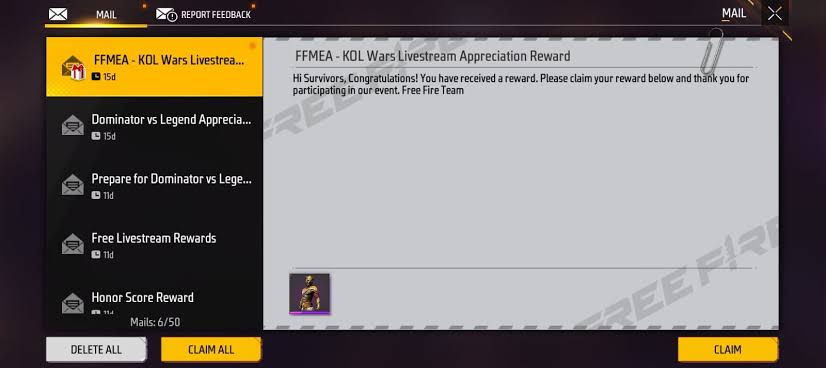
Show the Mail or Events area where rewards are claimed. Do not show real codes, transaction IDs, private messages, or account identifiers. - For a successfully redeemed code, leave room in Mail. Garena’s redemption rules allow up to 24 hours for delivery; expired, already-used or wrong-region codes do not grant rewards.
- Check Vault/Inventory for outfits and collectibles, or Weapon/Armory for gun skins. Menu names can vary by client.
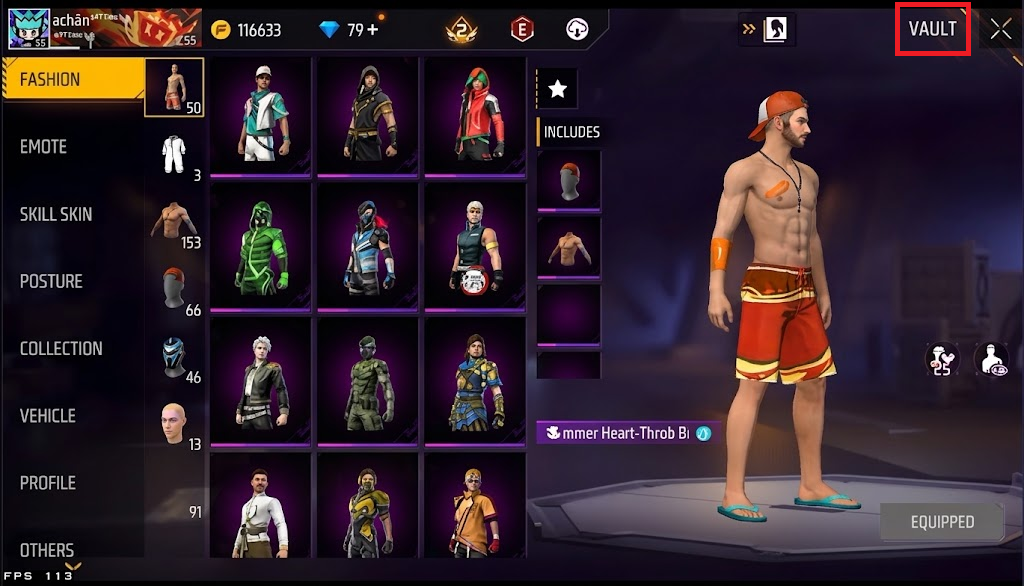
Show the Vault, Collection, Weapon, or Armory section that matches the missing item type. Use a test or redacted account. - For a boxed outfit, open Vault or Inventory > Others > the box/package tab, select its name and tap Open. Its pieces then appear in their clothing categories.
Check the reward description for a duration, too. An expired temporary skin is not a missing permanent item. A thumbnail in a prize pool or store preview alone does not confirm ownership.
2. Download the Skin’s Files and Enable Its Display
An owned skin that looks like the default item needs its appearance restored, not another purchase.
Downloading its resources supplies the cosmetic files; the lobby option controls where it is shown. Both are covered in Garena’s display instructions.
- Connect to stable Wi-Fi and leave enough free internal storage for the download size shown. A recurring Free Fire Network Connection error needs attention before resource downloads can finish.
- Open the lobby’s download icon or Download Center. Download the relevant equipped-item, clothing or weapon resources, and keep the game open until they finish.
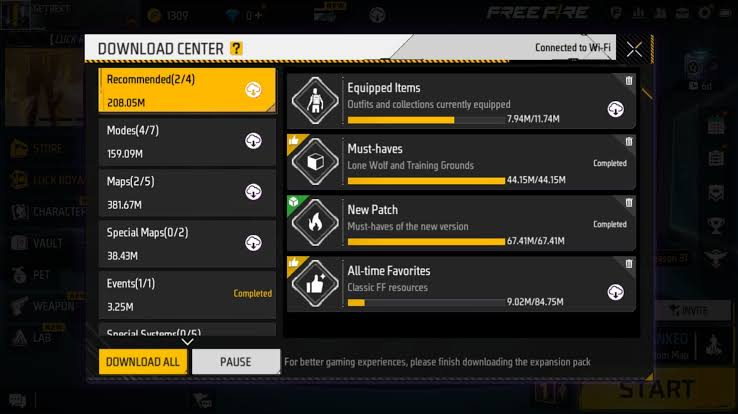
Capture the in-game resource or download screen before starting a large download. Keep Wi-Fi name, device storage details, and account data hidden. - Install any update offered for the official Free Fire or Free Fire MAX app in Google Play or the App Store. Recheck resource downloads afterward.
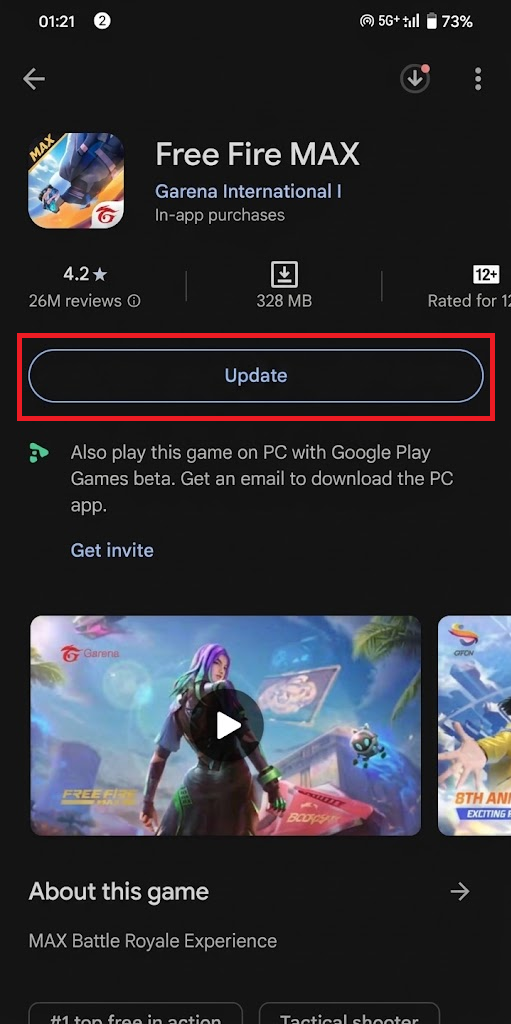
Show the official Free Fire or Free Fire MAX listing with the Update button if available. Do not use third-party APK sites. - Select and equip the owned item. Where available, enable Display in Lobby and CS Mode for collection items, or Show in Lobby for weapon skins.
- Reopen the game and inspect the item in its inventory and the supported lobby or mode.
Not every item supports lobby display. If only a friend’s collection item is invisible, they also need to enable its display option.
Download still stuck on Android? With the account linked, open Settings > Apps > Free Fire > Storage > Clear cache, then retry the download. Choose cache only, not Clear data/storage. This refreshes local files; it does not grant missing items.
A game that stops at Failed to Retrieve Version has an update or connection problem before inventory can load. Keep the guest-account warning above in mind before following any data-clearing or reinstall advice.
If an owned item still looks wrong after these checks, report it as a display bug with screenshots of the equipped item and the affected lobby or match.
3. Check a Purchase That Has Not Arrived
Reopening Free Fire lets its inventory update after a purchase; it cannot complete a pending payment. Check what the receipt covers, too: a diamond top-up alone does not include the bundle you intended to buy with it.
- Close and reopen Free Fire on the same UID. On Android, use Settings > Apps > Free Fire > Force stop; on iPhone, close it from the app switcher.
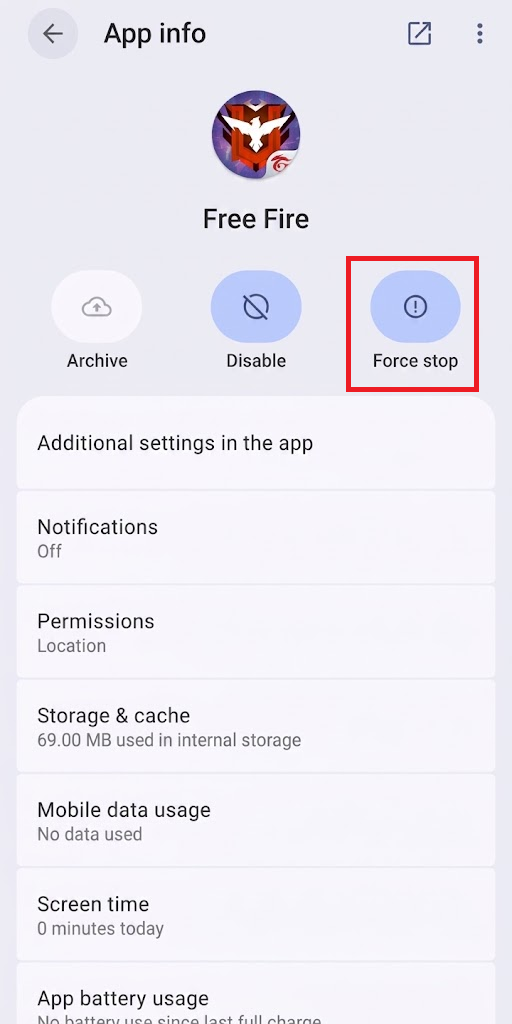
Show Force stop on Android or the recent-apps close step on iPhone. Do not tap Clear data in this screenshot. - Check the emailed receipt, Google Play order history or App Store purchase history for successful payment. A pending, failed or refunded order is not a completed purchase awaiting delivery.
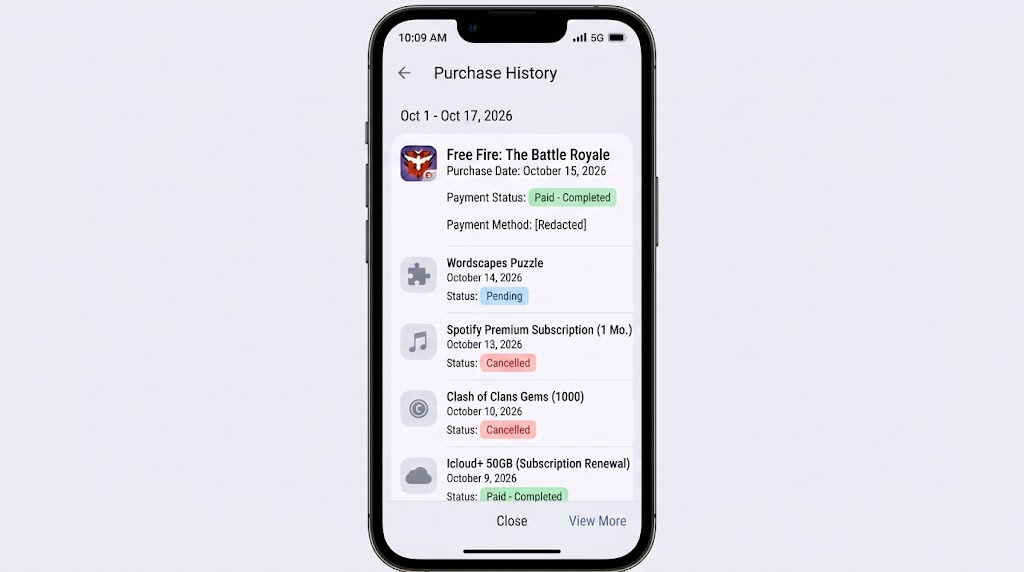
Show only the status, date and app name needed for troubleshooting. Redact order IDs, payment method details, email addresses and full amounts if needed.
Allow the offer’s stated delivery period. Garena gives these examples; they are not universal waiting times for every payment method.
| Purchase | Delivery guidance |
|---|---|
| An item from the in-game shop | Can take a couple of hours; see Garena’s purchase guidance (Spanish). |
| A Special Airdrop | Sent directly to Vault within 48 hours, according to the Special Airdrop instructions. |
- Check Mail, the offer page and the matching inventory again. If payment remains pending or failed, contact the store or payment provider instead of buying the offer again.
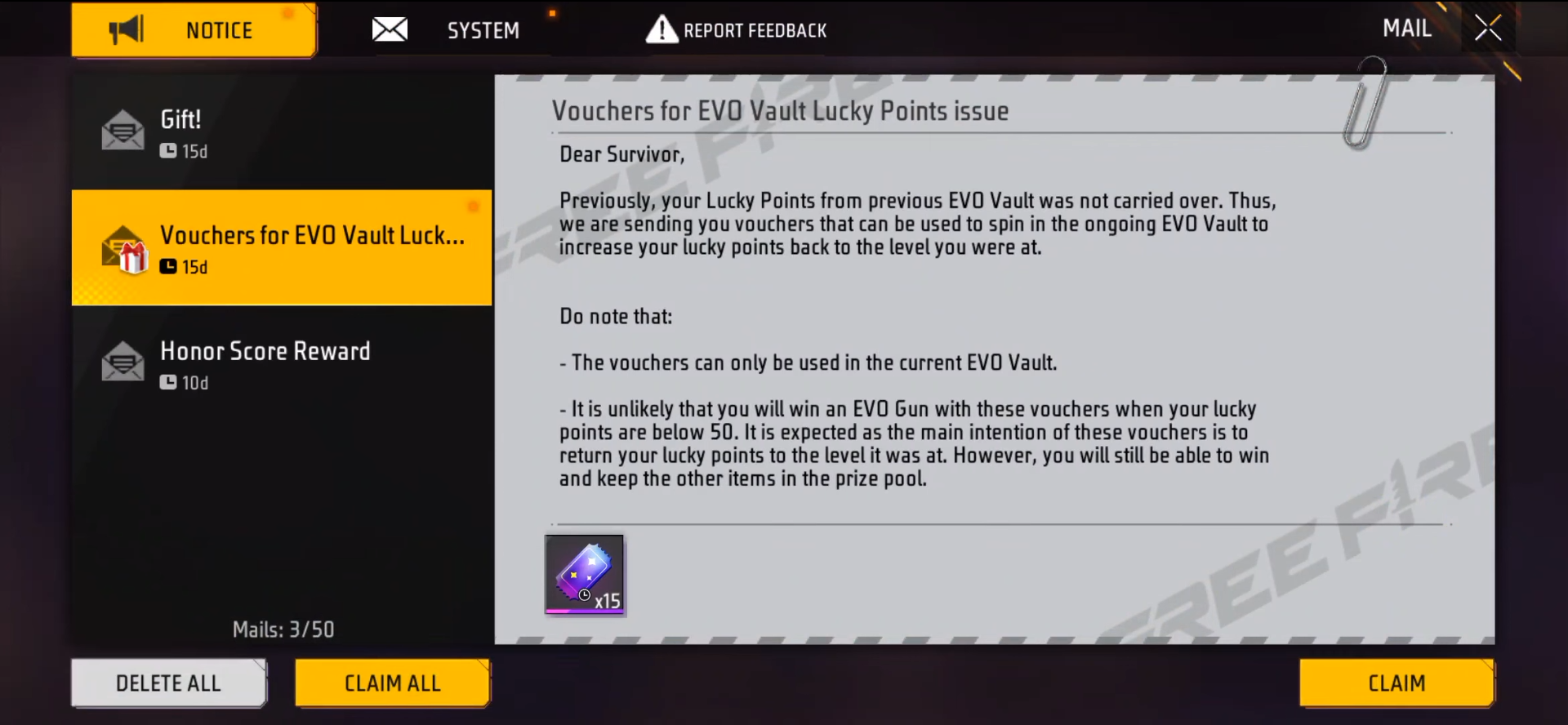
Capture the Mail, Vault, or Weapon inventory after reopening the game. Hide account identifiers and chat.
For a completed purchase still missing after its delivery window, send Garena the receipt through official support.
Mention any refund already issued: Garena’s refund policy explains possible diamond deductions and negative balances. For a billing dispute, use the store or payment provider’s official process.
4. Report the Missing Item to Garena
Report a vanished permanent item promptly: Garena’s India missing-items policy specifies 72 hours from when it went missing. Follow your own region’s deadline; recovery is not guaranteed.
- Open Customer Service from the game’s settings, then Submit a Request or the equivalent ticket option. Confirm the form belongs to the affected UID and region.
- Choose the matching issue. Labels vary by regional support portal.
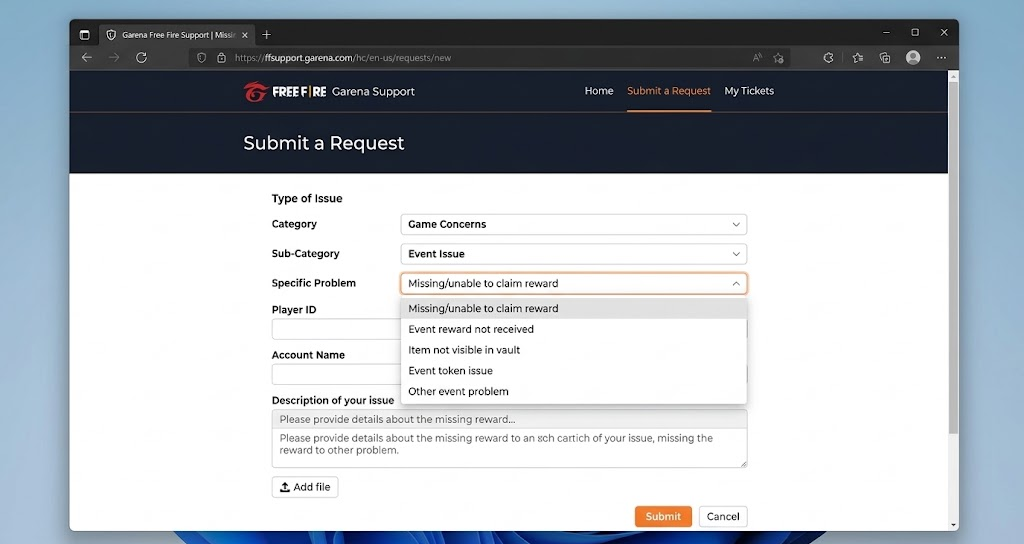
Show the Game Concerns and Event Issue route. Do not submit a real ticket just for the screenshot.
| What happened? | Support category |
|---|---|
| An event reward never arrived or cannot be claimed | Game Concerns > Event Issue |
| A previously owned permanent item disappeared | Missing Item (from Inventory) |
| A completed paid purchase never arrived | Payment Issue |
| An owned item cannot be displayed or equipped | Technical Issue or Bug Report |
- For an event reward, give the exact event name and reward type, such as Weapon Skin or Character Skin. Report an inaccessible event page as such.
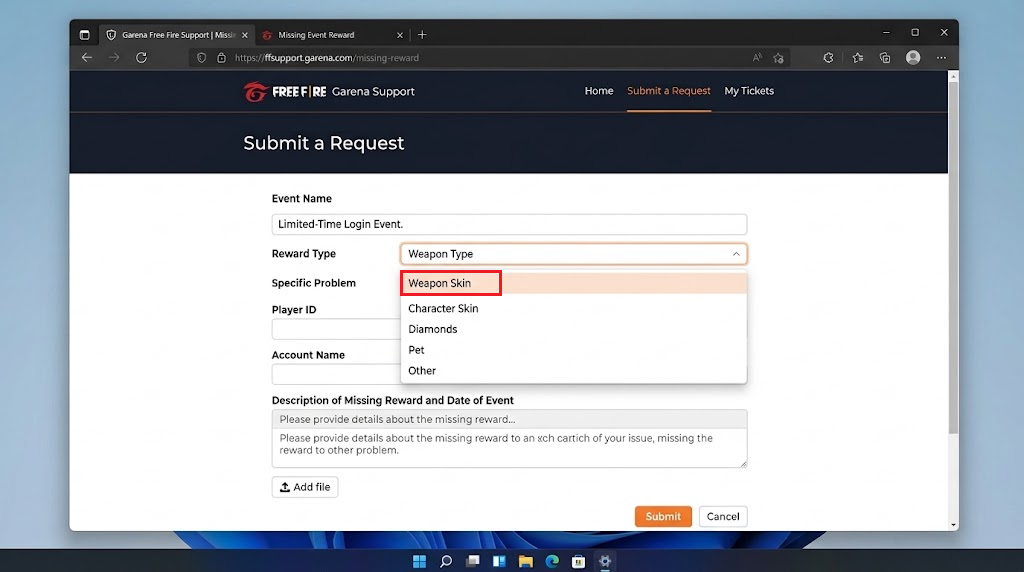
Show the Event Name and Reward Type fields with Weapon Skin or Character Skin visible. Use sample text and redact account details. - Provide the item name, quantity, UID, region, date claimed or last seen, and date noticed missing. Attach inventory screenshots and, for a paid purchase, its receipt.
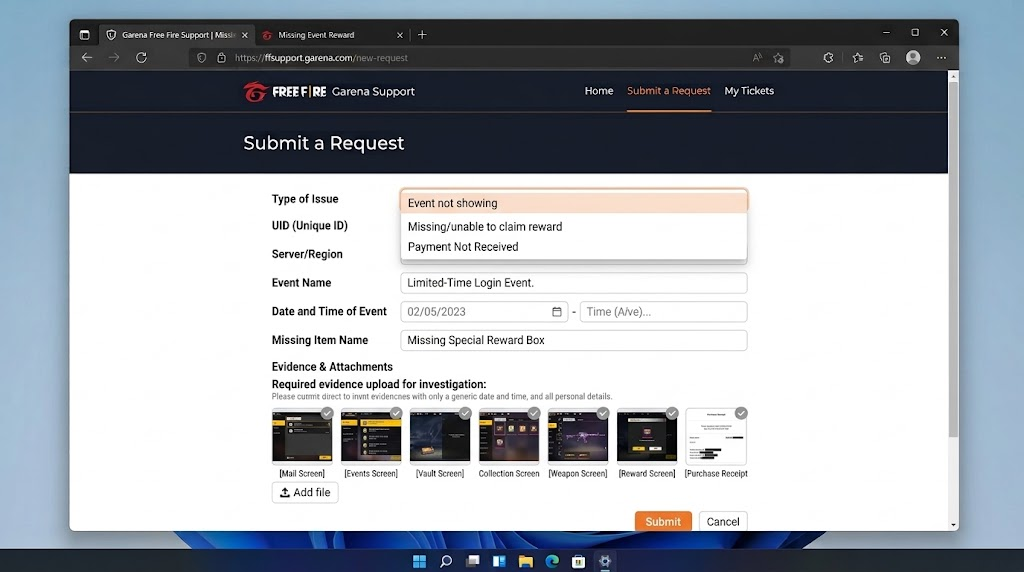
Show a redacted checklist of the event name, UID, server, date, purchase receipt and missing item screenshots. Never publish full transaction IDs or full UIDs. - Keep the ticket number and answer follow-up questions in that request. Share receipts and account details privately with official support, never passwords or verification codes.
A missing-item report asks Garena to investigate the account record. Repeated downloads or app resets cannot recover an expired reward or move an item from another UID.


