Best eFootball 2026 Mobile Settings to Fix Lag, Stuttering, and Low FPS
In eFootball Mobile, choppy player movement and a jerking camera can make matches feel sluggish even while the menus respond normally. The phone can load the match but struggle to keep it running smoothly, sometimes getting worse as it warms up.
Detailed players and stadiums take more work to draw. Lowering their graphics settings can free up performance without giving up the smoother movement of 60 FPS. When the phone cannot sustain that frame rate, 30 FPS may be steadier, but less fluid.
Online passes arriving late are not automatically a frame-rate problem. If Training or AI matches run smoothly but PvP does not, the connection needs attention too.
Graphics Settings Worth Trying
| Setting | What to try |
|---|---|
| Player Graphics | The lowest available preset; try Standard afterward if matches stay smooth. |
| Stadium Graphics | Lowest (Prioritize Playability), where shown. Higher detail can be restored separately. |
| Frame Rate | Try 60 FPS after reducing graphics. Compare 30 FPS only if 60 remains unstable. |
Use the same Training activity or an AI match, with a similar camera and duration, to judge each change. Stay connected for modes that require internet access. A responsive menu or one smooth replay is not enough to judge match performance.
1. Lower Player and Stadium Graphics
Stuttering against AI is worth checking with lower detail before assuming the internet is responsible. Konami’s mobile match troubleshooting notice specifically points to Player Graphics, Stadium Graphics and Frame Rate.
- Outside a match, open Extras > Game Settings > Graphics. At the title screen, you can also use the menu icon > Graphics.
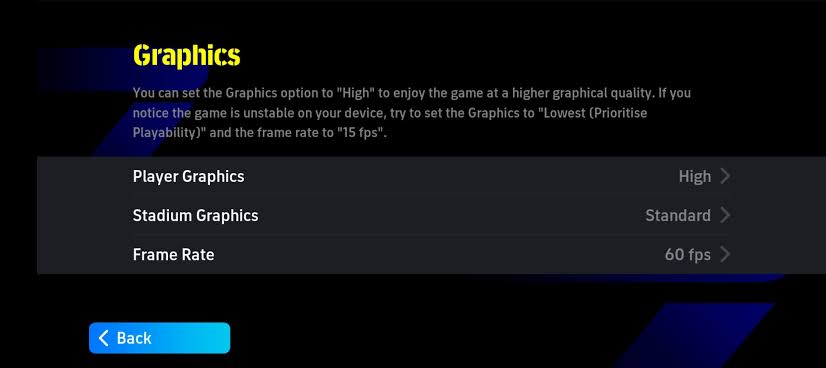
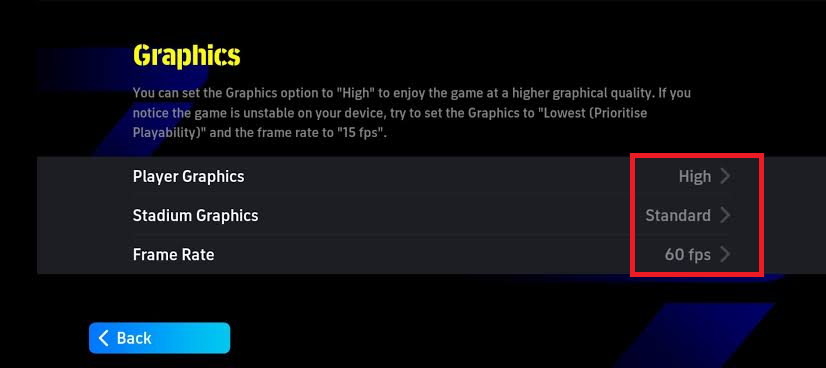
Open Extras, Game Settings and Graphics outside a match. - Take a screenshot of your current Player Graphics, Stadium Graphics and Frame Rate values. Leave Frame Rate unchanged while comparing graphics quality.
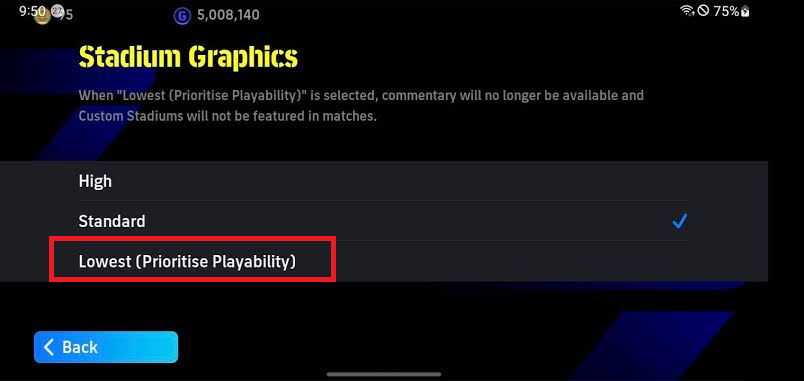
The Lowest (Prioritize Playability) graphics option removes spectators and disables commentary. - Open Stadium Graphics and select the lowest available preset, such as Lowest (Prioritize Playability).
The Lowest (Prioritize Playability) graphics option removes spectators and disables commentary. - Set Player Graphics to its lowest available preset. Accept any confirmation, then check that both graphics values were saved.
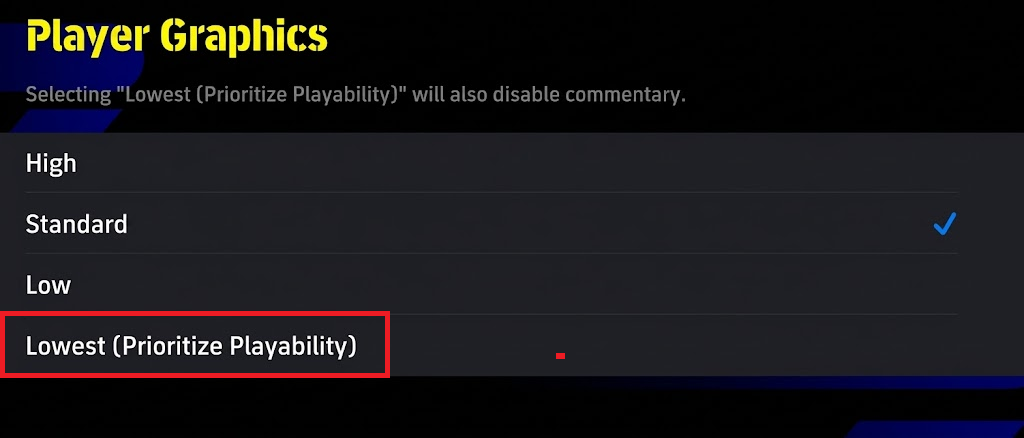
Leave Frame Rate unchanged until you have compared the lower graphics settings.
The red boxes in these images mark options to tap; the blue checkmark shows the actual selection. Check that it moves to the option you choose.
Some screenshots show the older Low preset, which Konami removed from Player Graphics. Follow the options in your installed version.
- Play the same Training activity or AI match again. Watch camera pans, ordinary movement and busy penalty-area play. Keep screen recording and any FPS counter on for both comparisons, or off for both.
- If play becomes smooth, optionally raise one graphics control to Standard and play again. Restore the lower value if stuttering returns. Check the other control separately.
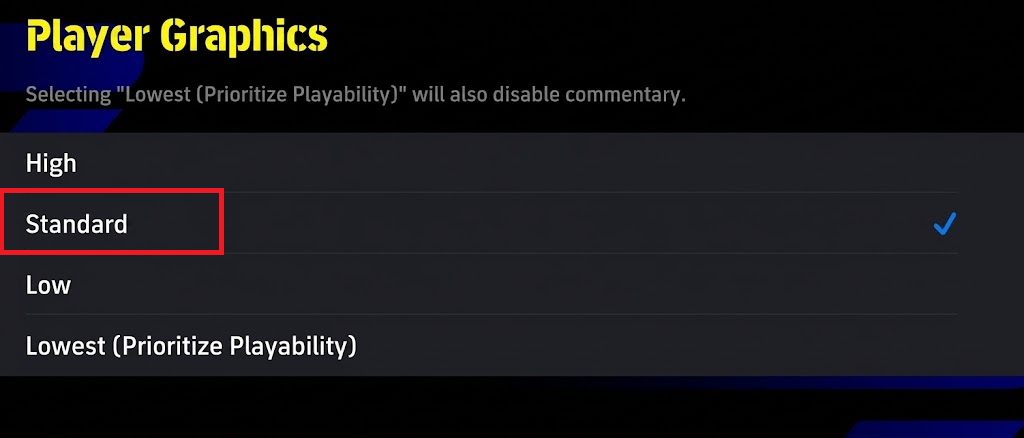
Keep the higher preset only if play remains stable over the same test.
If stuttering remains at minimum detail, keep those values while comparing frame rates. Restore more detail only after you have found a stable combination.
2. Compare 60 FPS with 30 FPS
A steady 60 FPS makes camera movement look smoother than 30 FPS. However, a phone struggling to maintain 60 may suffer more interruptions than it does at 30. The lower limit is a compromise, not an improvement for every device.
Keep your chosen Player and Stadium Graphics values unchanged. The frame-rate screenshots below show different example graphics presets; do not copy those differences into your comparison.
- Open Graphics > Frame Rate and select 60 FPS, if offered. Confirm if prompted and check the saved value. Keep it unchanged if it is already selected.
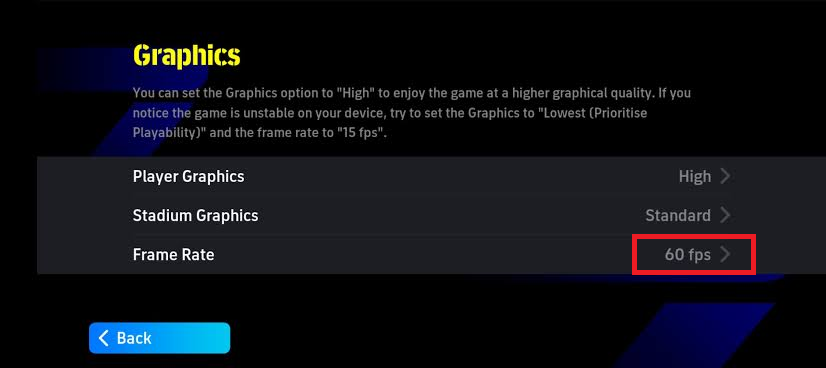
Selecting 60 FPS does not guarantee the device can sustain it. - Start with the phone at its usual temperature and play a comparable AI match. Check whether movement stays smooth into the second half. Use the same charging state for each comparison, preferably without charging during play.
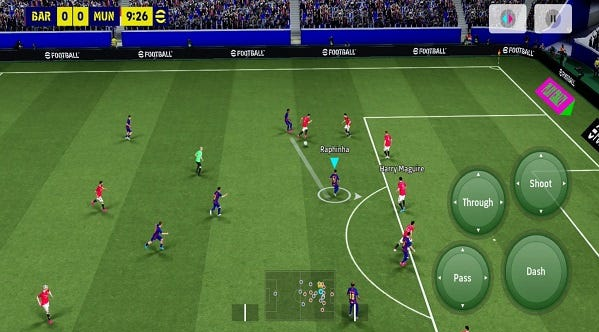
Record whether motion stays smooth or deteriorates later; do not publish invented FPS readings. - If 60 FPS still stutters, select 30 FPS and repeat the match after the phone returns to a normal temperature. Keep the graphics values unchanged.
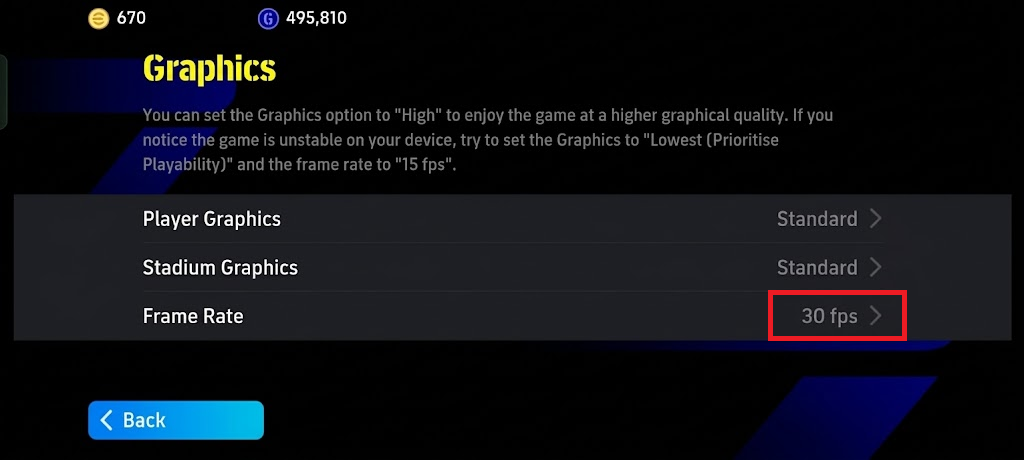
A lower target may reduce workload, but it also reduces motion smoothness. - Keep 30 FPS only if fewer interruptions outweigh its less fluid motion. Check how passing and dribbling feel too. Otherwise restore 60 FPS or your original value. Confirm your final choices and check another match.
The selected FPS value is a target, not a measured result. Likewise, a 120 Hz phone display does not establish that eFootball is rendering at 120 FPS.
On a Samsung Galaxy: Power saving can limit processor speed. If it is on, search Settings for Power saving and compare one match with it off on a cool phone.
Battery use and heat may increase. Restore the original setting if it does not help or when you need to conserve battery.
Apple documents that excessive heat can reduce frame rates. An iPhone overheating outside games too needs broader attention, rather than another graphics adjustment.
When Lower Settings Do Not Help
AI Is Smooth, but Online Matches Are Delayed
Look for the antenna indicator and post-match network graph in modes that support them. Konami’s online match guidance explains that they describe connection quality in client-server matches, not FPS. Other match types may not show them.
On Wi-Fi, stay near the router and pause large transfers on the same network. Compare mobile data if available, allowing for data charges. A fast speed-test result alone does not rule out match latency.
An explicit eFootball network error is a connection failure, not evidence that Player Graphics is too high.
Training and AI Matches Stutter Too
Check Konami’s current in-game notices for a matching issue, especially if the problem began immediately after an update. Its minimum requirements also warn that meeting the listed specifications does not guarantee smooth play.
For unresolved mobile problems, open the title-screen menu > General Contact > Inquiry. Use the in-app form; Konami’s console enquiry form does not accept mobile reports.
Include your phone model, OS and game version, graphics/FPS selections, affected mode, charging state, and whether stuttering starts immediately or after warming up. Report what changed with the lower settings, without posting account credentials publicly.


