How to Fix Prone Button Not Showing in BGMI?
BGMI’s crouch and jump buttons are still on screen, but the separate prone button has disappeared. The character may still lie down when crouch is held, even though there is no prone icon to tap.
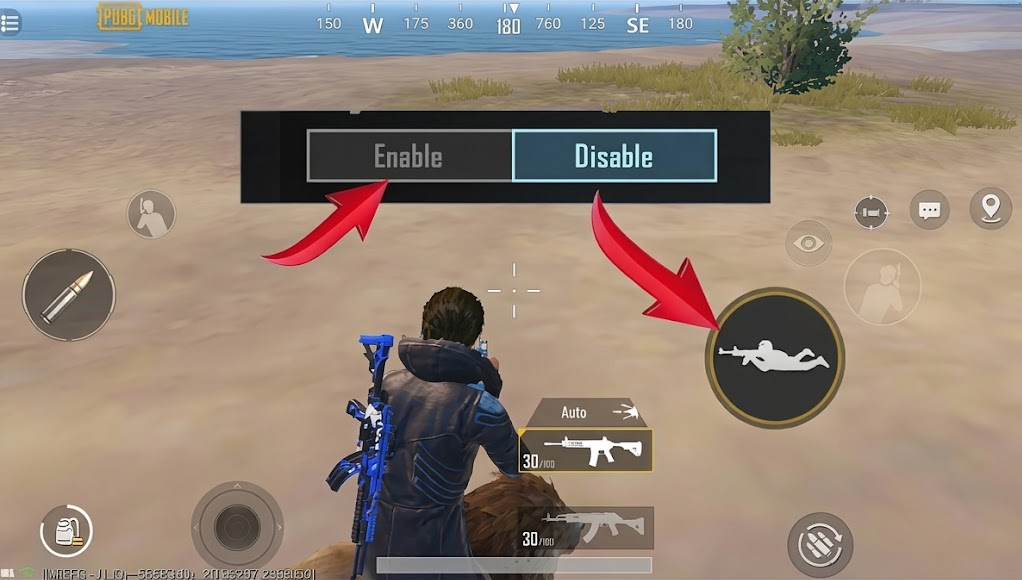
The PUBG Mobile illustration above highlights the prone button; BGMI’s menus can look different.
With Merge Crouch and Prone enabled, BGMI deliberately hides the prone button. Holding crouch performs the same action instead. KRAFTON describes this behavior in its control changes.
To check, enter Training Ground, stand on clear, level ground and hold crouch. Going prone confirms that the combined control is working. A failed hold alone does not prove the setting is off.
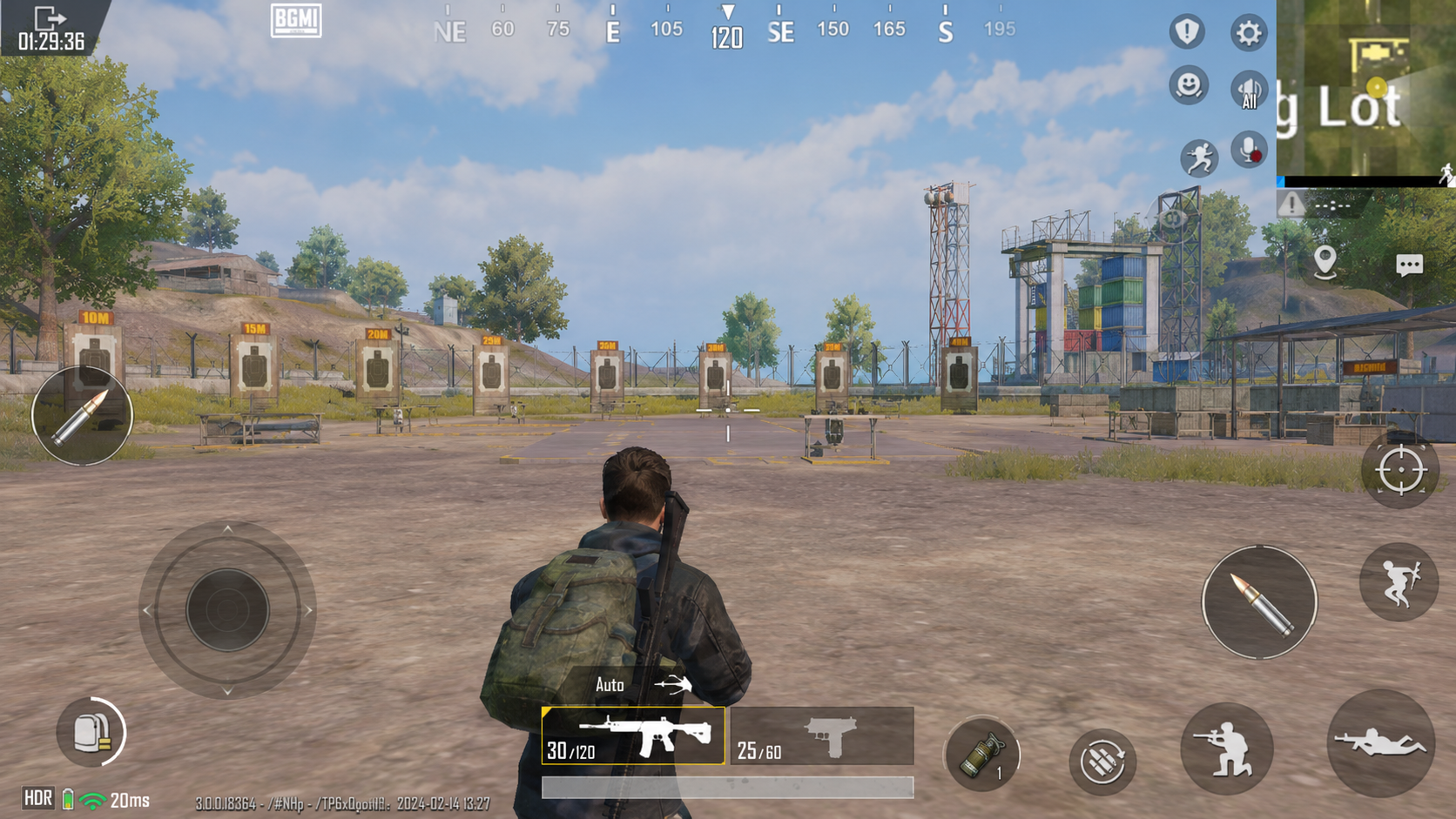
1. Separate Crouch and Prone
Restoring the separate button does not require a new layout if the merge setting is responsible. Change that option only; sensitivity and firing controls can stay as they are.
BGMI has reorganized its Settings menus. Match the option’s name rather than a screenshot’s position if your headings differ.
- From the BGMI lobby, open Settings > Controls.
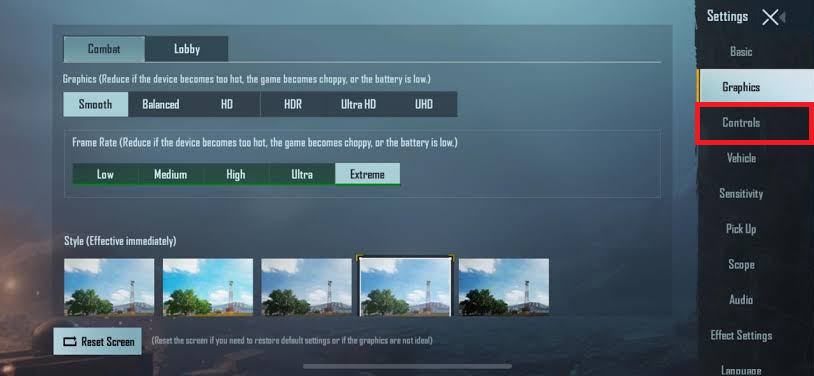
Show the current BGMI Settings and Controls labels. Hide the player profile, UID, linked accounts, currency, invitations, and messages. - Look under Advanced Controls > Features where those headings are present. Older menus placed the option under Basic.
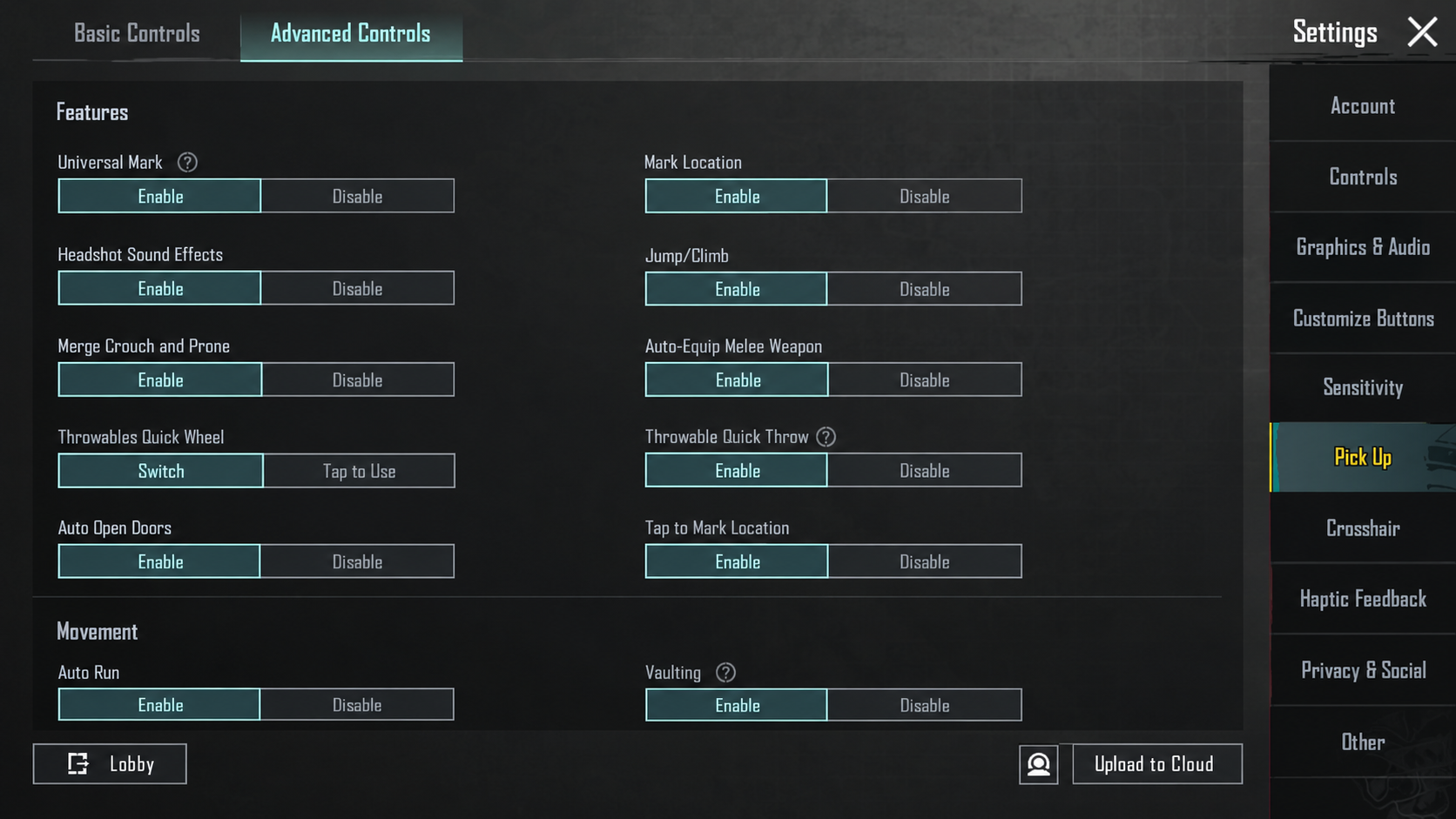
Capture the live build because section names and positions can change between BGMI updates. - Find Merge Crouch and Prone, also called Merging Crouching and Laying Prone. Note its current selection.
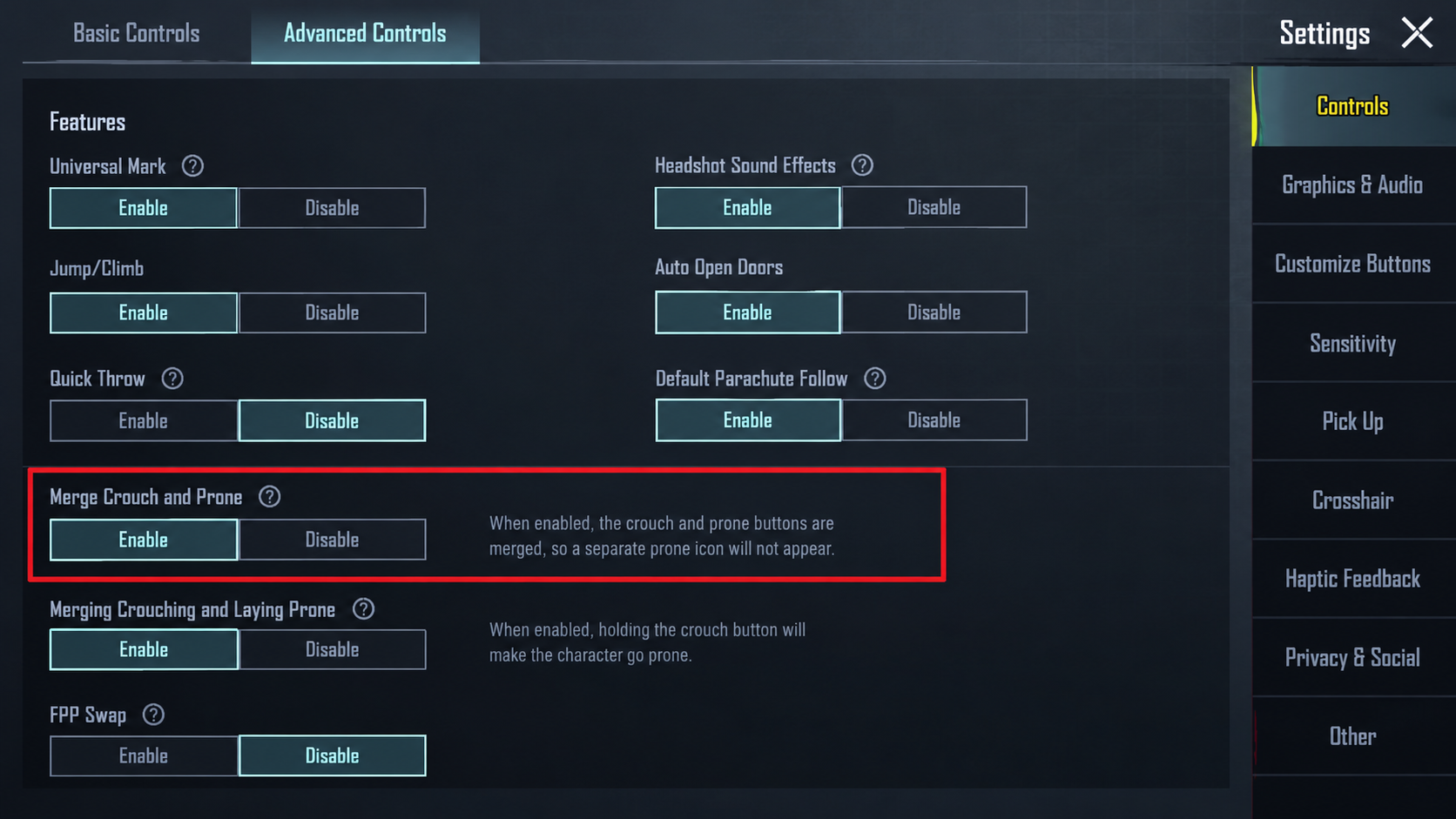
Show the authentic enabled state. Do not change unrelated movement, scope, sensitivity, or accessibility settings for the image. - Choose Separate or Disable, according to the choices shown. If it is already separate, leave it unchanged.
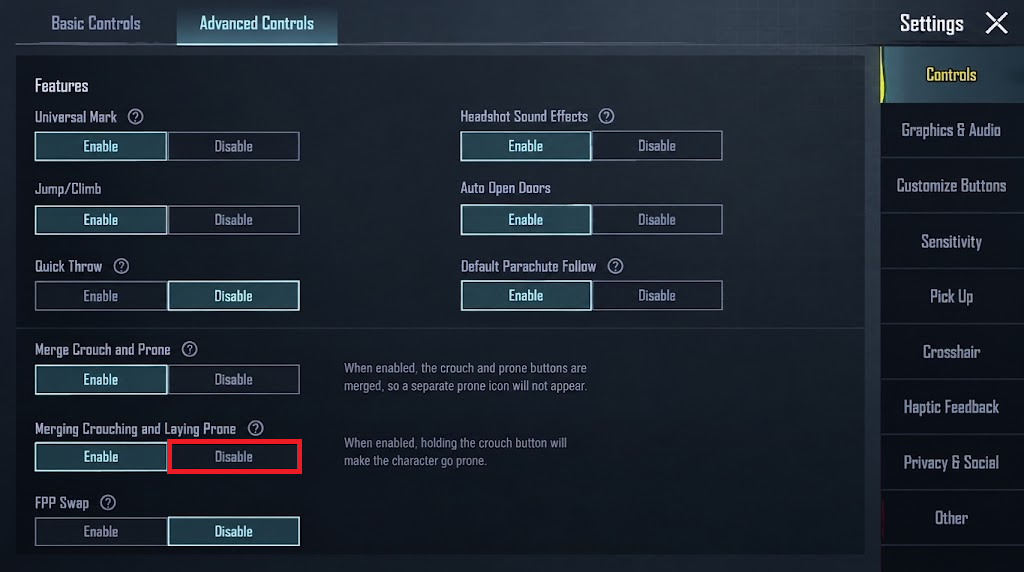
Capture the saved disabled or Separate state using the wording shown by the current official BGMI build. - Return to Training Ground and test crouch and prone individually. Keep them separate if both work; restore the original choice if you prefer holding crouch.
If the button is still missing with the setting separate, check the layout rather than repeatedly changing the merge option.
| What You See | What to Check |
|---|---|
| The icon appears in the layout editor, but not during play. | Check its visibility, position and saved layout below. |
| It disappears only in one mode or perspective. | Check the layout selected for that mode, rather than replacing every layout. |
| It is visible, but the character will not lie down. | Test on clear ground, outside a vehicle or special action. This is not the same as a missing icon. |
| The icon is visible, but the whole game stutters. | The PUBG performance guide covers lag, not missing controls. Its PC and emulator instructions do not apply to BGMI on a phone. |
2. Make the Prone Button Visible in the Layout Editor
A button can be difficult to see or reach when its opacity is too low, it overlaps another control, or it sits against the screen edge. Adjust the prone button itself before considering a full layout reset.
- Open Customize Buttons in Settings, or Controls > Customize if your menu uses that arrangement. Select the layout you actually play with.
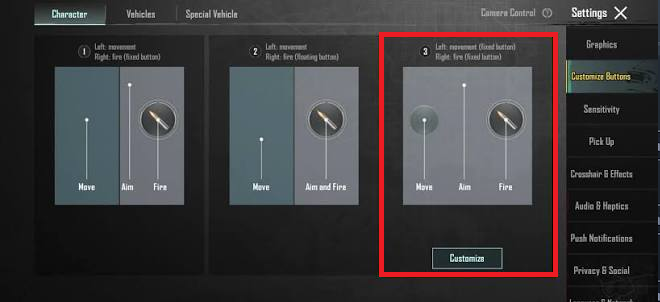
Verify the selected mode, perspective, and layout before moving anything. Hide shared layout codes and account details. - Select the prone icon, including near screen edges or overlapping controls. Increase its opacity until clearly visible and choose a size you can comfortably tap.
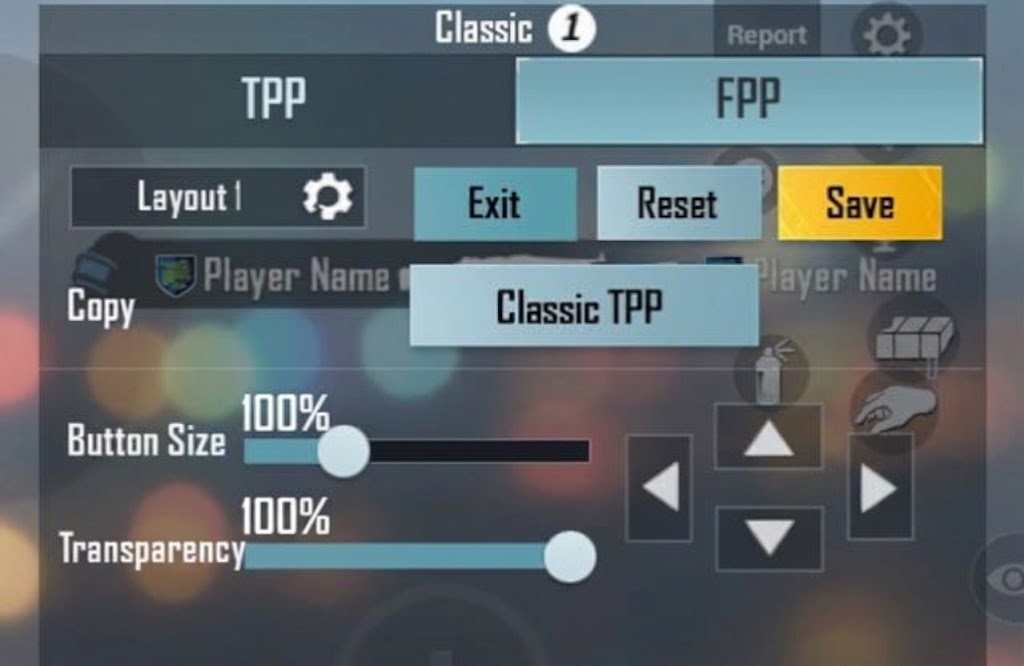
Raise opacity above zero and use a practical button size. Preserve the player’s preferred layout wherever possible. - Move it fully on screen, away from other buttons. Tap Save and wait for confirmation before leaving the editor.
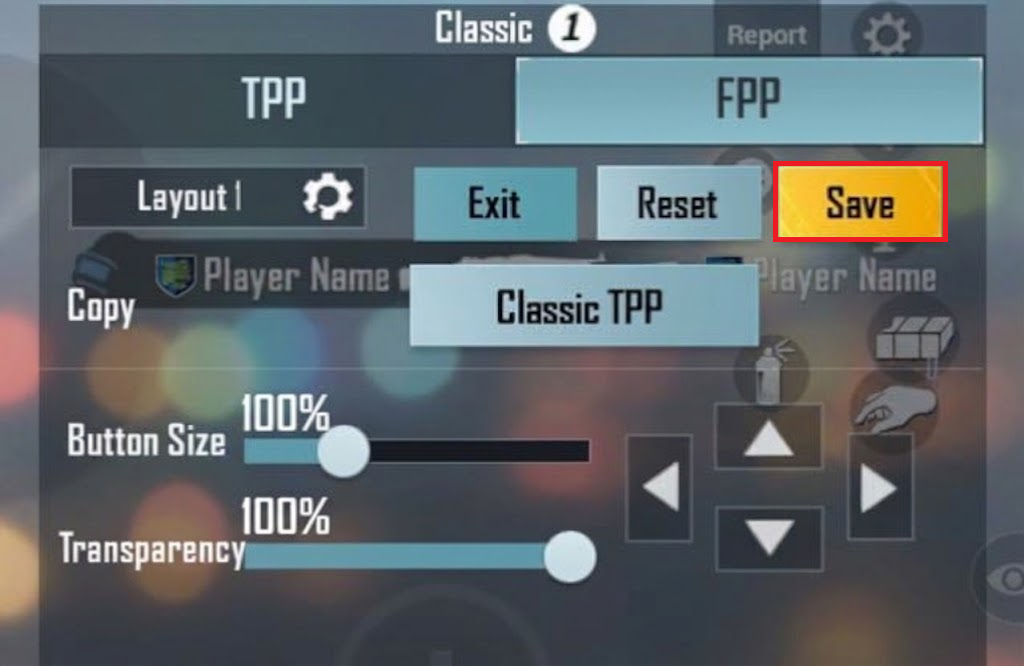
Place the control fully on screen, save the layout, and wait for BGMI to confirm the change.
Test in Training Ground, then in the affected mode when safe. A Training Ground result does not confirm that a different mode uses the same layout. Keep your other controls unchanged if the prone button now appears.
A visible button that ignores taps may need a different check. If the same screen area also fails in other apps on Xiaomi, Redmi or POCO, investigate the phone’s touchscreen response; rebuilding BGMI controls will not test that.
3. Check Which Layout the Affected Mode Uses
Where the editor offers separate mode or TPP/FPP choices, an edit applies to the selected layout. Check those selectors before replacing your usual arrangement.
- Open the editor for the affected mode. Check its Classic/Arena and TPP/FPP selectors where offered, along with the selected control preset.
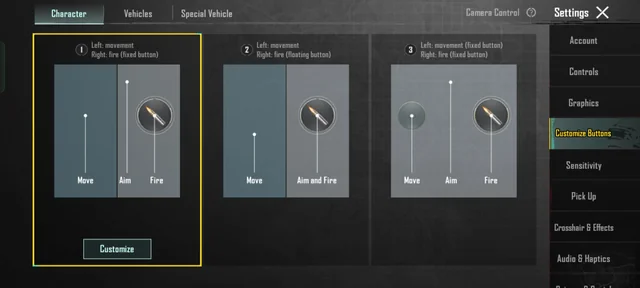
Capture the exact selector shown by the current build. Labels can differ between Classic, Arena, TPP, FPP, and special modes. - Screenshot the current arrangement and note the active preset. If layout sharing or cloud management is available, save your own layout code privately as an additional reference.
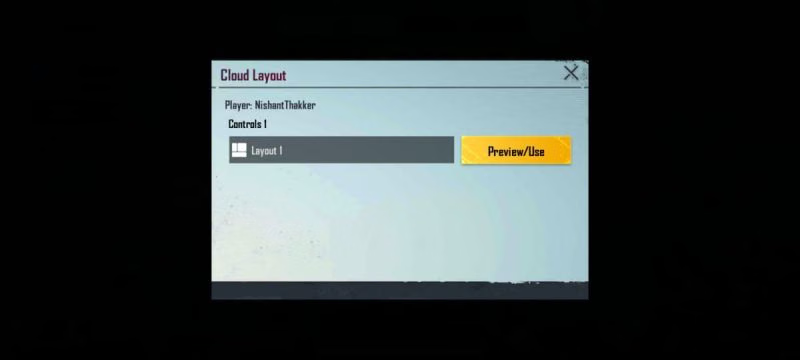
Record a screenshot or private layout code before testing another preset. Blur the code in the published image. - Confirm that this layout has a visible prone button and save any correction. Retest the same mode and perspective, not just Training Ground.
Optional comparison: If an unused layout slot is available, try it without overwriting your main one. Keep crouch and prone separate, then test. Switch back afterward; do not reset a used slot to create this comparison.
If the spare works, correct the prone button in your usual layout or restore your own matching backup. If both lose the icon, keep your preferred preset rather than rebuilding both. Without a spare slot, skip this comparison.
4. Reopen, Update and, If Needed, Repair BGMI
If the icon disappears again after saving, close and reopen BGMI to reload the saved layout. KRAFTON also recommends Routine Repair for persistent bugs; try it only after checking the controls.
Reopen and Check for an Update
- Check BGMI’s official Google Play or App Store listing. Confirm KRAFTON is the developer and install an offered update.
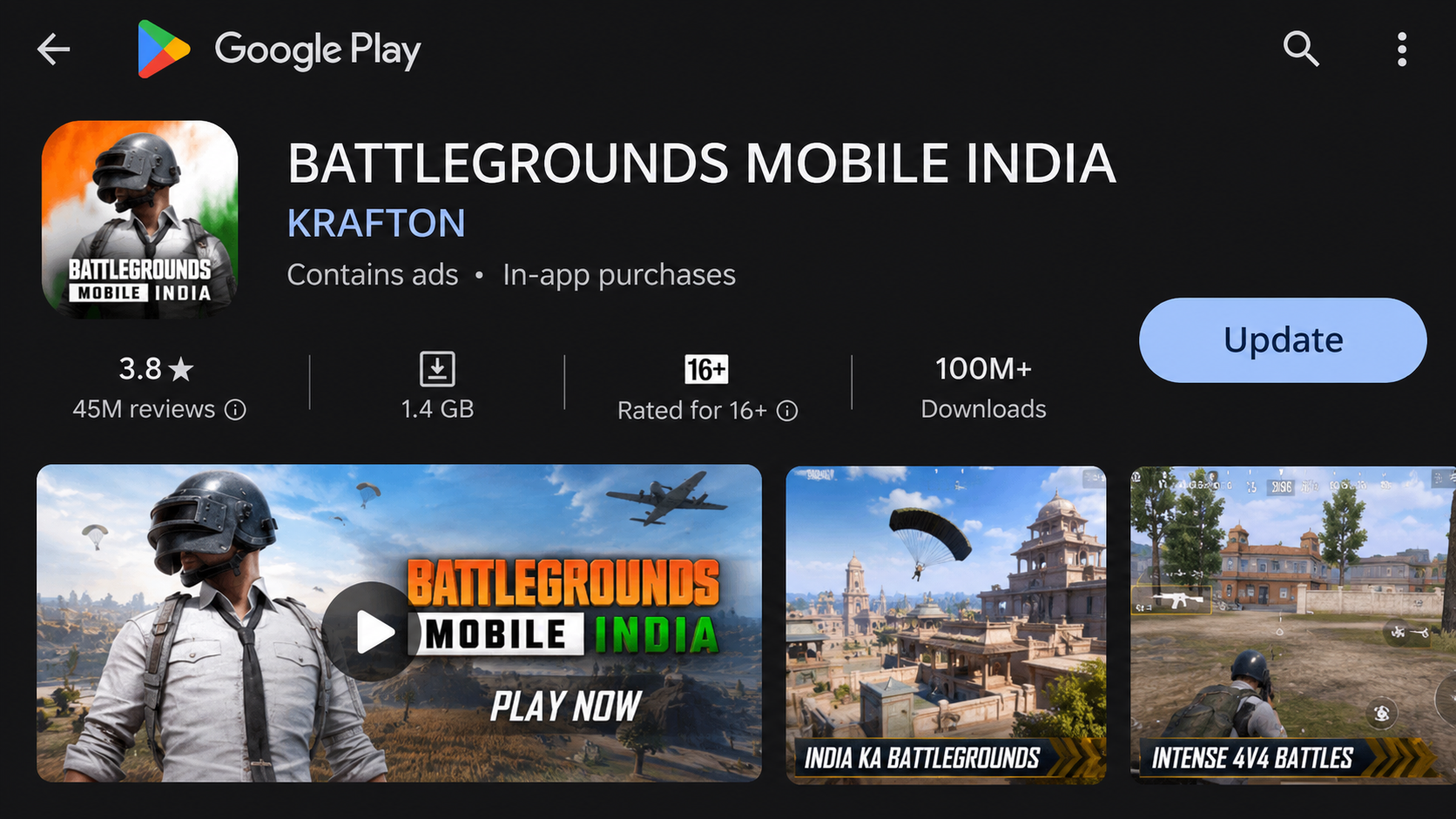
- Outside a match, close BGMI from the recent-apps screen or app switcher, then reopen it. Test the same saved layout before changing anything else.
If necessary, restart the phone normally and repeat the test once. Stop if the icon stays visible and responds; there is no need to repair a working layout.
Try Routine Repair Only If the Problem Remains
- If you can safely sign back in, log out to BGMI’s login screen. Open Repair and select Routine Repair, not a reset or resource-removal option.
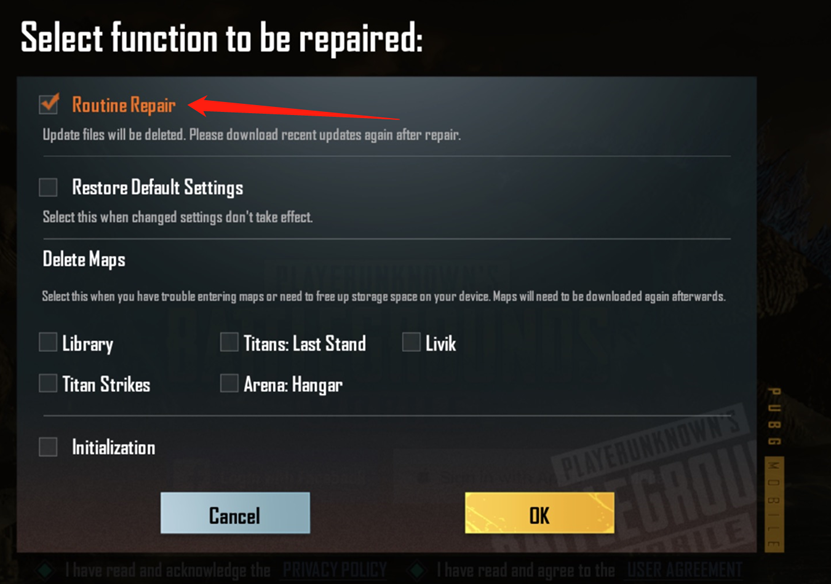
Back up the layout and secure any guest account before leaving the lobby. Do not select destructive options or reinstall for the image. - Follow the official client’s prompts, including any requested restart or downloads. Sign in to the same account and recheck the merge setting and selected layout.
- Test the separate prone button in Training Ground and the affected mode. Close and reopen BGMI once to check that the correction persists.
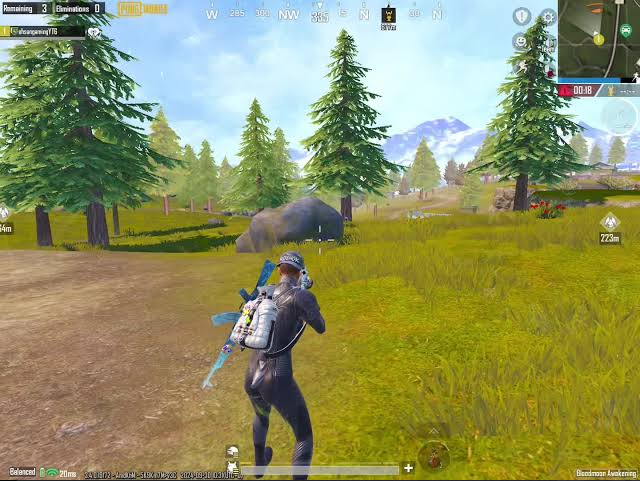
Test crouch and prone separately in Training Ground. Hide all player, teammate, chat, and account details.
If the button returns but disappears again, record when it happens rather than repeatedly repairing or resetting controls. Avoid modified APKs, configuration edits and third-party control tools.
If the Prone Button Still Disappears
Open Settings > Customer Service and report the bug. Include the BGMI version, phone model, OS, affected mode and perspective, merge setting, and whether the icon appears in the editor.
Add the results of the saved-layout and restart tests, plus repair if attempted. A short recording of the button disappearing is more useful than another layout reset; hide account details and private chats.


