How to Fix an Apple ID Name Grayed Out in iPhone Settings?
A grayed-out Apple Account name in iPhone Settings leaves your account visible but prevents you from opening it. Your name and photo are still there, yet tapping the row does nothing. Older iOS versions call this your Apple ID.
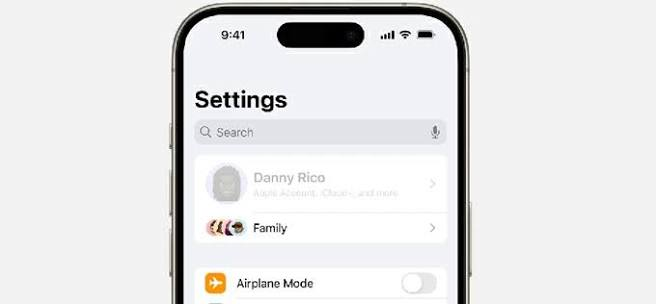
This does not, by itself, mean your account is disabled. Screen Time can prevent account changes while iCloud and other Apple services continue working. A parent or an organization can also control whether those settings are available.
Check Which Part Is Grayed Out
| What you see | What to check |
|---|---|
| Your name at the top of Settings will not open. | Check Screen Time’s Accounts restriction. |
| The account page opens, but Sign Out is unavailable due to restrictions. | This is the separate Apple Account sign-out restriction, not an inaccessible name row. |
| The account page opens, but an option inside it is unavailable. | Note that option and any error message; see the final checks after reviewing restrictions. |
The screen below is inside the account page. It is different from the name row on the main Settings screen.
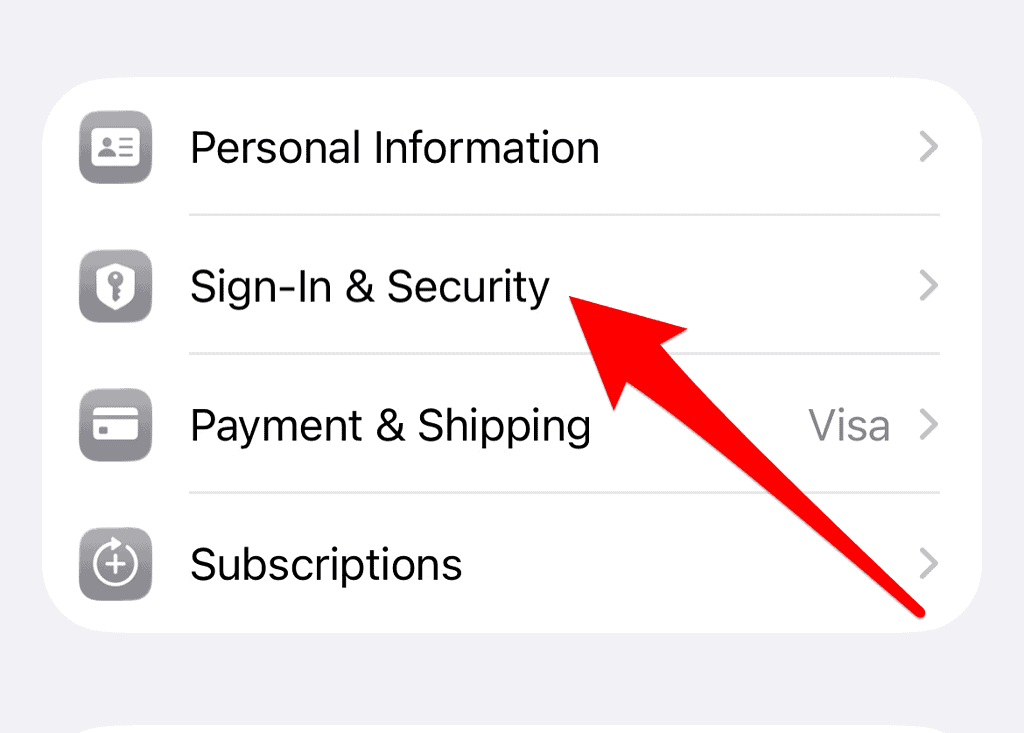
1. Allow Account Changes in Screen Time
The Accounts restriction can prevent access without signing you out. Apple’s guidance for a grayed-out account identifies this setting; you do not need to turn off every Screen Time protection.
- Open Settings > Screen Time.
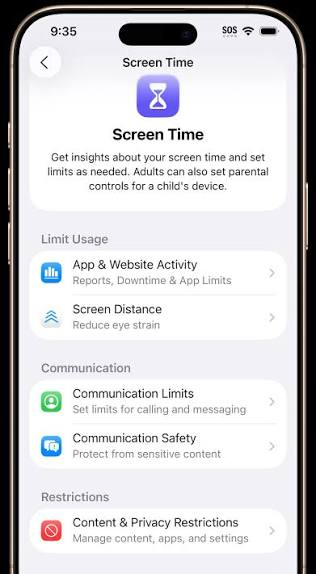
Show only the relevant Settings areas. Hide family names, organization names, usage reports, account details, notifications, and device identifiers. - Tap Content & Privacy Restrictions.
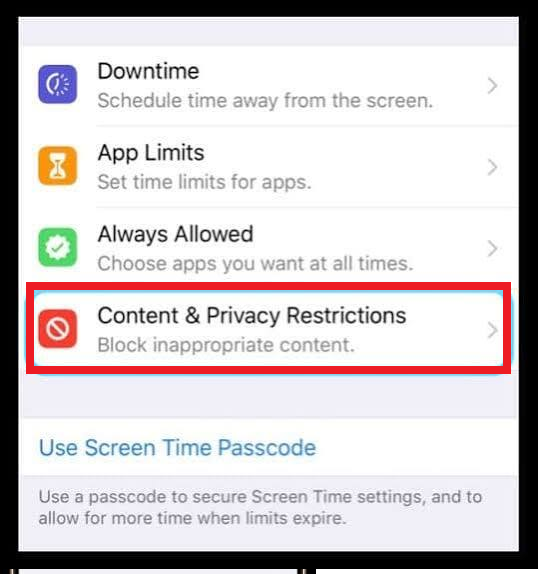
Show the current restriction menu. Hide Screen Time reports, family members, app activity, passcodes, account details, and notification content. - With restrictions enabled, find Privacy Restrictions > Allow Changes to Settings. Some layouts show Allow Changes to Settings directly; older versions list Allow Changes To lower down.
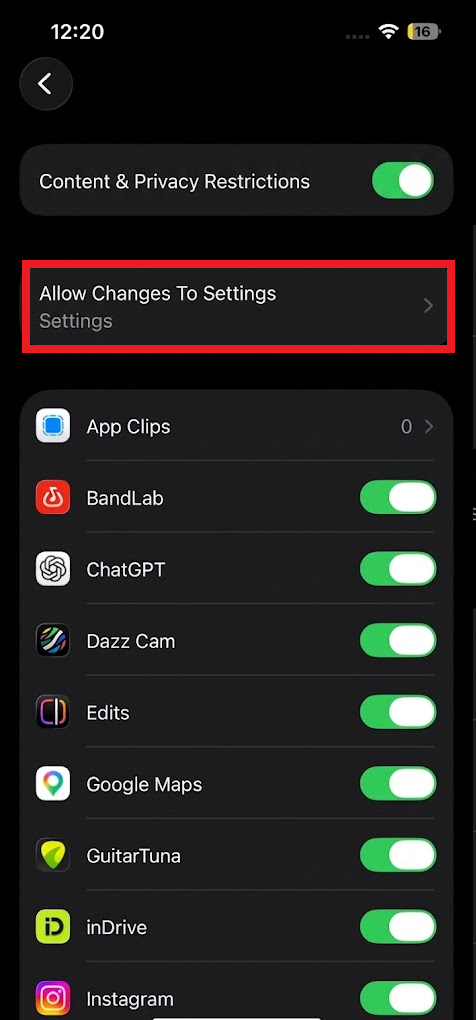
Capture the current iOS hierarchy without family names, activity reports, location choices, app lists, passcodes, or account details. - Open Accounts, sometimes labeled Account Changes. If it says Don’t Allow, select Allow and enter the Screen Time passcode when requested.
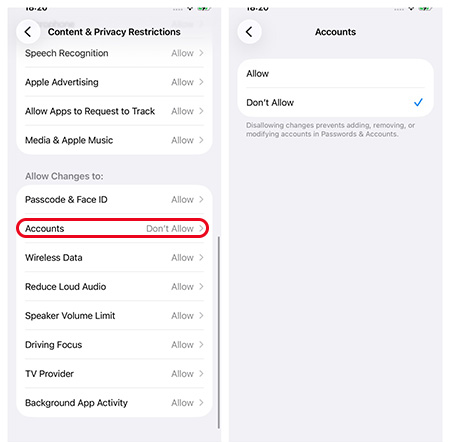
Show Accounts set to Don’t Allow before changing it. Hide the Screen Time passcode, recovery account, family data, and unrelated restriction choices. - Return to the main Settings page and tap your name again.
If the page opens, leave unrelated limits and privacy choices unchanged. Allowing account changes also removes that particular restriction; setting it back to Don’t Allow can gray out the name again.
If restrictions were already off or Accounts already said Allow, there is no need to switch them on and off repeatedly. Check family or device management before treating this as a software problem.
2. Recover a Forgotten Screen Time Passcode
The Screen Time code can differ from your iPhone unlock code. For a personal device, Apple’s passcode recovery procedure lets you regain control without erasing the phone. Family-managed restrictions need the parent or guardian instead.
- Open Settings > Screen Time. Find Passcode & Management, Manage Screen Time, or the visible Change Screen Time Passcode option, depending on your layout. Do not change Screen Time Schedule.
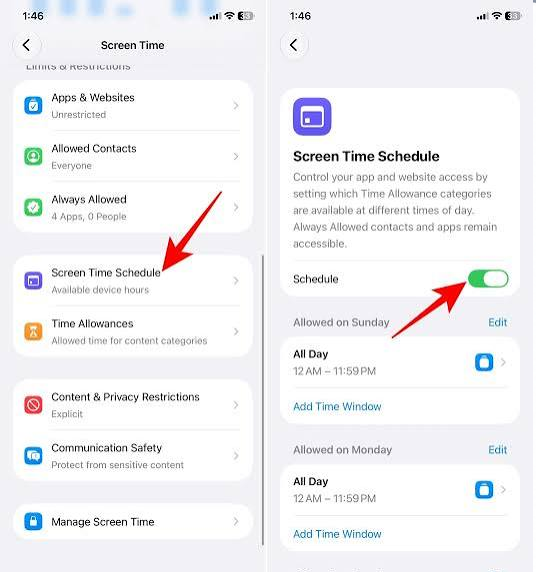
Show only the passcode-management labels. Hide usage reports, family names, Apple Account details, app activity, notifications, and passcodes. - Choose Change Screen Time Passcode, then choose it again. Complete the requested Face ID or device-passcode authentication. On layouts that offer Forgot Passcode?, tap it.
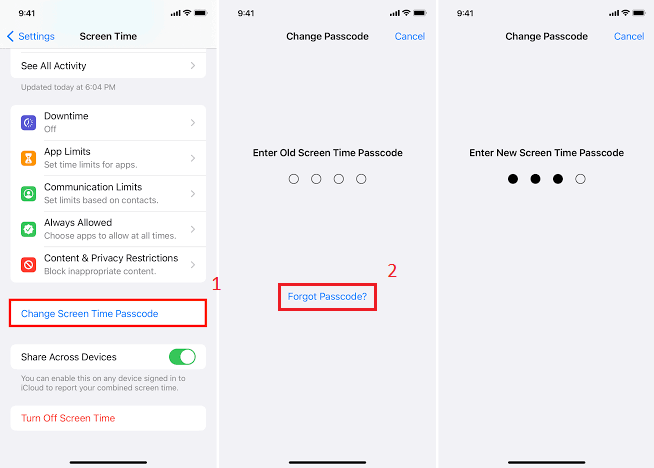
Show the recovery prompt before entry. Hide the Apple Account, password, verification codes, trusted numbers, recovery contacts, and device identifiers. - If asked for an Apple Account, enter the one used to set up Screen Time recovery. It may differ from the account currently signed in. Create and confirm the new Screen Time code.
- Return to the Accounts restriction in the previous section, select Allow, and test the name row.
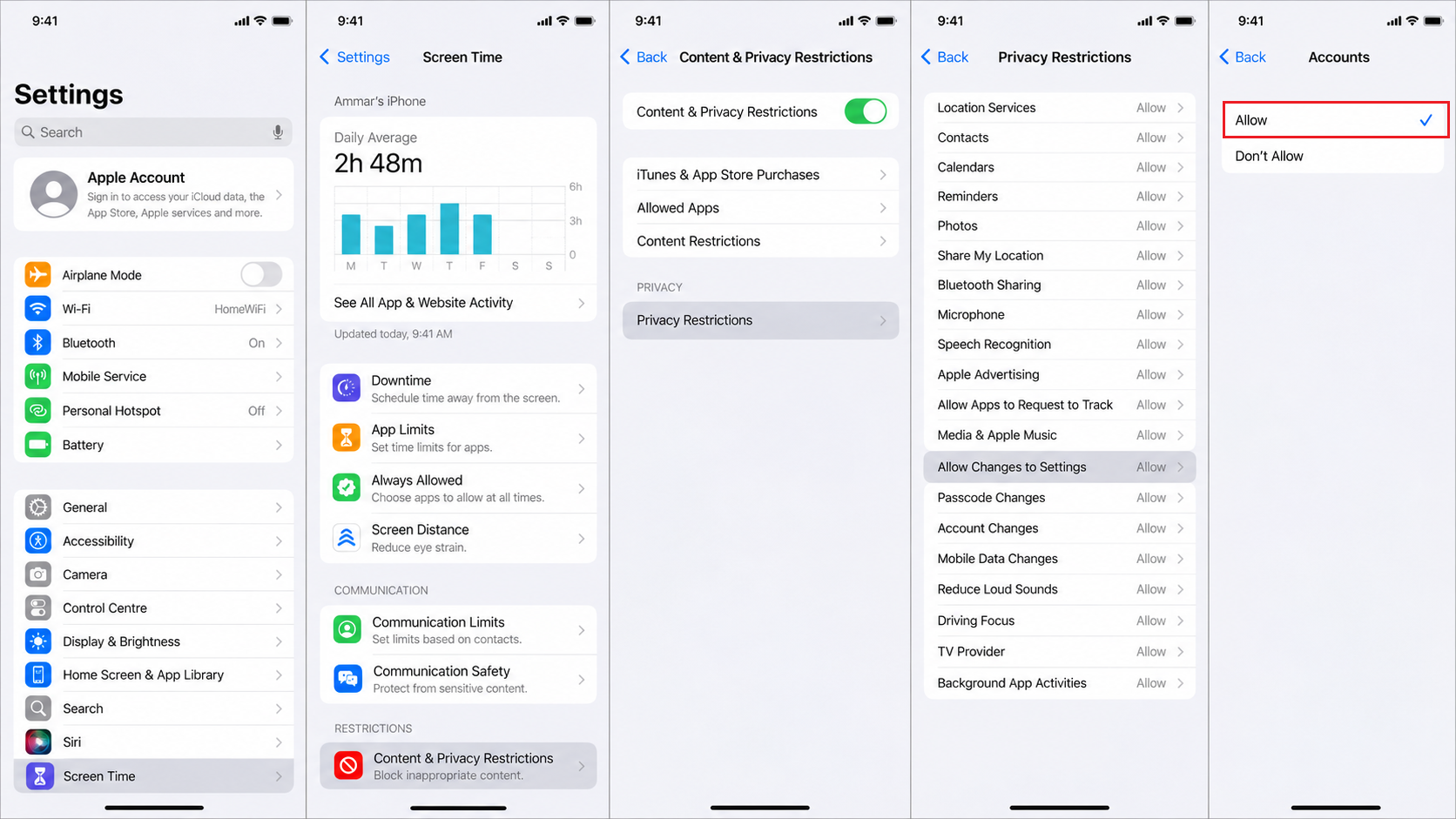
Show the final Allow selection without displaying the new passcode, Apple Account, family data, usage reports, or other restriction choices.
A missing recovery option or rejected recovery account needs Apple Support, not repeated guessing or a removal utility. Changing the Apple Account password alone does not change the Screen Time code.
If the new code works but the name remains gray, check who manages the phone rather than resetting the code again.
3. Have the Parent or Guardian Change a Child’s Restriction
A child’s iPhone may not let the child change a restriction set through Family Sharing. The authorized adult can adjust Accounts without removing the child from the family or disabling other protections.
- On the adult’s iPhone, open Settings > Family > [child’s name]. Older versions also list the child under Settings > Screen Time > Family.
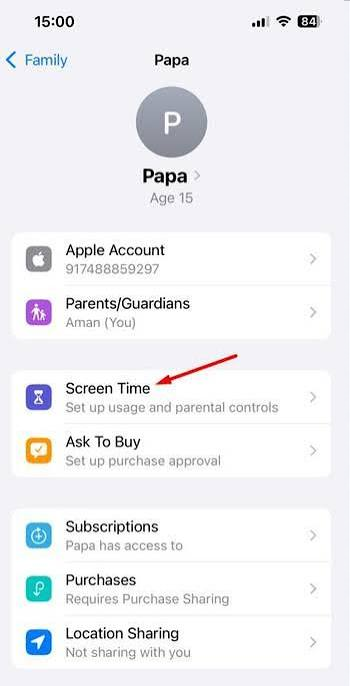
Use a test family or mask every name, age, account, device, request, usage report, passcode, and family-group detail. - Open the child’s Content & Privacy Restrictions, entering Screen Time or Manage Screen Time first if your layout requires it. Under Privacy Restrictions, find Accounts or Allow Changes to Settings > Accounts, then choose Allow.
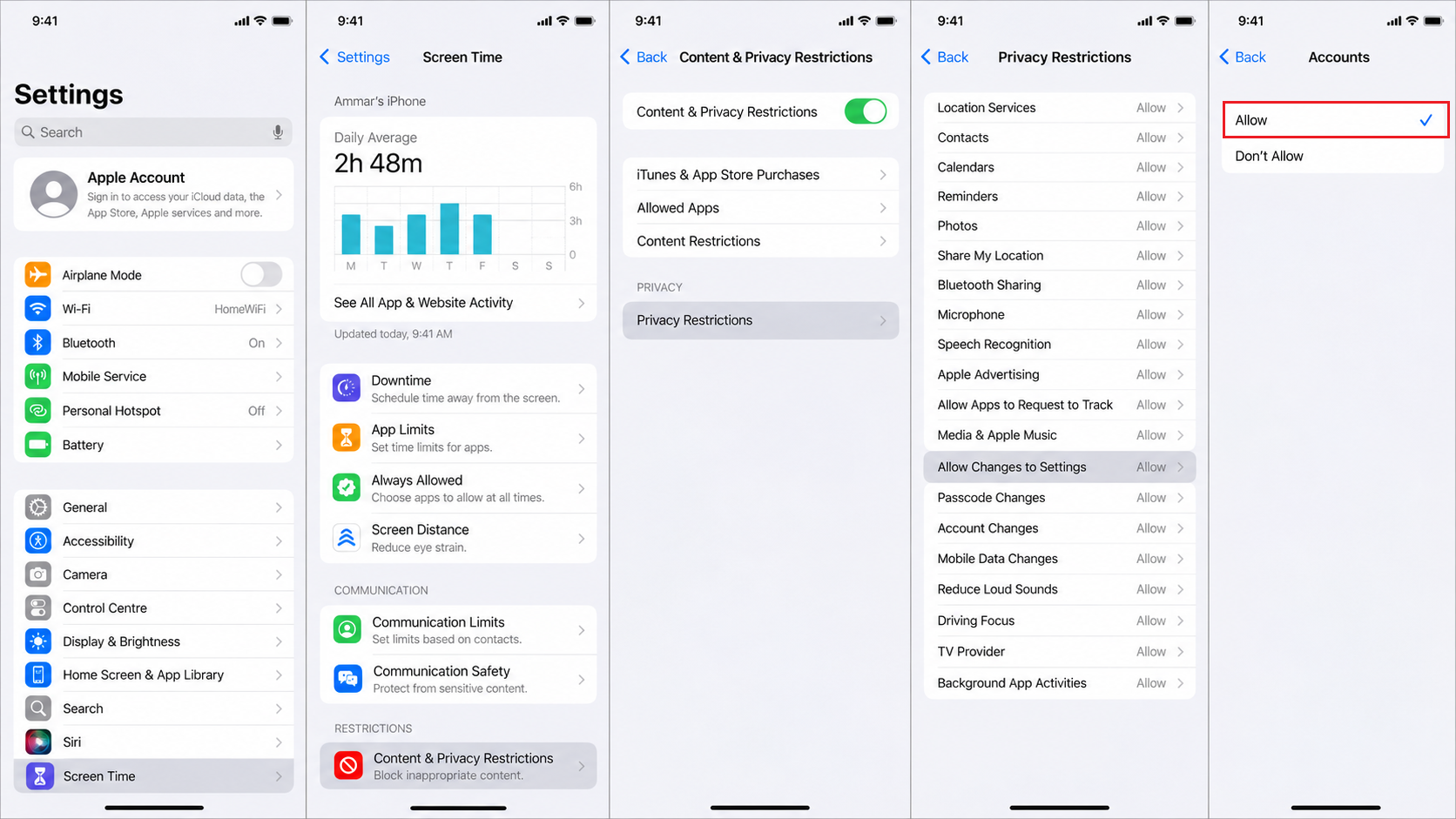
Show the authorized Accounts setting only. Hide child and guardian identities, ages, accounts, devices, passcodes, requests, and activity reports. - A forgotten family passcode must be handled on the adult’s device, using the child’s Passcode & Management or Manage Screen Time controls and Apple’s recovery instructions above.
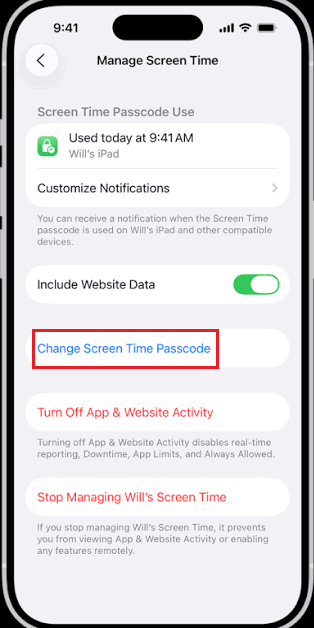
Use a test family and hide the child’s name, photo, age, account, notifications, family details, device identifiers, and network names.
Reopen Settings on the child’s iPhone and test the name after the change. If it is still gray, confirm the adult changed that child’s Accounts setting, not their own.
If the child is missing from Family, verify membership and the adult’s organizer or parent/guardian role. For settings that do not synchronize, Apple recommends updating the family’s devices. See Apple’s parental-control instructions for the matching layout.
4. Check Whether Work or School Management Blocks Changes
An organization can restrict account changes independently of personal Screen Time. A profile’s presence alone does not prove it caused the problem; the administrator needs to check the applied policy.
- Look at the top of Settings for a message that the iPhone is supervised.
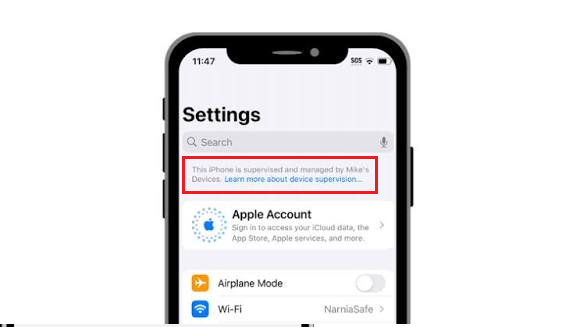
Use a test managed device or mask the organization, ownership message, account, network names, notifications, and device identifiers. - Open Settings > General > VPN & Device Management, then open any installed management profile to identify its issuer.
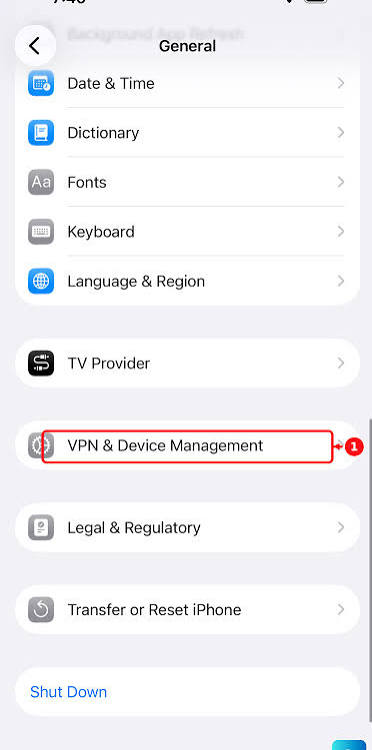
Show only that a profile exists. Hide the organization, server, certificates, accounts, enrollment data, device identifiers, and profile payload details. - Ask that administrator whether account modification is restricted and whether they can authorize the change.
Apple explains where supervision and profiles appear. Do not remove a profile as a test: doing so can remove associated settings, apps and data. After an approved policy change, reopen Settings and test your name again.
If the name stays gray on a managed iPhone, keep the profile installed and ask the administrator to investigate further.
5. Recheck Settings Before Escalating
With Accounts allowed and no relevant family or management restriction, a name that still will not open needs further investigation. A restart or update is a final software check, not a way to override an active restriction.
- Review any Update Apple Account Settings, Confirm Passcode, or iCloud terms notice actually shown in Settings. Open the notice from Settings itself, not an unsolicited message. For a verification error, record its wording rather than repeatedly entering credentials.
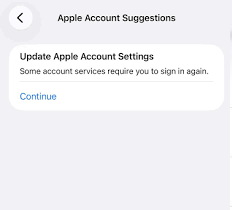
Show only the generic action label before opening it. Hide names, emails, passcodes, terms choices, trusted numbers, devices, and security details. - Restart the iPhone normally. On Face ID models, hold the side button and either volume button until the power slider appears, release, slide to turn off, and wait 30 seconds. Turn it on with the side button.
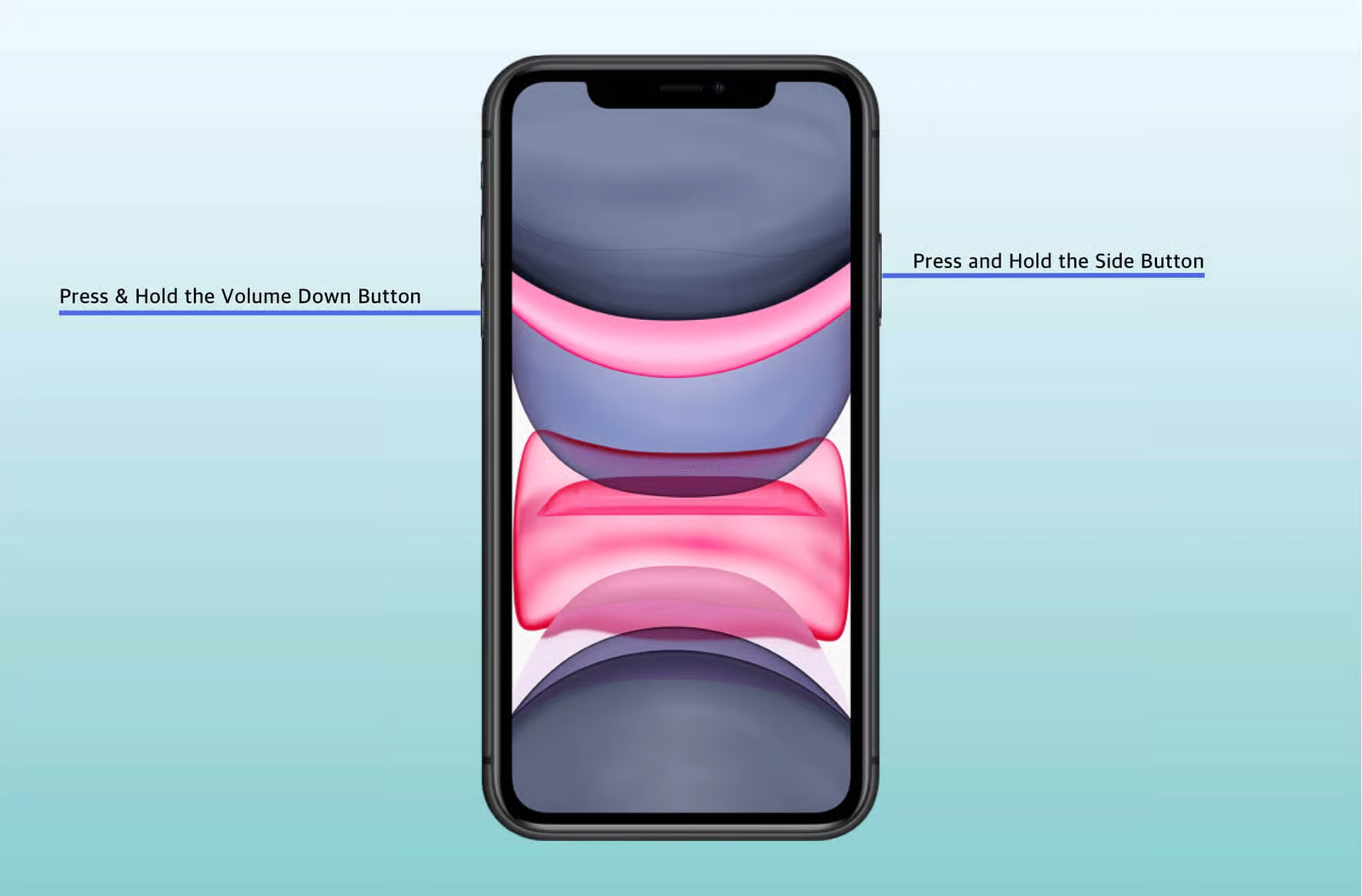
Show the power slider without notifications, medical information, wallpaper details, network names, account data, or identifying device marks. - Back up the phone, connect to power and Wi-Fi, then check Settings > General > Software Update. Install an available stable update using Apple’s update instructions, not a beta or a version chosen from a screenshot.
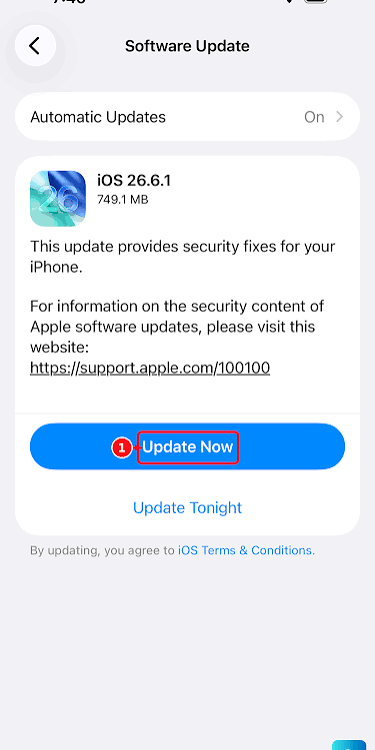
Show the public stable update and installed version. Hide beta enrollment, device name, storage details, account information, and identifiers.
Test the name again. If it remains gray, contact Apple Support with the model, iOS version, exact disabled control, and whether Accounts stays on Allow. Mention family management or supervision and redact personal details from screenshots.
An explicit disabled App Store account message requires account-access help, not more Screen Time changes. Neither that message nor a gray name is a reason to erase the phone or remove its Apple Account during these checks.


