Fix: YouTube’s “There Was a Problem Signing in to Your Account” Error
YouTube can keep playing videos while “There was a problem signing into your account” repeatedly asks you to sign in. The warning may concern an older Google account saved on your Android phone, not the account you are watching with.
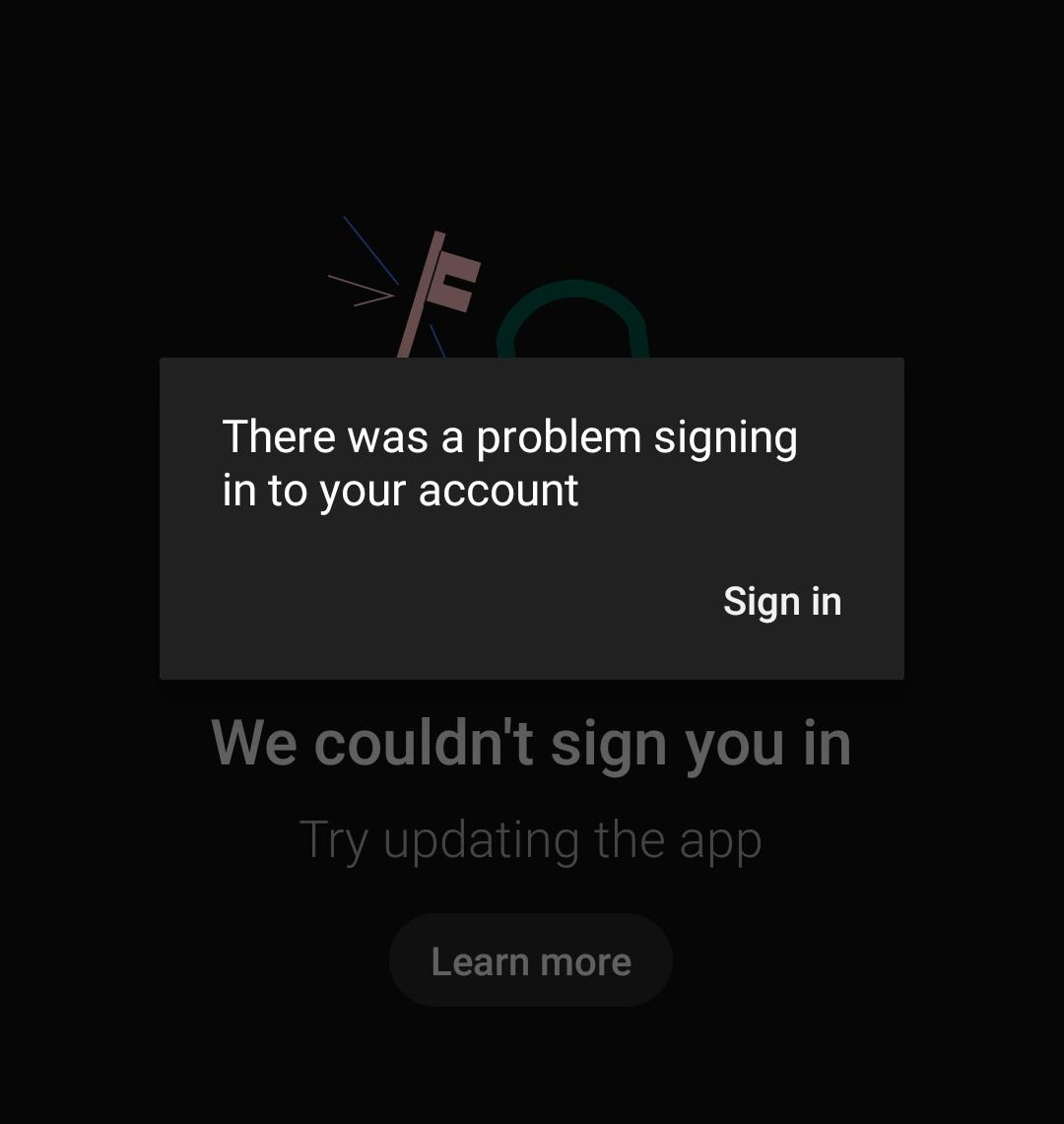
A saved account may need its password or verification completed, or its sign-in on this phone may need refreshing. The popup alone does not establish that your channel was deleted or your password is wrong. The account-specific message after Sign in matters more.
Before Changing Accounts
Open YouTube’s page in Google Play and install an offered update, then restart the phone once. These are Google’s initial mobile sign-in checks. If the store shows only Open, no update is currently offered to that device.
A different message, such as No internet connection or Tap to retry, needs connectivity troubleshooting. It is not evidence that an account should be removed.
On Android, signing out of YouTube also signs that account out of Gmail, Maps and other Google apps. Device-side email, contacts and settings are removed too. Save unsynced information before continuing.
The online Google Account and channel are not deleted. Never choose Delete your Google Account or delete a Google service to fix this error.
1. Remove the Identified Unused Google Account
An old account can keep requesting attention while your current YouTube account works normally. Removing that unused account stops the phone from trying to use it. An account needed for email, contacts or work should be verified instead, not removed just to silence the popup.
- Tap Sign in on the warning. Read any account-specific request. If it only opens an account chooser, that list has not identified which account failed; do not assume the first address is responsible.
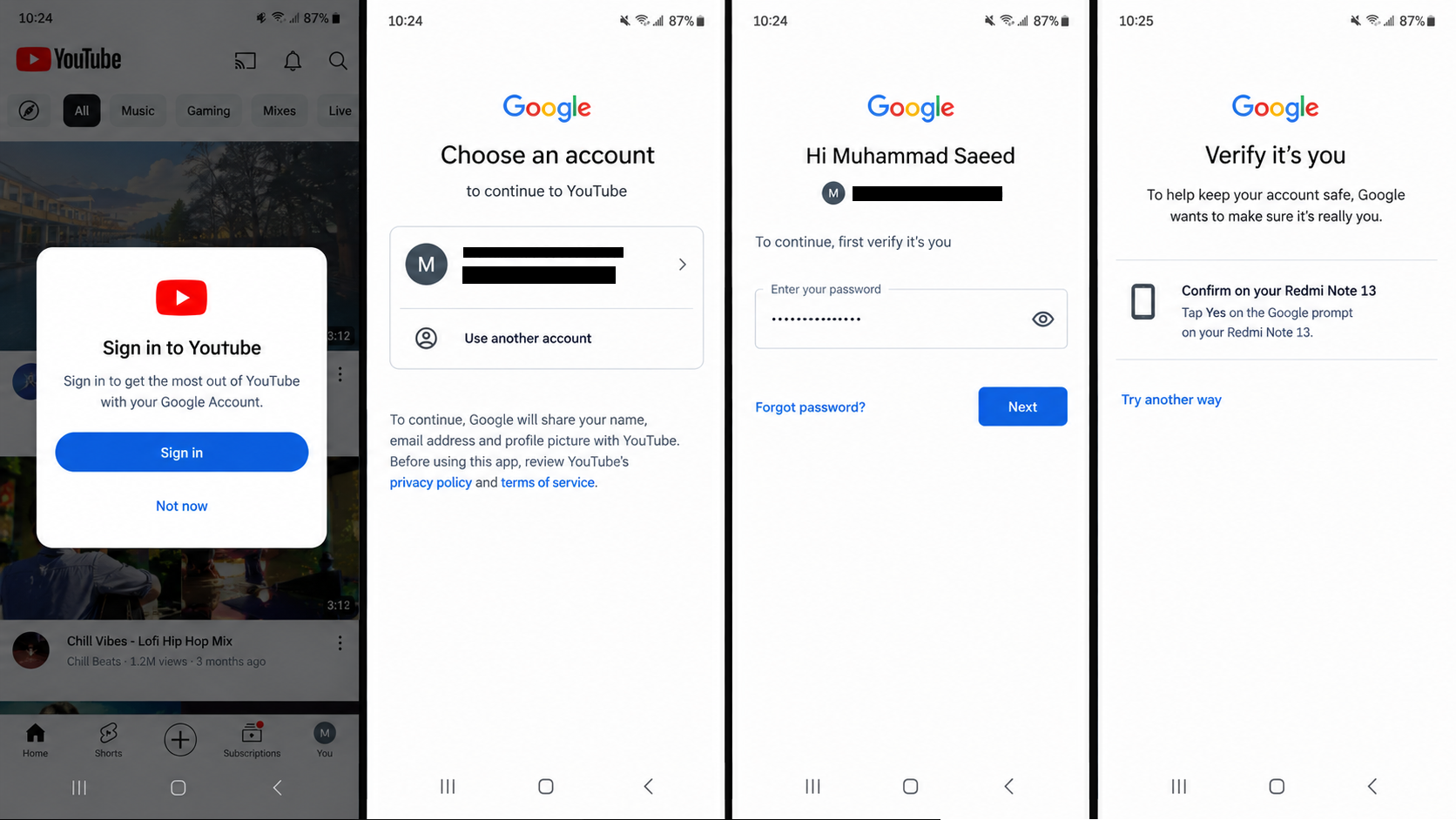
Check the Google account address rather than relying on the channel name. - Open YouTube’s You tab or profile picture, then the account selector. Check the saved accounts individually for a verification or access error. Match the Google email address, not just the channel name. Complete legitimate verification for an account you need.
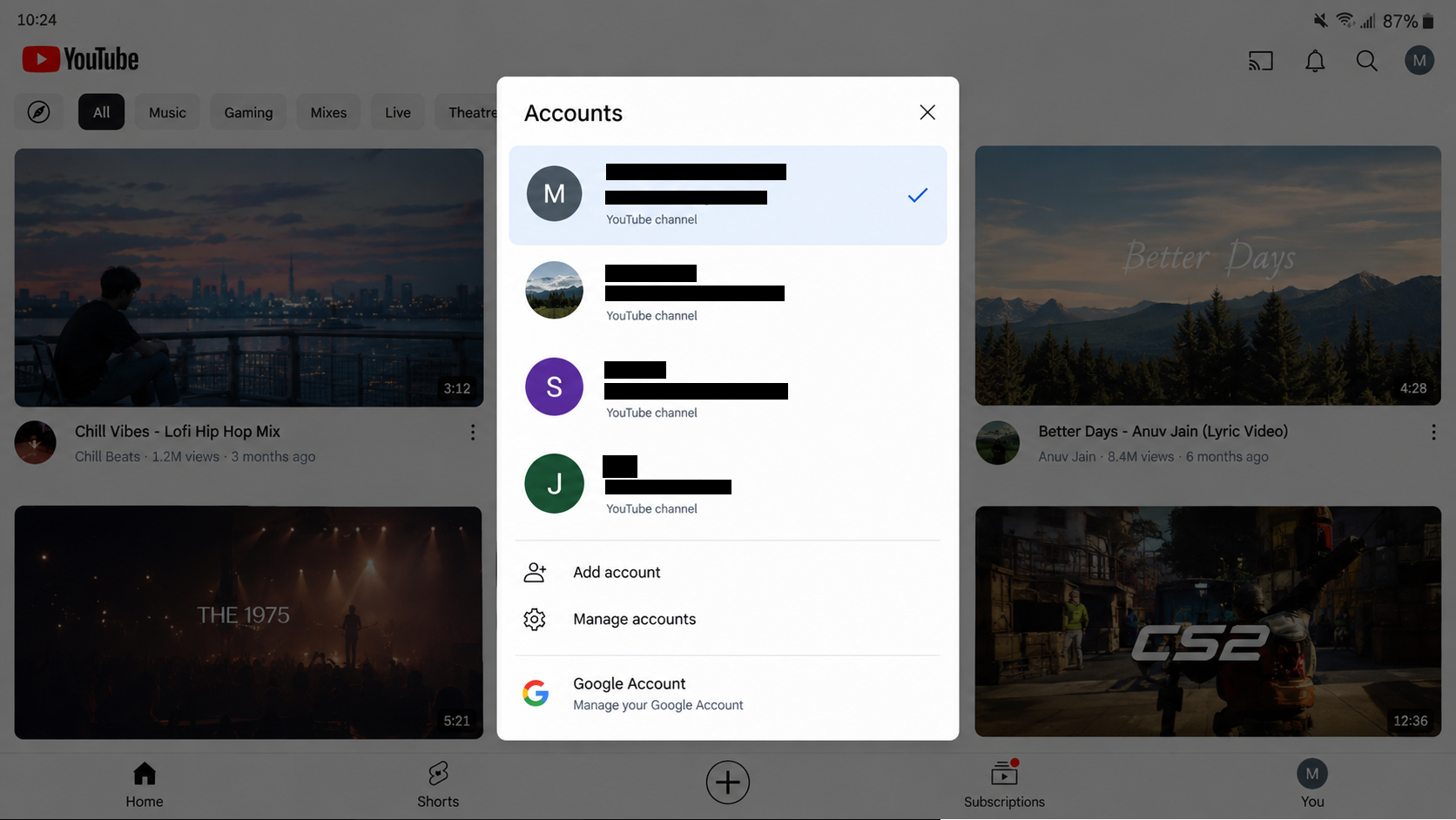
An account needing attention may differ from the one currently used for videos. - For an identified account you no longer need on this phone, open Android Settings > Passwords & accounts or Manage accounts. Select Google and the matching address. A Gmail address listed under Samsung account is a different sign-in.
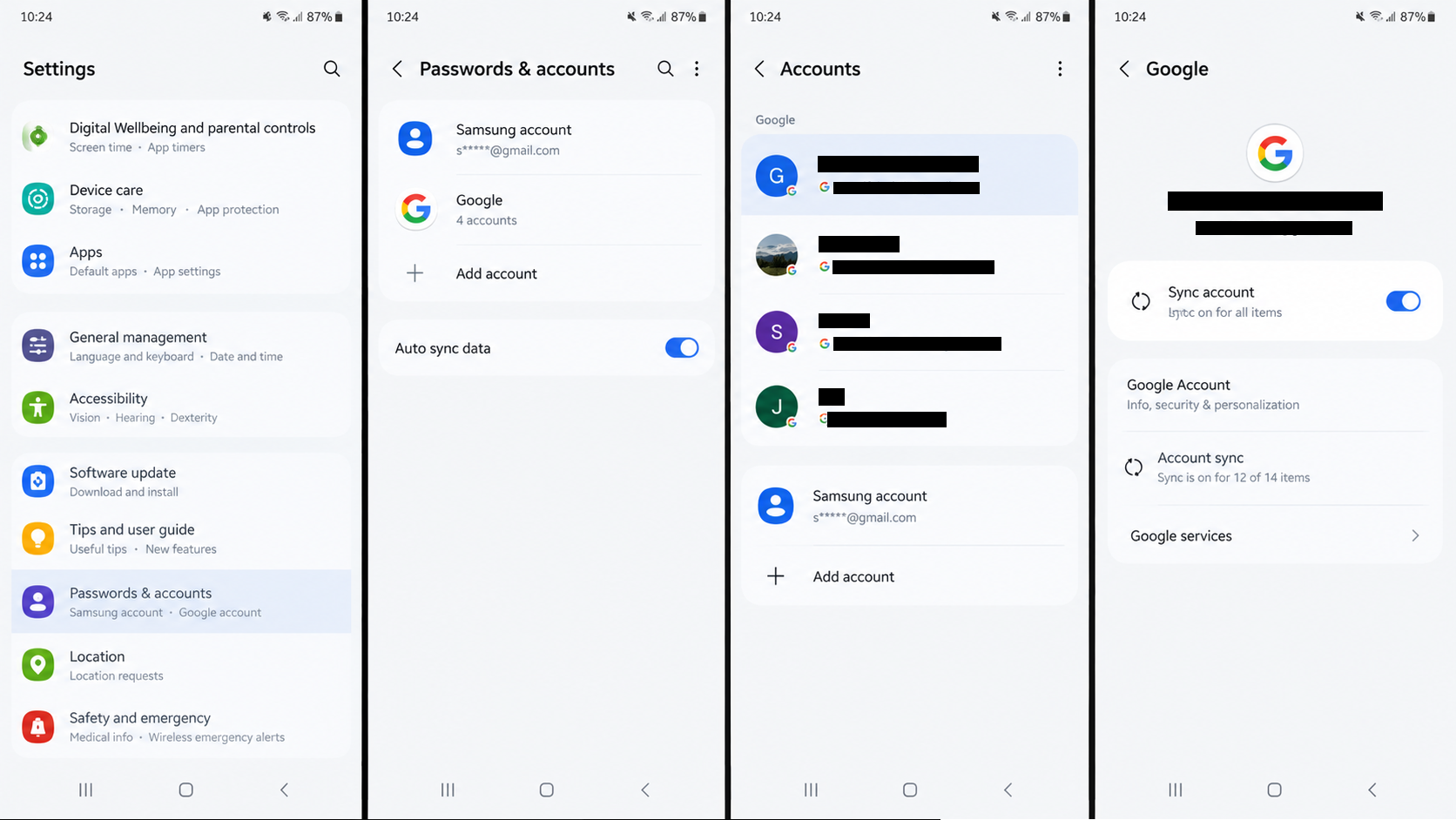
Settings names vary between Android devices. - Save any unsynced information you need from that account. Tap Remove account, shown below, then read the confirmation that follows. Confirm removal from this device only; leave unrelated accounts in place.
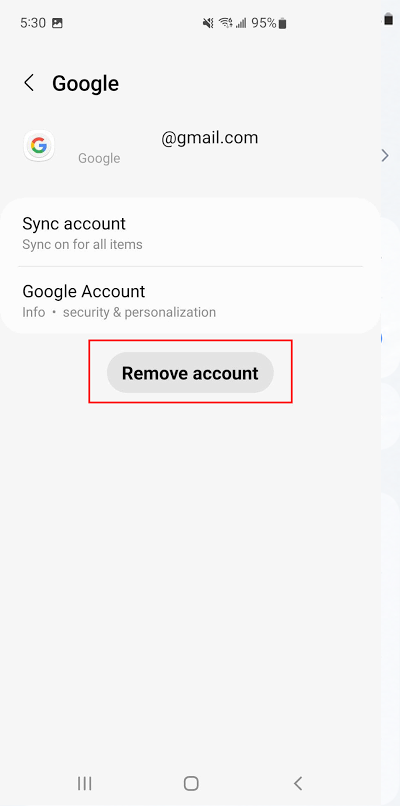
Removing an account here affects its access in other Google apps on this phone. - Reopen YouTube, select your normal account and play a few videos. Close and reopen the app again to check for the recurring warning, rather than judging by one successful video.
Restoring normal use of the selected account does not recover the removed account.
If the warning stays away, leave the remaining accounts alone. If you cannot identify the failing account, keep them in place and report the problem. Refreshing a needed account requires the additional access checks below.
2. Refresh the Affected Account’s Android Sign-In
A needed account that works at youtube.com but fails in the Android app may have a faulty device sign-in. Removing and re-adding that specific account requests a fresh sign-in. It cannot reverse a restriction or replace a missing verification method.
- In a separate browser, sign in at youtube.com with the affected account. Complete all verification and confirm access to the intended channel. Keep the phone signed in during this test; an unfinished verification screen does not count as success.
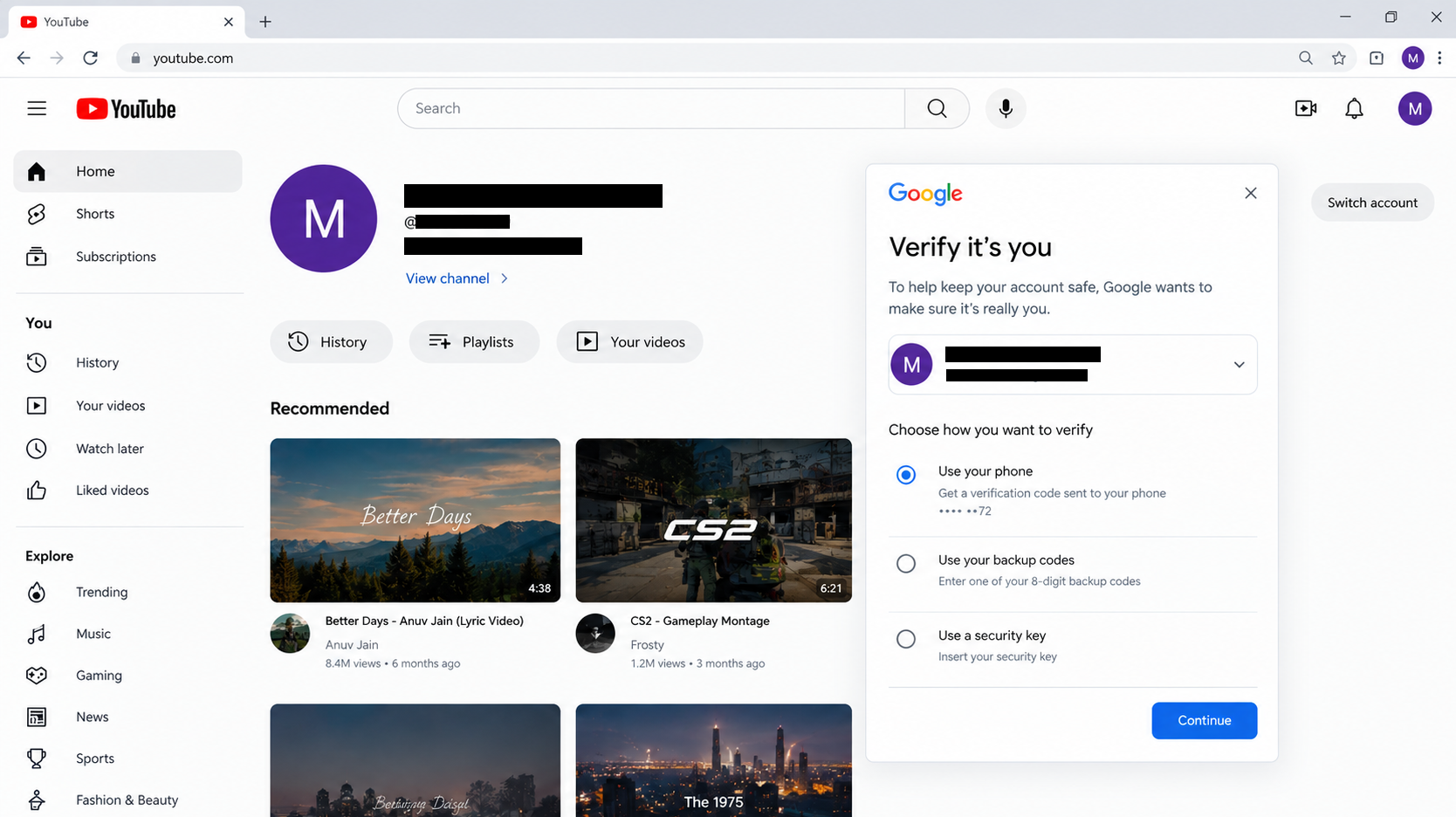
Keep the phone’s existing sessions available while checking account access. - Check the affected account’s Account sync screen for errors, especially for contacts and calendars. Open Settings > Google > Backup, sometimes under All services, and review the account and backup details. Save unsynced items separately.
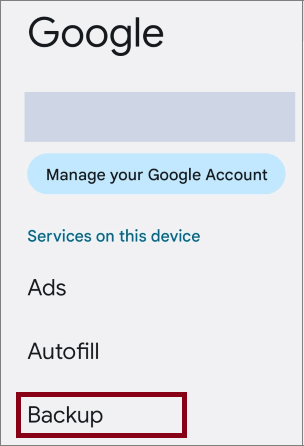
A device backup does not guarantee that every app or unsynced item is included.
Android device backups do not cover every app or local item. Also confirm that a password, passkey or other verification option will work without this phone’s existing session. If it is your only way to approve sign-in, keep the account on the phone.
- Return to Android’s account settings and select the affected Google account. Recheck the address, tap Remove account and read the device-wide warning before confirming.
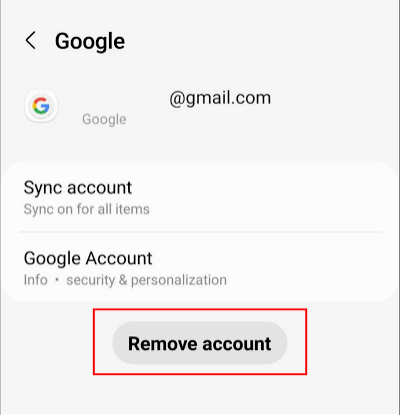
Proceed only after confirming sign-in access and protecting important data. - In the same account settings, choose Add account > Google. Enter the existing address you tested, not a new account. Android’s account-management instructions list alternative settings names. The pictured Add another account menu is an app-level shortcut.
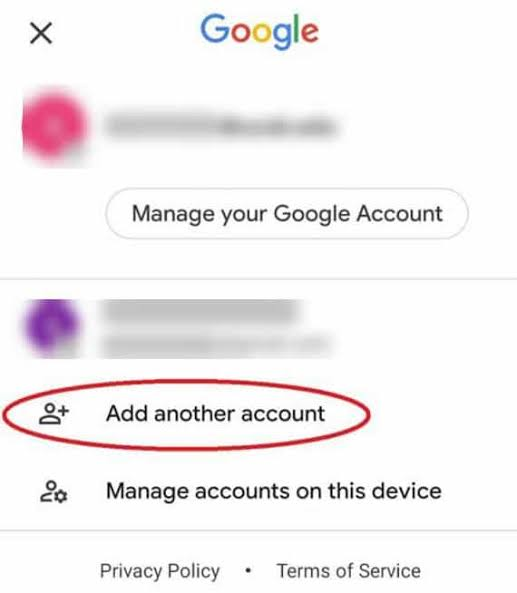
Use the existing account associated with your YouTube content. - Finish Google’s sign-in and verification on Android. The illustration below mentions Safari, so its platform wording differs. If Google refuses sign-in, follow that specific message instead of removing the account again.
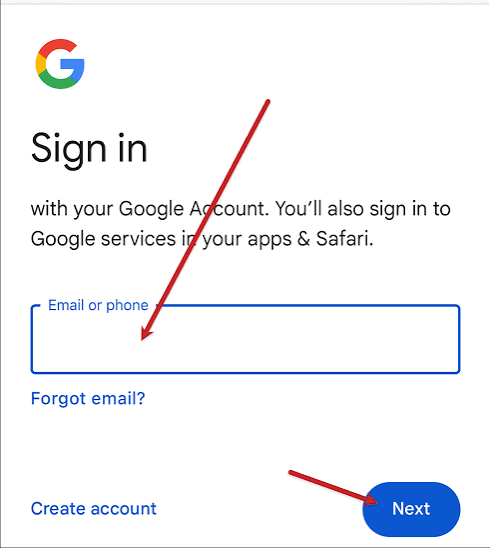
Keep passwords and all verification codes out of the screenshot. - Open YouTube and select the intended account and channel. Check your subscriptions or playlists, play a video, then reopen the app. Confirm that your usual content is available and the warning does not return.
If the warning returns despite successful re-addition, keep the account in place. Repeating the same removal will not explain a verification requirement or an account restriction.
If Sign-In Still Fails
| What appears next | What to do |
|---|---|
| Wrong password, Verify it’s you, or an unavailable code | Use YouTube’s official sign-in troubleshooter for that exact request. Preserve working sessions while resolving ownership verification. |
| Access restricted by your administrator | Ask your work or school administrator about YouTube access. A disabled Google Workspace account is a separate, account-wide restriction. |
| A confirmed channel termination | Follow YouTube’s termination and appeal instructions. Removing an account or resetting the phone cannot reinstate it; another channel cannot be used to bypass termination. |
For an app-only problem, open your profile menu and look for Send feedback under Settings or Help & feedback. Include the exact message, phone model, Android/YouTube versions, browser-test result and whether a second saved account is involved.
Review any attached screenshot or logs before sending; hide addresses, passwords and codes. Feedback reports help YouTube investigate but do not guarantee a personal reply or account recovery.


