How to Fix “YouTube Is Not Supported on This Device”?
YouTube stops at YouTube is not supported on this device instead of loading its usual Home screen. The message can appear even though the app worked recently and other streaming apps still play normally.
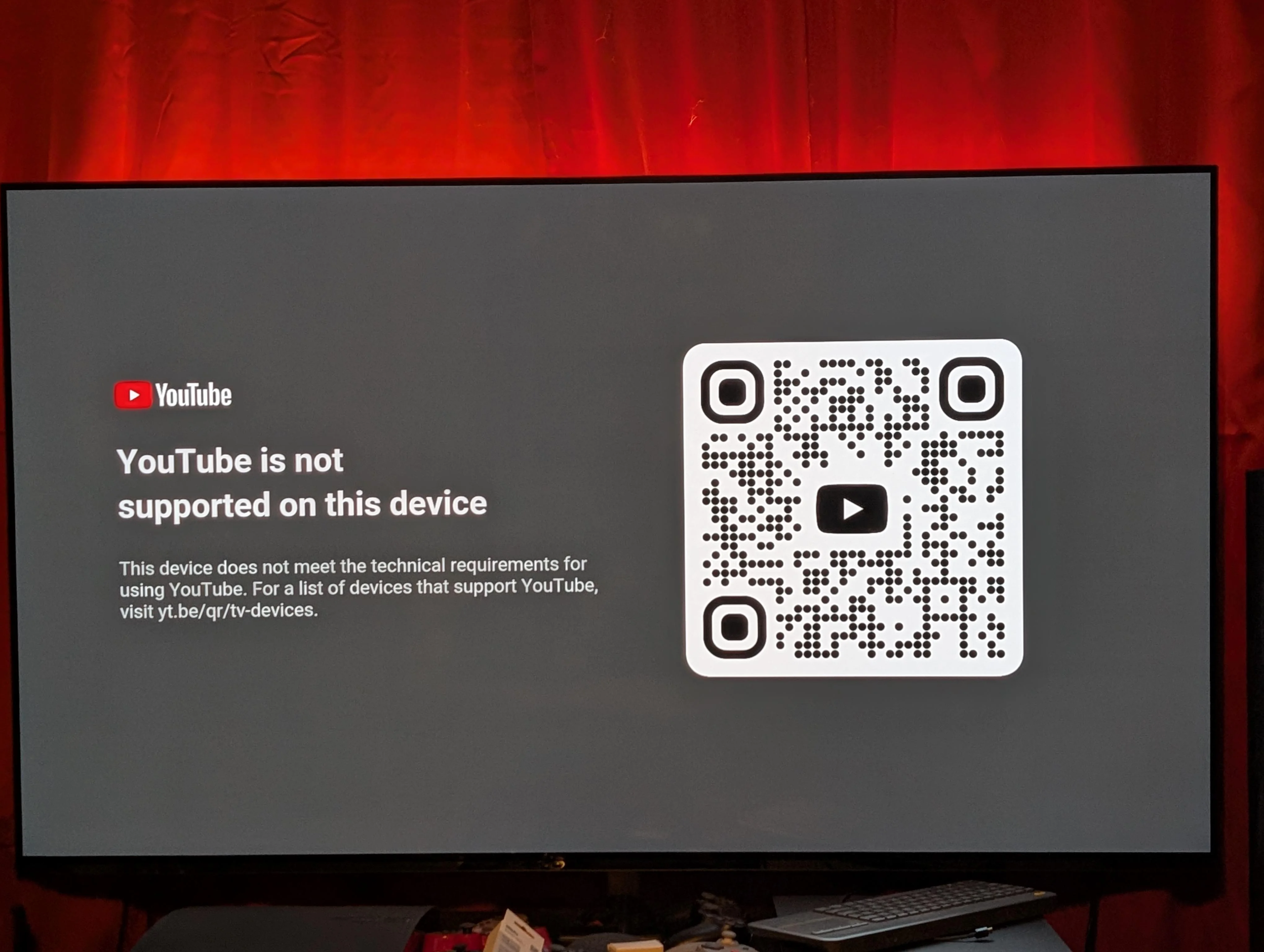
YouTube can stop working on devices that no longer meet its software and security requirements. An available update may restore access, though some older models have lost support permanently. The warning alone does not prove support has ended: temporary faults have also affected supported devices.
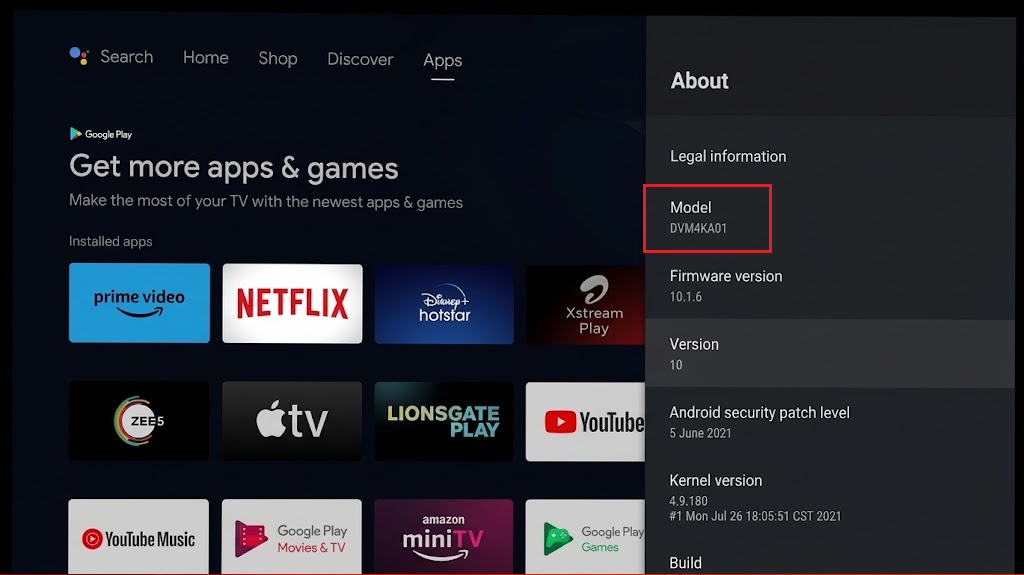
1. Restart YouTube and Check the Device Running It
A full restart is worth trying when YouTube worked recently. Turning a television off with its remote may only put it in standby, leaving the app unchanged.
- Use the device’s Restart command, if available, then reopen YouTube. On Google TV, use Settings > System > Restart. Do not interrupt a software update.
- On Google TV, you can also close YouTube through Settings > Apps > YouTube > Force stop, then reopen it. This does not erase app data.
- If the warning remains, check About or System Information for the model and software version. If YouTube runs on an HDMI-connected player or console, check that device, not just the television.
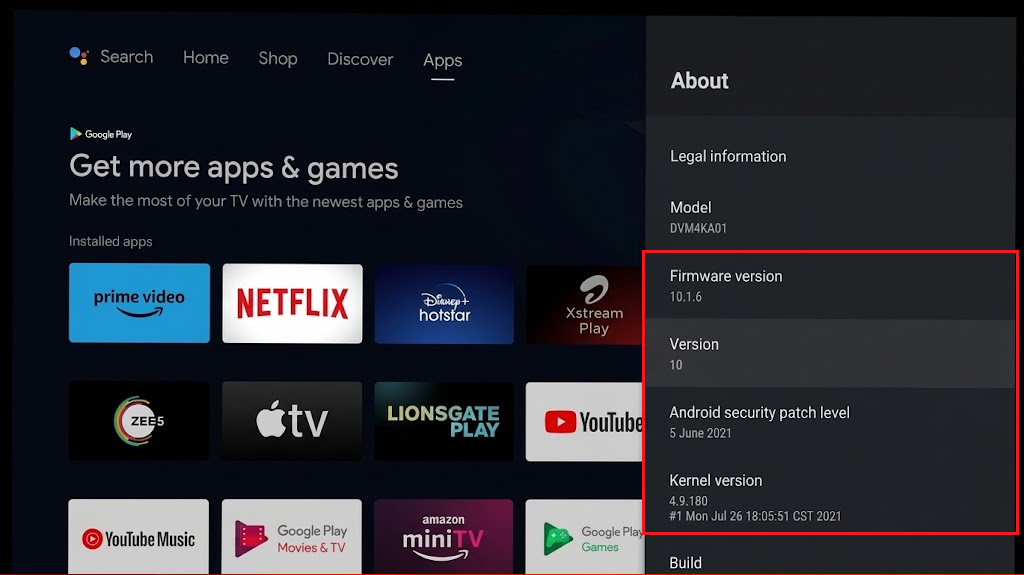
Show the public model and software version. Hide serial numbers, MAC addresses, IP addresses, device names and account information. - Confirm that the app is YouTube, not YouTube TV, the separate live-TV service with its own supported-device requirements.
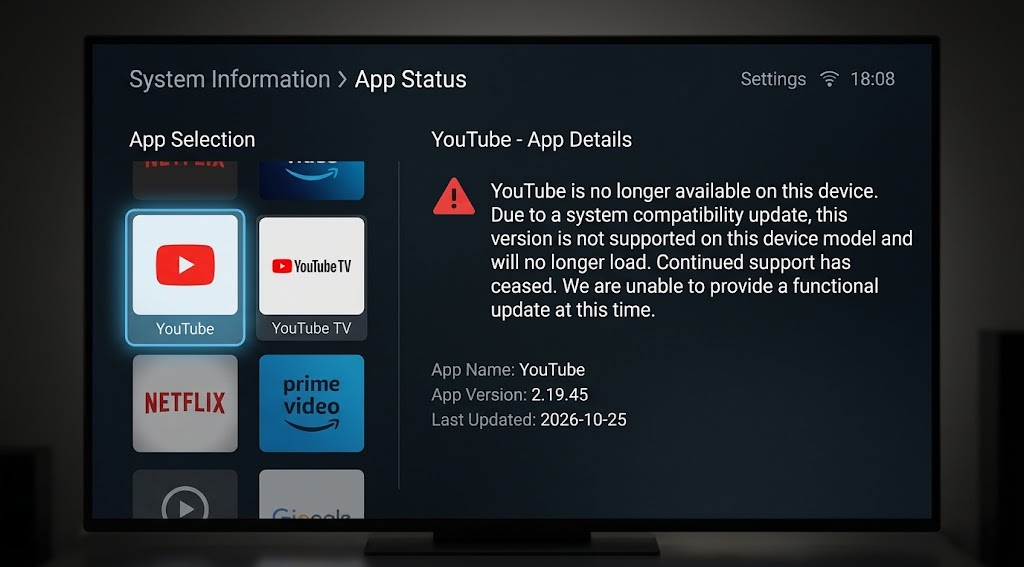
Show only the official app names and icons. Hide subscriptions, profiles, viewing history and recommendations.
A different message needs different checks. For No Internet Connection or Tap to Retry on a phone, follow the YouTube connection-error checks; that is not the same warning as unsupported hardware or software.
2. Install Available YouTube and System Updates
An old app can be rejected even when the device still supports YouTube. Its operating system may also need updating before the store can offer a newer app.
- TVs, streaming players, and consoles: open YouTube’s listing in that device’s official store and choose Update if offered. On Google TV, search for Google Play Store if there is no Home-screen tile.
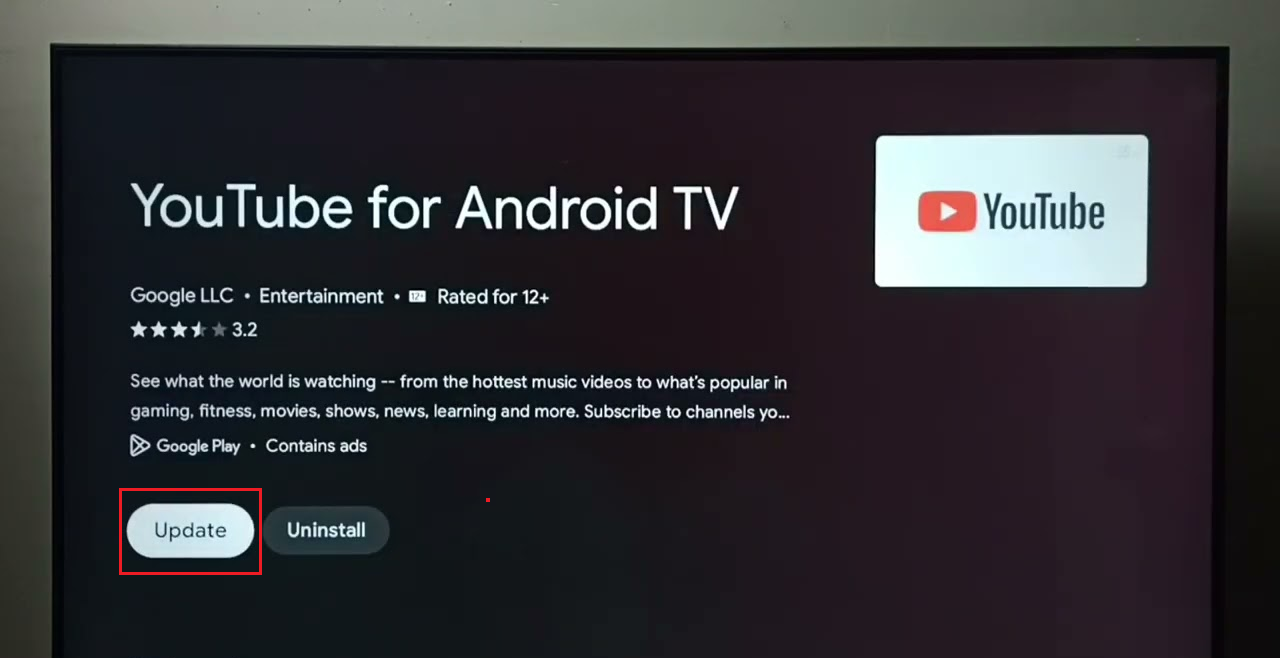
Capture the official store listing and update control. Hide accounts, payment data, app history and device identifiers. - Phones and tablets: open YouTube in Google Play or the App Store and select Update. If the store reports incompatibility, keep the installed app while checking system updates.
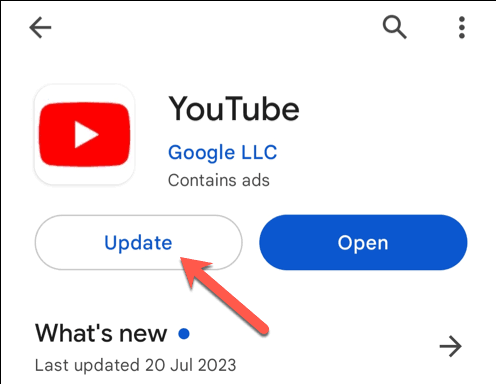
Show the official Google Play listing and update state. Hide the Google account, notifications, payment details and other installed apps. - Check the device’s built-in software updater. On Google TV, use Settings > System > About > System update. For other models, use the manufacturer’s update instructions for the exact model and region.
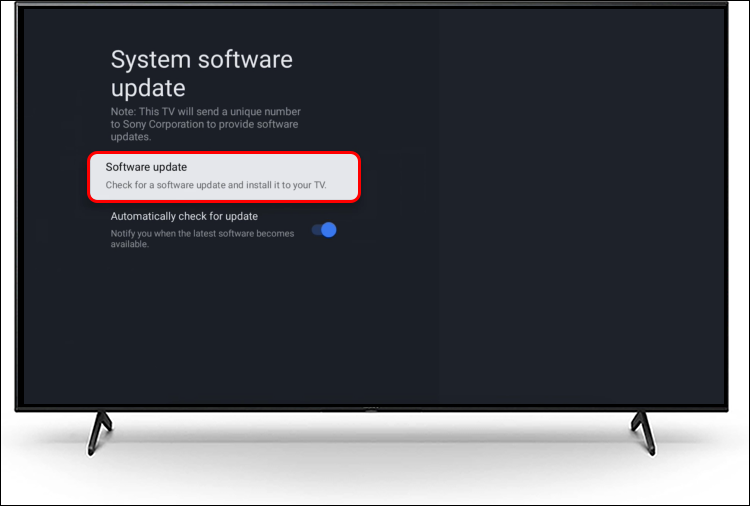
Capture the supported updater and software status. Hide network names, addresses, device names, identifiers and account data. - Keep power connected until updates finish. Restart if requested, then reopen YouTube and play a public video. A successful launch alone does not confirm that playback works.
Google provides YouTube update instructions, including Apple TV and Android TV. Firmware can sometimes restore access, but installing the last available update does not guarantee that a retired model becomes supported again.
3. Confirm Support Before Reinstalling
YouTube’s support list names brands and device families, but not every model under those names can run the app. Check the exact model before deleting an installation you may be unable to download again.
- Compare your model with YouTube’s supported-device information and the manufacturer’s notices. The list is not exhaustive. Sony, for example, maintains a service-termination notice for specific models.
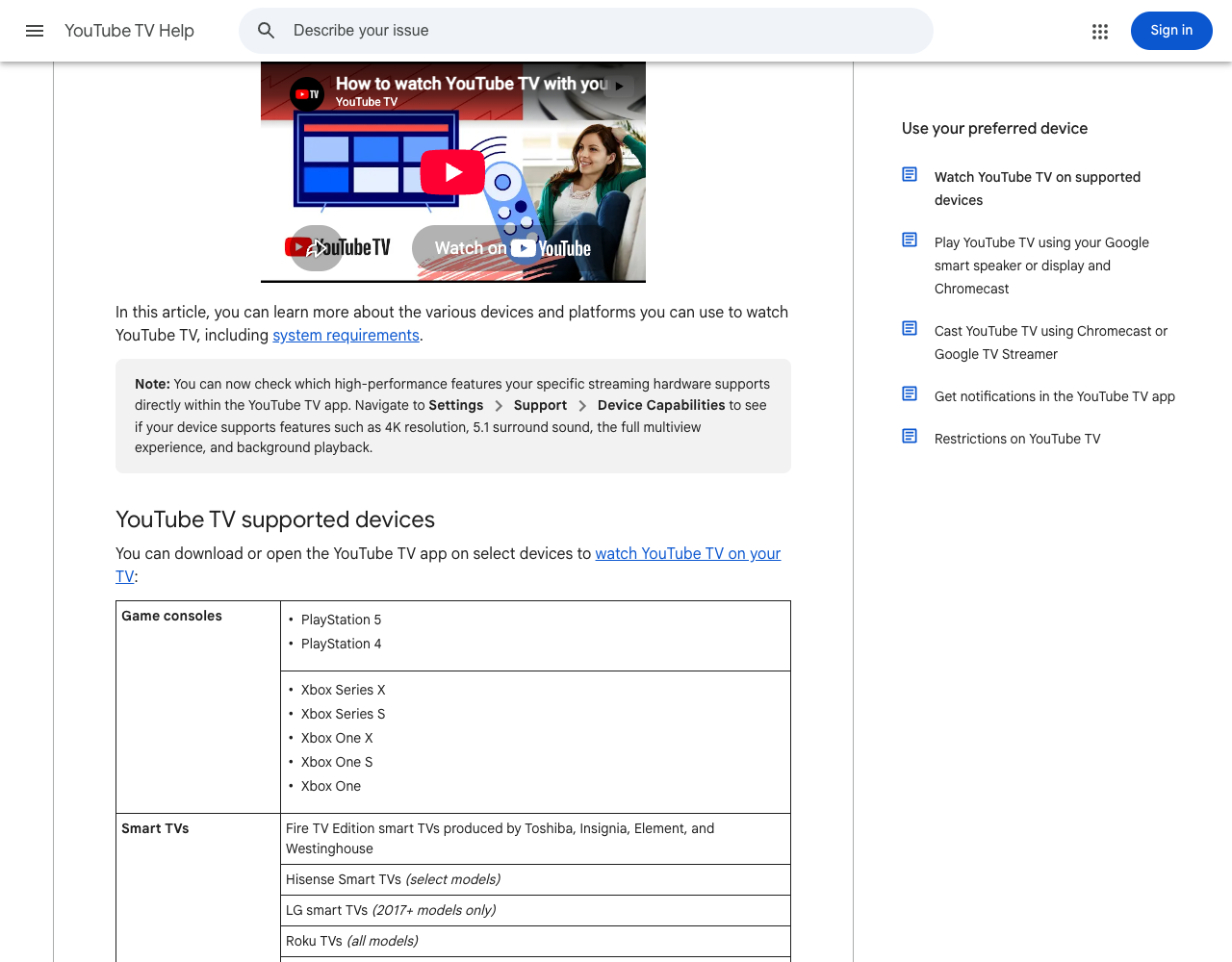
Show the public support page and model family without serial numbers, browser history, account data or private tabs. - Check the official store on the affected device without uninstalling YouTube. In a web store, make sure the selected device is the one showing the error.
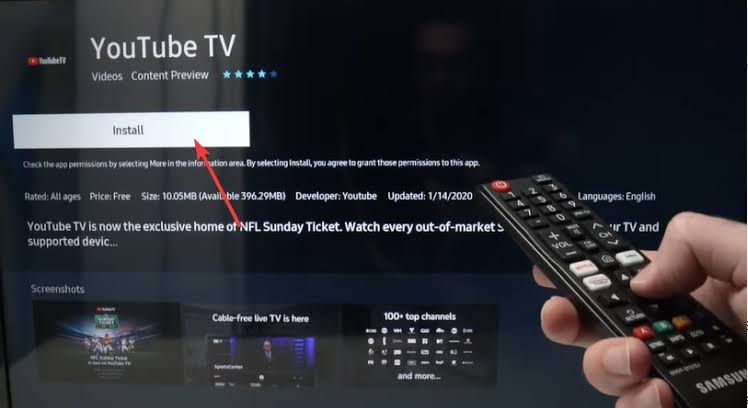
Capture the official store result. Hide accounts, purchases, recommendations, region details and device identifiers.
| What you find | What to do |
|---|---|
| YouTube or the manufacturer acknowledges a current fault | Follow its advisory and wait for the correction rather than repeating resets. |
| A compatible current app is still offered | If restarting and updating failed, reinstall once through the official store. If YouTube cannot be removed normally, leave it installed. |
| The listing is missing or incompatible | Keep the existing app and ask the manufacturer to confirm support. |
| The manufacturer confirms support has ended | Use a browser or supported external player; a reset cannot restore withdrawn support. |
If support remains unclear or the error persists, send the model, system/app versions, and exact warning through YouTube feedback from a working device. Hide account details and codes in screenshots.
4. Try Browser Playback or an Available Cast Receiver
The website may still play videos even when the app cannot. This is an alternative way to watch, not a repair for the unsupported app, and it still needs a usable browser.
- Phone or tablet: open m.youtube.com in an updated browser. Stay on the website rather than choosing Open in app, and test a public video.
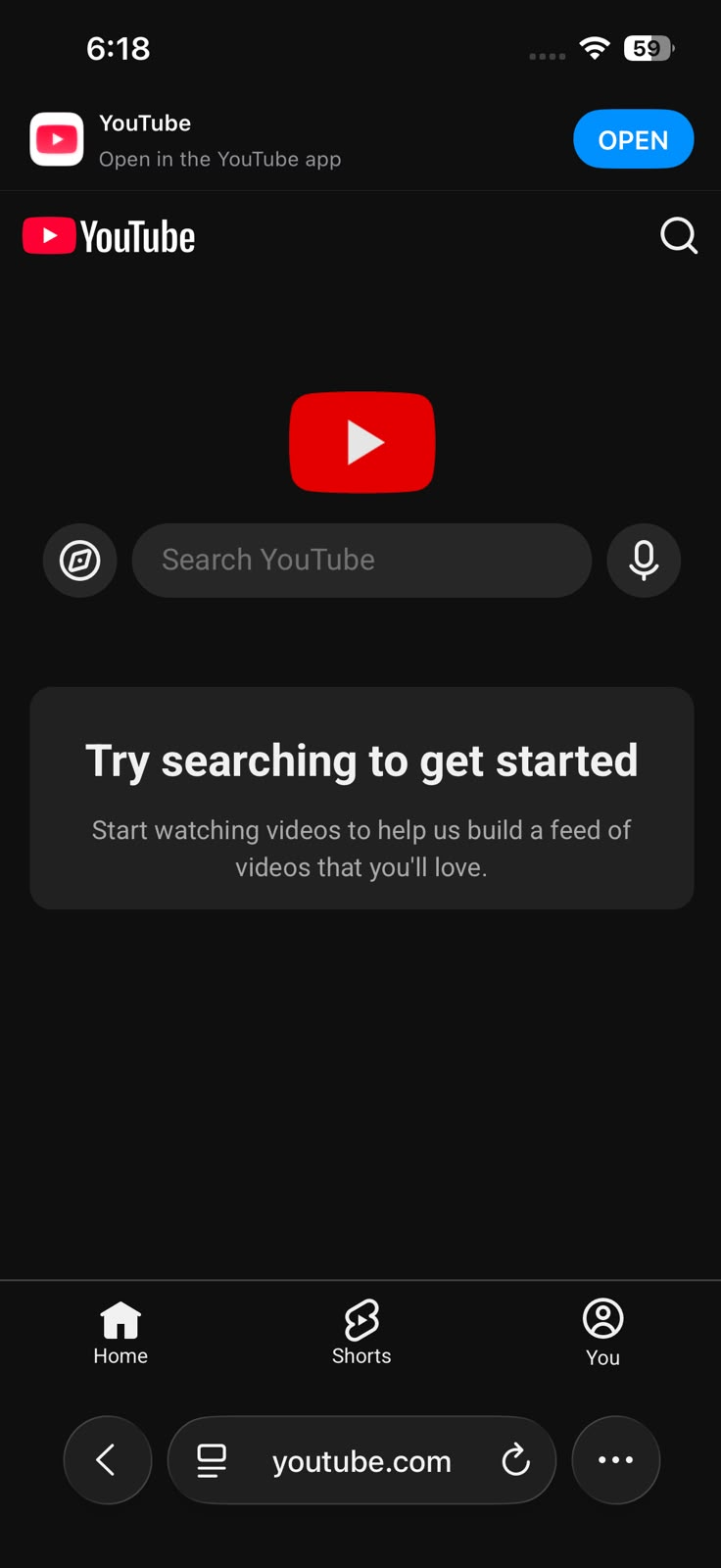
Use a test page or redact the account, recommendations, history, tabs, notifications and address-bar suggestions. - Smart TV: try youtube.com in its built-in browser. Check actual playback before signing in. A browser that cannot be updated or play videos is not a dependable fallback.
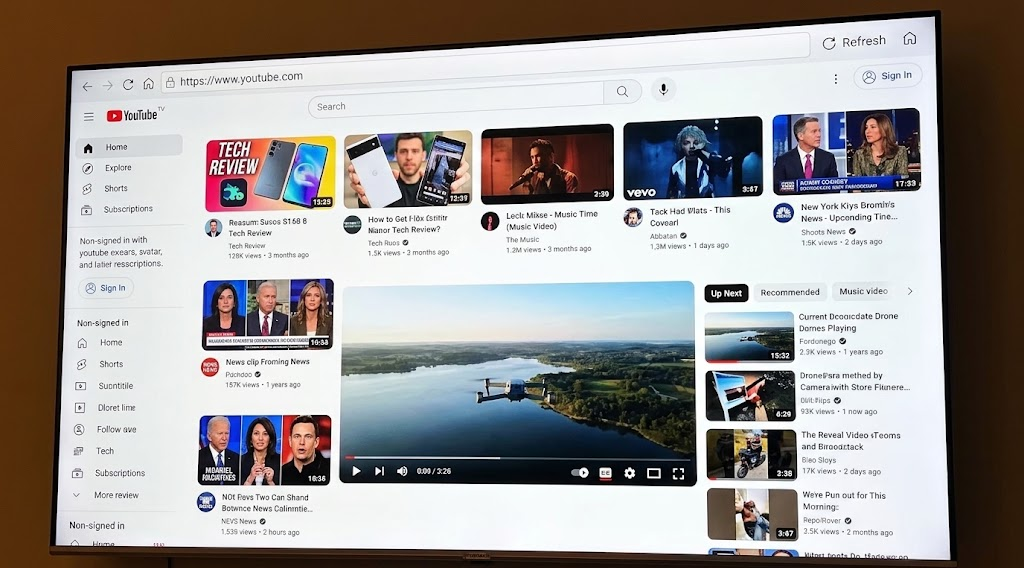
Show a public playback test. Hide accounts, history, recommendations, network details and browser bookmarks. - Optional casting: from a working YouTube phone app, select Cast and a compatible receiver on the same Wi-Fi.
- TV-code linking: if the TV app’s Settings open, select Link with TV code or Add a device. On your phone’s YouTube app, tap Cast > Add a device, enter the displayed code, and select Link.
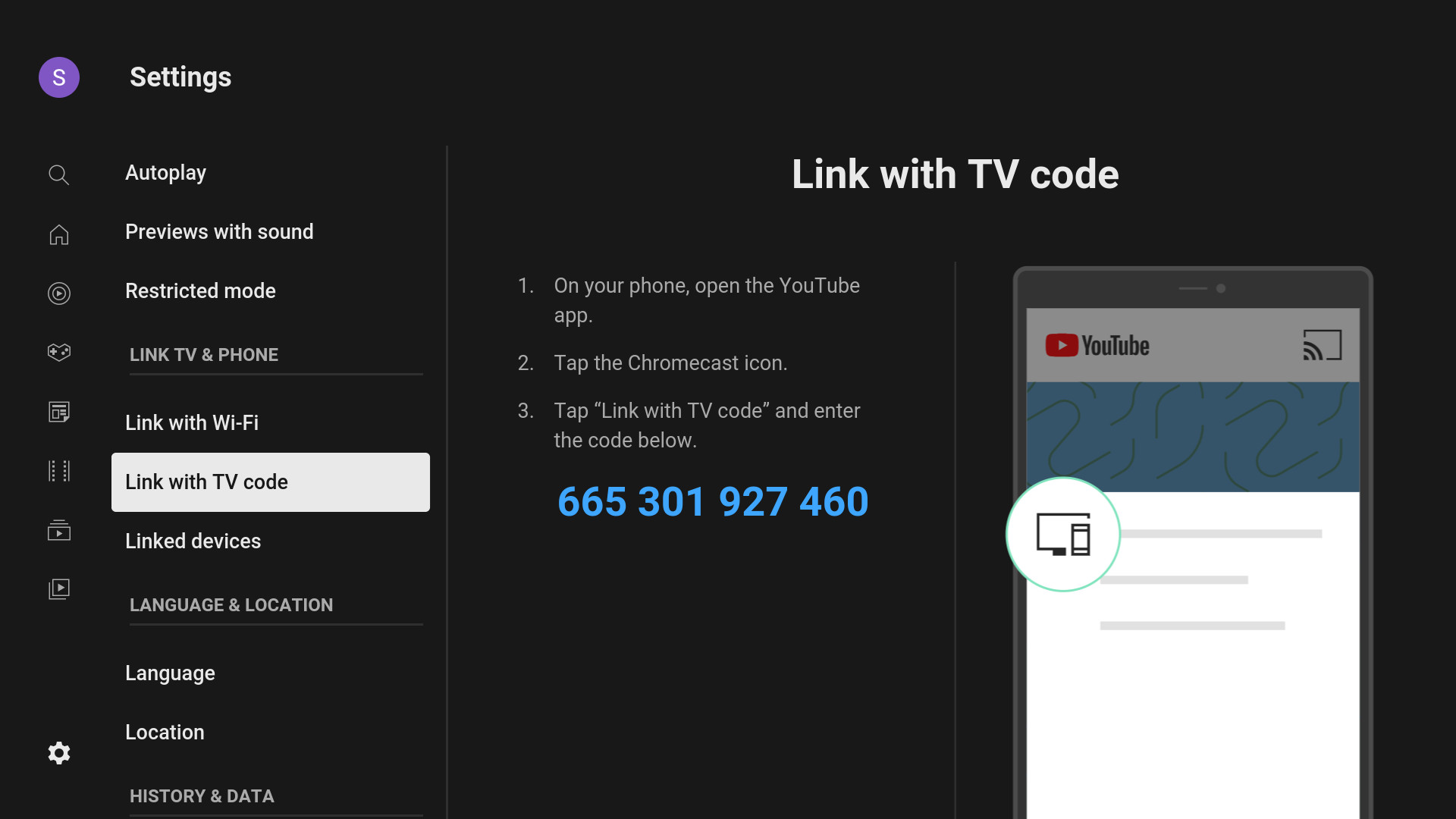
Show the control without exposing a live TV code, account, device name, household information or nearby receivers.
Google’s casting and TV-code instructions cover linking. You cannot start Google Cast from YouTube’s mobile website. TV-code linking needs the TV app’s menus; a separate working Cast receiver may still be usable when those menus are unavailable.
If a supported Chromecast is missing, use the basic discovery steps in the Chromecast connection checks, not broad service-removal or router-security changes. These checks cannot make a retired receiver compatible. Keep managed-network restrictions in place.
5. Use a Supported Player Through HDMI
An unsupported built-in app does not necessarily mean the screen needs replacing. A supported streaming player or game console supplies its own YouTube app. Check any compatible device you already own before buying another.
- Confirm current YouTube support for the exact player and your region. Check its HDMI, power, cable, and display requirements, including HDMI copy protection (HDCP), before purchase.
- Connect it to the TV’s HDMI port and the specified power supply. Select the matching input, such as HDMI 1, and complete its official setup.
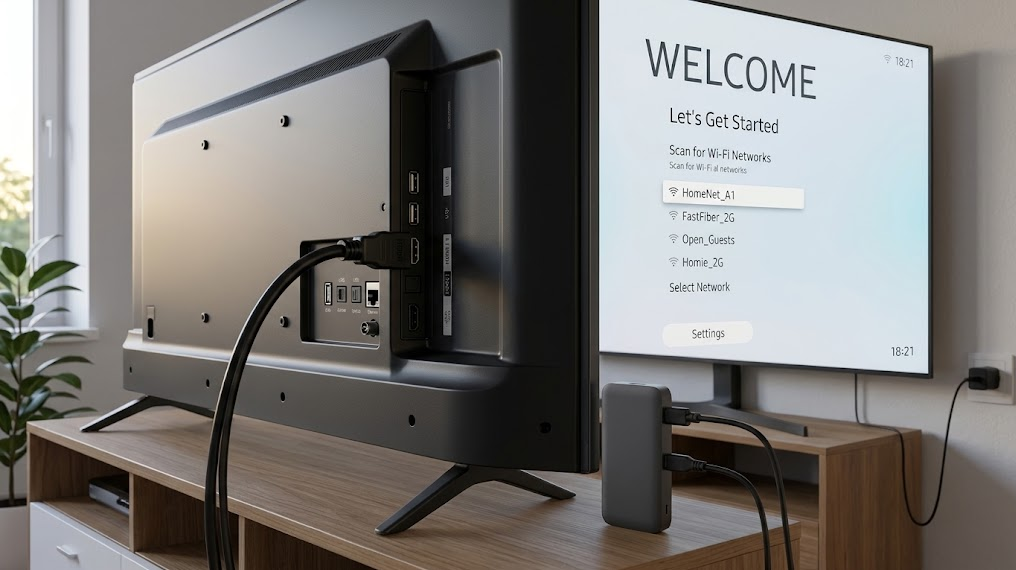
Show the HDMI and power connections without serial numbers, network labels, purchase documents or identifying surroundings. - Install or update YouTube on the external player, then play a public video. Sign in only if desired, following the official on-screen instructions.
For Google streaming hardware, check the display and setup requirements. The TV stays on the player’s HDMI input for YouTube; its unsupported built-in app remains unchanged. Avoid unofficial firmware, modified apps, or downloads that claim to bypass compatibility checks.


