How to Fix “Your Game Might Not Have Exited Correctly” in Subnautica 2
Subnautica 2 can show the Your game might not have exited correctly popup even when the game was never shut down improperly. On PC, that message can also appear when the game fails during DirectX 12 startup, chooses the wrong GPU, loads a bad graphics config, or hits a graphics-driver crash before the main menu.

The misleading part is that strong hardware can still fail at this stage. A laptop may start the game on integrated graphics, Windows 10 may be below the required build, or a recent driver/config change may break the renderer before the game has a chance to open normally.
1. Check the PC Requirements, Windows Build, and DirectX 12 Support
Unknown Worlds tied this startup-error family to AMD graphics-card and DirectX 12 launch issues in its early hotfix notes. If the PC is below the game’s actual requirements, the later repair steps will not make the launch stable.
Steam currently lists Windows 10/11, DirectX 12, 12 GB RAM, and at least a GTX 1660 6 GB or RX 5500 XT 6 GB as the minimum GPU floor.
- Let Steam finish any pending Subnautica 2 update before troubleshooting an older build.
- Compare your CPU, RAM, GPU, and free space against the current minimum specs on the Steam store page.

If the PC misses the real CPU, RAM, GPU, or DirectX 12 floor, later launch fixes will not hold. - If you are on Windows 10, press Windows + R, type winver, and confirm you are on Version 22H2, Build 19045 or later.

Windows 10 systems should be on 22H2 Build 19045 or newer before troubleshooting the DX12 launch path further. - Press Windows + R, type dxdiag, and confirm DirectX 12 is present and the expected GPU appears under the display details.

If the PC is below minimum spec, missing DX12 support, or still on an older Windows 10 build, fix that before changing game files. If the hardware should work, force the game onto the right GPU next.
2. Force Subnautica 2 to Use the Dedicated GPU
Hybrid systems can start demanding games on integrated graphics unless Windows is told otherwise. With Subnautica 2, that can trigger a startup failure even when the laptop has a capable NVIDIA or Radeon GPU installed.
Target the real game executable, not only the Steam shortcut.
- In Steam, right-click Subnautica 2 and choose Manage > Browse local files.

Use the real game executable so Windows Graphics settings apply to Subnautica2.exe directly. - Open Windows Settings > System > Display > Graphics and click Add desktop app if the game is not already listed.

- Browse to Subnautica2.exe, add it, open Options, and set Graphics preference to High performance.

On hybrid systems, forcing the high-performance GPU prevents the game from starting on integrated graphics. - Fully close the game and Steam, then relaunch and test again.
If the popup was caused by wrong-GPU selection, the game should get past the first startup failure now. If it still fails, repair the Steam install and remove launch interference.
3. Repair the Steam Install and Remove Launch Interference
A damaged update, bad Steam cache, overlay hook, or security block can keep the same startup popup coming back even when the hardware checks are clean.
- In Steam, open Properties > Installed Files and run Verify integrity of game files.

If a damaged file or partial update is breaking startup, Steam verification is faster than a full reinstall. - If you need a fuller walkthrough for this step, use this Appuals guide on verifying game files.
- In Steam, open Settings > Downloads and click Clear Download Cache, then sign back in.

A broken Steam cache can keep feeding the same bad launch state even after game files verify correctly. - Close or disable Discord Overlay, MSI Afterburner, RivaTuner, and similar overlay or capture tools before launching.

Overlay and monitoring tools can interfere with first-run graphics initialization. - Add the Subnautica 2 install folder to your antivirus or Windows Security exclusions if security software is blocking or quarantining files.
- If Steam still fails to launch the game, right-click Subnautica2.exe, open Properties > Compatibility, and test Run this program as an administrator.

If the game opens after this pass, the issue was local install or launch interference. If you are on Radeon RX 9000 hardware, check the AMD driver branch next.
4. Update AMD Drivers if You Are on a Radeon RX 9000 Series GPU
AMD listed Subnautica 2 crashes on Radeon RX 9000 series cards in the 26.5.2 driver notes, then marked that crash fixed in Adrenalin Edition 26.6.1. That makes the driver version important on RX 9060, RX 9070, and other RX 9000 series systems.
If older advice told you to roll back to 26.3.1, update the recommendation first: as of AMD’s June 2026 notes, 26.6.1 is the build that includes the Subnautica 2 crash fix.
- Check whether your GPU is a Radeon RX 9000 series card and whether the crash started after installing Adrenalin 26.5.1 or 26.5.2.
- Install AMD Software: Adrenalin Edition 26.6.1 or newer from AMD.
- If the driver install behaves inconsistently, run AMD Cleanup Utility, then install the current fixed driver cleanly.
- Restart the PC and launch Subnautica 2 again before changing more settings.
If you need a general driver walkthrough, use this Appuals graphics driver guide. If you are on NVIDIA, Intel, or unaffected AMD hardware, reset the game’s local graphics config next.
5. Reset the Local Graphics Config if the Error Started After a Failed Launch or Settings Change
A failed first launch or unstable graphics option can leave Subnautica 2 stuck loading bad local settings. Unknown Worlds’ later hotfixes also addressed DLSS and frame-generation crashes, so make sure the game is updated before editing config files manually.
Reset only the config folder first. Do not delete your save folder unless you intentionally want to remove progress.
- Close the game and exit Steam completely.
- Open
%LOCALAPPDATA%\Subnautica2\Saved\Config\. - Rename the Windows folder to Windows-old so the game rebuilds default graphics settings on the next launch.

Renaming the local config folder forces Subnautica 2 to rebuild default graphics settings without touching your save data. - If you prefer the narrower edit, open GameUserSettings.ini and change UpscalingFrameGeneration=1 to UpscalingFrameGeneration=0.
- Leave
%LOCALAPPDATA%\Subnautica2\Saved\SaveGamesuntouched. - Relaunch the game and let it rebuild the config with default settings.
If the popup began after a failed launch or aggressive graphics tweak, this usually clears the loop. If the game still dies before the menu, reinstall once and prepare a support report.
6. Reinstall Once, Then Send Support the Right System Details
A reinstall is useful only after the Windows build, GPU selection, Steam files, driver version, and config folder have been checked. Otherwise, it often restores the same broken startup state.
- Uninstall Subnautica 2 from Steam, reinstall it, and let Steam download the current build completely.
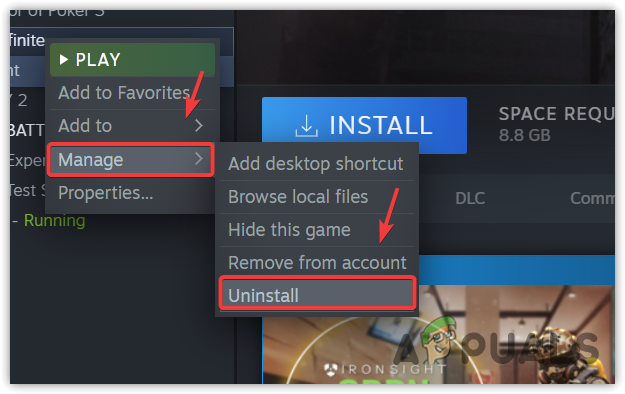
Reinstall only after the Windows build, GPU selection, driver, Steam, and config checks are already cleared. - Launch once before reapplying custom graphics settings, overlays, or launch options.
- If the popup still appears, submit a ticket to Subnautica Support with your Windows build, CPU, GPU model, driver version, whether the PC has integrated plus dedicated graphics, and a screenshot of the exact error.
The fastest way through this popup is to treat it as a startup graphics failure, not as a generic “bad exit” warning. Current official notes point to DX12, GPU selection, AMD RX 9000 driver behavior, DLSS/frame-generation state, and local graphics config as the important places to check.


