How to Fix MSI Afterburner Fan Curve Not Applying?
If an MSI Afterburner fan curve looks saved but the GPU ignores it, the first question is whether Afterburner is actually in control of the fans. A fixed manual fan speed can work while the temperature-based curve still does nothing.

This happens because fan control is shared between Afterburner, the GPU’s firmware, the driver, and sometimes the card maker’s own utility.
- On laptops, custom GPU fan curves may not be available at all because the fan behavior is locked by the manufacturer.
- On desktop cards, the curve can still be limited by minimum fan speed, zero-RPM rules, or another utility such as MSI Center, ASUS GPU Tweak, Gigabyte Control Center, or similar software.
1. Confirm that this GPU can use a Custom Fan Curve
MSI’s own Afterburner guide says laptop GPUs cannot use custom fan curves in Afterburner because the manufacturer presets them in BIOS. If you are tuning a gaming laptop, the curve may look editable while the embedded controller or vendor utility still owns the fan behavior.
Desktop GPUs usually expose more control, but they still have hardware limits. Many modern cards will not accept fan points below their minimum manual fan speed, and some will keep using the card’s own zero-RPM logic until the GPU leaves its idle fan-stop zone.
- Confirm whether you are tuning a desktop graphics card or a laptop GPU.

Laptop GPU fan behavior is often controlled by the manufacturer firmware, not by Afterburner’s desktop-style fan curve. - If this is a laptop, test the manufacturer’s own control utility instead of forcing a desktop Afterburner curve.
- On a desktop card, open MSI Afterburner > Settings > Fan and check the lowest fan speed the curve editor allows.

If the card exposes a minimum fan-speed floor, points below that floor can look saved but still will not run in practice. - Move very low or 0% fan points above the card’s minimum allowed value and test again.
- Run a short GPU load and watch whether the fans begin following the curve after the card exits its normal fan-stop range.
If the curve only fails on a laptop, or only fails below the card’s minimum fan speed, Afterburner is not the broken part. If the card is a desktop GPU and the whole curve is ignored, check the control mode next.
2. Enable User-Defined Automatic Fan Control and Keep Auto Mode On
Drawing a curve is not enough by itself. MSI’s setup path requires Enable user-defined software automatic fan control, and Afterburner’s main fan control must still be in Auto mode for the curve to react to temperature.
This is the common case where dragging the fan slider to a fixed percentage works, but the curve does not ramp with temperature. Manual fan speed and automatic curve control are different modes.
- Open MSI Afterburner.
- Click Settings, then open the Fan tab.
- Enable user-defined software automatic fan control.

The curve does not become active until Afterburner is told to use user-defined automatic fan control. - Adjust the curve nodes, then click Apply.
- Return to the main Afterburner window and make sure the fan control is set to Auto, not a fixed manual percentage.

A fixed manual speed can still work while the curve is inactive if Auto mode is off. - Run a game or benchmark and watch both fan speed % and fan RPM in the hardware monitor.
If the fans start following temperature after Auto mode is restored, the curve was never actually active. If it works now but disappears after reboot, fix the startup behavior.
3. Make Afterburner Load the Curve at Windows Startup
Afterburner does not permanently write every software curve into the GPU. MSI’s guide says Start with Windows lets Afterburner automatically load your settings and GPU fan settings when the PC starts.
There is also a separate Apply at Windows Startup button on the main window. If only one of these is set, Afterburner may open but not apply the profile you expected, or the card may return to its stock fan behavior after every reboot.
- Open MSI Afterburner > Settings.
- Enable Start with Windows.

If Afterburner does not load at startup, the GPU can fall back to its default fan behavior until you open the app again. - Click OK, then return to the main Afterburner window.
- Save your current settings to a numbered profile.
- Enable Apply at Windows Startup. If the button is grayed out, open the profile lock first and try again.
- Restart Windows and check whether the fan curve is active before launching a game.
If the curve survives reboot, the issue was startup loading. If Afterburner loads correctly but the fans still bounce between stop and spin, the card’s zero-RPM behavior is probably involved.
4. Adjust Zero-RPM, Firmware Control, and Vendor Utility Behavior
Modern GPUs often have a built-in fan-stop mode. That can make a custom curve look broken at idle, especially when the curve asks for 0 RPM or a very low percentage in a temperature range where the card’s own BIOS still has a different rule.
Afterburner includes options such as Use firmware control mode and Override zero fan speed with hardware curve for cards that need different fan-control handling. Vendor utilities can also interfere, so avoid letting two apps control the same fan at the same time.
- Open Settings > Fan.
- If the regular software curve barely reacts on a desktop card, test Use firmware control mode.

Firmware control mode can help some cards that do not respond cleanly to the normal software-driven curve. - If the problem is mostly fan-stop behavior at idle, test Override zero fan speed with hardware curve.

This option lets the card’s own hardware fan-stop behavior handle the 0 RPM part of the curve instead of forcing an unsupported software point. - If you have MSI Center, Dragon Center, ASUS GPU Tweak, Gigabyte Control Center, EVGA Precision, or another GPU utility installed, close it completely or disable its fan-control module for this test.
- On MSI cards with Zero Frozr, test the setting both ways inside MSI Center. Some users report that Afterburner behaves correctly only when Zero Frozr is left enabled and Afterburner’s zero-speed handling is adjusted around it.
- Simplify the curve to a few clear points, then test idle and load behavior again.
If the card starts following the curve after these changes, the issue was a mismatch between Afterburner and the card’s fan-stop or vendor-control layer. If nothing responds reliably, refresh the driver and Afterburner install.
5. Update the GPU Driver and Reinstall Afterburner Cleanly
MSI recommends using the latest GPU driver and the most recent version of Afterburner before tuning. This matters after a GPU swap, a major driver update, or a move to a newer NVIDIA, AMD, or Intel card that an older Afterburner build may not handle cleanly.
Use this after the fan mode, startup, and zero-RPM checks are already clear. Reinstalling first can hide the real cause and make you rebuild the same broken setup again.
- Install the latest stable driver for your GPU from NVIDIA, AMD, or Intel, then restart Windows.
- Download the latest MSI Afterburner only from MSI or Guru3D. MSI warns that fake Afterburner sites exist, so avoid third-party mirrors.
- If you recently installed a new graphics card, restart once after the driver install before opening Afterburner again.
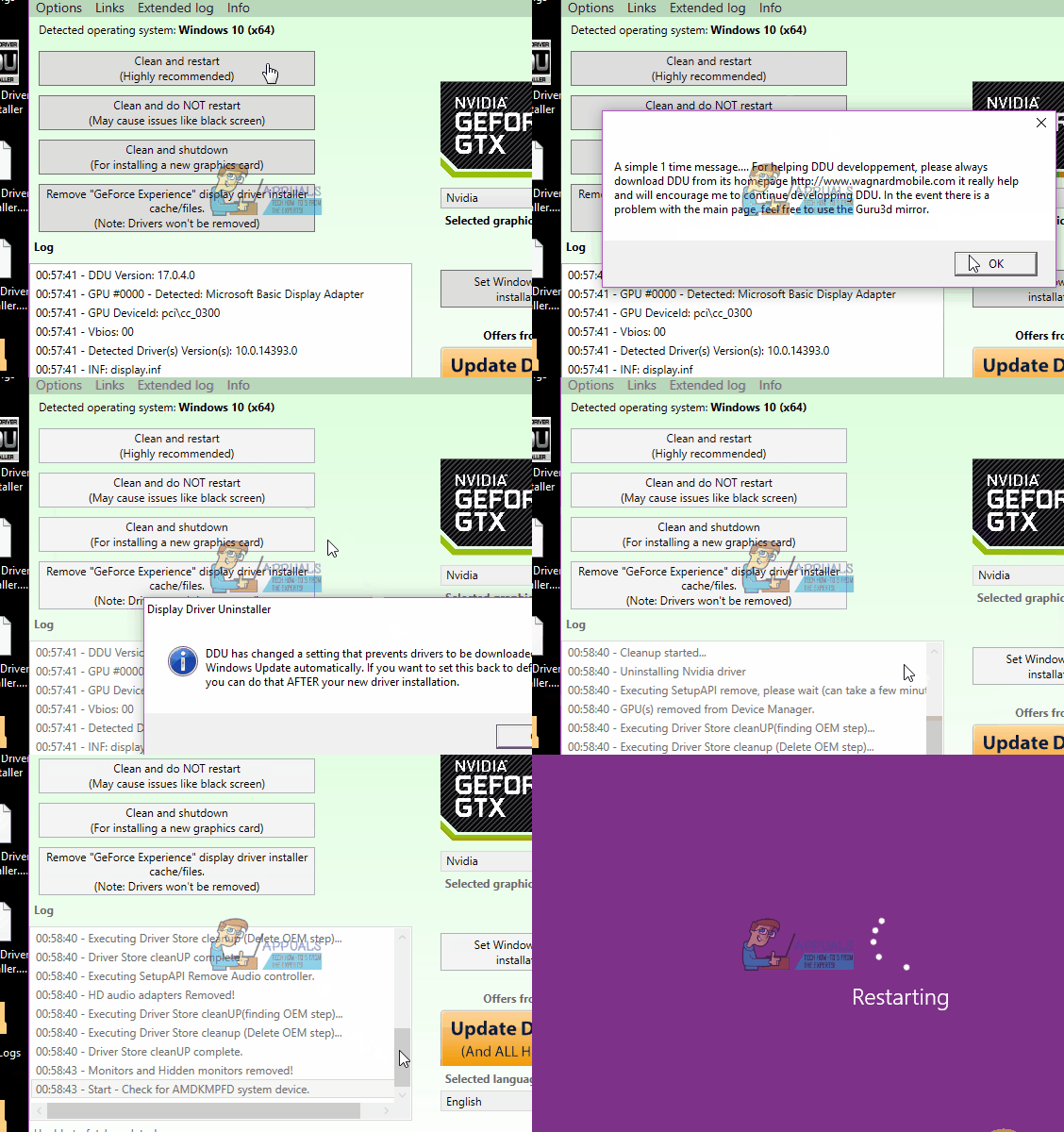
- If the curve still does not bind to the card, uninstall MSI Afterburner, reinstall the current build, and recreate the fan curve manually instead of importing old profiles right away.
- Test the curve with only Afterburner running before reopening other GPU tuning utilities.
If a clean install still cannot control the fans, the remaining cause is usually outside Afterburner: laptop firmware, a card-specific minimum fan floor, or a vendor fan-stop rule the GPU will not let software override. In that case, use the GPU maker’s own utility or leave the hardware fan policy in place instead of forcing a curve the card cannot accept.