Fix: PS4 Mic not working
PS4 has been one of the console leaders in the gaming industry for quite some time. It offers an ecstatic gaming experience with graphics which will leave you mesmerizing. It offers great online gameplay and allows teams to chat with each other while gaming as well.
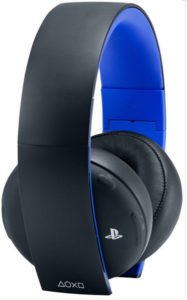
With that being said, PS4 also has its own set of microphones available for separate purchase. It has loads of features and an inbuilt microphone as well for you to talk in-game with your teammates. Despite being launched specifically for the PS4, there are several cases where you are unable to talk to your teammates. You might be hearing their voice but they may not be able to hear yours. This problem is widely known and can be fixed using simple workarounds available. Take a look.
Solution 1: Checking Audio Settings
Before we move on to changing software configurations, we should first check if the headset is properly connected and recognized by the PS4. There are many cases where you have in your view plugged into the device correctly, but the PS4 doesn’t recognize the headset fully (even if you are able to head other people). We will look at some quick hardware workarounds and see if they work.
- Open your PS4 and navigate to Settings from your home screen. Once in Settings, navigate to “Sound and Screen”.

- Once in Sound and Screen, navigate to “Audio Output Settings”.
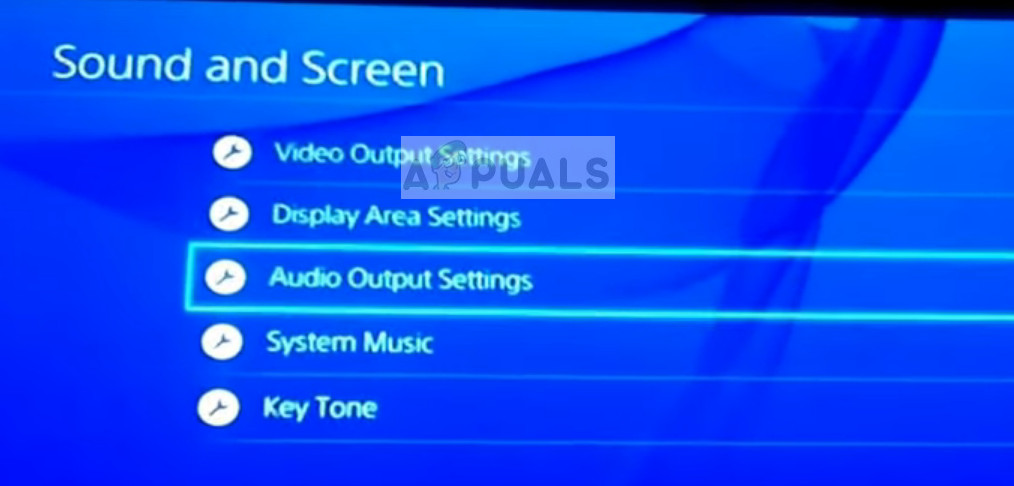
- Now in the next menu, if you see the “Chat audio” greyed out (not accessible), it probably means that the PS4 is not detecting the headset properly. You might be able to play and listen to other players perfectly but you may not be able to speak.
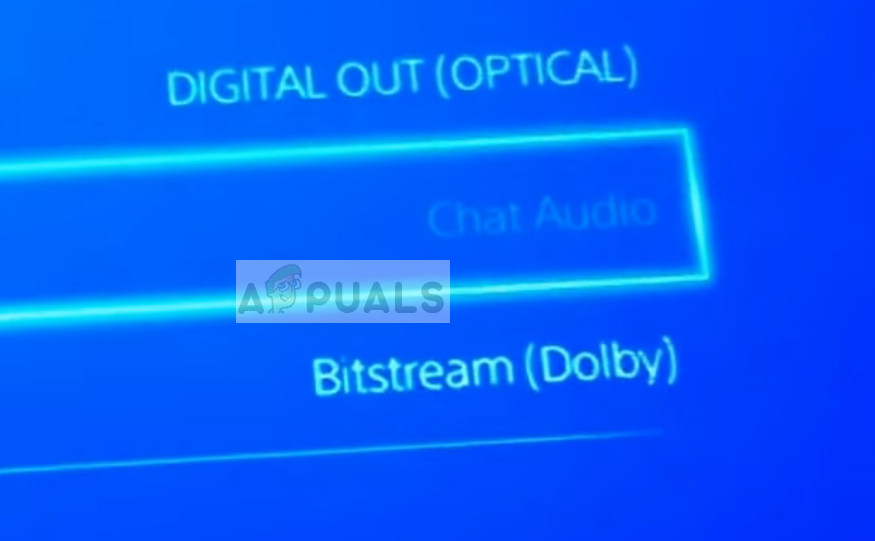
- This indicates that the headset is not properly connected. The first thing you should make sure that the cord is pushed in all the way. There are several cases where you might think that the cord is fully connected but in reality, it isn’t.
There was another workaround which involved unplugging and plugging in real fast (so fast that the jack doesn’t even leave the port). In a nutshell, disconnect and the re-connect right away.
Another thing you can try is changing the Bitstream from Bitstream (Dolby) to Bitstream (DTS).
Solution 2: Changing the angle of the plug
If you aren’t using the official PS4 headphones, chances are that you may be plugging both the normal cords of a different headphone into the adapter so you can use the headphones. There is known to be a fault in many PS4 controllers where even if you plug the cord fully into the adapter, the mic doesn’t work.
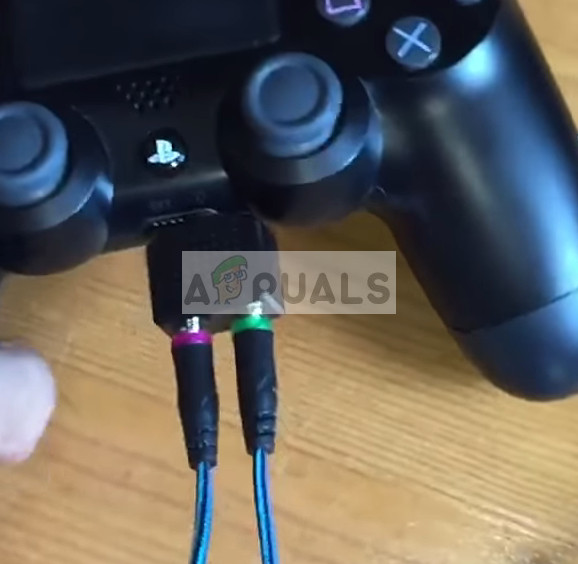
After several experimentations, users found out that plugging the mic cable only halfway inside the adapter or slightly out fixes the problem instantly and the PS4 instantly identifies the mic. As you can see in the picture below, the cord is not fully inserted.
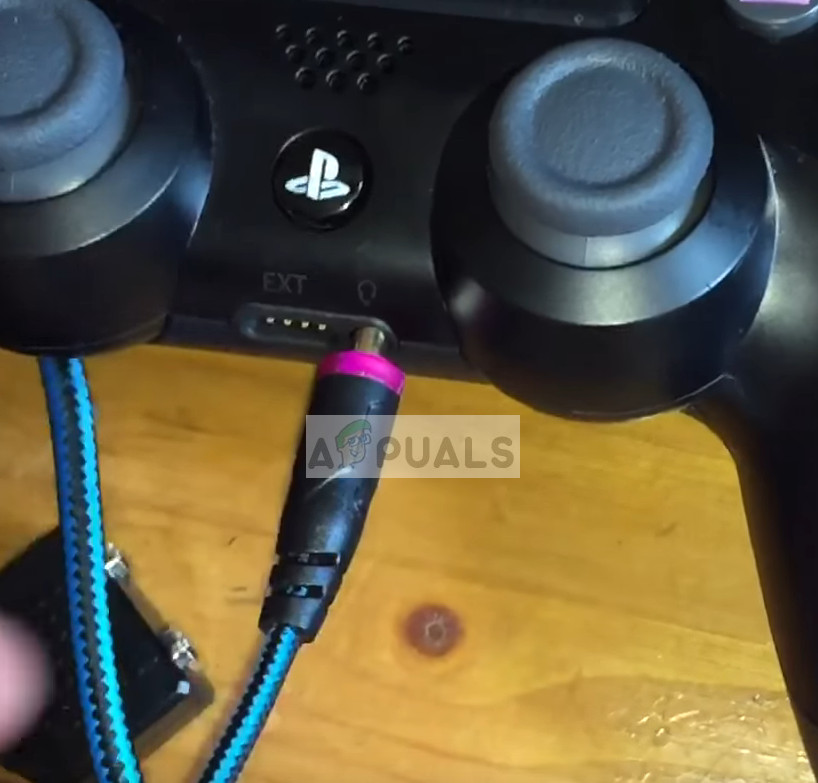
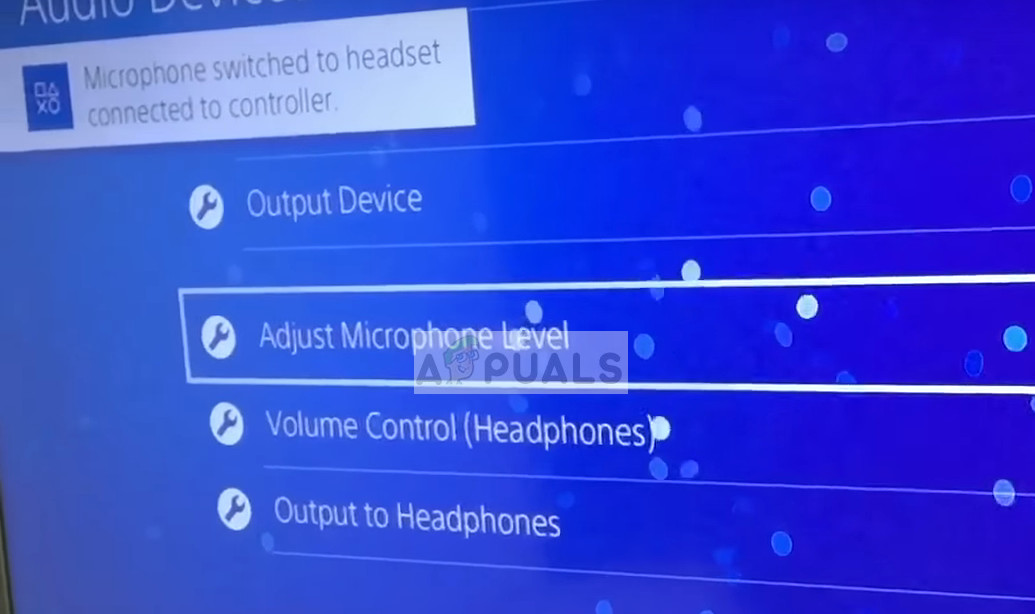
If you plug the microphone properly as described, you will automatically see a notification on your PS4 that a microphone was connected. Check if this technique works for you and can you chat with your friends easily without any problems.
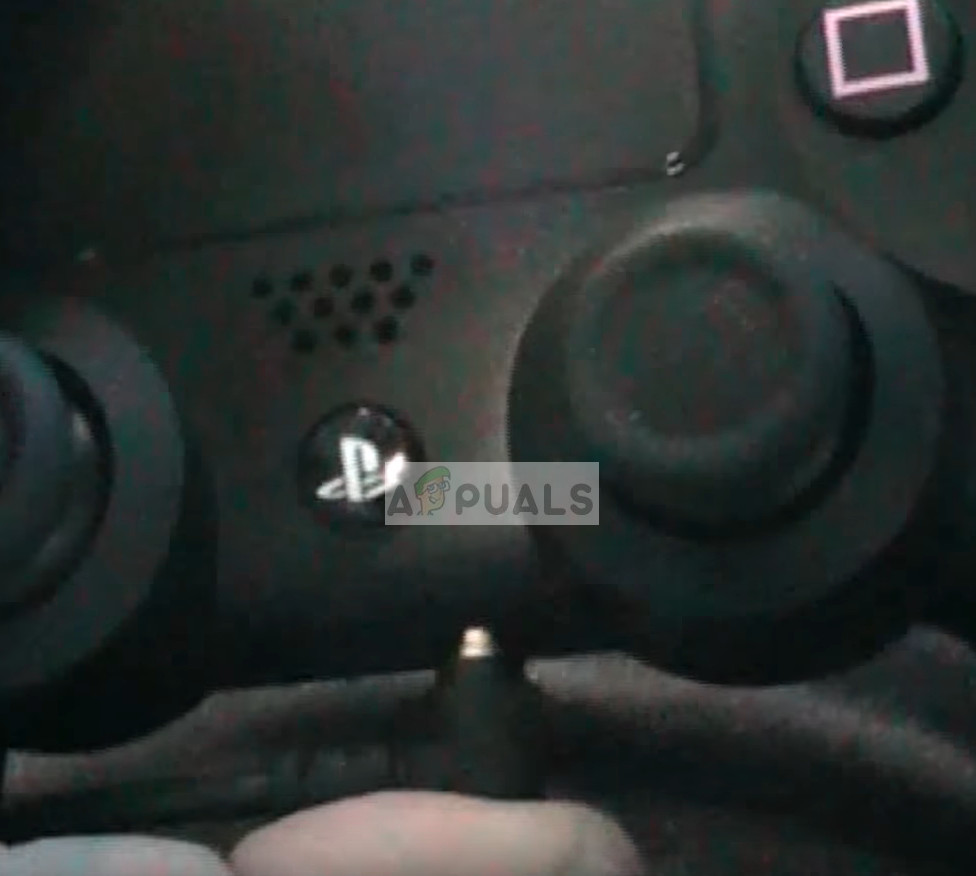
This method works for other famous gaming headsets as well including Razer Kraken Pro. In Kraken, you have a total of 3 black rings around the headphone jack. You have to fully insert the first two and when the last one is left, wiggle it around so it does not fully insert but you will hear a small click sound and the jack will go only a little bit inside leaving behind very little of its body exposed. This is when it will work perfectly.
Solution 3: Setting Realtek High Definition Audio as Default
If you are using PS4 headphones on your computer and are having difficulties either hearing or when speaking to your teammates, it possible that you do not have the correct sound output as default. Whenever you plug in a new headset or sound device, Windows automatically configures your sound settings and changes it according to the device you plugged in. We can try changing this and see if this does the trick.
- Right-click on the sound icon at your taskbar and select “Sounds” from the list of options available.
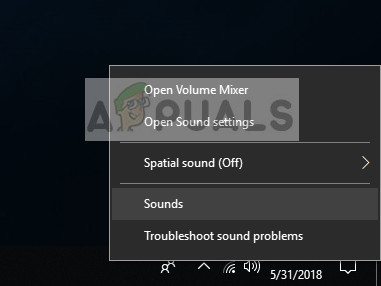
- Click on the “Playback” tab, select “Realtek High Definition Audio” Speakers and click on “Set Default”. Press Apply to save changes and exit.
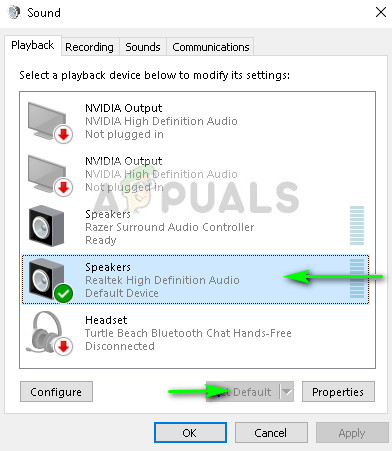
- Now check if the problem got solved.
Solution 4: Resetting Controller and Restarting PS4
If all the above methods don’t work, you can try restarting your PS4 and see if this does the trick. You can reset the controller as well as the PS4. First, try resetting the controller as your headphones are directly connected to it. Once you have reset the controller using the reset button at the back, plug the headphones back in and see if this fixes the problem.
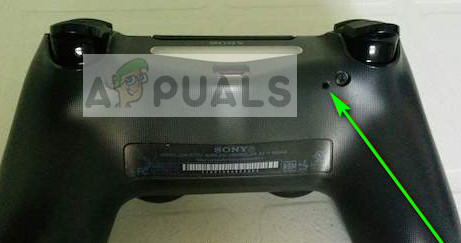
If resetting the controller doesn’t fix the mic not registering your voice, you should consider restarting your PS4. According to users, they restarted the PS4 3-4 times and the headphones were connected properly as expected. Some even stated that they left the PS4 closed overnight and the next day their voice was being registered.
You should also try muting and then un-muting using the PS4. You can do that a couple of times until the mic starts registering your input.
Solution 5: Changing Side Tone Volume and Mic Gain Settings
If the mic is still not registering proper voice on your PS4, it is likely that the mic gain settings and the sidetone volume are set low. The Sidetone Volume adjusts the volume of your voice when it is heard through the headset. You can try switching it to Off and check. If this still doesn’t work, you can switch it back to On and try again.
Same goes for the Mic gain settings. Follow the steps below to change these:
- Open up your Settings and navigate to “Devices”.
- Once in devices, click “Audio Devices”.
- In Audio Devices menu, you will an option “Adjust Microphone Level”. Click it.
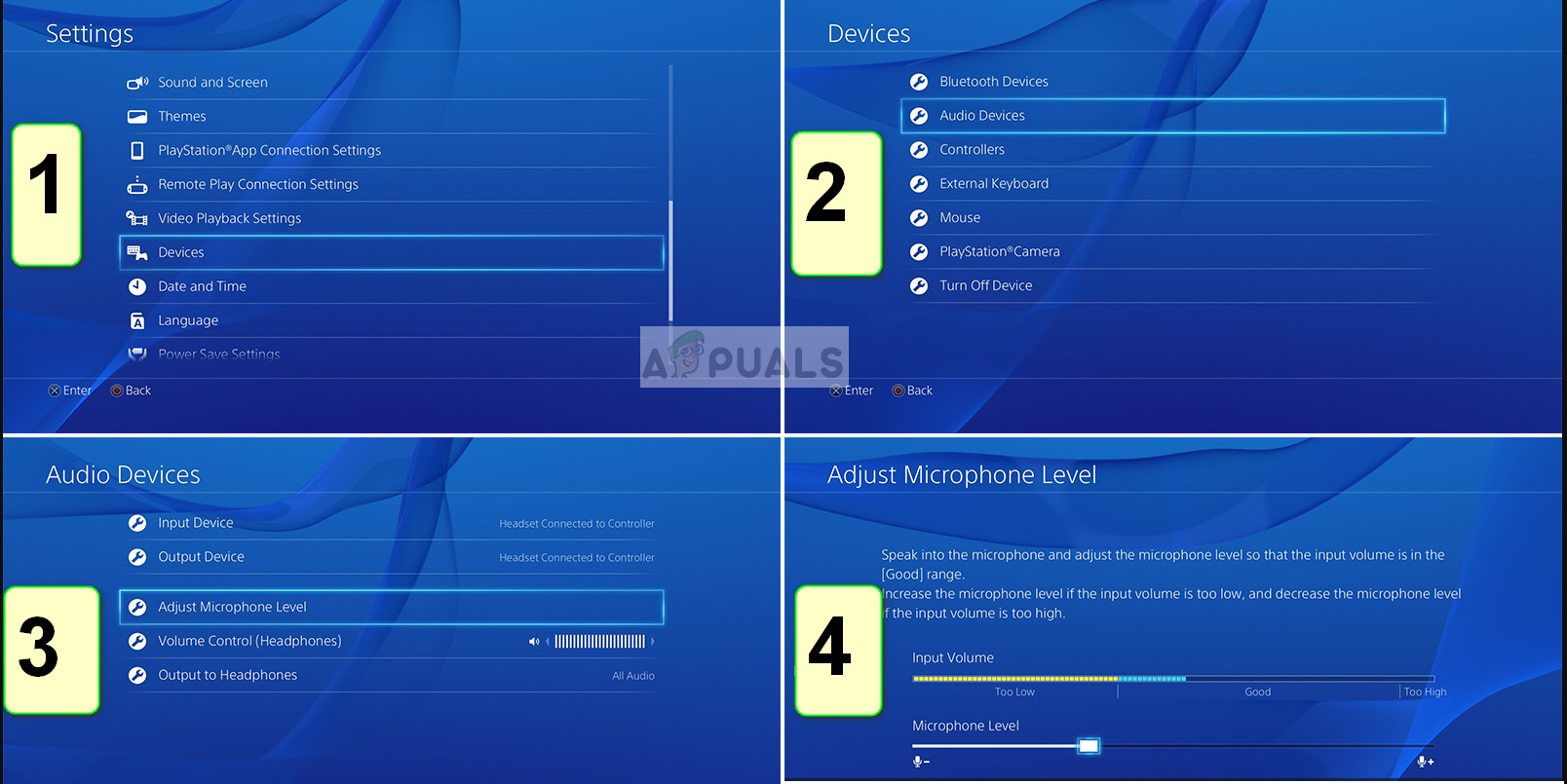
- Now change the Microphone Level (aka mic gain) until the perfect settings are achieved. Save all your changes and exit. Now check if the problem went away.

This is not an issue as Sony has changed the ring configuration inside their controller, It is no longer using the android standard ring configuration in an attempt to make the flatform proprietary which means only buying their headphones even thought their older headphones are now not supported.