How to Fix AMD 207 GPU Driver Error in Windows
The error code “207” appears when you install AMD Software but Windows detects a problem with the GPU driver. This typically occurs after installing or updating AMD drivers, rebooting the system, or when Windows reinitializes the graphics driver stack. It triggers the message:
“Error 207 – AMD Software installation completed successfully but Windows detected a potential issue with your graphics device“
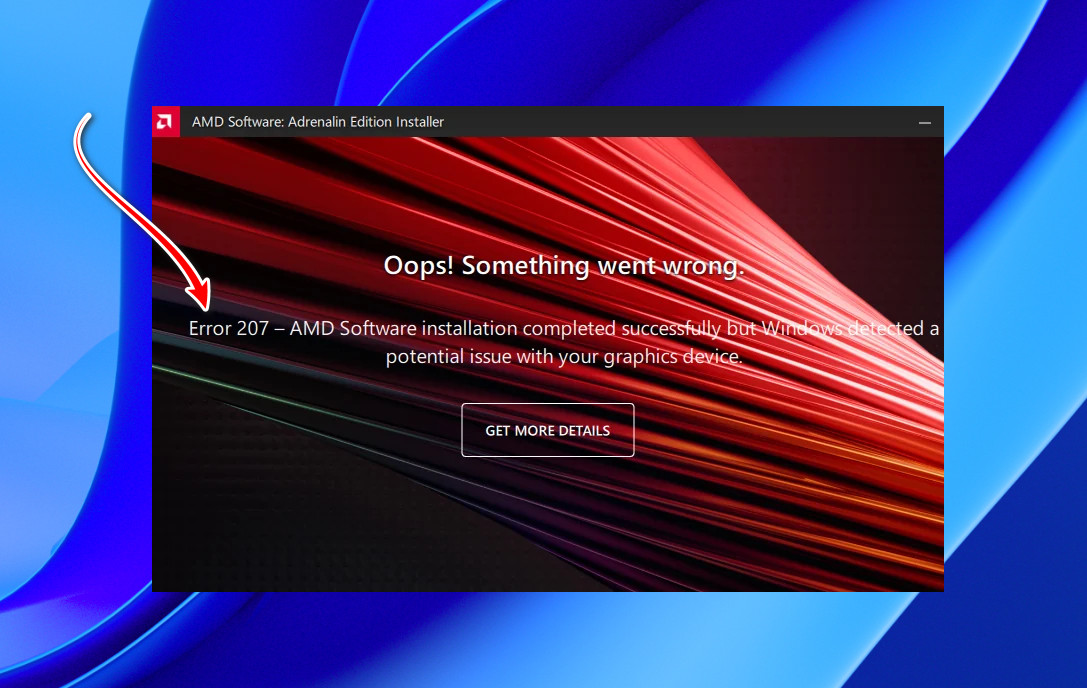
In simple terms, this means Windows Device Manager has detected an issue with your display adapter after the new driver was installed, preventing the driver from loading correctly.
The most common reason is that the display adapter is disabled in Device Manager. When this happens, Windows treats the GPU as unavailable. A disabled GPU shows a small down-arrow icon, and the device status will confirm that it has been disabled.
Other frequent causes include:
- Incomplete removal of previous drivers (leftover files or registry entries)
- Corrupted or invalid driver signatures from failed or partial installs
- Driver–Windows incompatibility due to mismatched versions
- Windows Update reinstalling or replacing the GPU driver with an older build
1. Uninstall & Reinstall the Driver Using the Compatibility Tool
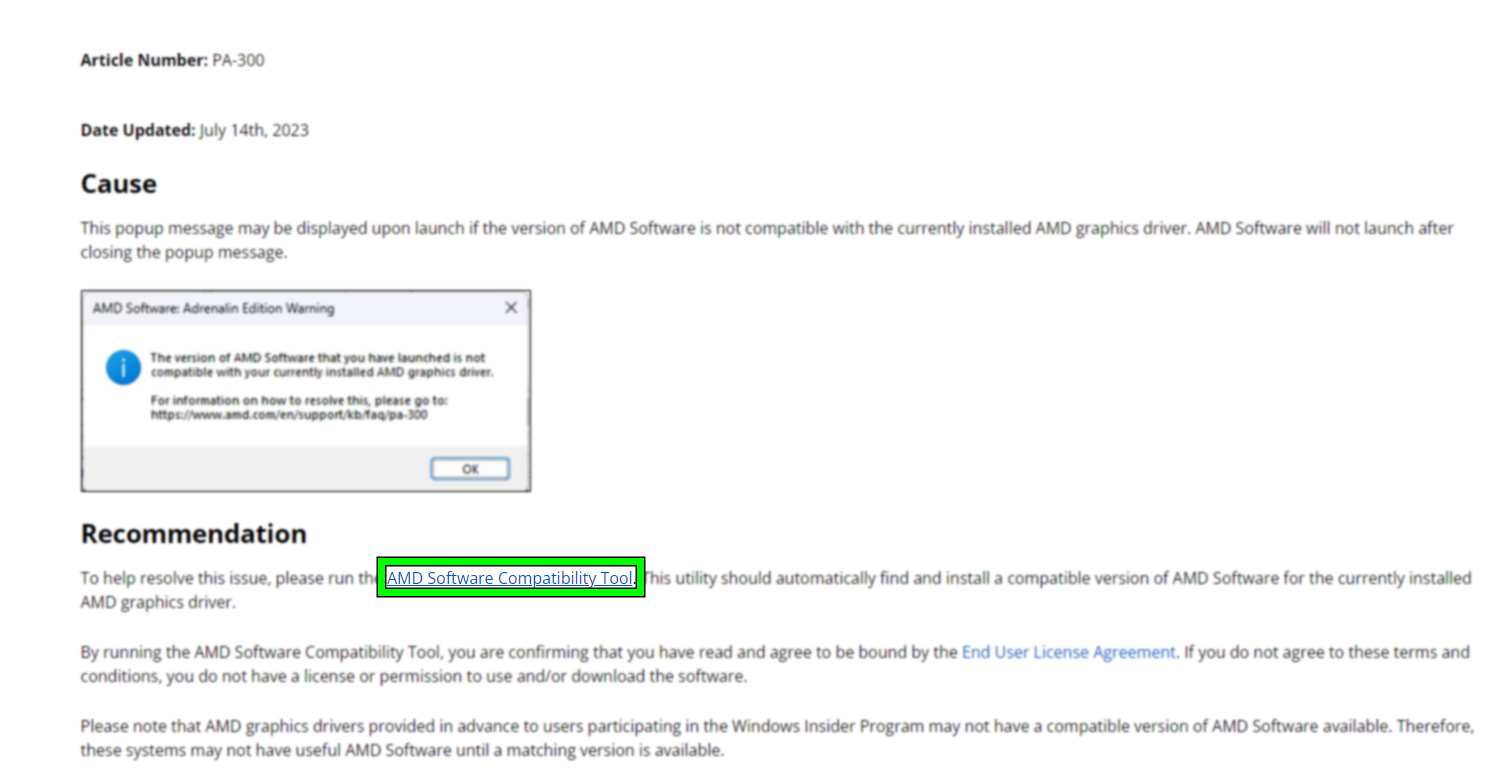
If older, incorrect, or partially installed AMD drivers remain, Windows may continue detecting conflicts even after a clean install. The AMD Software Compatibility Tool checks your GPU model and Windows version against AMD’s supported list and recommends the correct driver.
This method removes the current driver, scans your system, and installs the recommended AMD or OEM driver. If a normal uninstall doesn’t fix the issue, a deeper cleanup with Display Driver Uninstaller (DDU) in Safe Mode can help.
Uninstall Your Current AMD Driver
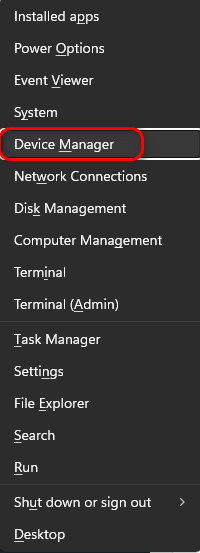
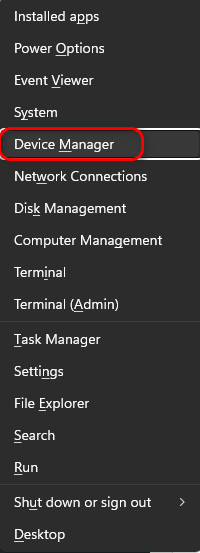
- Press Win + X and select Device Manager.
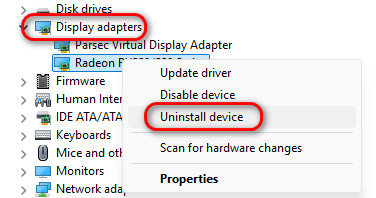
- Expand Display adapters and right-click your AMD GPU.
- Select Uninstall device. If available, enable “Attempt to remove the driver for this device”.
- Restart your computer.
Run the AMD Compatibility Tool
- Download the AMD Software Compatibility Tool.
- Open the tool and let it scan your GPU and Windows version.
- Review the recommended driver or configuration.
Install the Recommended AMD Software
- Download and install the AMD Software package recommended by the tool.
- Restart your computer when the installer finishes.
- Confirm in Device Manager that your GPU shows no warning icon and open AMD Software to verify the 207 error is gone.
Download and Install the OEM Driver (If Applicable)
If the tool reports limited support or you’re using a prebuilt system, an OEM driver may be more stable.
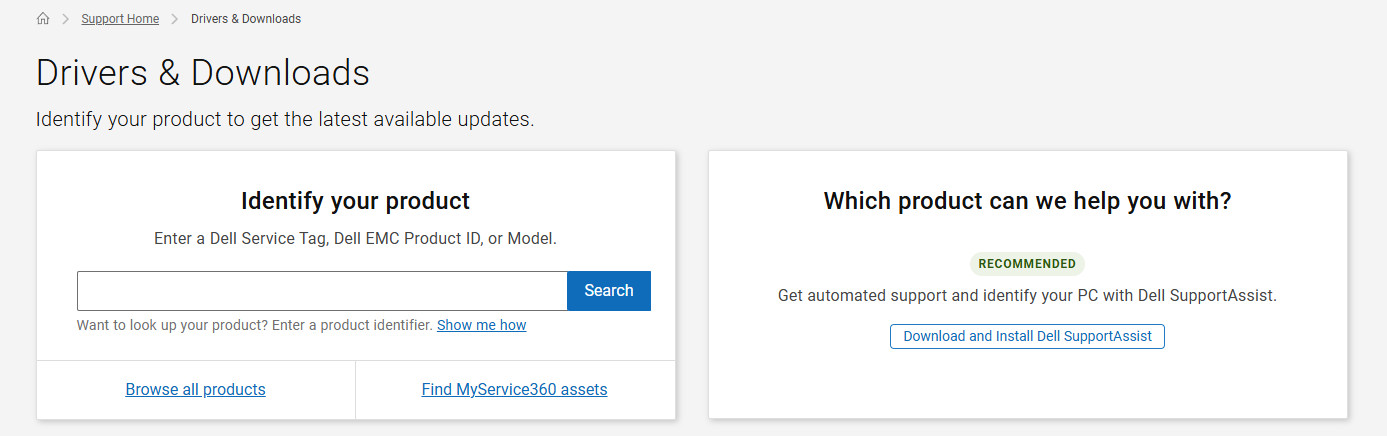
- Visit your PC or motherboard manufacturer’s support page (e.g., Dell, HP, Lenovo, ASUS).
- Find your exact model and open the Drivers & Downloads section.
- Download the validated AMD GPU driver.
- Install the driver and restart your PC.
2. Enable Your GPU From Device Manager & Then Reinstall the Driver
Windows may disable the GPU after detecting instability or a driver conflict. When disabled, AMD Software installs successfully but cannot attach to an inactive device, triggering the 207 error.
Re-enabling the GPU and reinstalling the driver restores normal functionality.
- Press Win + X and select Device Manager.
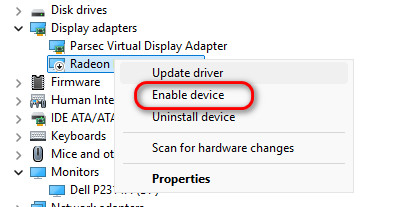
- Expand Display adapters and locate your AMD GPU.
- If it is disabled, right-click and select Enable device.
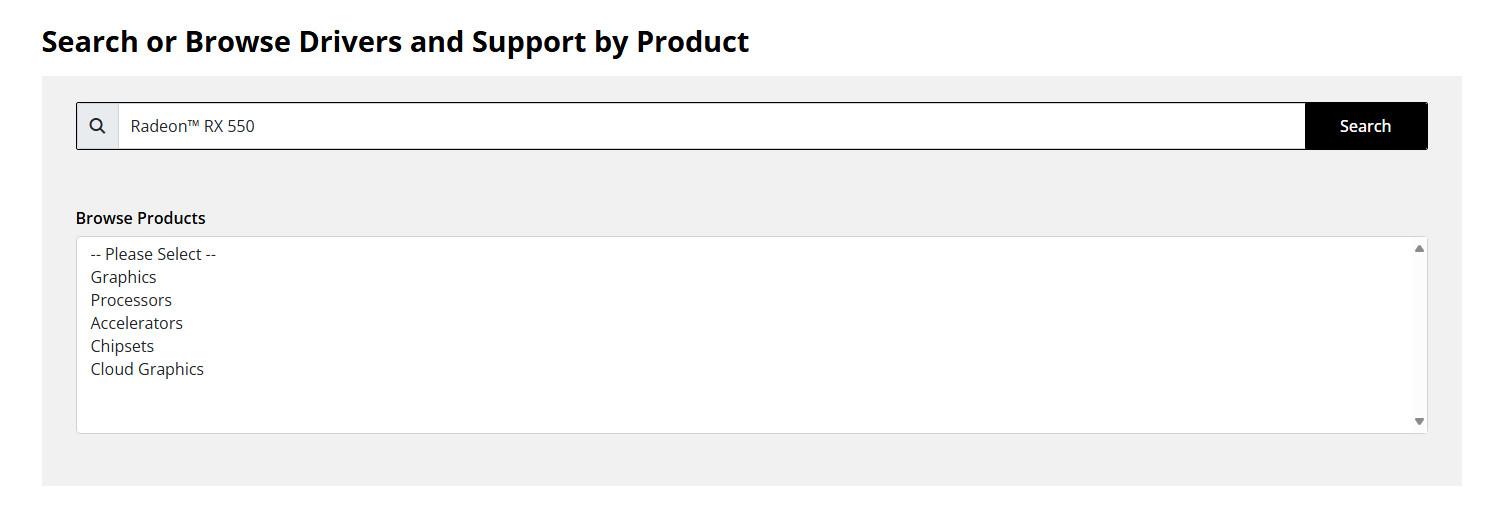
- Go to AMD’s official driver page and download the latest driver.
- Restart your PC and confirm that:
- The GPU shows no warning or down-arrow icon.
- AMD Software launches without error 207.
3. Disable Driver Signature Enforcement & Reinstall the Driver
Windows uses Driver Signature Enforcement (DSE) to block drivers with missing or invalid signatures. If an AMD driver fails this check, it may install but still fail to load, causing the 207 error.
Disable DSE temporarily only if you trust the driver source.
- Uninstall your current AMD GPU driver (as shown in Fix 1).
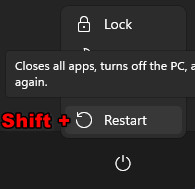
- Hold Shift and click Restart to open the Advanced Start-up menu.
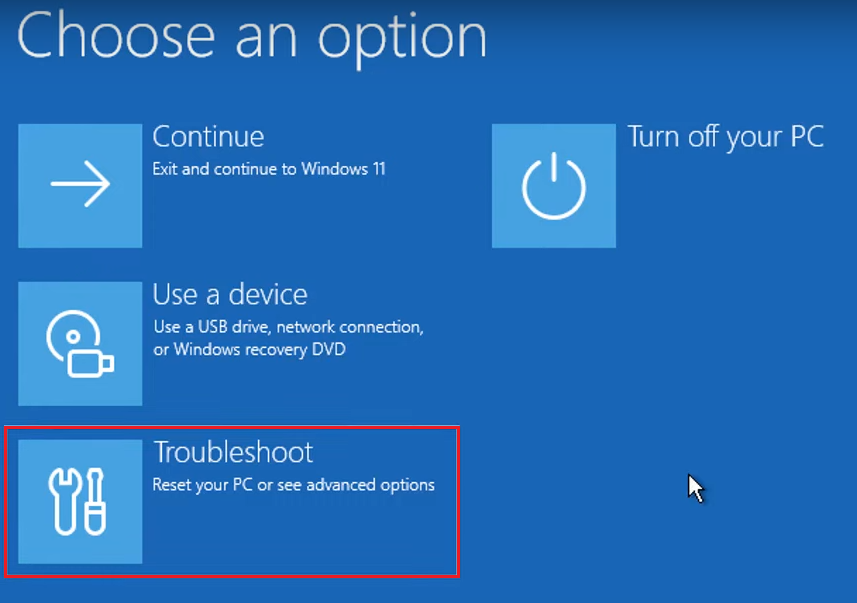
- Select Troubleshoot.
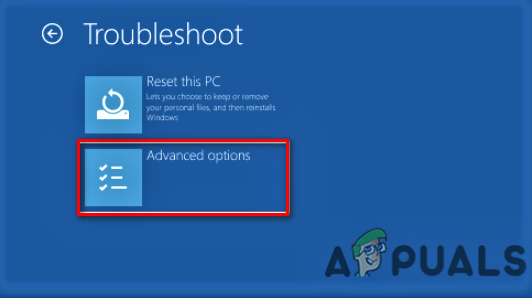
- Go to Advanced options.
- Select Start-up Settings.
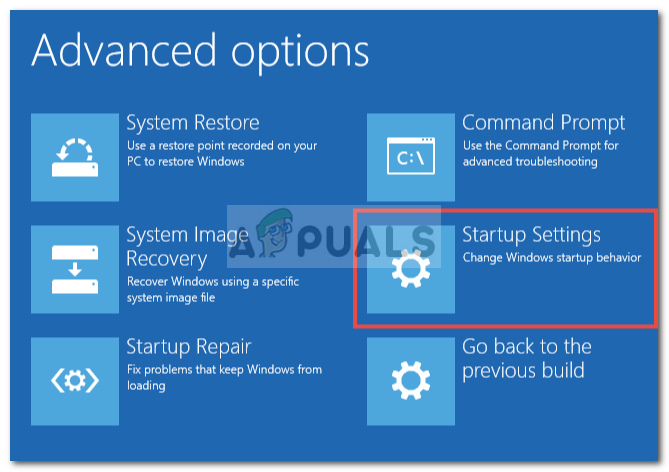
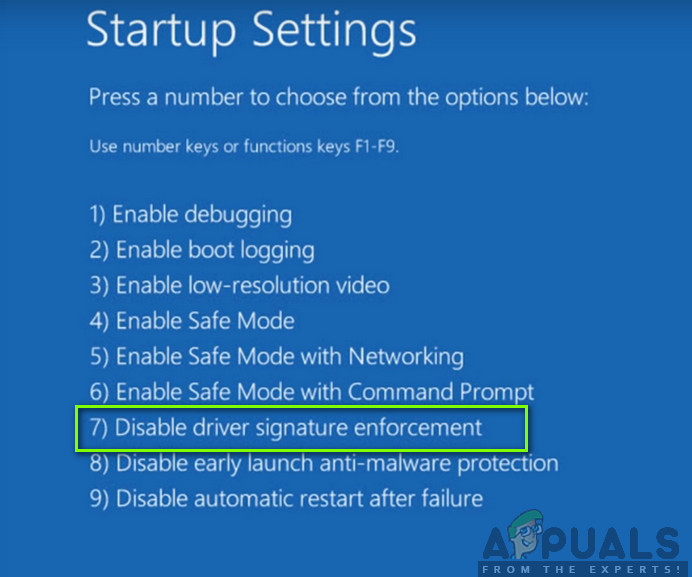
- Click Restart, then press F7 to Disable driver signature enforcement.
- Download and install the latest AMD driver from the official AMD website or OEM page.
- Restart your PC normally to re-enable DSE.
- Check Device Manager and AMD Software to confirm the error is resolved.
If none of the above methods work, check for pending Windows Updates, test the GPU in another system (if possible), or contact AMD/OEM support to rule out a deeper compatibility or hardware issue. BIOS/UEFI settings such as CSM, Secure Boot, or iGPU priority can also affect driver initialization.