How to Fix Windows 10/11 Won’t Install or Download Updates?

Microsoft releases a multitude of cumulative updates for Windows 10 and 11 each month. Usually, these updates are automatically downloaded and installed through Windows Update. However, users may sometimes encounter various errors during the update process. For each error, there are tried-and-true solutions suggested by users who have faced similar issues.
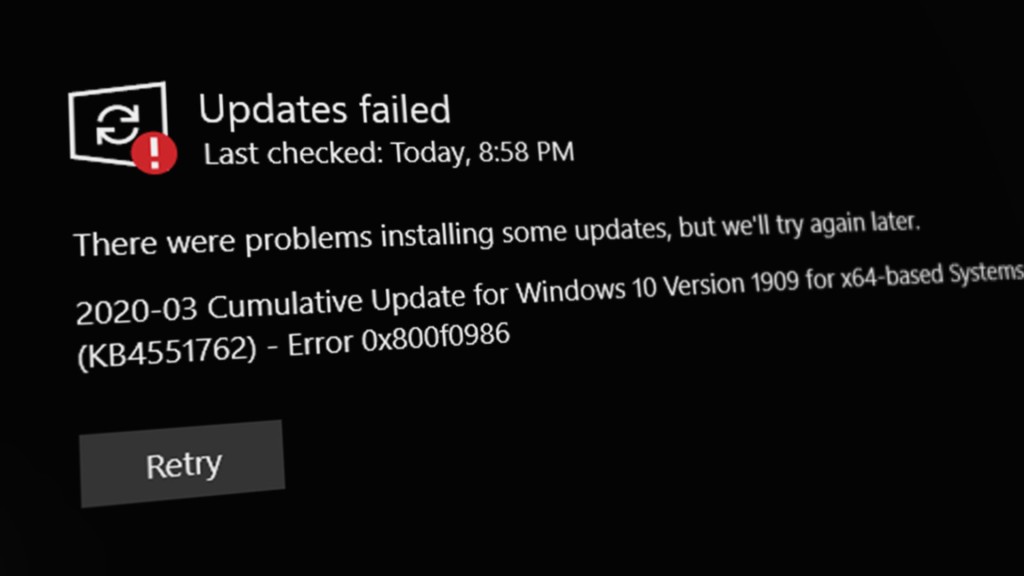
Understanding the reasons behind Windows Update errors is essential to resolving them. Your error could come from the following causes:

  • Incorrect or Corrupted Registry: Improperly modified or corrupt registry entries, particularly the wuauserv key, can lead to update errors since this key is responsible for downloading, detecting, and installing Windows updates.
  • Windows Update Service Not Running: If the Windows Update service is disabled or has been stopped, updates will be unable to install.
  • Corrupted Software Distribution Folder: Errors are likely if the contents of the Software Distribution folder become corrupted, as this folder stores the temporary files necessary for installing Windows updates.
  • Corrupt System Files: Corrupted system files are another frequent source of issues since they are integral to the update process. Follow the instructions below to repair any corrupted files.

Note that the causes of Windows Update errors can vary and may include other factors such as network issues, hardware and software incompatibility, specific bugs within an update, or additional system conflicts. Identifying the exact cause of a Windows Update error in your case may require a methodical troubleshooting approach.

1. Use the Windows Update Troubleshooter

The Windows Update Troubleshooter is your first line of defense against update-related issues. It scans for conflicts within the update process and automatically fixes common errors, such as configuration issues or network connectivity problems. This built-in utility can save you the trouble of manually diagnosing and resolving the root causes of update failures.

  1. Press Windows + I to open Settings, select Update & Security, and then click Troubleshoot.
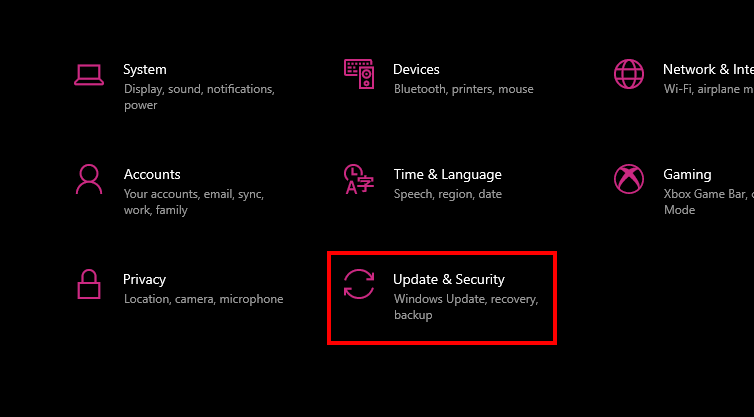
  2. Click on Additional troubleshooters, find Windows Update, and select Run the troubleshooter.
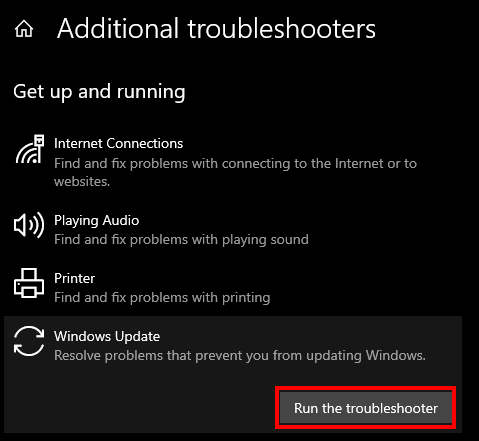
  3. The troubleshooter will begin detecting problems. Follow any on-screen instructions to allow the tool to attempt repairs.
  4. After completion, reboot your PC to apply any changes. Then, check if Windows updates can proceed.

2. Restart Windows Update Service

The Windows Update Service manages the checking, downloading, and installing of updates. Occasionally, this service might glitch or become unresponsive. Restarting it can resolve temporary malfunctions, making sure that updates are initiated and completed successfully.

Making sure that the service is active and set to start automatically maintains your system’s capability to stay up-to-date.

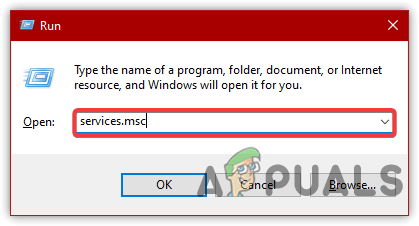
  1. Press Windows + R to open the Run dialog box.
  2. Type services.msc and hit OK.
    Opening Services Window
    Opening Services Window
  3. Scroll down or press W to quickly navigate to the Windows Update service.
  4. Right-click Windows Update and select Properties.
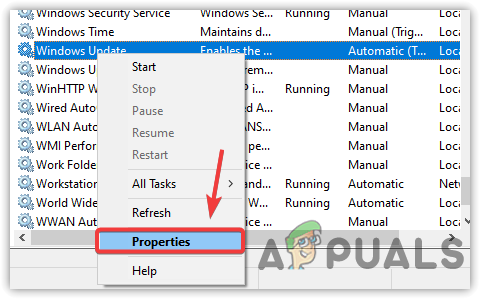
    Navigating to Service Properties
    Navigating to Service Properties
  5. In the drop-down menu, set the startup type to Automatic.
  6. Click Apply, then Start if the service is not running.
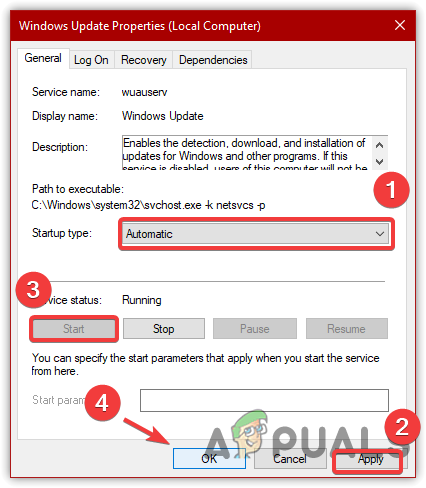
    Restarting Windows Update Service
    Restarting Windows Update Service
  7. Confirm changes by clicking OK and check if the update error has been resolved.

3. Reset Windows Update Registry Keys

Misconfigured or damaged Windows Update registry keys can disrupt the update process. Resetting them to default settings can resolve errors and corruptions within these vital components, facilitating smooth and error-free updates.

This action can be crucial for restoring the Windows Update service’s ability to download and install updates properly.

  1. Download the registry file from here to reset Windows Update registry settings.
  2. Right-click the downloaded file and choose Run as administrator.
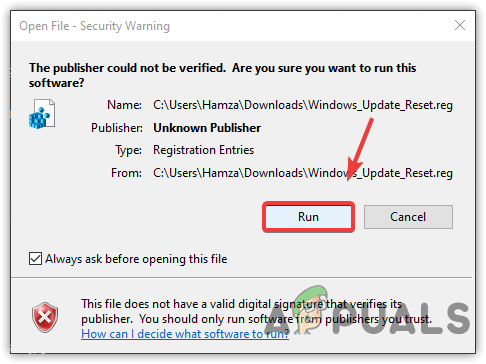
    Running Windows Registry File
    Running Windows Registry File
  3. Confirm the changes by clicking Yes on the prompt.
  4. After the process completes, check if the issue is resolved.

4. Turn OFF Metered Connection

While the Metered Connection feature is useful for managing bandwidth, it can also block Windows from downloading updates to conserve data. Disabling this setting permits your system to download the necessary update files without restrictions, which could resolve update-related connectivity issues.

  1. Right-click the Start Menu and open Settings.
  2. Navigate to Network & Internet, and select either Ethernet or Wi-Fi from the sidebar.
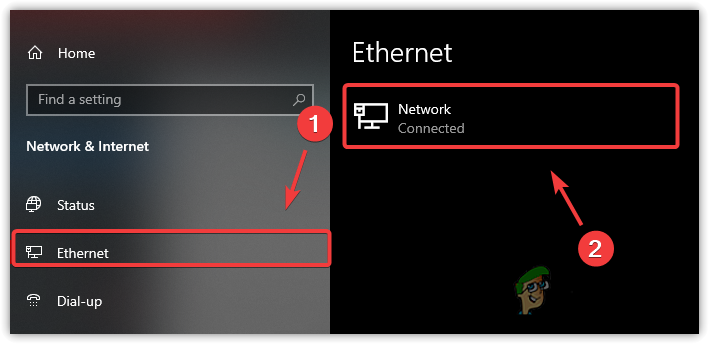
    Navigating to Network Properties
    Navigating to Network Properties
  3. Disable the Metered Connection switch if it is enabled.
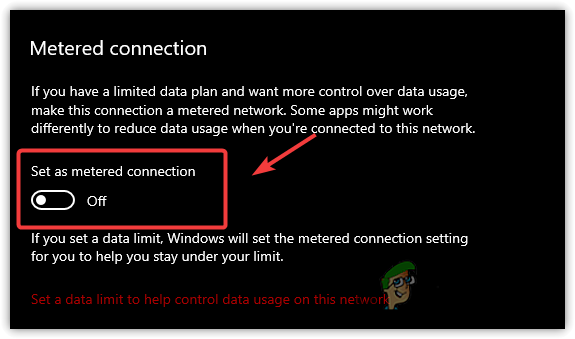
    Turning Off Metered Connection
    Turning Off Metered Connection
  4. Attempt to update Windows once more and verify if the problem persists.

5. Clear and Rename Software Distribution Folder

The Software Distribution folder is crucial for the Windows update process, serving as the temporary storage for update files before installation. If these files become corrupted, update processes may fail.

Deleting existing files and renaming the folder allows Windows to create a new folder during the next update attempt, which can resolve problems related to corrupted update files, allowing for a successful update.

  1. Open the Start Menu, search for Command Prompt, right-click it, and select Run as Administrator.
  2. Input the following commands into the command prompt and press Enter:
    net stop wuauserv
    net stop bits
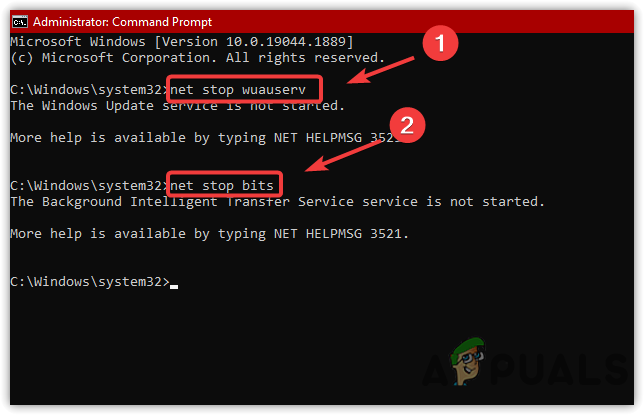
    Stopping Windows Update Services
    Stopping Windows Update Services
  3. Press Windows + R, type
    C:\Windows\SoftwareDistribution

    , and hit Enter.
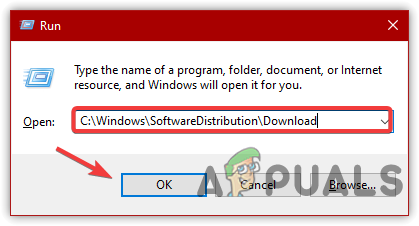
    Navigating to the Software Distribution Folder
    Navigating to the Software Distribution Folder
  4. Delete all files and folders within this directory.
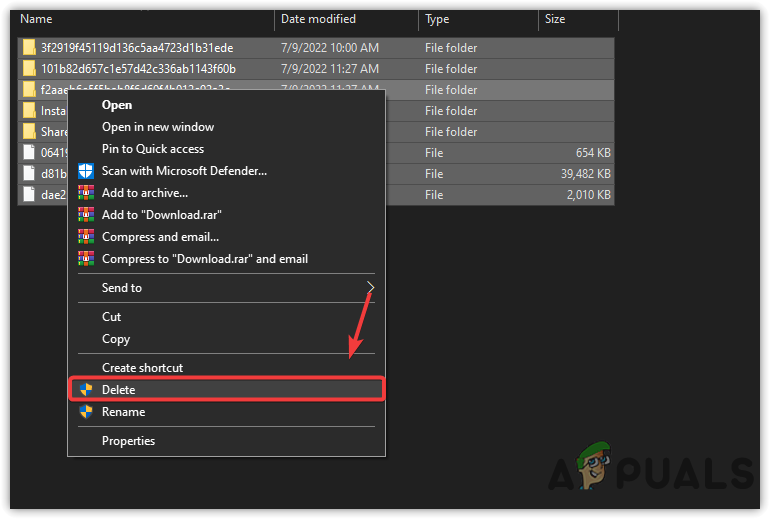
    Deleting Software Distribution Files
    Deleting Software Distribution Files
  5. Return to the command prompt and rename the folder with the following command:
    rename C:\Windows\SoftwareDistribution SoftwareDistribution.bak
  6. Restart the previously stopped services with these commands:
    net start wuauserv
    net start bits
  7. Attempt to update Windows and check if the issue has been resolved.

6. Clear Temporary Files

Clearing out temporary files is an important troubleshooting step, as these can accumulate and occupy valuable disk space needed for Windows update processes. Performing a disk cleanup and removing these unnecessary files can potentially fix errors caused by lack of storage.

  1. Press Win + E to open File Explorer.
  2. Navigate to This PC, right-click on the Windows drive, and select Properties.
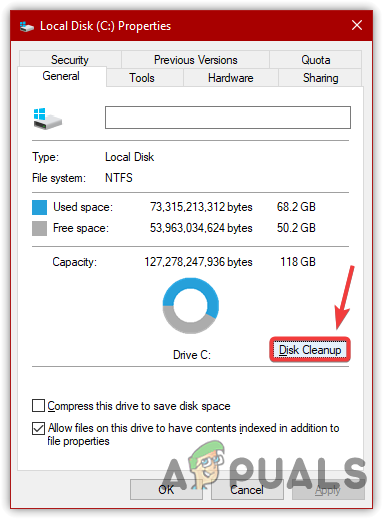
  3. Choose Disk Cleanup.
    Disk Cleanup
    Disk Cleanup
  4. Select all categories under Files to delete.
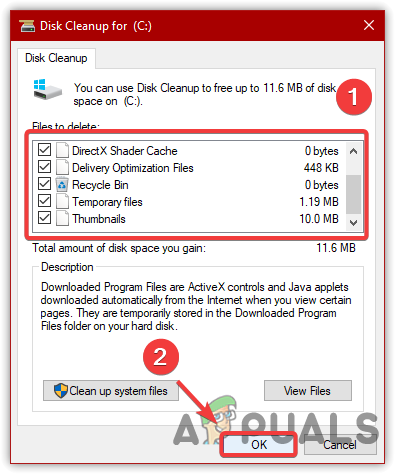
    Removing Temporary Files
    Removing Temporary Files
  5. Press OK and then Delete Files.
  6. Once complete, recheck for the error.

7. Perform DISM and SFC Commands

DISM (Deployment Image Servicing and Management) and SFC (System File Checker) are powerful tools for addressing Windows update issues. DISM services your Windows image, including Windows Recovery Environment, Windows Setup, and Windows PE, repairing any corruption detected. This can indirectly address update issues related to system integrity.

After DISM, the SFC command scans for and replaces corrupted or missing protected system files, which could be causing your update problems. Running these commands can effectively help to restore proper update functionality.

  1. Search for Command Prompt from the Start Menu and run it as an administrator. Input the following commands:
    DISM /Online /Cleanup-Image /RestoreHealth
    sfc /scannow
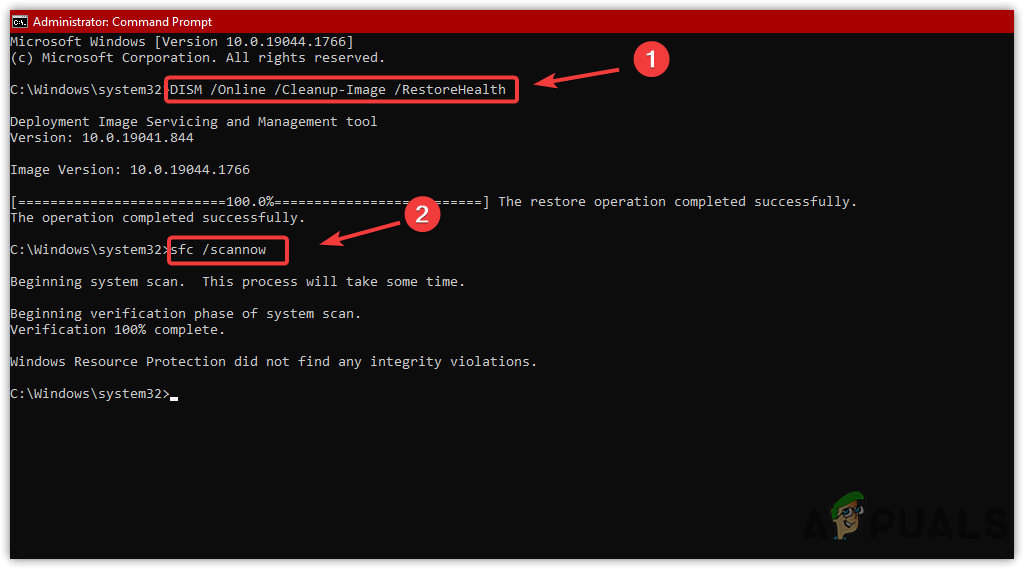
    Repairing System Files
    Repairing System Files
  2. Reboot your PC after the scans complete and check if the error has been resolved.

8. Download Windows Updates via Update Assistant

The Windows Update Assistant offers a straightforward method for downloading and installing the latest updates, bypassing potential problems encountered during the standard update process. It simplifies the procedure, often avoiding errors and making sure you receive the latest version of Windows with minimal hassle.

  1. Download and run the Windows Update Assistant.
  2. Press Update Now and wait for the assistant to download the updates.
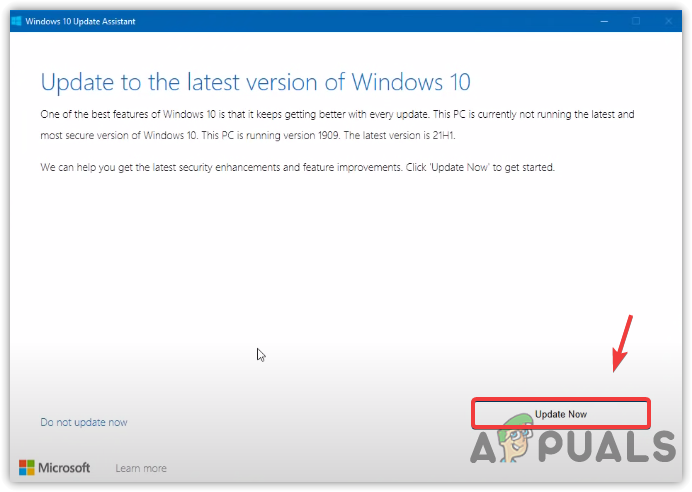
    Upgrading Windows
    Upgrading Windows
  3. Windows will automatically initiate the upgrade upon completion.

9. Download Windows Updates via Microsoft Catalog

When conventional methods fail, the Microsoft Update Catalog allows you to manually search for and install updates. This method avoids potential glitches in the Windows Update service, making sure you obtain necessary patches without any issues.

  1. Navigate to the Microsoft Update Catalog and search for the update by its name.
  2. Select the appropriate Download button for the update.
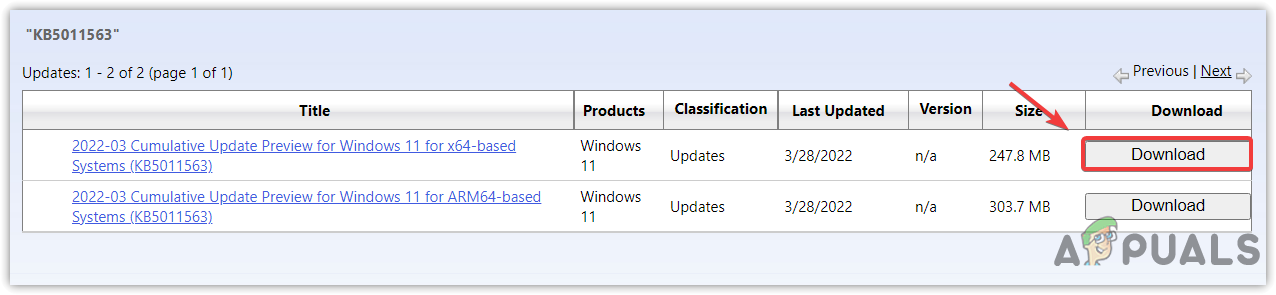
    Downloading the Windows update
    Downloading the Windows update
  3. Follow the provided link to download the file.
  4. Once downloaded, execute the update file to begin the installation process.
ABOUT THE AUTHOR

Kamil Anwar


Kamil is a certified MCITP, CCNA (W), CCNA (S) and a former British Computer Society Member with over 9 years of experience Configuring, Deploying and Managing Switches, Firewalls and Domain Controllers also an old-school still active on FreeNode.

Comments

98
    RE
    reed1v Sep 3, 2017

    And why would you want to do this?

      IN
      Ibraheem Muhammad Nadeem Sep 7, 2017

      Hello reed1v. Can you please elaborate your question more so we can answer appropriately? Thanks!

    JB
    Joze Bidois Sep 13, 2017

    Thanks. This was helpful

    BR
    Billy Rhodes Oct 22, 2017

    Would not let me rename softwaredistribution to softwaredistribution.Old

      KA
      K. Arrows Author Oct 30, 2017

      Try rebooting and then doing it.

    R
    R.B. Nov 13, 2017

    So far so good. It says it fixed the update issues. We will see if it actually installs the updates this time (after like 12 failed attempts since June!)

    Thank you.

    BL
    Bbs Lam Jan 17, 2018

    It worked. Solution 3. Good job. Thank you very much!

    EI
    Eileen Jan 22, 2018

    Thank you for posting this information! I only had to go with Step 1, and the latest update installed successfully after several unsuccessful attempts.

    RI
    Riaan Feb 11, 2018

    Thank you so much, solution 3 has worked for me.

    SH
    Sujan Haldar Feb 17, 2018

    Option no 3 works fine on my laptop. My storage was low and I use airtel 1GB/day data, so I wanted not to update windows. Thank you so vary much developer.

    JB
    Jackhorse Boman Feb 27, 2018

    mine says windows update service cannot be stopped for solution three first step can anyone help

      RC
      Ray Connor Mar 6, 2018

      Hello. Are running the command prompt with administrator privileges?

        DE
        Deb Mar 11, 2018

        I had the same problem (Windows Update service could not be stopped). I was running Windows PowerShell (Admin) since there was no command prompt in the menu. It appears to have the same functionality as command prompt did in previous versions.

    VO
    vorlic Mar 14, 2018

    Boot laptop with Windows 10. Before allowing it to connect to the internet, disable the Windows Update service. Problems SOLVED! (And be careful what you click on in future).

    MK
    M Kelly Mar 15, 2018

    Hi, I’m having an issue where the update fails to install, the update troubleshooter tells me to update the BIOS but I have the latest BIOS version installed! Help!

    MI
    mike Mar 15, 2018

    Okay I just spent 5 hours doing every single step and finally got it to work using something else. I just it replace SC config trustedinstaller start= auto as a command for service.msc. I did everything else including renaming to the .old extensions. Can I now delete the .old extensions are they are taking up space? Oh and thank goodness for having a solidstate drive so I could boot well into 100 times. I tried using MS’ recommendation and disabled all services and startup as well which isn’t listed in this article. AKA Clean booting.

    Reply
      KA
      K. Arrows Author Mar 15, 2018

      yes they can be deleted

      Sent from my Samsung Galaxy smartphone.

      ——– Original message ——–

    DB
    DB Mar 17, 2018

    I did Solution 3 above and it worked!! But patients was in order as I had to ignore the many cycles of it saying it was installing then it saying it was undoing the install so I just left it to run and sort itself out overnight. In the morning it was all good.

    MH
    Muh Has Mar 18, 2018

    But Solution 3 stopped the updates, i don’t want to stop the updates i want to install them, i already downloaded them but it does not want to install and the installation is freezing at 75% (please check the attached https://uploads.disquscdn.com/images/b690a9cfe2da5b49eed7150c10fd711fd81819591613d3ca7a6fa8a083b834e0.png screen shot)

    <
    <---Picture worth 1,000 words. Mar 19, 2018

    Stop calling Window 10 the latest and greatest. The reality is it is garbage and has been nothing but trouble since it was released.

    NK
    Nelson Kondowe Mar 23, 2018

    It worked through windows update troubleshooter. thanks a lot.

    AH
    Ahivan Mar 27, 2018

    the ren C:WindowsSoftwareDistribution and en C:WindowsSystem32catroot2 catroot2.old commands deny my access

    VC
    Vincent Clement Apr 1, 2018

    I’m finding that Windows 10 will report it checked for an update and that everything is up to date. Just today, Update Status reports as “Your device is up to date. Last checked: Today 4:05 pm”.

    So I clicked on “Check for updates” and it reports that there is an update (apparently released on March 22) and proceeds to download and install it. I’ve noticed this behaviour several times over the past 3 or 4 months – does not find anything automatically, but manually check and an update is available. Very strange.

    Using Windows Update Troubleshooter usually finds something and corrects it. Something in the last major Win10 update broke Windows Update.

    CP
    Christopher Pulliam Apr 10, 2018

    Used step 2 and found BITS not running. Set it to automatically start. Restarted CPU and everything went through perfect. Thank you

    Reply
    KE
    Kenneth Apr 10, 2018

    for solution 3 the first “ren” one doesn’t work for me. It says the syntax is incorrect if i have a space between ren and C: and then without a space it says that “The filename, directory name, or volume label syntax is incorrect.”

      RC
      Ray Connor Apr 11, 2018

      ren C:WindowsSoftwareDistribution SoftwareDistribution.old

      This is the correct syntax. You have to specify the new name of the file that you want to rename at the end. In this case “SoftwareDistribution.old” is the new name.

      Reply
    MI
    Mikaru Apr 14, 2018

    Anything else? I tried it all and nothing. I’m so frustrated. Is there a way to manually update

    SF
    Sam Ferris Apr 28, 2018

    When i try solution 3 it says “system error 5 has occured… access denied”

      RC
      Ray Connor May 2, 2018

      Make sure you are running command prompt as administrator. Press Windows + S, type “Command prompt”, right-click on it and select “Run as administrator”.

    EW
    EW Apr 28, 2018

    Are those instructions ok for both 32 bit and 64 bit systems?

    ME
    Meseret May 14, 2018

    I typed in ren C:WindowsSoftwareDistribution SoftwareDistribution.old and it said access was denied.

      RC
      Ray Connor May 23, 2018

      Make sure you are using an administrative account and using an elevated command prompt. If still this doesn’t work, you can take ownership of the folder and try again.

    XE
    XenoKarasu May 14, 2018

    Solution 2 worked for me, namely the BITS part was set to Automatic (delayed) and after changing to just Automatic everything was fine.

    Reply
    HP
    Hot_potato May 18, 2018

    Thank you! This was the only thing that helped me install the latest Windows 10 release, after about 7 attempted tries and failures. It hung at one stage for 17 hours. This worked perfectly.

    SL
    Swivel-eyed loon May 20, 2018

    Worked nicely. Most appreciated.

    HT
    Houypheng Taing May 28, 2018

    Super useful

    TB
    Tim Brown Jun 24, 2018

    Sadly, none of these steps work.

    FS
    F Scheltens Jun 26, 2018

    Thank you, solution three worked for me and got rid of a very annoying “Update and shutdown” in my startmenu for quite some time.

      BO
      BoomBook Jul 28, 2018

      i have same problem but there is update. not installing updates.

        KA
        Kamil Anwar Aug 6, 2018

        Is there an error or something?

    JD
    Jack D Jul 9, 2018

    No 2 worked for me – thanks for this – has been a real headache!

    RQ
    Ronald Lee Quarles Jul 30, 2018

    Solution #2 seems to be working for me, I’ll know soon. However I have a question about 32 bits and 64 bits .Are the instructions applicable to both?

    JO
    Jon Aug 24, 2018

    Thank you Kevin! Step number 2 worked for me.

    JO
    Jon Aug 24, 2018

    Thank you Kevin! Step number 2 solved the issue. Automatic-delayed

    JO
    Jon Aug 24, 2018

    Thank you Kevin! Step #2 resolved our issue

      BG
      Bill G Dec 3, 2021

      Step 2!! Hahaha! Made me laugh because a youtuber Steve Wallis calls cracking open a beer “Step 2” on his channel. I know I need a step 2 after working through these PC issues. Lol!

    LA
    Lajtul Nov 16, 2018

    No. 3 worked for me! Thanks!

    GO
    Goodlookinguy Nov 18, 2018

    I had to take ownership of the SoftwareDistribution folder, then step 3 worked for me. Albeit, without the last service start of “msiserver” where it would hang.

    Reply
      GN
      Guido Nicolás Dec 17, 2018

      this did it for me. thanks fam

    EN
    ENI Dec 26, 2018

    I did Solution 3 and it worked!! Updates are all downloading. Thank you so much.

    CR
    Craig Jan 30, 2019

    Solution 3 worked for me, thanks! Went round and round trying to get Windows Updates to work but to no avail and then Google brought me to this site! Much appreciated! 🙂

    KF
    Kevin Flemming Feb 13, 2019

    I haven’t been able to install an update for well over 6 months now. Just fails every single time. It’s getting annoying to say the least. Hopefully something here will work.

      SW
      Shane Warren Author Sep 19, 2019

      Do you get a specific error message while trying to update?

    IN
    inverse137 Mar 5, 2019

    solutions do not work

      SW
      Shane Warren Author Sep 19, 2019

      Do you get a specific error code?

    IN
    inverse137 Mar 5, 2019

    Window supdate troubleshooter, like ALL microsoft troubleshooters is COMPLETELY workthless.

    I have yet to see a Microsoft “trouble shooter” that ever worked. EVER

      BE
      BenDover Jan 21, 2023

      I agree in GENERAL, however I have most definitely had several instances where it amazingly DID actually resolve some issues, even after spending several hours of doing some fairly advanced troubleshootin myself, and following posts like this. So OCCASIONALLY it can actually help. Most of the time I hesitate even trying it, knowing from experience that it’s likely gonna be a big fat waste of time, and indeed it usually is. But in a pinch if you’ve tried other things and still stuck, might as well try.

    OL
    oliiix Mar 20, 2019

    msiserver wasn’t actually started and in my opinion not needed as well. It’s possible that the SoftwareDistribution folder is not renamable because the wuauserv service is started by windows automatically again. stop it again and then as quickly as possible rename the folder. that should work and you shouldn’t have to take ownership (except you have messed up permissions anyway).

    Reply
    D
    Diego Centeno Jr. Mar 24, 2019

    My updates are working using method #3 Thanks!

    LP
    Lead Poisoner Jul 6, 2019

    it worked like a charm after completing step#2 thank you so much peeps

    CQ
    Christian Q Jul 23, 2019

    When I hit ”

    net stop msiserver”

    It says “The Installer service is not started”

      SW
      Shane Warren Author Jul 26, 2019

      Press “Windows” + “R” and type in “Services.msc”. Locate the “Windows Installer” and double click on it. Click on the startup type button and select “Automatic”. Click on “Start” and select “Apply”. Do the same for Microsoft Store Install and check to see if the issue persists.

    JO
    JohnSc Jul 23, 2019

    Solution 3 failed – wouldn’t stop msiserver or rename directories.
    Solution 2 worked. Solution 2 is so simple why can’t MS build it into their update processes.
    I consider myself quite computer savvy but for naive users this is beyond them and they shouldn’t have to do it or get someone else to do it for them.

    SW
    Shane Warren Author Sep 27, 2019

    do you get an exact error code?

    SW
    Shane Warren Author Sep 29, 2019

    They are valid for both.

    SW
    Shane Warren Author Sep 29, 2019

    There is, download the iso from Microsoft’s website and create a bootable USB. Install fresh windows from the USB.

    SW
    Shane Warren Author Sep 30, 2019

    Open the command prompt with administrative privileges.

    SW
    Shane Warren Author Sep 30, 2019

    Some users do face issues with the Windows but it does provide better functionality than the previous operating systems by Microsoft.

    SW
    Shane Warren Author Sep 30, 2019

    It won’t stop it, if you notice there are also the start commands listed which will start the services again. This is a way to refresh the services and get rid of any corrupt cache.

    SW
    Shane Warren Author Sep 30, 2019

    Instead of updating the BIOS downgrade it to a more stable version and check if it helps.

    SW
    Shane Warren Author Oct 2, 2019

    Download the iso from Microsoft’s website and create a bootable USB. Do a fresh install of Windows using the USB and you will be up to date with the latest version provided by Microsoft.

    SW
    Shane Warren Author Oct 4, 2019

    This issue was occurred to me personally a while ago, first of all, try to click on the retry button repeatedly a couple of times which might kickstart them into working. If that doesn’t work, try to put the computer in safe mode and try to install updates. Also, try to switch networks and check if it works. Also make sure that the network that you are using is set to “Private” in the settings. If that doesn’t work, download the latest ISO from the Windows’ website and create a bootable USB. Install a fresh copy of Windows from the Microsoft website and install them on the computer to get the latest updates installed automatically.

    SW
    Shane Warren Author Oct 13, 2019

    Thank you for sharing your solution it will be added to the article shortly.

    FO
    Frank Ong Jan 15, 2020

    None of the solutions work for me since the SoftwareDistribution folder was access denied. What I did was booted into safe mode where I renamed it to SoftwareDistribution.old and it started working after rebooting back.

    Reply
    DY
    Dylan Jun 26, 2020

    Did you get the “Cant connect to the update services” and fix it through there?

    K
    Kappa T. Nov 20, 2020

    An ASUS laptop downloads all minor updates but it stopped downloading the big ones (i.e October 2020 20H2). All settings that will allow for Win Updates to work are OK. All drivers upated, no corrupt media. A msg “You system is not ready for update ” or smth pops up in every attempt.

    Any idea what might be wrong with this? The May 2020 update never happened..

    PE
    Pete Dec 23, 2020

    Step #2 worked for me. Thank you

    OK
    OkinKun Jan 13, 2021

    none of these solutions work for the 2020 bug…

      MZ
      Muhammad Zubyan Author Jan 16, 2021

      I suggest you try Disabling Real-Time protection from Windows Defender here is how you can do that:

      1. Open Windows Settings app, Head over to “Update & Security” Go to the Windows Security tab.
      2. Now click “Virus & threat protection settings” Switch Real-time protection to Off.
      3. Try installing the updates again and it should work this time. Once the updates are installed please turn on Real-time protection again.

      If that doesn’t work for you, you can try to repair your Windows through DISM Utility try this:

      1. Open Command Prompt as an administrator.
      2. Type “DISM /Online /Cleanup-Image /RestoreHealth” and press enter.
      3. Wait for a while till the process is completed and then restart your computer.

      Keep in mind that this process can take some depending on your Computer and the Number of issues present in your Windows. Let me know the results you get from these solutions so I can assist you further.

      Reply
    KD
    Kevin Davis Feb 19, 2021

    I just had this problem and this was the saving grace

      MZ
      Muhammad Zubyan Author Feb 19, 2021

      Thank you for providing another solution, We will add it to the article shortly.

    M2
    MusicDerby 21 Mar 20, 2021

    Solution 5 is what the problem was but I did solution 2 and it’s installing now slowly but it’s updating but for my device it’s either Windows Update which can be changed but Windows Update Medic Service is denied to change.

    MZ
    Muhammad Zubyan Author May 1, 2021

    Her Barrett Smith,

    Which update are you trying to download and Install? I suggest you head over to the Microsoft Update Catalog here: https://www.catalog.update.microsoft.com/

    Then search for the update you are trying to download, once downloaded you can manually Install it by double-clicking on the file and following the on-screen instructions.

    MZ
    Muhammad Zubyan Author Jun 19, 2021

    You can update your Windows by using the Media Creation Tool, which will automatically install the latest version of Windows for you. You can follow the steps shown on this article:- https://appuals.com/update-20h2-wont-install-on-windows-10/

    RO
    RokX Jan 16, 2022

    The following setting saved me and windows updates started installing updates that were stuck at 0% downloading. Also Windows Store started downloading apps again.

    Group policy editor -> Local Computer Policy -> Computer Configuration -> Administrative Templates -> Windows Components -> Delivery Optimization -> Download mode -> Set to 100 (Bypass)

    Diagnosed with powershell command: Get-WindowsUpdateLog

    Found:
    DO job {….} hit a transient error

    DO stand for delivery optimization.

    Reply
    GO
    george owen Jan 21, 2022

    I have tried everything suggested all to no avail I have tried all the methods given by Microsoft sill fails to load. If the only way I can update to windows 11 is by a clean install Windows 11 is not ready to role out as no other operating system asks you to wipe the drive before upgrading. Rant over

    JF
    Joe Faircloth Mar 21, 2022

    Solution 4 worked for me, thank you very much!

    SN
    Shaun Nan Mar 22, 2022

    Solution 4, worked for me, thank you.

    EF
    Enrique Mon Fong Apr 13, 2022

    Solution 3 worked for me. Thanks KA

    KK
    KeN KaNeKi Aug 7, 2022

    didnt work for me

      MZ
      Muhammad Zubyan Author Aug 31, 2022

      We just updated the article! Can you try new methods and give feedback?

        MI
        Michele Sep 21, 2022

        I tried every single step and still cannot install Windows 10 Update (KB5017308) or upgrade to Windows 11. I’m ready to format and restart with a clean install. Any other ideas?

          MZ
          Muhammad Zubyan Author Sep 23, 2022

          Contact me on Discord, Here is my ID: Zubyan Gul#9955

          Add me I can help you! 😀

    MZ
    Muhammad Zubyan Author Nov 4, 2022

    We have a dedicated article written on this error: https://appuals.com/we-couldnt-connect-to-the-update-service/

    MZ
    Muhammad Zubyan Author Dec 27, 2022
    MM
    Mykossen McBrossen Jan 8, 2023

    Sorted, thank you.

    KI
    Kinix Jan 15, 2023

    None of the solutions worked unfortunately. One of them did as was intended and reset the downloads so I could check for updates but the download button still won’t click, and the downloads still won’t download. I’m trying the windows install media next and if that doesn’t work I’m doing a windows reset.

      MZ
      Muhammad Zubyan Author Jan 25, 2023

      If you have Discord I can try to help you.