How to Fix “ERR_GFX_D3D_NOD3D12” in GTA V
The “ERR_GFX_D3D_NOD3D12” error in Grand Theft Auto V appears when the game cannot initialize Direct3D 12 during startup. In simple terms, the enhanced version is trying to launch through DirectX 12, but your system is either missing the required GPU support, using the wrong graphics adapter, or failing to load the proper graphics driver and Windows components needed for DX12.
The error message usually says:
“No DirectX 12 adapter or runtime found. Please install the latest DirectX runtime or install a compatible DirectX 12 video card.” 
This usually comes down to one of two things:
- Either your hardware does not meet the DirectX 12 requirements of GTA V Enhanced.
- Or the game is failing to initialize DX12 properly through Windows and the graphics driver.
Before trying the fixes below, keep one important point in mind: if your graphics card does not support the DX12 feature level required by GTA V Enhanced, software fixes will not permanently solve the problem. In that case, the only real fix is to use a compatible GPU.
You can do a quick compatibility check by pressing Win + R, typing dxdiag, and pressing Enter. Then open the Display tab and check the active GPU name, driver information, and Feature Levels. If the correct GPU is not being used, or the required DX12 feature level is missing, that points to the root of the issue.

Once you have confirmed that, follow the fixes below in order.
1. Make Sure the Game Uses the Dedicated GPU
Setting the game to High performance helps because Windows can sometimes assign GTA V Enhanced to the integrated GPU instead of the dedicated one. When that happens, the game may fail to initialize DirectX 12 because the integrated GPU may not support the required feature level or may not be strong enough to run the enhanced version properly.
This fix is mainly relevant for laptops and systems with both integrated and dedicated graphics. If your PC has only one GPU, you can skip this method.
- Right-click the desktop and click Display settings.

- Scroll down and click Graphics.

- Click Add desktop app and select the GTA5.exe file from the game’s installation folder.
- After adding the game, click Options.

- Select High performance and click Save.
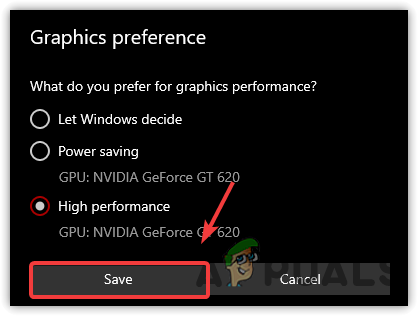
Selecting High Performance - Restart your PC and launch the game again
2. Update the Graphics Driver
Updating the graphics driver helps because DirectX 12 initialization depends heavily on the GPU driver. If the installed driver is outdated, corrupted, or missing newer optimizations required by the game, GTA V Enhanced may fail to detect or use DX12 properly.
This is one of the most important fixes to try, especially if you have not updated your graphics driver in a long time. If a normal update does not help, use the manufacturer’s clean-install option if one is available.
- Visit the official driver page for your GPU manufacturer:
- NVIDIA: GeForce Experience, NVIDIA App, or the NVIDIA driver download page
- AMD: AMD Software: Adrenalin Edition
- Intel: Intel Driver & Support Assistant

- Download the latest driver available for your exact GPU model.
- Install the driver and restart your PC.
- Launch GTA V Enhanced and check whether the error is resolved.
3. Re-enable the Graphics Driver
Re-enabling the graphics driver helps because it forces Windows to reload the graphics device and driver stack. This can fix temporary initialization faults that sometimes appear after a reboot, sleep state, Fast Startup, or a driver glitch.
This is most useful if the game worked before and the error appeared suddenly without any major hardware change.
- Right-click the Start button and select Device Manager.

- Expand Display adapters, right-click your dedicated GPU, and click Disable device.

- Click Yes to confirm.

- Wait 10 to 15 seconds.
- Right-click the same GPU again and select Enable device.

- Close Device Manager.
- Restart your PC and check whether the game launches correctly.
4. Roll Back to a Previous Stable Graphics Driver
Rolling back to an earlier graphics driver can help if the problem started after a recent driver update. Sometimes newer drivers introduce bugs, incomplete optimizations, or DX12 issues that were not present in an earlier stable release.
The goal is not to install the oldest driver available. The goal is to return to the last stable version that worked properly with your GPU and games. If the Roll Back Driver option is grayed out, Windows no longer has the previous driver stored, and you will need to manually install an older driver from the GPU manufacturer’s website instead.
- Right-click the Start button and select Device Manager.

- Expand Display adapters.
- Right-click your graphics card and select Properties.

- Open the Driver tab and click Roll Back Driver.
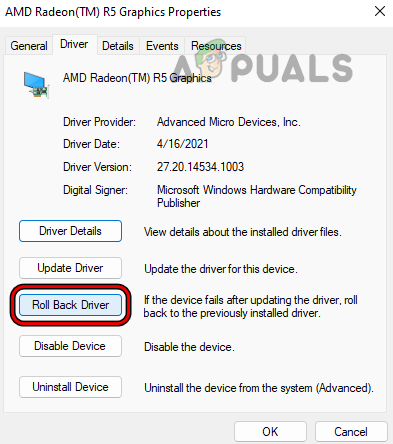
Roll Back the System’s Graphics Driver - Select a reason when Windows asks why you are rolling the driver back.
- Restart your PC after the rollback finishes.
- Launch the game and see whether the error is gone.
5. Use the d3d12.dll Workaround Only as a Last Resort
This workaround can help in some cases because it uses a proxy or compatibility layer to change how the game loads Direct3D 12. However, this is not an official Microsoft or Rockstar fix, and it does not solve the root cause. It is only a workaround for users who have already tried the safer fixes and still cannot launch the game.
Because this method changes how the game loads graphics components, it may cause instability, unexpected behavior, or stop working after future game updates. It should also be removed and retested normally after a major driver, Windows, or game update. Use it only if you understand that it is a temporary workaround, not a guaranteed or permanent fix.
- Download the DLL workaround from its official release page on GitHub.

- Extract the downloaded ZIP file.

- Copy the d3d12.dll file from the extracted folder.

- Open the Rockstar Games Launcher, select GTA V Enhanced, open Settings, and click Open next to View installation folder.

- Place the copied DLL file into the game’s installation folder.
- Restart your PC and test the game again.
6. Install the Latest Windows Updates
Updating Windows can help because newer builds include updated graphics components, newer WDDM support, improved DirectX 12 behavior, and broader compatibility with modern GPU drivers. If your current Windows installation is outdated or missing important graphics-related updates, the game may fail before Direct3D 12 initializes properly.
This fix is most relevant if you are using an older Windows build or have skipped major updates for a long time. If you are already fully updated, this step is less likely to help.
If your Windows installation is severely outdated or damaged, a clean upgrade may help. Here is a step-by-step guide on how to upgrade to Windows 11.
7. Upgrade to a Compatible Graphics Card
If none of the above methods work, the problem may be a hardware limitation rather than a software fault. This is especially likely if your graphics card does not support the DirectX 12 feature level required by GTA V Enhanced, has weak driver support, or is simply too old to run the enhanced version reliably.
In that case, upgrading to a newer GPU is the only real solution. A fully supported DX12 graphics card gives the game the hardware and driver support it needs to initialize properly and launch without this error.


