Fix: “ERR_FIL_PACK_1” Game Error in GTA V
The “ERR_FIL_PACK_1” error in GTA V appears when the game fails to properly load pack files during startup. GTA V stores its assets inside large .rpf pack files. If these files become corrupted, exceed internal loading limits, or are modified incorrectly by mods, the game may fail during launch and display:
“Game error. Please reboot and restart the game.”

This error is most commonly caused by mod conflicts, outdated dependencies, exceeded packfile limits, or an incompatible gameconfig.xml. It may also appear after a GTA V update or incomplete game file installation.
1. Disable All Mods (Clean Launch Test)
Before applying advanced fixes, confirm whether mods are responsible. GTA V mods can load from multiple locations, so disabling only one file may not fully stop them.
- Open your GTA V installation folder (location containing GTA5.exe).
- Locate dinput8.dll and move it outside the GTA V folder.

- Rename the mods folder to mods_OFF (if present).
- Temporarily move or rename:
- ScriptHookV.dll
- OpenIV.asi
- Any .asi files (trainers, adjusters, plugins)
- Launch GTA V.
If the game launches normally, a mod or dependency is causing the error. Restore files gradually to identify the conflicting modification.
2. Update Script Hook V, gameconfig.xml, and Install Packfile Limit Adjuster
After GTA V updates, older mod dependencies commonly trigger ERR_FIL_PACK_1. Large mod setups may also exceed GTA V’s internal packfile loading limit.
Update Script Hook V
- Download the latest version of Script Hook V.

- Extract the archive and open the Bin folder.
- Copy ScriptHookV.dll and dinput8.dll into the GTA V root folder (same location as GTA5.exe).

Note: Script Hook V must match your GTA V version. If GTA V updated recently and Script Hook V has not yet been updated, mods may fail to load until a compatible release becomes available.
Install Packfile Limit Adjuster
GTA V limits how many pack files it can load. Installing many vehicles or map mods can exceed this limit and trigger startup errors.
- Download the Packfile Limit Adjuster.

- Extract the archive.
- Copy PackfileLimitAdjuster.asi and PackfileLimitAdjuster.ini into the GTA V folder.

This plugin requires an ASI loader (dinput8.dll) to function. Ensure it is present after testing mods.
Ensure Compatible gameconfig.xml
An incompatible gameconfig.xml is one of the most common causes of this error when using vehicle or map mods.
- Typical location:
mods\update\update.rpf\common\data\gameconfig.xml - Open this path using OpenIV.
- Install a gameconfig version matching your GTA V build.
- Always back up the existing file before replacing it.
Using a gameconfig meant for a different GTA V version frequently causes launch failures or pack loading errors.
3. Verify Integrity of Game Files
If the issue occurs without mods or persists after updates, core GTA V files may be damaged.
Warning: Verification may restore original files and remove modified archives. Back up your mods first.
Steam
- Open Steam → Library.
- Right-click Grand Theft Auto V → Properties.
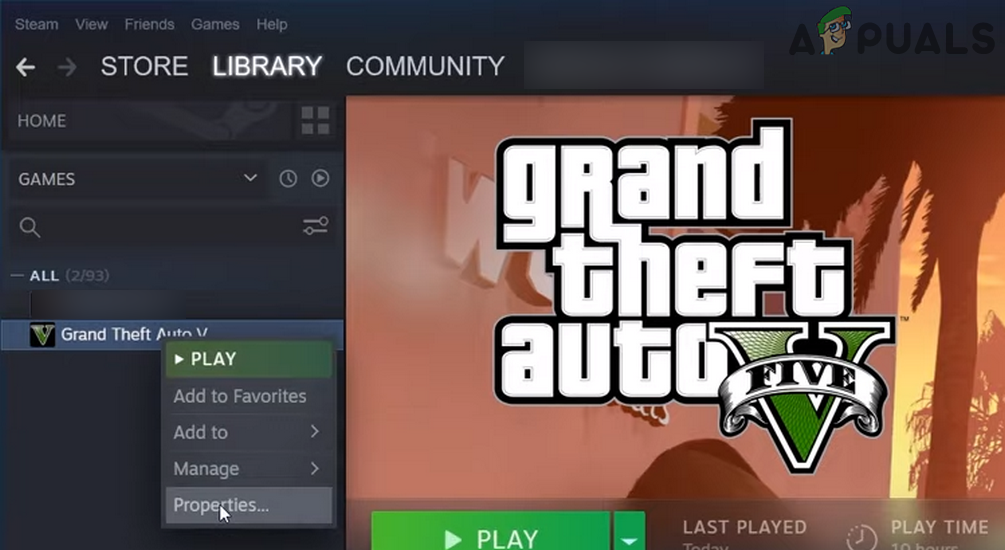
- Open Installed Files.
- Click Verify integrity of game files.

Epic Games Launcher
- Open Library.
- Click the three dots next to GTA V.
- Select Manage → Verify.
Rockstar Games Launcher
- Open Settings.
- Select My Installed Games.
- Choose GTA V.
- Click Verify Integrity.
After verification, reinstall mods one at a time to identify conflicts.
In most cases, the ERR_FIL_PACK_1 error is resolved by performing a clean mod test, updating Script Hook V, installing Packfile Limit Adjuster, and using a compatible gameconfig.xml. If problems continue, temporarily restore the game to a fully clean state before reinstalling modifications carefully.


