Fix: Start Menu and CORTANA aren’t working

Microsoft released its latest and most-awaited version of Windows, called Windows 10, on July 29, 2015. There were some major changes in the latest OS based on GUI and services. Almost 14 million people upgraded their previous Windows versions to the latest one within a timespan of just 24 hours.

At the same time, people began encountering an annoying issue related to the Start Menu and Cortana. This problem is associated with the launch of the Start Menu and Cortana. Whenever a user launches the Start Menu or Cortana, a Critical Error appears, stating that the functions are not working properly and a fix will be attempted the next time the user signs in.

start menu and cortana arent working

This critical error message compels users to bang their heads on the wall, as they cannot use their PCs properly. People have tried numerous methods to eliminate this error message. Creating a new account or using different accounts on Windows has not been successful, and the error still persists. A majority of people have reverted back to their previous version of Windows due to this issue, and Microsoft is still unable to identify the causes of this problem.

My guess is that this should be fixed when Microsoft pushes a fix for this via an update within a month or two.

So, listed below are the methods to restore the functionality of the Start Menu and Cortana back to normal.

Methods to Fix Critical Error: Start Menu and Cortana Aren’t Working.

The following methods are known to be the best solutions for this error on Windows 10. You should follow these methods sequentially if the first one doesn’t work for you.

Method #1: Uninstall Antivirus.

The first method is found to be the best solution for this critical error message. A number of times, external antivirus programs create conflicts between other Windows programs, which result in different issues. This critical error, related to Cortana and the Start Menu, is connected to the antivirus programs installed on the PC. Therefore, it is better to uninstall the antivirus. To do so, follow these simple steps.

Most of the users experiencing this issue had Avast!

1. Go to the Control Panel and find “Uninstall a Program” if you are in Category view mode. If you are in Small icon view mode, locate “Programs and Features,” then click on it.

2. Now, navigate to the antivirus program installed on the PC and double-click to uninstall it.

uninstall antivirus

3. After the program is uninstalled, restart your PC. Now, you should see that your Windows 10 Start Menu and Cortana are working. You can reinstall the antivirus if necessary. However, if the issue persists, proceed to Method 2.

Method 2: Fix Using PowerShell.

1. Press Ctrl + Alt + Delete to open the Task Manager.

2. Click ‘File‘ -> and choose ‘Run New Task‘.

run new task

3. Type ‘powershell‘ and click ‘OK.'”

4. Now, right-click Powershell from the taskbar and select ‘Run as administrator‘.
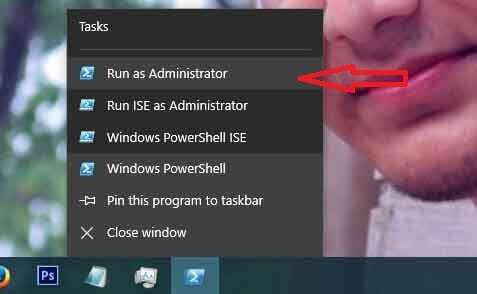
run as admin

If the right click isn’t working, reopen Task Manager in a more limited view mode.

5. You will see a list of your running apps. Right-click on PowerShell and choose Open File Location. This will open the file location. Locate PowerShell, right-click on it, and select Run as Administrator to open PowerShell in administrator mode.

ofl

open file location1

6. Now, copy and paste the following command into the command prompt:

		
Get-AppXPackage -AllUsers | Foreach {Add-AppxPackage -DisableDevelopmentMode -Register "$($_.InstallLocation)\AppXManifest.xml"}

Press the ENTER key and wait for the command to finish. Afterward, reboot your PC and test to see if Cortana and the Start Menu are now working properly.

Method 3: Via the Command Prompt.

1. Right-click on the Start Menu button, and in the menu that pops up, select Command Prompt (Admin).

2. Type in ‘ren %windir%\System32\AppLocker\Plugin*.* *.bak‘ and then press the Enter key.

3. Restart the computer.

Method 4: Conducting a System File Checker Scan.

The above method will work in most cases. If it doesn’t seem to work for you, then use this method. You have to run the System File Checker in order to check for damaged or corrupted files within your system and fix them thereafter.

You can go through this link to run SFC.

Method 5: Booting in Safe Mode.

It is possible that certain applications or a driver may be malfunctioning and interfering with important elements of the operating system. Therefore, in this step, we will boot the computer in Safe Mode to fix the issue. To do so:

  1. Reboot your computer, let it boot to the lock screen, and click on the “Power” icon while pressing the “Shift” button.
  2. Click on the “Restart” option and release the “Shift” key.
  3. Once Windows boots to the ‘Choose an Option‘ screen, selectTroubleshoot‘.
    Selecting the “Troubleshoot” option
  4. Click on “Advanced Options” and then select “Startup Settings.
    Selecting “Advanced Options”
  5. Select the “Restart” option.
  6. When the computer restarts, a number of options will be displayed. Press5” or “F5” to select the “Safe Mode with Networking” option.
  7. Sign into your account in the Safe Mode and restart your computer.
  8. Check to see if the issue persists.
ABOUT THE AUTHOR

Kamil Anwar


Kamil is a certified MCITP, CCNA (W), CCNA (S) and a former British Computer Society Member with over 9 years of experience Configuring, Deploying and Managing Switches, Firewalls and Domain Controllers also an old-school still active on FreeNode.

Comments

24
    MB
    Martin Brant Sep 15, 2015

    Step 1 worked for me and I had AVAST installed. Once rebooted Windows did a load of updates so maybe the AV was blocking these somehow? Does anyone know if it’s safe to install some AV again now? Is AVAST OK to reinstall or should I go for something else?

      KA
      K. Arrows Author Sep 15, 2015

      You can install AVG/Norton. avast! is known to cause this.

    ED
    EdZachary Oct 27, 2015

    Never had Avast, so that doesn’t help me. Tried 2 and 3, neither did a thing. Tried #4 and found no errors. I also have the Start button turning pink when I put the cursor on it, the error message has changed from a gray background to a red background, and I think the BSOD is now the RSOD.

      KA
      K. Arrows Author Oct 28, 2015
    RY
    Rick Young Nov 23, 2015

    Kevin, with the error message on the screen, I can’t get into Start to uninstall avast.

    RY
    Rick Young Nov 23, 2015

    With the error message on the screen, I can’t get into Start menu so unable to uninstall avast. Went through task manager, but that didn’t work.

      KA
      K. Arrows Author Nov 24, 2015

      Hold Windows Key and Press R. Type appwiz.cpl and Click OK to get to Uninstall Programs.

      Reply
    AR
    Artelltyx Dec 29, 2015

    I usually open the task manager then run new task (since windows+R won’t run) then open msconfig, then I set the start up into normal startup ( load all drivers and services ) since mine always defaults to selective startup, after clicking OK, proceed to restart PC directly, then the error usually gone. Hope this would help anyone.

    Reply
      RI
      Robert Tweetgerian Ifeoluwa Feb 10, 2016

      Worked for me! Bingo!

      AR
      ARBuilder Mar 10, 2016

      I love you. Did this and it immediately started updating. Restarted windows and good to go. I hate windows so much but 20+ yrs of using an os is hard to overcome (I truly miss dos.) And Bill Gates is an asshole.

    EL
    Erik Langlois Jan 8, 2016

    None of these work for me at all!!! This is really frustrating!

      KA
      K. Arrows Author Jan 8, 2016

      Please submit this as a question on http://equestions.net for help troubleshooting it. Thanks

    EL
    Erik Langlois Jan 8, 2016

    Does MS not have a fix for this??? Its been going on for months!!!!

    KE
    KenEb Jan 20, 2016

    Method 2 worked for several minutes and now doesn’t. Compounding this I have ROG G74SX where sometimes Icons don’t load and my calculator key doesn’t calculate. I’ve tried several things and have had no success with any attempt other than changing the keyboard driver. Now I can’t get the old keyboard driver to uninstall that isn’t there and I can’t get the new driver to install because the old one won’t uninstall. But I do have a new standard PS/2 keyboard driver that installed out of the blue.

      KA
      K. Arrows Author Jan 21, 2016
        KE
        KenEb Jan 21, 2016

        K. Arrows thank you for responding. I took a look at the link you supplied and I will see what happens when I try it later today. So far this has been like squeezing a balloon. This morning I booted up logged on and my desktop icons and tray icons were there immediately. Just like I think they should be. But I have no confidence that this will continue since yesterday the first time I booted up I had a window pop up titled FSUIP-fail to add tray icon. I booted up again and they loaded very slowly. If what happened this morning sticks I’m good with it. The other issue is that I cannot use the calculator key on my keypad. I have an ASUS ROG G74sx 64bit. This is a key I use often, or used to. I understood there was a new keyboard driver available and tried to install it but was flagged that the old one was still in place and I had to delete that first, which I did. But when I tried to install the new driver it said the old was still there and it installed Standard PS/2 Keyboard. As understand this the asus ATK package is used for the keyboard drivers and that was there previously. Now I cannot uninstall this package and reinstall the updated version. Any thoughts? thank you.

          KA
          K. Arrows Author Jan 21, 2016

          For the second issue, i’d suggest opening a separate question on eQuestions.net/ask

          KE
          KenEb Jan 21, 2016

          thank you, I will try that, so far today incredibly my start menu has functioned properly all day. 1 down I hope, thank you for your help and suggestions.

          KA
          K. Arrows Author Jan 22, 2016

          Welcome.

    PM
    Pack Mentality Mar 10, 2016

    Thank you. There are a lot of posts that try to explain how to fix this problem, but this post is the best. Why? because it worked! Running powershell did the trick for me.

    GH
    Grayson Henderson Mar 11, 2016

    I FOUND THE SOLUTION!!!!!!!

    bear with me guys. But none of the above worked for me and I found this suggestion on a different forum. ready?

    UNINSTALL DROPBOX!!!!

    I know. It shouldn’t be that simple and it shouldn’t be that program, but this fixed it for me!! Hope this saves you guys hours of freaking out!

    Reply
      EU
      eugen May 8, 2016

      u are de best!

    ST
    S “Techy” Tse Mar 31, 2016

    My pc also has this problem, Taskbar right click stop working, Cortana not functioning. It does not happen when it starts up, but every time, after a while, it will stop functioning.

    I found the another solution .. worth of a try

    I didnt want to bother to edit a registry, but schedule a killing every 15 mins. seems to be working perfectly. Well it is a short fix anyway, but it works..

    I tried the powshell script, kill cortana, kill explorer, sfc/scannow, reindex search, still no good

    However, Killing Runtime Broker is a true fix (it will come back after a while). But then if the machine hangs again, it will fix it from my task scheduler bat file to kill that.

    Reply
    AK
    Avi K May 29, 2016

    Why to Uninstall the Antivirus which you have paid for..Here’s the best solution when the Start menu and Cortana stops working for Windows 10..

    1. Open run command using Windows key On Keyboard and R.
    2. In the run command type command Control Userpasswords2(Note: Userpasswords2 should be combined).
    3. Add new account and give admin rights
    4. Sign out from the Current account and go to new account and check in new account Start menu and Cortana Works :)… Wait ?
    5. But what happened to your files and apps in new account…Are they all lost? No, they are still there
    6. Go to Local Disk C: Users, Find your User name(E.g. JohnS). Open the JohnS user account from Local Disk C: and copy all the folders into your new account you have created
    7. Get all your files and app back as it was before….Wait(But what about the previous account, which is not working?
    8. Go to Control Panel, User accounts, Manage Another account, Delete the non working account keeping files…
    9. Use your New account with Start menu and Cortana Working 🙂

    Thanks
    Avi K
    Microsoft Level 2 Escalation Engineer

    Reply