How to Fix Mac Quick Look Preview Not Working?
Quick Look on Mac can stop showing a file’s contents even though the file still opens normally in its app. Pressing the Space bar may do nothing, leave a preview loading, or show only a small icon instead of the document or image.

The file is not necessarily damaged. Quick Look uses preview helpers that can stop responding independently of the app that opens the file. A missing panel on the right side of Finder is different, that Preview pane may be hidden.
| What happens | Where to check |
|---|---|
| Space does nothing, but Command-Y works | Shortcut and keyboard settings |
| Only one file or file type fails | File checks, then its preview extension |
| Several ordinary PDFs or images stay blank | Relaunch Finder and its preview helper |
1. Check the Space Bar Shortcut and Preview Pane
Quick Look opens a separate window; Finder’s Preview pane stays inside the folder window. Neither requires the Preview app to be open.
- Click a file once in Finder, outside any search or filename-editing field, then press Space. Press Space again to close the preview.
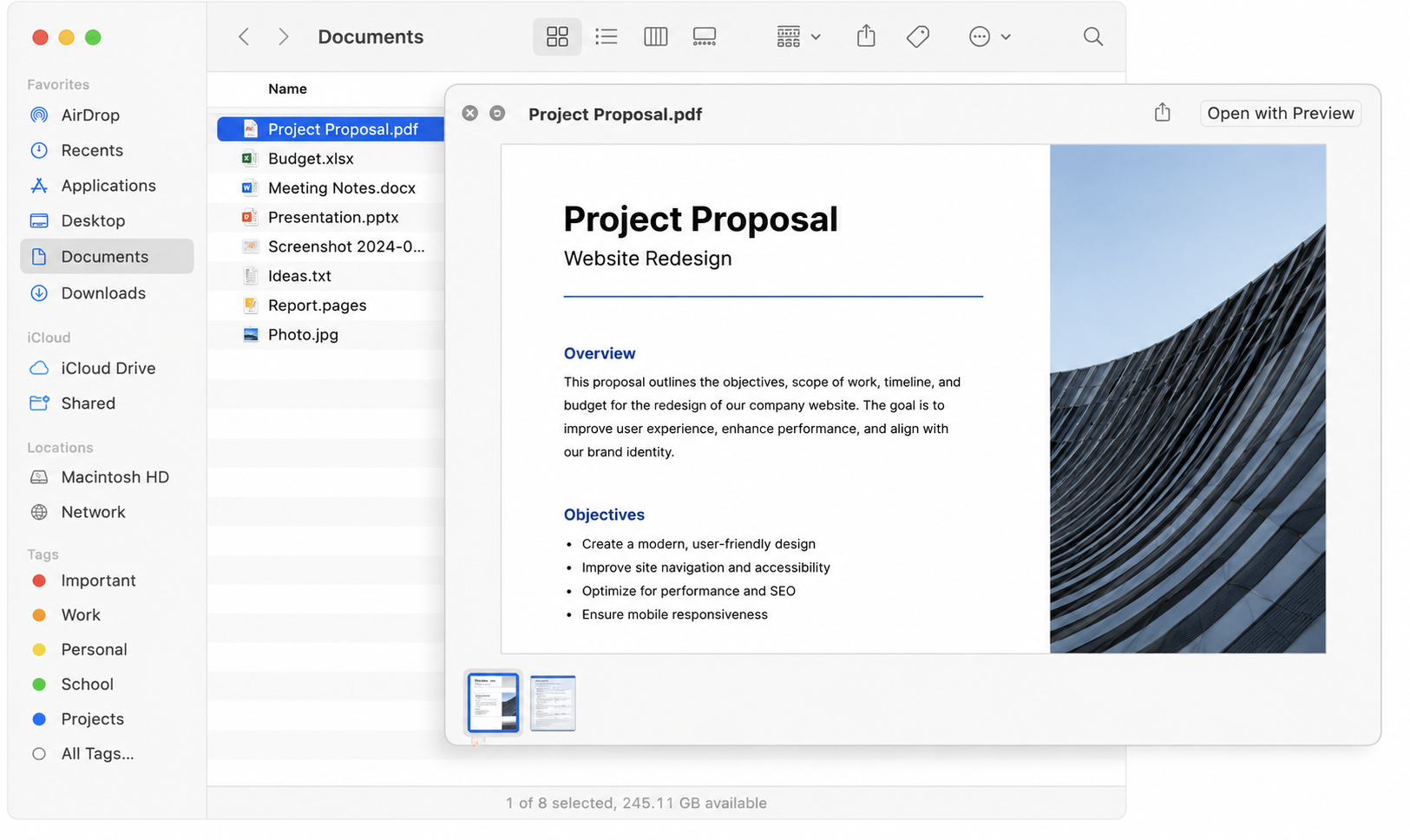
Apple’s own Quick Look guide treats the Space bar preview as the main test, so this comes before any deeper Finder troubleshooting. - Try Command-Y or Control-click the file and choose Quick Look. A working preview here confirms that the file can be previewed without using Space.
- If Space only highlights the file, check System Settings > Accessibility > Keyboard > Full Keyboard Access. Temporarily turn it off only if you do not rely on it; restore it if nothing changes.
- For a missing right-hand panel, choose View > Show Preview or press Shift-Command-P.
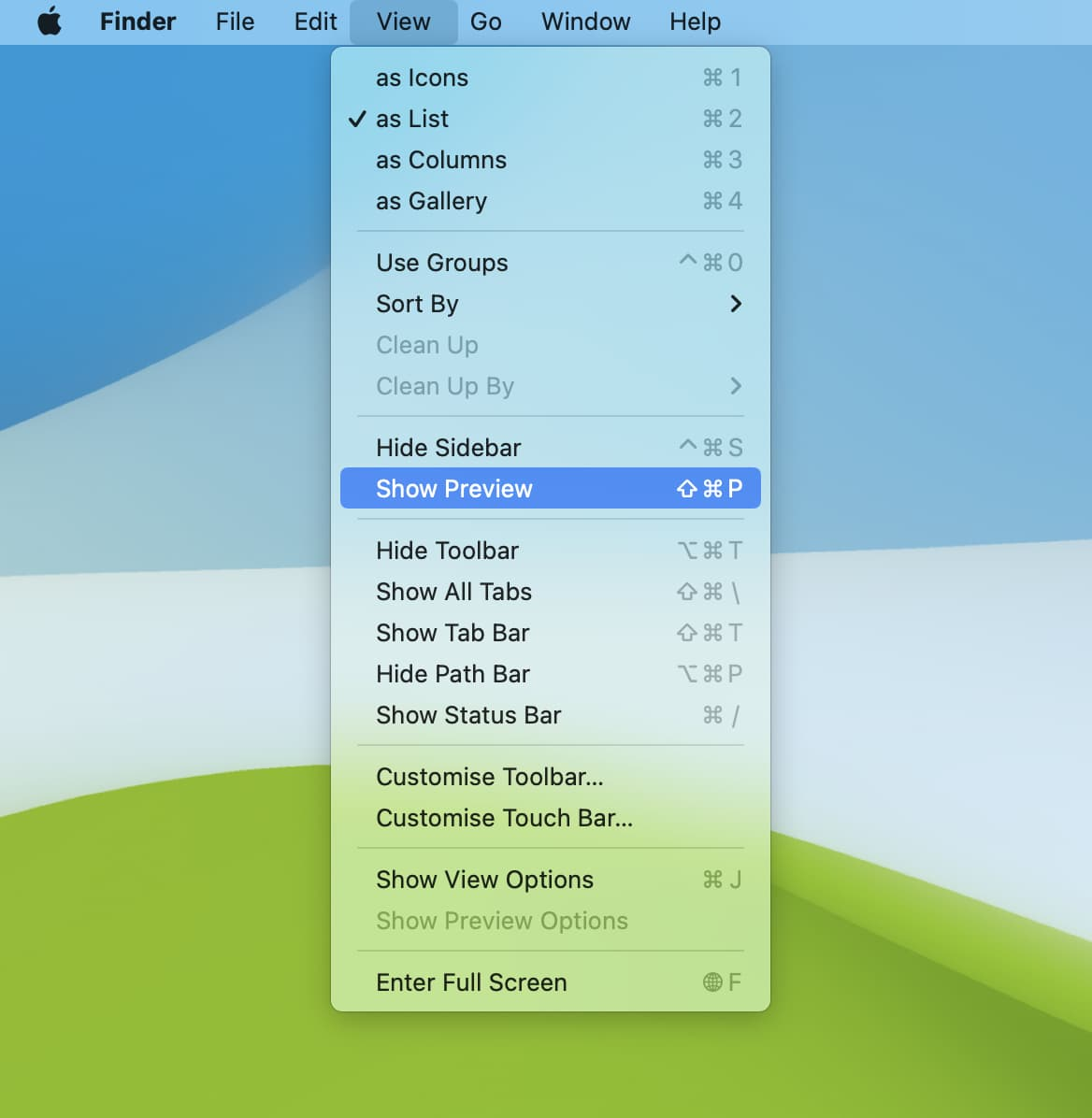
Apple’s Finder help treats the Preview pane and the full Quick Look window as different surfaces, so one can seem missing while the other still works.
Keep Full Keyboard Access enabled if you need it; Command-Y is an alternative. Apple’s Full Keyboard Access guide explains its commands. For a recently installed keyboard remapper, quit that utility once and retest Space before changing its shortcuts.
2. Compare a Local File and Check the Failing Document
A filename can appear in Finder before a cloud file has downloaded. Comparing downloaded files also avoids resetting the Mac for an unsupported or unreadable document.
- Test a local PDF, JPEG, and plain text file with Space. Use files you can already open normally.
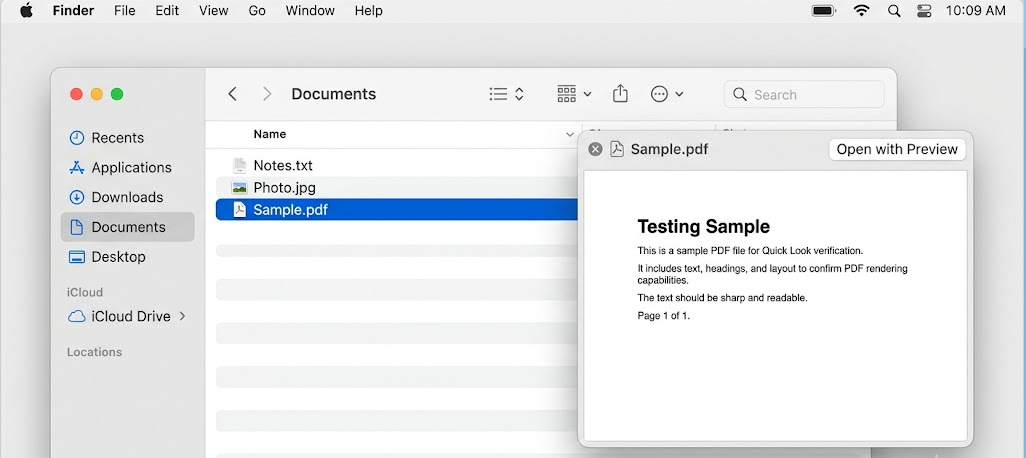
If Quick Look works on ordinary files but not on one specialized format, the problem is more likely file-specific than Finder-wide. - For an iCloud-only file, Control-click it and choose Download Now. Wait for the download to finish; other cloud services have their own download command.
- Select the failing file and press Command-I. Check Kind and Sharing & Permissions. Kind describes how macOS identifies the file, not proof that its contents are valid.
- Control-click it and choose Open With, then an appropriate app. The screenshot shows that choice inside Get Info; you do not need to change the default app.
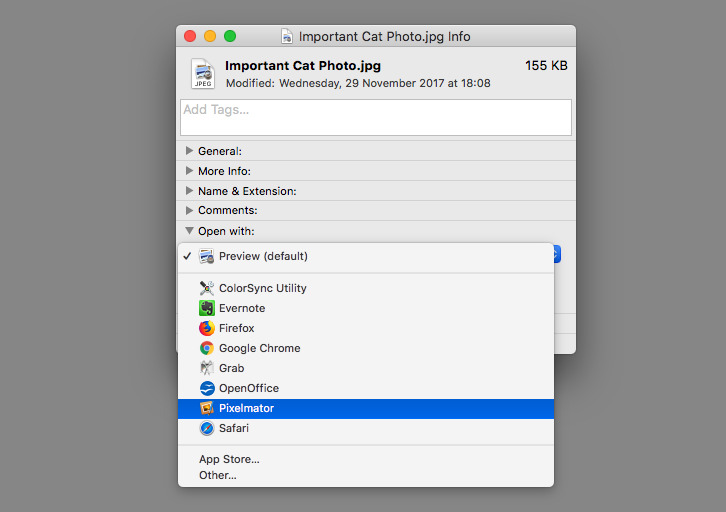
Apple’s own file-format and Open With guidance makes it clear that one odd file can fail even when Quick Look itself still works on the rest of the Mac.
If the app also rejects the file, ask its sender for another copy or download it again, keeping the original. Request missing access from the owner; do not change shared or system-file permissions just to obtain a preview.
3. Enable or Update the Relevant Quick Look Extension
Specialized formats can open in their editing app without having a working Quick Look extension. An empty extension list does not, by itself, explain why ordinary JPEGs or PDFs fail.
- Open System Settings > General > Login Items & Extensions, then scroll down to Quick Look. Search Settings for Extensions on older macOS versions.
- Click its information button, enable the extension supplied by the app for that format, and click Done. The screenshot shows the settings page; Quick Look may be farther down.
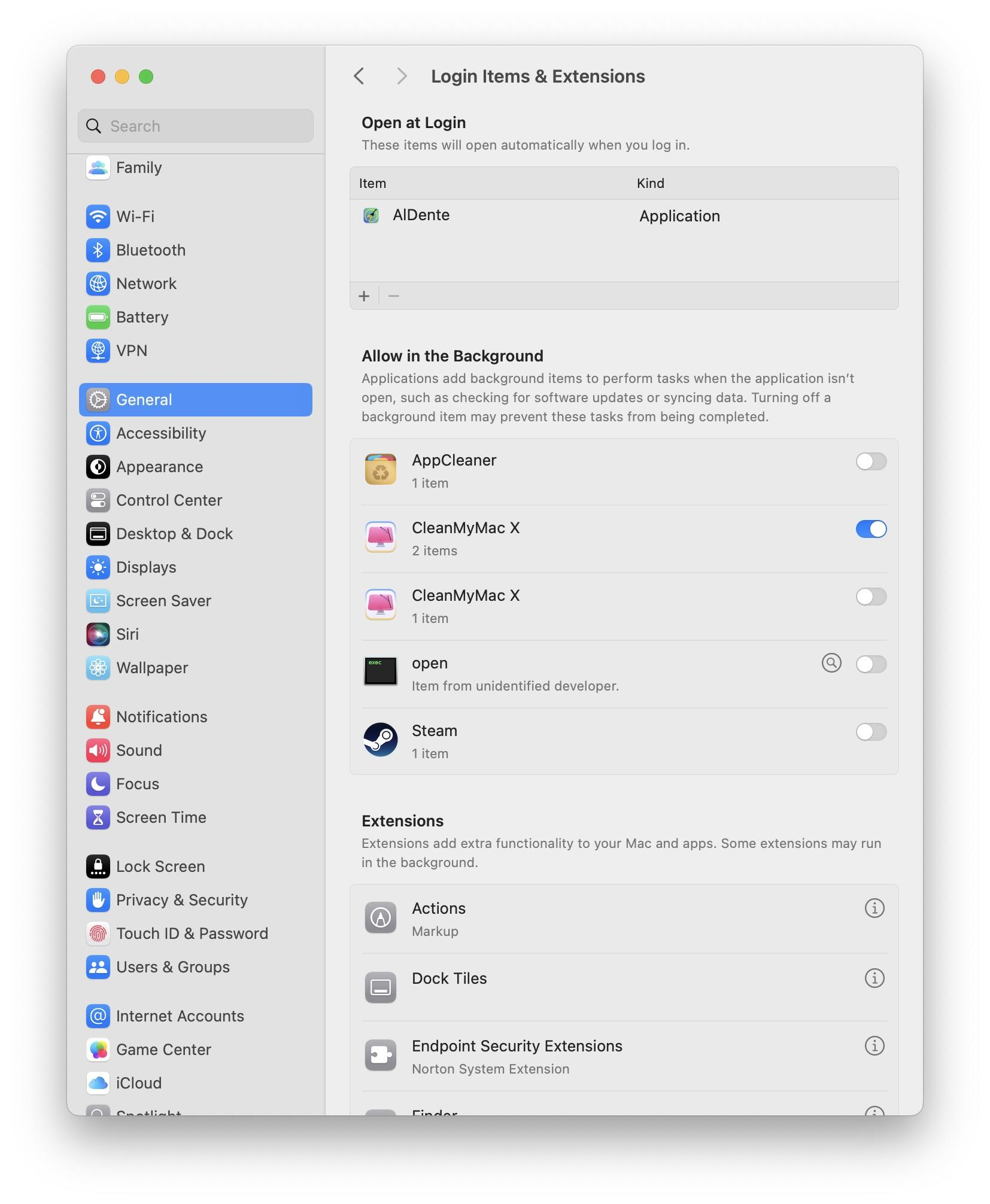
Apple’s own extension settings say Quick Look previews can depend on installed extensions, so this is the right solution for format-specific failures. - If previews stopped after installing a file utility, disable only its Quick Look extension and retest. Restore the switch if there is no improvement.
When an extension restores previews, leave it enabled. When disabling one restores them, leave that extension off while checking for an app update. On a managed Mac, ask the administrator about locked settings; leave security and network extensions alone.
Older .qlgenerator plug-ins can stop working after an upgrade to macOS Sequoia or later. Apple documents their replacement in its Quick Look compatibility notes; check the app developer for a compatible extension rather than repeatedly resetting it.
4. Relaunch Finder and Restart a Stuck Preview Helper
Blank previews across several files can recover when Finder or its Quick Look helper restarts. This does not require deleting documents, preferences, or cache folders.
- Press Option-Command-Escape, select Finder, then click Relaunch.
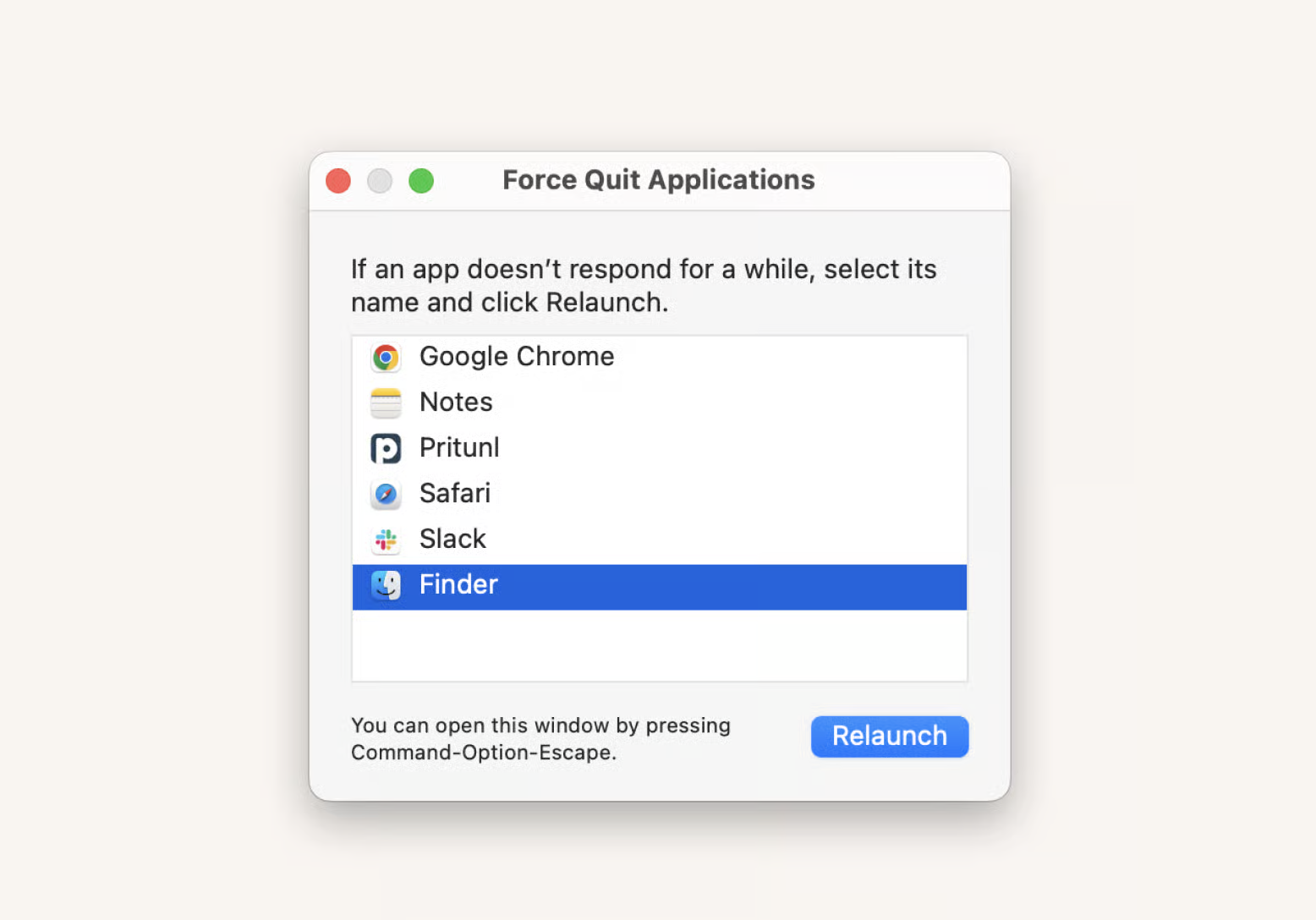
Apple’s own force-quit guidance treats quit and reopen as the first step when an app stops responding, which fits Finder and Preview stalls well. - Select a local PDF or JPEG and test Space again. If the preview returns, no further reset is needed.
- If it remains blank, open Applications > Utilities > Activity Monitor. Search for QuickLookUIService.
- Select QuickLookUIService (Finder) if present. Click the stop button and choose Quit; use Force Quit only if it will not quit normally.
- Return to Finder and preview the file again. macOS starts the helper when needed. If no clearly matching Finder process appears, restart the Mac instead of stopping unrelated processes.
Apple’s Activity Monitor instructions explain Quit versus Force Quit. For folders and file operations that also freeze, the Finder relaunch walkthrough covers the same control in more detail.
5. Restart the Mac and Check for macOS Updates
A normal restart also refreshes preview processes that Finder alone did not restart. Quick Look is built into macOS, so there is no separate Quick Look app to reinstall.
- Save your work, choose Apple menu > Restart, and test a downloaded file before reopening optional file utilities.
- If previews still fail, open System Settings > General > Software Update. On older systems, use System Preferences > Software Update.
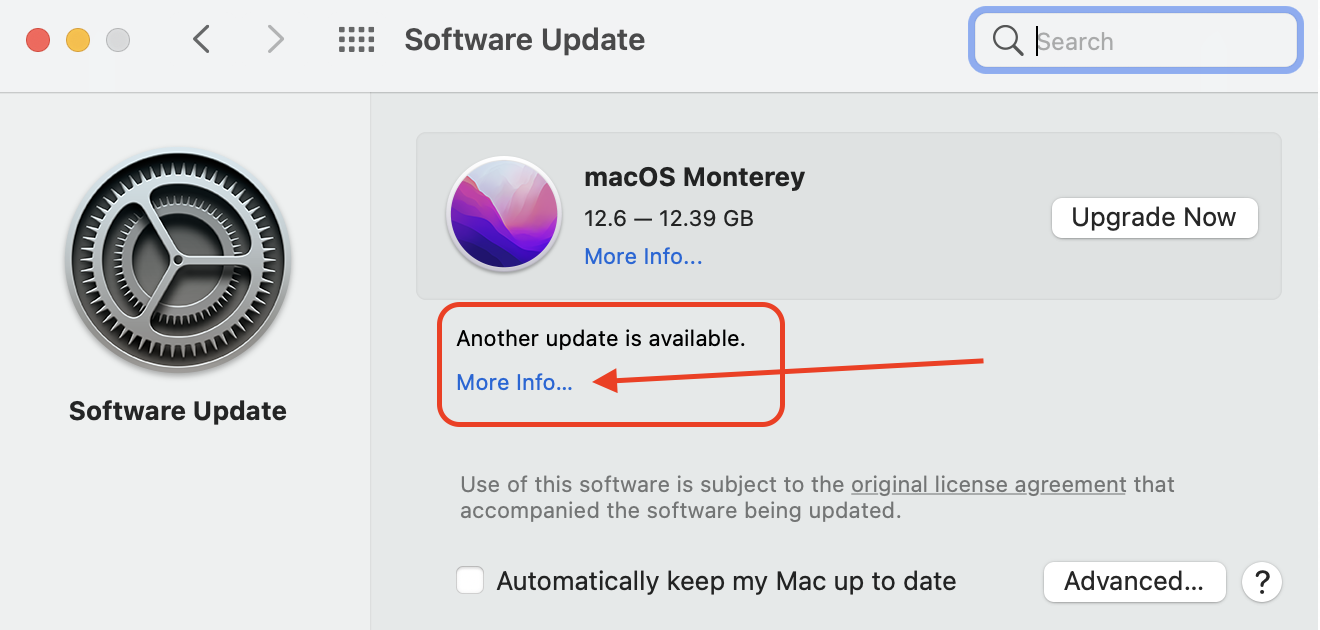
Apple’s current update guidance still makes Software Update one of the best broad fixes when a built-in macOS feature starts failing unexpectedly. - Back up important work before installing a compatible macOS update. Follow workplace update policy on a managed Mac; a beta or major-version upgrade is not required just for this test.
The image shows an older Software Update screen, not a version you should install specifically. After updating, test the same local files again.
A forced shutdown risks unsaved work. Reserve it for a Mac that cannot restart normally, not a blank Quick Look window.
6. Test Safe Mode if the Problem Keeps Returning
Safe Mode prevents some startup software from loading and clears certain caches. A successful test helps narrow the problem, but does not identify a particular app by itself.
Check Apple menu > About This Mac: Chip identifies Apple silicon; an Intel Processor identifies an Intel Mac.
- Apple silicon: Shut down fully. Hold the power button until startup options appear, select your startup disk, then hold Shift and click Continue in Safe Mode.
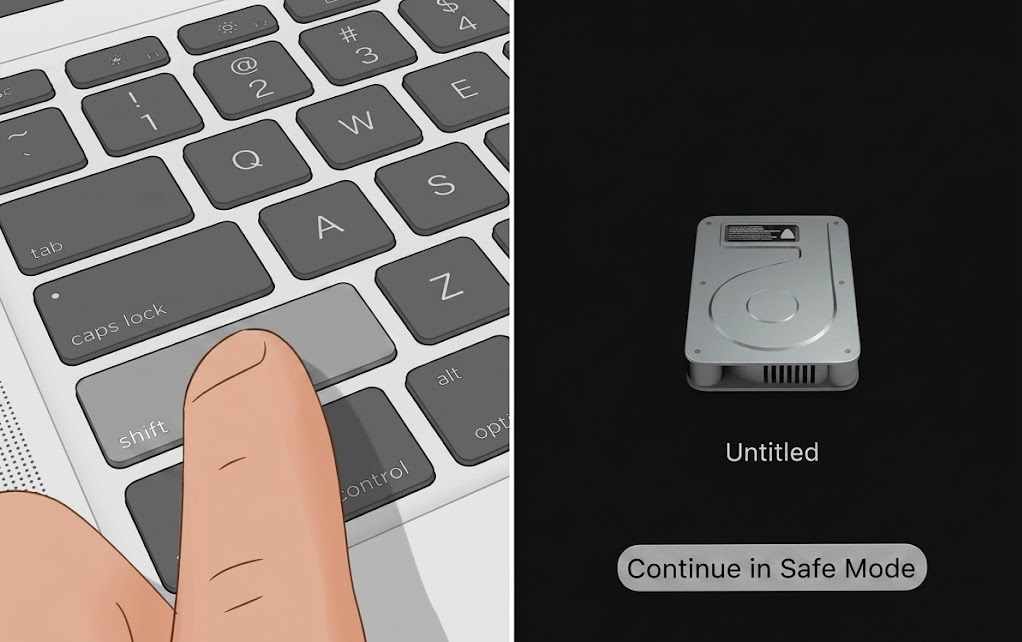
Restarting clears stale Finder and system state that can make Quick Look look randomly broken even when the files themselves are fine. - Intel: Turn on or restart the Mac and immediately hold Shift until the login window appears.
- Sign in; you may be asked twice. To verify Safe Mode, hold Option, choose Apple menu > System Information, then check Software > Boot Mode: Safe.
- Test a local PDF or JPEG. Restart normally without holding any keys, then test again. The illustrated Safe Mode startup steps show both Mac types.
Previews that keep working after the normal restart need no further changes. If they work only in Safe Mode, quit recently added nonessential utilities one at a time and retest. Check their Quick Look extensions under Login Items & Extensions too.
Record each original setting and restore changes that do not help. Managed software belongs with your administrator.
For failures that persist, contact Apple Support with your Mac model, macOS version, affected file types, and Safe Mode result. An optional comparison in another existing user account is useful; avoid deleting accounts or reinstalling macOS solely because a preview fails.


