How to Fix macOS Internet Recovery Not Working on MacBook?
Your MacBook stays on the spinning globe instead of opening macOS Recovery. It may return to the Wi-Fi selector or show a warning globe and an error code. The globe alone is not an error; download time depends on the connection.
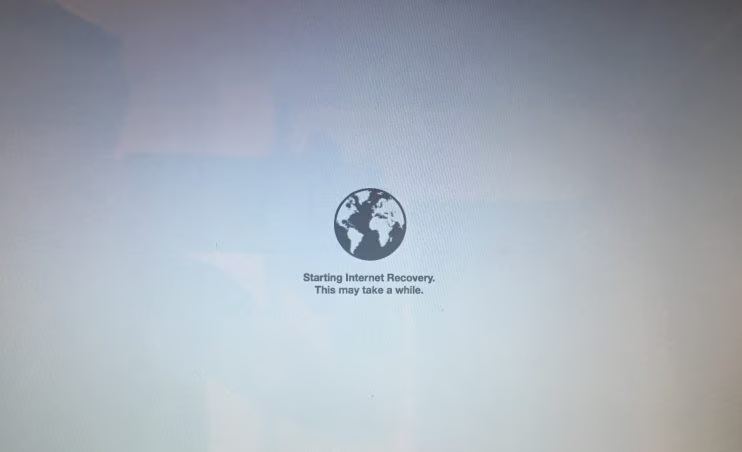
On an Intel MacBook, this screen appears while Recovery downloads from Apple. A network can work on your phone yet prevent that download from completing. Apple silicon MacBooks use different startup controls, so the familiar Intel keyboard shortcuts do not apply.
Do not erase the internal disk to fix a globe error. The utilities have not loaded yet, and deleting files will not repair the connection. Keep the MacBook connected to power.
1. Open Recovery Using the Correct Startup Controls
Let an advancing progress bar finish before restarting. The globe can appear automatically when an Intel Mac cannot open built-in Recovery. Retrying with the appropriate controls requests another recovery system without erasing storage.
- If macOS still starts, open Apple menu > About This Mac. Chip identifies Apple silicon; Processor identifies Intel.
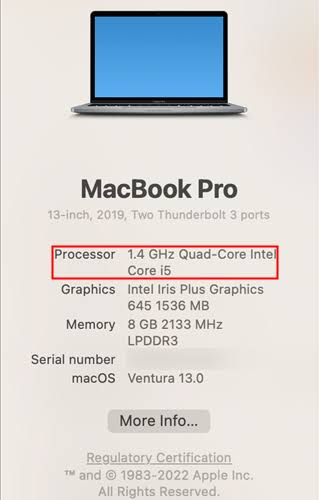
Show the processor or chip field if macOS still starts. Hide serial numbers, owner name, and Apple Account information. - Shut down the MacBook. If it will not respond, hold Power for up to 10 seconds. The two startup procedures below are safe to try if you are unsure which processor it has.
Apple Silicon
- Press and hold Power or Touch ID until Loading startup options or the Options icon appears, then release it.
- Select Options > Continue. If prompted, choose your startup disk and a user whose login password you know, then authenticate.
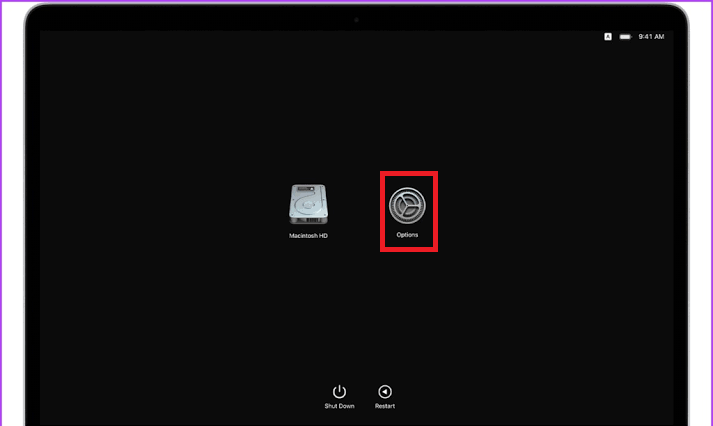
Capture the Options gear on a supported test Mac. Apple silicon Macs do not use the old Intel Internet Recovery key combinations.
Intel
- Use the MacBook’s built-in keyboard. Turn it on, then immediately hold Option-Command-R until the globe appears.
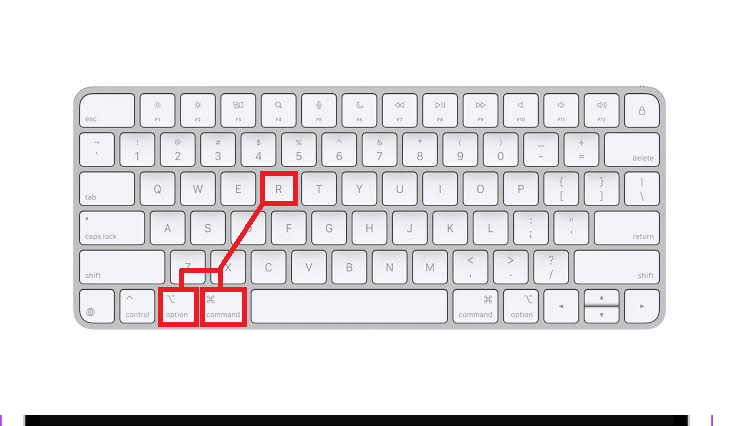
Show the built-in keyboard or a wired Mac keyboard. Avoid wireless-keyboard timing mistakes in the capture. - Select a network if prompted and allow Recovery to load. For errors other than -1008F, the other combinations below are also worth trying.
| Intel shortcut | Recovery requested |
|---|---|
| Command-R | Built-in Recovery. It can fall back to the globe if unavailable. |
| Option-Command-R | Internet Recovery, normally offering the latest compatible macOS. |
| Shift-Option-Command-R | Internet Recovery for the original macOS or the closest available version. |
Apple’s Recovery instructions cover keyboard variations. If Intel shortcuts are ignored completely, the Command-R keyboard checks address that separate symptom.
A window containing Disk Utility and Reinstall macOS confirms Recovery has opened. A warning globe means the download still needs attention.
2. Retry on a Different Connection
Codes such as -2001F, -2002F and -2003F usually concern the connection to Apple. Recovery cannot use every network that works in normal browsing, particularly one requiring a browser sign-in or enterprise authentication.
- Choose a trusted home Wi-Fi network that asks only for its Wi-Fi password. Avoid public sign-in pages and managed networks requiring extra authentication.
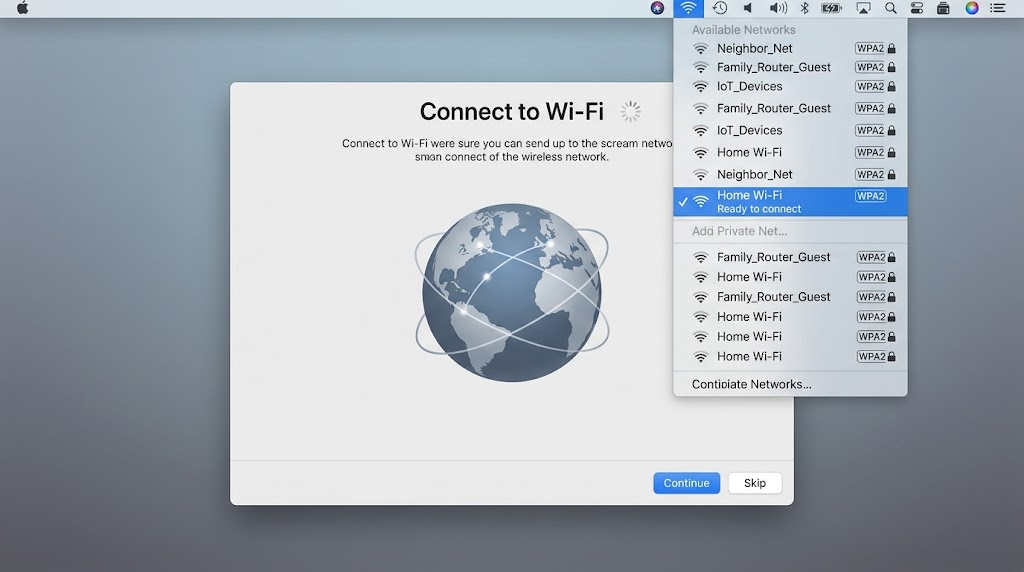
Show the Wi-Fi menu without exposing network names. Use a private WPA/WPA2 network or a wired adapter where possible. - Alternatively, connect to the router with Ethernet and a supported adapter, then retry Recovery. If the adapter is not detected, try different Wi-Fi instead.
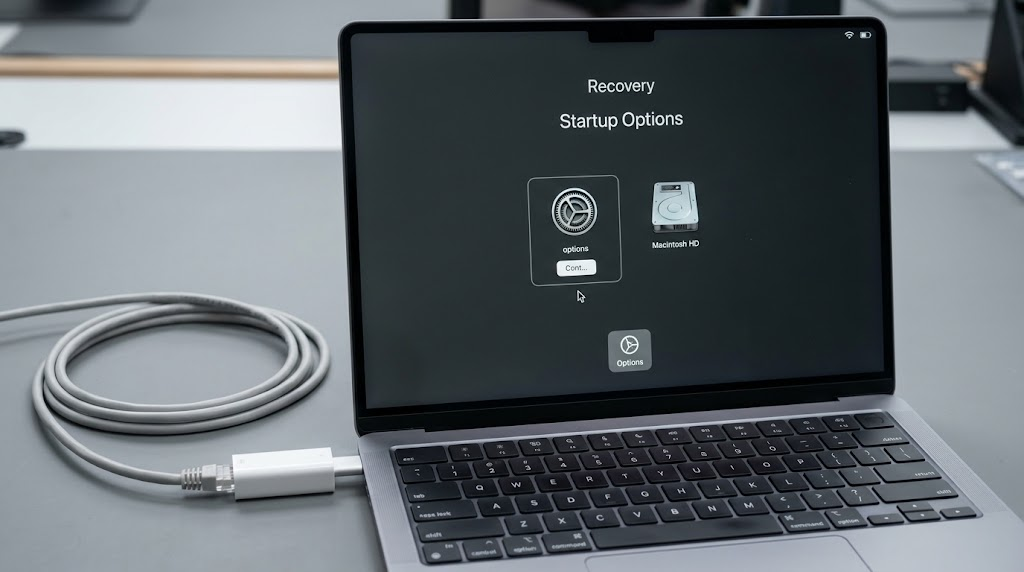
Capture the adapter and connection without showing router passwords, IP addresses, or workplace network labels. - If needed, try another home network or a phone hotspot. Check the hotspot’s data allowance; Recovery and installation can use substantial data.
- If other devices are offline too, restart the router and wait for service to return. Use its power connection, not its configuration-reset button.
Apple’s reinstall requirements also exclude direct PPPoE connections unless the router handles them. Keep organization-managed network protections in place.
Recovery opening on another connection identifies a problem with the original network. If the same error returns on different working connections, retry later before rebuilding anything. For -1008F, follow the specific instructions below.
3. Resolve Error -1008F
For -1008F, Apple recommends Option-Command-R or an Activation Lock check. Changing networks alone may not resolve it.
- Shut down the Intel MacBook. Turn it on and immediately hold Option-Command-R, rather than Command-R or Shift-Option-Command-R.
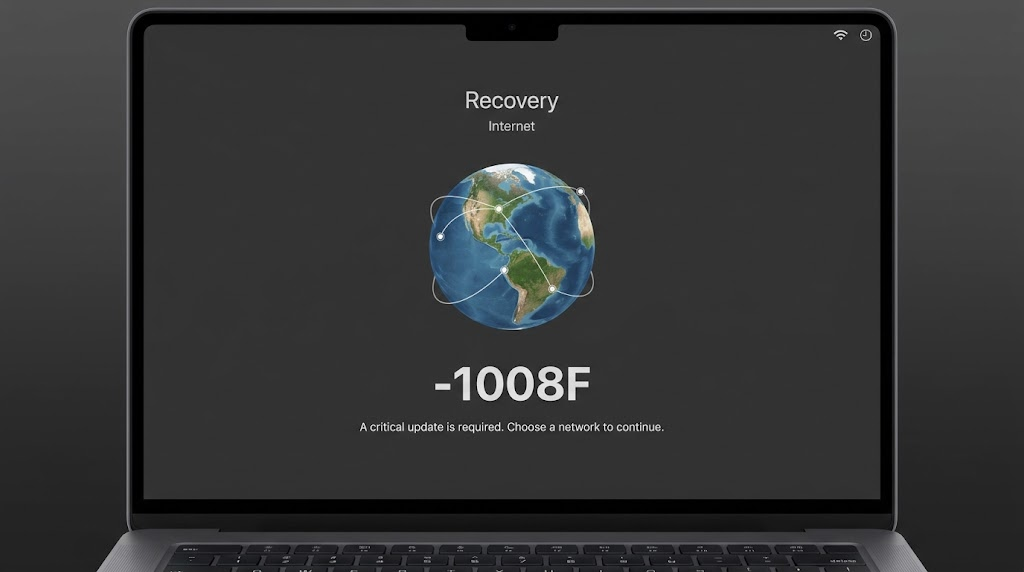
Capture the exact -1008F screen if it appears. This error is handled differently from ordinary network codes.
- If the error remains and macOS starts, open System Settings > your name > iCloud > See All or Show More Apps.
- Open Find My Mac and turn it off, authenticating with the owner’s Apple Account when asked.
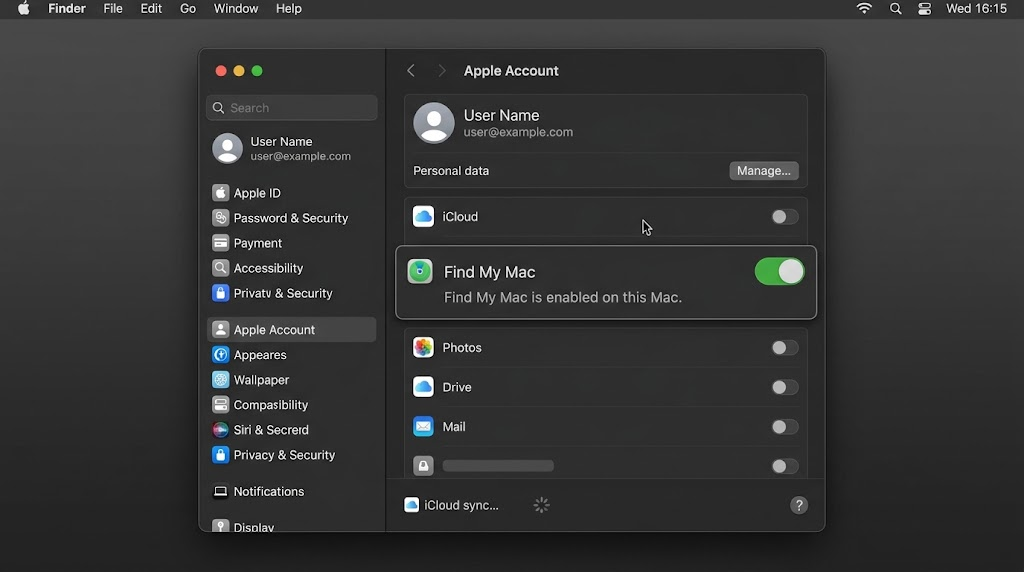
Capture only the relevant setting or status. Redact Apple Account email addresses and device identifiers. - If macOS will not start, turn the Mac off. On another device, follow Apple’s owner-only removal instructions: sign in to iCloud Find Devices, select this Mac and choose Remove, not Erase Mac.
- Retry Option-Command-R. Turn Find My Mac back on after completing Recovery. If -1008F persists, contact Apple rather than repeating account removal.
Optional: Reset Intel Startup Settings
An NVRAM reset can help with startup-disk settings that do not behave as expected. It does not remove Activation Lock and is not needed on Apple silicon.
- On Intel only, shut down, turn on, then immediately hold Option-Command-P-R for about 20 seconds. Release the keys, then retry Recovery.
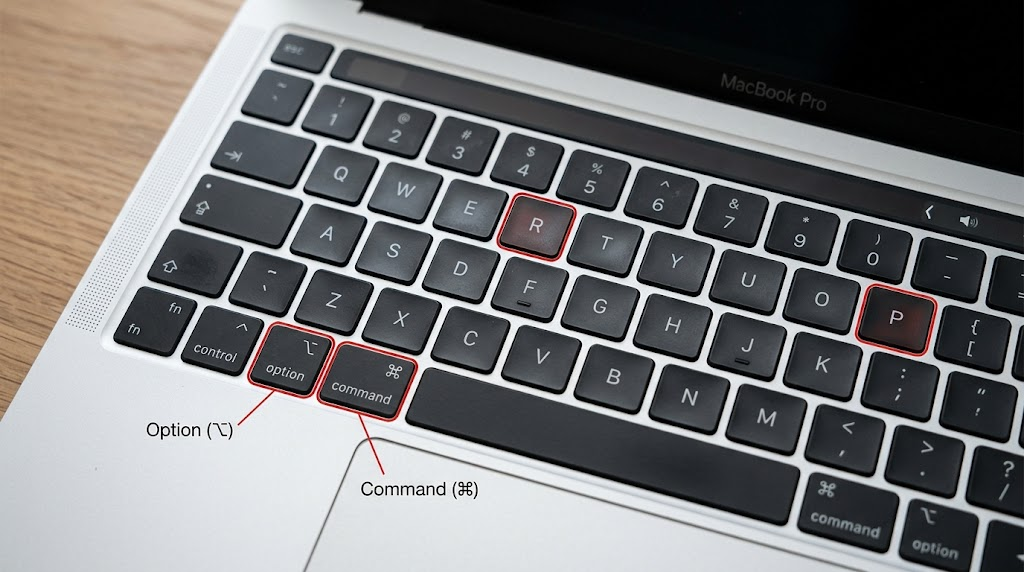
Use an Intel MacBook capture only. This key sequence is not needed on Apple silicon Macs.
Some settings, such as sound volume or startup-disk selection, may need adjusting afterward. The older 5010F recovery guide covers that specific code; use Apple’s reset timing above.
4. Start from a Bootable macOS Installer
A USB installer provides the installation files locally when Recovery downloads keep failing. It still requires internet access for firmware and information specific to the Mac; it will not bypass Activation Lock.
- On a working, compatible Mac, connect a blank or backed-up USB drive. Apple says 32GB has enough space; some older installers fit on 16GB.
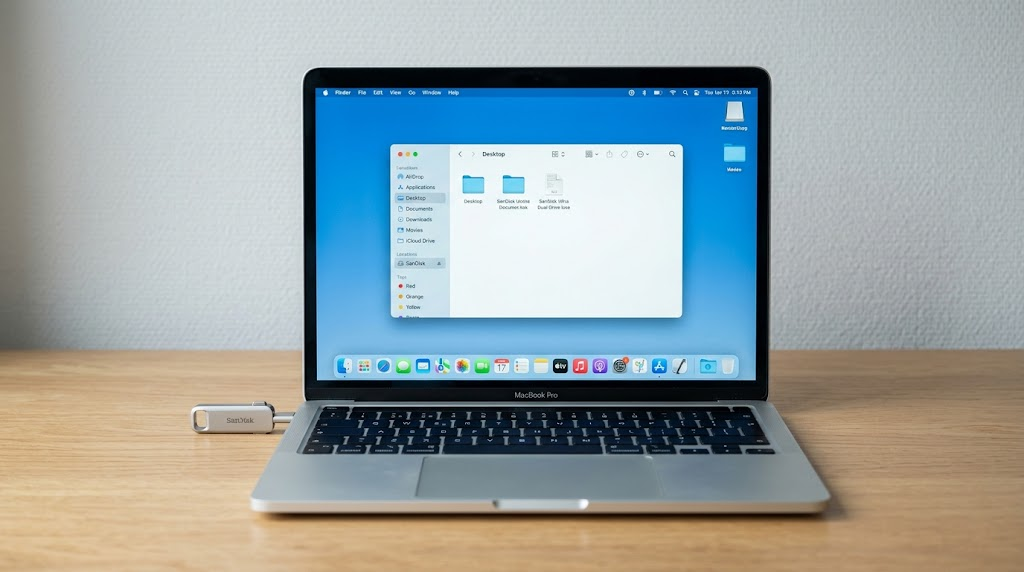
Show the USB drive before creation. The creation process erases this USB drive, so use a blank or backed-up drive. - Follow Apple’s bootable-installer instructions to download a full, compatible macOS installer into Applications and name the USB drive MyVolume.
- Open Terminal. Copy Apple’s exact createinstallmedia command for that macOS version. Enter the administrator password when asked; typed characters will not appear.
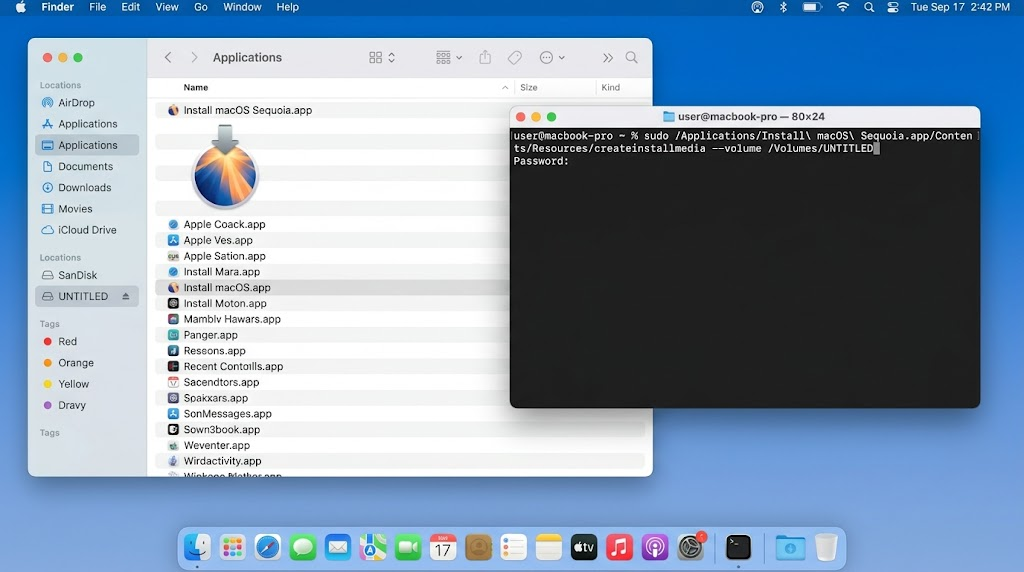
Show the command after selecting the correct macOS version. Hide user names and unrelated Terminal history. - Confirm the selected USB volume before typing Y to erase it. Wait until Terminal reports that the install media is available, then eject it.
- Connect it directly to the affected MacBook. On Apple silicon, hold Power for startup options. On Intel, turn on while holding Option.
- Select the installer and continue. When its utilities open, choose the repair or installation you need without erasing your existing disk.
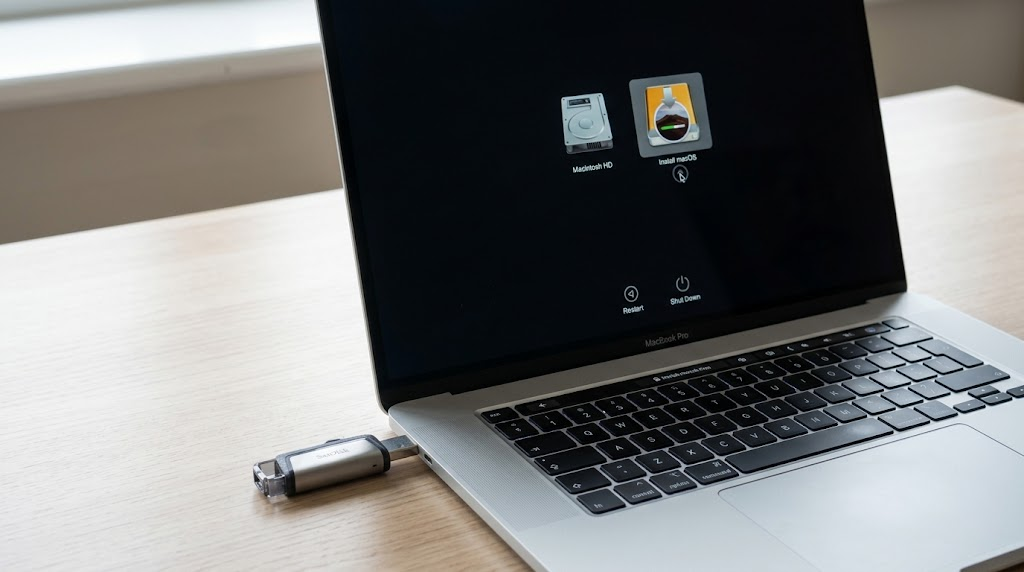
Capture the bootable installer volume selected from startup options or Startup Manager.
If the installer opens, the failed Recovery download no longer prevents access to its utilities. If an older installer demands erasing a newer installation, stop if you need to preserve the files.
If Recovery Still Will Not Open
| What remains on screen | What to do next |
|---|---|
| A warning globe on several working networks. | Give Apple Support the exact code, Mac model, keys used and connection tests. Repeated erasure will not fix a failed download. |
| An exclamation point inside a circle, not on a globe. | On Apple silicon or T2 Macs, follow Apple’s firmware-recovery instructions with another Mac running macOS 14 or later and the specified USB-C cable. Choose Revive first; it preserves data. Restore erases the Mac. |
| Recovery opens, but the internal drive is missing. | The download has succeeded. In Disk Utility, choose View > Show All Devices. If the physical drive is absent, seek service; protect important files before further storage changes. |
| The USB installer is missing or external startup is refused. | Check installer compatibility. A T2 Mac may require external boot permission in Startup Security Utility. If Recovery is inaccessible, ask Apple or your administrator for help. |


