Boot Configuration Error Code 0xc000000f [Explained & Solved]

The error code 0xc000000f typically appears when users attempt to install the latest Windows updates. The upgrade becomes stuck and directs users to the recovery startup screen. This screen displays an error message, stating that users will need to utilize recovery tools to proceed.
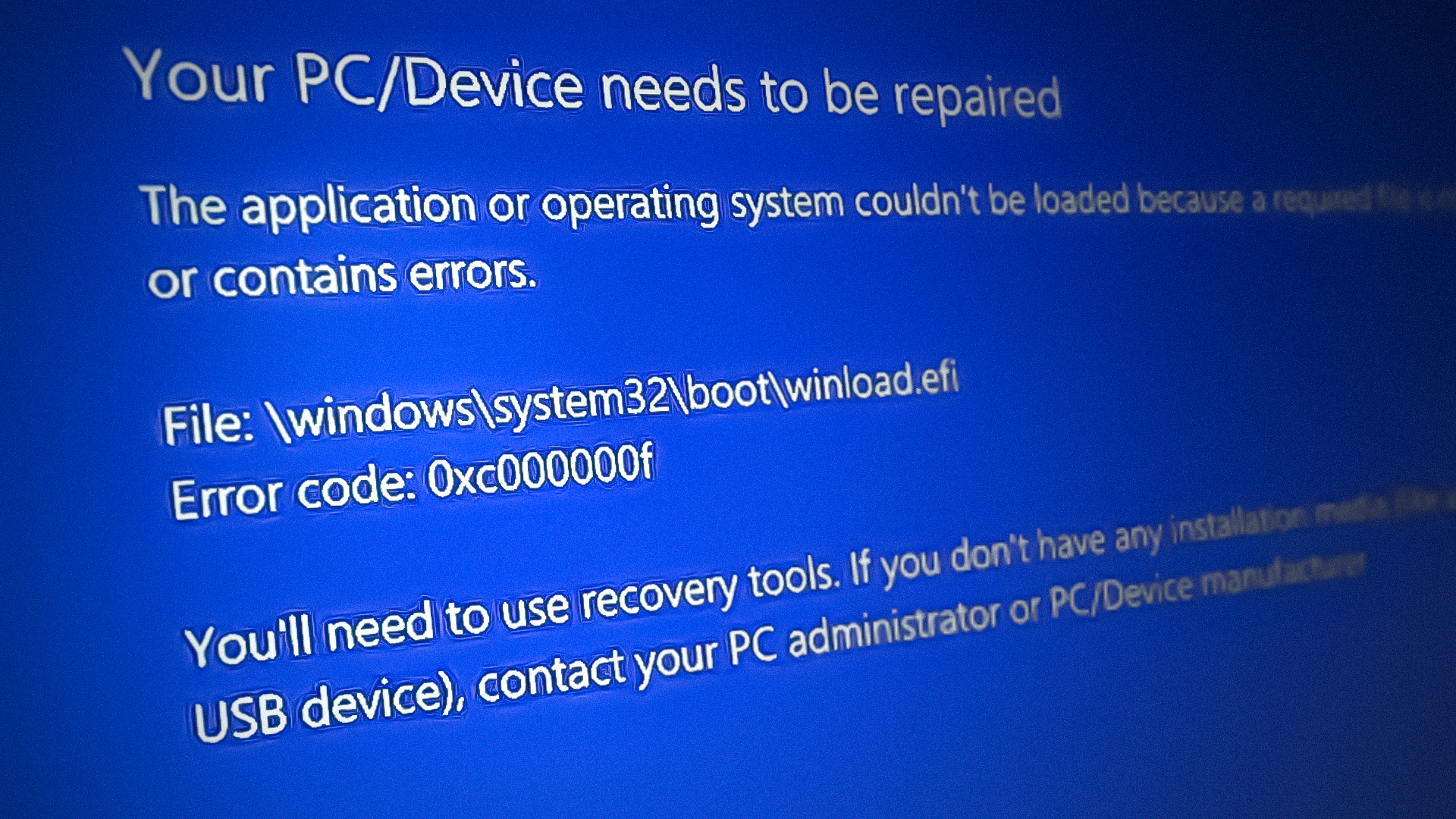
BSOD Error 0xc000000f
How to Fix the Error Code 0xc000000f

Since the error code prevents users from accessing the system, finding and implementing a solution becomes a bit tricky. In this guide, we will walk you through the troubleshooting methods that have worked for other affected users and demonstrate the correct way to perform the steps. Proceed with the methods that best fit your situation.

Before you troubleshoot.

If you look closely at the error message, you will notice that it mentions you need to access the recovery tools via installation media. This is why, before you proceed with the troubleshooting methods, you must create installation media for your device.

To get started, plug in the USB drive with the installation media and boot into the Windows 11 recovery environment.

1. Use System Restore.

To begin with, try restoring the system to a previous point in time before the issue occurred. This can be done through the System Restore utility, which takes snapshots of the system at different times, especially before performing critical operations. You can choose any restore point to revert the system to a specific given state.

Here is how you can use the system restore utility to fix the problem at hand.

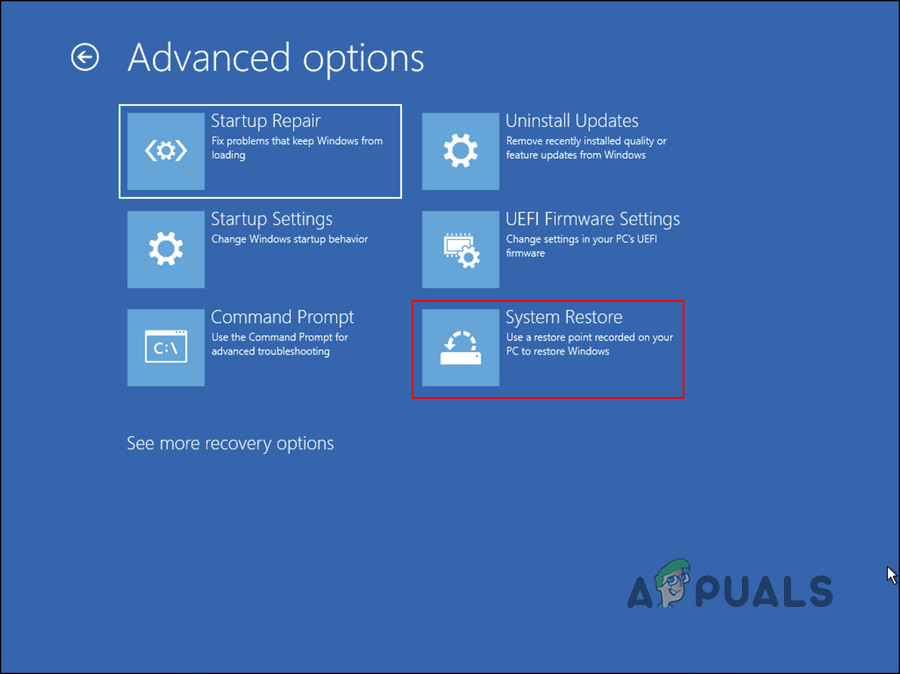
  1. Once you have booted into the Windows Recovery Environment, navigate to Troubleshoot > Advanced options.
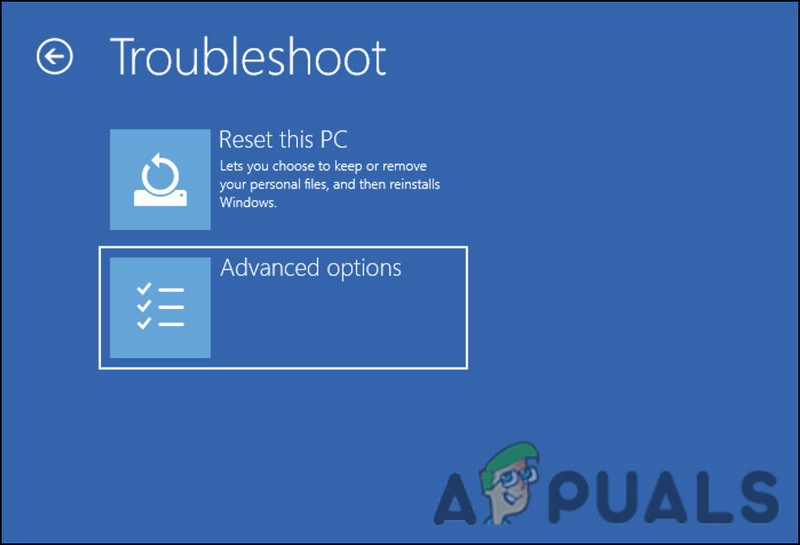
    Click on the Advanced options button
    Click on the Advanced options button
  2. Click on System Restore.
    Click on the System Restore option
    Click on the System Restore option
  3. In the following dialogue, click on the “Next” button.
  4. Now, you should be able to see the restore points created on the system. Pick a restore point (preferably the latest one), and then follow the on-screen instructions to complete the procedure.

2. Rebuild the BCD.

You might also be facing the issue due to a problem with the boot configuration data. The Boot Configuration Data file contains information about your computer’s boot options. In the event that this file becomes corrupted, your computer will have trouble booting.

Fortunately, if any of these problems occur, you can fix them easily by using the Command Prompt.

Here is how you can proceed:

  1. In WinRE mode, navigate to Troubleshoot > Advanced options.
  2. Choose Command Prompt from the list of options,” is already correct grammatically.
  3.  In the subsequent window, type the command below and press Enter to execute it:
    BCDEdit
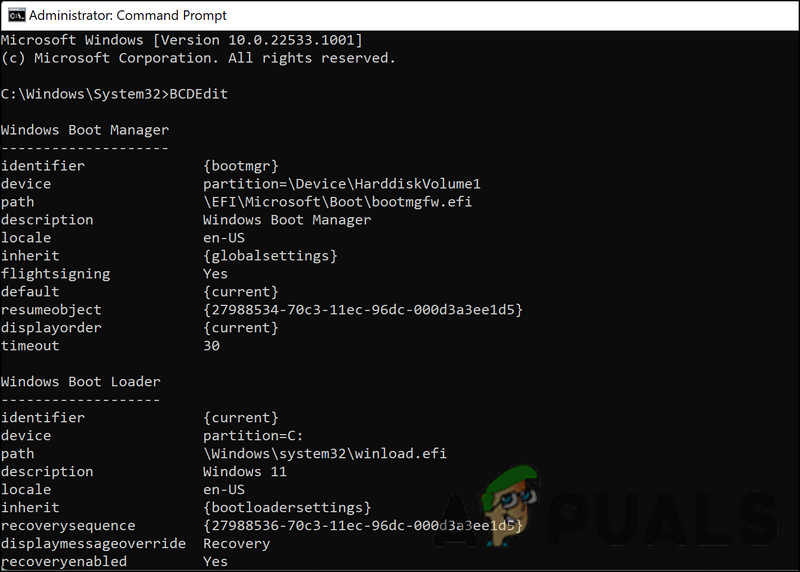
    Run the BCDEdit command
    Run the BCDEdit command
  4. Make a note of the drive letter adjacent to “OSdevice” in the Windows Boot Loader section of the Command Prompt. In the subsequent commands, replace “X” with that letter.
  5. Execute the following commands one by one:
    CHKDSK /f X:
    DISM /image:X:\ /cleanup-image /restorehealth
    SFC /scannow /offbootdir=X:\ /offwindir=X:\windows
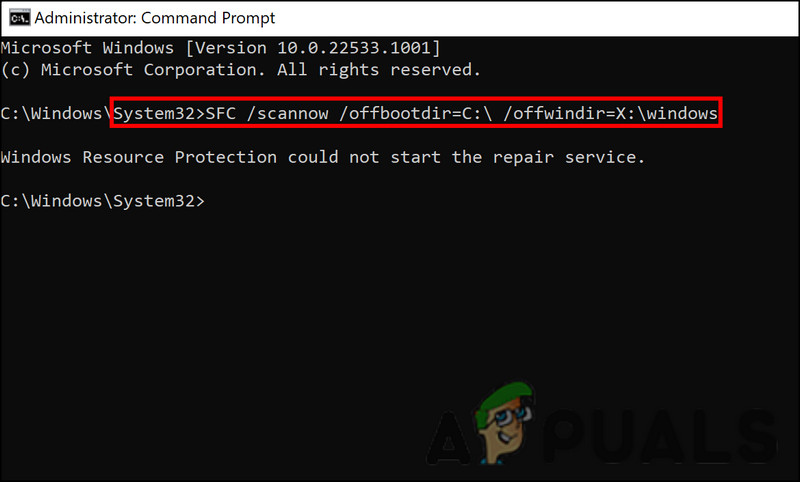
    Run the SFC command
    Run the SFC command
  6. Next, execute the following commands one at a time:
    C:
    bootrec /fixmbr
    bootrec /fixboot
    bootrec /scanos
    bootrec /rebuildbcd
  7. Once done, type “exit” and press Enter. This will close the Command Prompt.
  8. Now, head back to the Advanced Options screen and choose Startup Repair.
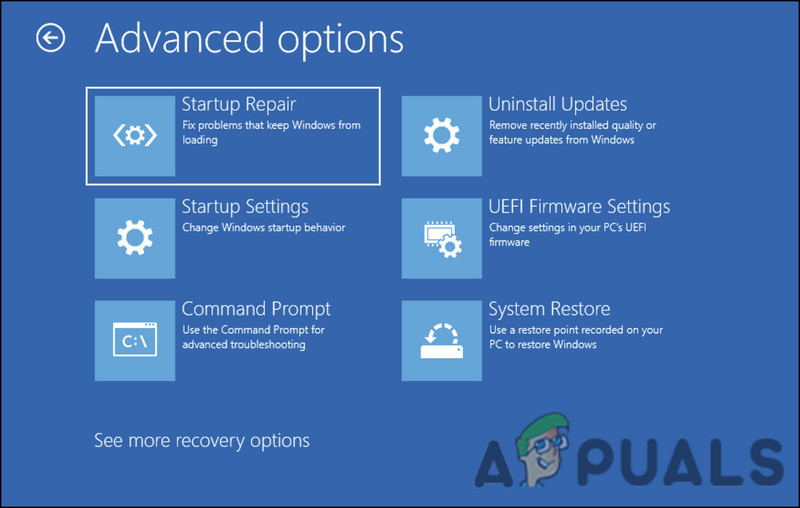
    Click on the Startup Repair option
    Click on the Startup Repair option
  9. After the process completes, restart the computer.

3. Perform a clean installation of Windows 11.

If you are unable to resolve the problem with these troubleshooting methods, you may also need to install Windows 11 from scratch.

To clean install Windows 11, you can use the ISO file available on Microsoft’s official website. However, please note that this process takes up a lot of time, so we only recommend proceeding with it if you have some to spare. It is also worth mentioning that you should remove all external peripherals that are not important before you begin.

Here is how you can proceed:

  1. In Recovery mode for Windows, select Troubleshoot.
  2. Select Advanced Options, and then click Startup Settings in the next window.
  3. Next, click on the “Restart” button and wait for your PC to reboot.
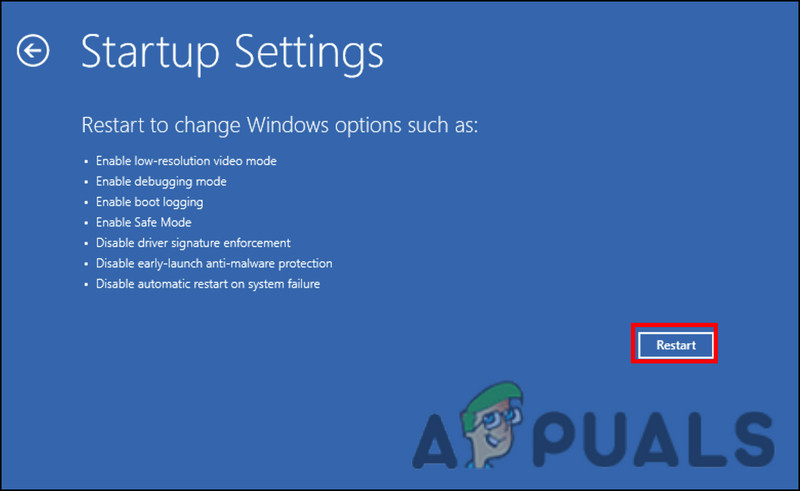
    Click on the Restart button
    Click on the Restart button
  4. Lastly, press one of the following keys on the Startup screen to make the desired changes.
    4 - Enable Safe Mode
    
    5 - Enable Safe Mode with Networking
    
    6 - Enable Safe Mode with Command Prompt
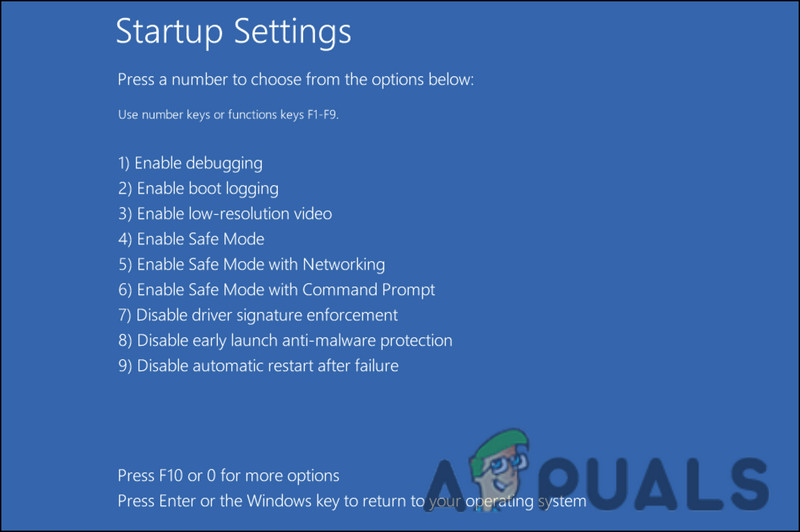
    Choose a Safe Mode option
    Choose a Safe Mode option

Once you are in safe mode, proceed with the steps in this guide to finish the clean installation.

ABOUT THE AUTHOR

Zainab Falak


Zainab Falak is a highly educated professional with a background in actuarial science and a strong passion for technology. Her expertise lies in the field of data analytics and she is a proficient programmer in languages such as Python and R. At Appuals, Zainab shares her extensive knowledge of Windows 8, 10, and 11, covering a broad range of topics related to these operating systems. Zainab's ability to effectively communicate technical concepts in a clear and concise manner has earned her recognition and respect in the tech community. She is committed to staying up-to-date with the latest developments in the field and providing readers with insightful and informative content.

Comments

28
    MO
    Matthew Olvera Jan 21, 2016

    I have a Dell XPS 15z L511 laptop and Windows 10 has problems on this device. I have gotten this error twice and the first time it cost me $50 to have repaired. Each time this error has occurred the computer was attempting to restart after an update. I have a disc for the original Windows 7 drivers. Is it possible to recover the system using this disc instead of creating a Windows 10 bootable media? My end goal is to replace Windows 10 with 7 at this point.

      KA
      K. Arrows Author Jan 21, 2016

      No, you should not attempt to recover it with a Windows 7 disc because the repair files will not be the same for Windows 10. If you want to replace Windows 10 with 7 then boot from the 7 disc and do a clean install of Windows 7.

    MO
    Matthew Olvera Jan 21, 2016

    Is there any particular reason Rufus is the suggested exe to use? Windows provides a tool to create a USB bootable Media on the link you provided for windows 10

      KA
      K. Arrows Author Jan 21, 2016

      Rufus gives more choices then the Windows Media Creation tool. You can use the one you prefer.

        MO
        Matthew Olvera Jan 21, 2016

        I ran into a plethora of issues trying to recover my OS using these methods. The bootable media did however give me the functionality back to use command prompts I found here: [URL]
        Find “Step 1.1 (optional)”
        Following this I was able to restore my e: drive to NFTS from RAW. I then followed the instructions listed above to fix the boot data usinget he command prompts. Now have fewer options under recovery and my error has changed to boot data curruption. Your instructions are incorrect. How can I fix this? Attempting to repeat the first command yields failure file not found!!! Just as when I ran the commands the first time, the final command now statespecially windows installations found are 0? Help I’m terrified now!

          KA
          K. Arrows Author Jan 21, 2016

          Can you type me the exact message that you’re now getting on your screen?

    AL
    Armando V. Lopez May 28, 2016

    Thanks. Followed the last line of instruction with a windows 10 recovery disk in USB and it worked GREAT…but after I bought a new computer! Oh well…Lucky I remember a little DOS. Thanks much!

    BV
    Barbara Weninger Vitorino Jul 27, 2016

    Hi! I have a Dell Venue 8 Pro tablet with that problem. I have created a bootable Flash drive using MS Media Creation Tool, but even if I change the boot priority setting, my device still does not use the USB to boot and always displays the same error screen and code. I’m no expert, but I’ve been following troubleshooting instructions to the letter. I have no idea about what to do next. Could you please help me? Thank you.

      KA
      K. Arrows Author Jul 27, 2016

      Can you power off the tablet completely, then make sure once its powered on its set to boot from the usb?

        BV
        Barbara Weninger Vitorino Jul 27, 2016

        I tried, but it doesn’t work. Even after I set it to prioritize the USB on boot, shut it off and on again, instead of booting to the USB, it goes back to the error screen.

    OG
    Odirile Gaebue Aug 25, 2016

    am Having the Same problem with Acer Aspire E1-510…No Legacy Mode to boot windows 8 64 bit…I have tried different tricks but am still stacked and frustrated now. Help to change or byPass the EUFI mode.

      KA
      K. Arrows Author Aug 25, 2016

      Boot from a Windows 8 bootable usb or disc and go to command prompt, then run the following commands

      attrib -r -s -h c:bootbcd
      del c:bootbcd
      bcdboot C:windows

    IK
    Imad Karimi Sep 18, 2016

    me to i have the same problem with acer aspire 7540g but if start to do your method ,my files and my programm will be lost ?

      KA
      K. Arrows Author Sep 18, 2016

      You’re already at risk of losing documents if the issue is with your hard disk (etc). If data is crucial, you would be better off copying it to an external drive by connecting drive externally, and then doing the steps.

    VI
    Vince Sep 26, 2016

    This is an awesome guide, thanks for sharing.
    Method 3 resolved my corrupted CBD issue.
    One thing to mention about this particular step – bcdboot C:Windows /l en-us /s k: /f ALL where the K: should be P; which was assigned to the EFI partition before.
    I suppose it wont hurt to perform chkdsk /f too.

    Reply
      KA
      K. Arrows Author Sep 27, 2016

      Thanks.

        MS
        Matt Schuster Jan 10, 2017

        Thank you for this guild!!!! It was insanely helpful, and I can’t thank you enough seriously!!

      MS
      Matt Schuster Jan 10, 2017

      Thank you so much!!!!!!!!!!!!!!!!!!!!!!!!!!!! This has helped me get my computer back up and running!

    JL
    Jim Larson Oct 8, 2016

    Trying to follow your Method 4 since I have no FAT32 partition on my hard drive. (W10 has done me in and I’m trying to recover. I managed to get CHKDSK to run, but seem to have lost the FAT32 partition.) When I issue the create partition efi, I get the message “MSR and EFI partitions are only supported on GPT disks. Convert the selected disk to GPT and try again.” My disk was not a GPT before. What do you suggest? Thanks for any suggestions.

      KA
      K. Arrows Author Oct 9, 2016

      I am not sure what the results were of the other methods, but from this point onwards.

      Perform a full backup of your Windows system (I recommend Macrium Reflect). Your PC may be unbootable if the repair is not implemented correctly.

      Boot the computer using the Windows 8/10 installation bootable DVD/USB. Make sure you boot the media in the same configuration as your UEFI installation.

      On the ‘Windows Setup’ wizard click on ‘Next’ and click on ‘Repair your computer’. You will then see a blue screen and an option to choose. Click on ‘Troubleshoot’ then click on ‘Advanced Option’ and then click on ‘Command Prompt’. Type these commands on the Command Prompt for UEFI configuration:

      diskpart (opens Disk Partitioning tool)
      select disk 0 (or whichever disk is your system disk)
      list volume (please note the number of the volume that has no drive letter assigned and has FAT32 listed in the FS column, usually the only FAT32 volume/partition)
      select volume x
      assign letter=Z: (gives drive letter Z: to EFI System Partition)
      list volume (to check drive letter Z: is correctly assigned)
      exit (closes Disk Partitioning tool)
      cd /d Z:EFIMicrosoftBoot (changes current folder in Command Prompt window)
      attrib Z:EFIMicrosoftBootBCD -h -r -s (removes hidden, read-only and system attributes from BCD folder)
      bootrec /fixboot (writes a new boot sector to the system partition)
      ren Z:EFIMicrosoftBootBCD BCD.old (renames BCD folder to BCD.old)
      bcdboot c:Windows /l en-gb /s b: /f ALL (en-gb is for the UK – use your own locale)
      Installation Checking

      Your boot configuration is probably correctly configured if the following commands report correctly.

      Confirm the PC boots
      Run bcdedit and confirm boot configuration is correct. You can use bcdedit /enum all for the full details,
      Run reagentc /info and check recovery configuration is correct. In my case, Windows RE was not configured and I had to run regaentc /enable to enable it.
      Run bcdedit /export and confirm the command works. Minitool Partition Wizard may be used to explore the EFI system partition and confirm the correct files have been copied.

      Reply
    DN
    Duc Nguyen Dec 23, 2016

    i tried method 4 and it showed error (BFSVC: could not open the BCD template store. status = [c000000f]). please help!

    BA
    Bananna May 26, 2017

    will this work if the system recovery cannot even detect windows installations? when i did ‘list vol’, there’s nothing in ‘info’ column and all ‘status’ is healthy.. and volume 1 is C , the label is system reserved (i know that the C is the local drive and D is the system reserved but i dunno why it says that C is system reserved) the Fs is NTFS, type is partition, size is 100mb.

    volume 2 is D, label is blank, Fs is RAW, type is partition, size is 465mb.
    why is it. huhuhu please help me. i need my pc soon. i tried everything in the internet but nothing works. T.T

    GE
    georgeegivensjr Jun 9, 2020

    You have got to be kidding me? Even I could understand these instructions they are way too many chances of missing a step or more likely, that Windows won’t respond as expected along the way of following each instruction. This is absolutely ridiculous except for the most technically educated computer geek.

      SW
      Shane Warren Author Jun 10, 2020

      I’m sorry we are only providing the fixes after studying individual user experiences, we are not responsible for Windows’ failures.

        GE
        georgeegivensjr Jul 7, 2020

        Not about windows it’s about not being able to login to blog using the Disqus login.

          SW
          Shane Warren Author Jul 8, 2020

          Weren’t you critiquing the error guide?

          GE
          georgeegivensjr Jul 27, 2020

          No

          SW
          Shane Warren Author Jul 29, 2020

          Okay, Sorry if i misunderstood