How to Fix Google Account Stuck on Verify Your Phone Number?
Google can accept your password or recovery email code and still leave you at Verify your phone number. The phone request is an additional security check, so completing the previous step does not always finish sign-in.
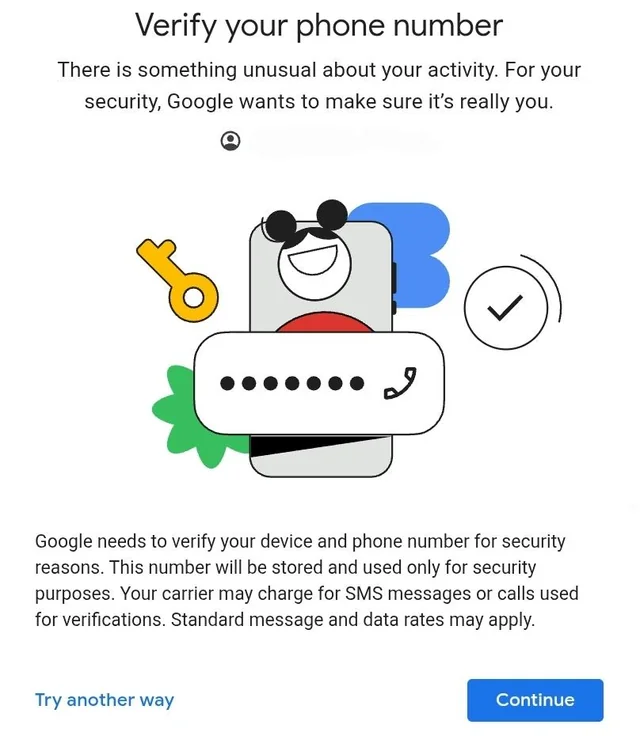
What Does Your Verification Screen Say?
| What you see | What to do |
|---|---|
| Too many failed attempts or Try again later | Follow the retry instruction rather than repeatedly requesting codes. |
| This phone number cannot be used for verification or This phone number has been used too many times for verification | Use another number when the form lets you enter one. |
| Google says it sent a code, but no text arrives | Allow a few minutes for delivery; use a call only if offered. |
| Google shows an old, partly hidden number | Choose an available alternative or recover the existing account. |
| A QR code replaces the number-entry form | Follow the instructions on your phone, then return to the computer. |
1. Wait Before Requesting Another Code
A Too many failed attempts warning can appear before Google sends anything. There is no missing code to troubleshoot at that point: the page is refusing another verification attempt. Allow the stated waiting period to finish before trying again.
- Read the complete warning and note your last attempt. A message telling you to try a different number describes a number-use limit, even if the page also mentions a recent attempt.
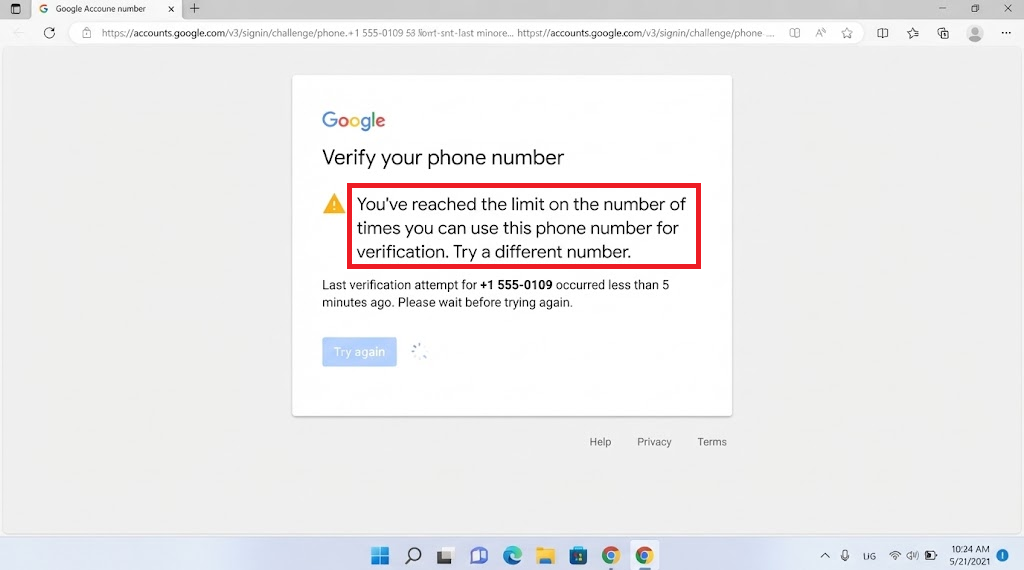
Record the retry instruction before requesting any more codes. - Stop requesting codes during the displayed waiting period. Repeated password changes do not remove a phone check.
- After that interval, make one attempt through Google’s sign-in page. Without a specific interval, avoid testing every few minutes.
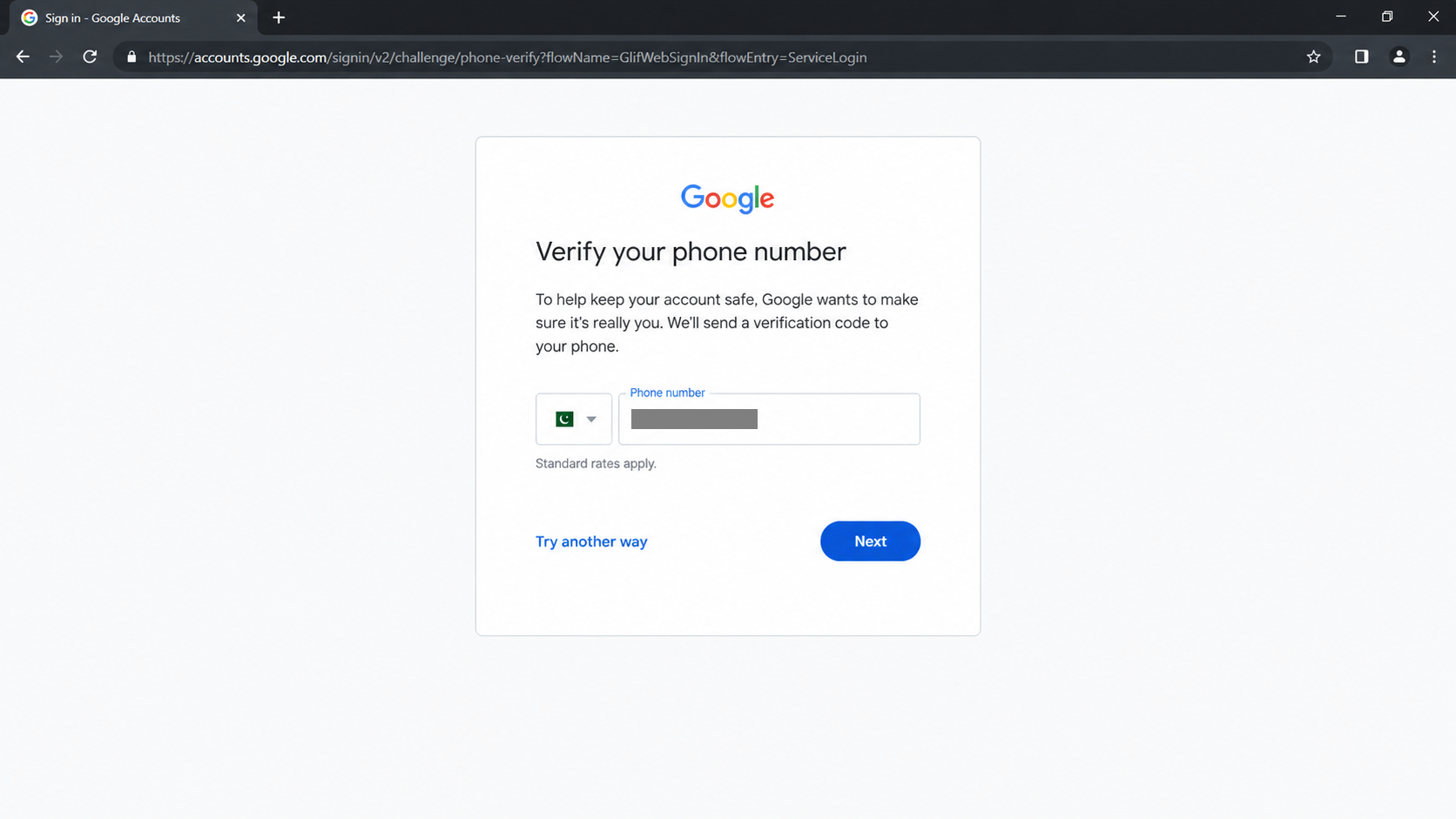
If the same block remains, repeated submissions are not a useful test.
Google publishes no universal cooldown for these phone-verification blocks. A fixed 24-hour, seven-day or 30-day wait is not a guaranteed repair. Follow any dated recovery or account-deletion instructions rather than letting an online waiting suggestion override them.
An approved account-restoration appeal can still be followed by a separate sign-in check. If the same warning remains, preserve the exact message; an existing account may need the recovery steps below rather than more code requests.
2. Use a Different Number on an Editable Form
A phone that receives normal texts can still be rejected by Google. The service limits account creation and verification uses per number; its guidance does not give a numeric allowance or reset schedule.
Google recommends another number for these rejection messages, but only where the form lets you enter one. A friend’s phone cannot satisfy a request to confirm the masked number already linked to your account.
- Use another number you can access, with its owner’s permission. Google allows a friend or family member’s number; another carrier may also help. Avoid public SMS inboxes and rented verification numbers.
- Select the correct country and enter the number in the format the form requests. Request the code once.
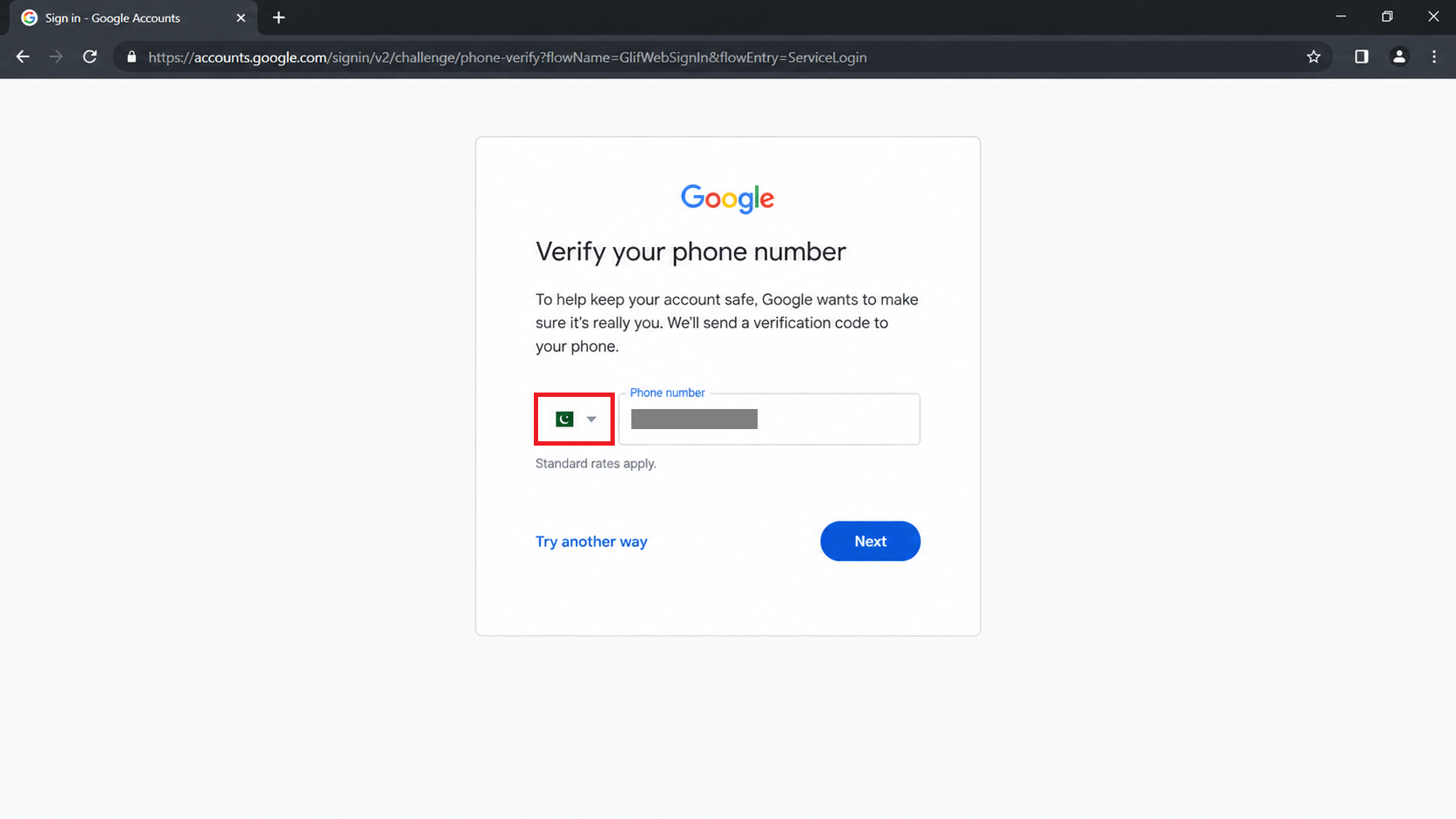
This does not replace a masked recovery number already attached to an account. - Enter the code in the Google session you started. Treat Add for recovery as a separate choice, not part of entering the code. For a borrowed number, accept that later prompt only if you intend to use it for recovery with the owner’s agreement.
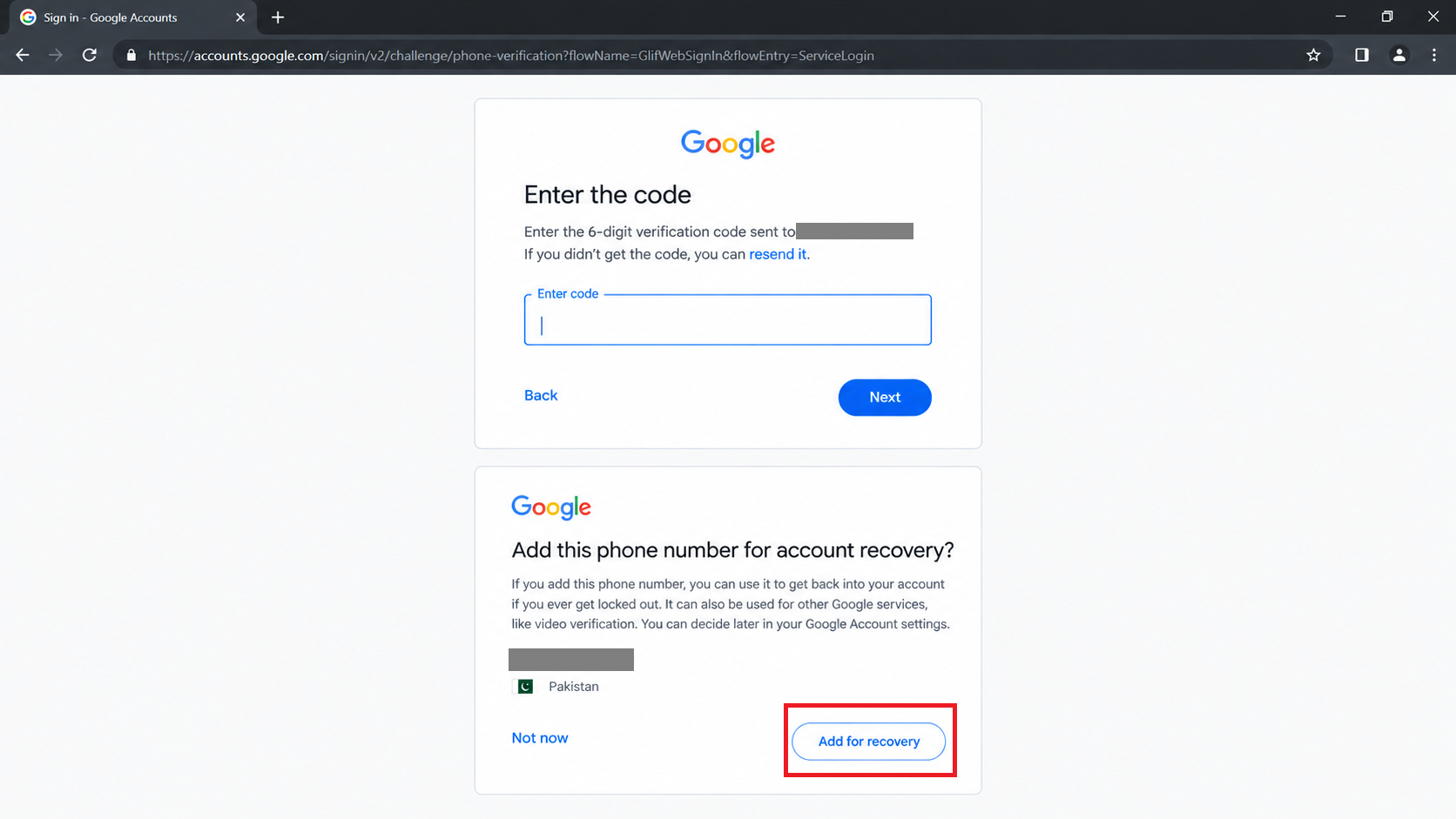
Complete the requested phone check
Once accepted, finish setup or sign-in. If the replacement is also rejected, stop cycling through numbers. Google does not promise that deleting old accounts or removing their phone numbers will reset the limit.
If the Number Is Accepted but the Text Never Arrives
Wait a few minutes, then use the phone call option if Google offers it. If texts still do not arrive, ask your carrier to check SMS delivery using the destination number and request time. A call does not override a rejected-number warning.
Verification stuck only under Messages settings > RCS chats is a separate Google Messages RCS registration problem, not this Google Account sign-in check.
3. Recover the Existing Account on a Familiar Device
Without access to an old number, the correct password may still be insufficient to sign in. Recovery lets Google check ownership using other available information.
Google recommends a familiar device, browser and location for this assessment. These details help, but do not guarantee that the phone check disappears.
- Use your usual phone, tablet or computer at home or another familiar location. Open the same browser and profile you normally use, keeping its cookies and any active Google sessions.
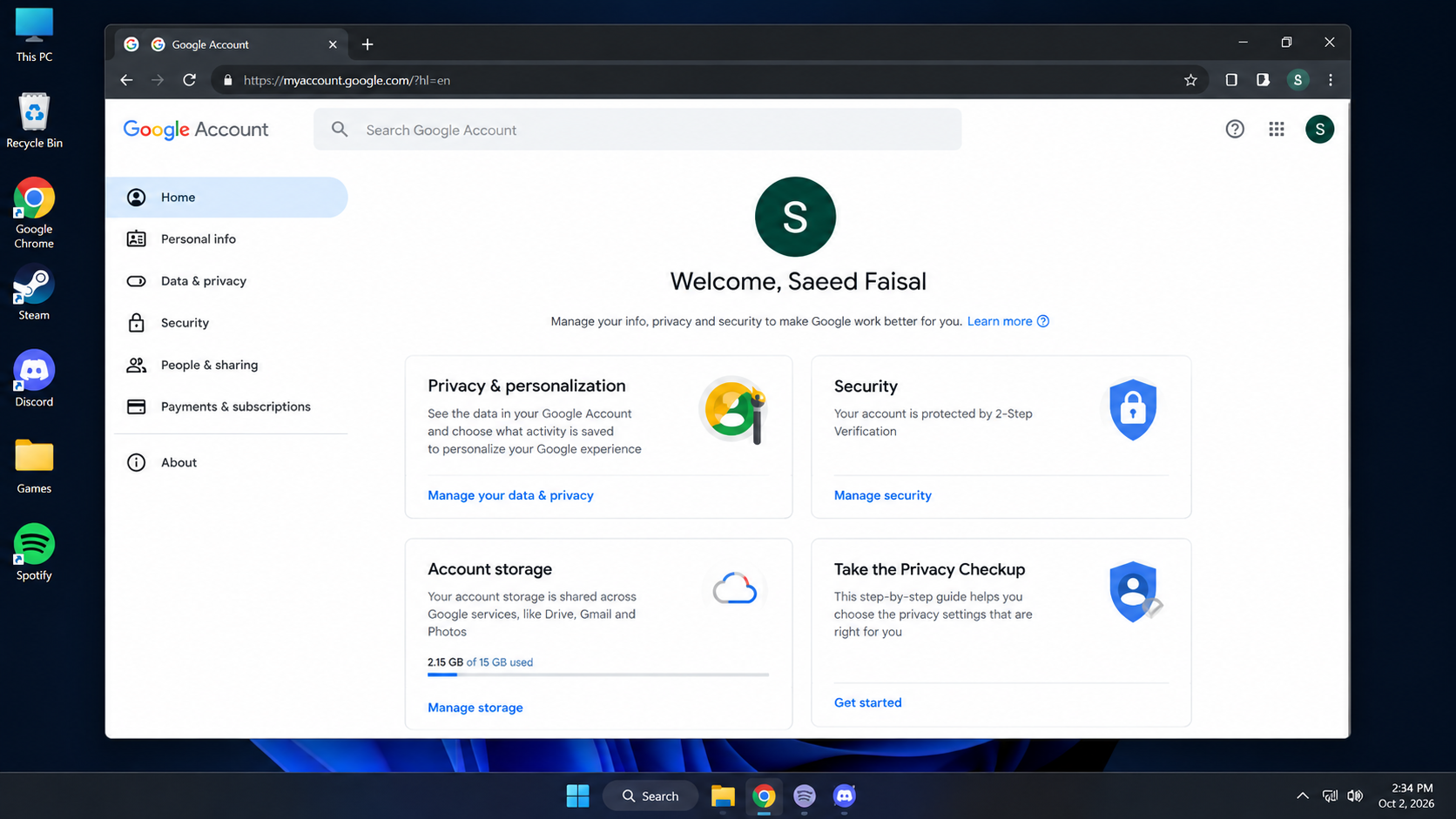
Keep existing signed-in sessions and browser data available for recovery. - Open Google Account recovery and enter the affected account. This recovers an existing account; it does not complete a new-account signup.
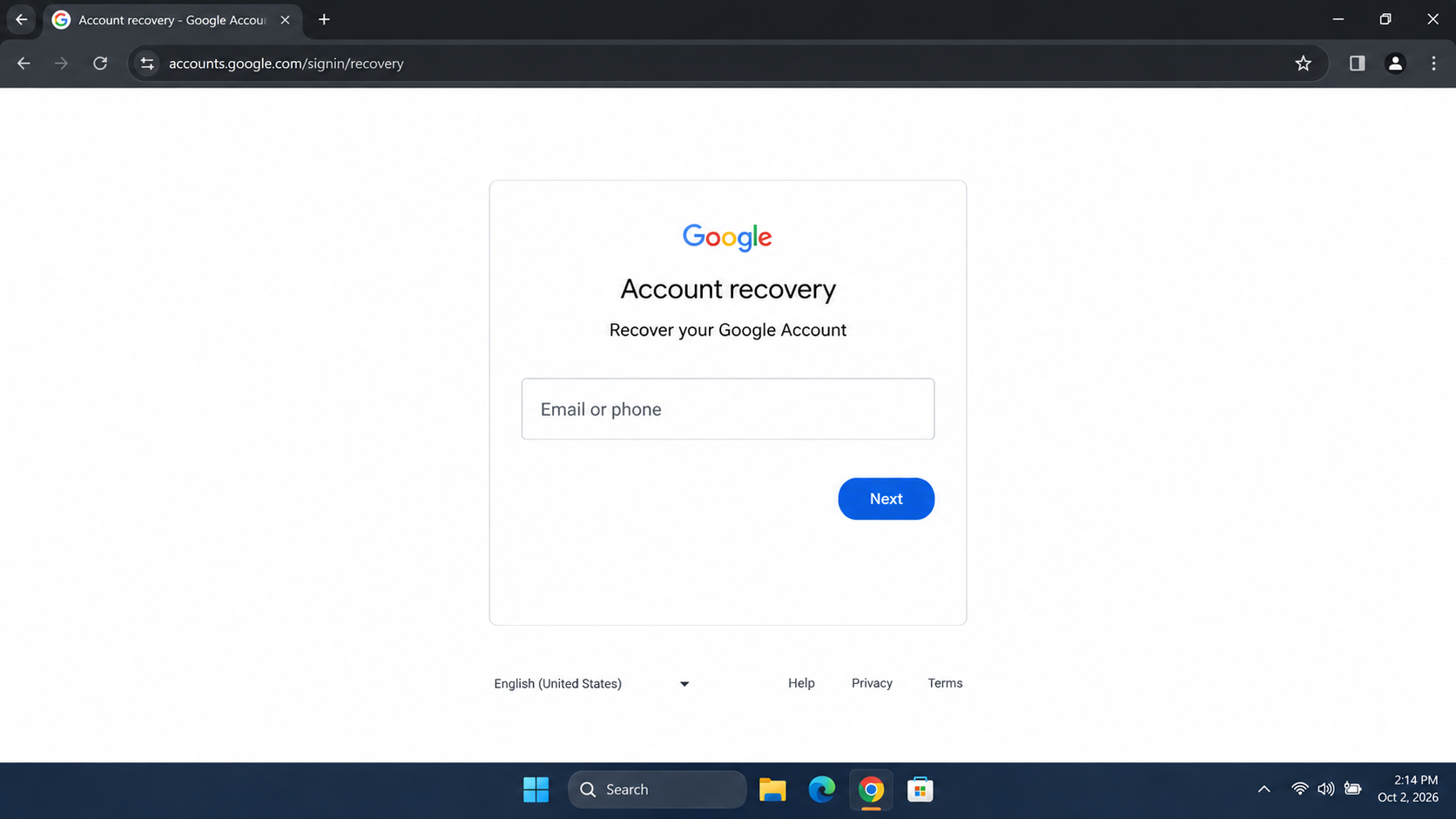
Creating another Gmail address does not restore the original account’s mail or files. - Answer the questions shown. Enter the most recent password you remember and, when requested, an accessible email address already connected to the account.
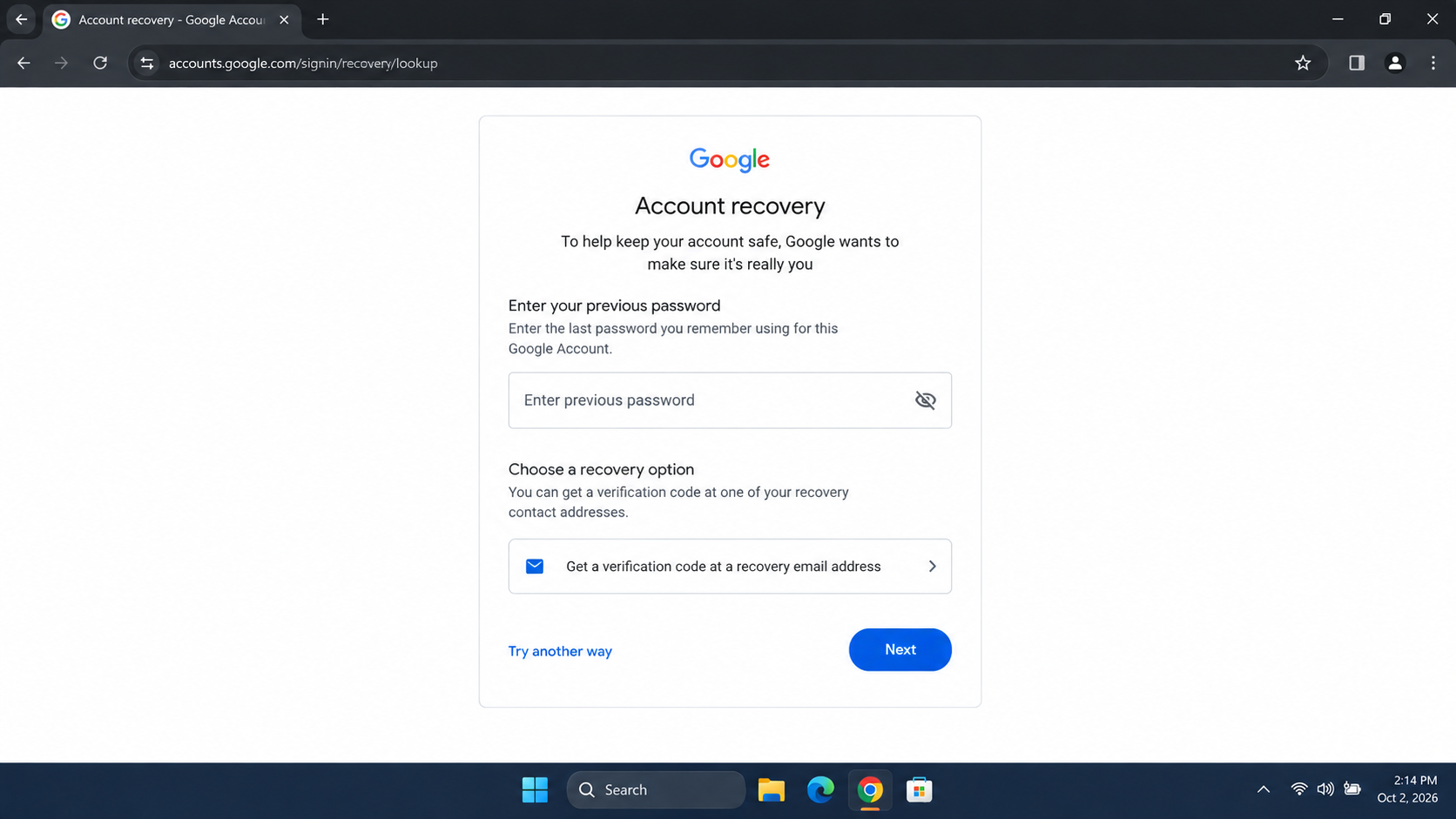
Use the most recent password you remember if this question appears. - Select Try another way if available. Use an offered option you control, such as a saved backup code, passkey or signed-in phone. These choices vary by account.
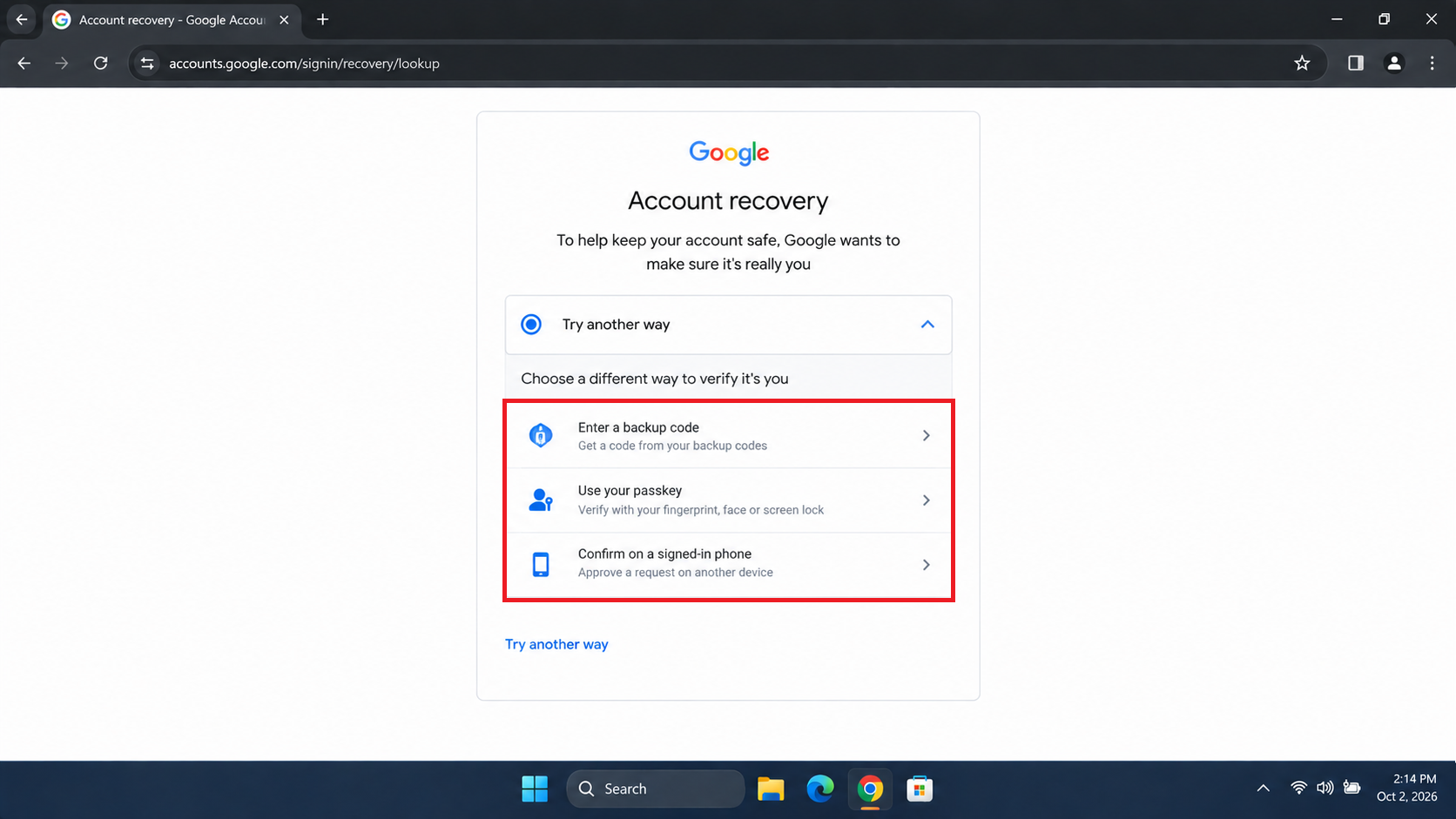
The choices depend on the account; an alternate method is not guaranteed.
A return to the same phone screen means that attempt did not provide a usable alternative. Access to a recovery email or Authenticator does not necessarily remove an additional phone request. Follow any recovery waiting instructions Google provides rather than repeatedly submitting the same check.
After access returns, review your recovery details while keeping the working session open. A replacement Gmail address will not restore the original account’s mail, files or purchases.
If Google Asks You to Scan a QR Code
Google’s Use a QR code instructions say to scan the code on your computer with your phone, follow the phone’s instructions, then return to the computer to finish. Scanning alone may not complete the check.
Some screens open a prepared outgoing SMS instead of sending you a code. When the verification you started at accounts.google.com asks you to send that text, follow its instructions without editing the message.
- The phone says Not Delivered: ask your carrier about sending to the displayed destination, including short-code or international restrictions and possible charges.
- The text sends but Google still waits: record that result. Successful sending does not prove Google accepted verification, so a carrier delivery fix may not resolve the account check.
A manual number field, call option or Skip button is not guaranteed. Do not scan a verification QR code sent by an unsolicited email or supposed support agent.
If You Still Cannot Finish Verification
Follow Google’s account-recovery guidance for an existing personal account. Google does not offer phone-based recovery for personal accounts, and paid recovery agents cannot guarantee access.
For a work or school account managed by an organization, contact its administrator.
A different error, There was a problem communicating with Google servers, concerns the Google server connection rather than an unfinished phone request.
When asking for help, include the exact warning, whether this is signup or an existing account, whether a text failed to arrive or send, and the last attempt time. Hide phone numbers, passwords, codes, QR codes and recovery links in public posts.