How to Fix Gmail’s “Verify It’s You” Problem?
A correct password does not always take you straight into Gmail. At “Verify it’s you”, Google is asking for another ownership check, such as approval on a signed-in phone. Re-entering the password does not complete that check.
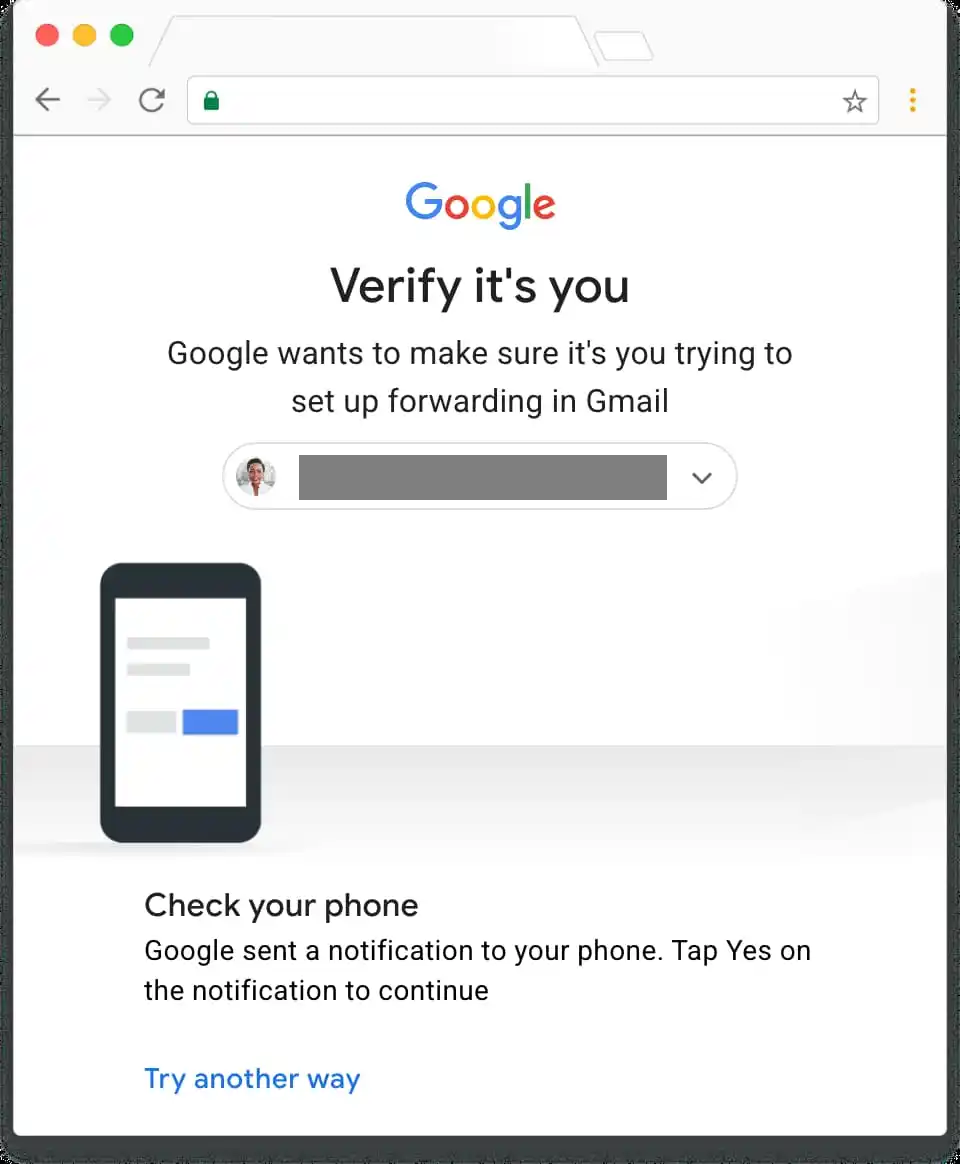
Google can request verification after an unfamiliar sign-in or before a protected change, such as adding Gmail forwarding. It can appear even without 2-Step Verification enabled. An open inbox does not necessarily authorize a change to account-security settings.
Keep working sessions on devices you control signed in. Removing the account, clearing its data or resetting the phone can discard your remaining way to verify. A phone you no longer own is not a safe place to approve access.
What Is Google Asking You to Do?
| Message or request | What to check |
|---|---|
| Open an app and tap Yes | Google wants approval inside a signed-in Google app, not an email in your inbox. |
| Enter a code | Match the delivery method and masked destination. An SMS, Authenticator code and saved backup code are different. |
| Sensitive action blocked, while Gmail still works | The protected setting needs an eligible verification method or the waiting period described below. |
| Too many failed attempts or Try again later | Follow the restriction shown. The sensitive-action waiting period is not a universal sign-in cooldown. |
1. Check the Phone That Should Receive the Prompt
The phone must already be signed in to the same Google Account. On iPhone, the request appears in a compatible Google app, not Apple Mail. Installing an app without signing in does not make that phone available for approval.
- Read the account address and phone name on the verification screen. Check a listed phone only if you still control it. A replacement device with the same name may not be the session Google is asking for.
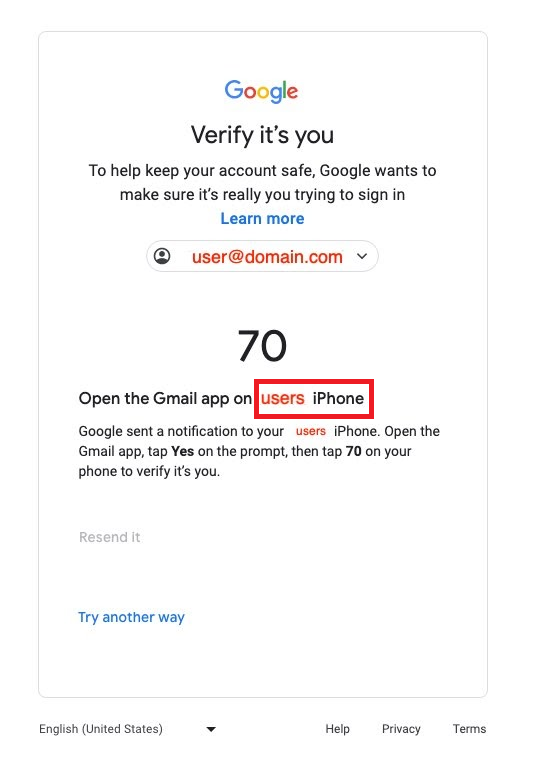
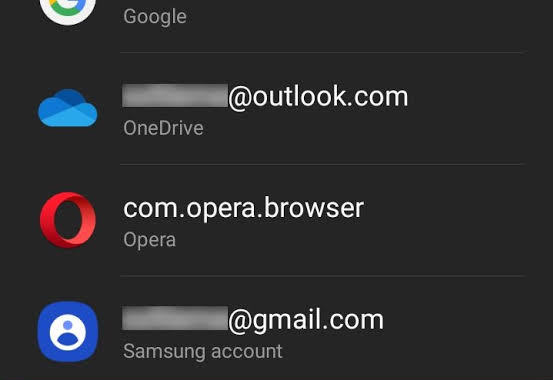
A replacement phone may have the same name as an older device. - On iPhone, open a signed-in Gmail, Google or YouTube app. On Android, check Settings > Accounts for a Google entry, not just a Gmail address under Samsung account as pictured below.
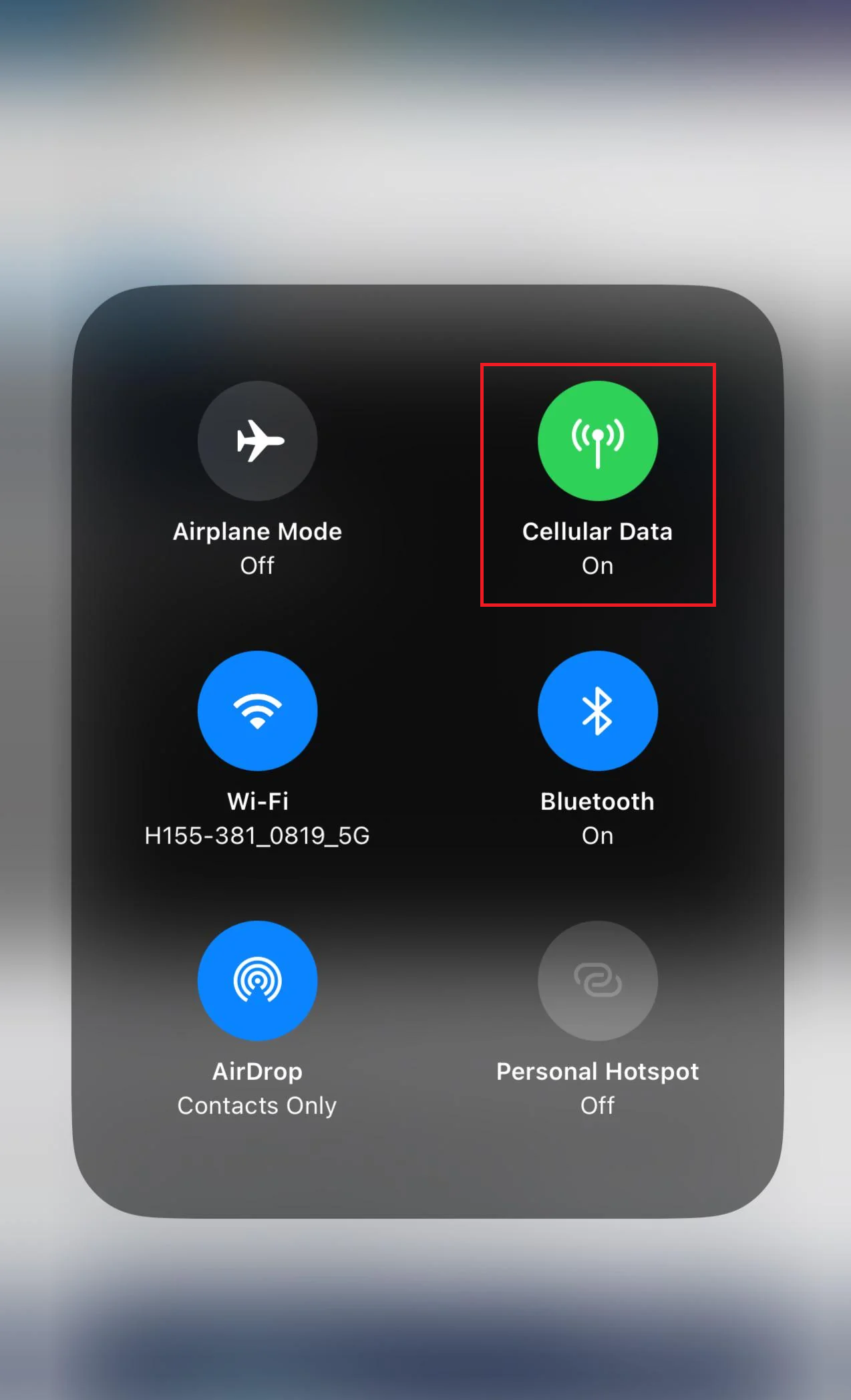
Keep any working account session available while resolving verification. - Connect the phone to Wi-Fi or mobile data and temporarily turn off Do Not Disturb. Allow notifications for the Google app receiving the request; on Android, check Google Play services where its notification switch is available.
Use the request associated with the sign-in you are completing. - Return to the original sign-in screen and select Resend. Approve your own attempt on the phone, matching the displayed number if asked. Request a fresh prompt after an expiration; reject an attempt you did not initiate.
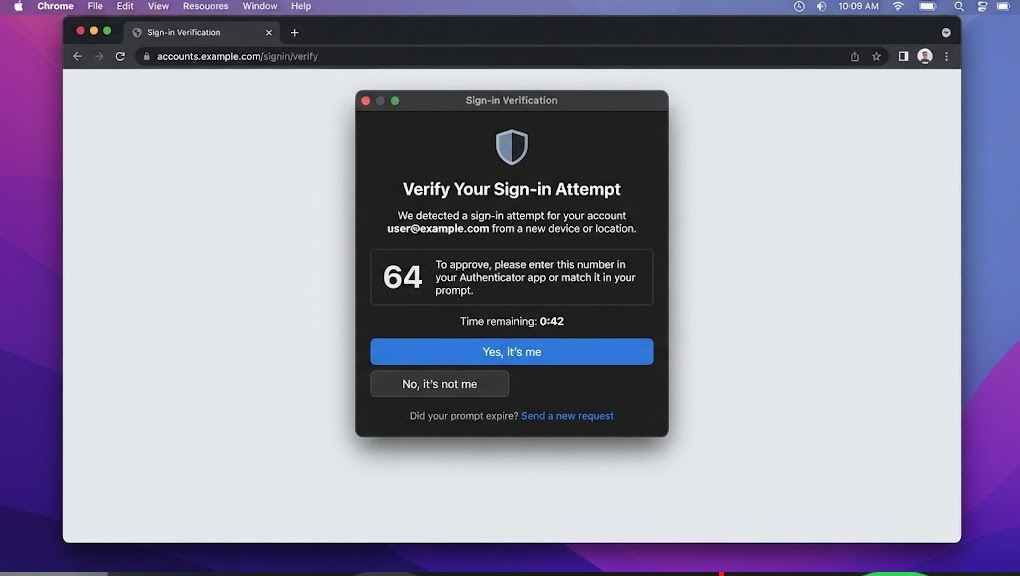
Check the request before confirming; reject one you did not initiate.
If the inbox opens, the sign-in check succeeded. If a prompt still does not arrive, Google’s prompt troubleshooting includes Android’s Google Play services update check. A lost, reset or unavailable phone requires another offered verification option, not repeated requests to that device.
2. Use Another Verification Option You Control
Try another way can offer a saved backup code, an existing passkey or another sign-in method. The choices depend on your account and this particular request; the button does not create a new recovery option.
- On the blocked screen, select Try another way, More ways to verify or I can’t do this, whichever appears. Check which account the request concerns before choosing a method.
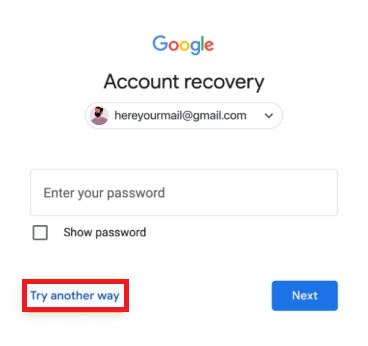
The choices depend on the account and the current security check. - Choose an available method you already control: a registered phone number, unused backup code, configured Authenticator, passkey or security key. Use the choices on your actual screen rather than expecting every pictured option to appear.
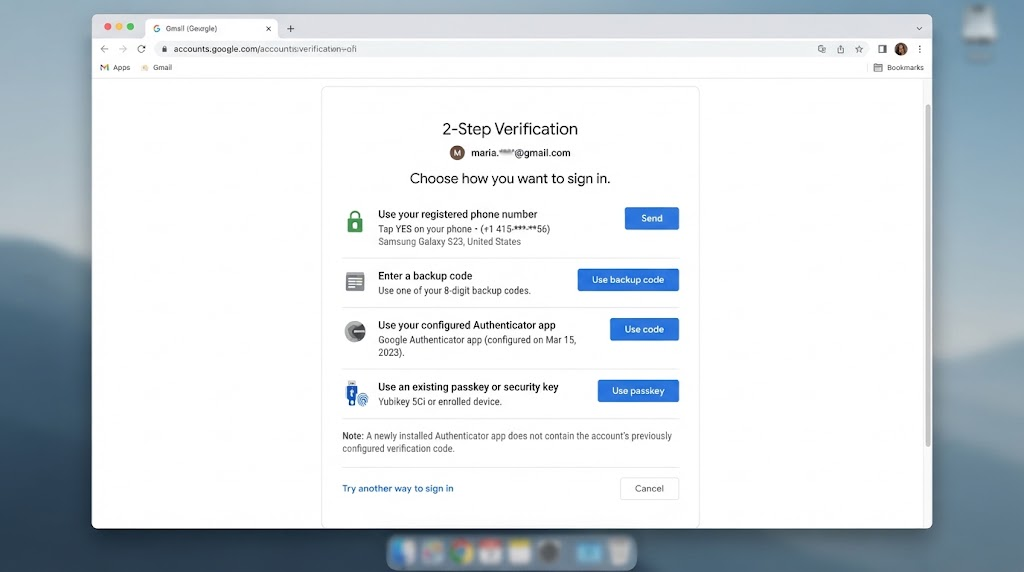
A missing or disabled option cannot be selected from this screen. - Complete the selected check. For SMS, confirm the masked number and use the newest requested message. For Authenticator, select this account’s configured entry. A backup-code field needs an unused saved backup code, not an SMS or app code.
Installing Authenticator now does not recreate codes you never set up or restore an entry that was not transferred or synced. Likewise, knowing your recovery email does not guarantee that Google will offer it for this check.
Google may withhold SMS after an unfamiliar sign-in, even if your phone receives other texts. Its verification troubleshooting explains the limits. Google can also ask for another check after accepting the first code.
If an alternative opens Gmail, the login is complete. If none is offered or accepted and you cannot sign in, use account recovery below. If the inbox works but a protected setting still fails, check that setting’s requirements next.
3. Verify a Protected Gmail or Account Change
Gmail forwarding and changes to account-security settings can need stronger proof than reading mail. A newly signed-in phone may receive email normally while Google still asks an older device to approve the change.
Google’s sensitive-action guidance describes a seven-day restriction when a device or security method is too new, or identity cannot yet be verified for the action. This is not a seven-day remedy for every failed Gmail login.
- Return to the setting you were changing and read the complete notice. Confirm that ordinary account access still works and the restriction concerns this protected action.
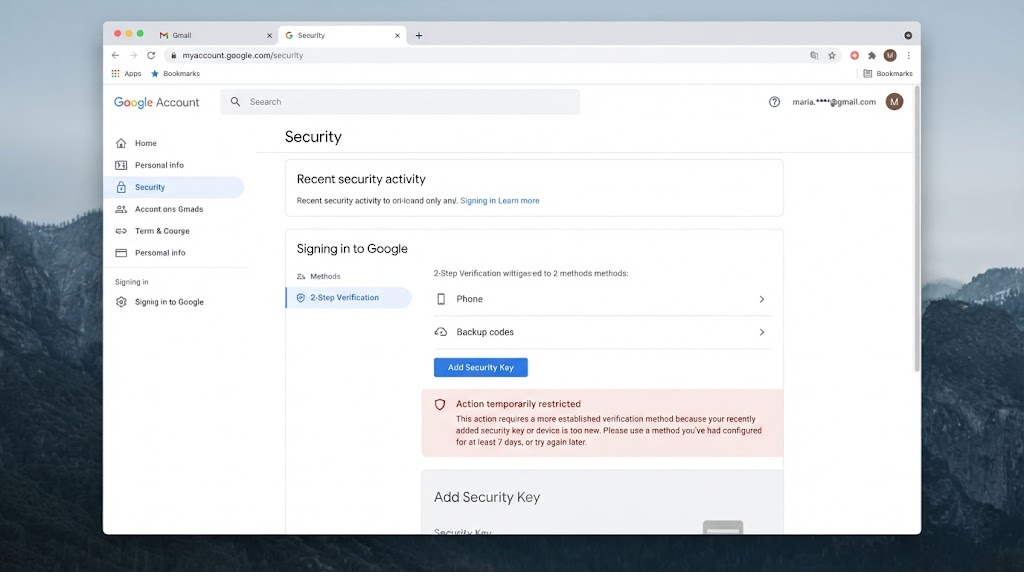
This situation can occur while ordinary account access still works. - Use an established method if offered. For a new device or method, allow seven days from its sign-in, addition or update. Keep it associated with the account; leave the Google or Gmail app signed in.
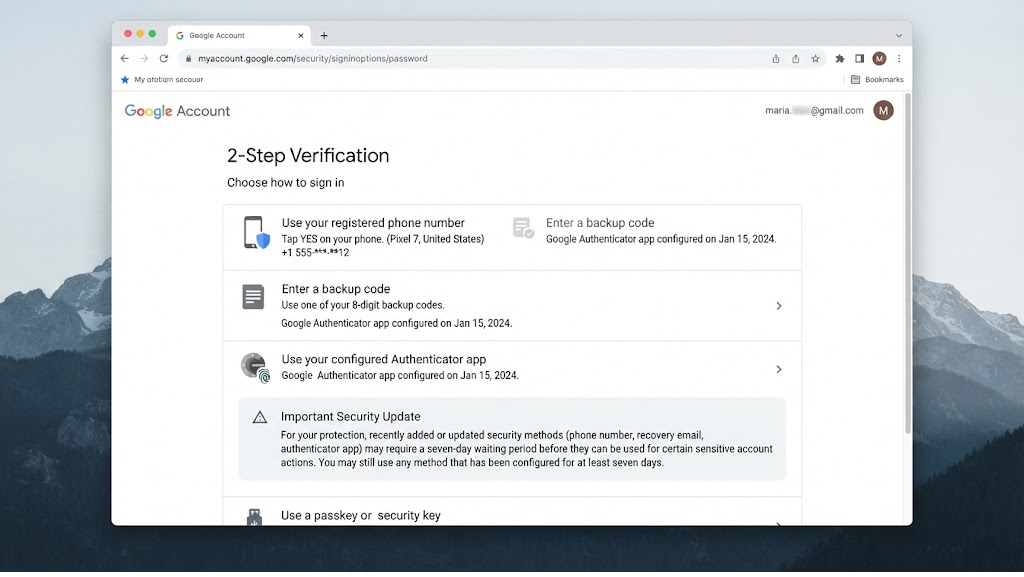
A newly added device or credential may not yet be eligible. - After the stated period, return to the same setting. Complete any requested verification and confirm that the change saves. If it is still blocked, note the exact message and follow Google’s guidance for that condition.
A working trusted passkey or physical security key may let you approve a new method sooner. Google’s new-method activation instructions explain the Approve option where available. Creating a brand-new passkey does not immediately make it trusted for this purpose.
For a protected action on an offline Android phone, More ways to verify > Get a security code on your Android phone may be offered. Follow that request exactly; this device-generated code is different from an SMS, Authenticator or saved backup code.
If You Still Cannot Sign In
Open Google Account recovery from a device, browser and location you normally use. Answer the questions shown and enter the most recent password you remember if asked. Google’s recovery tips explain how to answer unfamiliar questions.
Follow any recovery waiting message and check the requested contact inbox, including spam. A code confirming access to that inbox is not necessarily the final ownership check. Recovery can still fail if Google cannot establish that the account belongs to you.
For a work or school account, ask your administrator about organization-specific verification. A notice saying the account was disabled by your Google Workspace administrator requires the administrator’s attention, not another approval prompt.
Google does not offer phone help for personal-account sign-in or work with paid recovery services. Keep passwords and codes out of support chats, calls and messages; no third-party agent can approve this check for you.
Once security settings are accessible again, review your recovery details and save backup codes before resetting or replacing the old phone.
If verification succeeds but Gmail’s Android app stays on Getting your messages, troubleshoot that separate loading problem without discarding your only working sign-in.