How to Fix Gmail Message Blocked Error?
Gmail can return an email with “Message blocked” or “Your message has been blocked” after you press Send. A copy in Sent does not mean it reached the recipient named in the rejection.
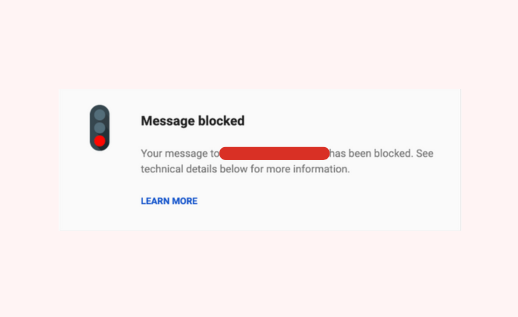
The heading alone does not explain what went wrong. The reason appears further down in the delivery notice, and the rejection may come from Gmail or the recipient’s mail server.
A warning about a “potential security issue” can also stop a draft before it leaves Gmail. Gmail is refusing content it considers risky; this does not mean your whole account is blocked.
| What the notice says | What needs attention |
|---|---|
| Potential security issue, blocked file, or message too large | Attachments, or links and message content. |
| Sending limit reached or too many recipients | The stated sending restriction. |
| Address not found, mailbox full, or receiving server unavailable | The recipient’s address or mail service. |
Unauthenticated sender, SPF, DKIM, or DMARC; often 5.7.26 | The custom-domain administrator or sending provider. |
Organization policy, gcdp, or suspended Workspace account | Your work or school administrator. |
1. Check the Delivery Notice for the Exact Reason
A rejected email often comes back as a message from Mail Delivery Subsystem. Its detailed response is more useful than the large “Message blocked” heading.
- Check Inbox, Spam, and All Mail for a delivery-failure notice matching your message and recipient.
- Open it and find The response was, the diagnostic details, or the SMTP error code.
- Read the entire explanation. The same code can have different causes, particularly
5.7.1and5.7.26.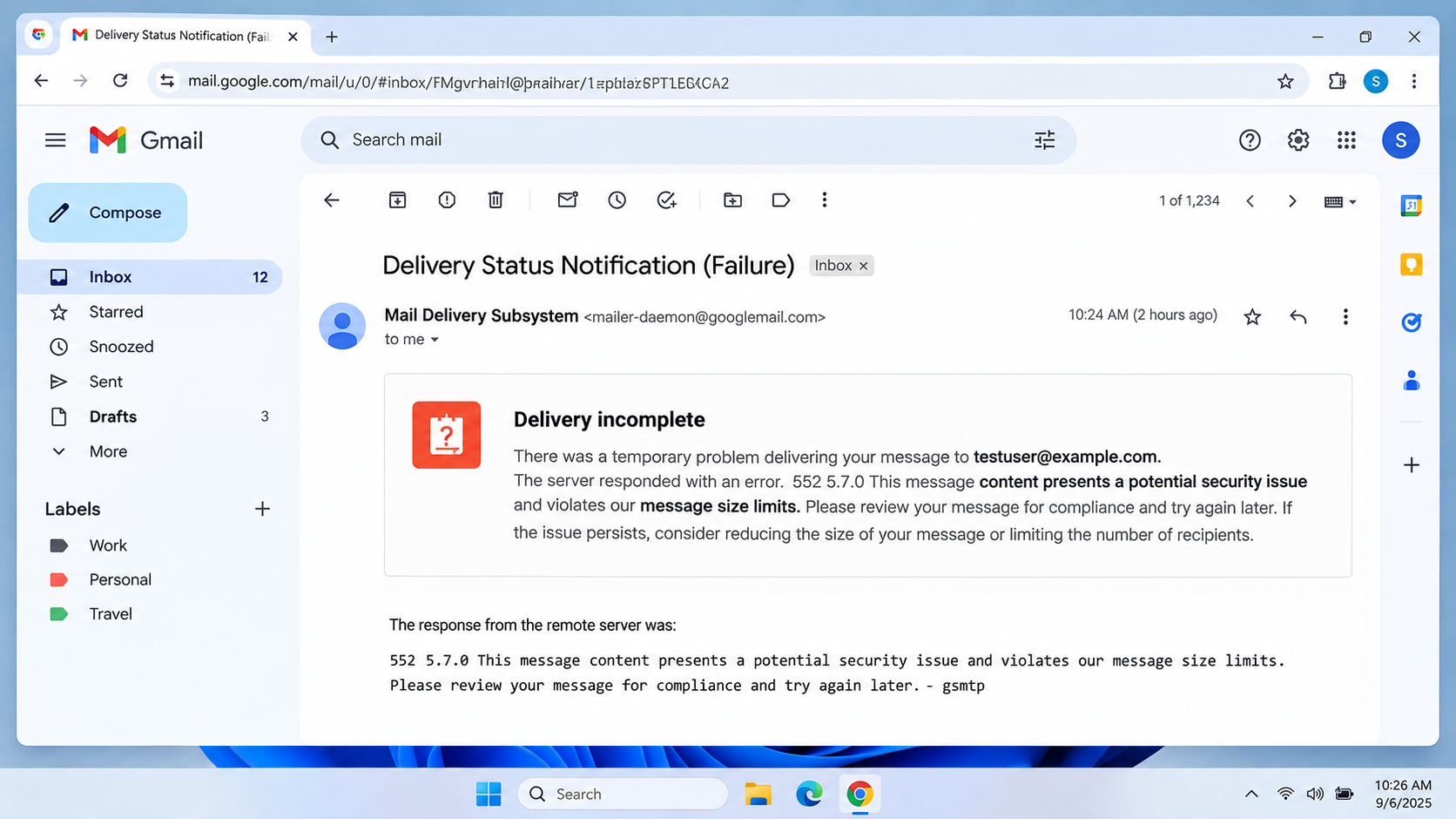
The delivery failure email usually points to the exact reason Gmail rejected the message.
A delay notice may mean the service is still retrying; avoid duplicates. With multiple recipients, check which addresses actually failed.
Google’s rejected-email guidance explains common responses. A draft blocked before sending may have no delivery notice.
2. Test One Short Email Without Attachments or a Signature
A normal reply may fail while a short new message sends successfully. This comparison helps identify something in the original email without changing your account settings.
- Click Compose and enter your own alternate address or one trusted, active recipient.
- Add a simple subject and type one sentence. Remove the automatic signature, links, images, attachments, templates, and tracking.
- Send once. Use a real address you control or have permission to contact, not the example address pictured.
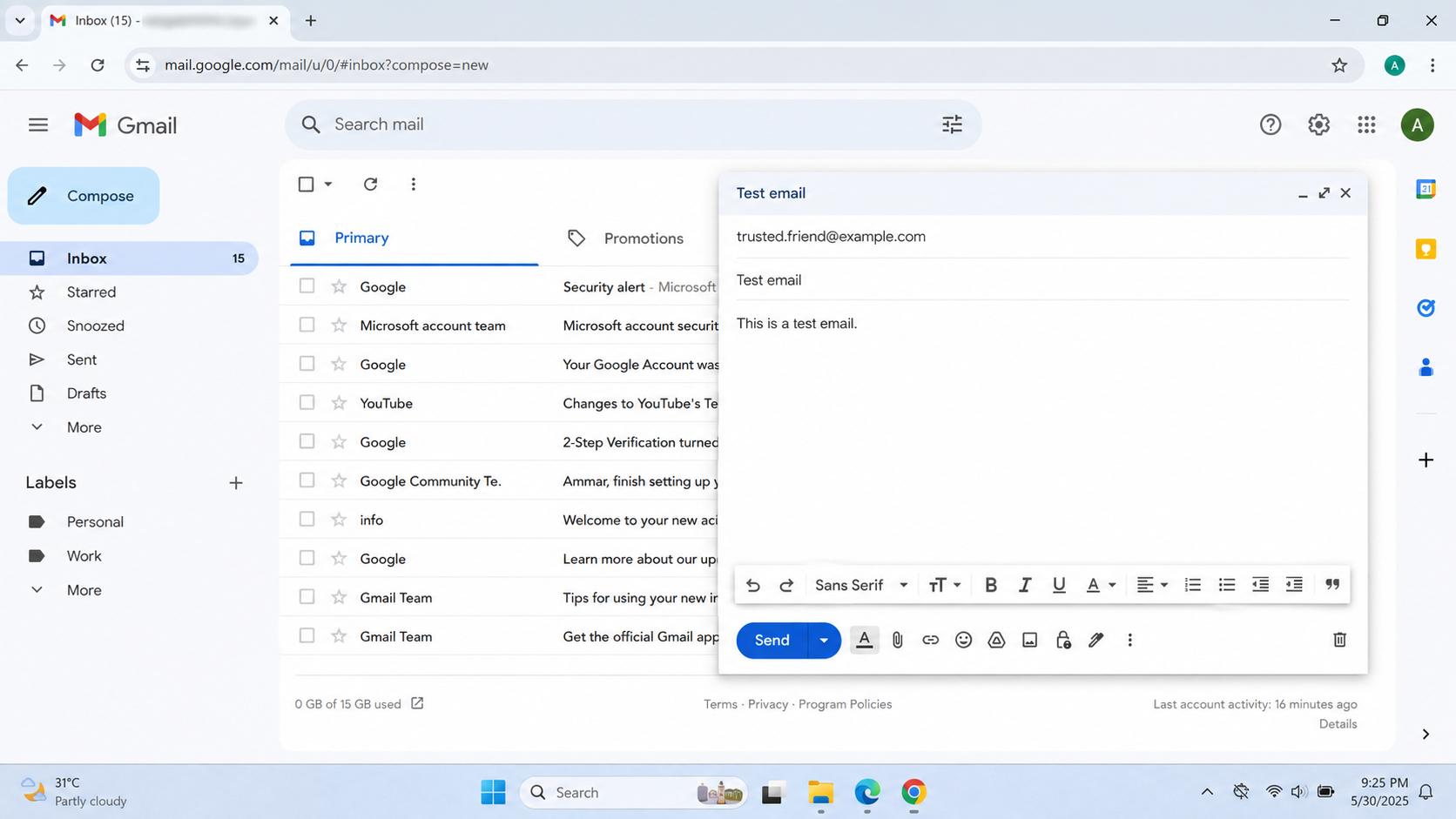
A plain text test tells you whether the blocked draft or the Gmail account itself needs attention.
Successful delivery makes the original message worth examining. Another rejection needs its own explanation; repeated test emails can add to a sending restriction. Do not test while an explicit limit or suspension is active.
3. Remove Blocked Attachments or Share an Allowed Large File
Compressing a file does not make Gmail accept it. Gmail checks certain files inside archives and blocks dangerous file types, documents with malicious macros, and some password-protected archives.
- Remove the attachment and check Google’s maintained blocked file types list. Examples include
.exe,.js, and.msi. - For a document you created, make a safe, macro-free copy if macros are unnecessary. Do not open, run, or extract an unfamiliar file to investigate it.
- Send the email without the blocked file. Renaming its extension or hiding it inside another archive is not a safe fix.
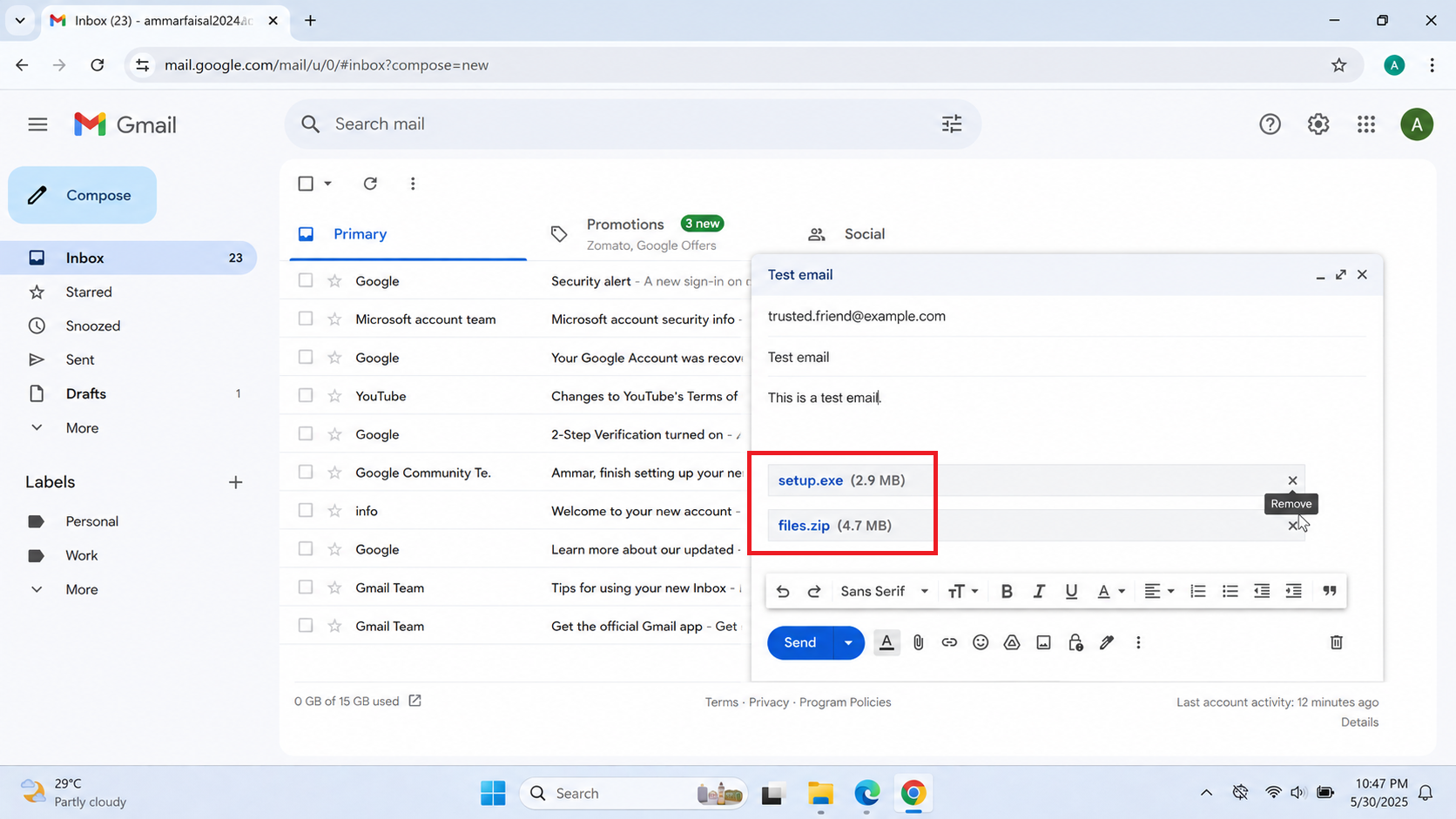
Gmail can block executable files directly or when they are packed inside an archive.
For a file that exceeds the size limit
Personal Gmail allows 25 MB in total attachments; Workspace limits depend on the administrator. An allowed, verified-safe file can be shared as a Drive link instead.
- Upload the file to Google Drive, then open your Gmail draft.
- Choose Insert files using Drive, select the file, then choose Drive link > Insert.
- Grant the intended recipient the access they need, preferably restricted viewer access. Remove the duplicate attachment before sending.
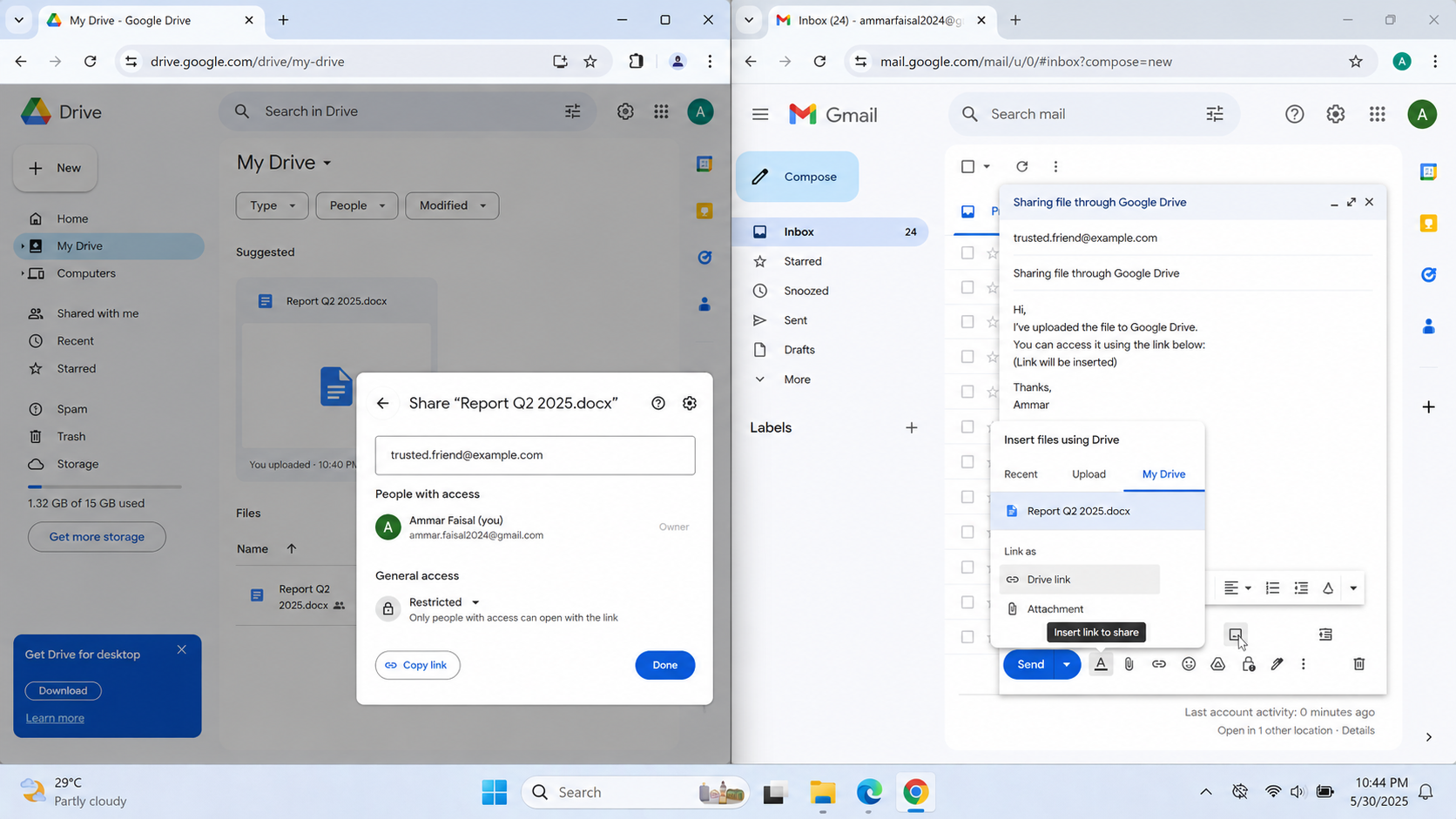
A Drive link avoids direct attachment size limits and gives Gmail a safer way to share large files.
Google’s Drive-sharing instructions cover the access check. A link does not make an unsafe file safe or override your organization’s sharing rules.
4. Remove Signature Links and Copied Formatting
Even an email without attachments can be rejected because of its links or embedded content. An old signature can add the same unwanted link to every new message.
- Create a new draft. Copy only the necessary words through Notepad or another plain-text editor.
- Remove the signature, website links, shortened URLs, images, and tracking. Leave out the sample website link pictured below during the initial test.
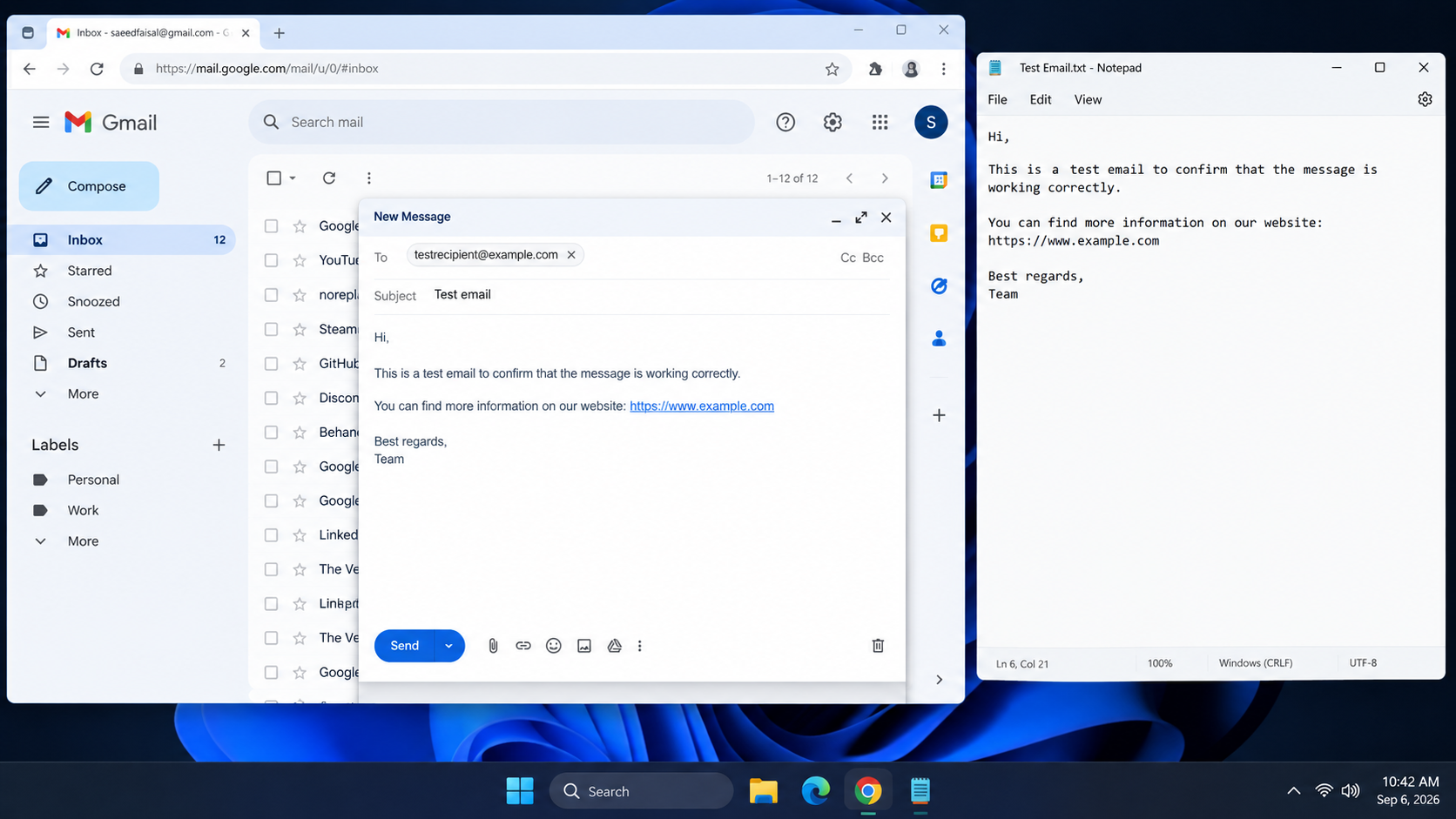
A plain version of the message is less likely to trigger content-based blocking. - After a clean message delivers, restore only necessary, verified elements gradually. Replace or remove anything that brings the rejection back.
A site you recognize can still have been compromised. Confirm its safety before reusing the link; do not disguise a rejected URL with a shortener.
5. Check the Sending Limit Before Retrying
Sending the same email repeatedly will not clear a limit. Personal Gmail can restrict sending after more than 500 emails a day or 500 recipients in one email; these figures are not guaranteed allowances.
- Stop retrying and remove invalid or outdated addresses from future recipient lists.
- For an explicit personal-Gmail sending-limit error, Google says sending normally returns within 1 to 24 hours. Follow any more specific notice.
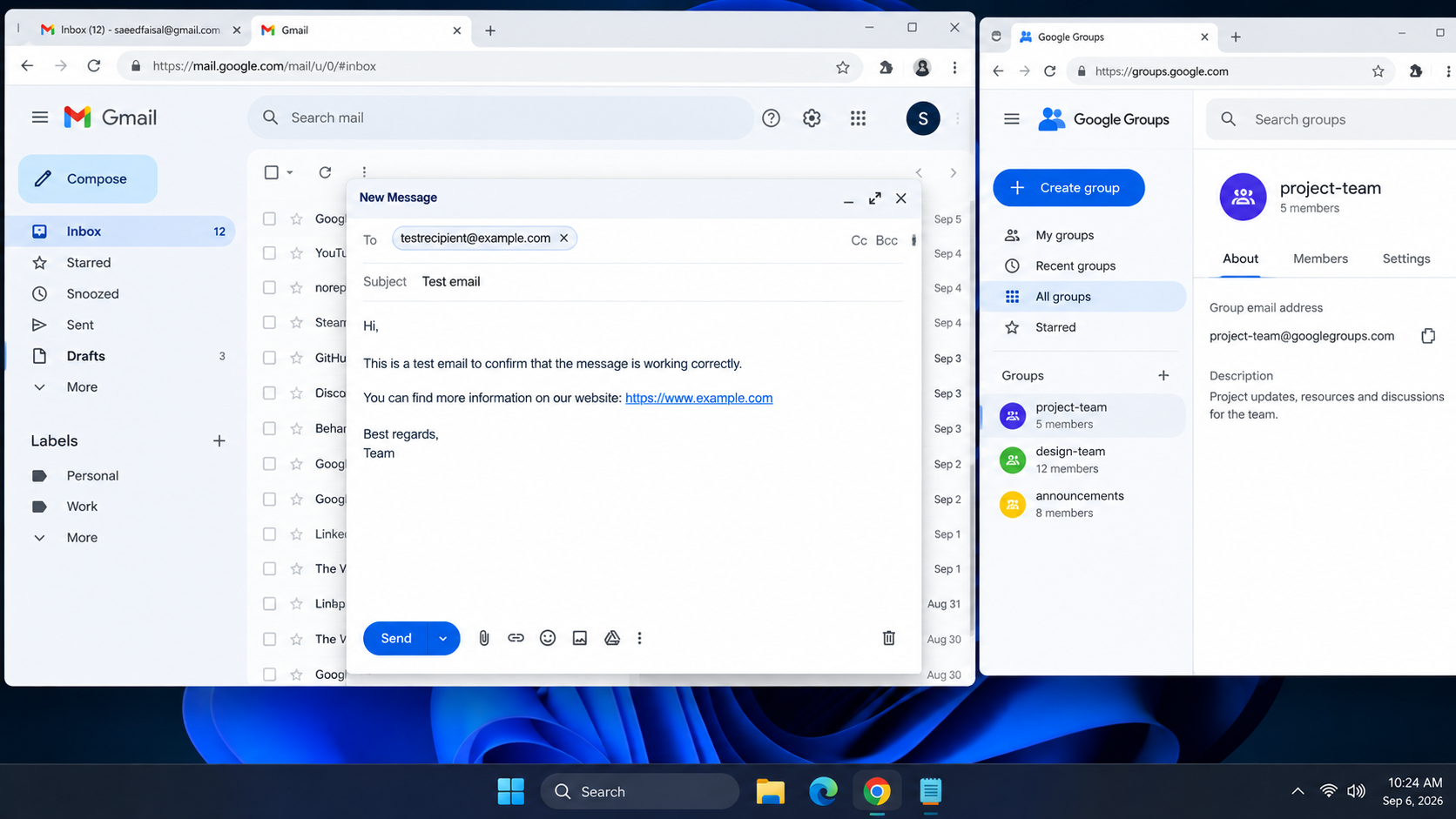
Large recipient lists and repeated sends can trigger temporary Gmail sending restrictions. - After the restriction clears, send one legitimate message before resuming normal use. Do not split lists or use groups to evade an active restriction.
Work and school accounts have different sending limits. The personal Gmail waiting period is not a universal fix for every “Message blocked” notice.
6. Correct the Recipient Address or Ask Them to Check Their Mailbox
An email that fails for one person but delivers elsewhere may need attention at the receiving end. That alone does not prove the person blocked you; Gmail’s individual sender-blocking feature normally sends mail to Spam.
- Compare the failed address with the recipient’s current address, including the domain after @.
- Remove stray punctuation or spaces and correct an outdated Google Contacts or autocomplete entry.
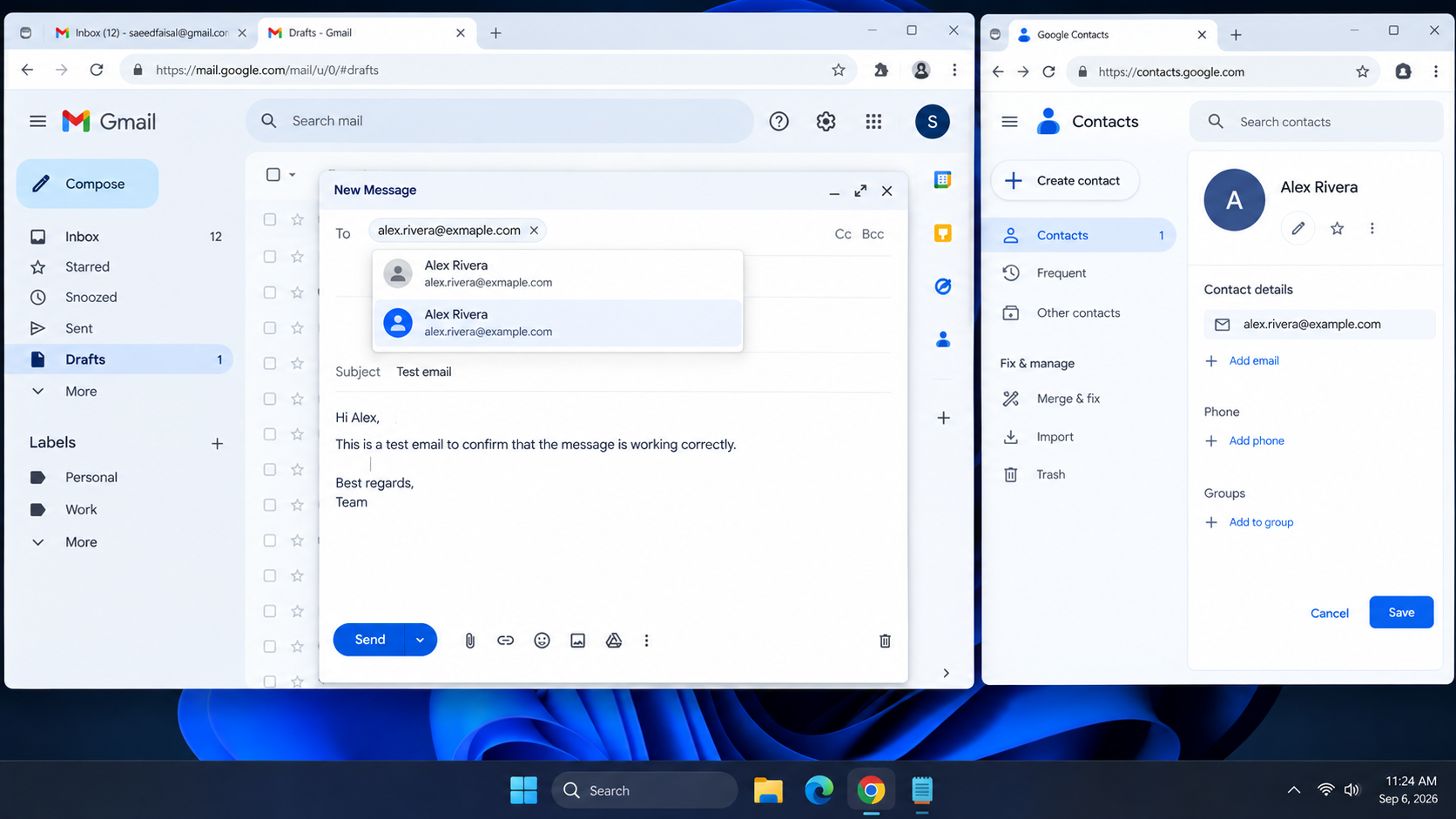
A bad address or receiving-side limit can produce a blocked or rejected delivery failure. - For a full mailbox, ask the recipient to free storage. For an organization-policy rejection, send the diagnostic text to their mail administrator through another channel.
A temporary receiving-server failure may require waiting rather than changing your draft. Follow the notice’s retry instructions instead of repeatedly resending.
7. Test Another Browser Before Clearing Gmail Site Data
A tracker or other browser extension can change an outgoing message. A private window helps compare sending without those additions, provided extensions are not allowed in that window.
- Save your draft and open a private or incognito window. You do not need to sign out of every account; the pictured sign-out menu is optional when correcting a wrong-account session.
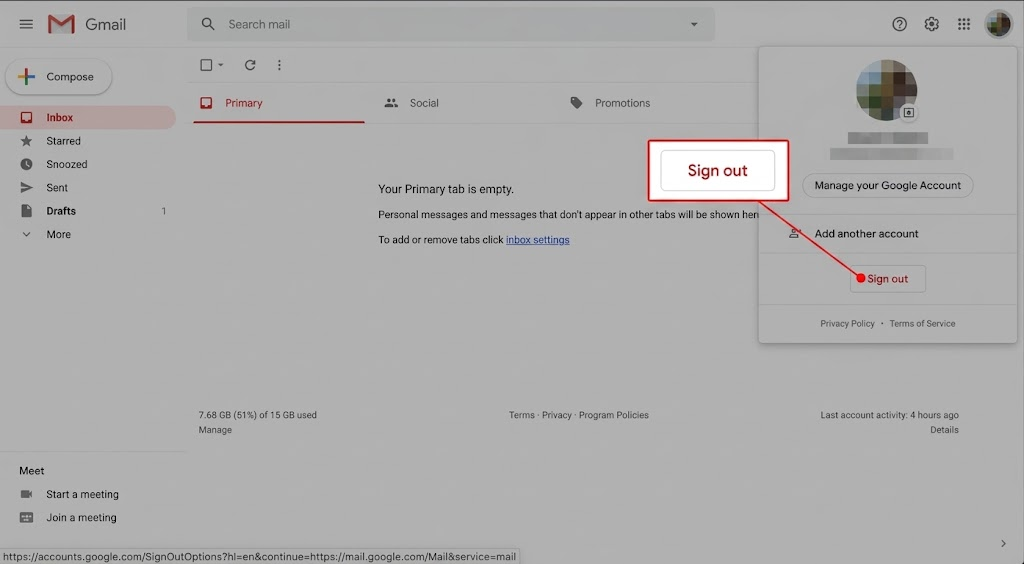
A clean browser session removes account switching and extension interference from the test. - Open Gmail and sign in only to the affected account. Have your password and verification method available.
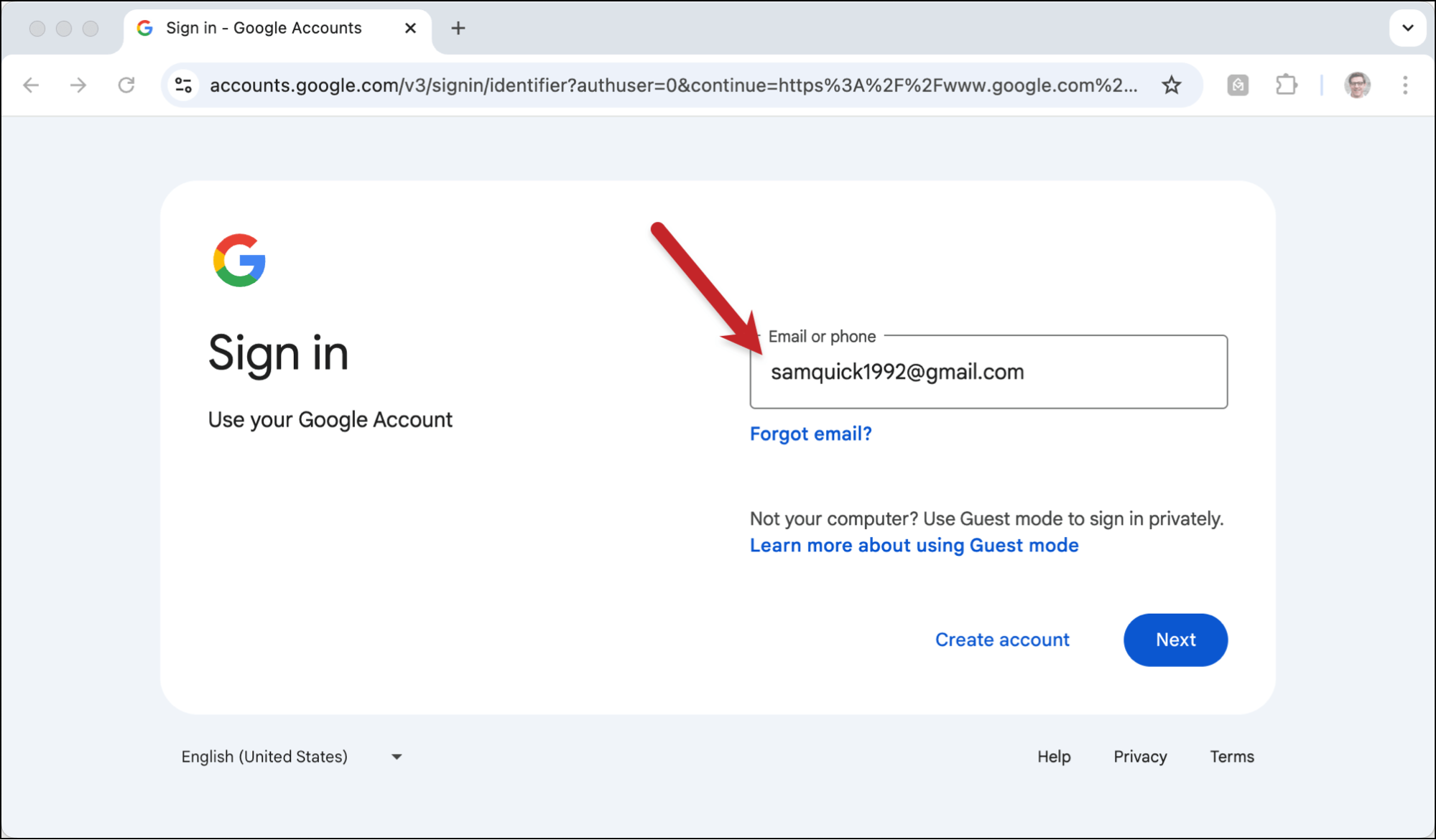
- Try one clean message, unless the notice already states a limit or policy restriction. Compare with another browser or the Gmail app if needed.
- When only the original browser fails, temporarily disable mail trackers and Gmail-related extensions. In Chrome, open Menu > Extensions > Manage extensions. Re-enable them individually, or restore them if nothing changes. Ask IT about managed extensions.
- If it still fails, preserve unsynced drafts before clearing Gmail site data. In Chrome, open Settings > Privacy and security > Third-party cookies > See all site data and permissions. Find mail.google.com and delete only that entry. Reopen Gmail and sign in again.
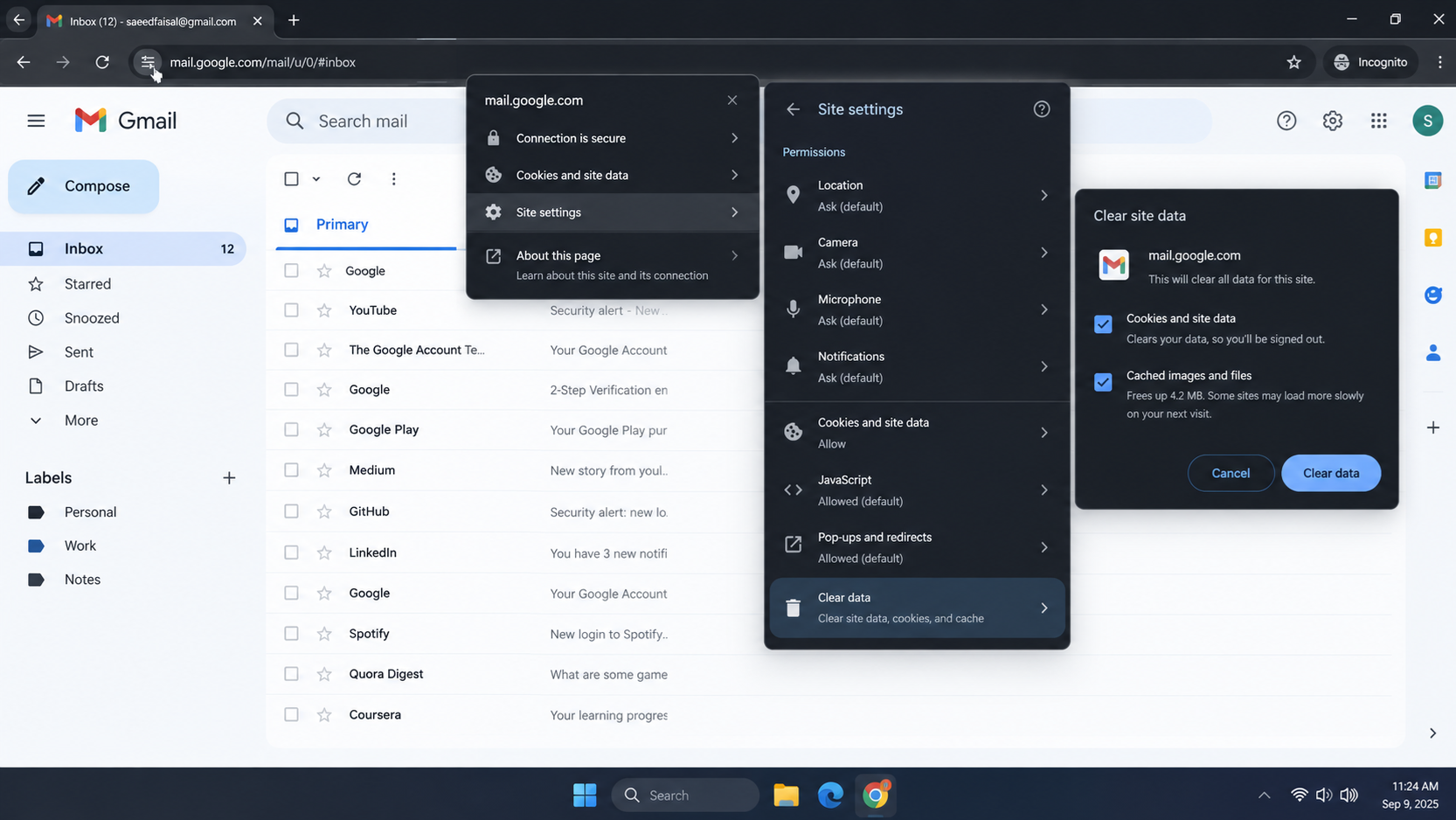
Clearing Gmail site data and testing without browser add-ons removes local send and upload interference.
Do not change unrelated permissions, such as pop-ups, to match the illustration. A stated authentication or policy rejection needs the named correction, not repeated cookie clearing.
8. Repair the Phone App Only When Web Gmail Sends Normally
A message stuck uploading or sitting in Outbox is different from a server rejection. App cleanup can help with unfinished uploads, but it cannot remove a sending restriction.
- Update Gmail from the official app store and restart the phone. Check your connection and any account-storage warning.
- For an unfinished upload, keep the original file and remove and re-add the attachment once the connection works.
Android
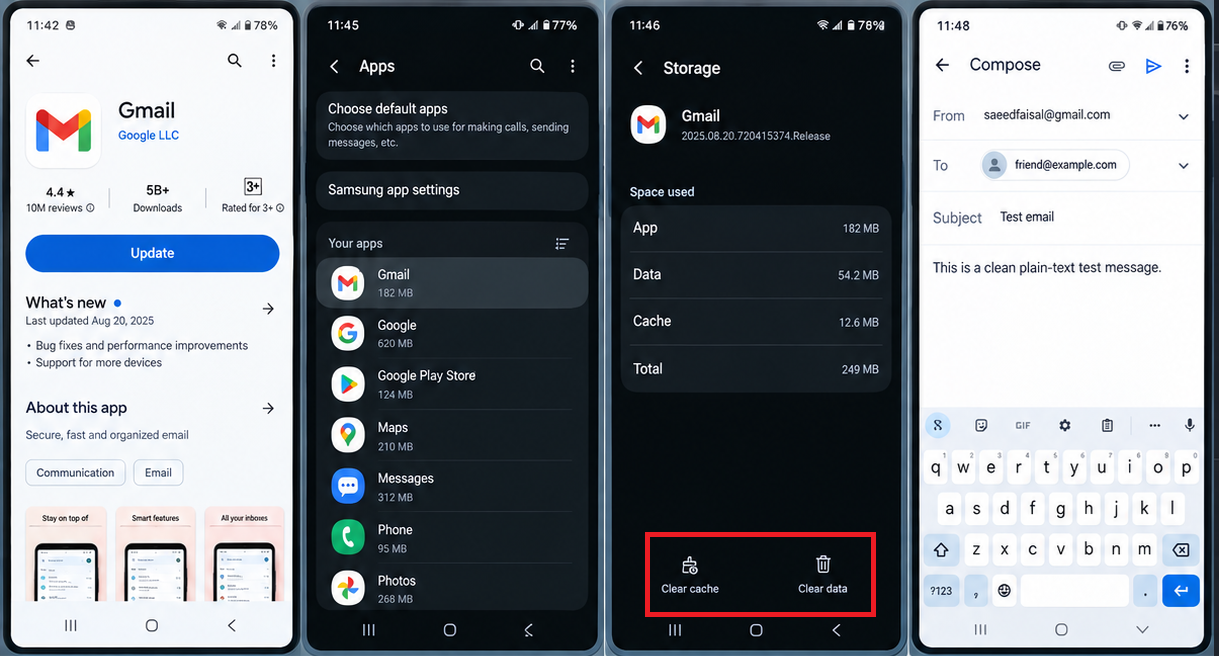
Open Settings > Apps > Gmail > Storage & cache > Clear cache. Labels vary by phone.
If cache clearing does not help, Clear storage/Clear data is a last step in Google’s Gmail app troubleshooting. Follow the draft-saving warning first.
iPhone
Reinstall Gmail only if updating and restarting do not help, after saving local work and checking sign-in access. The image above shows Android controls, not an iPhone reset screen.
For messages that remain in Outbox without a rejection notice, the Gmail not sending guide covers additional app checks. Keep the draft-saving precaution above before following any data-reset step.
9. Check Security Alerts and Unexpected Gmail Settings
Unsent messages alone do not establish that someone accessed your account. Security alerts, unfamiliar sent mail, or changed settings are reasons to investigate further.
- On desktop Gmail, open Details under Last account activity. Review access alongside Google Account security events; approximate locations can reflect your provider or VPN.
- For genuinely unrecognized activity, follow Google’s compromised-account recovery steps, including securing the password and removing unauthorized access.
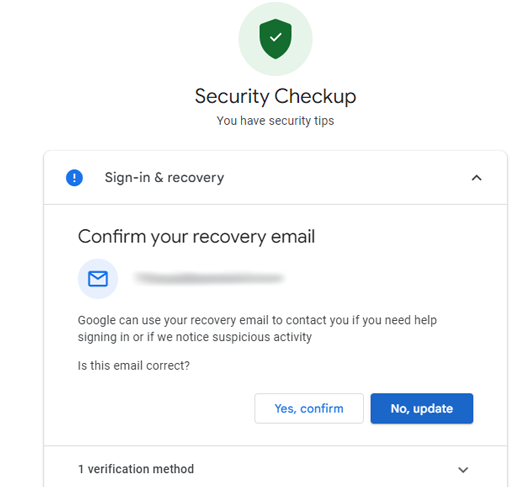
Unknown access or changed Gmail settings can cause Google to restrict suspicious sending. - Open Settings > See all settings. Check General for an altered signature and Accounts and Import for unfamiliar send-as addresses or delegates.
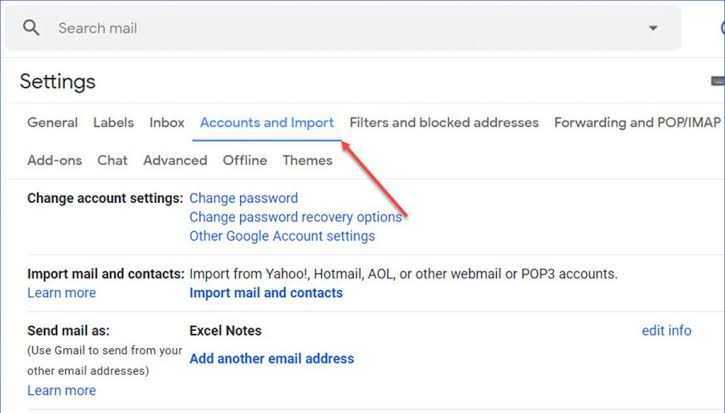
Unknown access or changed Gmail settings can cause Google to restrict suspicious sending. - Review forwarding and filters for unauthorized changes. Keep legitimate settings, especially on managed accounts.
Removing an incoming-mail filter does not unblock outgoing mail. After securing the account, observe any remaining stated sending restriction.
10. Ask the Sending Provider to Fix Custom-Domain Authentication
A rejection mentioning SPF, DKIM, or DMARC concerns the sender’s identity. This matters for a custom domain, website, or mailing service; Google manages these records for personal @gmail.com addresses.
- Give your domain administrator or sending provider the complete error, including any
5.7.26text and the actual sending service. - Have them follow Google’s sender requirements: SPF or DKIM for all senders to personal Gmail, with both recommended. Bulk senders need both SPF and DKIM, plus DMARC and aligned sender identities.
- Include every authorized sending service in the configuration. Do not create a second SPF record or replace existing records with generic examples.
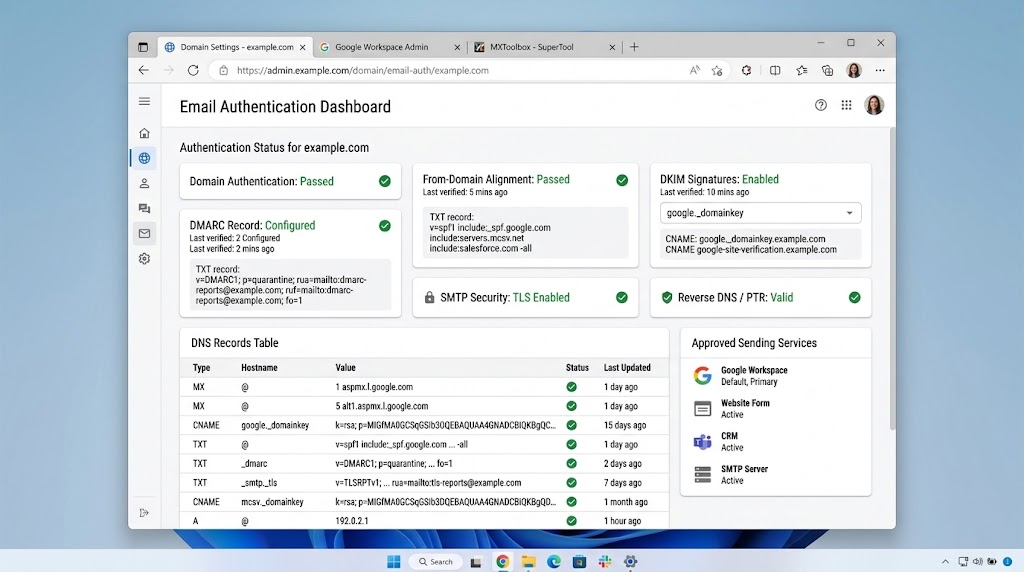
After changes take effect, check a new message’s authentication results. Correct authentication does not guarantee acceptance when reputation or content remains a problem.
11. Have a Workspace Administrator Check Logs and Restrictions
A work or school policy can reject mail even when the Gmail app works normally. A response containing gcdp identifies a custom Google Workspace rule.
- An authorized administrator can open Reporting > Email Log Search in the Admin console.
- Search a recent attempt by sender, recipient, time, subject, or the original message’s Message-ID if available, not the notification’s own ID.
- Review delivery events and the full SMTP response. Google’s Email Log Search instructions explain the available searches.
- For a suspended account, check Directory > Users and read the reason. A suspended Gmail service differs from an administrator-suspended user account.
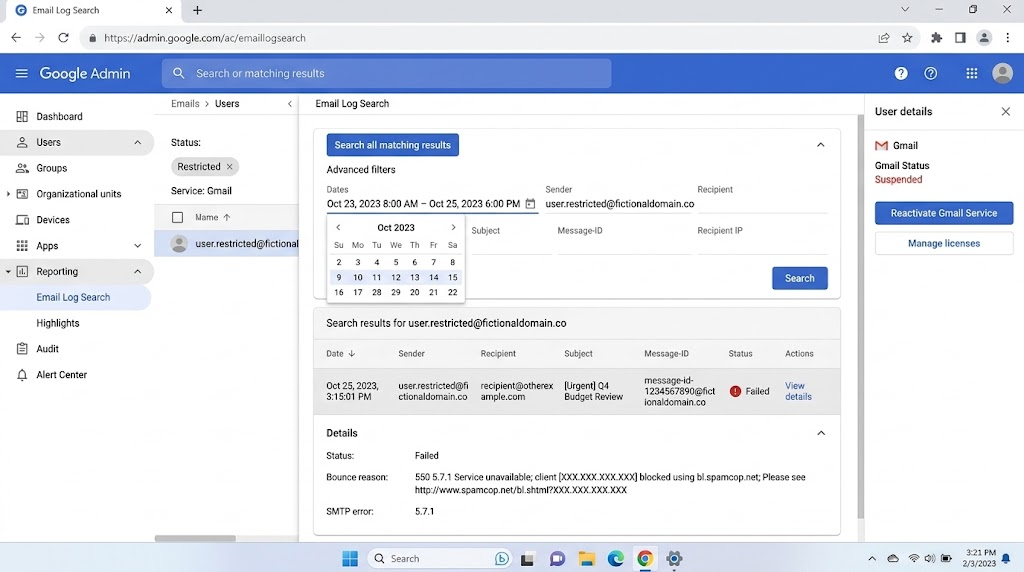
Workspace admins can use Email Log Search and the user page to confirm why Gmail blocked the message.
Only reactivate when eligible and after correcting the cause. Google’s Gmail suspension instructions explain the restrictions; a Reactivate button is not always available. Personal Gmail users have no Admin console.
When You Still Need Help
For personal Gmail, use the Help Community linked from Google’s rejected-email page. For Workspace, contact your administrator; for one rejecting organization, involve its mail administrator.
Keep the complete error, attempt time and time zone, affected recipient domain, and results of the clean-message test. Share full headers privately with trusted support; redact addresses and message content from public posts. A generic banner alone cannot establish the cause.