How to Fix ARK Aquatica Not Launching
If ARK Aquatica is not launching, it is most commonly caused by startup conflicts involving the Aquatica update, mods, anti-cheat, or security software. In many cases, the game fails during initialization because the update introduced changes that older mods or third-party tools are no longer compatible with. (On Steam, this update may apply automatically, so you may experience issues even if you did not install anything manually.)
1. Run the Game with Low-End Graphics Settings or Without Anti-Cheat
A crash at startup can occur due to heavy graphics initialization or a faulty anti-cheat startup. Testing the game with low-end launch options reduces strain on the system, while launching without anti-cheat helps confirm whether anti-cheat is involved. (Launch options can be used together by separating them with spaces, but not every option works on every ARK build, so test them one at a time if needed.)
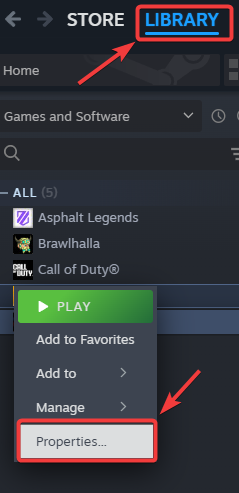
- Launch Steam and go to your Library.
- Right-click on ARK: Survival Evolved and select Properties.
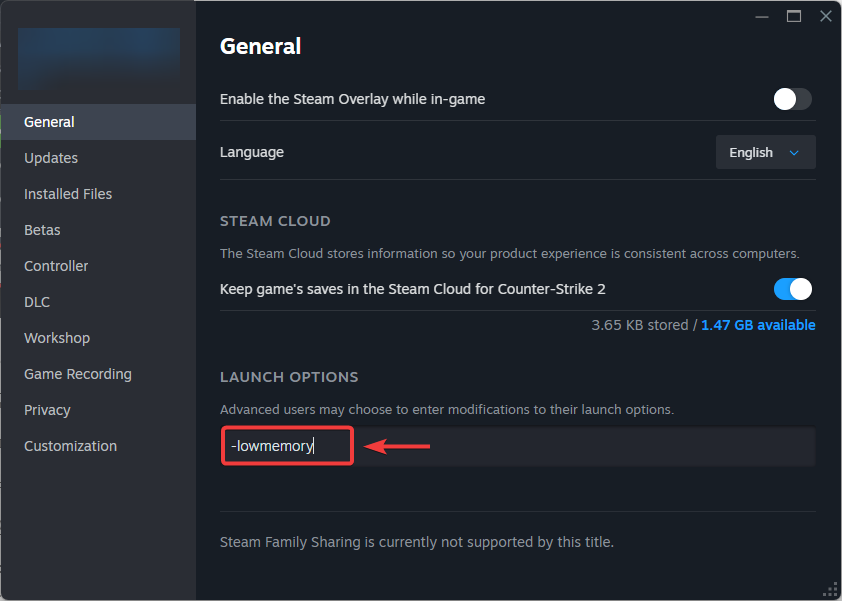
- In the General tab, locate Launch Options.
- Type one or more of the following commands to reduce strain on your system:
-lowmemory → runs the game in low-memory mode.
-sm4 → forces a lower-end shader model for compatibility on some systems.
-nomansky → disables sky effects for a performance boost.
-d3d10 → forces DirectX 10 instead of 11 (may help on older GPUs, if supported).
- To test without anti-cheat, launch the game and select Play ARK: Survival Evolved (Without BattlEye Anti-Cheat) when prompted.
- Restart the game and check if it launches without crashing.
2. Verify the Game Files
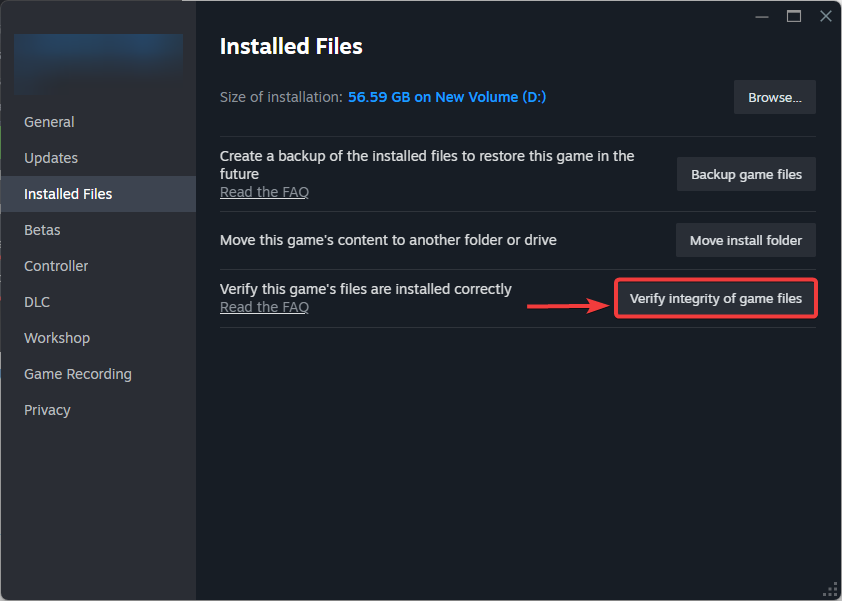
Corrupted or missing game files are among the most common causes of this issue. Verifying the game files restores damaged components and ensures the installation is complete. When you verify the game files, the launcher scans for missing or corrupted files and replaces them by downloading fresh copies from the server.
- Open Steam and go to your Library.
- Right-click on ARK: Survival Evolved and select Properties.
- Go to the Installed Files tab and click Verify integrity of game files.
- Once the process is complete, restart Steam.
- Launch ARK: Survival Evolved again to see if it runs without crashing.
3. Set the Beta Participation to Preeaquatica ASE or None
Recently, a compatibility issue caused by an update has affected many players. Several mods were broken by the Aquatica update, which can cause the game to crash or fail during startup. (If you’re using Steam Workshop mods, they are typically managed through ARK’s Workshop page on Steam.) Selecting the “preeaquatica ASE” or “none” beta option reverts the game to a more stable build, which may resolve launch problems triggered by the new patch.
- Open Steam and go to your Library.
- Right-click on ARK: Survival Evolved and select Properties.
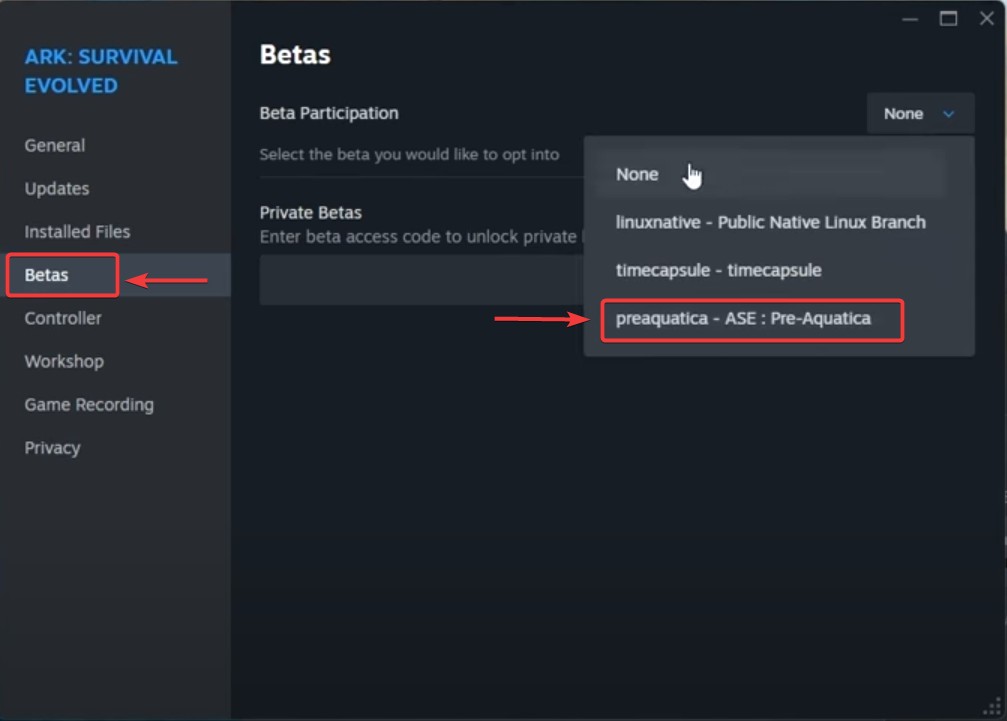
- In the left menu, click on the Betas tab.
- Open the Beta Participation drop-down menu.
- Select one of the following options:
preeaquatica ASE → rolls back to the version before the Aquatica update.
None → opts out of all beta versions and runs the stable build.
- Close the window and allow Steam to download and apply any necessary updates.
- Once finished, launch the game to see if it runs without crashing.
4. Uninstall BattlEye Anti-Cheat
You may have corrupted anti-cheat files, which can prevent the game from launching. This step is primarily used to test whether BattlEye is causing the crash. (If you uninstall it for testing, you can reinstall it later by launching the game normally through Steam.)
- Close ARK: Survival Evolved and make sure Steam is not running the game in the background.
- Open File Explorer and navigate to the ARK installation folder. By default, it is located at:
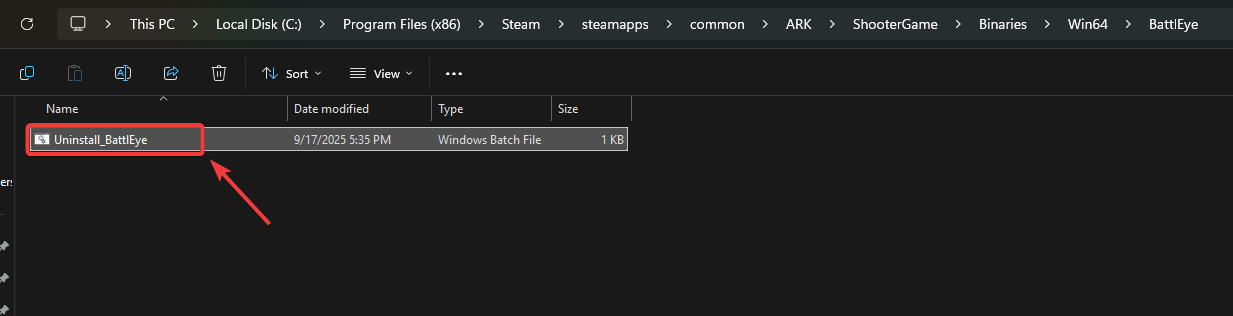
C:\Program Files (x86)\Steam\steamapps\common\ARK
- Inside the ARK folder, open the ShooterGame > Binaries > Win64 > BattlEye directory.
- Locate the file named Uninstall_BattlEye.bat.
- Double-click this file to start the uninstallation process.
- Once completed, launch ARK through Steam and choose Play ARK: Survival Evolved (Without BattlEye Anti-Cheat) when prompted.
5. Allow the Game Through the Antivirus
Antivirus software can sometimes block the game or anti-cheat files due to false positives. Adding ARK to the exclusion list helps prevent the launcher from being blocked. (This also applies if you only use Windows Security or Windows Defender.)
- Open your antivirus software from the system tray or Start menu.
- Look for Exclusions, Exceptions, or Allow List options.
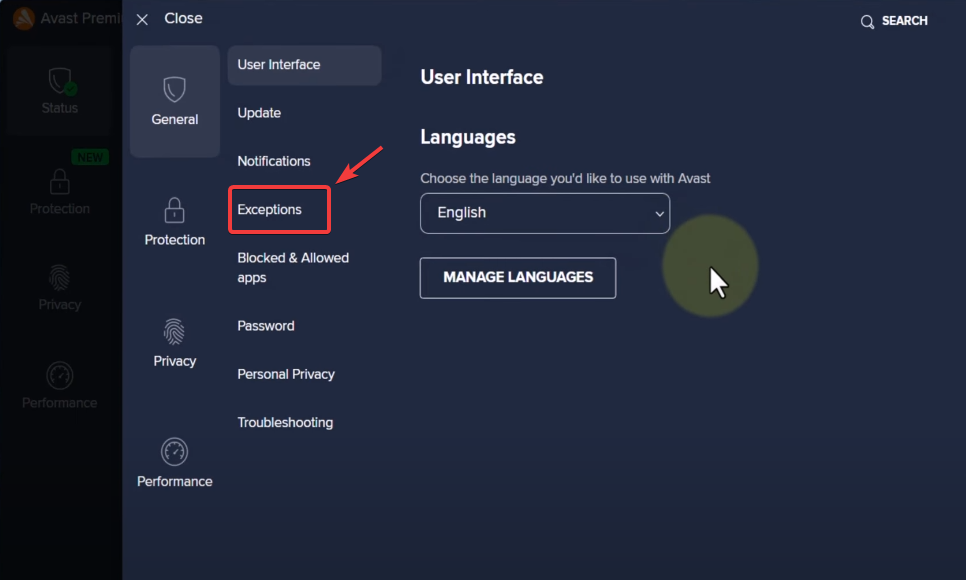
- Click Add or Browse, then navigate to your ARK installation folder.
- Add the following to the exclusion list:
ShooterGame.exe The full ARK installation folder
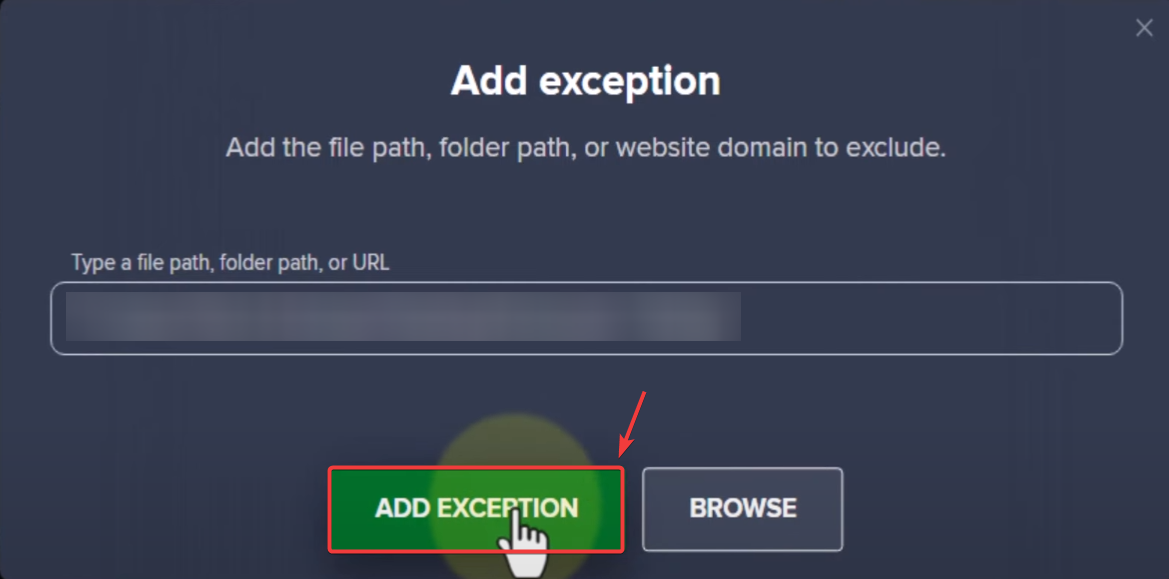
- Save the changes and restart your computer.
- Launch ARK: Survival Evolved again and check if the issue persists.
6. Reinstall the GPU Driver
An outdated or corrupted GPU driver can prevent ARK from initializing its graphics engine and may cause it to crash during startup. Reinstalling the driver refreshes the installation and can resolve crashes caused by corrupted driver components. (A standard reinstall is usually sufficient unless the issue persists, in which case a clean reinstall may help.)
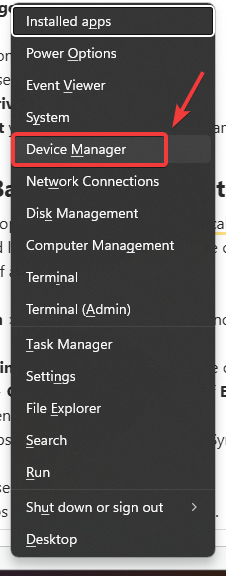
- Press Win + X on your keyboard and select Device Manager.
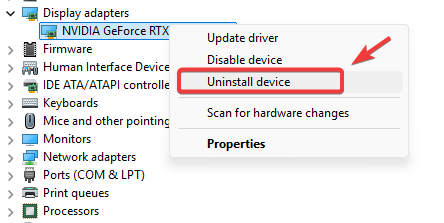
- In the Device Manager window, expand Display adapters.
- Right-click your graphics card (NVIDIA, AMD, or Intel) and select Uninstall device.
- Restart your computer to complete the removal.
- Visit your GPU manufacturer’s official website.
- Download the latest driver for your graphics card model and operating system.
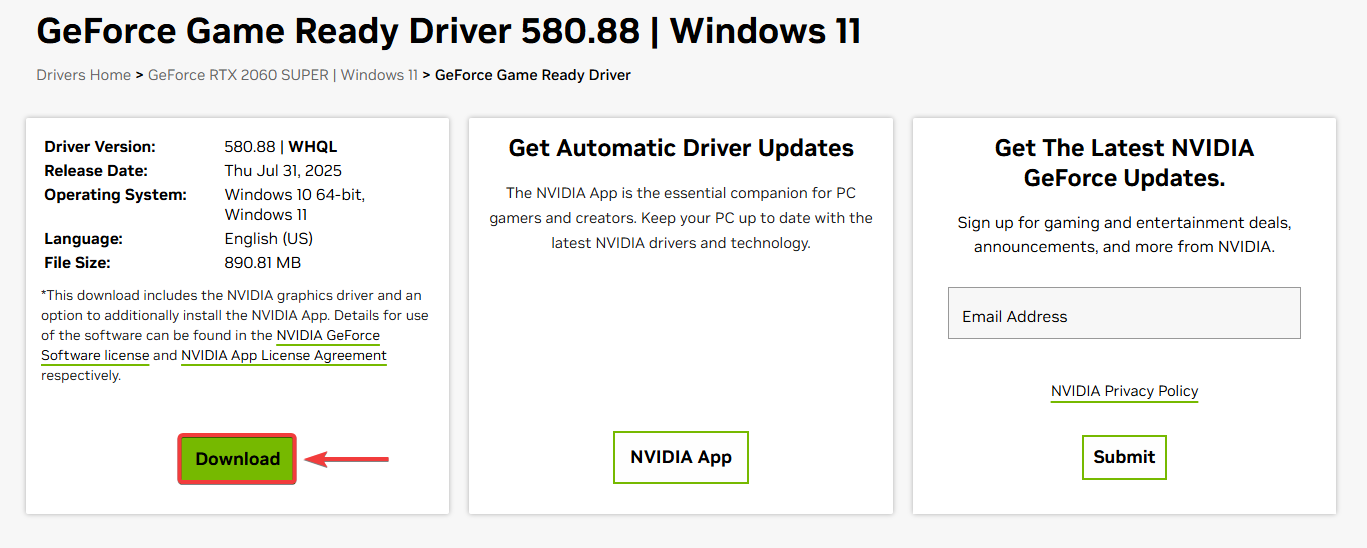
- Run the installer and follow the on-screen instructions to reinstall the driver.
- Once installation is complete, restart your PC.
- Launch ARK: Survival Evolved to check if the issue is resolved.
If the issue still persists after trying all the solutions above, perform a clean reinstall of the game as a last resort. This removes leftover or corrupted files that may not be repaired by verification and ensures the game is installed fresh with the correct build after the Aquatica update.