How to Fix Windows 10 Freezes Randomly?

When Windows 10 freezes randomly, the computer stops responding without any clear cause and often needs a restart. This issue usually happens because of conflicts between hardware and software, often due to old or incompatible drivers.

Additionally, background processes, too much going on at once, or damaged files can cause this problem.

In this article, we will discuss different ways to solve this error.

1. Reset the Winsock Catalog

This problem can happen because of network setup conflicts that mess up the system’s performance. Resetting the Winsock Catalog removes any broken network settings, bringing everything back to normal. This can help fix freezes caused by network issues, making sure that your connection and system run smoothly.

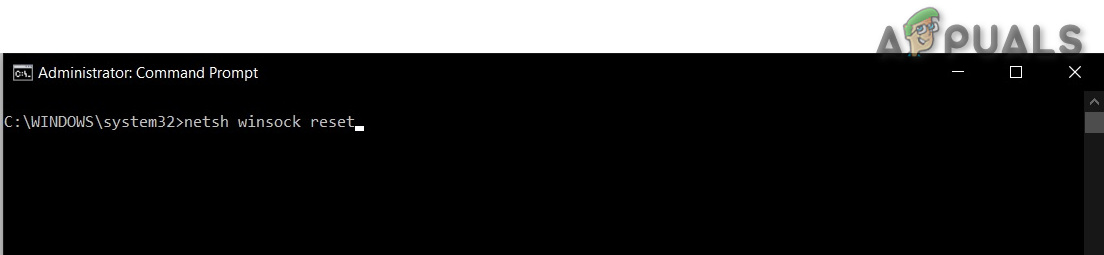
  1. Press Windows Key + X and select Command Prompt (Admin). Type the following command and press Enter:
    netsh winsock reset
  2. Restart your PC and test the changes.

2. Increase Virtual Memory

Increasing virtual memory can prevent random freezes by expanding the system’s ability to handle more tasks. Virtual memory extends RAM by storing extra data on the hard drive when RAM is fully used. Boosting virtual memory, such as to 8 GB, helps the system manage more processes efficiently and reduces freezes caused by memory limits.

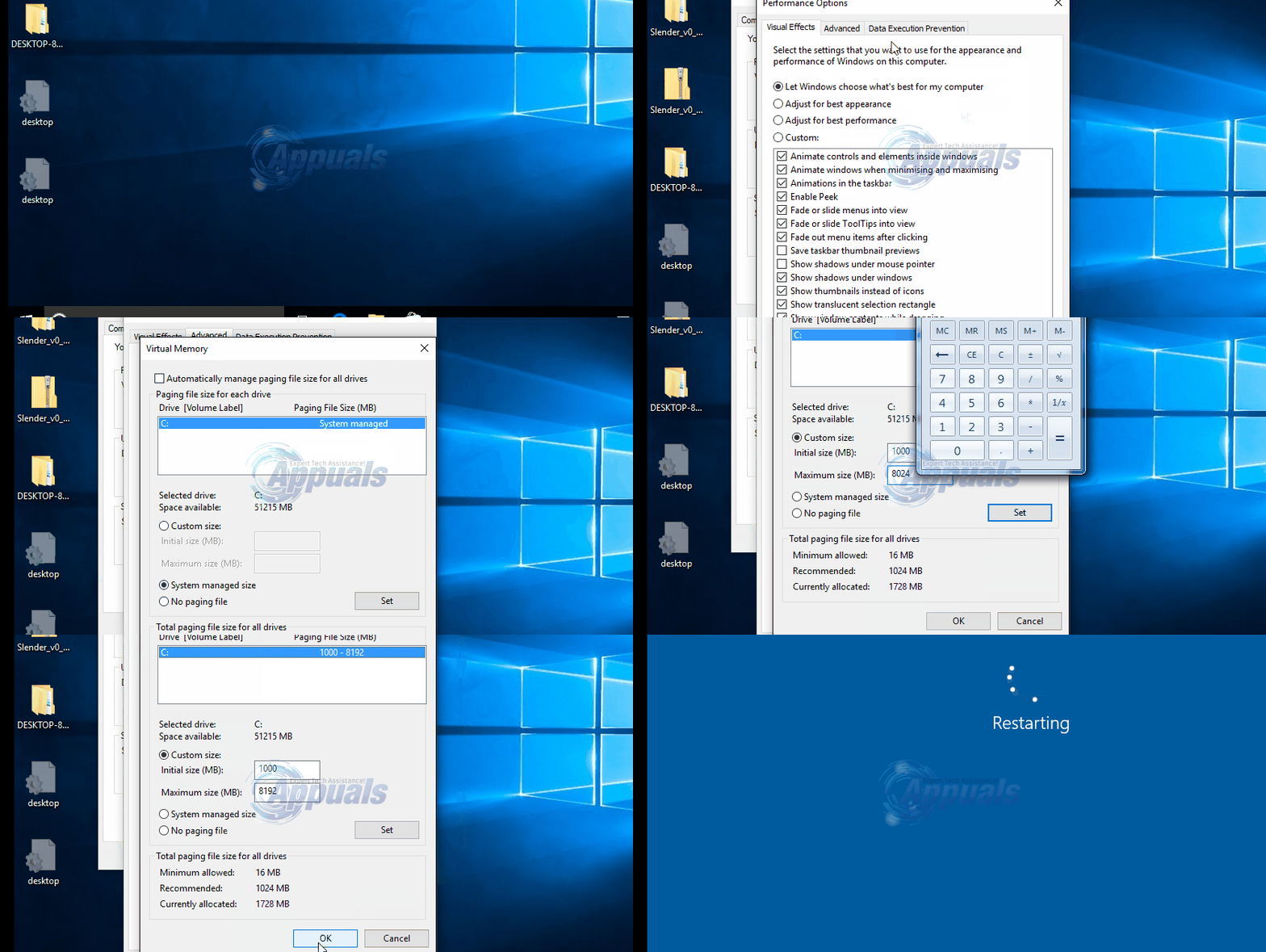
  1. Press Windows Key + R, type sysdm.cpl, and click OK. Go to Advanced > Settings > Advanced > Change.
  2. Uncheck Automatically manage paging file size for all drives and select Custom size.
  3. Set the Initial size to 1000 and Maximum size to 8192.
  4. Click OK and Restart your PC to apply the changes.
3. Update Graphics Drivers

Old or incompatible graphics drivers can cause system freezes. Updating them ensures they work with Windows 10’s updates, reducing problems and improving performance by fixing issues and optimizing hardware communication.

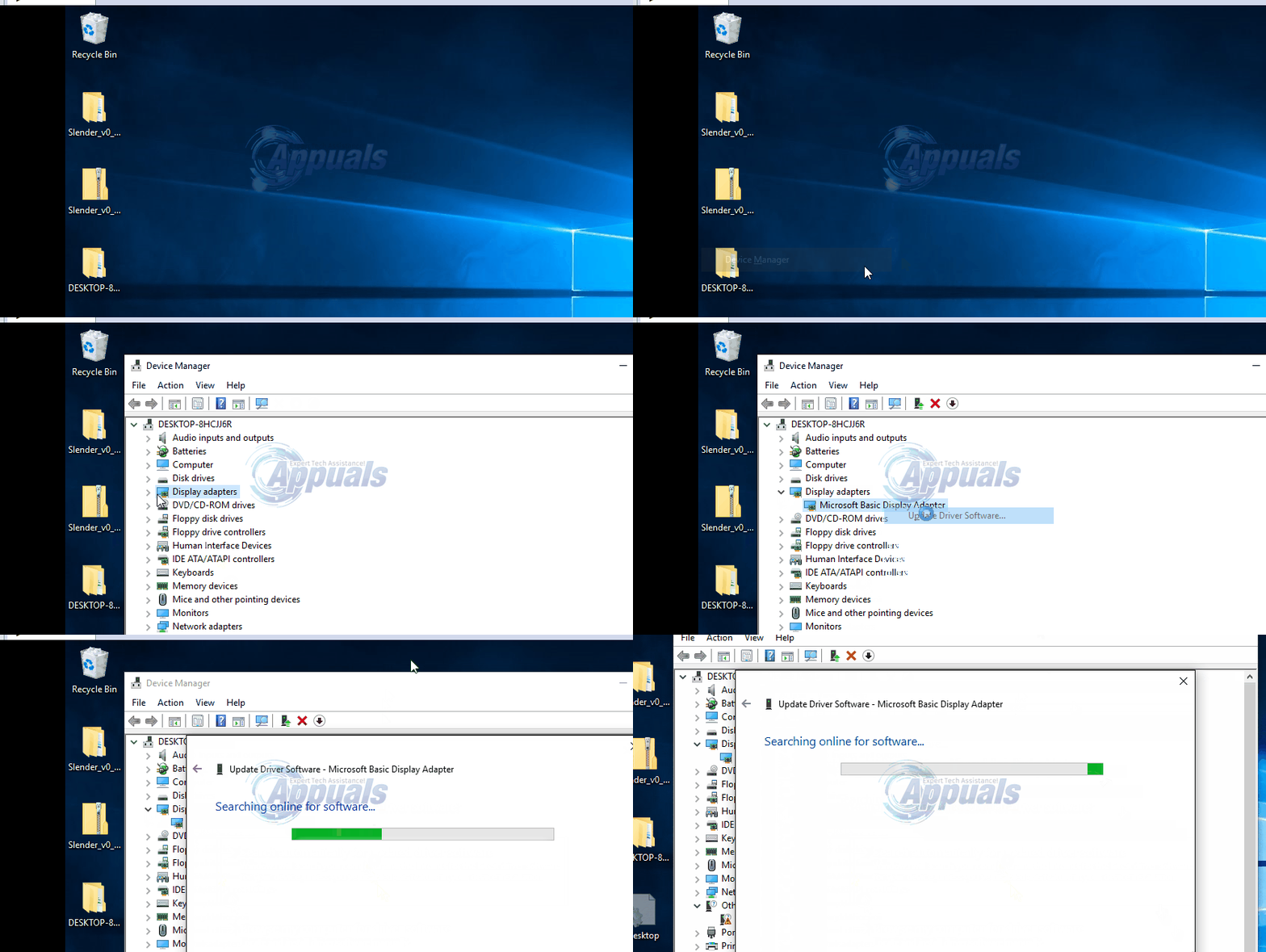
  1. Press Windows Key + X and select Device Manager. Navigate to Display adapters, right-click your graphics card, and select Update driver software.
  2. Select Search automatically for updated driver software and follow the instructions. If updated, restart your PC and check performance. If issues persist, download the latest drivers from the manufacturer’s website, install them, and reboot. If updating the graphics driver doesn’t work, update the audio driver in the same manner. Updating Windows 10 Drivers
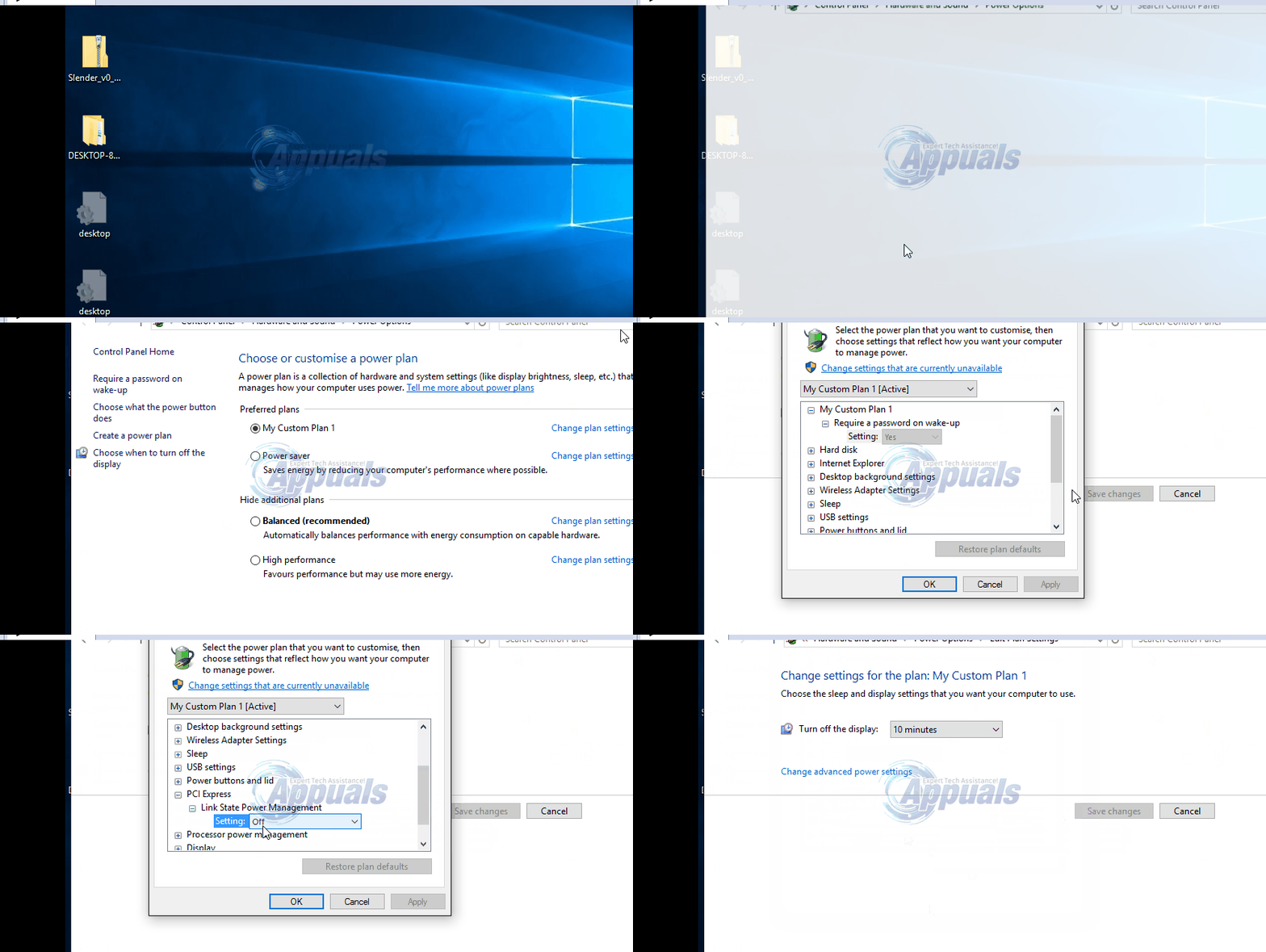
4. Turn Off Link State Power Management

Adjusting power settings can fix system freezes caused by power management issues. Turning off Link State Power Management, which affects PCIe devices, can reduce connectivity problems and stabilize the system.

  1. Press Windows Key + R.
  2. Type powercfg.cpl and press OK.
  3. Click Change Plan Settings for your active plan.
  4. Go to Change Advanced Power Settings. Scroll to PCI Express > Link State Power Management and set it to Off. Verify if the issue is resolved. Turning Off Link State Power Management
5. Turn Off Fast Startup

Turning off Fast Startup prevents the system from using saved data from the last session, which can cause issues with drivers or processes. This setting makes Windows start fresh each time, reducing the chance of freezes.

  1. Right-click the Start Menu to open the WinX Menu.
  2. Select Power Options.
  3. Click Choose what the power buttons do.
  4. Select Change settings that are currently unavailable.
  5. Uncheck Turn on Fast Startup (recommended) to disable it.
  6. Click Save changes.

6. Diagnose Your Hard Disk for Issues

A healthy hard drive is key to smooth performance, as damaged or failing drives can cause freezes. Running a diagnostic scan can find disk errors or problems that disrupt data access. Fixing these issues can improve stability and reduce random freezes.

To test your hard disk, click here.

7. Switch your Broadcom Network Adapter’s Driver Software to the Microsoft One

Switching to the Microsoft driver for your Broadcom Network Adapter can stabilize your system by reducing conflicts. Broadcom’s drivers might cause issues in Windows 10, leading to freezes. The Microsoft driver is tested more with Windows, improving stability and reducing interruptions.

  1. Right-click the Start Menu and select Device Manager.
  2. Expand Network adapters, right-click your Broadcom adapter, and select Properties.
  3. Navigate to the Driver tab.
  4. Click on Update Driver… and select Browse my computer for driver software.
  5. Choose Let me pick from a list of device drivers on my computer.
  6. Select the Microsoft driver variant and click Next. Wait for the installation.
  7. Restart your computer to check if the issue is resolved.

8. Disable Unwanted Apps

Unwanted background apps can slow down Windows 10 and cause freezes. Turning them off frees up CPU and memory, helping your system run better. This reduces performance issues, allowing important tasks to work smoothly.

  1. Open Settings from the Start menu, then go to Privacy.
  2. Navigate to Background Apps in the menu.
  3. Switch off any apps you don’t want running in the background.

9. Remove Temporary Files

Deleting temporary files frees up system resources and removes outdated data that can cause slowdowns or freezes. These files can clutter the system, so clearing them gives Windows a fresh start, reducing random freezes.

  1. Press Windows Key + R to open the Run dialog.
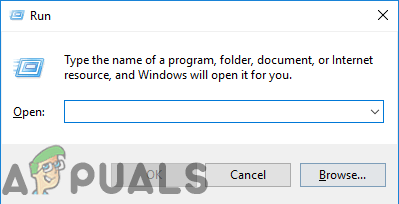
    Opening Run Prompt
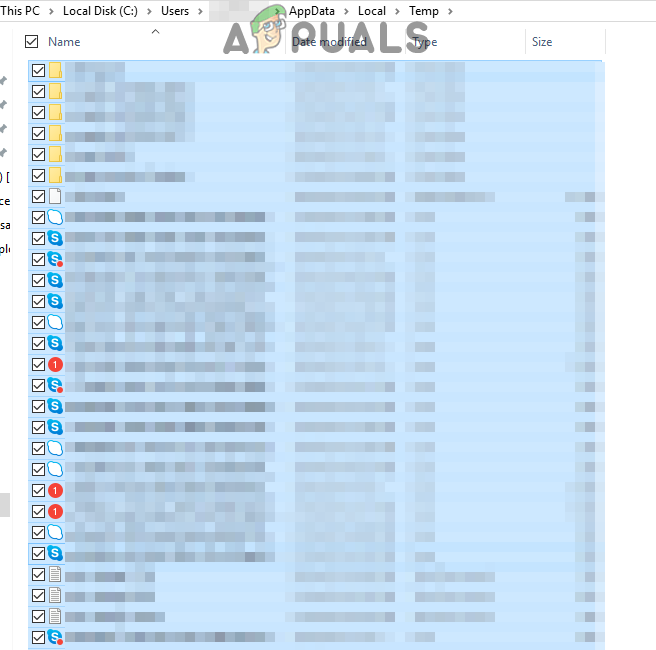
  2. Type %Temp% and press Enter. This speeds up access to temporary files.
  3. Press Ctrl + A to select all items. Selecting and deleting files
  4. Press Shift + Delete to remove them permanently.

10. Disable C-States in BIOS

Changing your BIOS settings, like turning off C-States, can stabilize your system by stopping the CPU from going into low-power modes that might cause freezes. C-States save energy, but they can lead to problems on some systems. Disabling them keeps the CPU active, reducing random freezes.

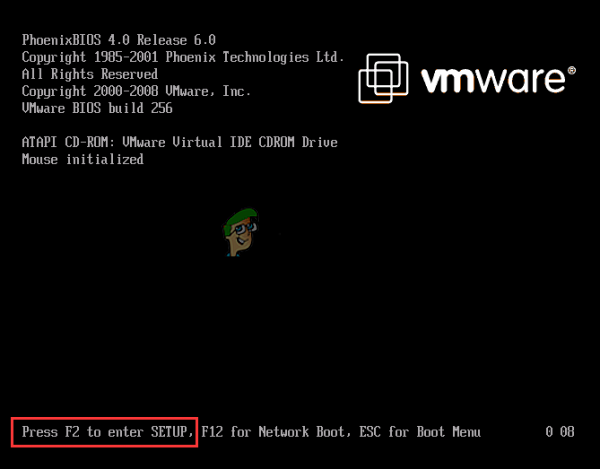
  1. Restart your computer and press the Setup key (e.g., F12, F2, F1, Del, or Esc) during startup. Pressing Setup Key
  2. In BIOS, go to Advanced and choose CPU Configurations. Navigating Advanced Settings
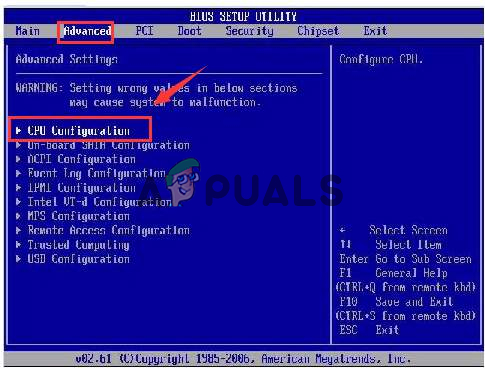
  3. Turn off C1E function and Intel(R) C State function. Disabling C States
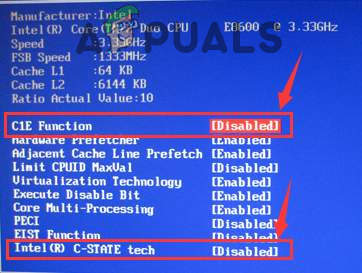
  4. Save changes and exit BIOS.

11. Restoring Computer

Reverting your computer to a previous point can undo recent changes in system files, applications, and settings that might cause freezing issues. It resolves problems introduced by recent updates or configurations.

  1. Press Windows + S, type Restore, and select Create a Restore Point. Typing Restore

  2. Go to the System Protection tab and click System Restore. Selecting System Restore
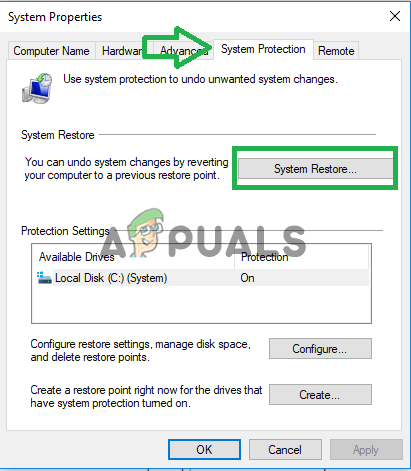
  3. Follow the wizard, select a restore point, and confirm your selection.

12. Defrag your HDD (Skip if you have an SSD)

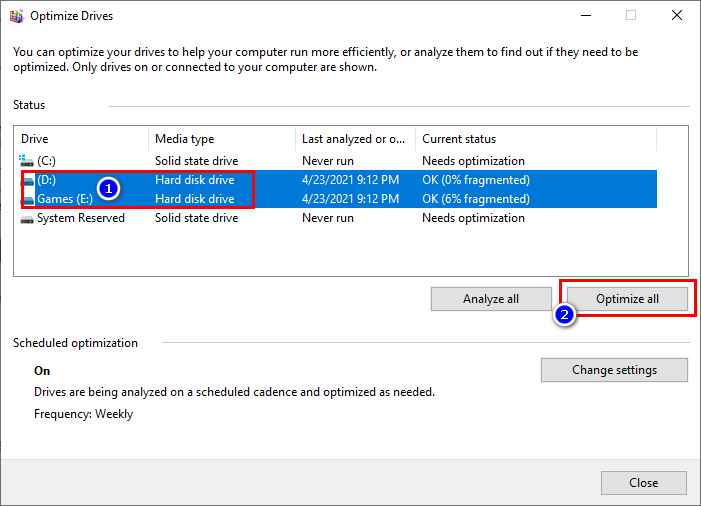
When you defrag an HDD, it reorganizes fragmented data so your hard drive works more smoothly, reducing sluggishness and freezing. This doesn’t apply to SSDs, as defragmentation isn’t needed and can shorten their lifespan.

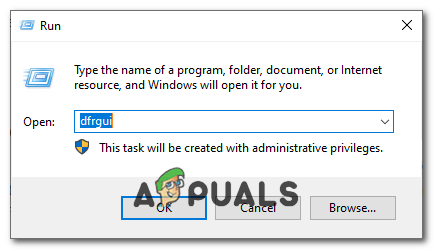
  1. Press Windows Key + R, type dfrgui, and press Enter. Opening Disk Defragmenter
  2. Select your hard drives and click Optimize All. Defragging HDD
13. Select High-Performance Power Plan

Changing power settings can improve system performance. The High-Performance power plan reduces features that may slow down your CPU or hardware, preventing freezes on Windows 10. This setting ensures resources are fully available, reducing slowdowns or interruptions.

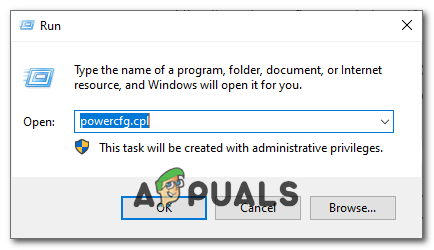
  1. Press Windows Key + R, type powercfg.cpl, and hit Enter. Opening Power Options
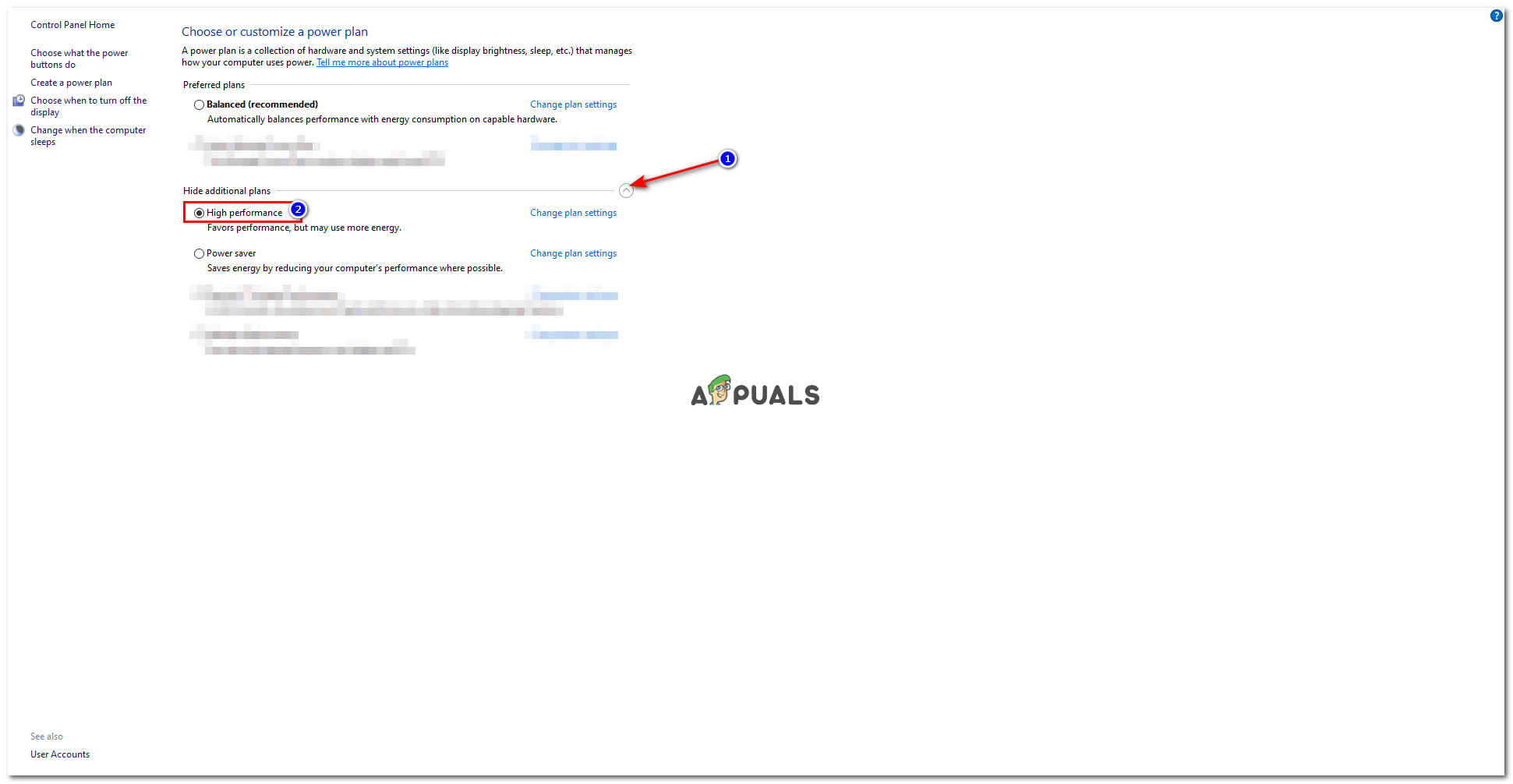
  2. Select High Performance from the available plans by expanding Show additional plans, and then restart your computer. Selecting High Performance
ABOUT THE AUTHOR

Kamil Anwar


Kamil is a certified MCITP, CCNA (W), CCNA (S) and a former British Computer Society Member with over 9 years of experience Configuring, Deploying and Managing Switches, Firewalls and Domain Controllers also an old-school still active on FreeNode.

Comments

98
    EA
    Earthling May 27, 2016

    This is the best set of fixes I’ve been able to find, well written and easy to follow, plus great screen clips.
    Thanks Kevin

      KA
      K. Arrows Author May 27, 2016

      Thank you 🙂

        EB
        Emile Bartholomeus Oct 22, 2016

        I still have freezes, even after trying everything.

          KA
          K. Arrows Author Oct 26, 2016

          What is the make/model of your system, and does it freezes after you run a specific program etc? Have you tried restoring it to the point when it didn’t freeze?

          EB
          Emile Bartholomeus Oct 26, 2016

          I have my own build PC, updated from Windows 7 to Windows 10in the time it was free. Now it freezes after a random amount of time, there is no specific program that makes it freeze. From a simple click on the explorer, to doing projects in photoshop or other heavy applications. Help please! 🙁 all the guys at Microsoft suppprt couldnt fix, even after one said she did fix it with advanced Troubleshootinhg. That worked, but didnt after a reboot

          KA
          K. Arrows Author Oct 30, 2016

          Have you done all the steps listed in this guide? I suspect paging issues.

    NZ
    Nina Zyryanova Jun 10, 2016

    Hi Kevin
    I would like to ask you about my PC freezes that occurs all the time after Windows 10 installation The problematic window appears when I turn on the laptop. the text in the window is as follow There was a problem starting C:/Windows/System 32/ logi LDA.dll. it is not a valid Windows 32 application. I am sure you would know how to fix it. Thank you in advance Nina

      KA
      K. Arrows Author Jun 10, 2016

      1. From the Desktop, right click the Taskbar and select Task Manager. In Task Manager click the Startup Tab.
      2. Locate the LogiLDA entry. Right click that component and select the Disable option.

        NZ
        Nina Zyryanova Jun 10, 2016

        I have done it, thank you. I hope it`s all fixed now.

    TC
    Tony Capraro Jun 22, 2016

    Hi Kevin
    Few month ago i’ve installed Win10 and unfortunately my Pc start freezing randomly every time i was watching a video or playing a game. So unable to fix it, i’ve reinstalled Win8.1. But the freezes where still here. In fact it was caused by my RAM. after changing it, no more freezes. But i’m still scared to install win10 again and to encounter some freezes. (Sorry for my bad english)

      KA
      K. Arrows Author Jun 23, 2016

      Did you upgrade the RAM or replace it with the same spec? Thanks

        TC
        Tony Capraro Jun 23, 2016

        Hi. I replace it with the same spec.

    TC
    Tony Capraro Jun 29, 2016

    Hi Kevin. Finally i’ve reupgraded my Pc to Win10. After following your fix, i still have freezes. this is the error message in event log:
    The driver DriverWudfRd failed to load for the device SWDWPDBUSENUM{5a535af2-3c83-11e6-b45c-448a5b2fa5d8}#0000000000100000.

      KA
      K. Arrows Author Jul 1, 2016

      WPDBUSENUM is the portable device enumerator, try disabling it.

    GO
    Goerge Jul 3, 2016

    Hi Kevin, I don’t know if my problem is link with yous, but when I trasnsfer somenthing to my external hard drive 3.0, my pc (windoes 10), began to be really slow and it take me around 20 minute to shut it down normally. But, I can transfer tings from the external hard drive to my pc without problem… And sometimes, windows 10 freeze for whatever reason, like seeing a video or juste by using the search option of my document… Do you think my proble is related to what you are talking about ? Sorry for the long question and thankx in advance !

      KA
      K. Arrows Author Jul 3, 2016

      You should try the suggestions listed here. These are general suggestions and works for most of the people.

        GO
        Goerge Jul 3, 2016

        Yeah, I try all this and nothing work…. it just take a little longer before everything freeze. I even try to going back to Windows 8.1, but my problem is here again. I try to scan it for knowing if there is a problem with it, like near death, but the program say it’s in perfect state…

        Thank you again !

    RE
    resident182 Jul 7, 2016

    I had similar problem. My computer was freezing randomly and I had to do
    a hard reset every time. I finaly found a solution for my problem. The
    freezes were caused by Broadcom 802.11n Network Adapter driver.

    Reply
      KA
      K. Arrows Author Jul 8, 2016

      I’ll update the article with the method you have provided.

    T4
    Tech 4hire Jul 8, 2016

    I was having the same issues and what I noticed in the Event viewer was that the GPS location was trying to report to Microsoft. I have a desktop so I turned off the location services and no more freezing. Go to Settings, Privacy, Location and turn that crap off.

    Reply
      KA
      K. Arrows Author Jul 8, 2016

      very valuable suggestion. thanks

      MZ
      Mark Z Nov 12, 2016

      This seemed like the easiest thing to try, so I did it on my Dell Studio 1560 laptop two days ago and no more problems. A few days ago it was freezing up every 20 or 30 minutes. Thanks for a great suggestion.

    DJ
    David Jauregui Jul 8, 2016

    None of these worked for my computer. My computer only freezes when I play games and I have tried all of the steps above. I’ve even reinstalled windows 10 twice and still didn’t work.

      KA
      K. Arrows Author Jul 9, 2016

      what is the graphic card model? have you checked the minimum system requirements for the game you’re playing?

        CH
        chickenpork54 Jul 9, 2016

        it doesnt matter watter game or even on the web it freezes randomly and i cant do anything so i have to hard reset and after a hard reset it doesnt turn on :/

          KA
          K. Arrows Author Jul 9, 2016

          check event viewer (win + x) key to see which event crashes or what the windows event viewer reports?

        DJ
        David Jauregui Jul 9, 2016

        I have a gtx 970

          KA
          K. Arrows Author Jul 10, 2016

          are the drivers up to date?

    KE
    Ken Aug 1, 2016

    One of the most complete guides I have seen so far, to be quite honest. I tried out the Power Settings but in a different manner from what you have suggested, your way will hopefully do the trick! I’m tired of having to deal with Windows 10’s freezes and not being able to run my work smoothly. I always thought it was a virus problem and ran a bunch of tests, used third party instant restore software, reinstalled windows, all to no avail.

    B4
    b4bylon Aug 24, 2016

    My computer stopped having this random freezes after I disable hybrid boot (fast start-up), I have an EVGA 790i sli ultra motherboard, and I had the same problems with 3 video cards. gtx 460×2 and a gtx 970, the random freezes occurred only after a shutdown, on a fresh install the computer was running find for 24+ hours but a shutdown *bang* sometimes I couldn’t start chrome to browse the internet. ( when you want to install the latest video card drivers, use DDU before installing the drivers)

    Reply
      ST
      Stewart Sep 17, 2016

      Did that sort the freezing?

    MB
    MB Sep 14, 2016

    I’m unsure how to read the Event Log. See attached screenshot. The critical ones all say the same thing.
    Should I be looking at errors & warnings before the critical event?
    Thanks for your help.

      KA
      K. Arrows Author Sep 15, 2016

      Nothing appears to be attached here.

      MB
      MB Sep 15, 2016

      https://uploads.disquscdn.com/images/1d8850ecb9bebf4ce0a325ce719a8e6b6ae2ea542720d69a8865ab1c41ddf4e1.jpg

      I think I’m beginning to understand the log a bit more now J)

      Looking through my event log I’m getting warnings (not a red Error message) about the The driver DriverWudfRd. I notice that someone in the discussion said the same thing & you said to disable WPDBUSENUM .
      How would I do that?

      Is my list of red error messages any longer than the normal or are most PC’s seeing the same amount?

      Thank you again in advance.

        KA
        K. Arrows Author Sep 15, 2016
    AW
    Adam W Oct 6, 2016

    I run an SSD with HDD storage. I found that the system managed virtual memory setting on my HDD(where I keep all of it) was the problem. After applying your fix it worked great. Why MS insists on forcing system settings that break the OS I will never understand and this is not the first time I have had to fix forced settings. I even used some of the other fixes since they may break them later 🙂 Great guide, thanks for sharing your knowledge.

    Reply
      KA
      K. Arrows Author Oct 7, 2016

      Welcome

    MA
    Marcus Oct 11, 2016

    I’ve got my brand new desktop with windows 10 only for a month and it has randomly freezing issues. It normally happens when I am playing games but sometimes happens even when I am streaming videos online, such as YouTube and Hulu. When it freezes, it is totally dead, my keyboard and mouse don’t work and the background sounds freeze as well. There’s nothing I can do except force it to hard reboot by holding the power button. I’ve tried different solutions but none of them works. I guess it might be something wrong with the Graphics (gtx1060) or memory (8gb ram) but not sure if it’s software or hardware issues. I can play games smoothly with high graphic setting but I aware that freezing happens more frequently when I play those high requirements games. I also tried some of your methods above but still doesn’t work.

      KA
      K. Arrows Author Oct 11, 2016

      Can you run a hadware diagnostics?

        MA
        Marcus Oct 11, 2016

        Any recommended hardware diagnostics tools?

          KA
          K. Arrows Author Oct 12, 2016

          what is the make and model of your system, normally most manufacturers such as DELL and HP Provide a built-in diagnostics tool?

          MA
          Marcus Oct 12, 2016

          Cyberpower sadly

      SH
      Sul Haren Oct 19, 2016

      I have exacly the same problem. I have a Alienware also used the inigrated Dell hardware diagnostic tool. It didn’t find problems

      SH
      Sul Haren Oct 20, 2016

      I have exacly the same problem. I have an Alienware and used the preinstalled Dell hardware diagnostics tool. It couldn’t find any problems

        KA
        K. Arrows Author Oct 26, 2016

        Did you try all the steps listed in this guide?

      AM
      Amila Madusanka Nov 5, 2016

      Try disabling devices in device manager that the system does not have driver for it. And also install Intel Rapid Storage Driver. Also disable unwanted devices like Bluetooth etc.

      Reply
      MO
      Mofo Nov 20, 2016

      Mine was a Win 7 upgrade and the machine ran fine for months until suddenly the freezes started in Netflix, then the system itself would freeze temporarily, 5-10 seconds, and then resume normally.

      I did the Winsock Reset trick and so far it seems to have solved my issues.

    KA
    K. Arrows Author Nov 13, 2016
    FJ
    franzen jose Nov 14, 2016

    Hi, may laptop freezen when i’m playing LOL after i reinstall windows 10, i don’t know why even though i did what the instructions above told me to do, my graphic card is also updated. Can you help me? thanks in advance.

      KA
      K. Arrows Author Nov 29, 2016

      Can you do a clean boot and then try playing the game?

    MO
    Mofo Nov 20, 2016

    Wow! so far, the Winsock reset seems to have done the trick! It was the only trick here that I wasn’t really familiar with and, with the sudden appearance of the hangs, I was at my wits ends as to the cause.. If none of your suggestions worked, I was going to do a complete re-install!

    THANK YOU – THANK YOU – THANK YOU!!!!

    If the freezes re-appear, I’ll return and update, but so far, so good!

    MO
    Mofo Nov 20, 2016

    I’m fairly sure you can go back even after 30 days, but I haven’t tried, so I won’t guarantee that.

    I’ll wager that you have some other issue besides Win 10 as being the source of your frustration.

    I installed it on an older laptop as well and was shocked, to be honest, that it worked so well. The laptop runs flawlessly.

    You might run an anti-virus program, if you haven’t already. I’m sure you have, of course, but perhaps it didn’t detect anything. Maybe uninstall the AV app you are using and try a different one. Don’t run two different ones simultaneously because they can wreak havoc on each other.

    Your problem sounds more like a Trojan virus more than an OS issue to me. Just sayin’…

    ʜ̶
    ʜ̶ᴀ̶ɴ̶ɴ̶ᴀ̶ʜ̶ Nov 22, 2016

    I have an ASUS N550JK notebook, bought it 2 years ago. Upgraded to Windows 10 when it came out, clean installed recently and it’s been freezing like crazy, every time I stop using it (like the mousepad) for example watching a video or skyping with someone, it would freeze after 30mins-2hrs time and it will stay that way for 15 days if it had to, I’ll have no choice but to hard reset. I’ve tried some of these methods, don’t really feel like anything is working out. T_T

      KA
      K. Arrows Author Dec 11, 2016

      Since it is a 2 years old notebook, i beleive this issue could be due to over heating of GPU or CPU. I would suggest getting the notebook cleaned and serviced.

    JE
    JerryJ Nov 27, 2016

    Turn Off Link State Power Management,Turn off Location Service,Disable dual Screens.One of them worked for me.
    Windows10 was freezing up to every two hours.Some times less.It has been two days with no freeze.Thanks

    Reply
    CQ
    Colum Quinn Dec 9, 2016

    I too have an AcerV5 and after upgrading the RAM to 6mb and switching out the hard drive to a SSD the freezing issue was still happening. What has finally cleared it after a fresh Windows 10 install was dowloading the AMD driver tool which then upgraded all my AMD drivers for audio and graphics. Try this and see if it helps

      KA
      K. Arrows Author Dec 11, 2016

      thank you for the suggestion, it will definitely help others.

    MI
    Mike Feb 15, 2017

    Hi, Kevin. I’m really starting to lose hope about now. I have a new notebook, a month old ASUS K550V and my Windows 10 freezes constantly. There is hardly an option I haven’t tried. It has been to the official service where all the hardware has been tested and is given the green light because everything seems to be working perfectly. I tried reinstalling the windows, I tried getting an update of an evaluation copy for the next version of windows. I tried everything mentioned on your list, but it keeps freezing. After it freezes, some 10 seconds later it will start to sound like the processor fan has gone mad and it could stay like that for days. If rebooted immediately after it freezes, there is a good chance it will freeze very fast. If I leave it to ‘cool off’ it might work longer. The quickest way to get it to freeze is to run any game, but it will freeze one way or the other. All drivers are up to date, nothing boots that doesn’t have to, etc. and I really need help because I don’t know what to do any more…
    Thank you in advance..

      KA
      K. Arrows Author Feb 15, 2017

      Looks like GPU isn’t handling the load well? If it’s new how about getting it replaced?

        MI
        Mike Feb 15, 2017

        I’ve tried transfering all the graphics on Intel and then on Nvidia, and at some point both. I’ve stress tested Intel’s memory, CPU and graphics which all of them passed with flying colors, also Nvidia has the latest driver, which I don’t know how to stress test, but it works same as Intel. Is it possible none of it works? When I’ve reset winsock, it went for a whole day in game without freezing (I’ve left it on and connected via HDMI to another monitor to see how long it will last) only to crash at some point when I exited the game and went online. It lately doesn’t even need to be in game to crash, most of the time it’s in browser, while downloading, when starting various applications, etc. I’ve also tried seeing if the event viewer got anything with a red flag in times of crashes, but there aren’t any. There are errors with DCOM when I start it and Kernel Power when I suffocate it by force (obviously). Other than that, there are no errors…

          KA
          K. Arrows Author Mar 3, 2017

          I would suggest a clean reinstall if that’s possible, if not let me know and i can connect with you remotely to troubleshoot this issue (next week)

        MI
        Mike Feb 15, 2017

        I forgot to mention in my last message, I found the mail from the official service center which states that CPU passed 15/15 tests, GPU has been tested with Heaven Benchmark and Furmark on full HD, RAM got 4/4 passes and also SSD works perfectly. They stated that on their seperate OS they’ve tested it with games they use to test ROG G series and hardware passed that one too with flying colors. That is why I really don’t know what to do anymore…

      CO
      child_of_Orion Apr 22, 2017

      Mike, I’ve the same problem and so far there’s no solution even after returning it – they say it’s all fine, but tested it on Windows 10 Home.

      My problem is on OS startup: Windows 10 Enterprise and Windows 10 Enterprise LTSB, both 64-bit encounter the same behavior – when I turn the laptop on, or on login screen, or right after login the OS, it freezes and will never respond. Then I’m turning it off the hard way, as no other possible, turning it on again and it always work on the second time. Yet, if you close the lid after some usage, then open it, it will work for some time and freeze again. And the model is K550VX.
      When it freezes, I can hear the fans going to max speed, which is weird since I play the latest CoD with advanced graphics and it’s fine – never freezed. Most of the time it freezes when in Chrome actually, but also, as mentioned – on/after Windows login process.

    AN
    Anna Mar 1, 2017

    I’m out of my mind as my computer keeps freezing. It could mantain 4h long full virus scan but it cannot handle 3 minutes using any browser, watching movie etc (didn’t even try playing games). It started around a week ago this weekend I reinstalled windows and suddenly yesterday-this same. This morning next reinstall and again, I didn’t even get full 60 minutes without freeze. Hardware is clean and this same for 3 years and I keep my software neat and well protected.
    I checked my hard drives, temperature reading, system errors, viruses-everything and nothing out of order but problem is still there. I use my computer for work and I cannot allow it to keep happening. Changing hardware is not an option.
    If someone could give me a hint how to make my computer work properly again-I’d be grateful.

      KA
      K. Arrows Author Mar 1, 2017

      Disable hardware acceleration and update your graphics driver. Let me know the results then.

        AN
        Anna Mar 2, 2017

        I don’t have option “hardware acceleration” in display settings (windows 10 pro) and I already checked every possibility found in internet but it’s nowhere to be found. My drivers are up to date for my Radeon as said by Catalyst. I checked twice and only change is that it freezes for 5minutes every 15seconds and not permanently.
        As I like windows 10 very much I’m so eager to have my computer working that I will go back to 8.1 or 7 even. But it’s peculiar that after 1,5 year suddenly my hardware and all settings are not good enough even for fresh installation of 10.

          KA
          K. Arrows Author Apr 1, 2017

          Has this issue been resolved? If not, please check if there has been any updates installed by Microsoft.

          AN
          Anna Apr 1, 2017

          nope, I tried everything. Finally I got an old, smaller Windows 10 image (the one that fit DVD capacity) and installed brand new system. Fingers crossed but my Windows 10 is 1 month old and 0 crashes 😉

          MI
          Mikey Jun 29, 2017

          I wonder the same, Anna. Were you able to finally resolve this? And if so, how?

          BM
          Bert Maria Jan 11, 2018

          exact the same problem here 🙁

    MA
    MaledettiToscani Mar 5, 2017

    I did the following:

    1. I turned off Link State Power Management

    2. I updated my Broadcom network adapter’s driver software

    3. I disabled all the Background Apps

    Since last night, I have not experienced any trouble at all, and I’m inclined to believe that my random freeze issue — which, btw, was driving me mad — has been fixed.

    THANK YOU SO MUCH FOR THIS

    Reply
      KA
      K. Arrows Author Mar 6, 2017

      (thumbsup)

      RY
      ryan May 22, 2018

      Same for me. Programs wouldn’t run or anything. Changed Broadcom to MS driver and appears to be ok.

      Reply
    EB
    Emily Blake Mar 18, 2017

    Hi, I urgently need your advice and would be grateful if you kindly have some tips for me.

    I am running Windows 10 Enterprise x64. After I shutdown my laptop and then after turning on again, it always hangs during boot up. Under these circumstances I usually need to force shutdown (2 or 3 times) and then it boots normally.

      KA
      K. Arrows Author Apr 6, 2017

      have you tried a clean boot?

    TR
    tr Mar 29, 2017

    this error break my hard disk. i have now a firmware hdd corupted cod 0 0 hitachi

    TR
    tr Mar 29, 2017

    and i try everything but now i have same problem on windows 7 too 🙂 mssssssssssssssss

    SA
    SacoCheio May 1, 2017

    I have a Windows 10 Laptop and the random freezes were driving me nuts. The “Turn Off Link State Power Management” did the trick and you saved the day.
    Thank you very much for sharing this.

      KA
      K. Arrows Author May 3, 2017

      welcome. 🙂

    KK
    Kane kane May 6, 2017

    Tried everything on this list and its still freezing ASUS K501UX-DH71. Updated all drivers and even ran reimage and no luck :c It just hard freezes seemlingly completely at random, sometimes spaced over every five minutes fr hours on end, sometimes not for a week. Is there anything else I should try?
    But thank yo ufor the list it was quite informative and had easy to follow instructions

      JE
      jerry May 15, 2017

      try right click taskbar, taskbar settings, auto hide taskbar and set it to off.

      Reply
    AN
    Andrew Jun 23, 2017

    windows 10 is bad. i am using windows 8.1 without any problems.

    SG
    Simon Green Jun 25, 2017

    I have a Windows 10 Laptop [Lenovo] .Works for me (so far) as suggested :
    1. Turn Off Link State Power Management;
    2. Increase Virtual Memory up to 8192.
    Thank you

      KA
      K. Arrows Author Jul 14, 2017

      thx

      SS
      Shreesh shrivastav Aug 18, 2017

      Sir which lenovo model do you have?
      When I was trying to turn off link state power management in my lenovo E470 I was not getting my custom plan option. Help me please sir

      SS
      Shreesh shrivastav Aug 19, 2017

      Sir which lenovo model do you have?
      When I was trying to turn off link state power management in my lenovo E470 I was not getting my custom plan option. Help me please sir

    MC
    Melissa Carpinello Aug 2, 2017

    I got a new gaming computer and it was randomly freezing or restarting. Tried many of the things on this list and it hasn’t froze since. Thank you so much for this.

    SS
    Shreesh shrivastav Aug 18, 2017

    When I was trying to turn off link state power management in my lenovo E470 I was not getting my custom plan option. Help me please sir

    SS
    Shreesh shrivastav Aug 19, 2017

    When I was trying to turn off link state power management in my lenovo E470 I was not getting my custom plan option. Help me please sir

    BB
    Brad B Jan 20, 2018

    I am just getting done doing a clean install of windows 10 and have all my drivers updated and installed and all my apps and games back I normally use and I had a week of no problems at all and my PC would stay on for days with no probs. Now I get freezes and after few mins of no ability to do anything on my PC is restarts auto. Its happened each night around randomly. Once just using Edge, youtubing and second had VR oculus open, edge, mail and another game launcher. Seems random. PC is a year old and running out of warranty in days not that supports any help.. I dont know what to try and do. I’ll try link state but its always been on before.. Fast starts on but always has been.. Really sucks as I just did clean install.

    MI
    Mike Feb 3, 2018

    After trying every possible solution, resetting the Winsock Catalog did the trick for me. I don’t know why, but it did. Thanks for the help.

    Reply
    SW
    Shane Warren Author Sep 30, 2019

    Make sure that the PSU isn’t faulty, also, maybe the PC has been affected by Malware.

    DJ
    Djuro Apr 11, 2020

    Nothing worked, i tried ever method

      SW
      Shane Warren Author Apr 13, 2020

      Disable overclocking on your computer and also try to boot into clean boot and check if it works inside there.

    ED
    Edrin Sep 2, 2020

    I used to have this problem in Windows 10. I have an Acer Aspire V5-122p Laptop and I thought there is no fix to this. But I did some digging and I found the solution. I tried all of the methods said in every websites but none of them worked for me. Here’s my solution to this:1. Go to Control Panel – System and Security – System – Advanced System Settings – Hardware – Device Installation Checking – Then check the No option then save.2. Download EaseUs and switch to Legacy Bios. Watch this to know the step by step on how to switch to Legacyhttps://www.youtube.com/wat…3. Download and Install this driver (I have an AMD Processor so it might not work for all)http://global-download.acer… E5-521&OS=ALL&LC=en&BC=ACER&SC=PA_64. That’s it! Enjoy your smooth pc/laptop!

    Reply
    WT
    Wallace Tyau Nov 23, 2020

    I had that same problems with my 10-year old computer, which I just solved. Nobody suggested to check for dust accumulation blocking the air vents and the CPU cooling system. I found my CPU fan and heat sink to have an accumulation of dust so thick that the CPU was being overheated. That caused the computer to freeze and lock up. After cleaning the accumulated dust, the computer ran without glitches or freezing anymore. I think checking for blocked air circulation should be the first thing to check.
    Hope this helps

    Reply
    VG
    Vaibhav Gupta Dec 17, 2020

    I had the same issue but managed to fix. You can read below which one is causing for you.
    When dealing with Windows 10 Freeze, you start to get annoyed by wild glitches, lags, and system brakes.
    1. Use Effective Antivirus For The System
    2. Update your drivers with various programs—popular driver update software DriverPack and Driver Booster.
    3. Disable unnecessary programs in the task manager in the Startup tab.
    4. Change the thermal paste on the processor or video card.
    5. If you use your PC under heavy load, more than it should be according to the technical definition, the computer will freeze.
    6. Among other problems, BIOS modification can cause the computer to freeze. When you overclock your system processor or RAM, you can quickly run into stability problems. Try to avoid making any changes (if you haven’t already). Resetting the BIOS to default can fix your freeze problem.
    7. Remove all USB devices, flash drives from the ports of your computer or laptop.
    8. Remember which application you installed last. Try to find and remove it.
    9. Remove unnecessary, unreliable programs.

    TP
    tpkyteroo Dec 9, 2021

    To solve this problem the fast way, uninstall windows and install linux instead. 😉 Then, have another set of issues facing you. LOL