Fix: VirtualBox “NtCreateFile(\Device\VBoxDrvStub) STATUS_OBJECT_NAME_NOT_FOUND
If Oracle VM VirtualBox fails to start a virtual machine and shows “NtCreateFile(\Device\VBoxDrvStub) failed: STATUS_OBJECT_NAME_NOT_FOUND (0xc0000034)”, it usually means VirtualBox’s kernel driver (for example, VBoxDrv or VBoxSup) is missing, blocked, or not loading. Without this driver, VirtualBox can’t create the device interface it expects (the VBoxDrvStub device path), so the VM aborts at launch.
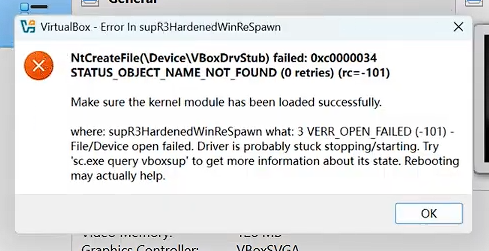
This commonly happens after a VirtualBox update, an incomplete installation, Windows security blocking driver installation, or when Hyper-V / VBS (Virtualization-Based Security) changes how virtualization and drivers are handled on the system.
Depending on your VirtualBox version and Windows setup, VirtualBox may fail to load its driver in its native mode, or run only through Hyper-V (which can affect compatibility/performance).
Before you start, do a Restart once (not Shut down). On many PCs, Shut down uses Fast Startup and may not fully reload drivers, while Restart forces a full driver reload.
1. Start/Restart the VirtualBox Driver Service (VBoxDrv / VBoxSup)
If the driver is installed but not running, starting the service can immediately resolve the error. This only works if the driver/service already exists.
- Search Command Prompt in Windows Search.
- Right-click it and choose Run as administrator.
- First, identify which VirtualBox driver service name exists on your system:
sc query type= driver | findstr /i vbox
- Start the driver service you found (example):
net start vboxdrv
If that says the service name is invalid, try:
net start vboxsup
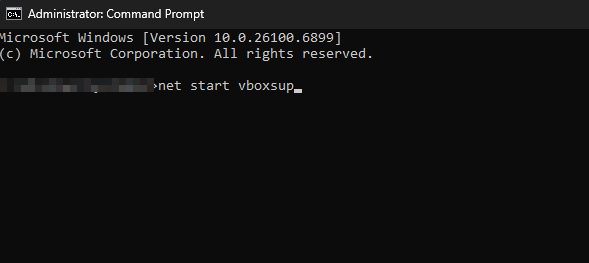
Success looks like: “The service was started successfully.”
- Restart your PC and launch VirtualBox again.
If you get an error like “service name is invalid” / “cannot be found,” the driver is likely missing or not registered correctly. Move to the next method.
Verify (use the exact service name you have):
sc query vboxdrv
If your system uses vboxsup instead, run:
sc query vboxsup
Expected result: look for STATE : 4 RUNNING.
2. Manually Install the VirtualBox Driver (.inf)
Windows security or policy restrictions can prevent VirtualBox from installing its drivers during setup. Manually installing the driver .inf registers it properly. Because VirtualBox versions differ, install the .inf that matches the service you want to start:
- If vboxdrv is missing/not starting: use the vboxdrv folder and install VBoxDrv.inf.
- If vboxsup is missing/not starting: use the vboxsup folder and install VBoxSup.inf.
- Open File Explorer and go to one of these folders (whichever exists on your system):
C:\Program Files\Oracle\VirtualBox\drivers\vboxdrv
C:\Program Files\Oracle\VirtualBox\drivers\vboxsup
- Find the file that ends with .inf (for example, VBoxDrv.inf or VBoxSup.inf).
- Right-click the .inf file and select Install.Note: If you do not see file extensions, open View and enable File name extensions, or check each file’s properties.
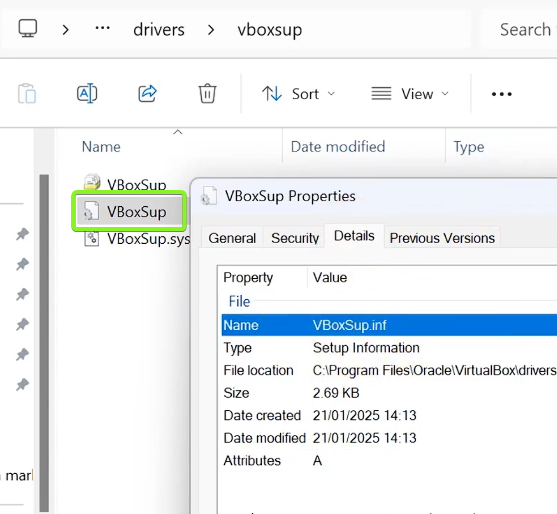
If “Install” isn’t available, skip to Method 4 and do a Repair/Clean reinstall (run the installer as administrator).
- Restart your PC after the installation completes.
- After reboot, open Command Prompt as administrator and start the matching service (use the name you actually have):
sc start vboxdrv
Or if your system uses VBoxSup:
sc start vboxsup
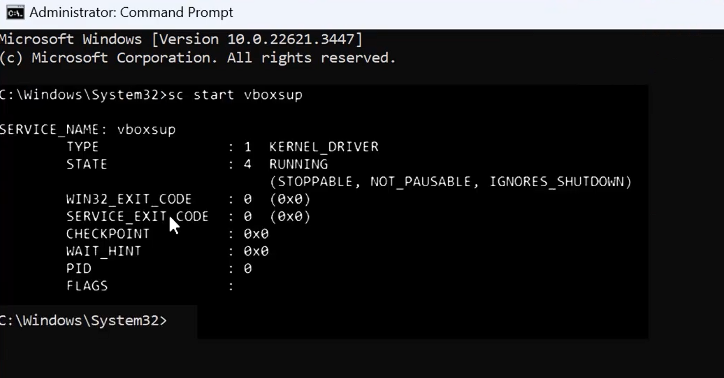
Success looks like: “STATE : 4 RUNNING” when you run
sc query <service-name>. - Launch VirtualBox and start your VM again.
If you still see the same error, continue below. You may have a virtualization/security conflict (Hyper-V/VBS/Memory Integrity) or a broken installation.
3. Disable Hyper-V and Virtualization Features (diagnostic step)
On some systems, Hyper-V and VBS can prevent VirtualBox from loading its driver in its native mode, or change how VirtualBox can access hardware virtualization. Disabling these features is a good way to confirm whether the problem is a virtualization/security conflict.
Note: Disabling these features may affect WSL2, Docker Desktop, Windows Sandbox, and some emulators. You can re-enable them after testing.
- Search Turn Windows features on or off in Windows Search and open it.
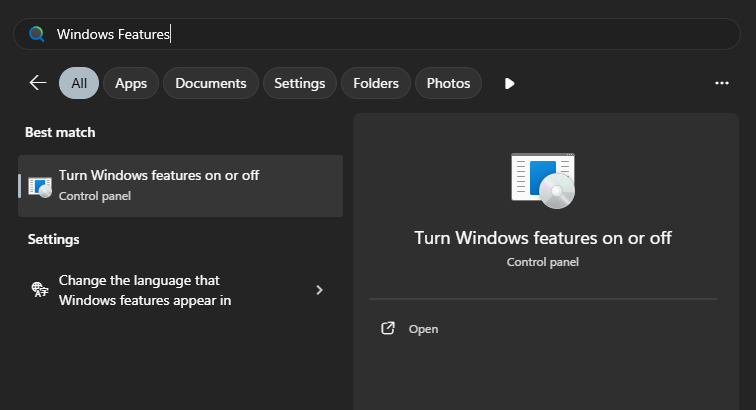
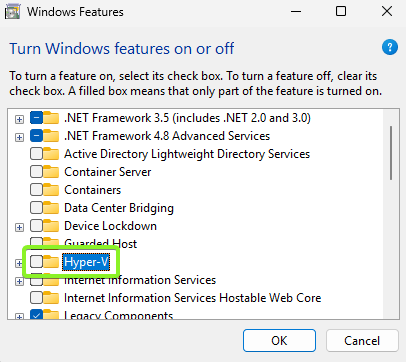
- Find Hyper-V and uncheck it.
- Also uncheck these if they are enabled:
- Windows Hypervisor Platform
- Virtual Machine Platform
- Windows Sandbox (if present)
- Click OK and restart your PC.
- Launch VirtualBox and test the VM.
Optional but important: Even if Hyper-V is off, Windows may still use virtualization through VBS / Memory integrity. To test, turn off Memory integrity from: Windows Security > Device security > Core isolation, then restart and test again.
Tip: If Windows blocks the driver, check Windows Security > Protection history for events mentioning
VirtualBox, VBoxDrv.sys, VBoxSup.sys, or “driver blocked.” If an Allow or Restore option is available, apply it, then reinstall/repair VirtualBox.
4. Repair or Clean Reinstall VirtualBox
If the driver files are corrupted, mismatched, or partially removed, reinstalling ensures the correct drivers and services are installed and registered again.
If you have the installer already, try a Repair first (if offered). If not, do a clean reinstall.
- Uninstall Oracle VM VirtualBox from:
Settings > Apps > Installed apps (or Apps & Features). - Restart your PC after uninstalling.
- Optional cleanup (only if leftovers remain after uninstall):
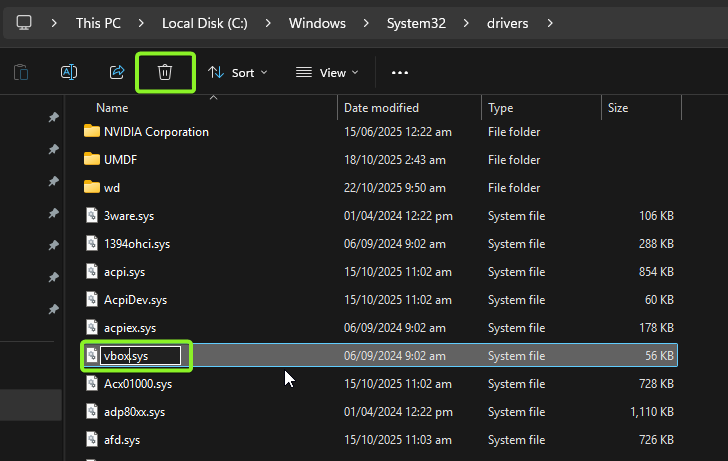
open File Explorer and go to:C:\Windows\System32\drivers
- Look for leftover files named like VBox*.sys (for example, VBoxDrv.sys, VBoxSup.sys).Important: Only remove VBox*.sys files if VirtualBox is fully uninstalled and you can clearly identify them as VirtualBox leftovers.
- Delete those leftover VBox*.sys files if they exist. If Windows won’t let you delete them, do not force it—continue with reinstall.
- Download and install the latest VirtualBox version, then restart your PC.Tip: Right-click the installer and choose Run as administrator to ensure drivers install correctly.
- If you use the VirtualBox Extension Pack (USB 2/3, RDP, etc.), install the matching version for your VirtualBox build.
- Launch VirtualBox and start the VM again.