How to Fix TikTok Login with Facebook Not Working?
TikTok can show “Unable to authorize. Please try again” even after Facebook accepts your login. Instead of opening your account, TikTok returns to the sign-in screen. In other cases, it opens an unfamiliar profile with none of your posts or followers.
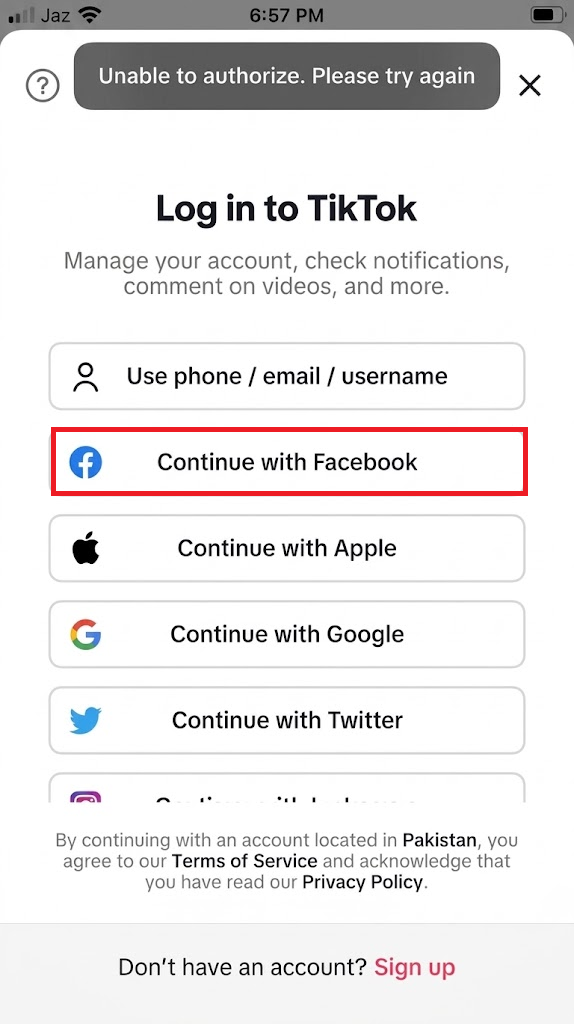
Signing into Facebook does not necessarily open the TikTok account linked to it. Facebook may still need a security check, or the approval screen may be using a different saved account. The error does not show that your TikTok account was deleted.
| What you see | Where to check |
|---|---|
| A different or empty TikTok profile | Check the original Facebook account below. |
| Facebook asks for a code or identity check | Complete Facebook’s own sign-in check. |
| No Continue with Facebook button | Use an already-linked login or TikTok account recovery. |
1. Sign In With the Facebook Account Originally Linked to TikTok
An empty profile is not the account you were trying to recover. Check both the TikTok username and the Facebook identity before changing anything. Using the same email address on two services does not, by itself, link their accounts.
- Open TikTok’s Log in screen, not Sign up, and select Continue with Facebook if offered.
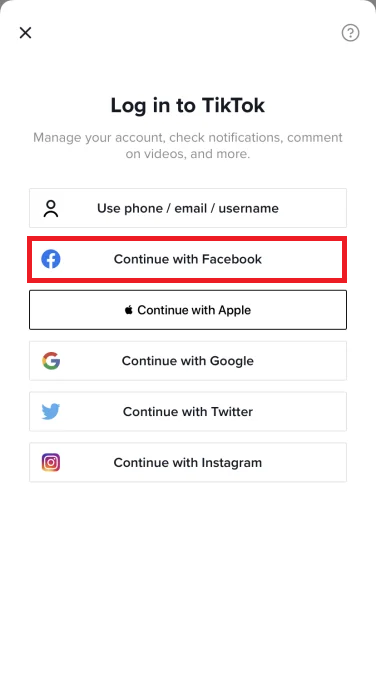
Show Log in and Continue with Facebook without exposing saved accounts, usernames, profile photos, phone numbers, emails, or nearby notifications. - Confirm your original TikTok @username from an old profile link, a friend’s view or a signed-in device. Do not change it in the username editor pictured below.
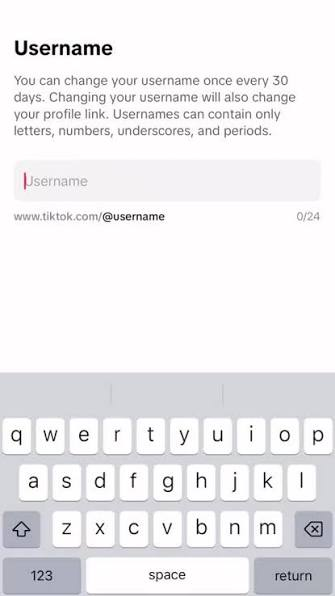
Show only the public username needed to distinguish the account. Hide private posts, messages, follower details, contacts, profile analytics, and unrelated accounts. - Check which Facebook account you originally used for TikTok. Another saved account is not interchangeable. The example’s Connected accounts page is not a required recovery step.
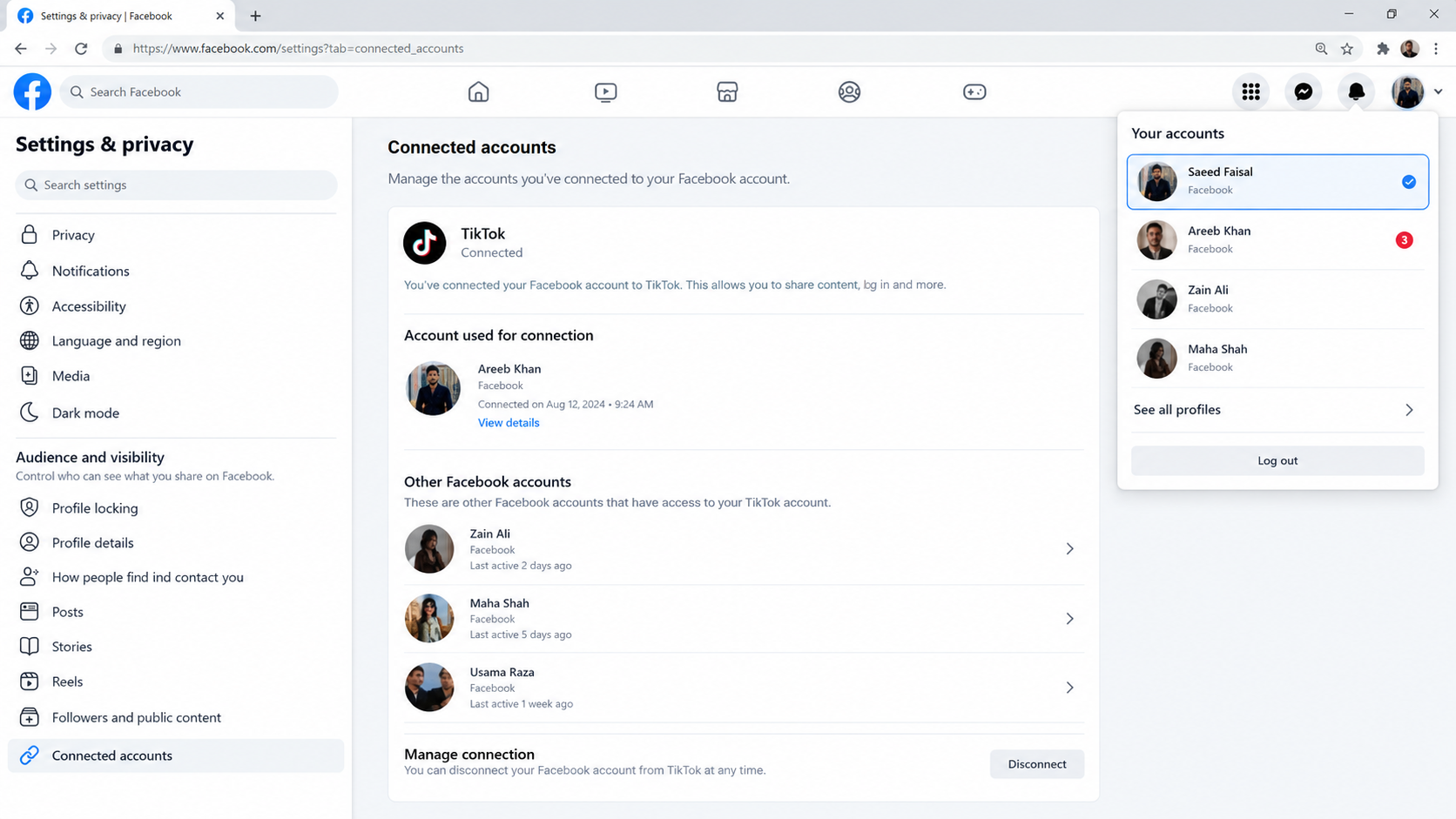
Show only enough profile information to confirm the correct account. Hide email, phone number, birthday, friends, messages, notifications, recovery details, and security settings. - Confirm that Facebook identity on the approval screen before continuing. Check the @username once TikTok opens.
A different profile does not need to be deleted. Leave it unchanged and check your original login method rather than completing a new registration.
2. Finish Any Sign-In Check on Facebook
A Facebook password or security prompt needs to be resolved on Facebook, not inside TikTok. A completed Facebook login is worth retrying, but it does not guarantee that TikTok authorization will succeed.
- Open Facebook’s official app or type facebook.com into your browser. Sign in past the form shown below using the account originally linked to TikTok.
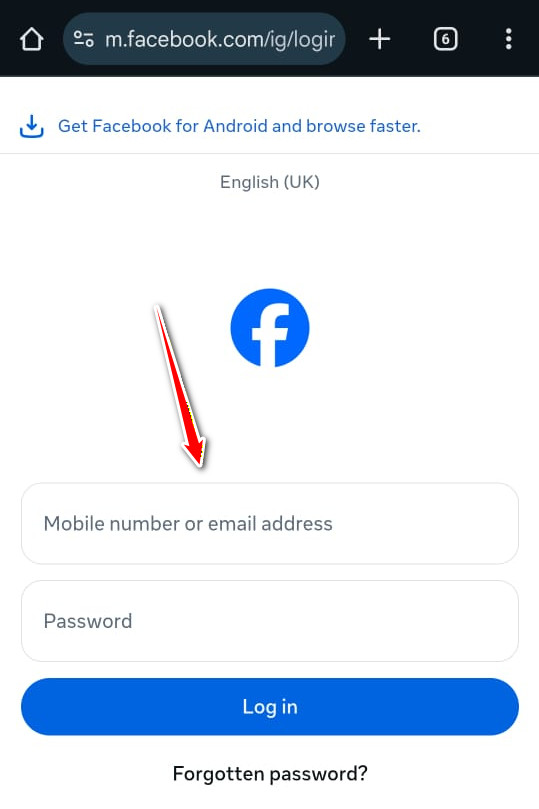
Show a successful Facebook session without exposing the feed, friends, messages, notifications, email, phone number, saved passwords, or browser profile. - For a rejected Facebook login, follow the Facebook login checks. A disabled-account notice needs Facebook’s own review or recovery process.
- Review a login alert only if it matches the attempt you just made. Approve it only when the device, time and other details are yours.
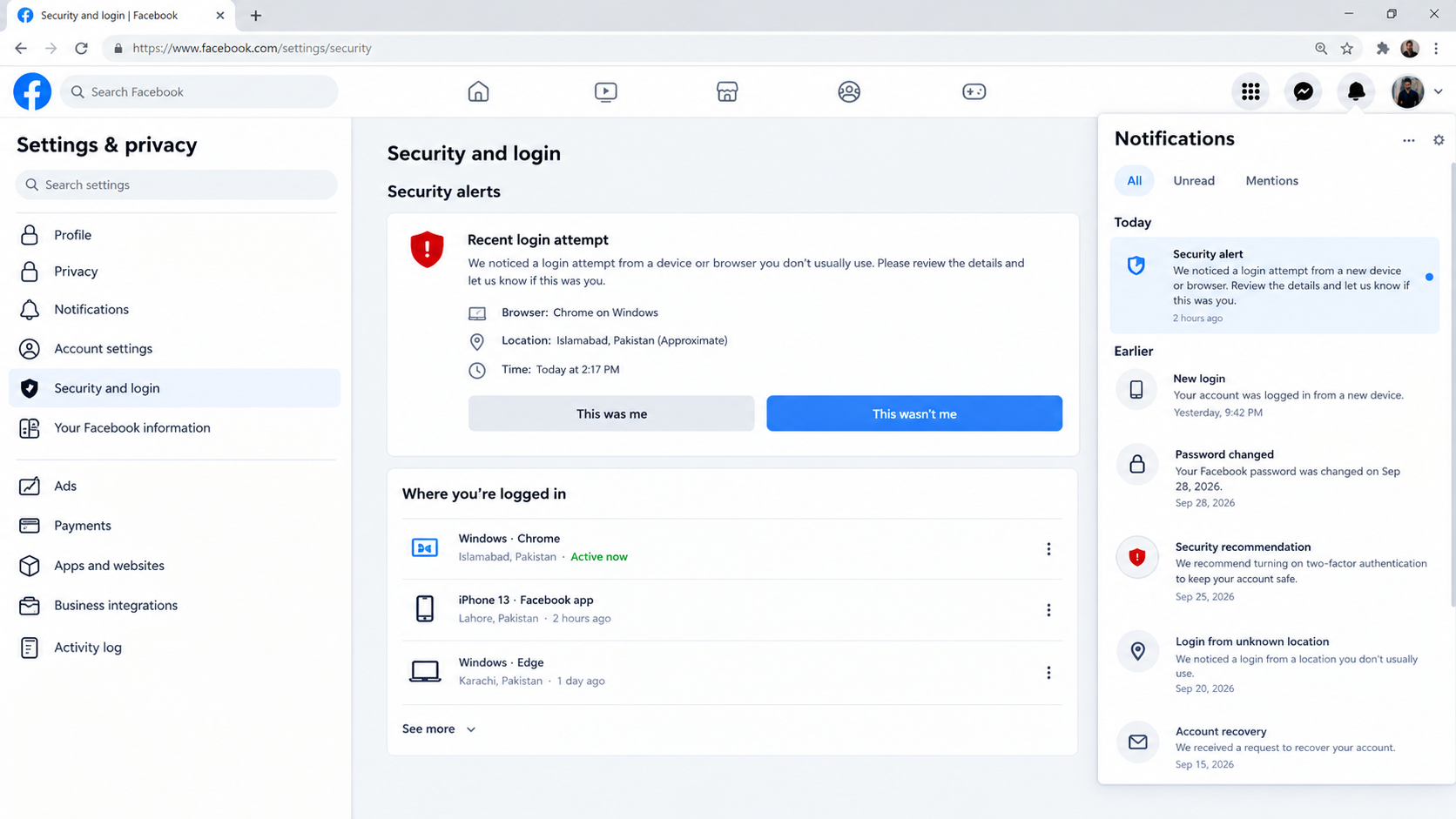
Show only the matching time, browser, and approve or secure-account choice. Hide location, IP address, device identifiers, codes, recovery contacts, and unrelated security activity. - Complete any requested Facebook security check through its official app or website. Do not disable two-factor authentication to get past it.
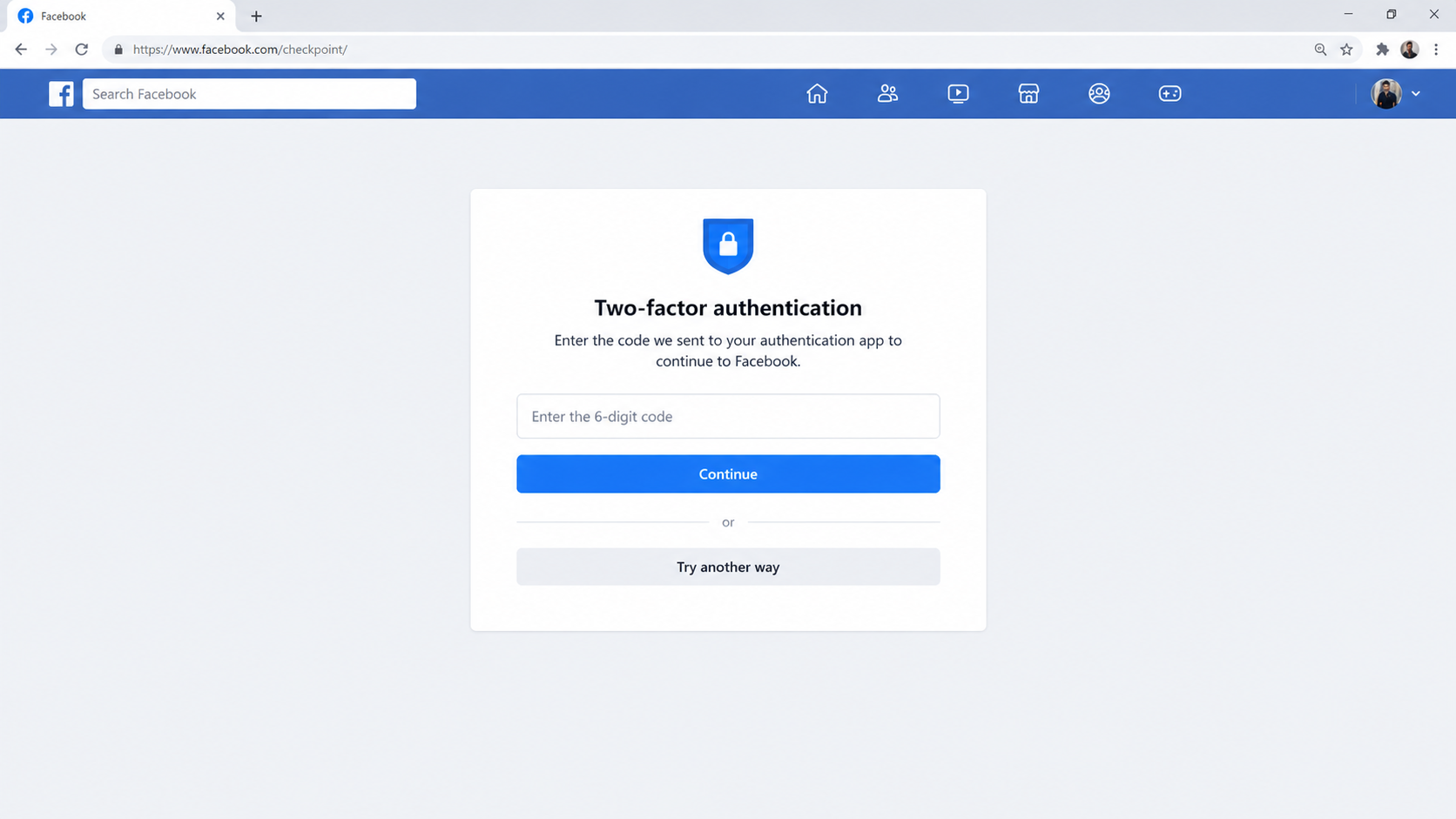
Capture the completed state only. Never expose a password, one-time code, authenticator key, recovery code, identity document, phone number, email, or exact location. - Return to TikTok and retry Continue with Facebook. Note whether Facebook blocks the attempt or TikTok fails after approval.
3. Correct the Facebook Account Saved in the Browser
If the approval window repeatedly selects the wrong Facebook account, signing into the right one in that browser may help. Browser cookies and the Facebook app do not always share a session, so this check will not change every in-app login window.
- In the browser used for approval, sign out of the wrong Facebook account and sign in to the original one. Have its password and two-factor method available first.
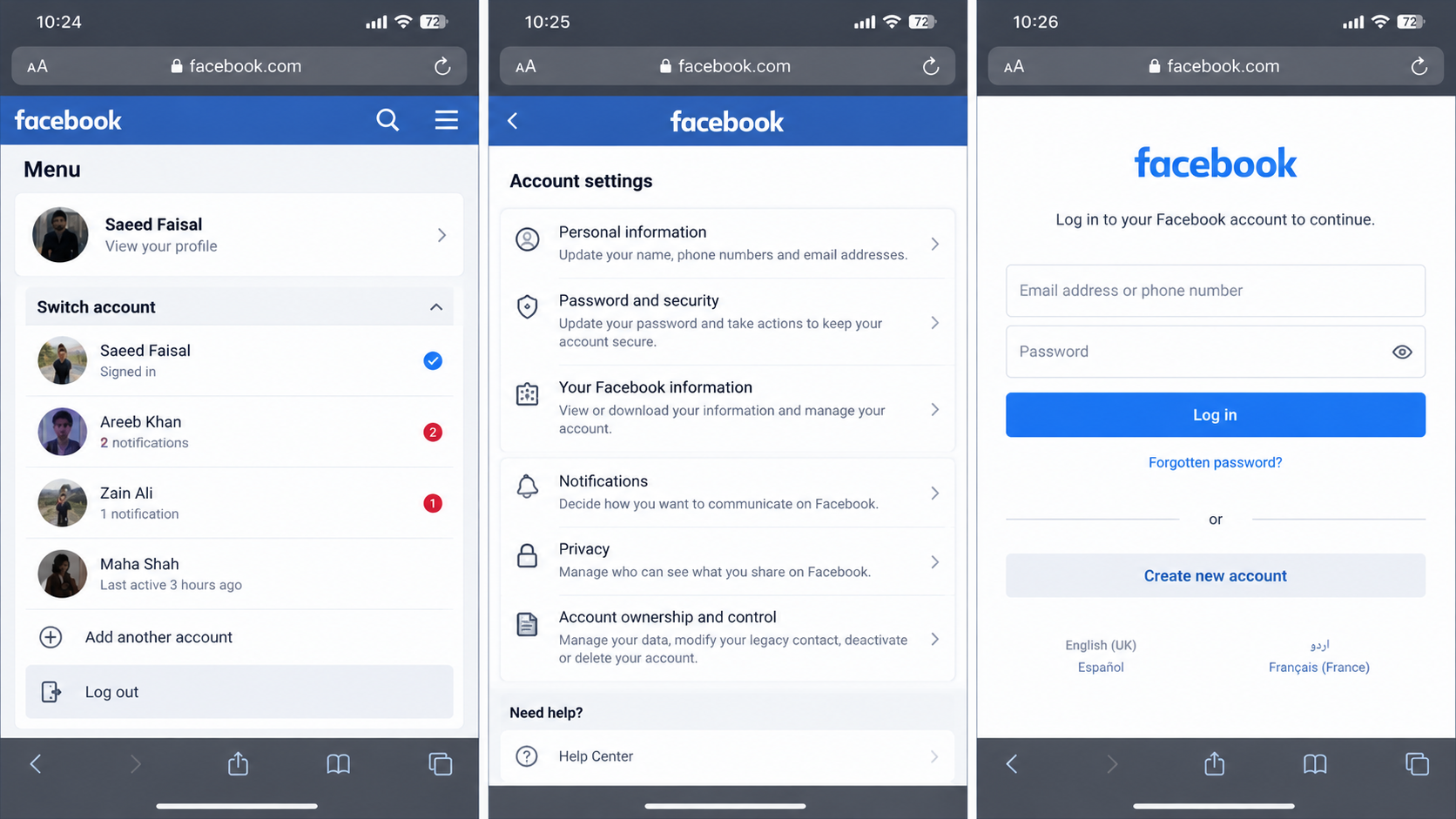
Show only the account identity needed for the comparison. Hide saved passwords, tabs, browser history, profile details, messages, notifications, and contact information. - Android Chrome: if Facebook itself keeps looping, open facebook.com, then More > Site controls > Cookies and delete only that site’s data. Labels vary; Google’s single-site cookie instructions show the controls.
- iPhone Safari: open Settings > Apps > Safari > Advanced > Website Data. Remove only the facebook.com entry if an individual removal control is available. Do not choose Remove All Website Data.
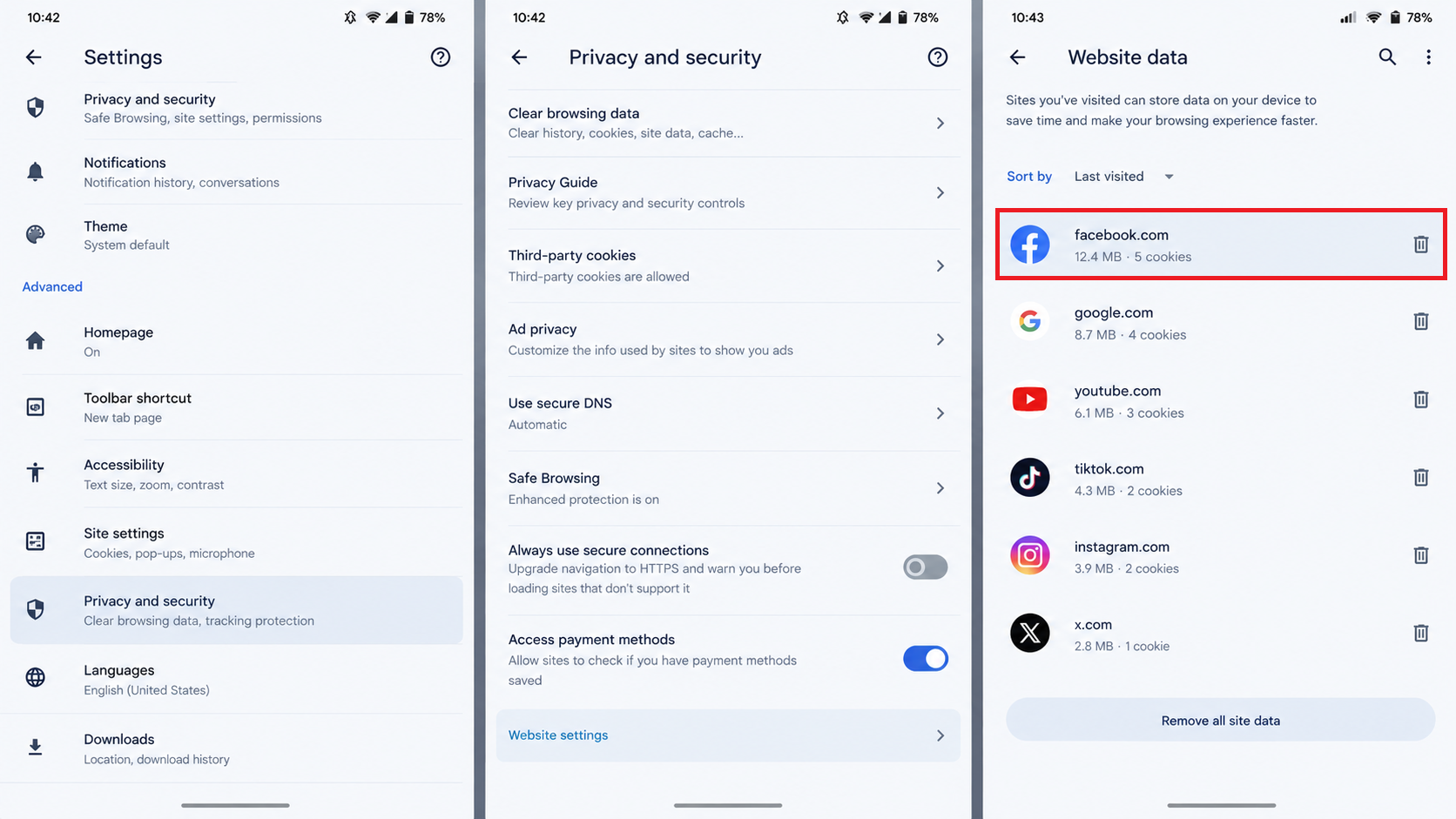
Show the facebook.com entry before removal. Do not clear all browser data; hide history, other sites, saved passwords, account names, and synchronized browsing details. - Sign back into Facebook in that browser, then retry TikTok’s Facebook button pictured below. Check the identity on the subsequent approval screen.
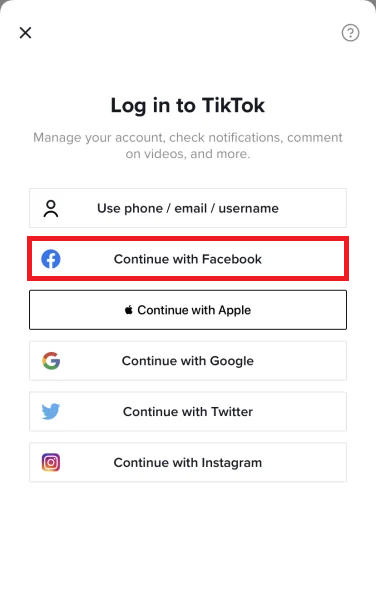
Show the app name and correct profile identity while hiding email, phone number, friends, permissions not needed for explanation, session data, and authentication tokens.
Clearing Facebook cookies signs that browser out of Facebook. If the TikTok approval screen remains unchanged, do not keep clearing unrelated browser data.
4. Update the Apps and Retry Without Deleting TikTok Data
App updates are worth checking when the login window freezes or fails to load. Keep the account and drafts intact while you try them.
- Check TikTok and Facebook for updates in Google Play or the App Store.
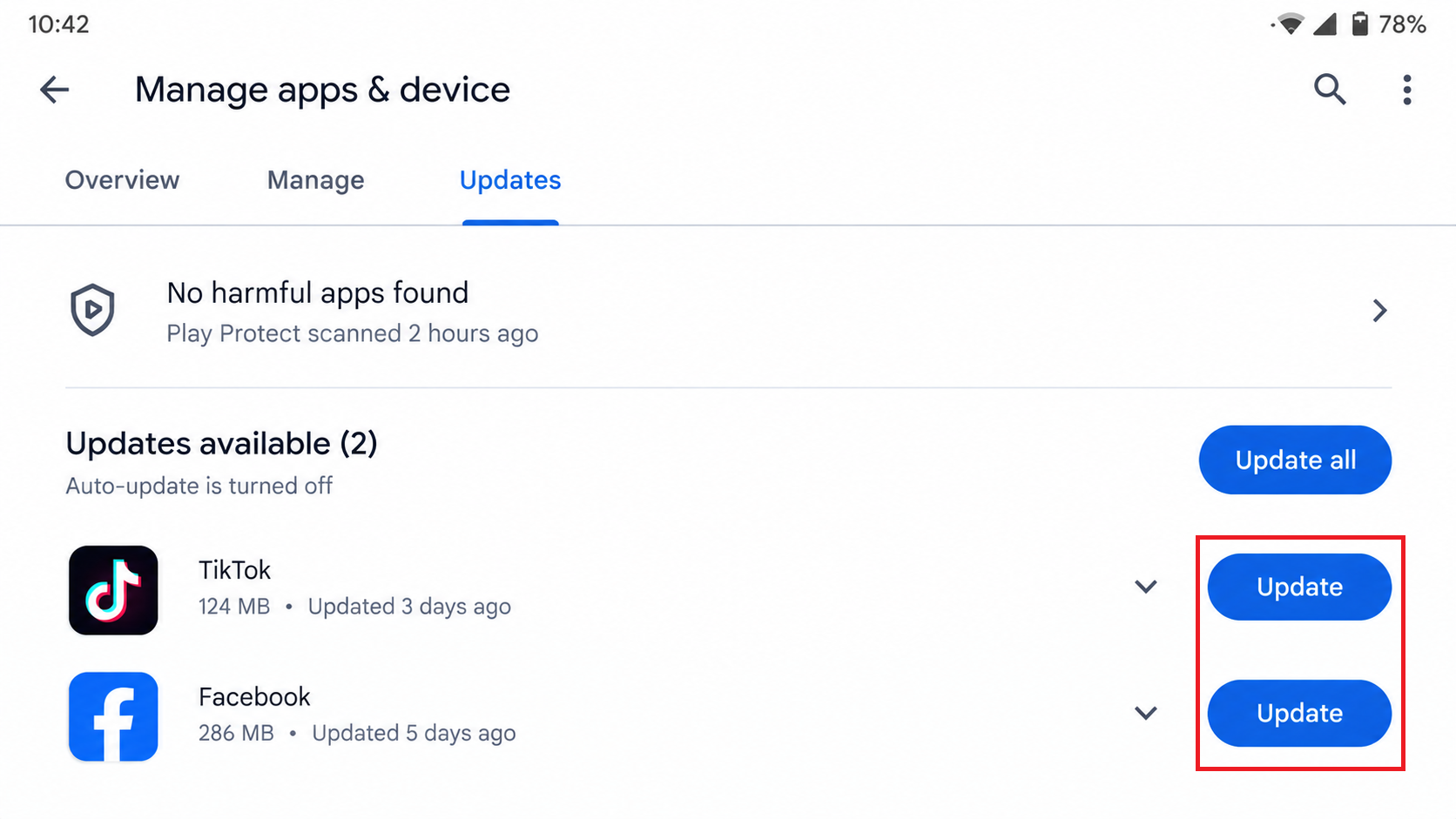
Show the official publishers and update controls. Hide store account, payment data, purchase history, notifications, device name, and unrelated installed apps. - On Android, also check Google Play for updates to Chrome and Android System WebView, where available.
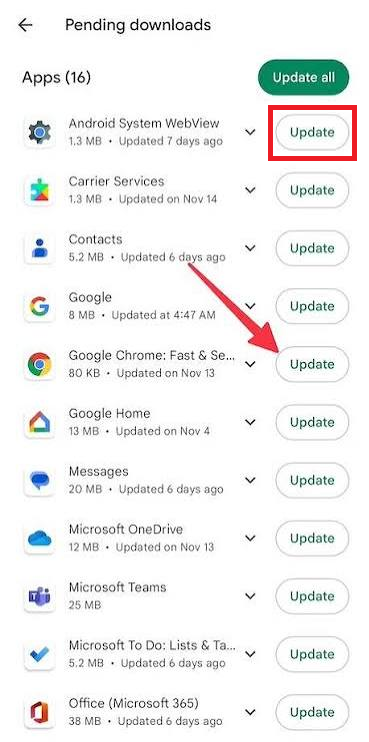
Show only official Google components and their update state. Hide the Google account, device list, payment data, search history, and unrelated apps. - Restart the phone. On Android, an optional cache-only retry is available under Settings > Apps > TikTok > Storage & cache > Clear cache. Leave Clear storage and Clear data untouched.
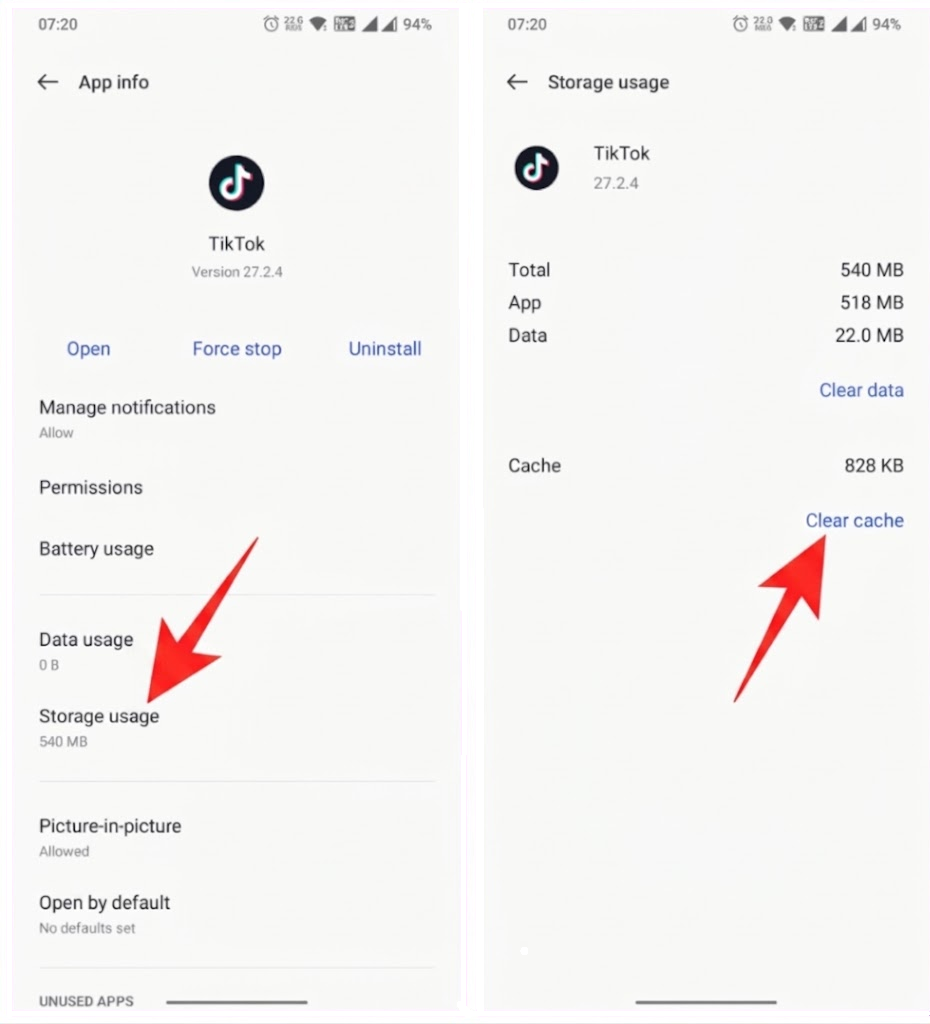
Keep Clear storage or Clear data untouched. Hide device identifiers, other applications, storage contents, work-profile details, and notification data. - Retry the login. Optionally compare it with TikTok’s website or another trusted device, but only if Continue with Facebook is actually offered there.
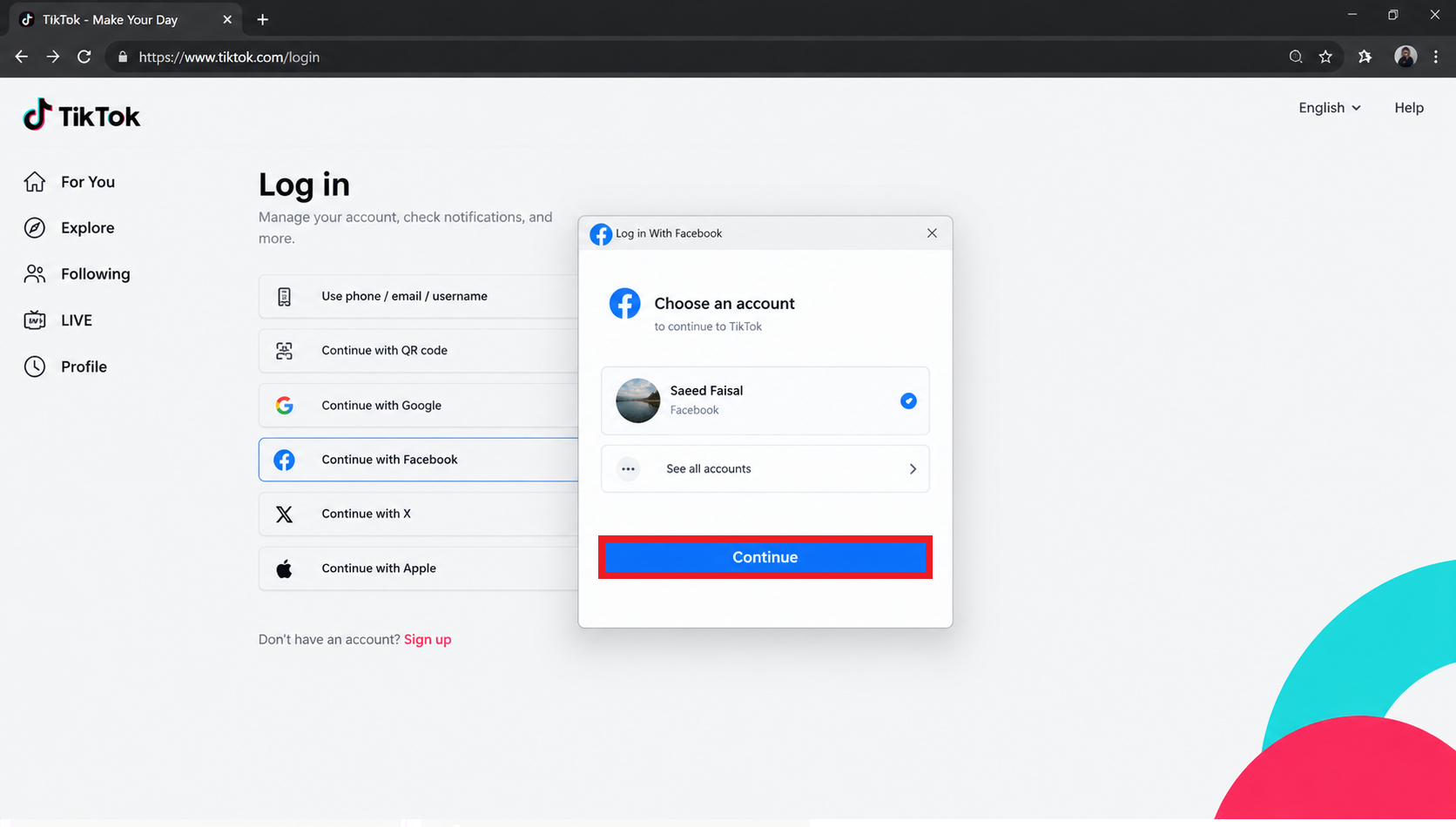
Show only whether Continue with Facebook is offered and succeeds. Hide usernames, profiles, QR codes, browser tabs, history, notifications, and device identifiers.
If another device opens the original account, keep it signed in. Otherwise, try an already-linked TikTok login or recovery. Follow any retry restriction shown instead of repeatedly submitting the same request.
5. Protect a Working TikTok Login Before Changing Permissions
Being signed in is not the same as having another way back in. TikTok’s account security guidance recommends linking both a phone number and an email address, with passkeys as another sign-in option.
- On the working account, open Profile > Menu > Settings and privacy > Account > Account information. Add contact methods you control and complete verification. The pictured Verify buttons indicate unfinished checks.
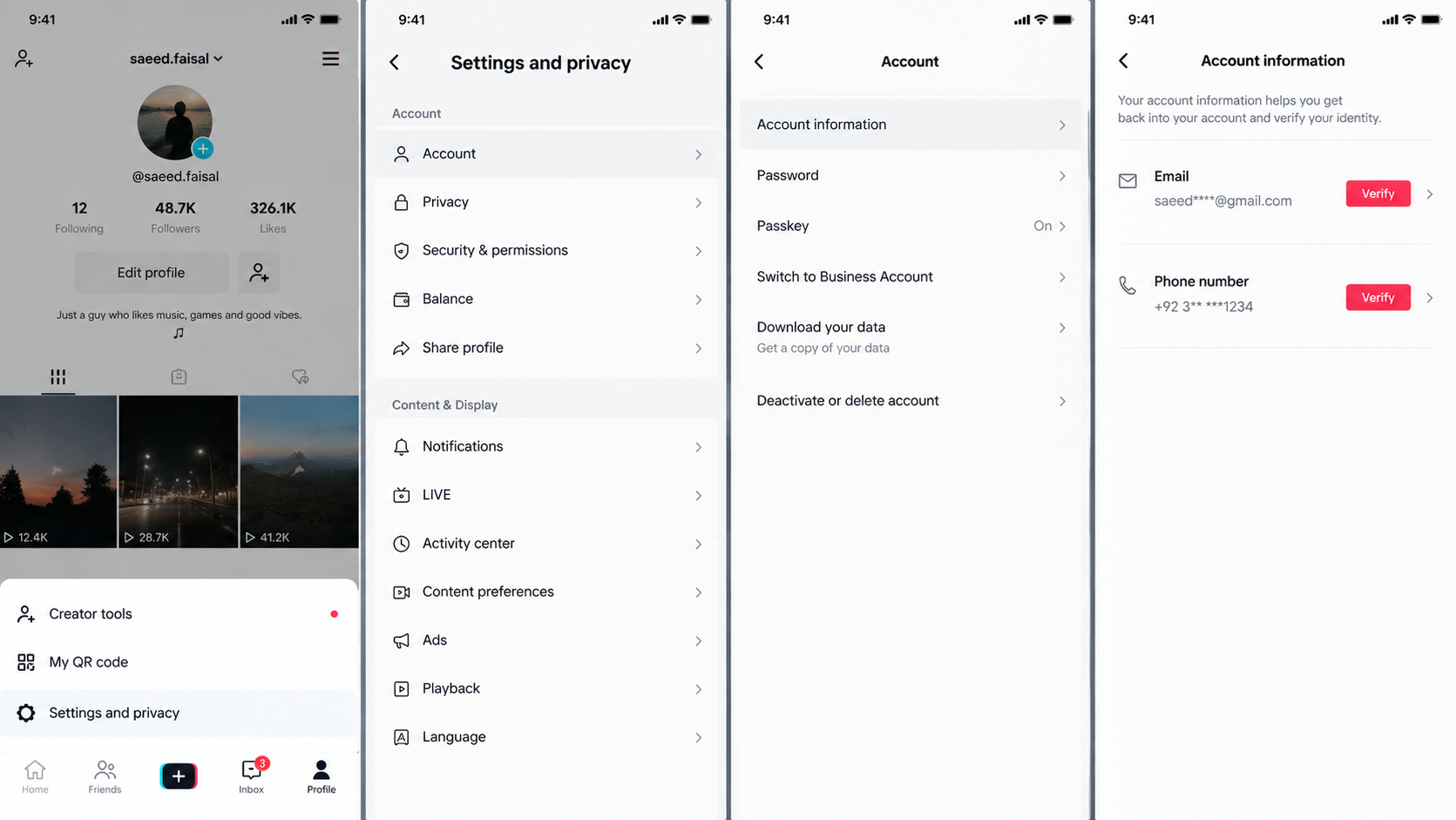
Show only masked, verified contact methods. Hide the full email, phone number, username, verification codes, account region, birthday, and personal data. - Check Account > Password or Passkey, if offered. A Facebook-created account may not have a separate TikTok password. Resetting a TikTok password signs other devices out; confirm you can complete verification first.
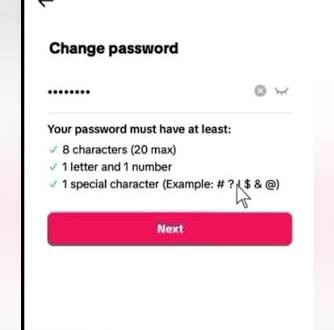
Show the completed password or passkey state only. Never expose a password, passkey prompt, recovery code, authenticator key, Apple Account, Google Account, or device PIN. - Test the new login on another trusted device and confirm the original @username. Keep the working session open unless a password reset requires signing in again.
- If reviewing Facebook permissions, open Settings & privacy > Settings > Apps and websites and inspect the existing TikTok entry. Do not remove it as a routine repair.
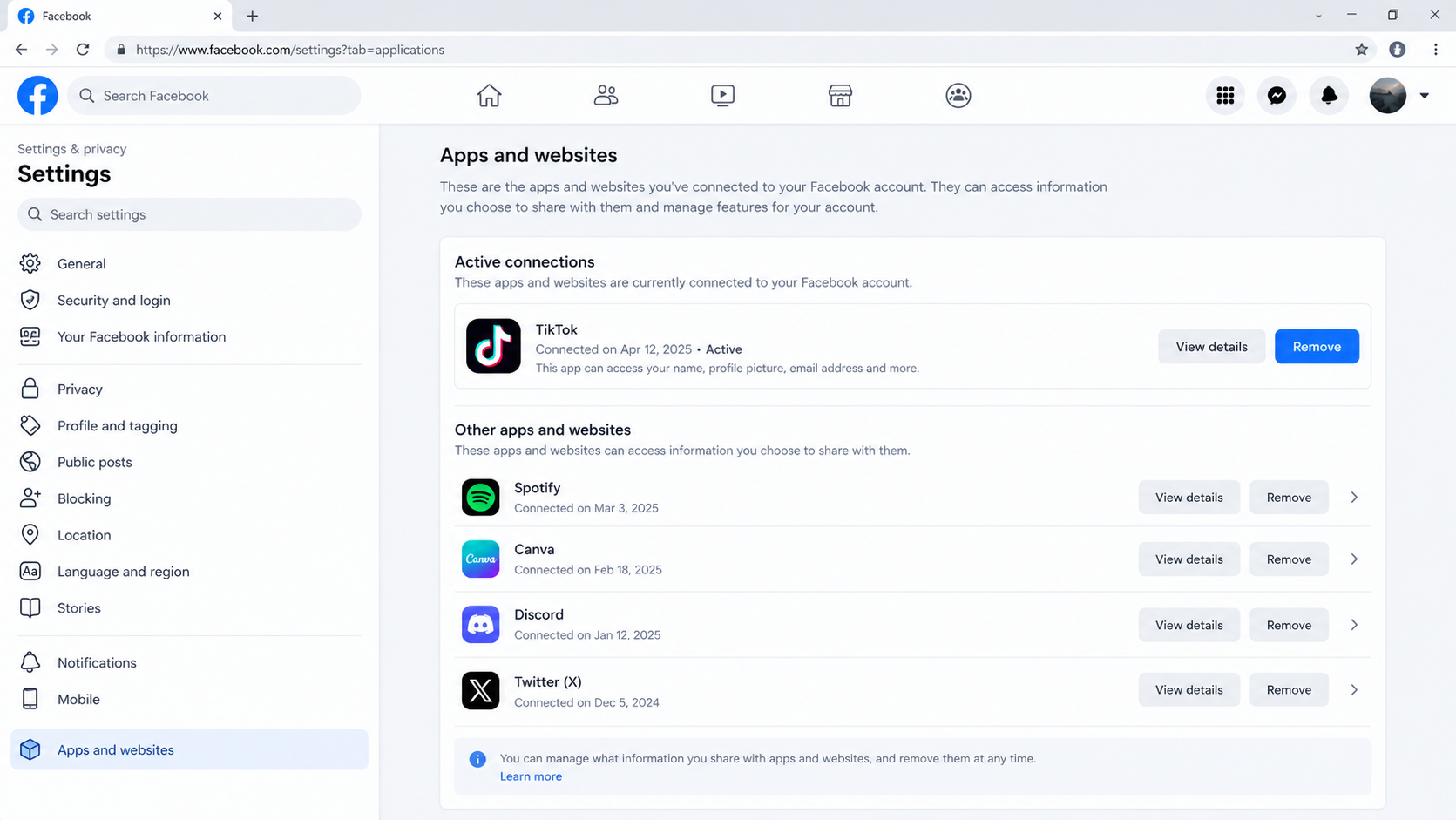
Show the TikTok entry and status only. Hide other connected apps, Facebook identity, permissions, activity history, account details, and removal confirmation data. - If a normal login requests consent again, confirm the original Facebook identity. The image below shows the starting button, not renewed consent; do not revoke access to force it.
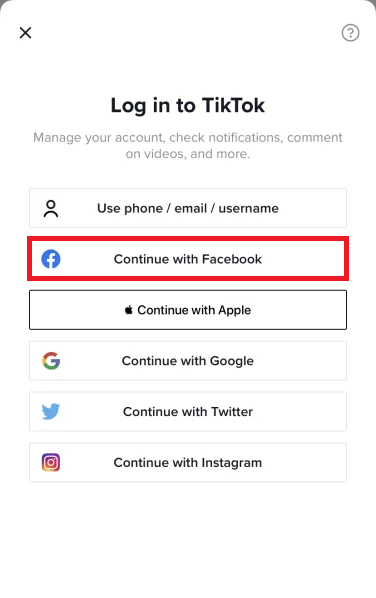
Capture the genuine consent screen with the correct account. Hide contact details, friends, tokens, device data, and any permission values unrelated to login.
Include any repeated authorization error in your TikTok support request. Sync Facebook friends controls suggestions; it does not reconnect this login.
6. Recover the Account When Facebook Login Is Unavailable
When Facebook login is missing or keeps failing, try a login already linked to TikTok. Changing contact details on Facebook does not automatically update the contacts linked to TikTok.
- On TikTok’s login screen, select Use phone/email/username > Email/Username > Forgot password?. Try an email or phone number already linked to the TikTok account.
- For a missing code, see the TikTok verification-code checks. A code sent to an inaccessible old contact needs account recovery, not more resend attempts.
- Open Help > Recover your account, if offered. Search for the original username, then select Can’t access these?.
- If Ask friends to verify appears, follow its in-app instructions and request limits. Finding a username identifies the account; it does not verify ownership.
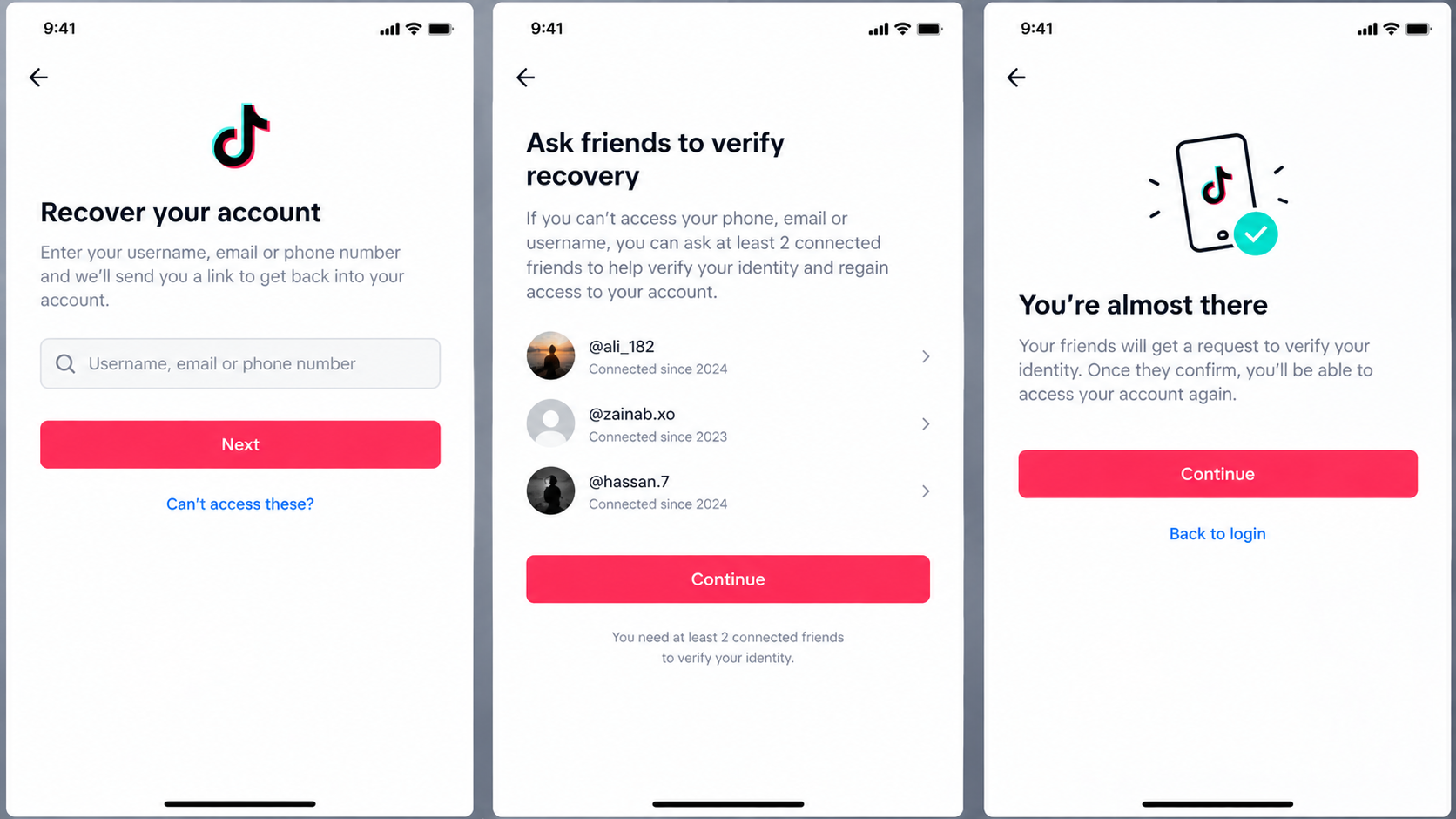
Show only the recovery controls. Hide usernames, linked contacts, friend identities, recovery instructions, verification codes, request limits, and personal account evidence.
If no usable verification method appears, use Report a problem in TikTok Help or its official feedback form. Include the original username, exact error, device and app versions, and whether Facebook approval finishes. Provide further ownership details only through the official request.
After recovery, verify the account’s contact details before leaving it. Otherwise, keep the case reference and follow support’s replies. Never send passwords or one-time codes to someone offering to unlock the account.


