Fix: Escape From Tarkov “The is no game with name eft”
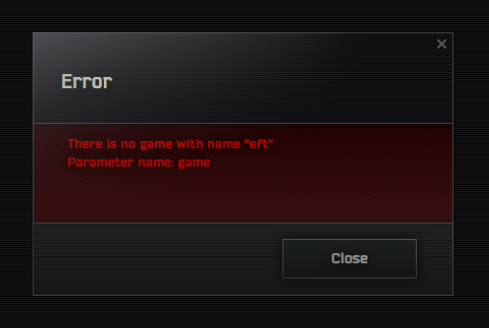
The “There is no game with name ‘eft’ (Parameter name: game)” error appears when the BSG (Battlestate Games) Launcher cannot find the local install of Escape from Tarkov. Internally, the launcher looks for the game entry named “eft”. If the Tarkov folder is missing, moved, renamed, or not mapped correctly, the launcher cannot match that entry and shows this error.
The main causes are:
- Launcher cannot find the game folder because the path is wrong, the folder was moved, or the drive letter changed
- Corrupted launcher cache or config in AppData
- Permissions issues that block the launcher from reading or writing files
- Broken folder structure under the Battlestate Games directory (partial install or wrong folder names)
- Less common: a temporary backend or login issue that interrupts validation
Tip: If you recently reinstalled Windows, swapped drives, restored a backup, or manually moved the Tarkov folder, this error is very likely caused by an outdated install path inside the launcher.
If you think there might be an outage, you can quickly check Escape from Tarkov’s server status. However, this error usually appears even when servers are fine, so you can start applying the local fixes below right away.
1. Run the BSG Launcher as Administrator
First, rule out a simple permissions problem. Running the launcher as administrator can help if Tarkov or the launcher is installed in a protected location like Program Files or if security software limits access.
- Close Tarkov and the launcher completely. If needed, end any remaining launcher process in Task Manager.
- Open the folder where the BSG Launcher is installed.
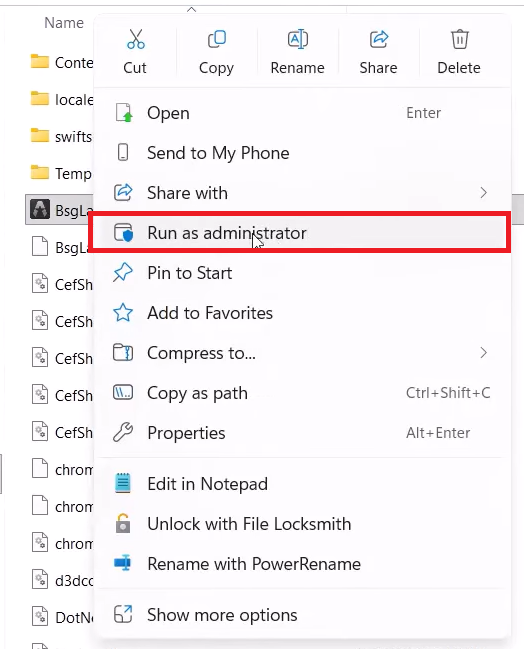
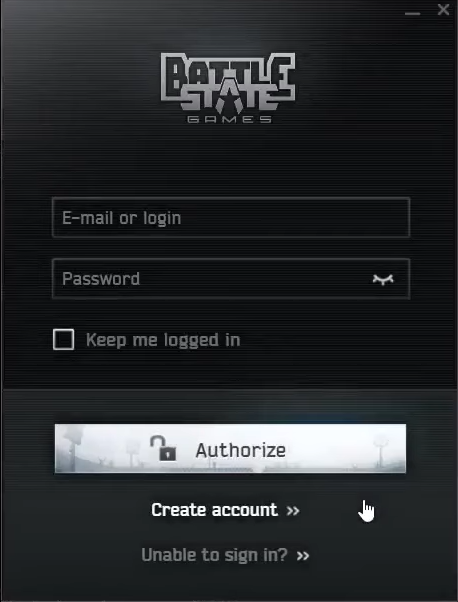
- Right click BsgLauncher.exe and select Run as administrator.
- Log into your account and try launching the game.
- If the error still appears, test whether Windows is blocking the game folder:
- Open your Tarkov install folder, for example:
C:\Battlestate Games\Escape from Tarkov
- On most setups, the executable is in the Live folder:
C:\Battlestate Games\Escape from Tarkov\Live\EscapeFromTarkov.exe
- Right click EscapeFromTarkov.exe and select Run as administrator.
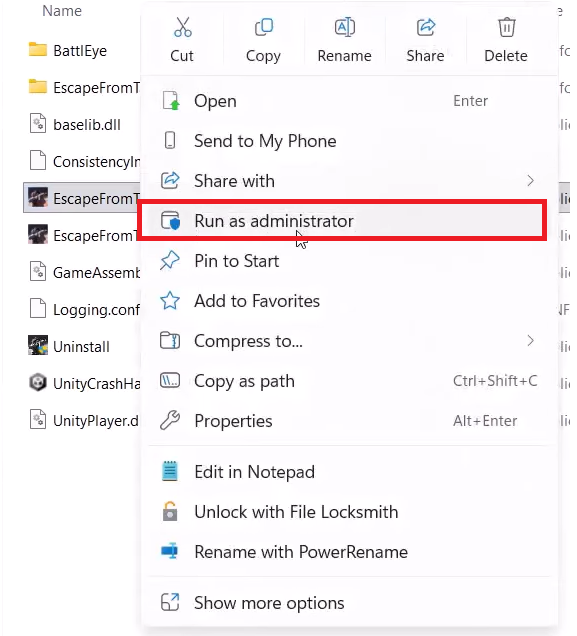
Note: This is only a test. Do not use the executable directly as your normal way to launch Tarkov. If the game runs here but the launcher still gives the error, it confirms the install is valid and you should fix the mapping in Method 2.
- Restart your PC and try the launcher again.
2. Re Select the Game Install Location in the BSG Launcher
This error most often appears because the launcher is pointing to the wrong folder. Re selecting the correct Tarkov directory forces the launcher to rebuild its mapping for the “eft” entry.
Important: The exact wording can vary by launcher version. Look for options such as Game path, Installation folder, Locate installed game, or Set path.
- Open the BSG Launcher.
- Go to Settings or the game management page for Escape from Tarkov.
- Find the option to choose or locate the game directory.
- Browse to your Tarkov install directory, for example:
C:\Battlestate Games\Escape from Tarkov
Important: Select the main Escape from Tarkov folder that contains the Live folder, unless the launcher clearly asks for the Live folder itself.
- Save the changes, restart the launcher, and try starting the game again.
3. Delete BSG and Tarkov Cache Folders from AppData
Broken or outdated cache files in %AppData% can prevent the launcher from mapping your install correctly. Removing these folders forces the launcher to recreate fresh configuration files.
This does not delete your Tarkov account or stash. Progress is stored on the servers. It only resets local launcher data, so you may need to log in again and reapply settings.
- Press the Windows key, type %AppData%, and press Enter.
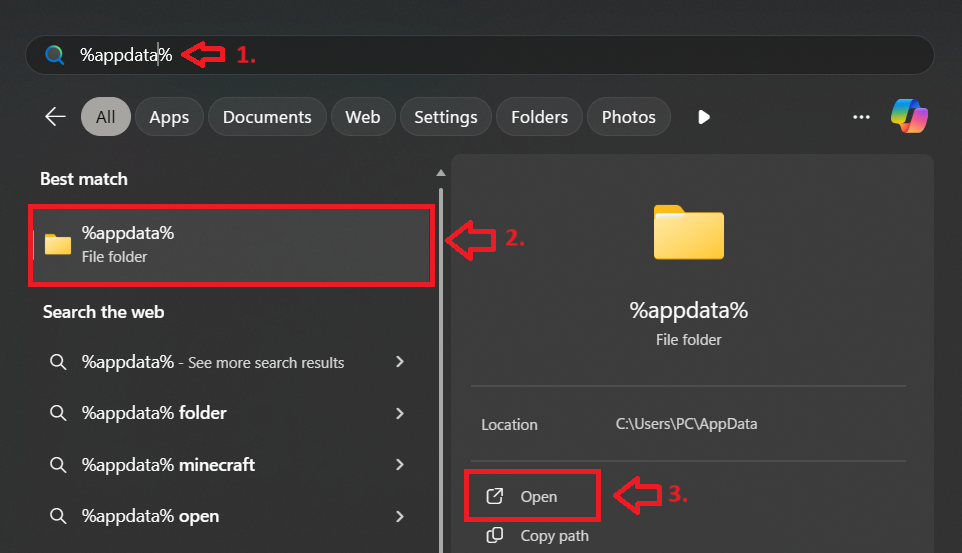
- In the Roaming folder, delete any folders related to BSG Launcher or Escape from Tarkov.

- Go back one level and open:
%UserProfile%\AppData\LocalLow
- Again, delete any folders related to BSG Launcher or Escape from Tarkov.

- Restart your PC, open the launcher, sign in, and try launching the game.
Many users report that clearing these cache folders allows the launcher to rebuild the EFT mapping and detect the install correctly.
4. Check and Fix the EFT Folder Structure
If the folder structure under Battlestate Games is incomplete or inconsistent, the launcher may not recognize Tarkov even if the path is set.
- Open your Tarkov installation directory, for example:
C:\Battlestate Games\Escape from Tarkov
- Confirm the folder is not empty and that game files are present.
- Check that a Live folder exists, for example:
C:\Battlestate Games\Escape from Tarkov\Live
- Inside the Tarkov directory, you should typically see items like:
- Live folder
- EscapeFromTarkov.exe (usually inside the Live folder)
- Additional subfolders and config or log files
- If you renamed, moved, or recreated the Tarkov folder, go back to the launcher and re select the correct install path as in Method 2.
- If you have a folder named “EFT” next to or instead of Escape from Tarkov, avoid random renaming. Keep folder names consistent and point the launcher to the correct directory rather than forcing the folder to match an assumption.
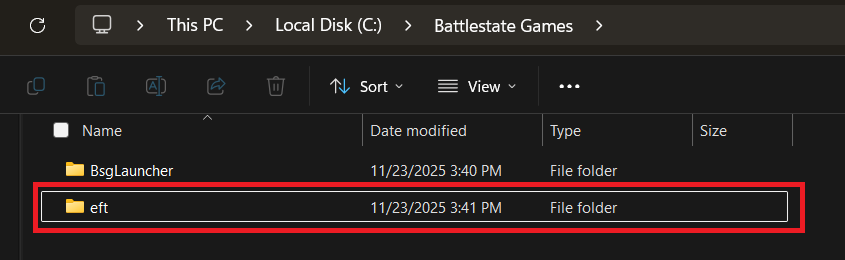
Some users fixed the error simply by cleaning up the directory layout and then pointing the launcher at the proper Tarkov folder.
5. Try a VPN if the Error Started After Login or an Update
If the error appears right after logging in, during patch checks, or only in your region, it can sometimes be related to routing or CDN connectivity rather than the local files. A VPN changes the route your traffic takes and can help in rare network related cases.
Important: A VPN will not fix a missing or wrong install path. If the launcher cannot find your Tarkov folder at all, focus on Methods 2 to 5. Use this method only if the problem started after a patch, login change, or known connectivity issues.
- Open your VPN client.
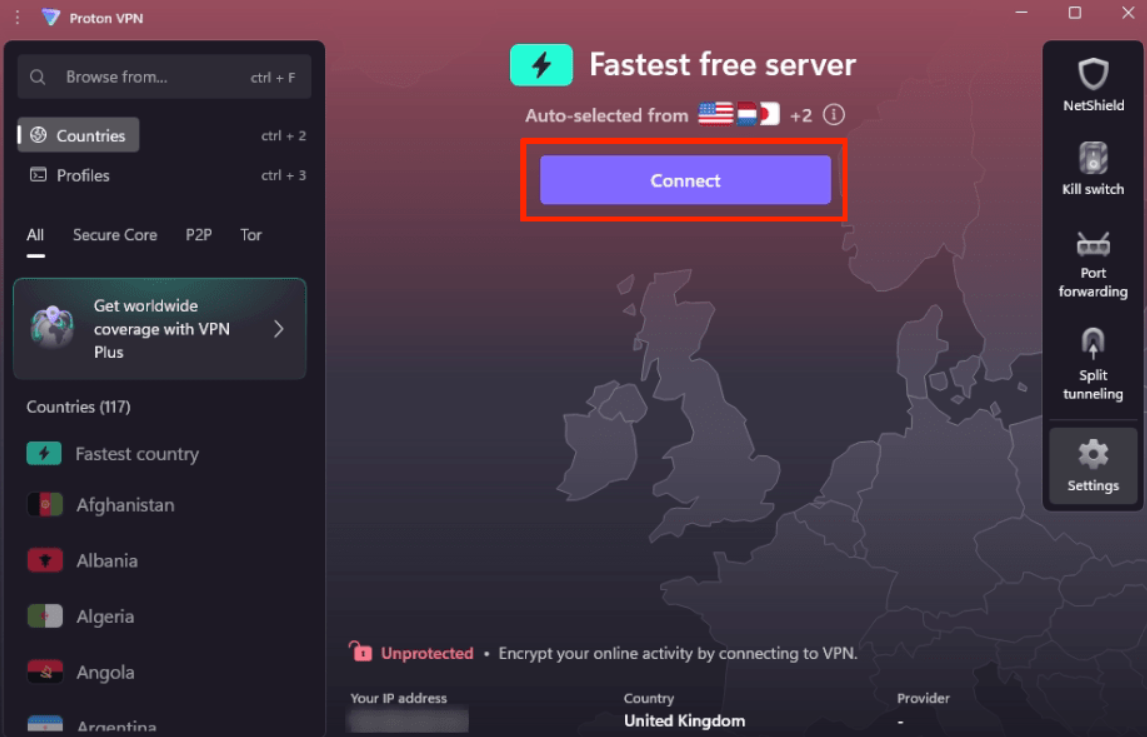
- Connect to a server, ideally close to your region first.
- With the VPN active, relaunch the BSG Launcher and try starting the game.
6. Reinstall Escape from Tarkov (Last Resort)
If none of the previous methods work, a clean reinstall is the most reliable way to rebuild the folder structure, refresh launcher files, and reset the mapping for the “eft” entry.
- In the BSG Launcher, uninstall Escape from Tarkov.
- Restart your PC.
- Reinstall the game in a simple path without special characters, for example:
C:\Battlestate Games\Escape from Tarkov
- Open the launcher, let it complete all downloads and verification, then try launching the game.