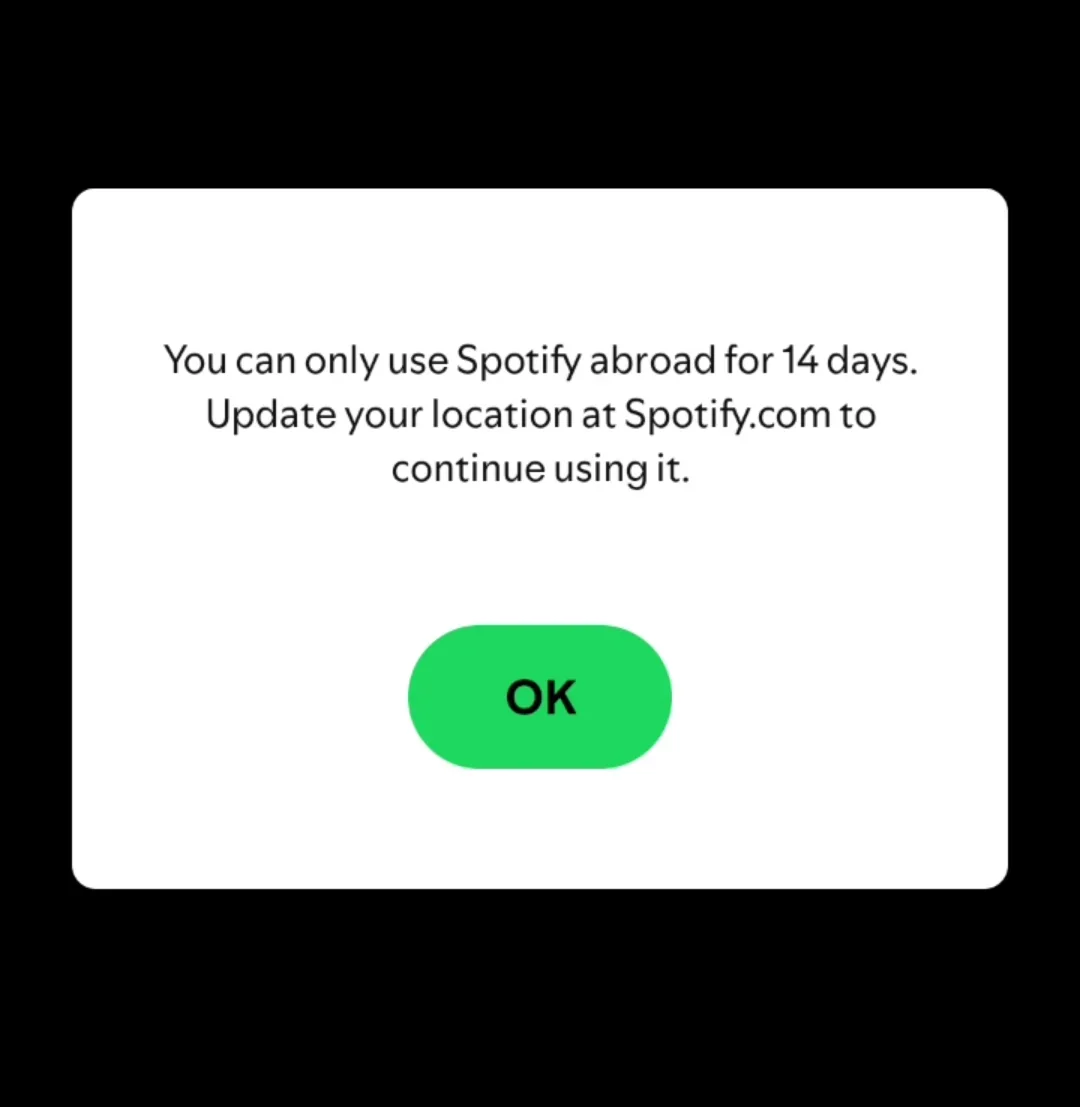
Fix: “You can only use Spotify abroad for 14 days” (Even if you didn’t travel)
If Spotify shows “You can only use Spotify abroad for 14 days”, it means Spotify thinks you’re using the account in a different country/region than the one saved on your profile so it blocks playback or forces a re-login (even if you didn’t travel).
Why this happens
- Your network/IP appears to be in a different country than your account’s saved Country/Region.
- A VPN/proxy or privacy routing feature changes your apparent location.
- Your ISP/carrier uses an IP that geolocates incorrectly.
- Switching networks (Wi-Fi vs mobile/work/public) makes Spotify see multiple regions.
- A stale login/session after updates, reinstalls, or long idle time.
- An unofficial/modified app breaks checks and authentication.
- Someone else is using your account from another location.
Before you start (30-second checks)
- Check your account Country/Region: on the Spotify Account page. If it’s wrong or you moved, go to Fix #4.
- Try the Web Player: if web works but the app doesn’t, it’s usually cache/session (see Fix #3 / #5).
- Try one other connection: Wi-Fi vs mobile data. If only one works, it’s likely geo-IP/routing.
- Suspect sharing/hack? Do Fix #2 first.
1. Turn Off VPN/Proxy and Refresh the Connection
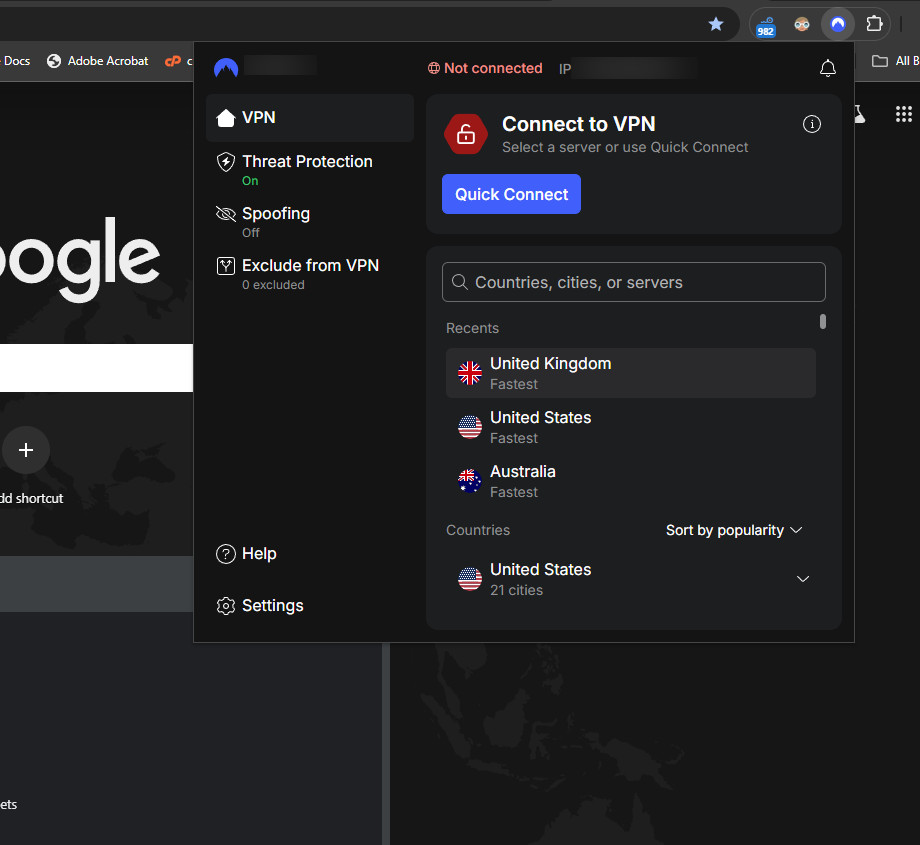
Anything that routes traffic through another region can trigger the “abroad” flag, VPN apps, proxy settings, browser extensions, and privacy services.
- VPN apps (including Always-on VPN on Android)
- Browser VPN/proxy extensions
- Windows/macOS proxy settings
- Privacy routing tools (e.g., 1.1.1.1 WARP, some security suites)
- iCloud Private Relay (mainly affects Safari/Web Player)
- Fully close Spotify:
- Windows: Quit Spotify, then end Spotify.exe in Task Manager if needed.
- macOS: Quit Spotify (Cmd + Q).
- Android/iOS: Force close from the app switcher.
- Turn off VPN/proxy/privacy routing.
- Refresh the network:
- Wi-Fi: restart router (unplug 30 seconds).
- Mobile: toggle airplane mode 10–15 seconds.
- Test one alternate network (Wi-Fi ↔ hotspot/mobile data).
- Open Spotify and try again.
Tip: If it works on one connection but not the other, the failing network likely has wrong geo-IP or routing.
Optional check: On the failing network, open any “What is my IP” site. If the country is wrong, Spotify may keep flagging you until your ISP’s geo-IP updates or you get a different IP.
2. Sign Out Everywhere and Secure Your Account
If Spotify sees logins from another country (another device, sharing, or compromise), resetting sessions often fixes it immediately.
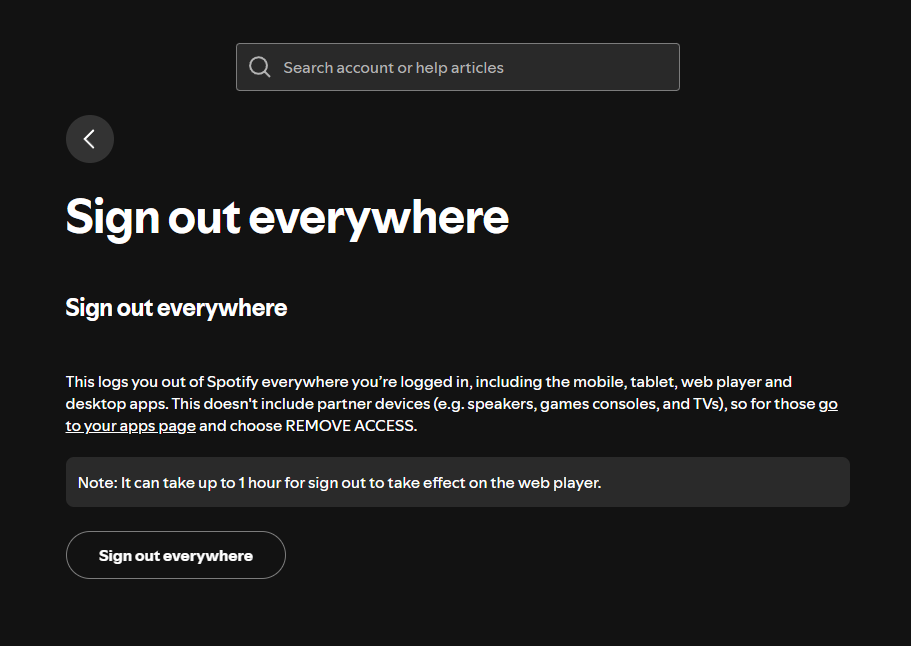
- Open: Sign out everywhere
- Click Sign out everywhere.
- Change your password (recommended).
- Log in on one device first, test, then sign in elsewhere.
Note: Some partner devices (TVs, consoles, speakers) may stay connected. If needed, remove unknown access under your account’s Apps section.
3. Change your Spotify Country/Region (official long-term fix)
If you moved, or Spotify consistently detects you elsewhere, updating your Country/Region aligns your account with your actual location and prevents repeated checks.
If you’re on Spotify Free
- Go to: Spotify Account
- Open Edit profile / Edit Personal Info.
- Change Country or region and save.
If you’re on Spotify Premium
- You may need a payment method issued in the new country/region.
- Some changes take effect on the next billing date.
- If billed via Apple/Google, the process depends on the partner subscription.

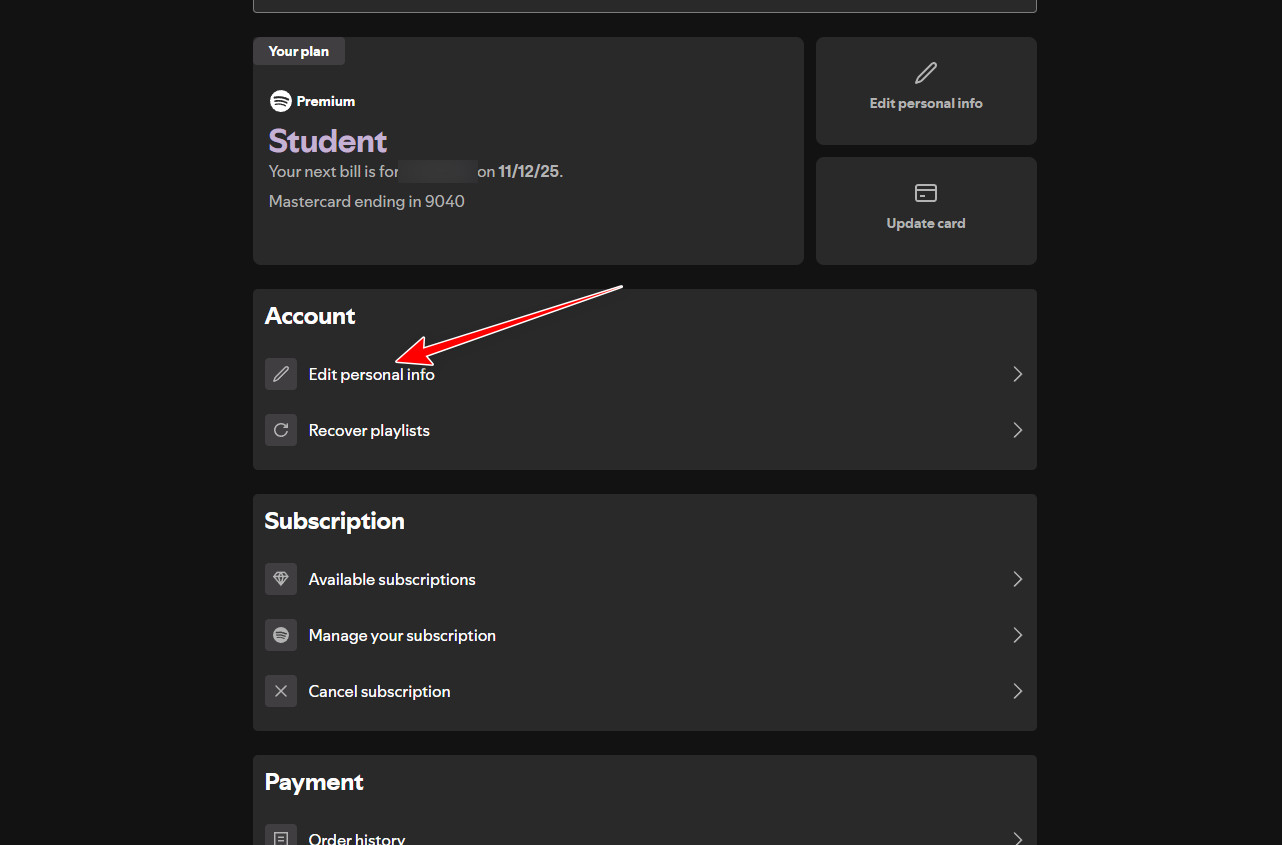
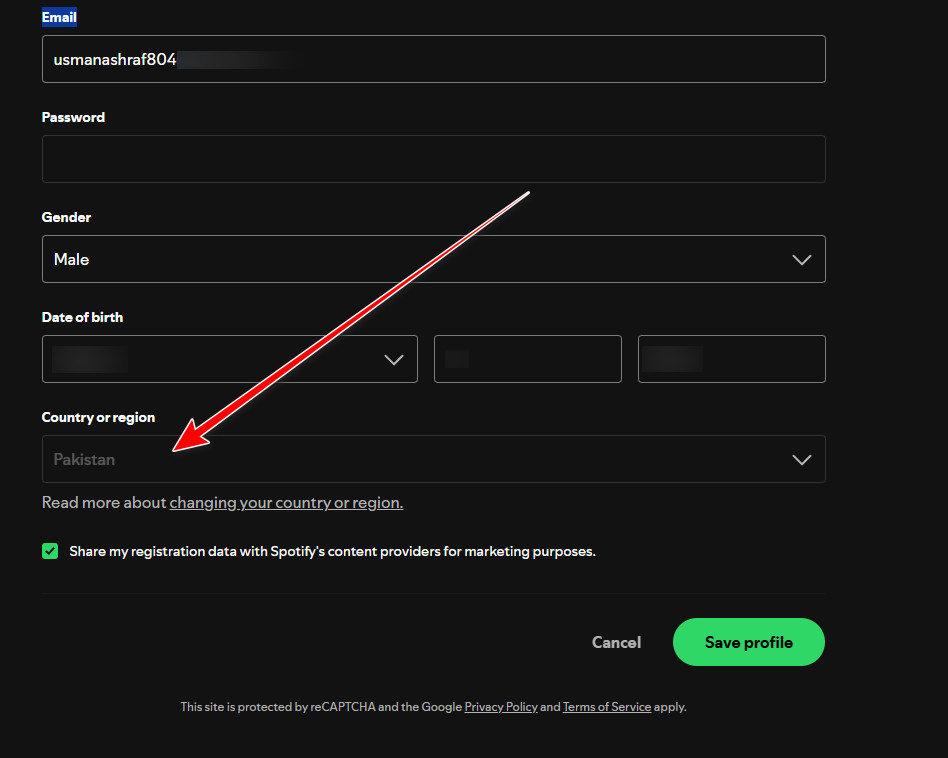
Note: Spotify often only shows a country option when it detects you’re actually there (via IP). If your country doesn’t appear, do Fix #1 and try again.
4. Log In with Email + Password (forces a clean re-auth)
If you usually sign in with Google/Facebook/Apple, switching to email/password can fix stuck sign-in or region loops.
- Open the Spotify login page.
- Choose Email/Username + Password.
- If you don’t have a password, use Forgot your password? to set one.
- Log in and check if the message is gone.
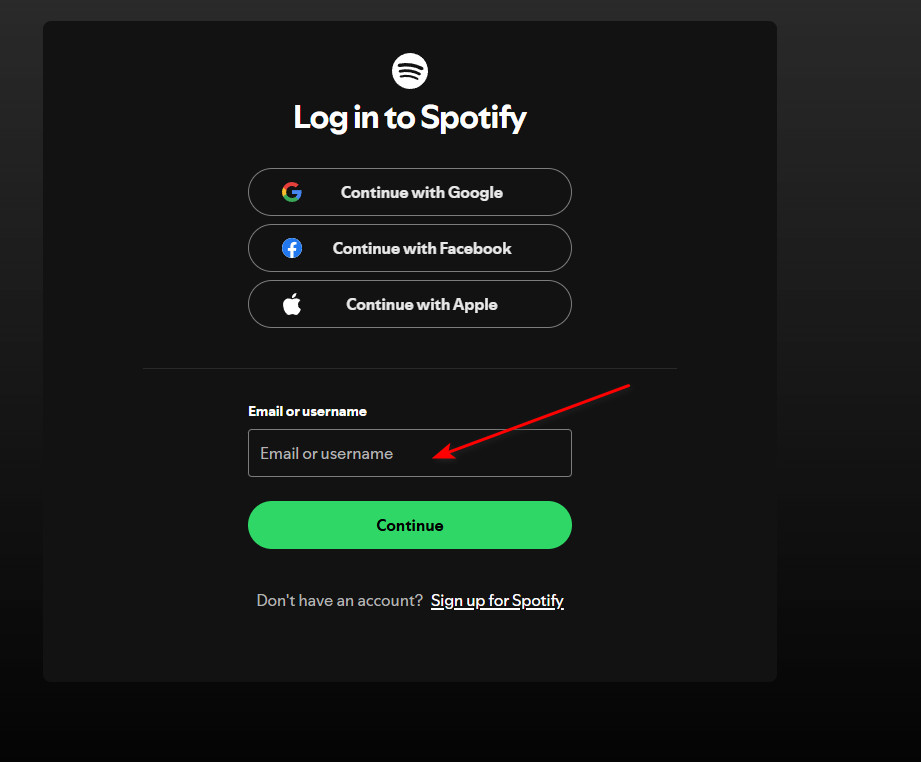
If it still fails, contact Spotify Support and say your account is being incorrectly detected in another country/region. Mention which connection fails (Wi-Fi vs mobile), and that you tried VPN off, sign out everywhere, alternate network, and reinstall. Official guides: