How to Fix Split Screen or Split View Not Working on iPad?
iPad Split View no longer uses the familiar three-dot menu in iPadOS 26 and later. Side-by-side apps are still available, but the Windowed Apps setting controls them. With Full Screen Apps selected, opening the second app replaces the first instead.
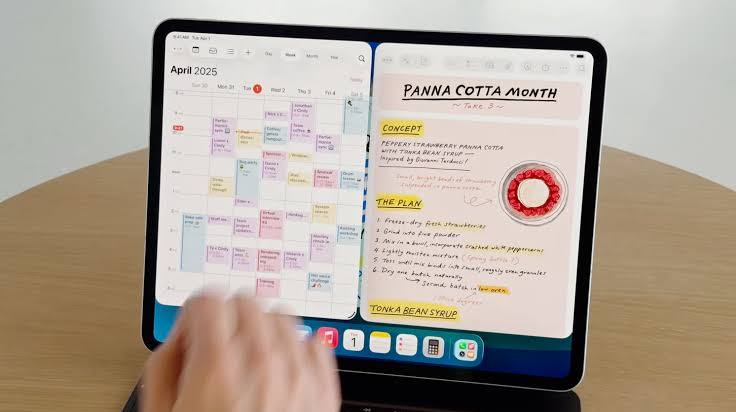
A floating window means the app opened, but it has not been placed beside the other app. On iPadOS 15 through 18, the original Split View menu is still used, so instructions for those releases will not match the newer interface.
Check Your iPadOS Version
- Open Settings > General > About. Check iPadOS Version and Model Name.
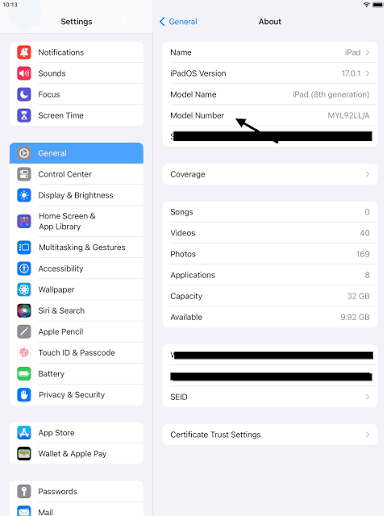
Keep the version and model visible; hide the device name, serial number and other private identifiers.
| Installed version | Controls to use |
|---|---|
| iPadOS 26 or later | Turn on Windowed Apps. Use the Dock method on 26.2 or later, or arrange two open windows. |
| iPadOS 17 or 18 | Select Split View & Slide Over and use the three-dot menu. |
| iPadOS 15 or 16 | Use the three-dot menu. On supported iPadOS 16 models, turn off Stage Manager to use classic Split View. |
Windowed Apps does not require an M-series chip. If the option is missing on a newer release, compare your model with Apple’s Windowed Apps compatibility list. Stage Manager is an alternative mode, not a requirement.
1. Set Up Side-by-Side Apps on iPadOS 26 or Later
The old Split View button will not return by selecting Full Screen Apps. Windowed Apps allows both full-screen and smaller windows, so you can still use one app normally and place another beside it when needed.
- Open Settings > Multitasking & Gestures and select Windowed Apps.
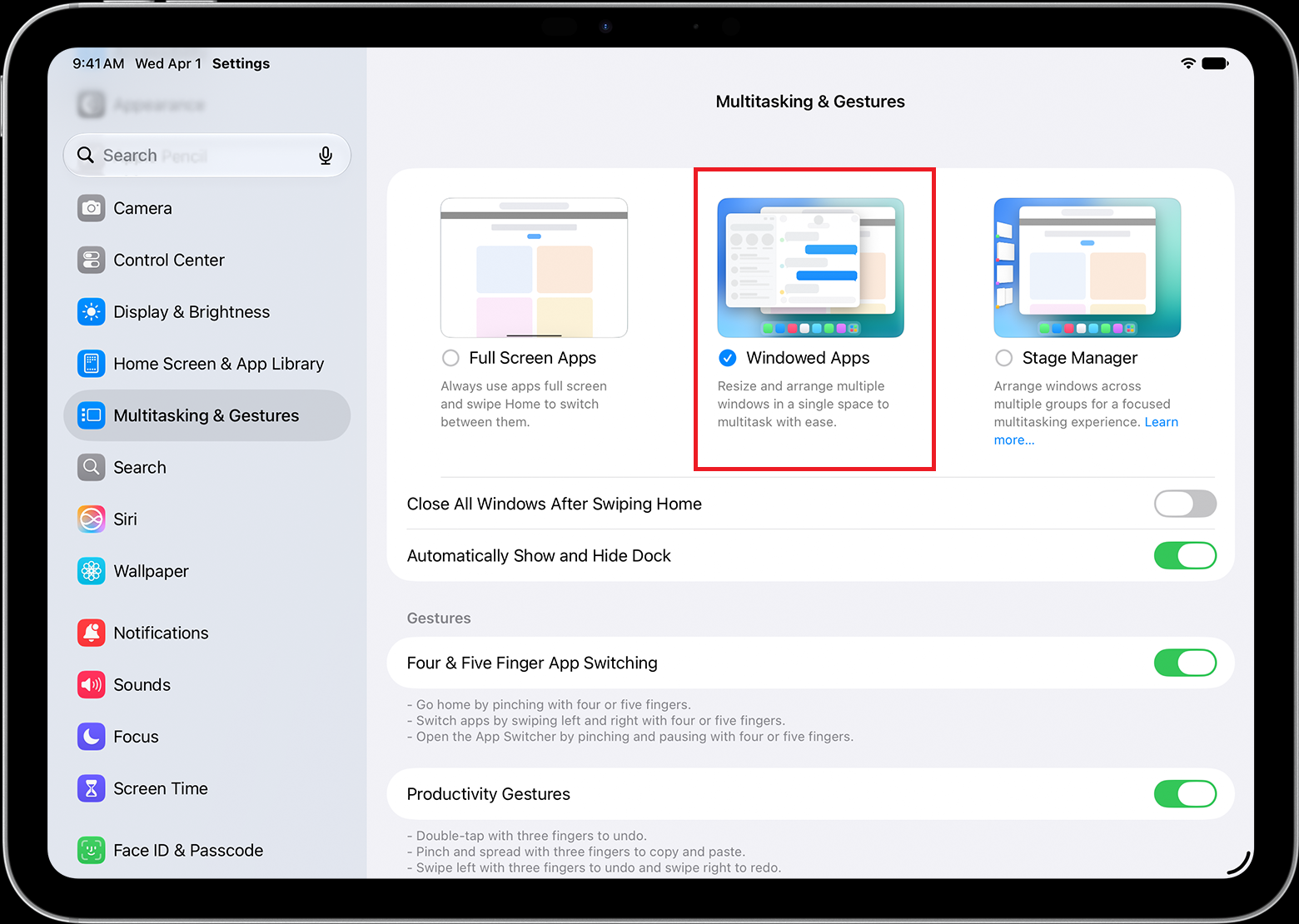
Show the selected Windowed Apps option on an actual compatible iPad; Stage Manager availability varies by model.
Use Safari and Notes for this check. Both support side-by-side use, which avoids confusing an individual app’s limitations with an iPad-wide problem.
Quick Option: Drag Notes from the Dock
This gesture requires iPadOS 26.2 or later. On an earlier 26.x release, use the window-tiling alternative below. Apple’s multitasking guide shows the Dock method and its placement controls.
- Open Safari full screen. For a small window, tap the Zoom (full-screen) button in its top-left controls. Swipe up slightly from the bottom to reveal the Dock.
- Find Notes in the Dock or in App Library at the Dock’s right end. Hold its icon and drag it over Safari’s left or right side. Release on the side-by-side preview.
Drop onto the side-by-side preview, not the Slide Over arrow at the outer edge. A center drop opens a floating window instead. Once the apps share the screen, drag their middle divider to adjust the widths.
Alternative: Arrange Two Open Windows
This alternative arranges the app windows directly. If a window offers Exit Slide Over in its top-left window-controls menu, choose that first. A normal floating window does not need this change.
- Open Safari and drag its bottom-right resize handle inward to make a smaller window.
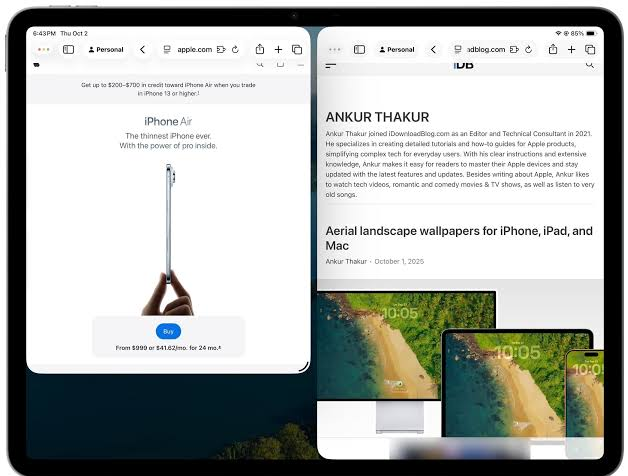
Capture the window corner and resulting smaller Safari window using a public test page. - Return to the Home Screen and open Notes. Resize it from the bottom-right corner as well. Use the Dock to bring either app forward if it becomes hidden.
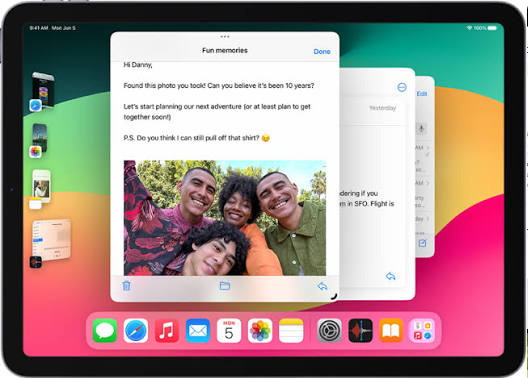
Use an empty or sample note. Show both apps without exposing personal notes or browsing history. - Hold Safari by its top edge, then flick it quickly toward the left side. Do the same with Notes toward the right. Start on the window frame, not inside its document.
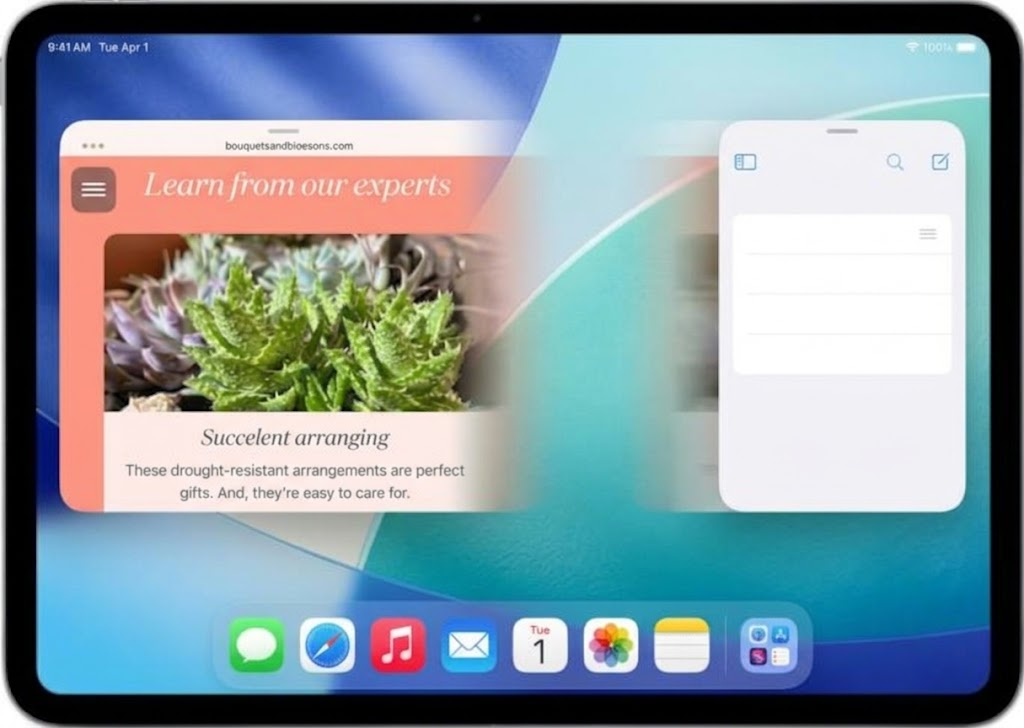
Use authentic before-and-after captures with clearly marked gesture arrows. The motion starts at each window’s top edge, not in its document. - Check that the apps occupy separate sides with a shared divider. Drag the divider to change their widths; taking it all the way to an edge returns one app to full screen.
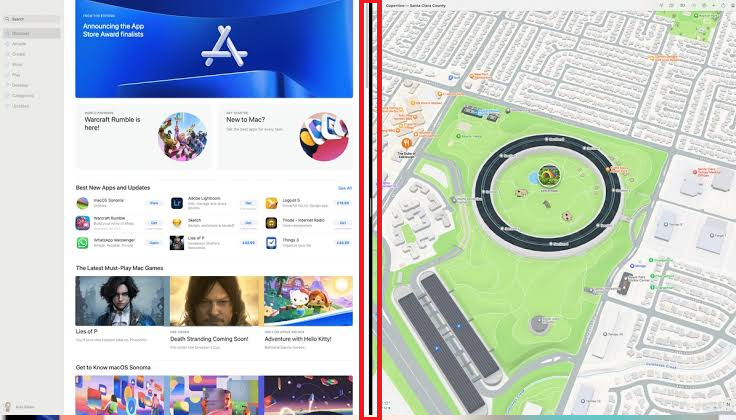
Show the actual side-by-side result and shared divider. Do not present overlapping windows as a completed split.
For a button-based layout, touch and hold the top-left window controls and choose a side-by-side preset. In a full-screen app, swipe down from the top to reveal the menu bar and controls. Apple explains these options in its window-layout guide.
If Safari and Notes now share the screen, try your usual pair. The older three-dot instructions below are only for iPadOS 15 through 18.
2. Restore Classic Split View on iPadOS 15 Through 18
The three-dot menu changes when Stage Manager is enabled: it offers window controls instead of classic Split View. On iPadOS 17 or 18, the Off setting also prevents side-by-side apps.
Select the Setting for Your Version
- iPadOS 17 or 18: Open Settings > Multitasking & Gestures and select Split View & Slide Over, not Off or Stage Manager.
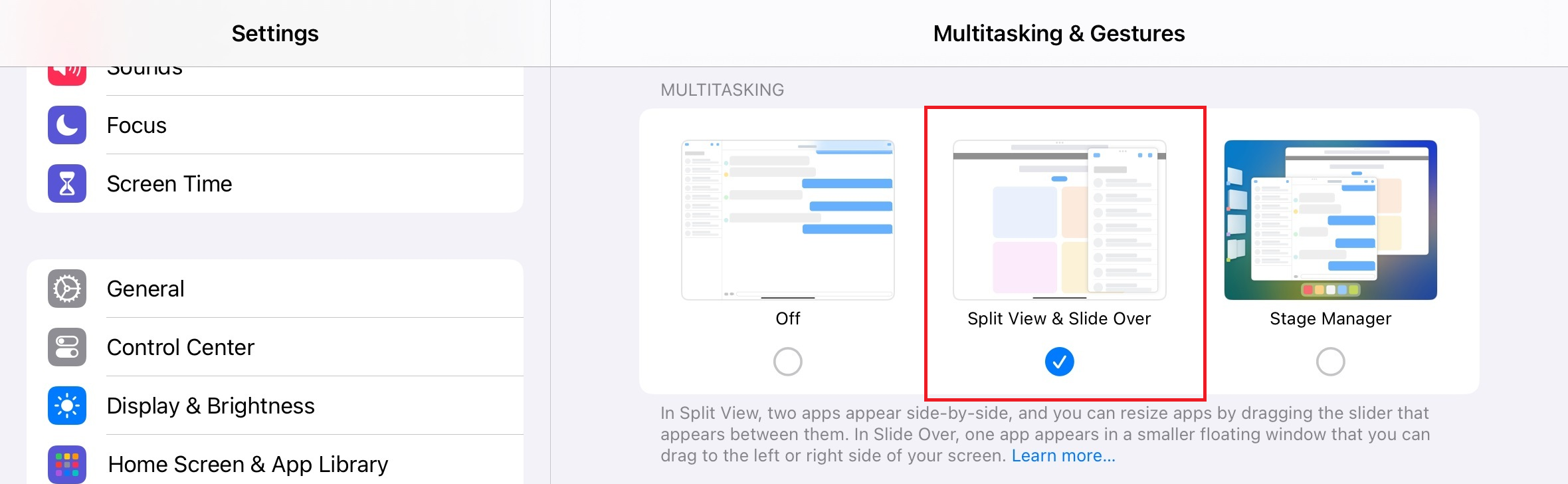
Capture this setting on iPadOS 17 or 18 and record the exact version; its label is different on iPadOS 26. - iPadOS 16 with Stage Manager: Open Settings > Home Screen & Multitasking > Stage Manager and turn off Use Stage Manager on iPad. Skip this on iPadOS 15 or when Stage Manager is unavailable.
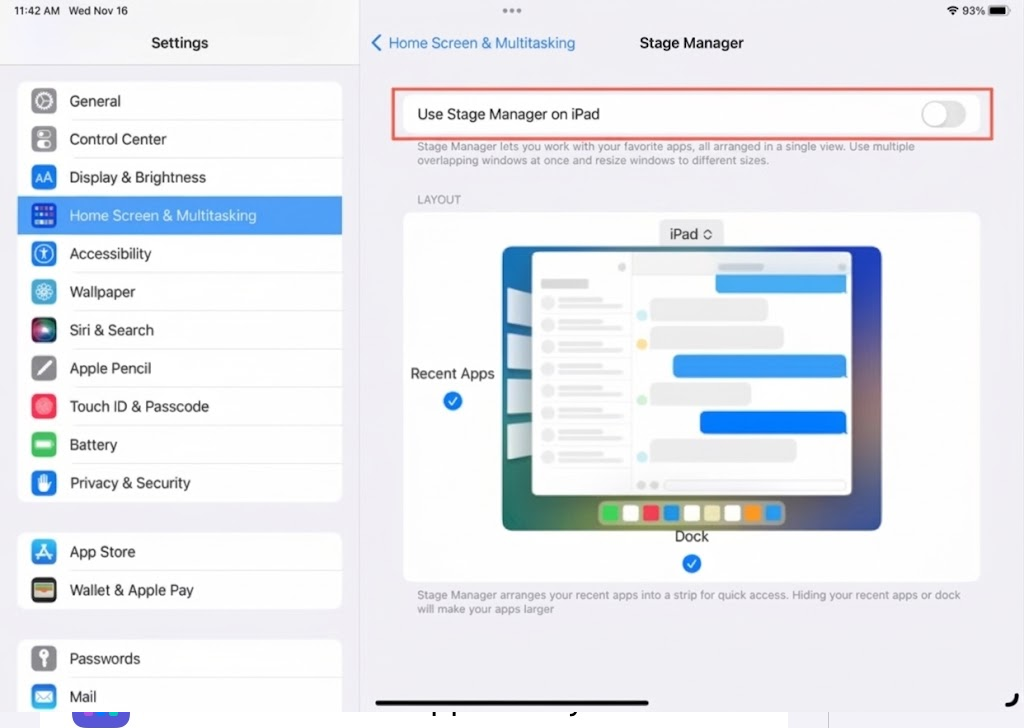
Use an authentic supported iPadOS 16 device. Do not invent a Stage Manager option on an unsupported model.
Open Safari and Notes Beside Each Other
- Open Safari and tap the three-dot Multitasking button at the top.
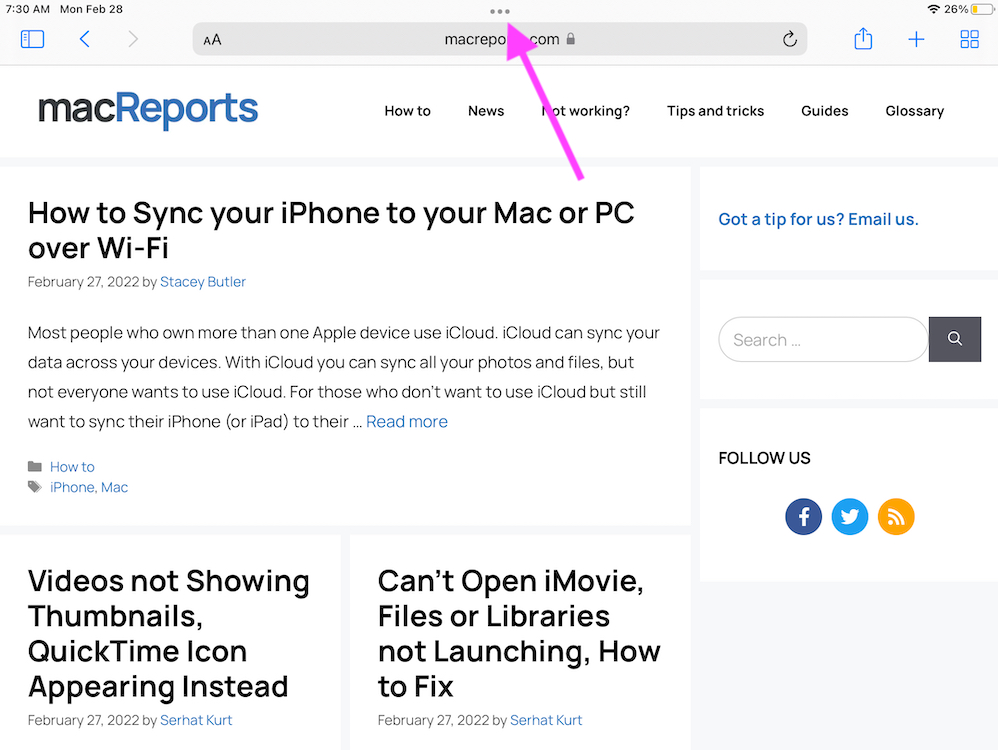
Use an actual iPadOS 15 through 18 capture and keep the three-dot button clearly visible. - Choose Split View, or its two-panel icon. Choose left or right placement if your version asks. Safari moves aside to reveal the Home Screen.
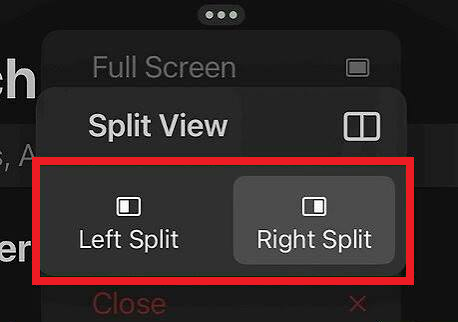
Show the real Split View icon or label on the tested version, including a placement choice only if it appears. - Tap Notes on the Home Screen or in the Dock. It should open beside Safari, not over it.
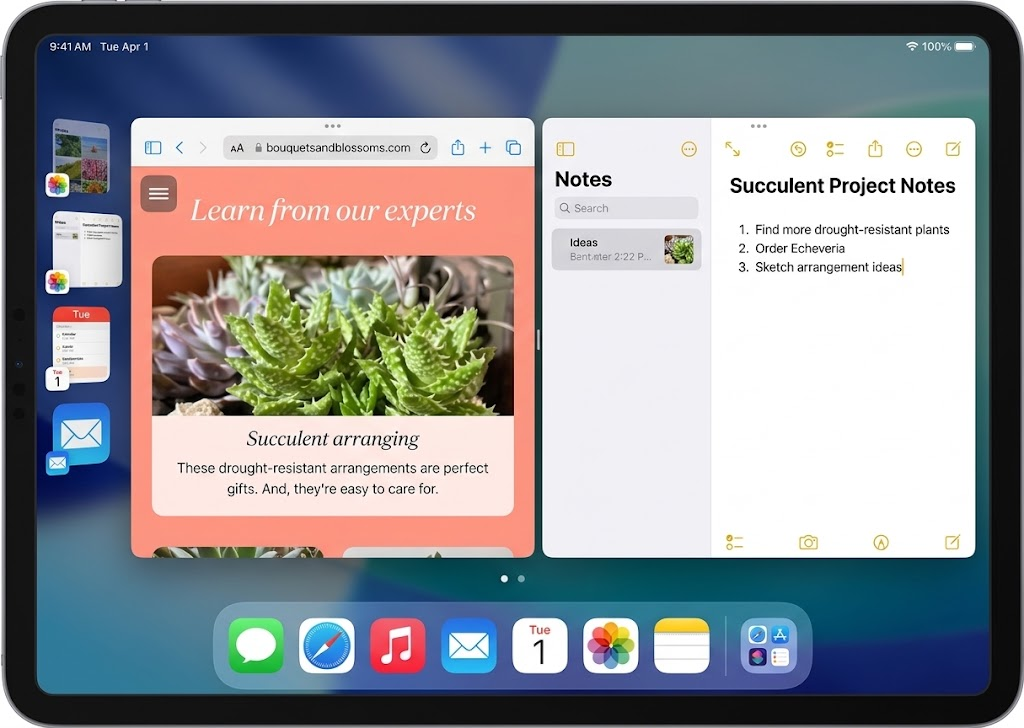
Capture the app-selection stage after Split View is chosen, using a test Home Screen without private widgets. - Drag the divider between the apps to adjust their widths. Keep it away from the outer edges to retain both views.
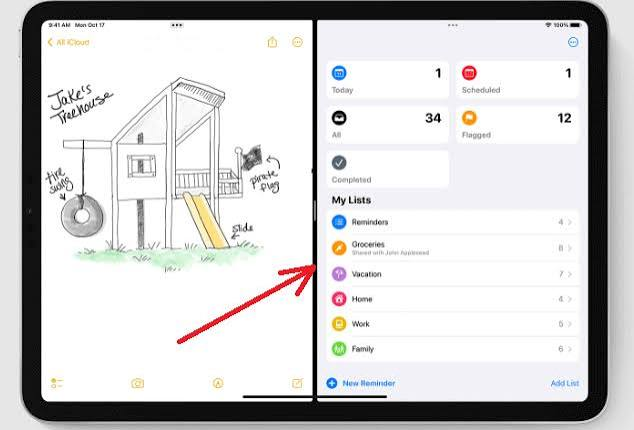
Capture the real result and the divider used to resize the two views. Keep test content free of private information.
If both apps remain visible and resize with the divider, Split View is working. Apple’s iPadOS 18 instructions illustrate this older menu, rather than the newer window controls.
If the Apps Still Will Not Stay Side by Side
| What happens | What to check |
|---|---|
| Safari and Notes work, but your usual app does not. | Update that app and check its developer’s supported layouts. Not every app supports the same window sizes or multitasking behavior. |
| The iPad is in a Guided Access session. | Have the person managing the session end it normally before testing. Guided Access troubleshooting applies when the session itself is stuck. |
| A work or school iPad is restricted to one app or cannot change settings. | Ask the administrator which multitasking modes are allowed. Keep the management profile and required restrictions in place. |
If Safari and Notes also fail with the correct mode selected, save your work, restart the iPad and test again. Back up before installing an available update under Settings > General > Software Update; Apple’s update instructions cover the preparation.
When taps or drags fail in other apps too, the iPad touchscreen checks are more relevant than changing multitasking modes.
For a persistent failure with both test apps, contact Apple Support with the model, iPadOS version, selected mode and whether the controls are missing or the placement gesture fails. A short recording with private content hidden can show the exact behavior.