How to Fix an iPad Stuck on the Apple Logo or in a Boot Loop?
The Apple logo should give way to your iPad’s lock screen. If it stays there or keeps returning after a black screen, the iPad is not completing startup.

An interrupted update or damaged system software can leave the iPad unable to load iPadOS. A hardware fault can produce the same screen, so the logo alone does not tell you whether the iPad needs to be erased or repaired.
Check What Is on the Screen
| What you see | What to do |
|---|---|
| A progress bar after an update, restore or transfer | Keep power connected. Apple’s progress-bar guidance explains that it can move slowly or restart. A brief button press showing an updating message confirms work is continuing. |
| The logo alone, or a repeating black-screen-and-logo loop | Try a force restart below. For a progress bar that never completes and an unresponsive iPad, a force restart is also Apple’s next step. |
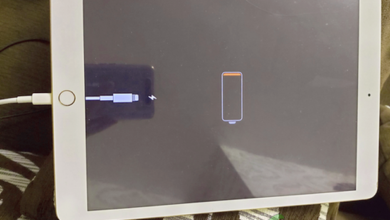
| A black screen or depleted-battery symbol | Use a working charger and allow up to an hour. Check the separate iPad charging problem if it still has no power. |
Update and Restore are different: a recovery-mode Update attempts to reinstall iPadOS while keeping data. Restore erases it. Neither Settings nor a fresh backup is available while the iPad cannot finish starting.
1. Force Restart the iPad
A force restart can clear a stalled startup without erasing your files. It uses the physical buttons, so the touchscreen does not need to work. Leave an update that is still progressing uninterrupted.
Follow only the instructions for your button layout. The Home button, where present, is the round button below the display.
Without a Home Button
- Quickly press and release the volume button nearest the top button.
- Quickly press and release the other volume button.
- Hold the top button through the restart. Release it when the Apple logo reappears.
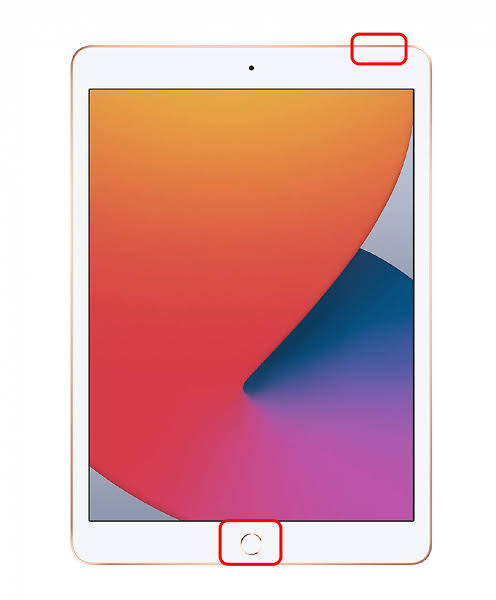
The illustration above has a Home button; for an iPad without one, use the volume-button sequence written above.
With a Home Button
- Hold Home and the top button together through the restart.
- Release both when the Apple logo reappears.
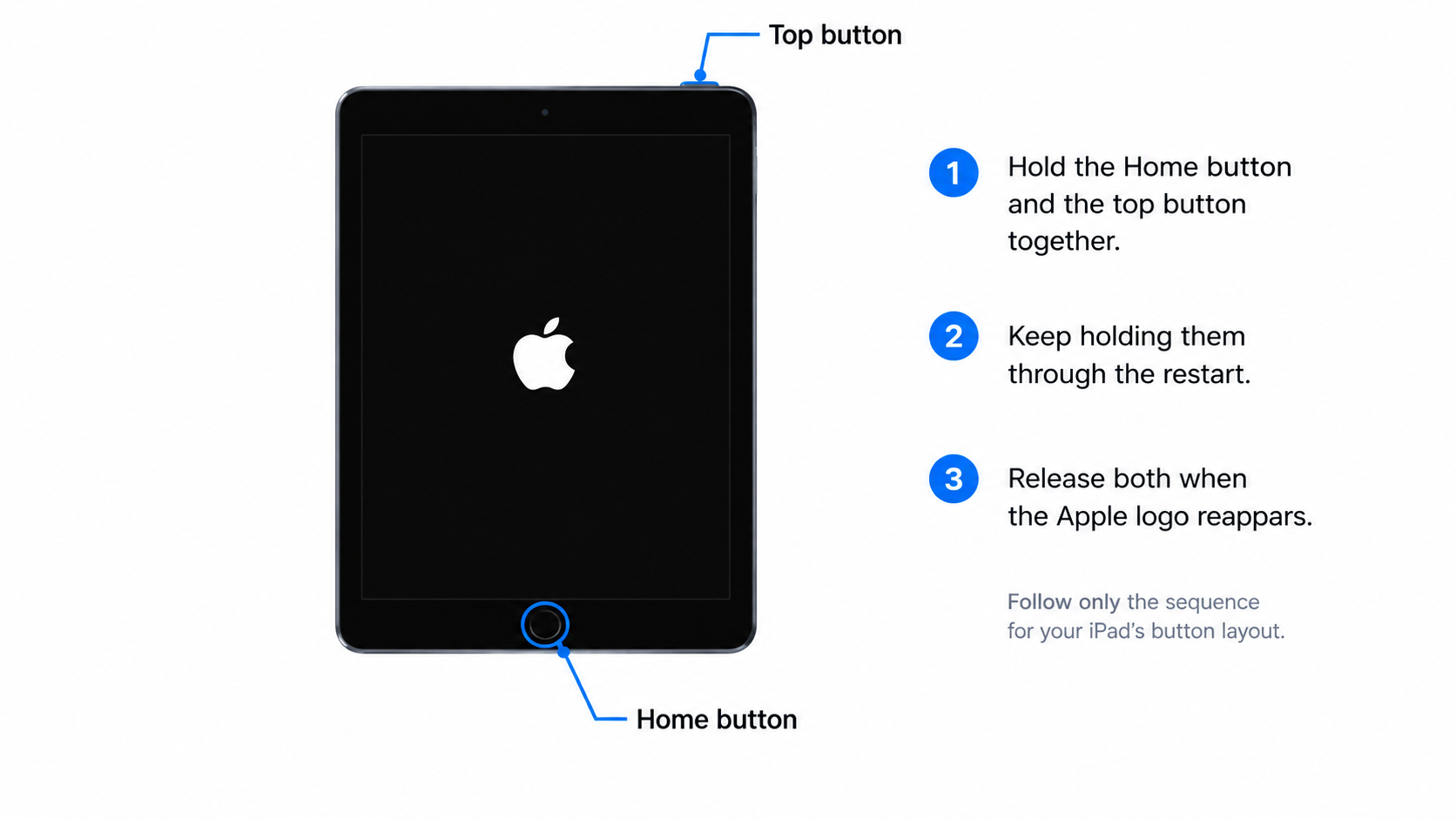
Wait for the lock screen, not just the logo. If startup finishes, unlock the iPad and back it up. If it stays on the logo or repeats the loop, try the recovery-mode Update below. A broken required button needs service instead.
2. Update iPadOS in Recovery Mode
If restarting leaves the iPad on the same logo, a recovery-mode Update reinstalls iPadOS and attempts to keep your data. It may repair a software startup problem, but not a hardware fault.
If Recovery Assistant is already running, let its repair finish. If it fails or the logo returns, use a computer.
A supported iPad showing a two-device animation may instead offer recovery with a nearby iPhone or iPad.
Connect to a Computer
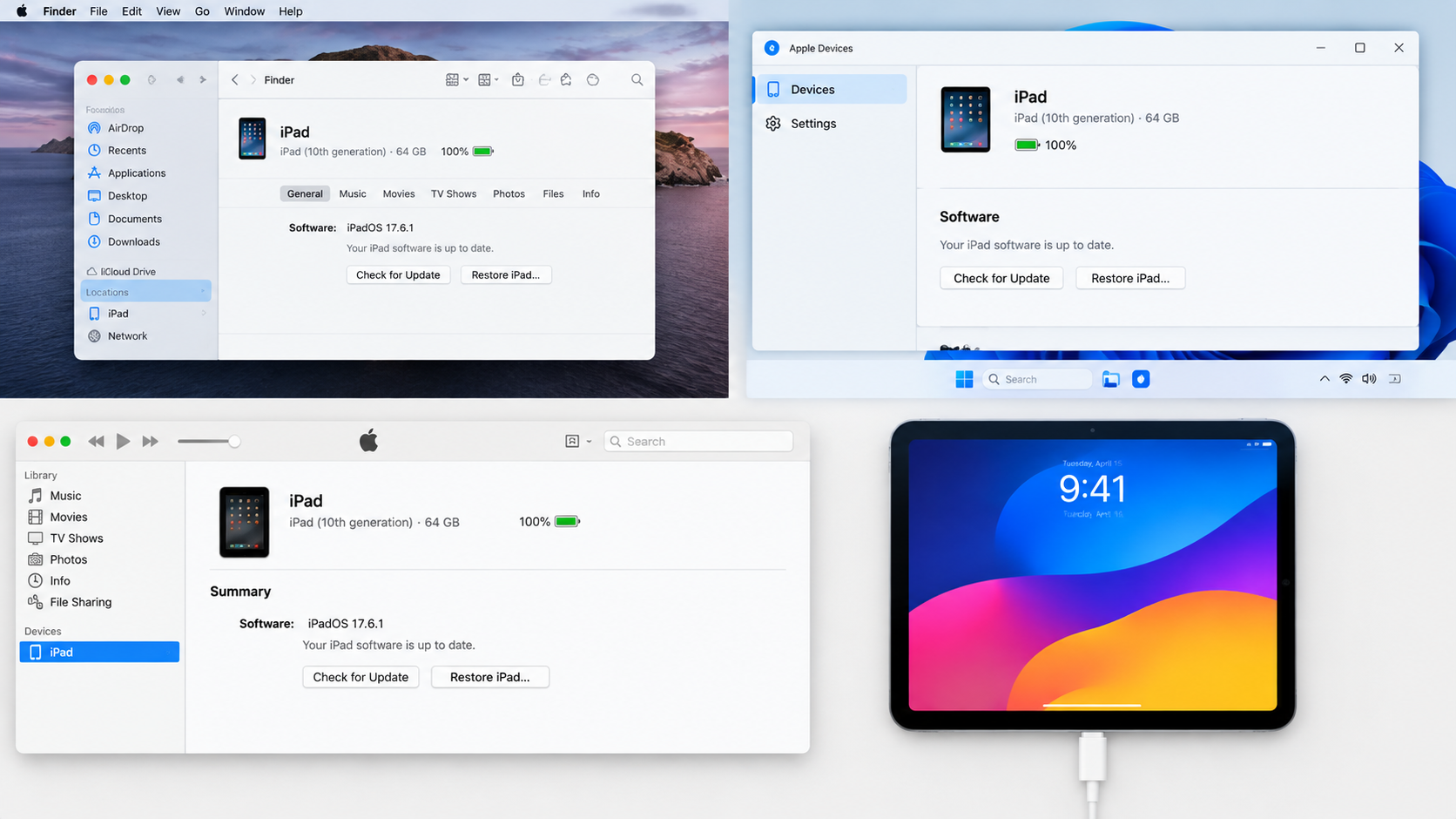
Update the computer’s software. Open Finder on macOS Catalina or later, Apple Devices on Windows, or iTunes on older systems where it is the available tool. Connect the iPad using a USB cable that carries data.
Enter Recovery Mode
Keep the cable connected and use one of these sequences:
Without a Home button: quickly press and release the volume button nearest the top button, then the other. Hold the top button past the Apple logo until the recovery screen appears.
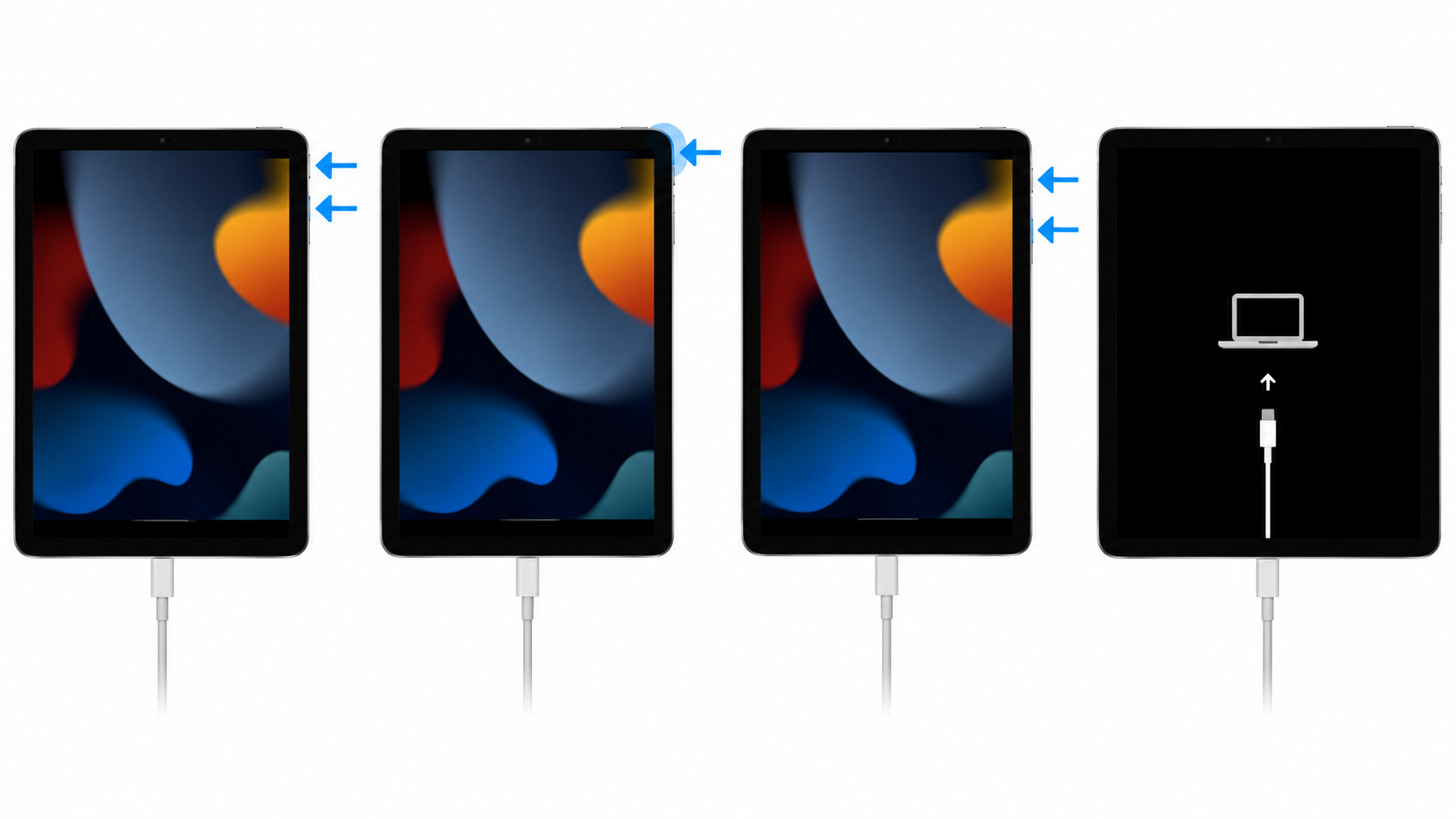
With a Home button: hold Home and the top button together. When the iPad turns off, release the top button and keep holding Home until the recovery screen appears.
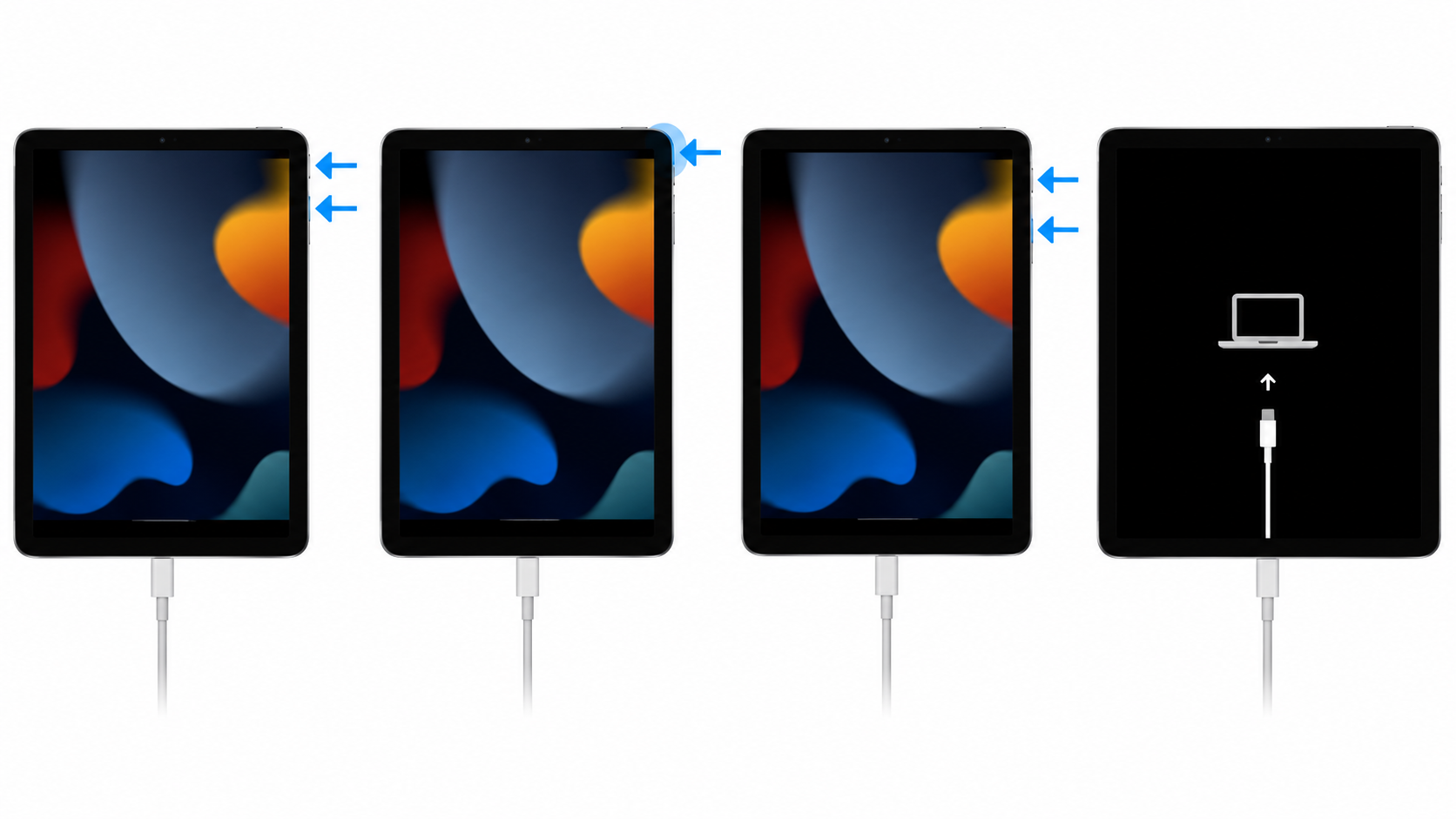
This illustration shows a different button layout. Use the written Home-button instructions for your iPad.
If an on-device recovery-options menu appears instead of the cable screen, choose its Recovery Mode option to continue on the computer. Apple’s recovery-options guide distinguishes this from options that erase the device.
Choose Update, Not Restore
- Select the iPad in Finder, Apple Devices or iTunes. The computer must detect it in recovery mode; a charging-only cable is not sufficient.
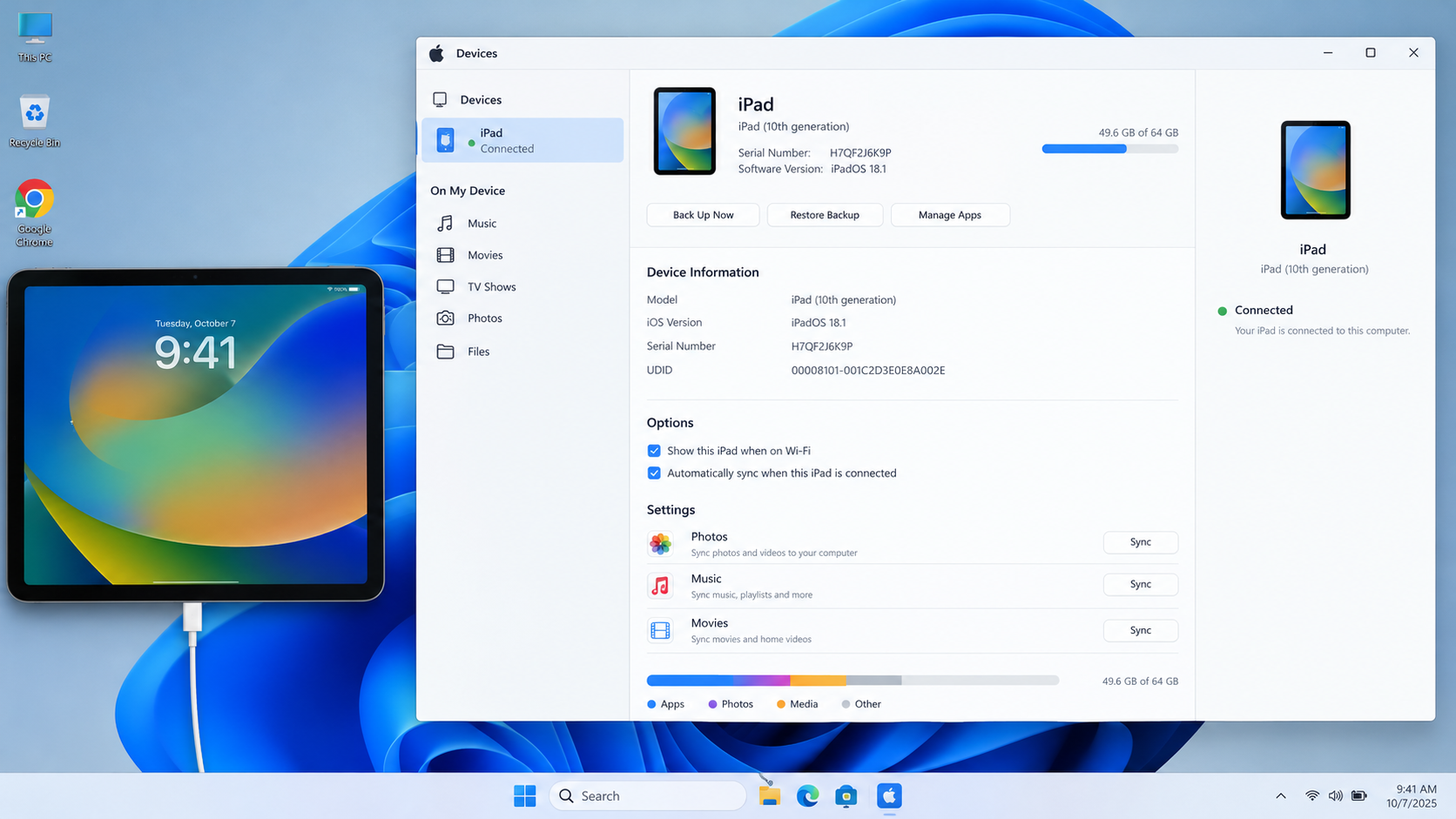
The cable-and-computer screen confirms recovery mode; the iPad must also appear in Finder, Apple Devices or iTunes. - At the recovery prompt, choose Update, not Restore. Keep the iPad connected while the software downloads and installs.
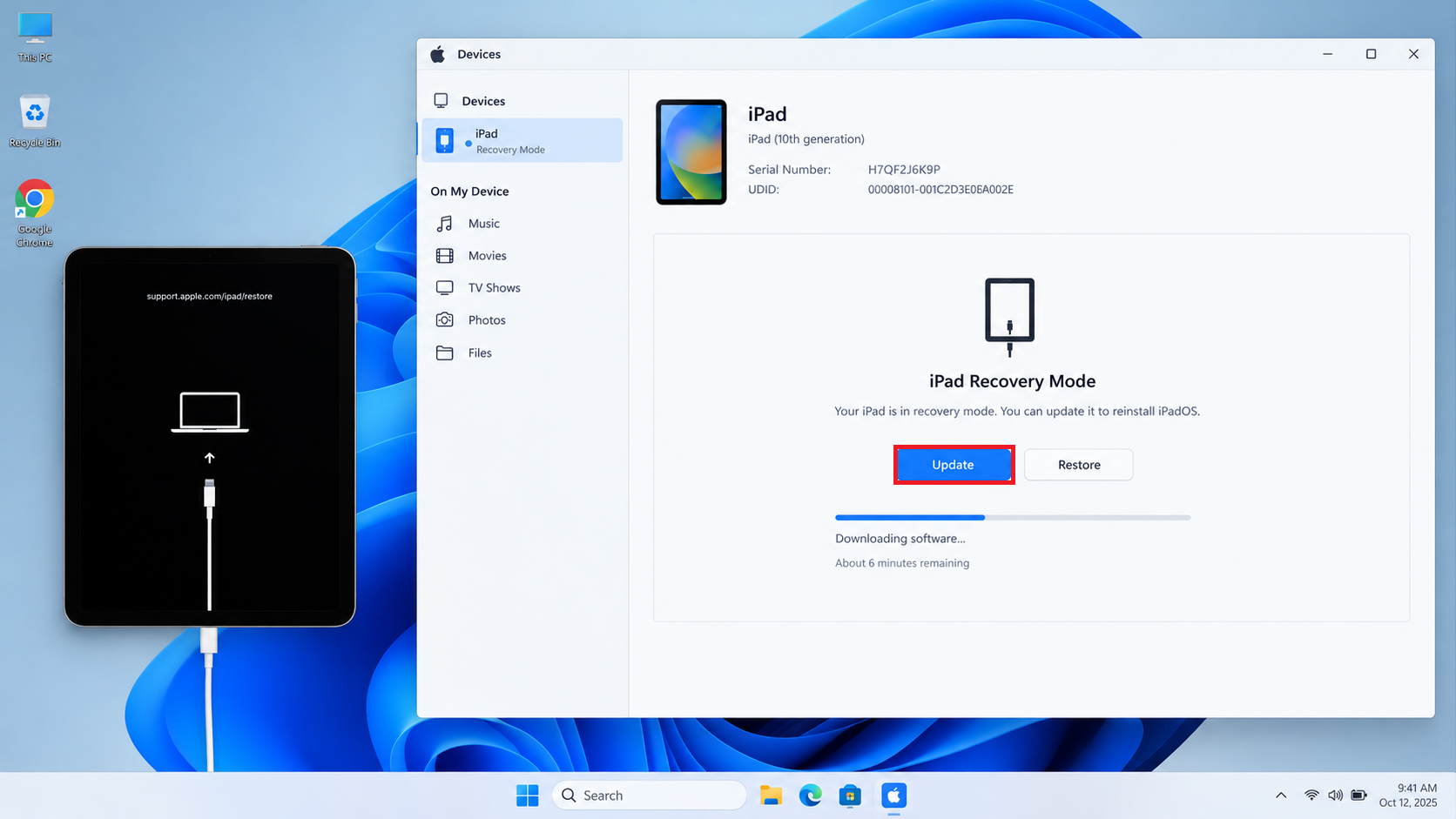
Update attempts to reinstall iPadOS while retaining personal data. - If downloading takes more than 15 minutes and the iPad leaves recovery mode, let the download finish. Then repeat the button sequence and choose Update again. If it has actually started normally, back it up instead.
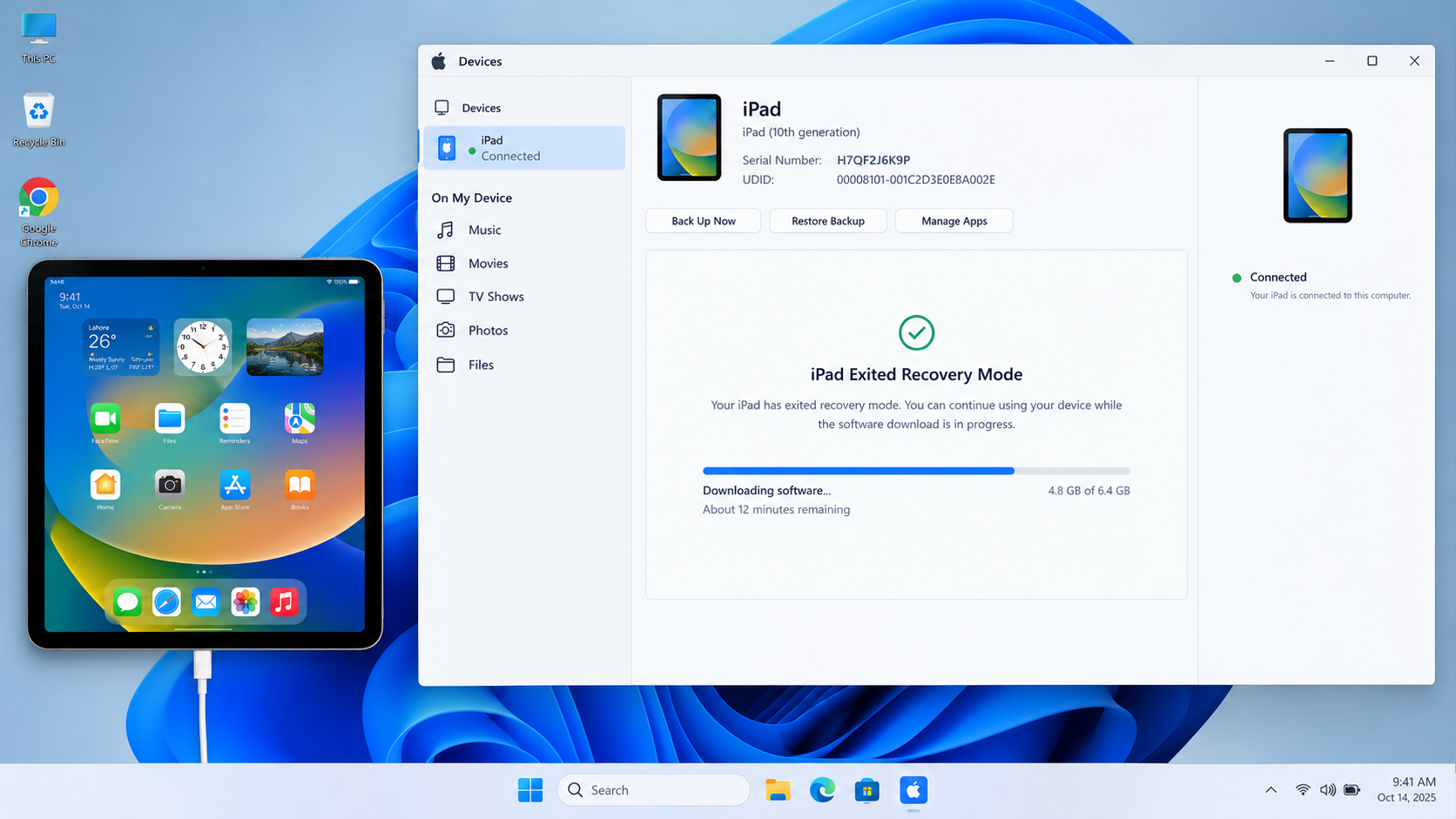
If recovery mode times out during a long download, finish downloading before repeating the button sequence. - After installation, allow startup to finish. Unlock and back up the iPad if the lock screen returns.
For errors 9, 4005, 4013 or 4014, follow Apple’s update and restore error checks, including a different cable or computer. Record the number; it does not, by itself, identify a failed component.
A completed Update that still leaves the iPad unable to start may require Restore. If you have no computer, borrow a trusted Mac or PC, or ask Apple or an authorized service provider for help.
3. Restore Only After Checking Your Backup
Restore can help when Update does not resolve a software startup failure. It also removes your data, so check your backup before choosing it.
- Check existing backups and their dates. Apple’s computer-backup instructions help locate saved backups. On another iPhone or iPad signed in to your account, check Settings > [your name] > iCloud > Storage/Manage Account Storage > Backups; do not delete anything.
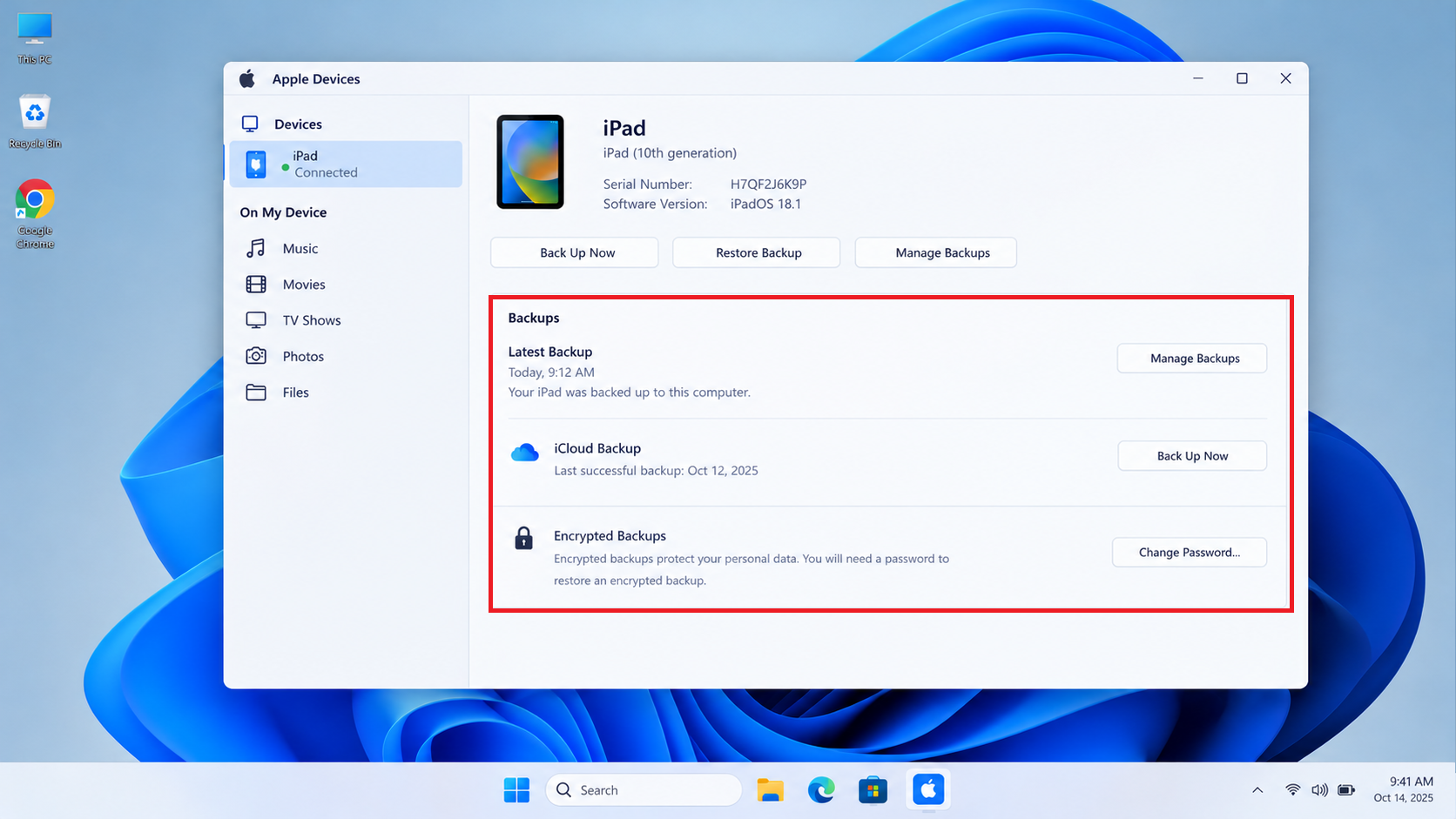
A recovery-mode connection does not create a fresh backup of inaccessible data. - Confirm access to the linked Apple Account and any required verification. Have the password for an encrypted computer backup available. Restore does not remove Activation Lock; involve the administrator for a work or school iPad.
- Resolve earlier connection errors, then keep or put the iPad in recovery mode. Select Restore on the computer and read the erasure confirmation before proceeding.
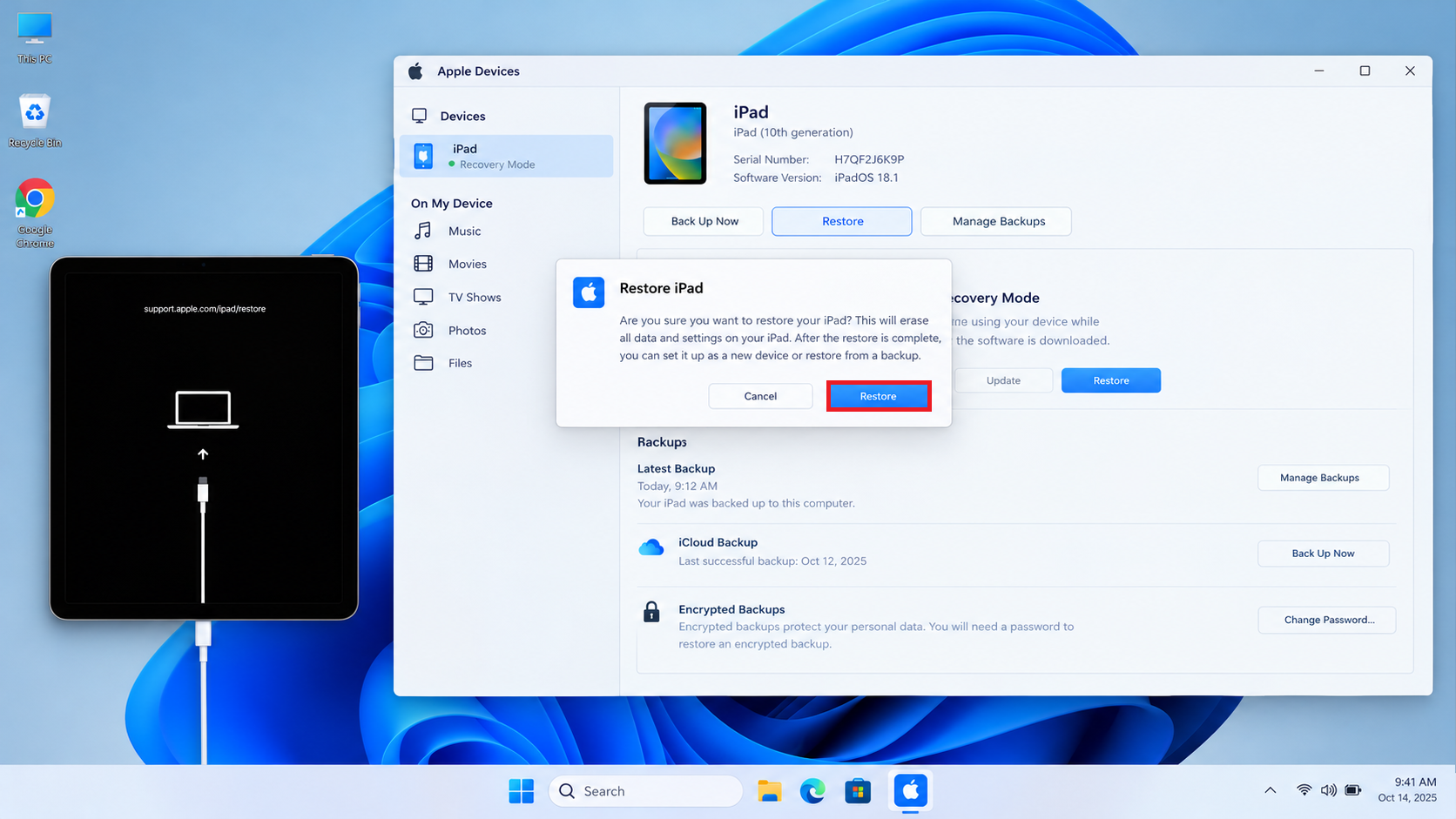
Restore removes local data and reinstalls iPadOS. - Leave it connected until Restore finishes. At the Hello screen, complete setup and select a suitable backup. Only data that was backed up or synced can return.
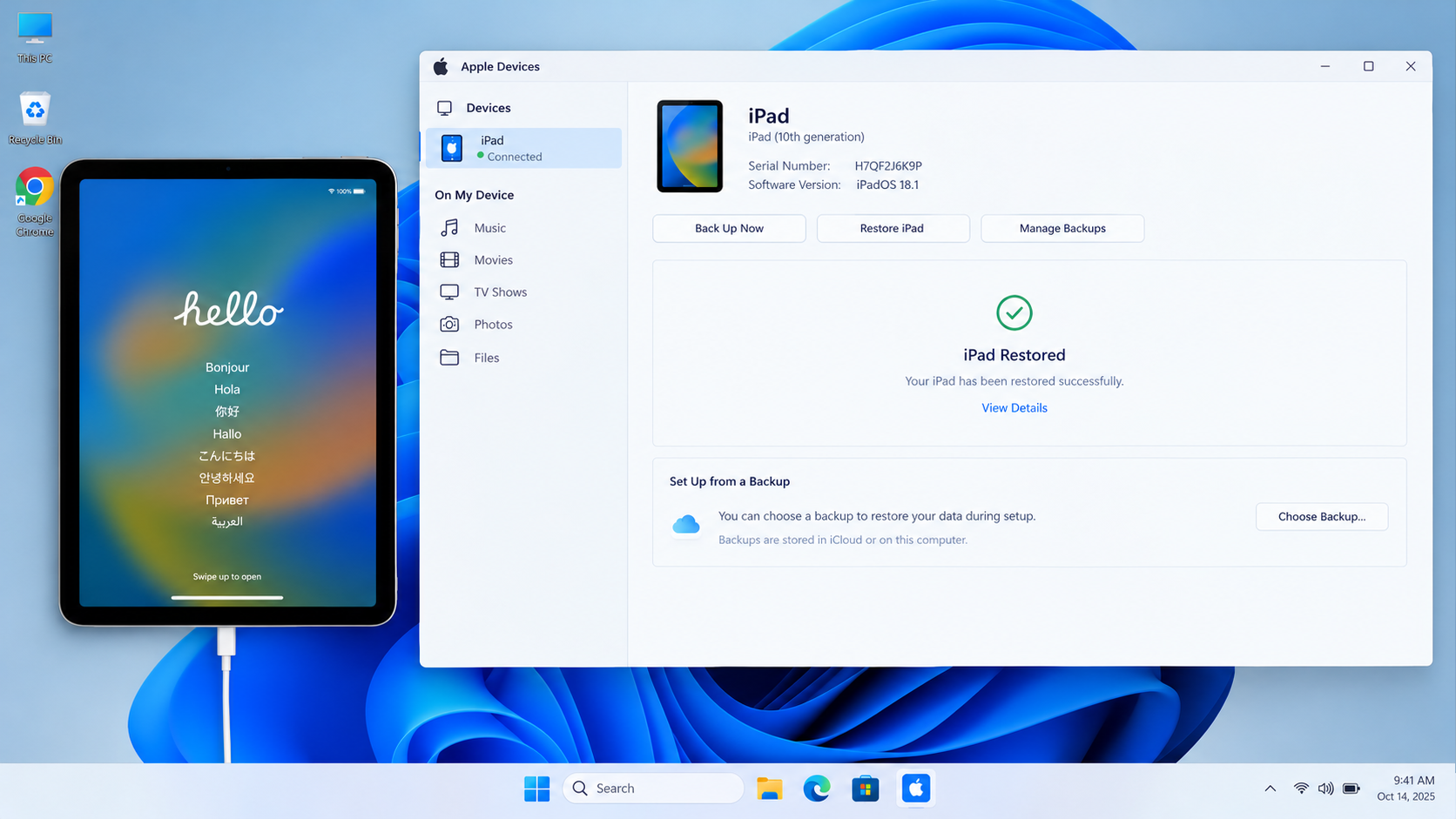
Reaching setup shows that the iPad has progressed beyond the startup logo
If the loop returns during a backup transfer, note that timing rather than repeating the same erase and transfer.
When the iPad Still Will Not Start
Arrange service with Apple if the logo or recovery screen keeps returning, a required button is broken, or Restore fails after connection checks.
Give the provider the exact error number and explain whether failure happens before setup or during backup restoration.
If the iPad now reaches the lock or Home screen but ignores touch, investigate the touchscreen problem separately. That is different from an iPad that cannot finish starting.