Fix: “Session Expired” Error Code 200_1040 in Fall Guys
The “Session expired, please restart your game. Error Code: 200_1040“ in Fall Guys usually appears while launching the game or queueing for a match. It happens when the game is unable to keep a valid connection session with Epic’s servers.
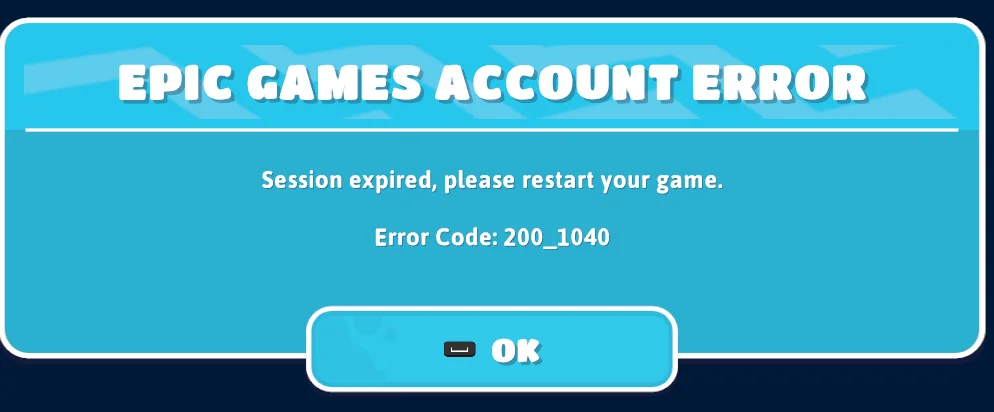
A session is your temporary login pass. It holds your login token, player data, and current connection status. If this session loads too slowly, gets interrupted, or fails to sync correctly, it becomes invalid and the game cannot complete the login check. When that happens, Fall Guys asks you to restart.
Why this error usually happens?
This error is most commonly caused by one of the following:
- Temporary server-side outages affecting Epic Online Services
- An outdated Epic Games Launcher
- An expired Epic Games account token
- Corrupted or missing Fall Guys game files
Before trying any fixes on your PC, it is important to check whether the issue is coming from Epic’s servers. If services are down, the error can affect everyone and no local fix will work until Epic restores connectivity.
Quick check before troubleshooting
To confirm whether the issue is server-related:
- Visit Epic’s official status page and look for incidents related to Epic Online Services or Fall Guys
- Check Epic Games or Fall Guys official social channels for outage announcements
- If many players report the same error at the same time, it is very likely a temporary outage
If everything looks operational, continue with the fixes below, starting from the easiest.
1. Restart Epic Games Launcher
Restarting the Epic Games Launcher helps refresh its sign-in and background online services. Sometimes these services fail to start correctly, which prevents Fall Guys from receiving a clean session. A full restart forces the launcher to reconnect to Epic’s servers and rebuild the session properly.
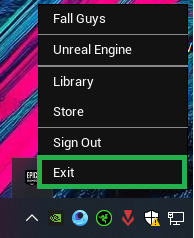
- Close Epic Games Launcher from the system tray.
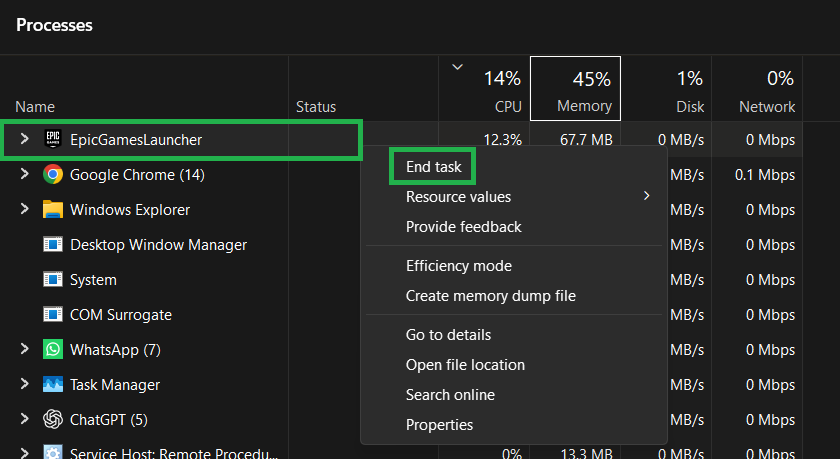
- Press Ctrl + Shift + Esc to open Task Manager.
- Select Epic Games Launcher and click End Task.
- Reopen Epic Games Launcher and launch Fall Guys.
2. Update Epic Games Launcher
Epic regularly updates the launcher components that handle authentication and online communication. If your launcher is outdated, it may use older connection rules that no longer match Epic’s servers. Updating ensures compatibility with Epic Online Services and helps maintain a valid session.
Tip: Updates usually install automatically when you restart the launcher.
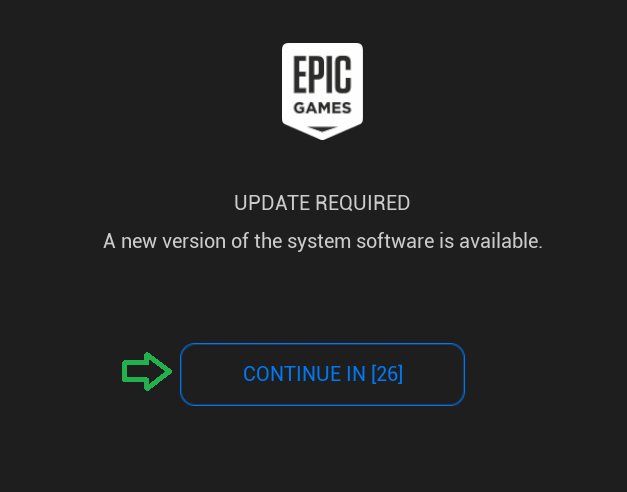
- Exit Epic Games Launcher completely.
- Open the launcher again.
- Allow any available update to install.
- Restart the launcher and launch Fall Guys.
3. Sign Out and Sign Back In
Signing out forces Epic to issue a fresh authentication token. If your current token has expired or failed to sync properly, Fall Guys may not be able to create a new session, triggering Error Code: 200_1040. Signing back in clears the old token and rebuilds the session from scratch.
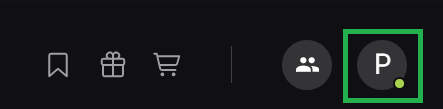
- Open Epic Games Launcher and click your Profile icon.
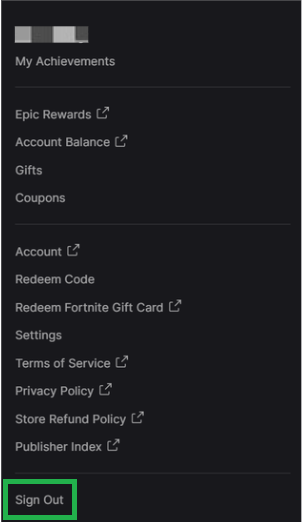
- Select Sign Out.
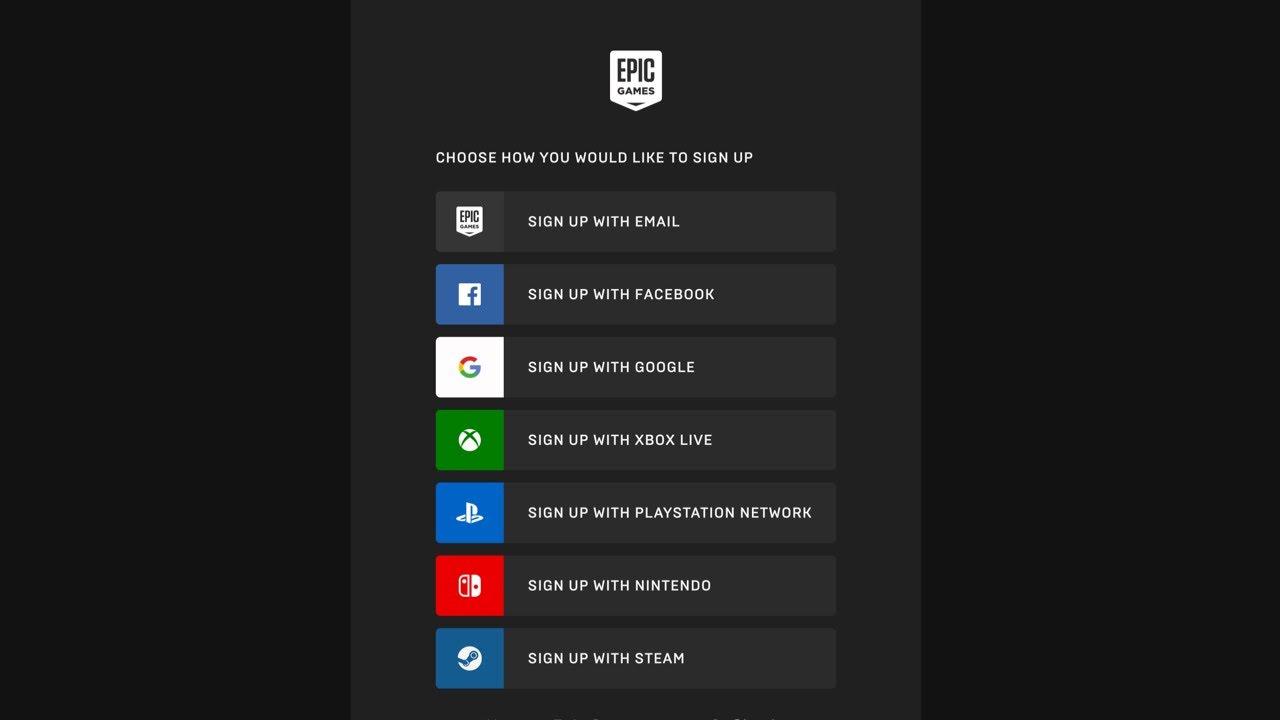
- Wait until the login screen appears.
- Sign back in with your Epic Games credentials.
- Launch Fall Guys and test the game.
4. Verify Fall Guys Game Files
Verifying game files compares your installed files with Epic’s official version. If any files are missing, damaged, or partially updated, the game may fail during startup or session validation. Verification automatically replaces faulty files and often restores proper connectivity.
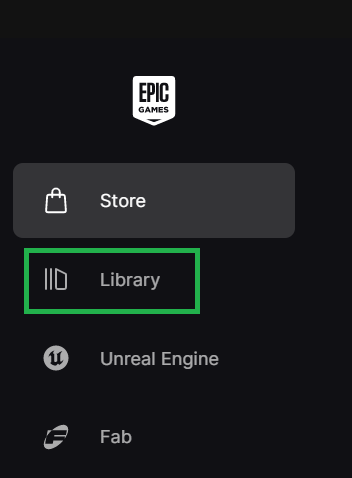
- Open Epic Games Launcher and go to Library.
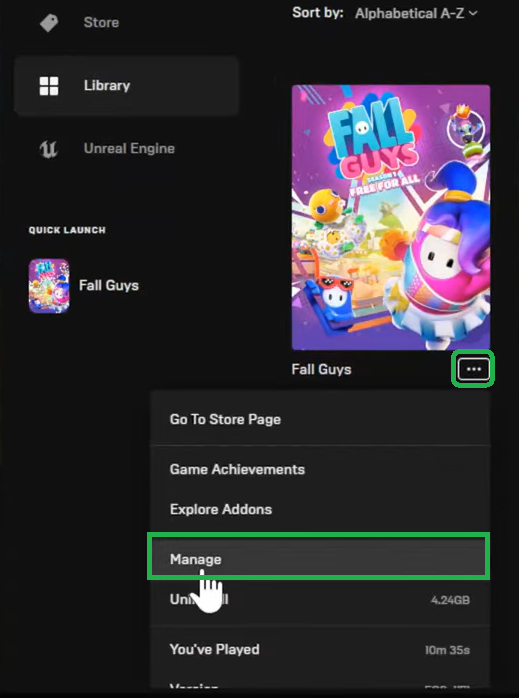
- Click the three dots next to Fall Guys and select Manage.
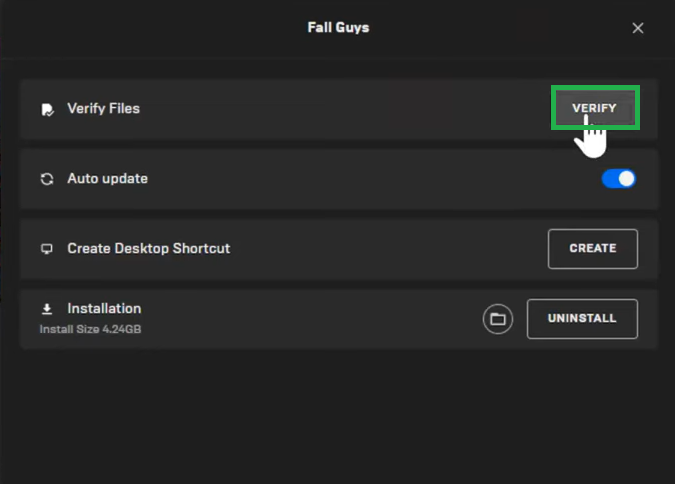
- Click Verify.
- Wait for the process to finish, then relaunch the game.
5. Reinstall Epic Games Launcher and Fall Guys
If the error keeps returning, a clean reinstall removes corrupted files, broken updates, cached data, and damaged launcher components. Reinstalling both the launcher and the game ensures all online services start from a clean, default state.
- Close Epic Games Launcher completely.
- Open Settings > Apps.
- Uninstall Fall Guys.
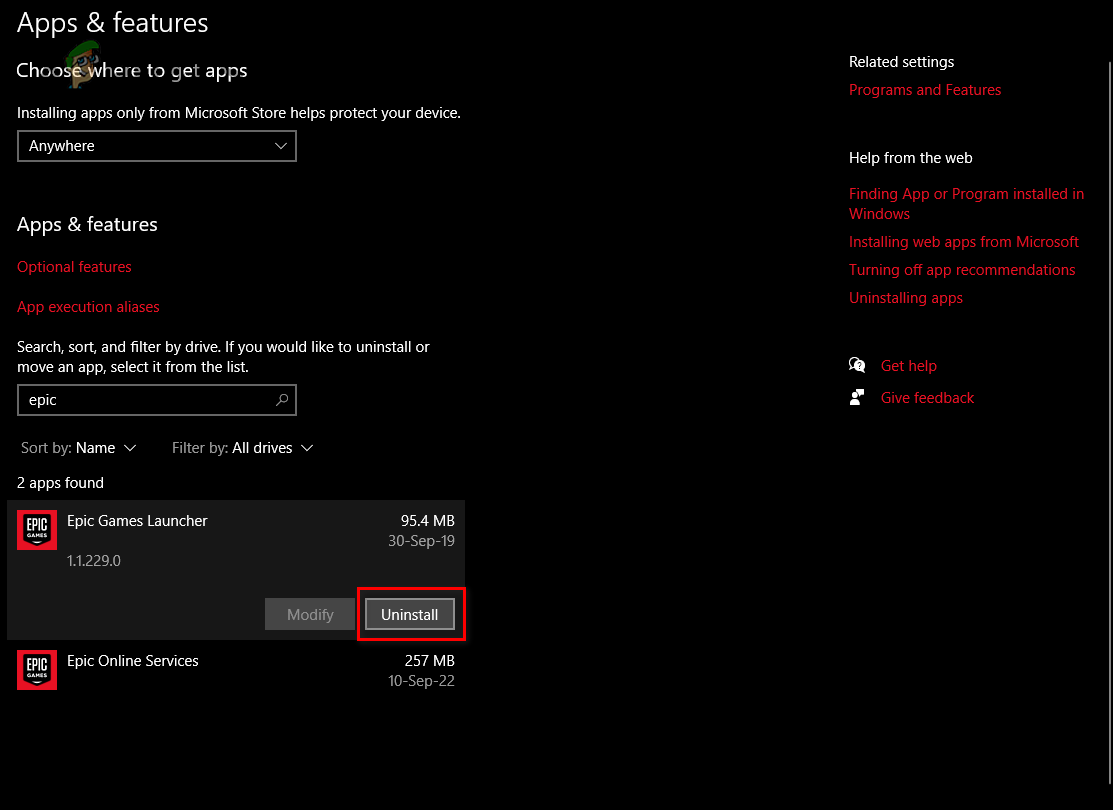
- Uninstall Epic Games Launcher.
- Restart your PC.
- Install the latest Epic Games Launcher from Epic’s website.
- Sign in, reinstall Fall Guys, and test the game.
If the issue still persists and many players are reporting the same error, the problem is almost certainly server-side. In that case, waiting for Epic services to stabilize is the only solution.