Fix: ‘Your client issues a malformed or illegal request’
Some users have been encountering the Youtube Error 400 when visiting some or any Youtube page from a Windows PC. The error message is rather ambiguous and reads “Your client has issued a malformed or illegal request. That’s all we know”.
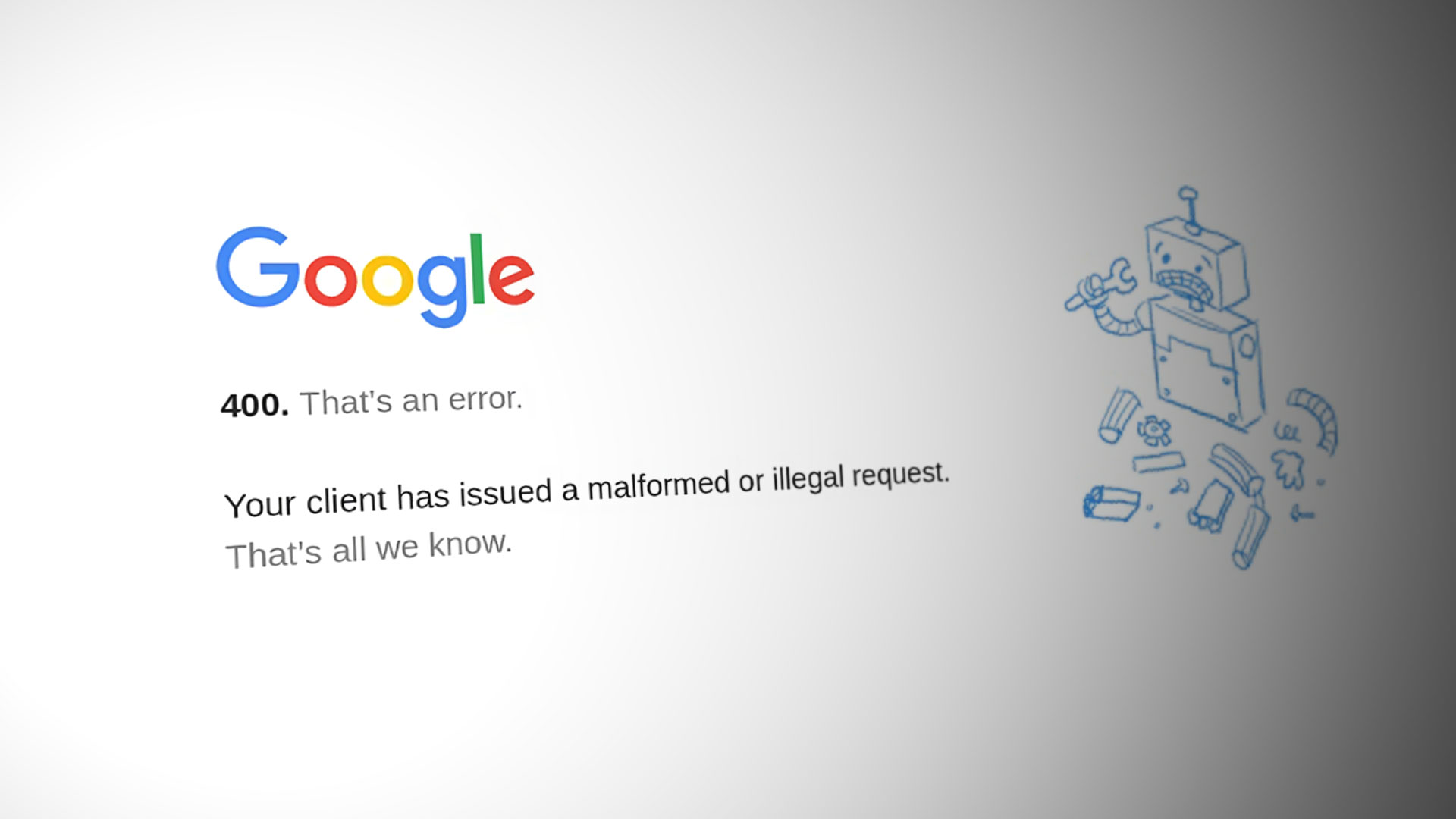
Looking at the status code, the error seems to indicate that Youtube serves is incapable of processing your request due to a client error. The reasons why this is commonly happening is an invalid request message, framing or a deceptive request routing.
After investigating the issue, it seems like the Youtube Error 400 is sometimes caused by a selection of cookies that are being misused. However, most of the time, the issue occurs on Chrome versions that are actively using the Great Suspender extension. As it turns out, the problem is caused by the matter in which the scroll position is recorded in the cookies. After a while, the size of the cookie will surpass the limit and the affected user will start seeing the Youtube Error 400 message.
How to fix the Youtube Error 400
As of know, there is no other way of resolving the issue than deleting the cookies responsible for the apparition of this issue. But keep in mind that unless you used some kind of Chrome extension capable of blocking the gsScrollPos cookie from exceeding the size, you’ll likely end up getting the Youtube Error 400 message again after some time.
If you’re struggling with the Youtube 400 error, the methods below will help you overcome the issue. Please follow the potential fixes below in order until you encounter a fix that manages to re-grant you the normal functionality of YouTube.
If you’re looking for a quick and easy fix, follow Method 1. If you want to specifically delete the cookies that are causing the issue without removing the rest of Youtube’s related cookies, follow Method 2.
Method 1: Deleting the gsScrollPos cookie via siteData
This first method involves launching Chrome’s SiteData page and deleting the cookie responsible for the apparition of the Youtube Error 400 manually. But keep in mind that following the steps below will delete all related Youtube cookies, not just the gsScrollPos cookie (which is responsible for this issue).
Here’s a quick guide on to do this:
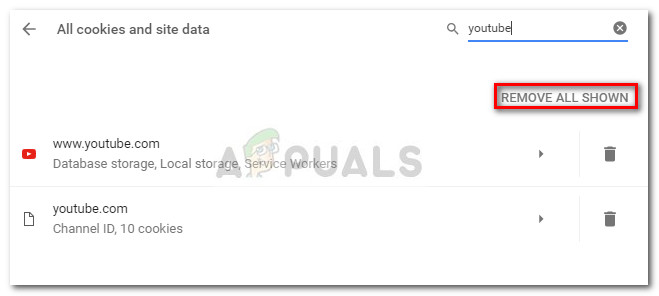
- Open Google Chrome and type (or paste) “chrome://settings/siteData” in the address bar.
- Next, use the search function in the top-right corner and search for “youtube“. Shortly after you hit Enter, you should see two separate sets of cookies. Then, simply hit the Remove all shown button above them to delete any related YouTube cookie.
 If you’re looking for a more targeted approach, move over to Method 2.
Method 2: Removing the gsScrollPos cookie via Developer Tools
A more direct approach would be to use Chrome’s Developer Tools to specifically hunt for the gsScrollPos cookie and delete every occurence associated with YouTube. Going down this avenue will enable you to leave the other YouTube related cookies unaffected.
Here’s a quick guide on deleting the gsScrollPos cookie via Developer tools:
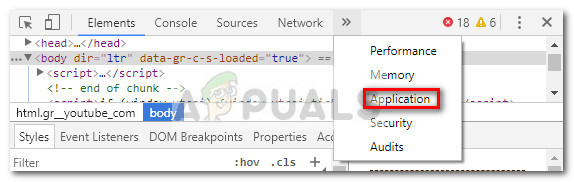
- Open Google Chrome and visit Youtube. Ignore the Youtube Error 400 for now. Instead, press Ctrl + Shift + I to open Developer Tools.
- In the Developer tools, hit the more error and choose Application.
- Now from the left side of the developer pane (the one with various menus), expand the Cookies tab, then select the link associated with YouTube.
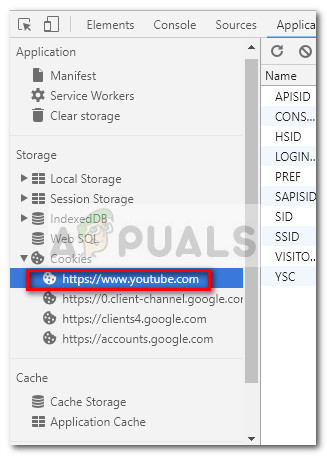
- Next, find every cookie that starts with gs, selects them systematically and hit the Del key to get rid of all occurrences.
- Once all the responsible cookies have been deleted, reload the page and YouTube should be working again.
Even if you managed to resolve the issue, keep in mind that you are very likely to experience the same behavior again if you will continue using The Great Suspender extension. One solution to take care of the problem indefinitely is to disable the extension for good.
However, if you are fond of using The Great Suspender to automatically suspend unused tabs, you can make use of another Chrome extension such as Edit This Cookie to block the usage o the gsScrollPos cookie permanently.


Thanks i didn’t know that Gspost was from the Great suspender extension