How to Fix Discord Keeps Crashing Issue in Windows?

Discord allows users to communicate with friends and other people. The main use of Discord is during the games so a seamless connection is essential for the complete gaming experience especially when it comes to multiplayer games. However, for the majority of users, the Discord app is crashing unexpectedly. You won’t see an error message when the app will crash. The app will just crash or restart without any warning. For some users, the app crashes randomly while others are experiencing the issue at a particular time e.g. at startup, during gaming, etc. As you can imagine, getting to the root of the problem can be really hard because of the lack of warning or error message.
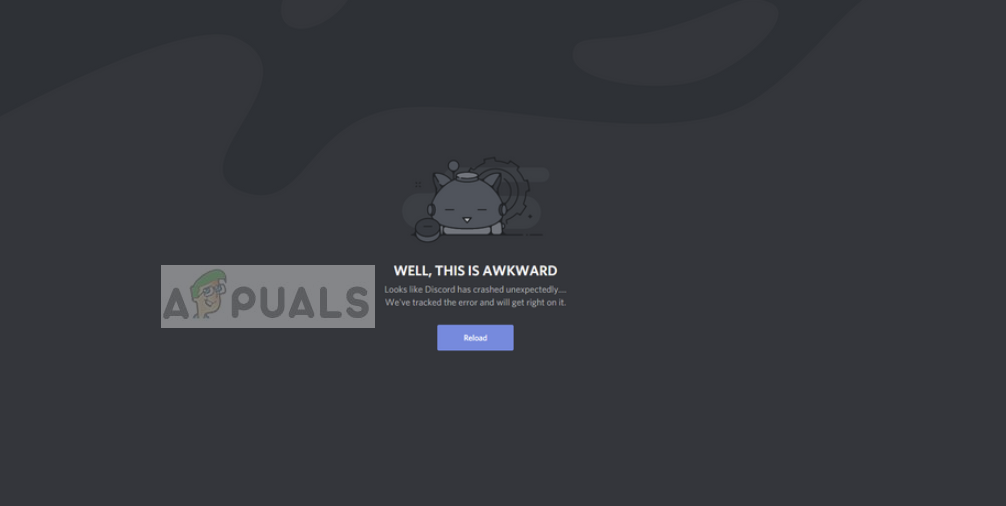
Discord Crashing

What causes the Discord app to crash?

There are a couple of things that can cause this issue. They are listed below

  • Discord Update: A big chunk of the users started experiencing the issue after a Discord update. It is pretty common to see bugs introduced by an update so this can be one of those bugs. One of these bugs can be related to the audio/video modules of the app. This is highly likely if the issue is caused during voice/video communication.
  • Corrupt files: It’s not uncommon for files to get corrupt. Corrupted files can cause a program to misbehave and this might be one of those cases. The files in the AppData folder can cause this issue and clearing that folder along with some other files will fix the issue if it’s caused by that.

Method 1: Turn on Legacy Mode

Turning on the legacy mode has fixed the issue for a considerable number of Discord users. This mode can be turned on via the Discord app settings. If you are experiencing the issue during the usage of mic or other voice/video interactions then the issue is most likely to be fixed by the steps given below. Follow the steps given below to turn on the legacy mode to see if it resolves the issue for you.

  1. Open Discord
  2. Click on the User Settings (gear icon). This should be on the right side of your avatar.
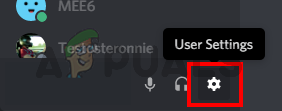
Discord User Settings
  1. Voice & Video from the left pane
  2. Scroll down and select Legacy from the drop down menu under Audio Subsystem
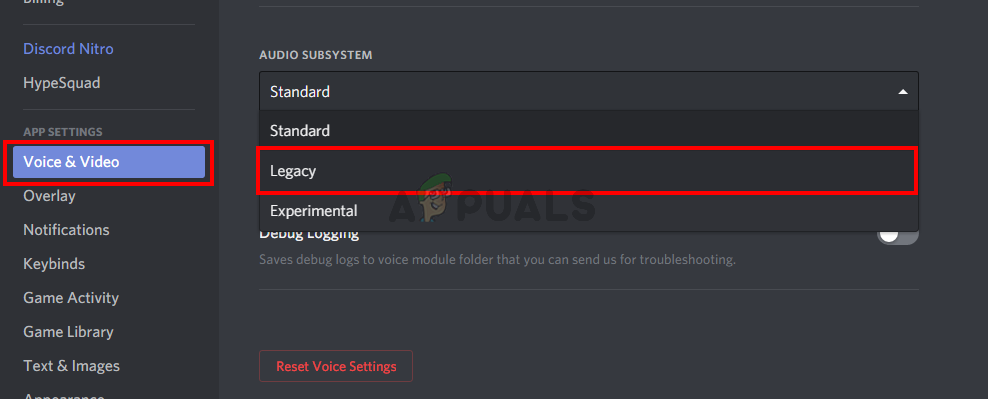
Turn on Legacy Settings
  1. Click Okay if the app asks you to confirm the action

Once done, the problem should go away.

Method 2: Delete AppData Discord Contents

Deleting the contents of AppData will fix the issue if the issue is caused by corrupt files or cache. Don’t worry though, the deleted files won’t cause any issue. These files will automatically be created on the next start of your Discord app.

  1. Hold Windows key and press E
  2. Type %AppData%\discord in the address bar of Windows Explorer and press Enter
  3. Double click Cache folder
  4. Now you need to delete all the files from this folder. Hold the CTRL key and press A (CTRL + A) and press Delete. Confirm any additional prompts
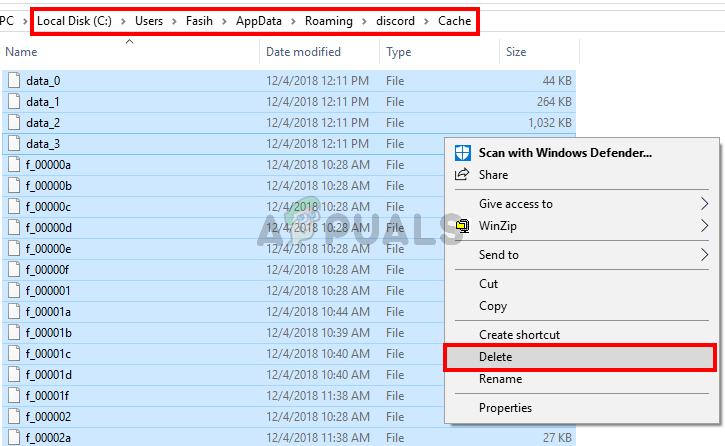
Delete AppData Discord Cache Contents
  1. Go back to the Discord folder and Double click Local Storage folder
  2. Now you need to delete all the files from this folder. Hold the CTRL key and press A (CTRL + A) and press Delete. Confirm any additional prompts
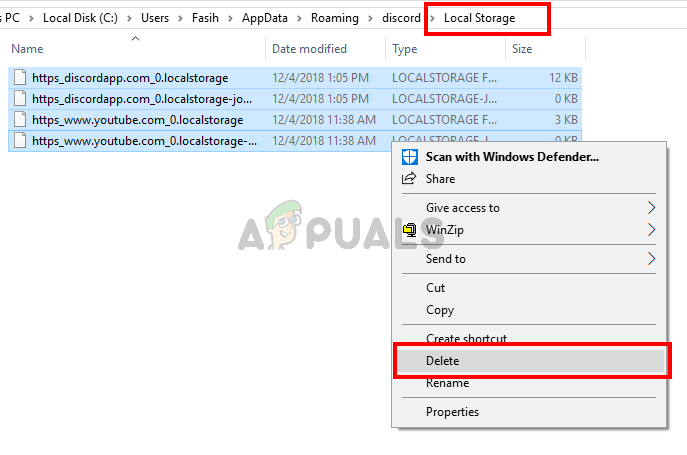
Delete AppData Discord Storage Folder Contents

Now close the Windows Explorer and start the Discord app. The app should work normally now.

Note: If this doesn’t solve the issue then follow the steps given below

  1. Hold Windows key and press E
  2. Type %AppData% in the address bar of Windows Explorer and press Enter
  3. Locate the Discord folder. Right-click the Discord folder and select Delete. Confirm any additional prompts
Delete AppData Discord folder
  1. Type %LocalAppData% in the address bar of Windows Explorer and press Enter
  2. Locate the Discord folder. Right-click the Discord folder and select Delete. Confirm any additional prompts
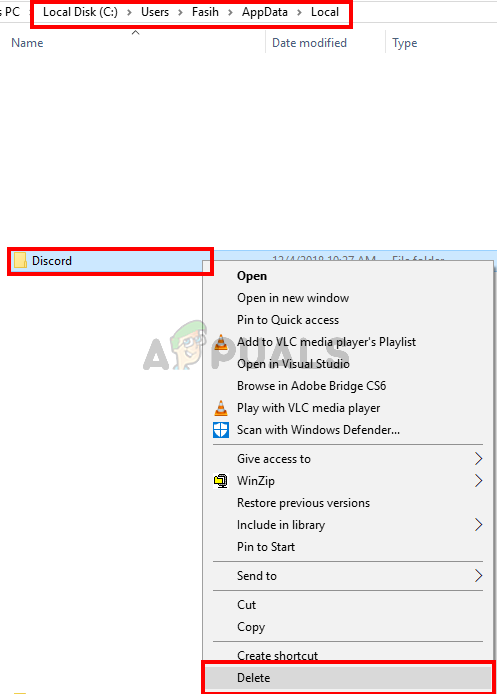
Delete LocalAppData Discord folder
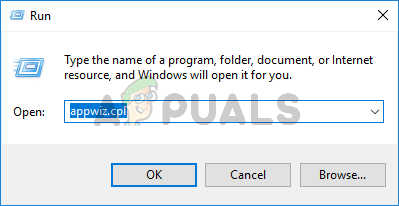
  1. Hold Windows key and press R
  2. Type appwiz.cpl and press enter
Run appwiz.cpl
  1. Locate the Discord app from the list and select it.
  2. Click Uninstall and follow the on-screen instructions
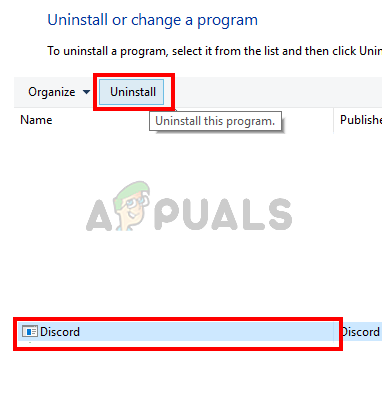
Uninstall Discord
  1. Reboot
  2. Reinstall the Discord app once the system is rebooted.

Check if this resolves the issue.

ABOUT THE AUTHOR

Kevin Arrows


Kevin Arrows is a highly experienced and knowledgeable technology specialist with over a decade of industry experience. He holds a Microsoft Certified Technology Specialist (MCTS) certification and has a deep passion for staying up-to-date on the latest tech developments. Kevin has written extensively on a wide range of tech-related topics, showcasing his expertise and knowledge in areas such as software development, cybersecurity, and cloud computing. His contributions to the tech field have been widely recognized and respected by his peers, and he is highly regarded for his ability to explain complex technical concepts in a clear and concise manner.

Comments

14
    SB
    Stan Begthel Sep 24, 2019

    Neither work for me

    SW
    Shane Warren Author Sep 24, 2019

    You can try to reinstall it and check if it works. If that doesn’t work put the computer in safe mode and try to use the app, if it doesn’t crash in safe mode it means that a background app/service is causing the issue. You can determine which one by enabling the services one by one until the problem comes back.

      SB
      Stan Begthel Oct 3, 2019

      I already found out what causes it, I have an MSI, so I have dragon center, Nahimic Audio and MSI SCM of which are always running. When I shut these programs down and boot up discord, it works.

      Reply
        SW
        Shane Warren Author Oct 4, 2019

        Good to know that you sorted it out, though you can try to reinstall this software and check if they still cause the issue with Discord.

    JT
    John Treebud Oct 20, 2019

    Method 2 fixed the issue for me. Thanks a bunch!

    GU
    gutervin Nov 7, 2019

    both options dont work for me

      SW
      Shane Warren Author Nov 12, 2019

      Try this:
      “You can try to reinstall it and check if it works. If that doesn’t work put the computer in safe mode and try to use the app, if it doesn’t crash in safe mode it means that a background app/service is causing the issue. You can determine which one by enabling the services one by one until the problem comes back.”

        TH
        thebirthdayisalie Oct 21, 2021

        discord still crashes anyway.

          MZ
          Muhammad Zubyan Author Oct 22, 2021

          Try this:1. Open Discord and Go to Settings.
          2. Head over to “Advanced”.
          3. Now untick “Hardware Acceleration” press okay and it should restart your Discord.Check to see if the issue persists.

    AN
    Anonymous Aug 11, 2021

    Ok but how are you supposed to enable Legacy mode when you can’t open discord because it crashes?

      MZ
      Muhammad Zubyan Author Aug 12, 2021

      This article is for users who are facing crashing while using Discord. If your Discord is crashing after startup check to see if these steps help you:-

      Here is how you can do that:-

      1. Open Task Manager and End all the Discord Instances.
      2. Open Run, Type “%AppData%/Discord” and press Enter. Once you are in the Discord Folder delete it.
      3. Open Run again Type “%LocalAppData%/Discord”. Now Delete this folder as well.
      4. Restart your system
      5. Now Reinstall Discord via this link: https://discord.com/download

      If this method doesn’t work for you try downloading the Discord PTB: https://sudo.to/2n9

      Reply
        PC
        PcHeadedGuy Mar 17, 2022

        im using the website and when i download Discord then it states “Failed to extract installer”

          MZ
          Muhammad Zubyan Author Mar 18, 2022
    WO
    WonPojun Feb 6, 2023

    Clearing cache works for me! thankyou so much!!