How to Fix Firefox Can’t Load Websites While Other Browsers Work?
Firefox shows Server Not Found or Unable to connect, but the same address opens in Chrome or Edge. Other pages may keep loading indefinitely or remain blank instead of displaying an error.
A working browser does not rule out a connection problem affecting Firefox alone. Firefox can use different proxy and DNS settings, and a security program can block Firefox without blocking your other browsers.
These instructions cover Firefox on Windows, macOS, and Linux.
| What Firefox shows | Most relevant checks |
|---|---|
| Server Not Found or a DNS-provider warning | Proxy settings and DNS over HTTPS. |
| Blank, incomplete, or endlessly loading pages | Troubleshoot Mode, then the affected site’s stored data. |
| Unable to connect after a browser or security-suite update | Firefox’s security-software permissions. |
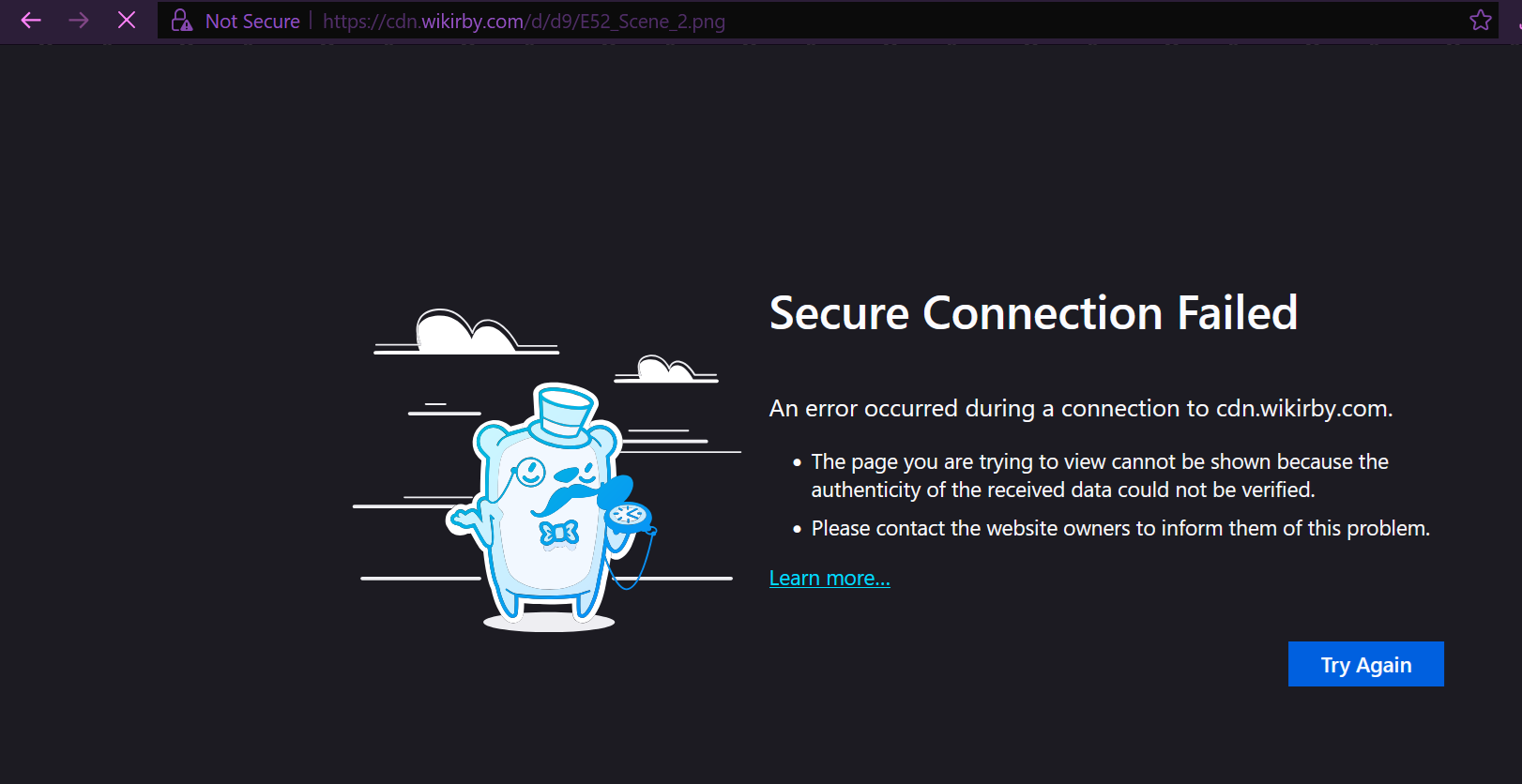
| Secure Connection Failed, as pictured above, or a certificate warning | Read the exact code and Mozilla’s secure-connection guidance. Do not bypass the warning. |
1. Check the Same Address in Both Browsers
One working tab may be an older saved page. A fresh comparison helps avoid changing Firefox for a website or connection that is failing elsewhere too.
- Open the same complete address in Firefox and another browser, including https://. Reload the working browser’s page.
- Compare two unrelated, normally reliable websites as well.
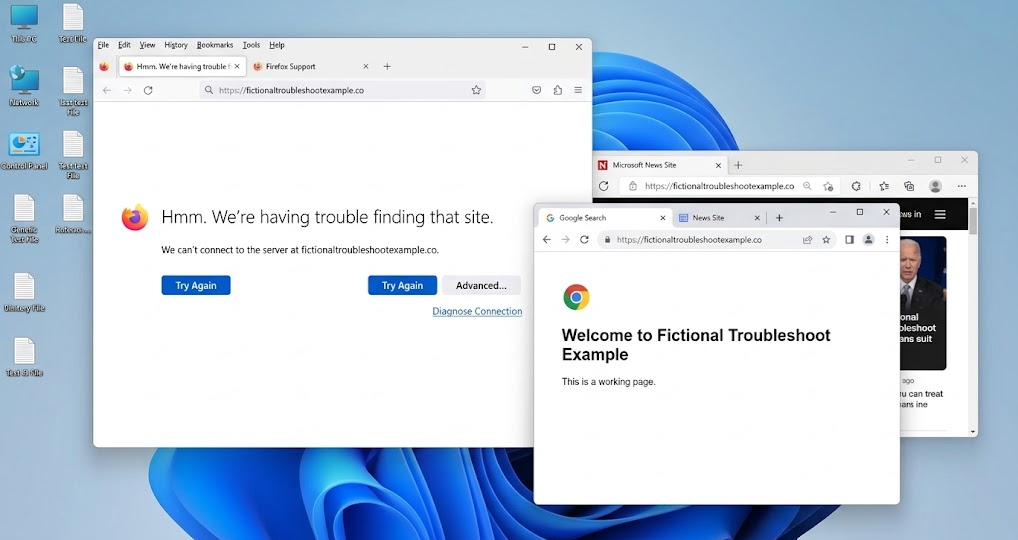
A side-by-side test confirms whether the failure belongs to Firefox or to the website or network.
If the failures affect other browsers too, investigate the website or network rather than resetting Firefox. Note the exact error when the problem remains Firefox-specific.
2. Restart Firefox, Check Updates, and Turn Off Offline Mode
Closing one window can leave Firefox running. A full restart clears the existing session and finishes any pending update without resetting your profile.
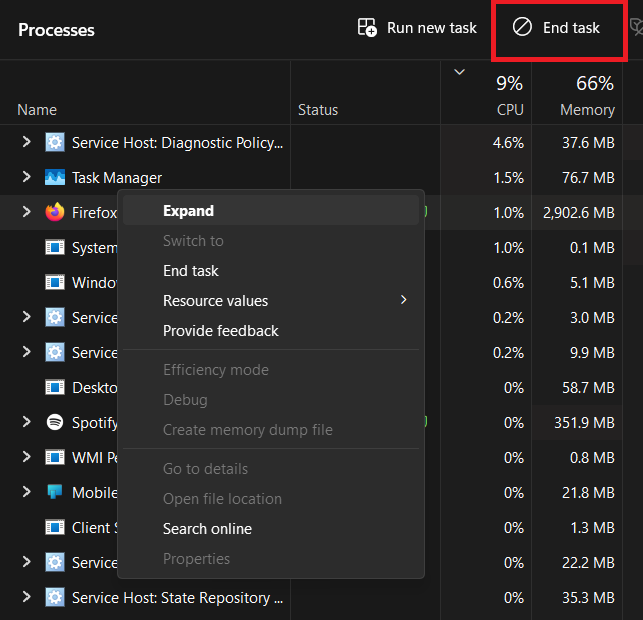
- Save unfinished work, then quit Firefox completely. Only if it will not close on Windows, press Ctrl + Shift + Esc and end the remaining Firefox/firefox.exe process.
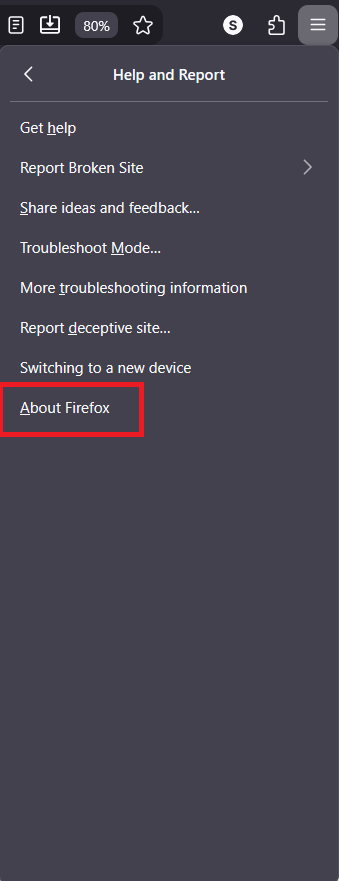
Current Firefox builds include compatibility and networking fixes that older sessions may not use until restart. - Reopen Firefox. Choose Menu > Help or Help and Report > About Firefox. On Mac, use Firefox > About Firefox.
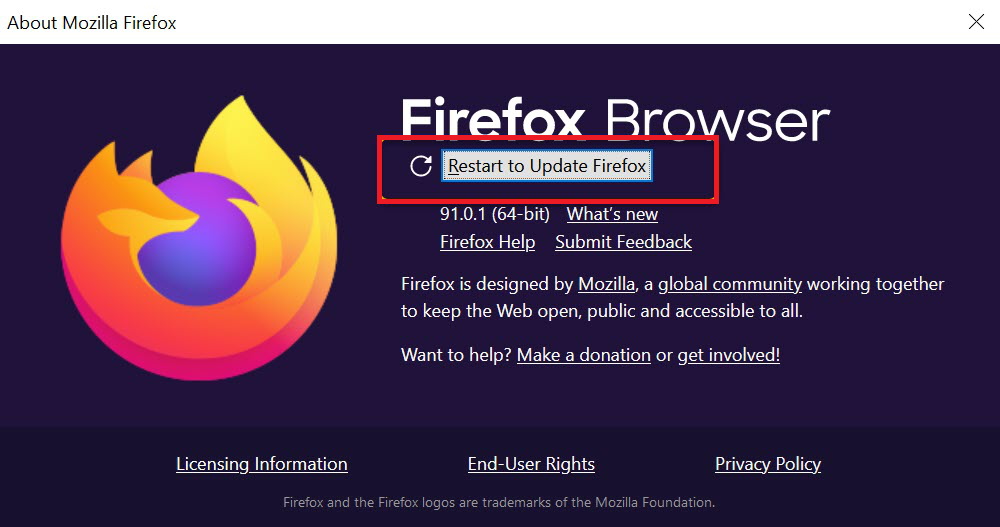
- Install any available update and select Restart to update Firefox.
Current Firefox builds include compatibility and networking fixes that older sessions may not use until restart.
The pictured version is an older example, not a recommended download. Microsoft Store and Linux-package installations use their store or system updater; Mozilla explains the differences in its update instructions.
When Firefox says it is offline
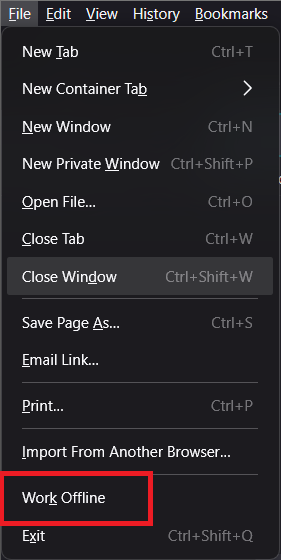
Open File in the classic menu bar and uncheck Work Offline. On Windows or Linux, press Alt to reveal the menu. Reload the page afterward.
3. Test with Troubleshoot Mode, Not Refresh Firefox
Mozilla’s Troubleshoot Mode temporarily disables extensions, themes, hardware acceleration, and some customizations. It does not reset every preference or clear website data.
- Open Menu > Help or Help and Report > Troubleshoot Mode, then click Restart.
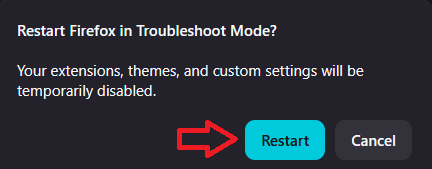
Troubleshoot Mode quickly separates extension and rendering problems from deeper connection settings. - Choose Open at the next prompt, not Refresh Firefox. Test the same websites.
- Quit and reopen Firefox normally afterward to restore the temporarily disabled features.
If pages work here, investigate extensions or display settings. If they still fail, repeated extension removal is unlikely to help; connection settings and site-specific problems remain possible.
4. Check Extensions and Blank-Page Rendering
Extensions
A filter or VPN extension can stop a page before Firefox displays it. Test in normal mode after Troubleshoot Mode improves loading.
- Enter about:addons in the address bar and select Extensions.
- Temporarily disable likely content-filtering or connection extensions and reload the affected page. Ask IT about managed extensions.
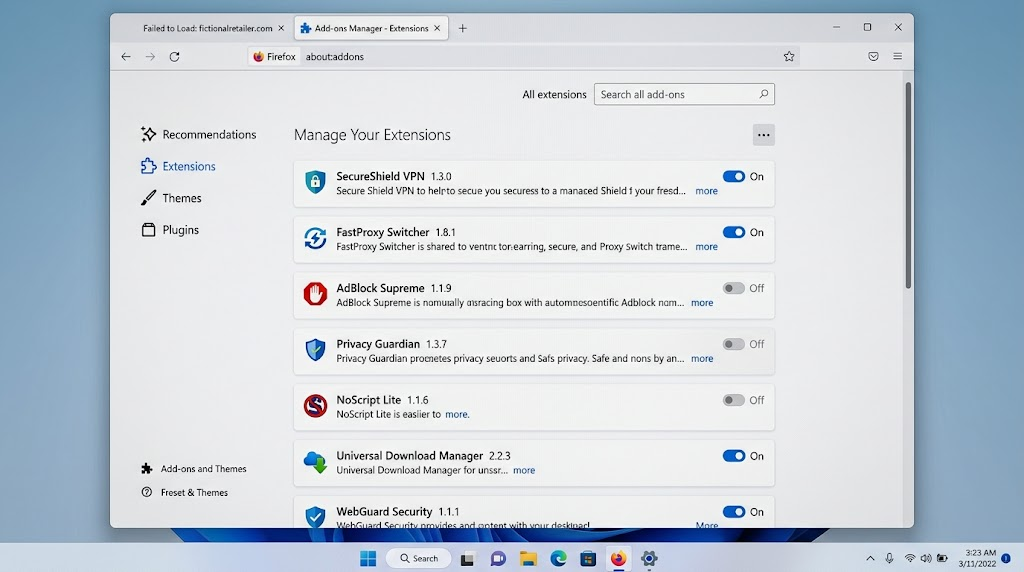
Extensions with network access can block or rewrite pages before Firefox displays them. - If loading returns, re-enable extensions individually. Update or reconfigure the one that brings the failure back; restore the others.
Blank pages or missing text
Hardware acceleration can cause display problems even when Firefox receives the page. It is not a fix for Server Not Found.
- Open Settings and search for Performance. Depending on the layout, it is under General or Tabs and browsing.
- Uncheck Use recommended performance settings, then Use hardware acceleration when available.
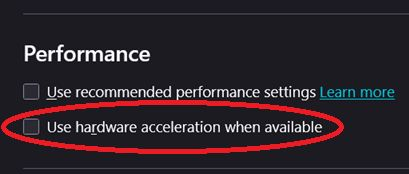
Graphics acceleration can make some pages look blank or stuck even after the network request succeeds. - Restart Firefox and compare. Restore the setting if nothing improves.
5. Check Firefox’s Proxy Settings
Firefox can keep using an old proxy even when another browser connects directly. This is particularly relevant to The proxy server is refusing connections.
- Open Settings, search for proxy, and open Settings or Configure proxy. Some layouts place it inside Advanced settings.
- Record the original selection. On a personal connection that does not require a proxy, test No proxy.
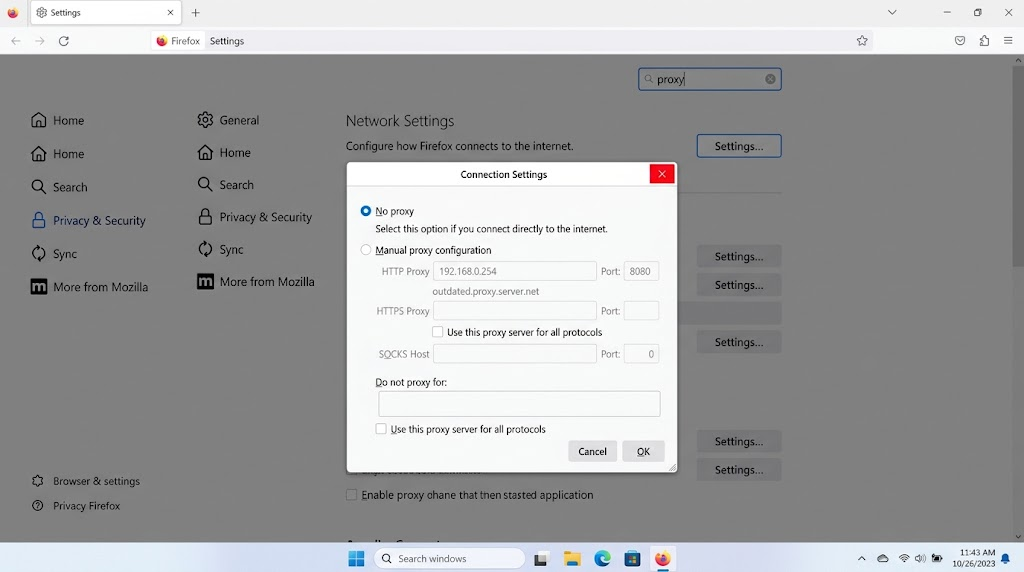
A Firefox-only proxy setting can break the browser even when system internet access still works. - Save, reopen Firefox, and retry. Restore the original choice if it does not help.
For work, school, or a required VPN, get the correct configuration from IT instead of removing unfamiliar addresses. Mozilla’s connection-settings guide covers the available options.
6. Check DNS over HTTPS When Firefox Cannot Find Sites
A strict or custom secure-DNS provider can fail while the system’s DNS works. Default Protection allows fallback instead of insisting on the unavailable provider.
- Open Settings > Privacy & Security > DNS over HTTPS, then Advanced settings if shown.
- Record the current setting and provider. Select Default or Default Protection and retry.
- If necessary, test Off once to compare with your system resolver.
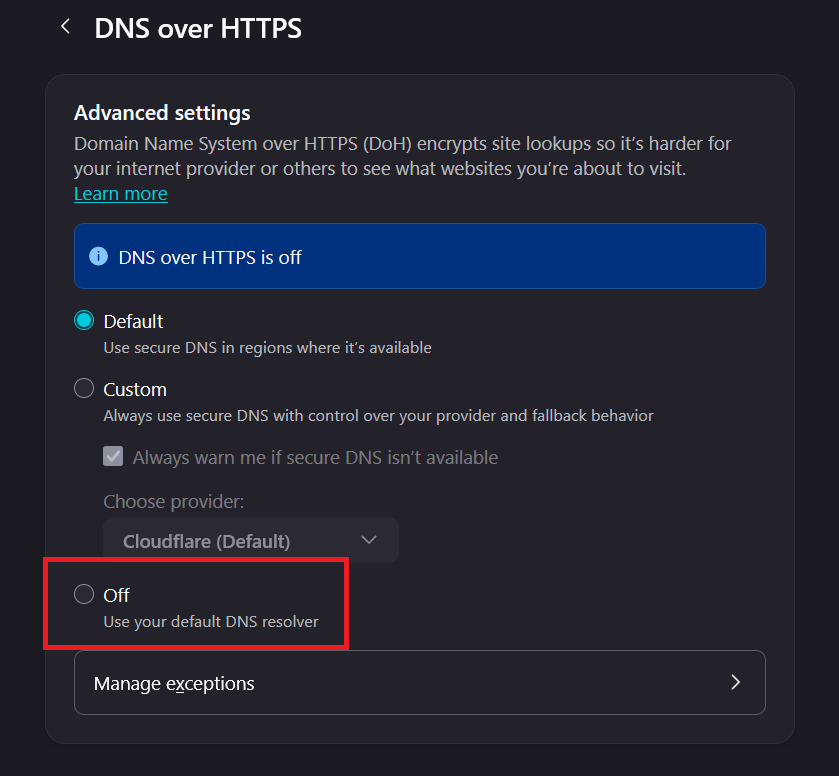
Strict or custom secure DNS settings can make Firefox resolve sites differently from other browsers.
Off removes Firefox’s DoH encryption for lookups; it does not turn off HTTPS for websites. Restore the original setting if unchanged. If only Off works, consult the provider or network administrator rather than assuming Default will also work.
Follow your organization’s policy. Mozilla explains the options and privacy differences in its DNS-protection settings.
7. Clear the Affected Site’s Data and Check Its Protections
A site that loads elsewhere may have stale Firefox cookies or cached files. Save web-app work and have your sign-in method ready: deleting site data can sign you out and remove local drafts.
- Try Shift + Reload to bypass cached content.
- For one failing site, use the address-bar padlock or shield’s Clear cookies and site data option. Alternatively, find that site under Settings > Privacy & Security > Manage Data or Manage browsing data.
- For broader cleanup, open History > Clear recent history. Select only Cookies and site data and Temporary cached files and pages; choose the required time range. Leave other data unchecked.
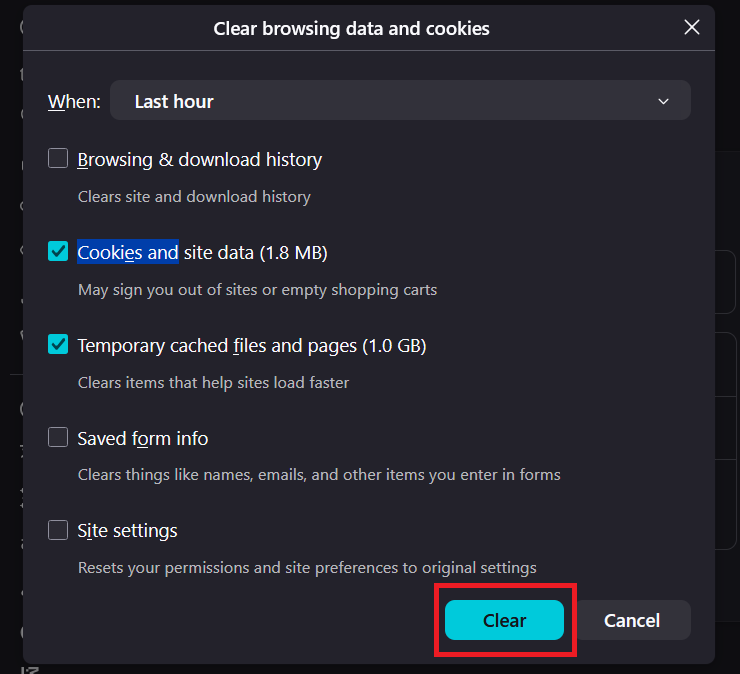
Damaged cache or cookies can affect Firefox while the same website still opens in another browser.
The single-site cleanup walkthrough illustrates the older Manage Data controls. Clearing everything is unnecessary for one affected website.
When a trusted site remains incomplete
Firefox’s built-in tracking protection is separate from extensions. On a trusted site, open the address-bar shield and temporarily turn off Enhanced Tracking Protection for that site only, then reload.
This allows content Firefox was blocking, with a privacy trade-off. Restore protection if it does not help; if it does, report the broken site.
Do not disable protection globally or bypass a certificate warning.
8. Test Advanced DNS Preferences Separately
Some sites still time out with the correct proxy and secure-DNS settings. These optional preferences test IPv6-related lookups and DNS lookups made before you open a link. They are not general speed improvements.
- Open about:config and accept its configuration warning only if comfortable proceeding.
- Find network.dns.disableIPv6, set it to true, restart Firefox, and retry the same sites. This changes Firefox’s DNS behavior, not Windows’ network adapter.
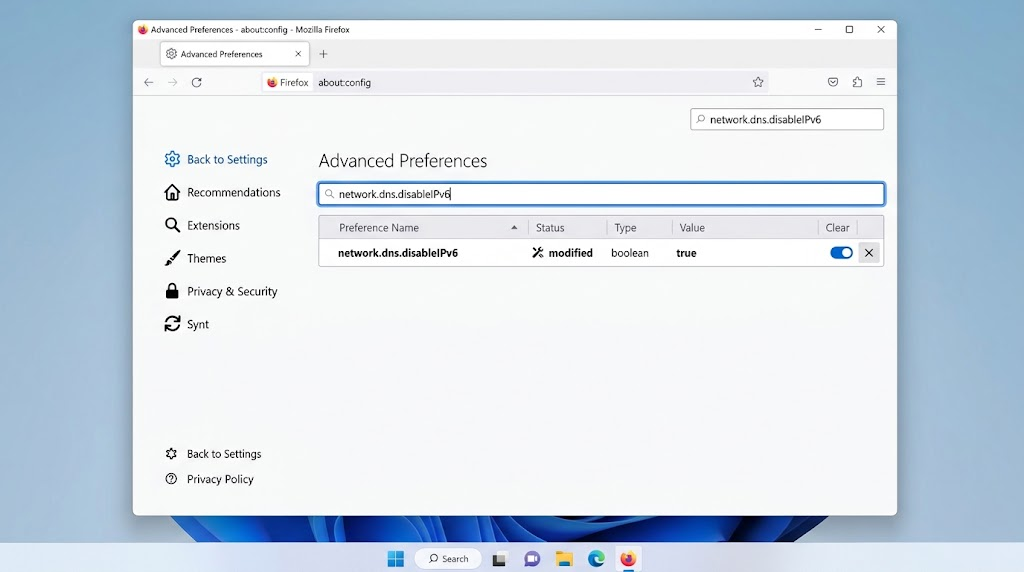
This advanced test helps identify networks where Firefox fails while resolving IPv6 addresses. - If it does not help, restore the original value before testing network.dns.disablePrefetch. Set that preference to true; if absent, create it as a Boolean.

DNS prefetching can conflict with some networks and cause Firefox-specific page load errors.
The correct name is network.dns.disablePrefetch, without a trailing period. Do not copy the extra period shown in the image. After testing, restore the original value or remove only the custom preference you created if it made no difference.
9. Check Whether Security Software Is Blocking Firefox
A firewall or security-suite update can leave Firefox blocked while allowing other browsers. Repair the Firefox-specific rule, not the computer’s overall protection.
- Update the security suite and check its blocked-app log or application-control settings for Firefox.
- Follow the vendor’s procedure to repair or re-add the entry for your actual Firefox executable. Keep a record of the previous rule; involve IT on managed devices.
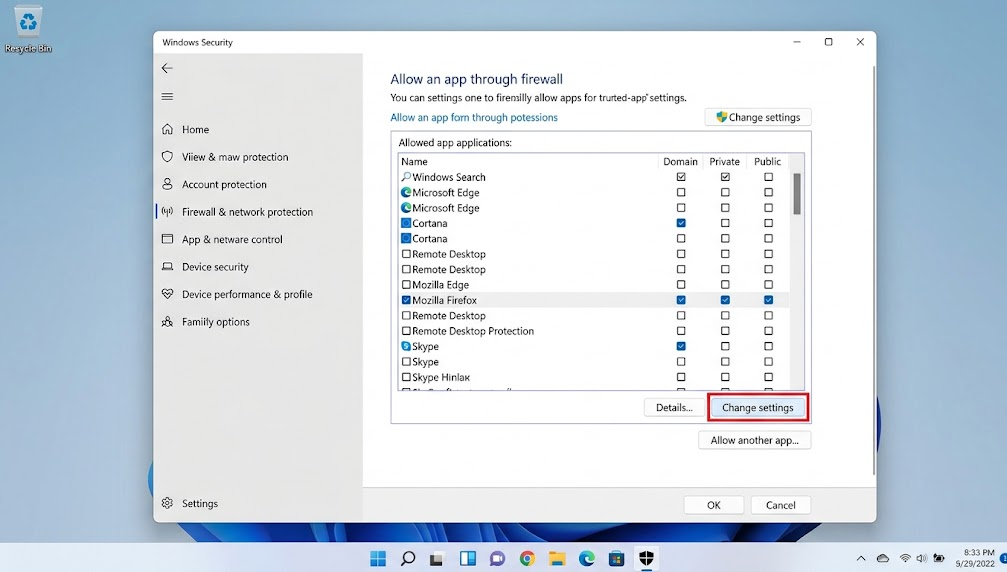
Re-adding Firefox to trusted apps can fix blocks caused by browser or security software updates. - Restart Firefox and retry. If the block remains, give the security vendor the error and log entry.
The Windows Allowed apps screen pictured concerns incoming exceptions, not a general fix for outgoing browsing. Do not enable every network type or turn off the firewall.
Mozilla’s firewall guidance identifies product-specific instructions.
10. Check for Unwanted Software When Settings Keep Changing
Unexpected redirects, a changed homepage, or proxy settings that return after correction justify a malware check. A loading error alone does not establish an infection.
- Update your existing security tool, run a full scan, and follow its quarantine instructions.
- Review Firefox extensions and installed applications. Remove only software identified as unwanted, not everything with an unfamiliar name.
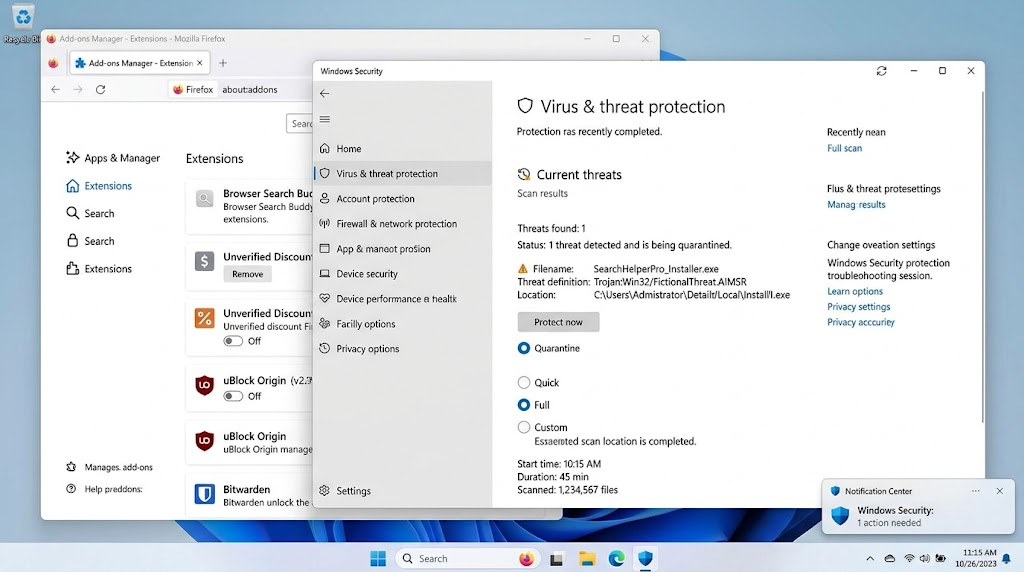
Browser hijackers can affect Firefox even when other browsers still reach websites normally. - Restart and retest. If unwanted changes return, seek security help instead of repeatedly changing Firefox preferences.
11. Test a New Profile Before Refreshing Firefox
Reinstalling Firefox can leave the same profile settings in place. A separate profile tests those settings without deleting your bookmarks or existing profile.
- Open about:profiles, note your current profile, and select Create a New Profile. Use the default folder location; do not delete the existing profile.
- Select Launch profile in new browser. Test before signing into Sync, importing data, or installing extensions.
- If it still fails, keep the original profile and seek help. If it works, consider transferring essential data or refreshing the original profile.
To refresh, return to the original profile and open Help/Help and Report > More troubleshooting information > Refresh Firefox. Confirm only after reviewing Mozilla’s refresh and backup guidance.
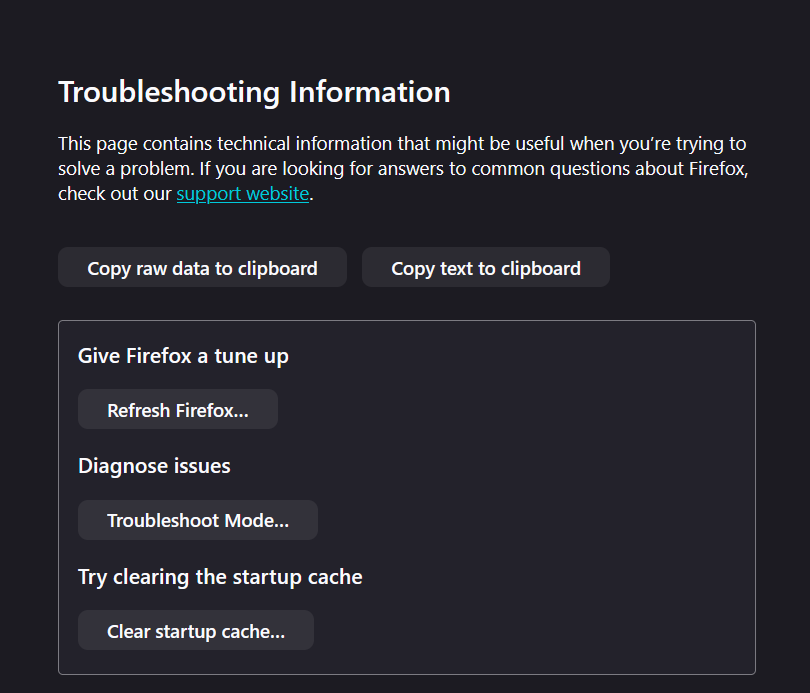
Retest before restoring extensions. If you keep using the original profile, check about:profiles > Set as default profile so creating the test profile does not change future launches.
When Firefox Still Will Not Load Websites
Contact the Mozilla Support community or your network administrator with the exact error code, Firefox version, operating system, affected sites, and results from Troubleshoot Mode and the new profile.
Redact private addresses, account details, and internal hostnames from public posts.