How to Fix Facebook Not Installing from Google Play Store?
Facebook starts downloading in Google Play, but the installation ends with Can’t install Facebook and the Install button returns. Sometimes it never gets that far: the listing stays on Pending without making progress.
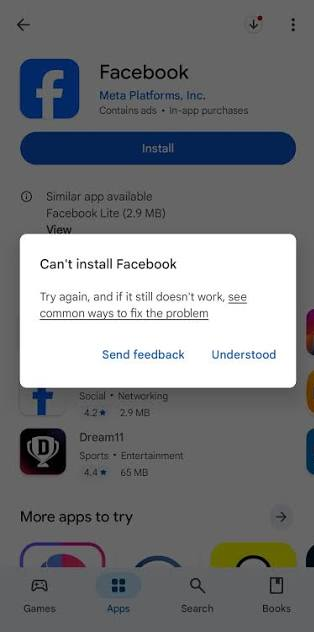
The message does not identify what failed. A stalled download, low phone storage, or a Play Store problem can prevent installation even on a supported phone. An explicit compatibility or approval warning is different: it explains why Google Play is not offering the app.
1. Check Facebook’s Play Store Listing
There may already be a Facebook installation on the phone, even without a Home screen icon. Check the listing before removing anything.
- Open the official Facebook listing, published by Meta Platforms, Inc.
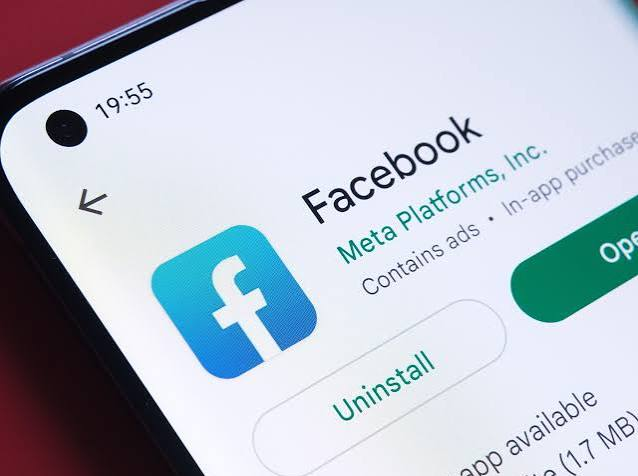
Show the current Play listing and developer. Hide the Google Account, recommendations, review profile, device selector, and unrelated Store activity. - Check the button and any message beneath it.
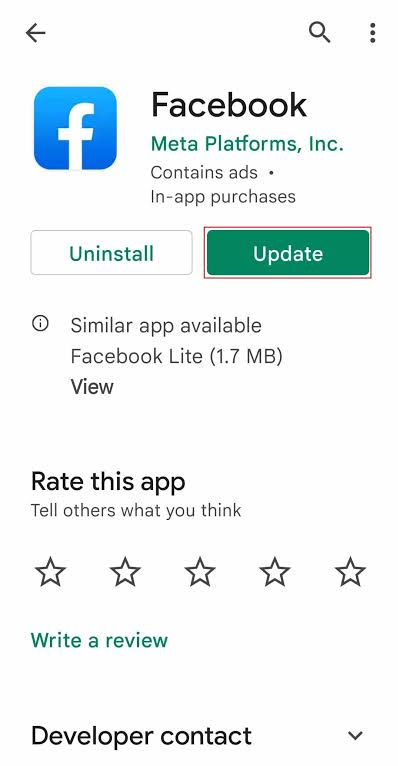
| What Google Play shows | What to do |
|---|---|
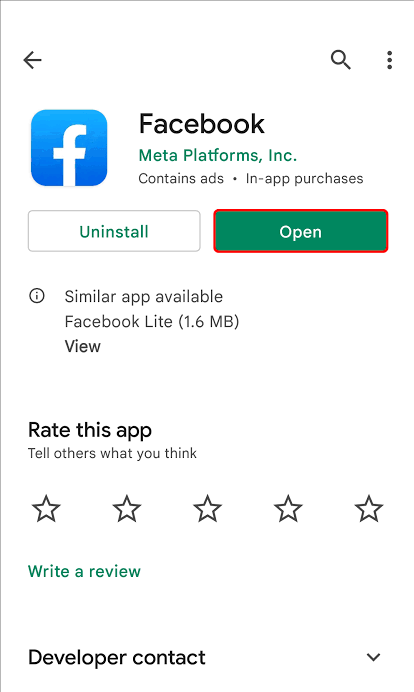
| Open | Facebook is installed. Try opening it; reinstalling is unnecessary if it works. |
| Enable or Update | Enable the existing app or install its update. |
| Pending or Can’t install | Check downloads, connection, and storage below. |
| Incompatible, unavailable, or approval required | Read the specific restriction in section 3. |
Optional comparison: try another small, trusted free app you actually want. If that also fails, the Play Store download troubleshooting is more relevant than reinstalling Facebook.
Another successful download narrows the problem but does not rule out a Store fault.
2. Get the Download Moving
Facebook can wait behind other downloads. Low storage or an unreliable connection can also stop it from finishing.
- In Google Play, open profile picture > Manage apps & device. Open the download/update details. Let active downloads finish, or cancel a stalled optional app download and retry Facebook alone.
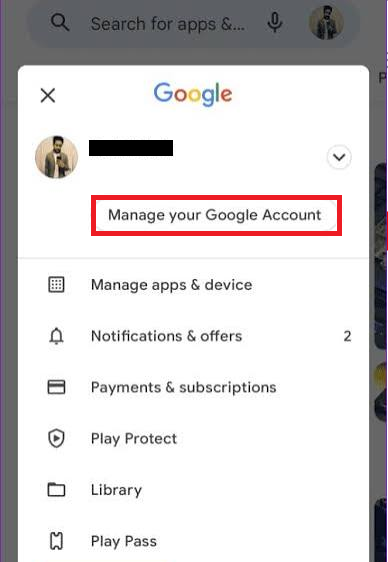
Show only the relevant queue on a test account. Hide account details, device names, private apps, work apps, recommendations, and update history. - Check Settings > Storage. Back up important files before removing anything. Google flags less than 1 GB free as low storage; that is not a guaranteed Facebook space requirement.
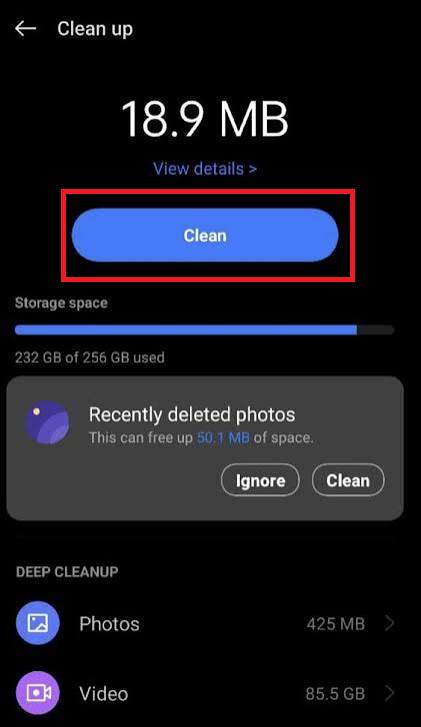
Show the storage total without exposing personal files, photos, application names, cloud accounts, cleanup suggestions, or device identifiers. - Try a reliable Wi-Fi connection, or mobile data if your plan allows it. Turn Wi-Fi off for the mobile-data test so the phone actually changes connections.
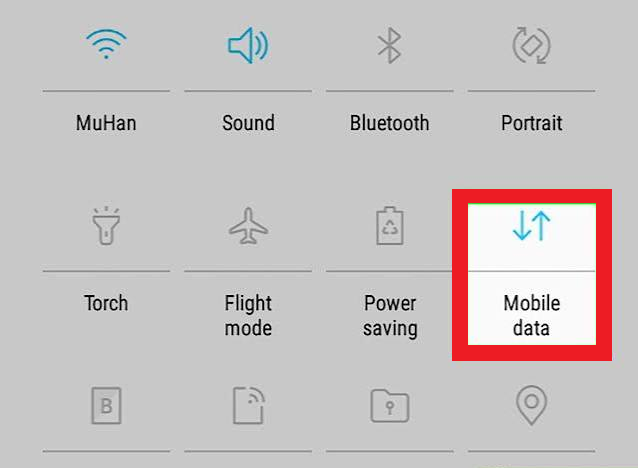
Show only the relevant network controls. Hide Wi-Fi names, passwords, carrier account details, VPN servers, IP information, and nearby networks. - Check Settings > System > Date & time, or your phone’s equivalent. Enable automatic time and time zone if incorrect. Close Play Store, restart the phone, and retry.
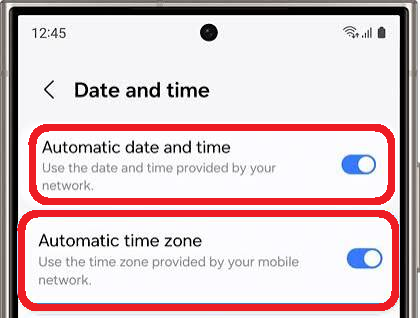
Show automatic date and time controls with personal time-zone details hidden when needed. Do not interrupt an update to stage the restart image.
If Facebook reaches Open, launch it to check the installation. If the same error returns, note its wording rather than repeatedly restarting the download.
3. Resolve a Compatibility or Approval Message
A listing that says Facebook is unavailable needs a different response from a generic installation error. Google’s one-app download guidance recommends checking availability on the app’s page.
- Read the message on Facebook’s listing on the affected phone. A browser’s device selector may refer to another device.
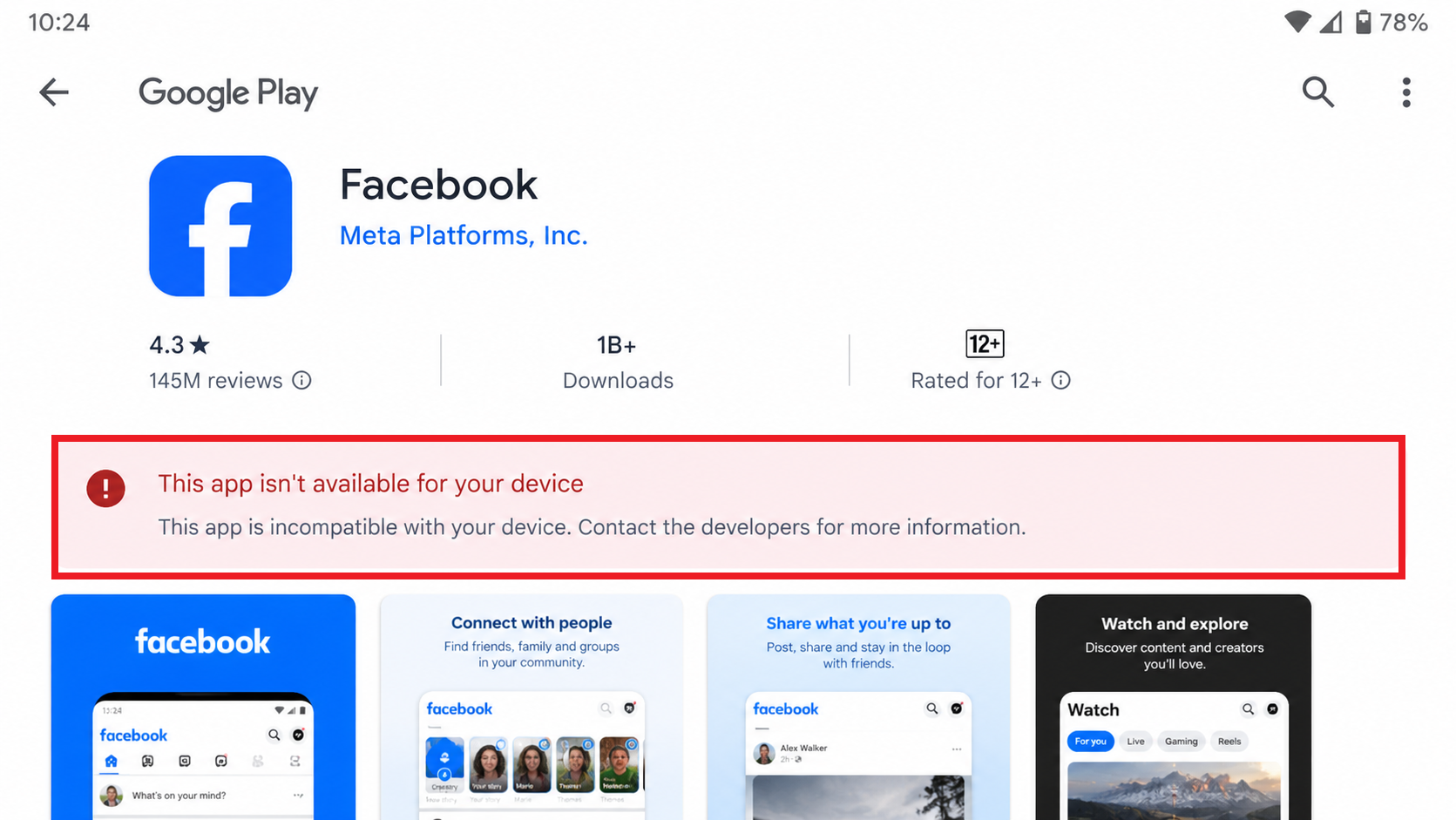
Capture the real Install control or restriction message. Hide the account, device name, location, recommendations, and other Store activity. - Check Settings > System > Software update, or the manufacturer’s equivalent. Back up the phone and charge it before installing an available supported update. Recheck the listing afterward.
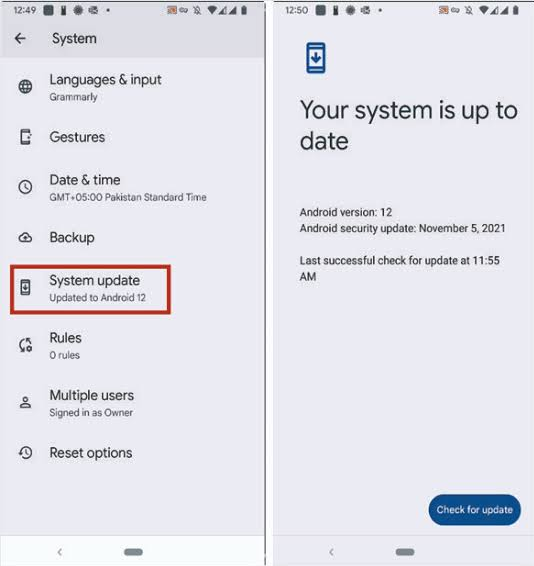
Show a completed check or a genuine pending stable update. Hide the device identifier, carrier data, build serial, account, and update logs. - For an uncertified-device warning, open Play Store > profile picture > Settings > About > Play Protect certification.
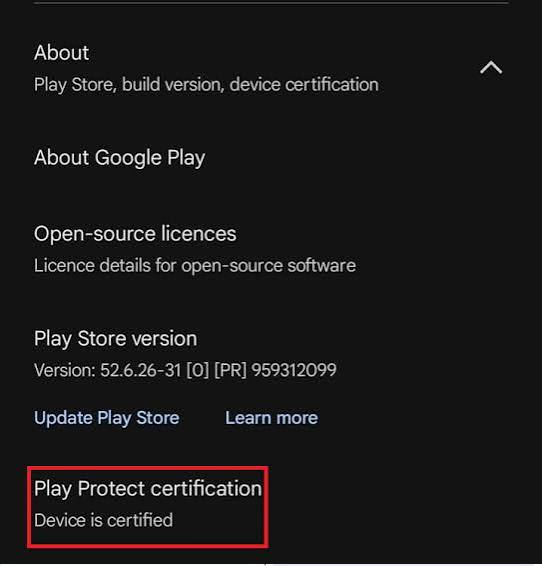
Show only the certification status. Hide the Google Account, device identifiers, Play Store version details if identifying, and unrelated settings. - If it says Device is not certified, follow Google’s certification guidance or contact the manufacturer. Turning off Play Protect does not certify the phone.
- An approval request needs the parent to review it in Family Link. Work or school restrictions need the administrator.
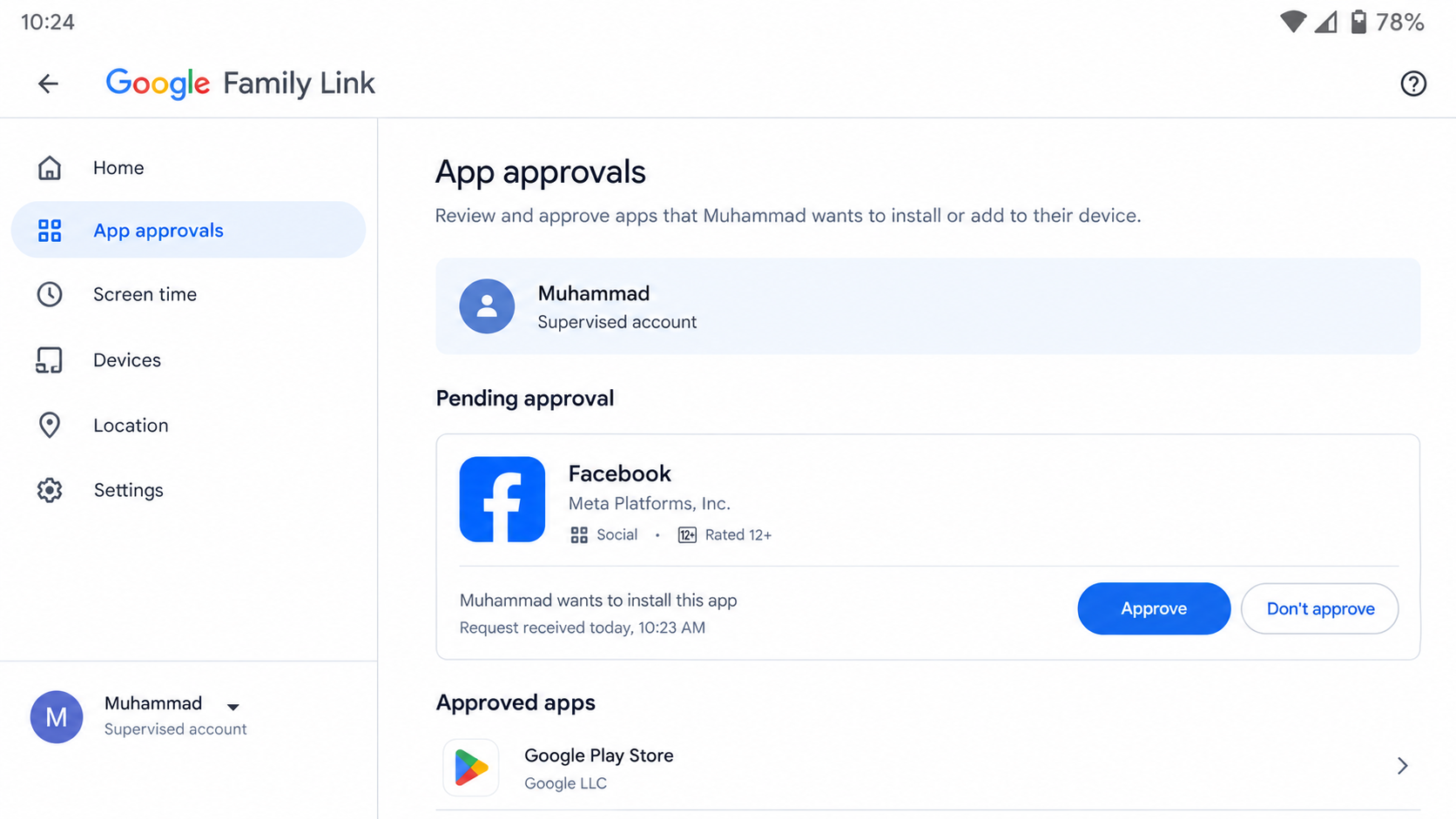
Capture the real Install control or restriction message. Hide the account, device name, location, recommendations, and other Store activity.
A country or age restriction cannot be fixed by clearing cache. Keep account details accurate; avoid VPN workarounds or modified installers. If the phone remains incompatible after its supported updates, use the browser alternative below.
4. Check an Existing or Beta Installation
Enable means Facebook is disabled, not missing. A beta installation may also need to be replaced with the public release, but neither state should be assumed from a generic error.
- Open Settings > Apps > Facebook. If available, tap Enable, then update it in Google Play. Leave a working installation alone.
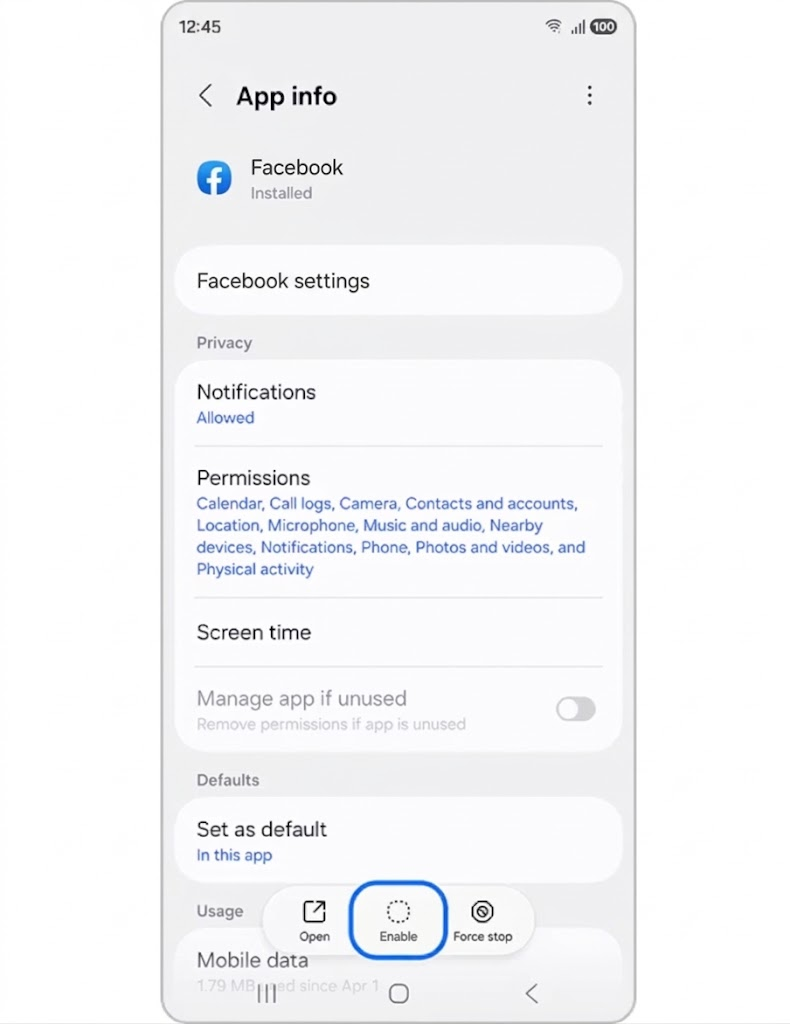
Show the Facebook App info page on a test phone. Hide account data, usage, permissions, notifications, mobile data totals, and unrelated apps. - Check Facebook’s Play listing for You’re a beta tester.
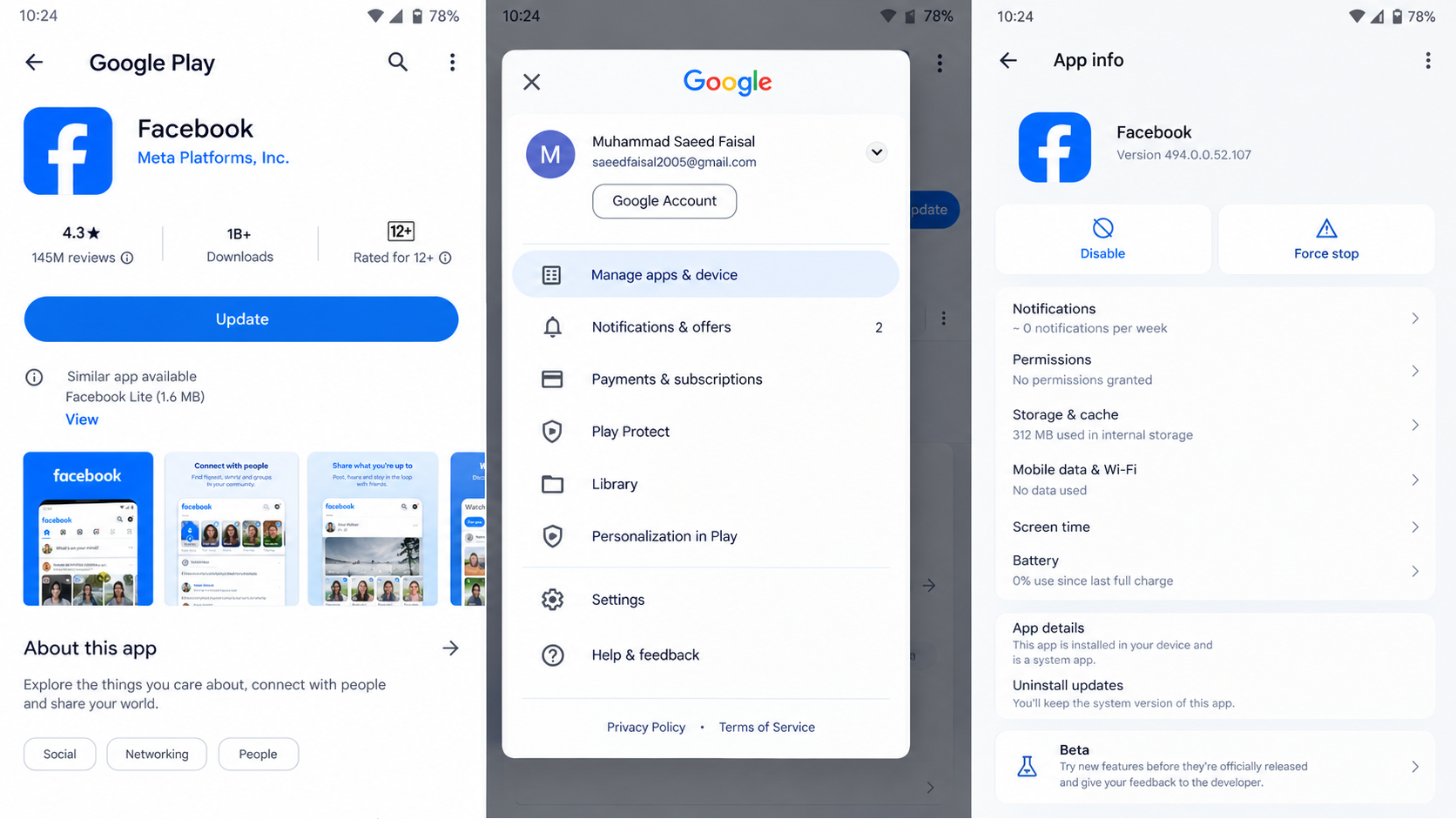
Capture the real beta status without joining a program for the image. Hide the account, tester feedback, recommendations, and device details. - For a failing beta, follow Google’s leave-beta instructions: choose Leave and wait for enrollment to end. Rejoining may not be possible if the beta fills up.
- If Facebook still cannot update, or you have left its beta, save local content and select Uninstall in App info, if offered. Reinstall the public version from the official listing.
A preinstalled app may offer only Uninstall updates, leaving its system copy in place. Do not remove unrelated Meta services or work-profile apps. If you previously used a modified Facebook or Messenger app, mention that to support: a package conflict may need separate investigation.
5. Refresh Google Play Store
Clearing Facebook’s cache cannot help when Facebook is not installed. The cache to check here belongs to Google Play Store. Test after each change and stop once installation works.
On a supervised or managed phone, have the parent or administrator handle changes to Store settings.
- Touch and hold Google Play Store, then select App info > Storage & cache > Clear cache. Reopen the Store and retry.
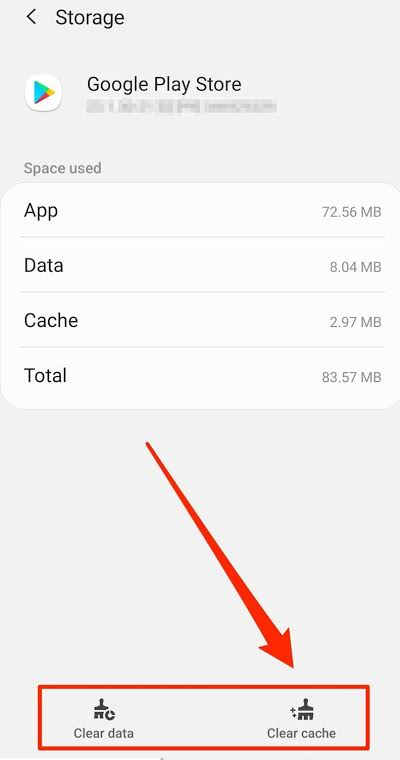
Show the Store App info page on a test phone. Hide usage data, account information, notifications, permissions, and unrelated applications. - If that fails, return to the same screen and choose Clear storage or Clear data for Google Play Store only. This may reset Store parental-control and purchase-verification settings. Review and restore those settings when reopening it.
- If installation still fails, open Play Store App info > three-dot menu > Uninstall updates, where offered. Check the app name before confirming: this step is for the Store, not Facebook.
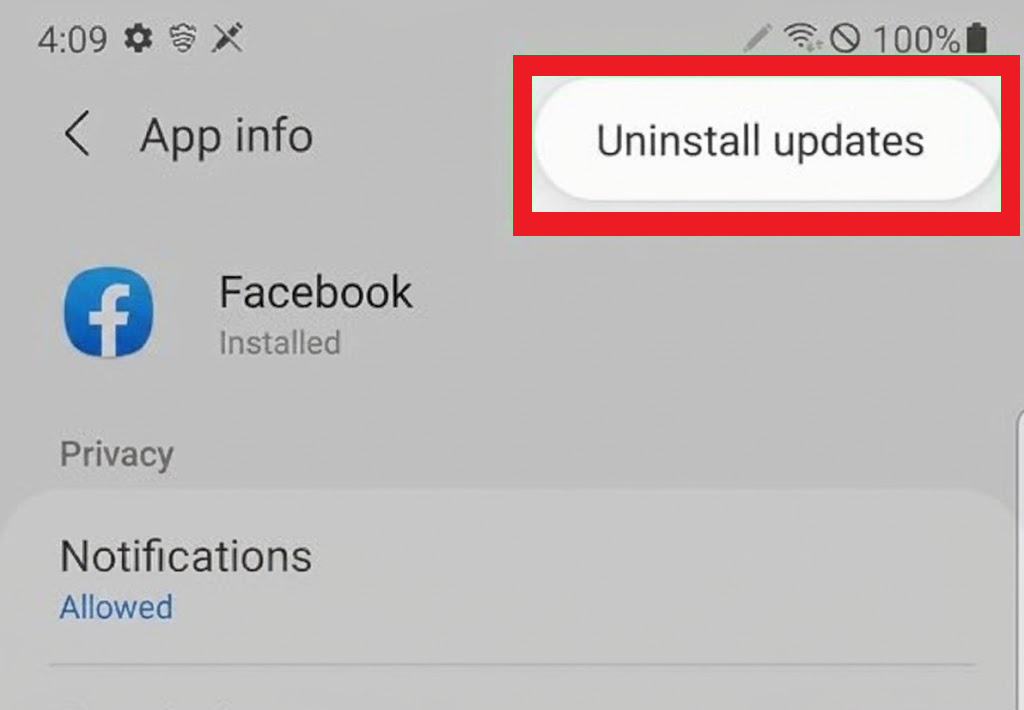
Capture the official system-app control before confirmation. Do not remove user apps, clear Play services storage, or alter a managed device. - Reopen Google Play and select profile picture > Settings > About > Update Play Store. Let it update, then retry Facebook.
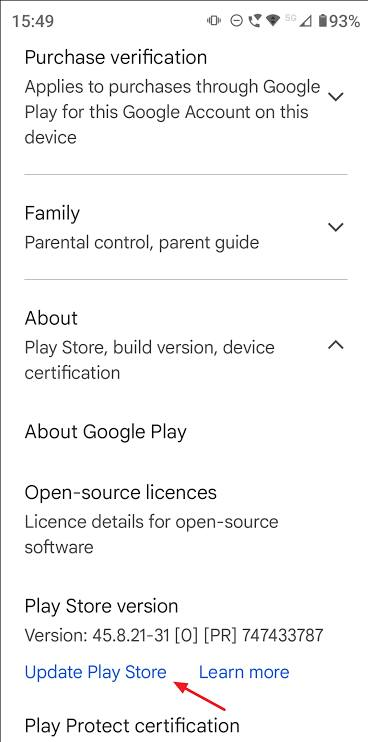
Show the completed version check without exposing the Google Account, device details, country, payment profile, or unrelated Store settings.
Google documents these Play Store repairs. They do not require clearing Google Play services data, removing your Google Account, or factory-resetting the phone.
For a numbered 910 message, see the Google Play error 910 guide. Keep to Store-based checks rather than its older APK or ADB workarounds.
If Facebook Still Won’t Install
Once Google Play shows Open, launch Facebook. Reaching its sign-in screen confirms the app opens; a later login error is a separate problem.
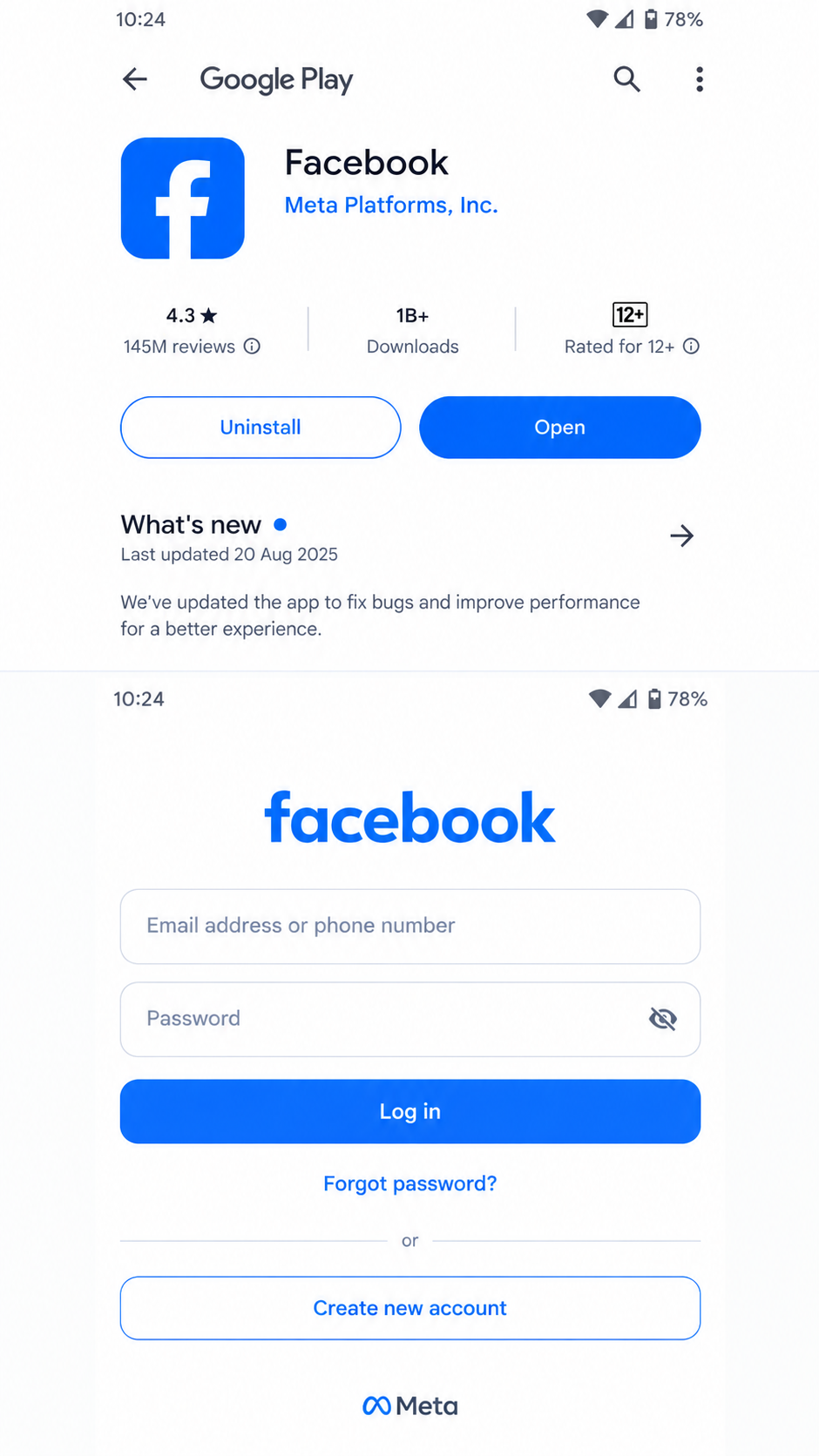
If installation still fails, use the listing’s App support details for Facebook-only failures, or Google Play’s Help & feedback for wider Store problems.
Include the exact error, phone model, Android version, free space, and whether other apps install. Redact screenshots; never send passwords or verification codes.
Meanwhile, use Facebook in a browser, or the official Facebook Lite if offered for your device and region. These provide another way to access Facebook; they do not repair the failed installation.


