How to Fix Google Maps Navigation Arrow Not Moving?
Google Maps can keep announcing turns while the map stays at a junction you have already passed. The arrow no longer follows your journey, even though navigation has not ended.
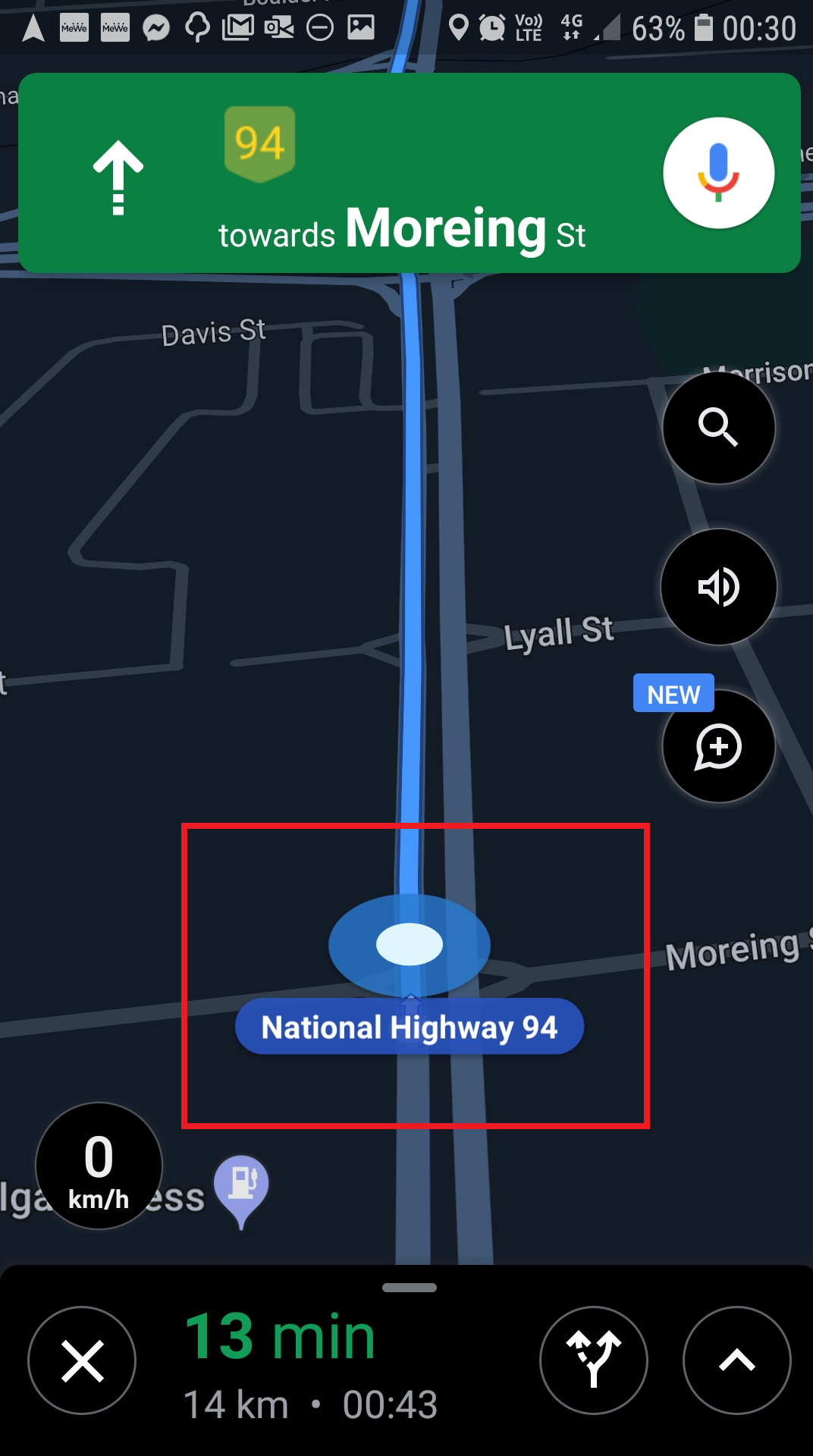
A stalled app or car-display session can leave an old picture on screen. A stuck marker can also mean Maps has lost your location; continuing voice directions alone do not rule that out.
Check Whether the Map Has Actually Frozen
The arrow does not have to move across the screen during navigation: normally, the roads move beneath it. These differences are worth checking before closing the app.
| What you see | What to check |
|---|---|
| The arrow stays centered, but roads and turn distances update. | This is normal navigation, not a frozen screen. |
| The map stopped following after you dragged or zoomed it. | Tap Re-center if shown to return to your position. |
| Searching for GPS, GPS signal lost, or a gray location dot. | Maps cannot establish a reliable current position. On Android, the GPS signal checks address this separate problem. |
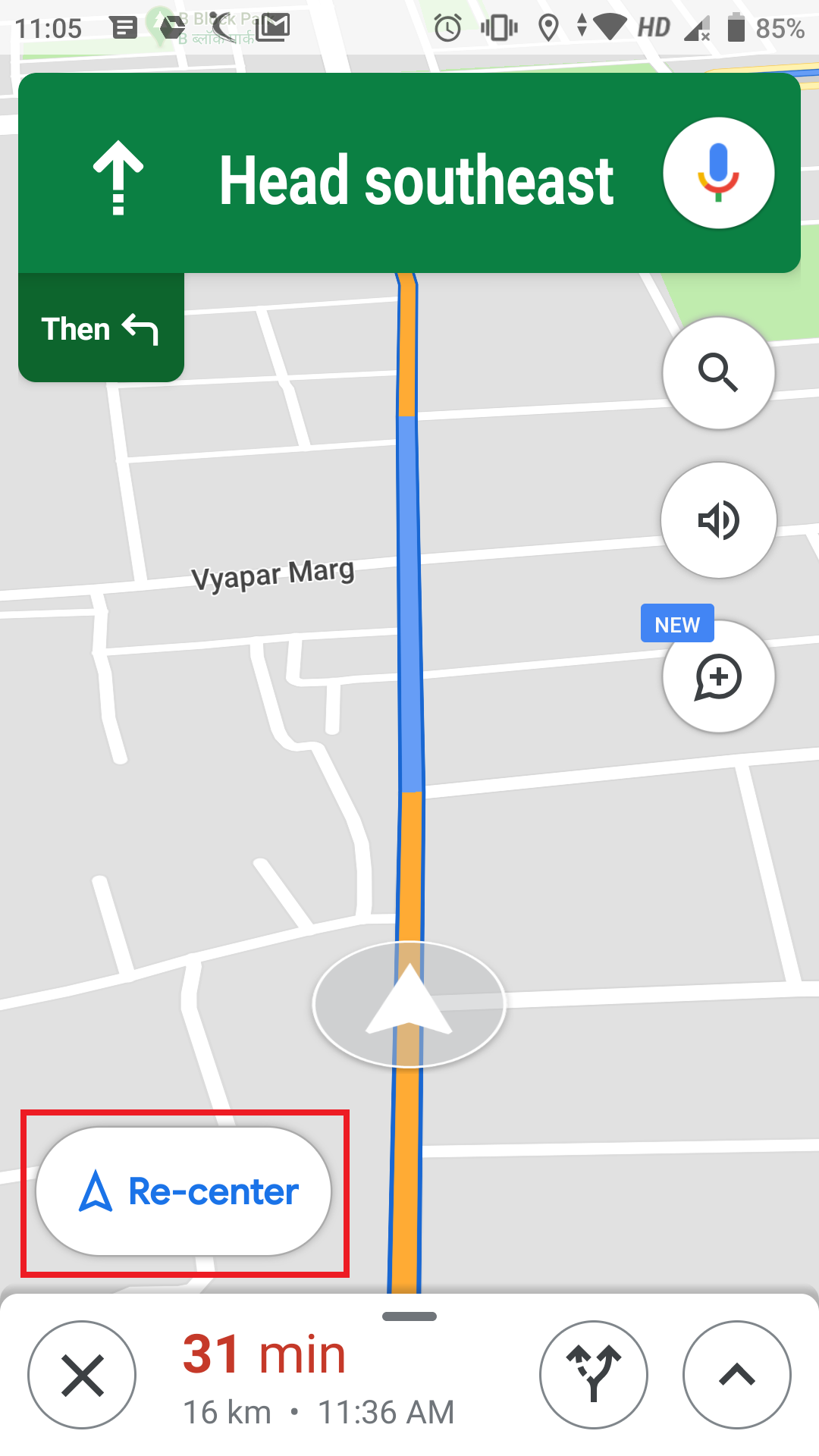
A route preview is not active guidance either. The trip should start from Your location, with a supported travel mode selected and Start tapped. Google explains these controls in its navigation instructions.
1. Close and Reopen Google Maps
When Maps stops responding but other apps still work, closing it completely gives the stuck session a fresh start. Returning to the Home Screen alone may leave it running.
Follow the action for your phone, not both:
- Android: open Settings > Apps > Maps (through See all apps if needed), tap Force stop, and confirm.
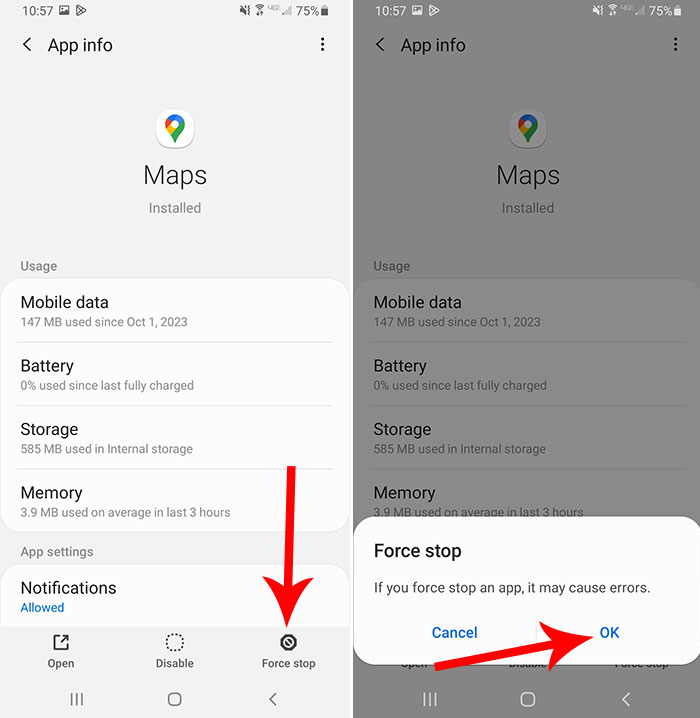
Force stop ends active guidance, save the destination before continuing. - iPhone: open the App Switcher: swipe up from the bottom and pause, or double-click the Home button. Swipe the Google Maps card up, as described in Apple’s unresponsive-app guidance.
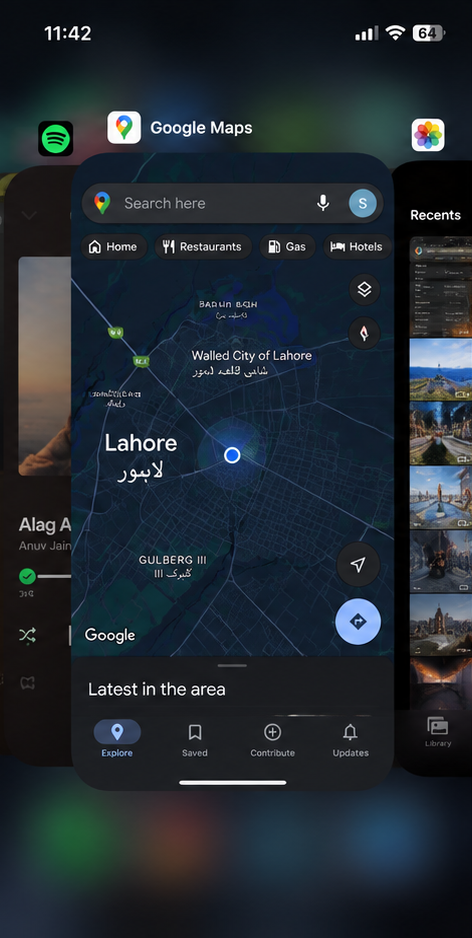
Swipe up on the Maps card, then reopen Maps from the Home Screen.
- Reopen Maps, find the destination, and tap Directions. Check Your location and the travel mode, then tap Start.
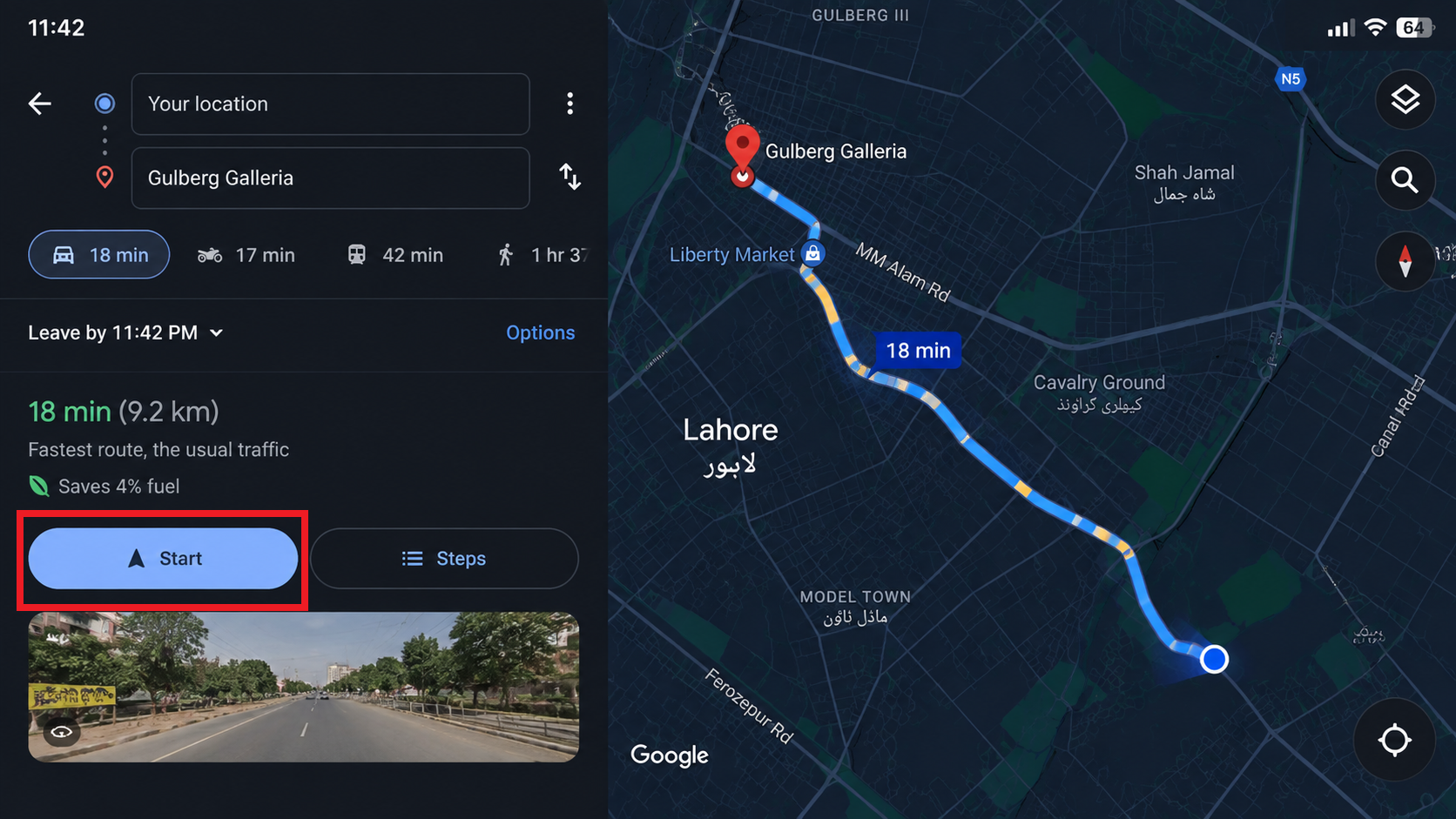
Confirm the destination and travel mode before starting guidance again. - For recurring freezes, open the Google Maps listing in Google Play or the App Store and install an available Update.
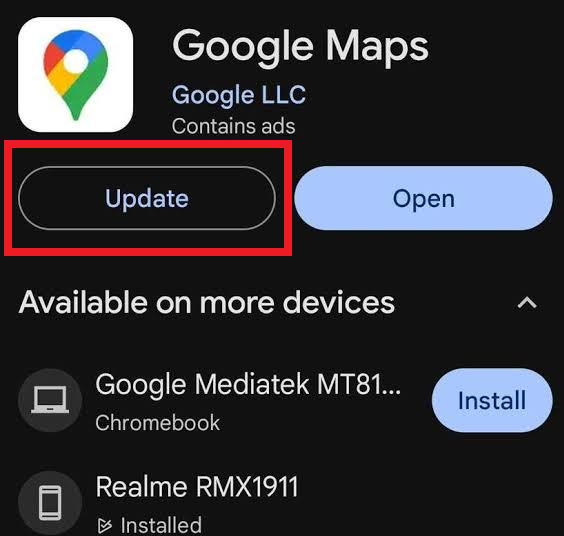
Use Google Play on Android or the App Store on iPhone.
Restart the phone once if reopening Maps does not help. Prepare navigation while parked, then assess it on a short, familiar journey; let a passenger observe where possible. A working launch is not enough if the map freezes again after a few minutes.
2. Clear Google Maps Cache on Android
If reopening Maps helps only briefly, clear its cache once so it rebuilds temporary map data. This leaves the separate app-data reset untouched. Google includes both controls in its Maps troubleshooting guidance.
- End navigation. Open Settings > Apps > Maps > Storage & cache, or Storage on Samsung phones.
- Tap Clear cache, not Clear storage or Clear data. Those separate controls remove app data and can erase offline downloads.
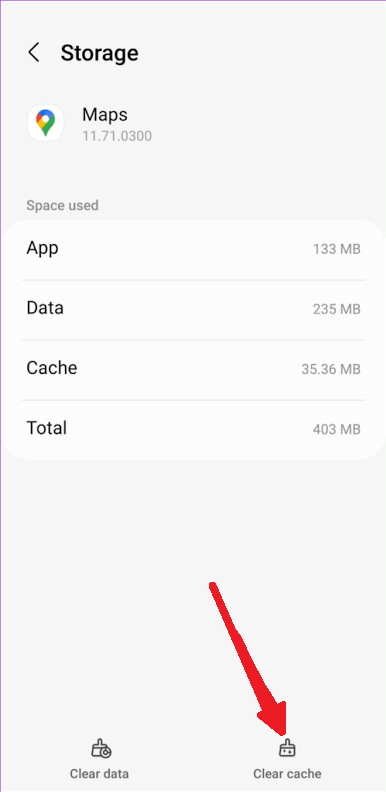
Choose Clear cache, Clear storage or Clear data is a different action. - Reopen Maps and prepare the same trip for another safe test.
Keep your offline maps if navigation now works. If nothing changes, repeatedly clearing the cache is unlikely to help. The Android cache button described here is not available in iPhone Settings.
3. Test a Recently Downloaded Offline Map
A downloaded area is worth testing when the problem began after saving it, particularly if the map goes blank after switching apps. Temporarily removing that area lets you compare navigation using online map data.
Some users recovered after removing a download; others saw the problem return. Keep this as a limited comparison, not a general fix for every stuck arrow.
- In Google Maps, tap your profile picture or initial > Offline maps. Identify the area saved before the trouble began. The first illustration below shows Apple Maps, not Google’s menu; follow the Google Maps instructions here.
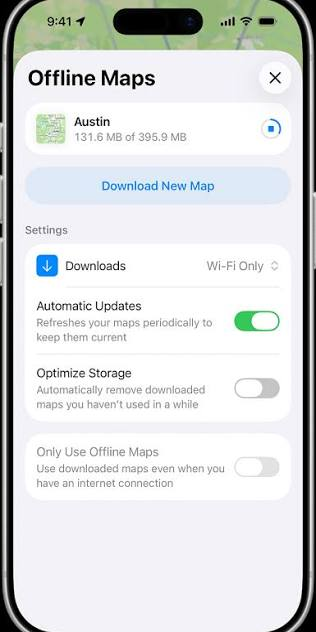
Only consider removing an area when you have reliable internet and can restore its coverage. - Tap the relevant downloaded area, then Delete. Remove only that download. The Google Maps screenshot below shows the deletion controls; downloading it again comes later.
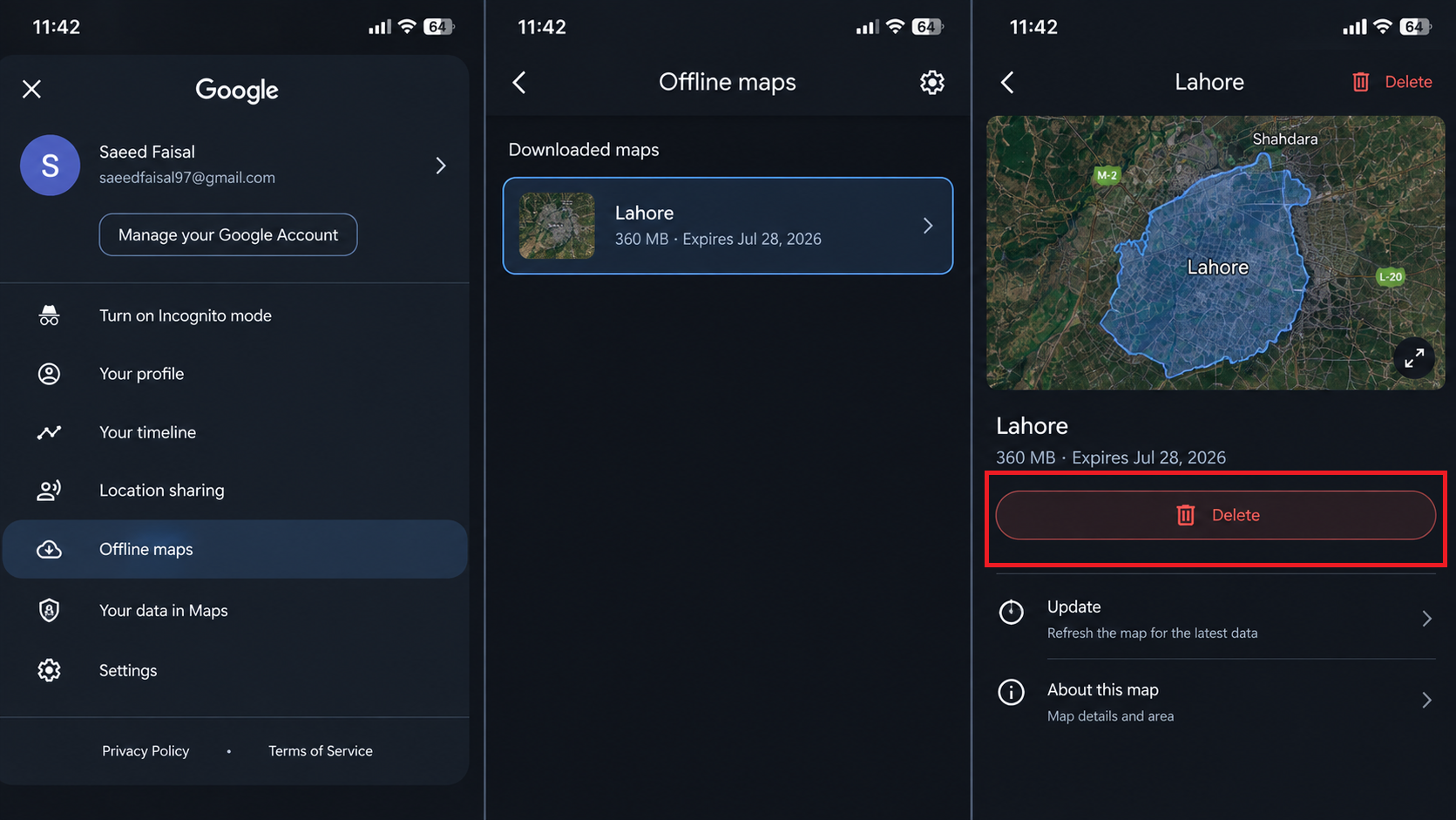
Download the area again and test before depending on it without a connection. - Reopen Maps and compare navigation with a working internet connection. If it still freezes, leave the other downloads alone.
- Restore the area before relying on offline navigation: open Offline maps > Select your own map, frame the required area, and tap Download. Wait for completion and retest.
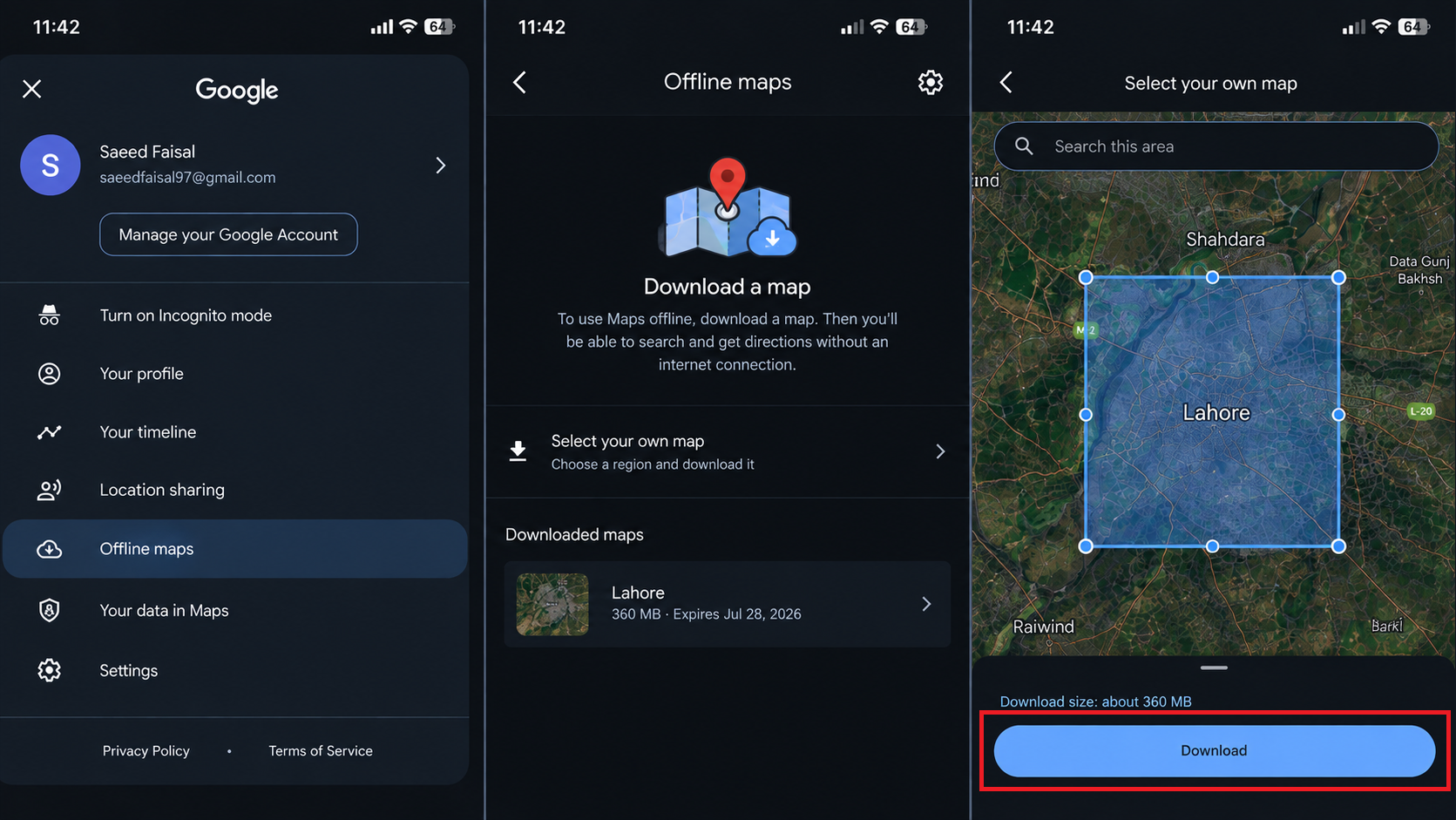
Download the area again and test before depending on it without a connection.
Google’s offline-map instructions cover downloading and deletion. Offline driving guidance needs the whole trip within the downloaded area; walking, cycling, and transit directions are unavailable offline.
If the freeze returns only after restoring that area, include that result in your report rather than deleting more data.
4. Refresh a Frozen Android Auto or CarPlay View
A car map can remain stuck while music or directions continue. Reconnecting starts a new car-display session, although it may only provide temporary relief. A phone-only problem does not need car pairing changes.
Keep the vehicle parked throughout these checks.
- Unlock the connected phone and open Google Maps. Check whether the car view refreshes. The illustration shows a car view; the phone’s display may show different controls.
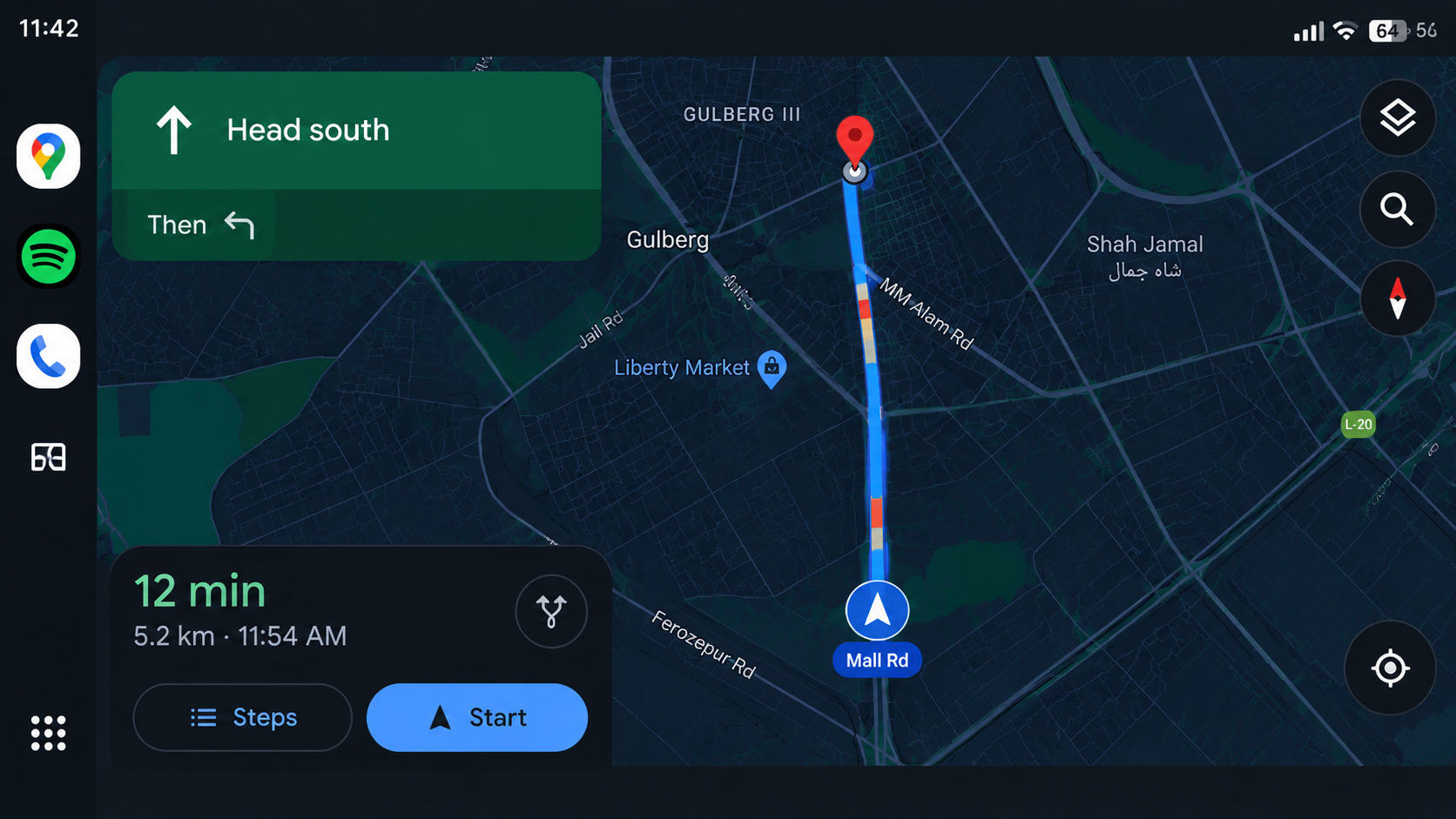
Open Maps on the phone while parked and check whether the car view refreshes. - Android Auto stuck in route overview: return the phone to its Home Screen. Close any small floating Maps window, then check the car again. This workaround is specific to a stuck overview.
- If still stuck, end guidance and disconnect Android Auto. Reconnect the USB cable, or use the vehicle’s controls for wireless. Reopen Maps once connected. Use the vehicle manual: the buttons may differ from this illustration.
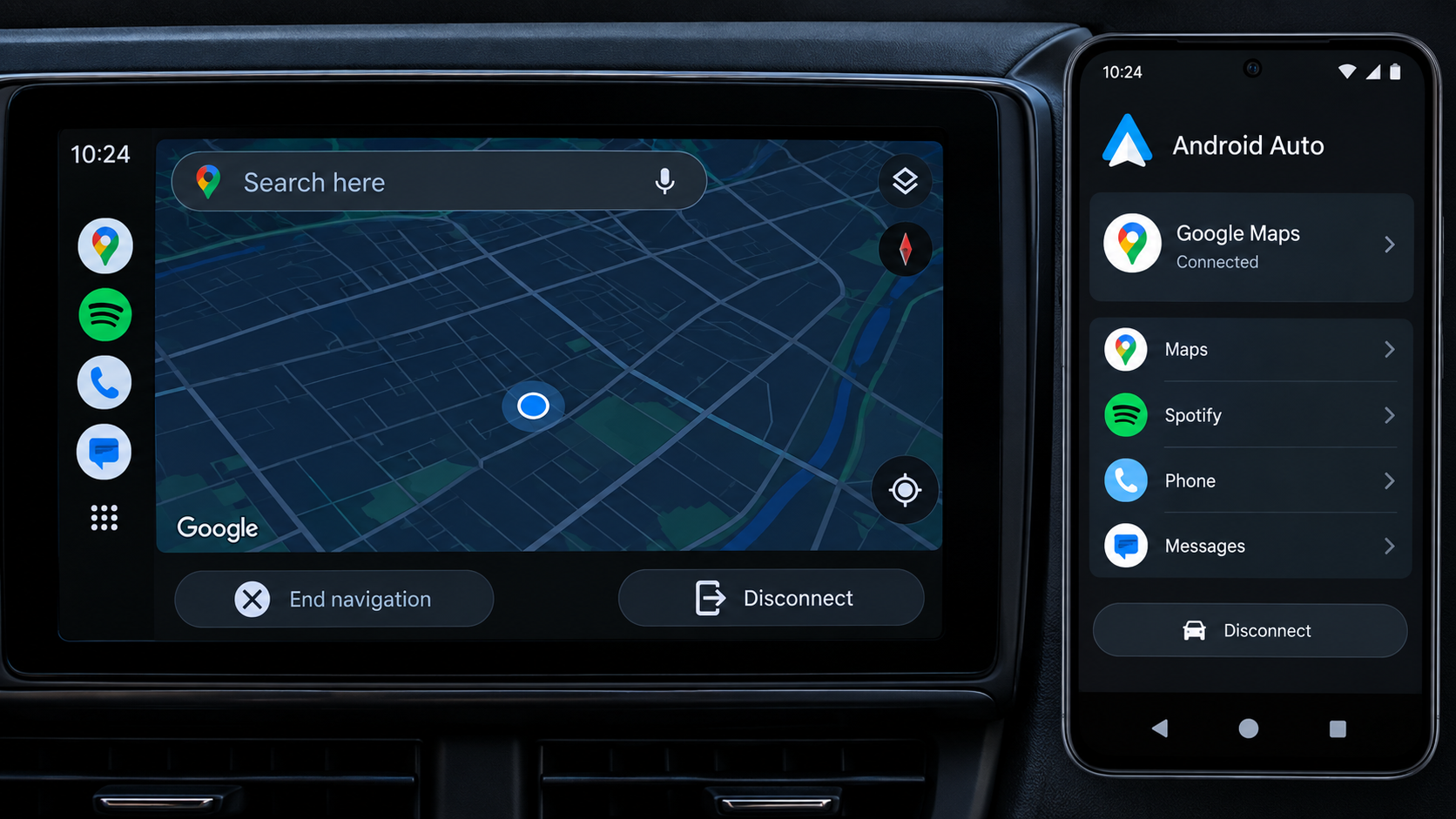
Restart guidance after the connection returns, reconnecting interrupts the current session. - CarPlay: likewise, reconnect through the normal USB or wireless controls, then restart guidance. For a failure affecting all of CarPlay, follow Apple’s CarPlay connection checks, not repeated Maps resets.
If the entire Android Auto session drops, the Android Auto disconnection checks cover cable and connection problems. When only Maps freezes, erasing saved pairings or factory-resetting the car is not a useful first response.
For comparison, disconnect the car and prepare the trip on the phone alone. If Maps then works normally, report the car-only failure with the vehicle or receiver model and whether the connection is wired or wireless.
If Navigation Still Freezes
In Maps, open your profile picture or initial > Help & feedback and look for Send product feedback or the equivalent app-feedback option. Google’s feedback instructions explain the reporting process.
Include your phone model, OS and Maps versions, whether voice directions continued, and what happened with the car disconnected. Note whether it freezes after locking the phone or switching apps. Hide private addresses in screenshots.
If other navigation apps also lose your position, check for phone software updates and contact the phone maker; reinstalling Maps alone may not address it. Until navigation remains dependable, arrange a working alternative before an unfamiliar journey.


