How to Fix Battlefield 6 Not Launching / Crashing Issue?
When Battlefield 6 won’t launch or keeps crashing with DirectX errors, black screens, or freezes, it’s usually a clash between the game/anti-cheat and a system setting. Most cases fall into:
- GPU driver / DirectX initialization (bad/outdated drivers, shader compilation issues)
- Windows security / exploit protection (blocks the game/anti-cheat and causes silent closes)
- Corrupted game/config files (broken files/settings trigger loops and instant crashes)
- Unstable overclocks/undervolts (XMP/EXPO, GPU/CPU tuning causes random freezes/crashes)
1. Update or Reinstall GPU Drivers
Outdated/corrupted drivers are a top cause of DirectX errors and startup crashes. Install drivers from NVIDIA/AMD/Intel. If issues started after a recent update, testing one known-stable version back can help.
To follow our detailed guide on this whole process, visit: How to update graphics driver in Windows? (AMD, Nvidia, Intel)
2. Disable Exploit Protection Overrides (Only for the Game)
On some PCs, Windows Exploit Protection blocks how the game/anti-cheat attaches at launch, causing silent closes after the splash. The safest test is disabling only the key mitigations for bf6.exe (and, if needed, the anti-cheat exe).
Important: This reduces protection for that executable. Revert if it doesn’t help.
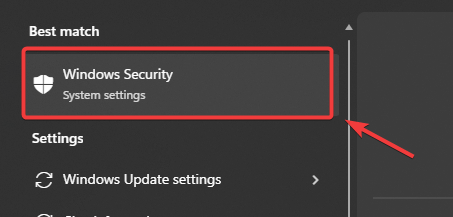
- Press Windows + S, type Windows Security, and press Enter.
- Click App & browser control.
- Under Exploit protection, click Exploit protection settings.
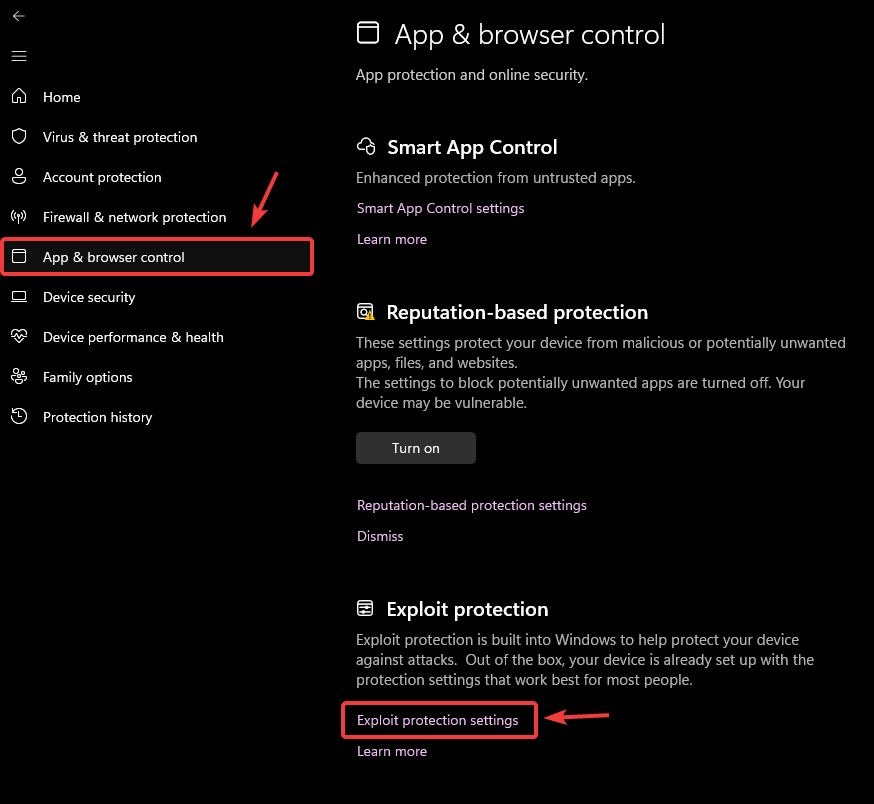
- Open the Program settings tab.
- Click Add program to customize > Choose exact file path.
- Select the Battlefield 6 executable (the main bf6.exe inside the install folder).
- Set:
- Control flow guard (CFG): enable Override system settings → set to Off
- Force randomization for images (Mandatory ASLR): enable Override system settings → set to Off
- Click Apply, then restart the PC.
- If it still closes after splash: add the anti-cheat executable too and apply the same two overrides.
3. Switch from Borderless to Fullscreen/Windowed
If you’re getting black screens/freezes, switching Display Mode can help because it changes the presentation path. Some setups are less stable in Borderless.
- Launch Battlefield 6 and open Settings.
- Go to Display or Graphics.
- Locate Display Mode.
- If it’s Borderless, switch to Fullscreen or Windowed.
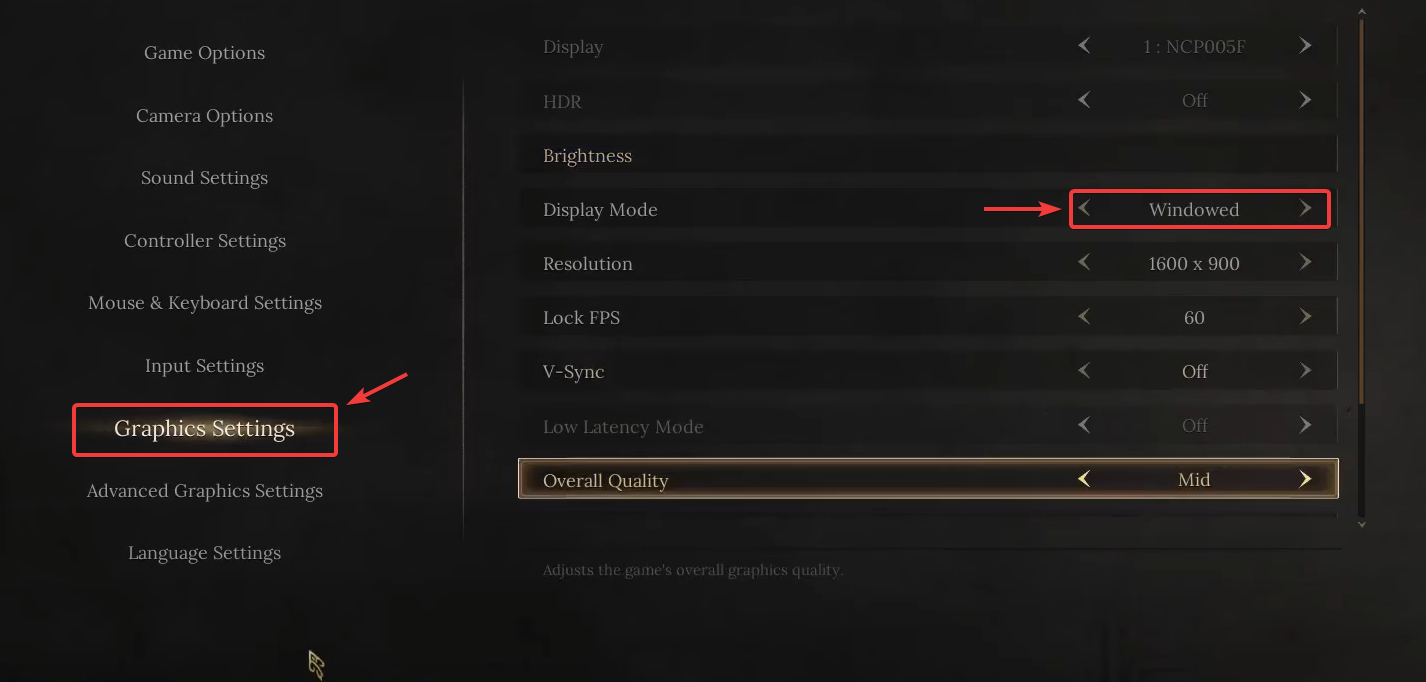
- Save changes and restart the game.
4. Repair or Reinstall Game Files
Corrupted/incomplete files can trigger launch failures and DirectX errors. Verify/repair replaces missing or damaged files. If it still crashes, reinstall for a clean baseline.
Launcher note: Steam uses Verify integrity. Other launchers usually have Repair/Verify in the game’s Manage menu.
- Open Steam and go to Library.
- Right-click Battlefield 6 > Properties.
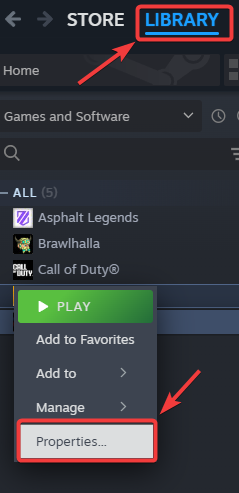
- Open Installed Files > Verify integrity of game files.
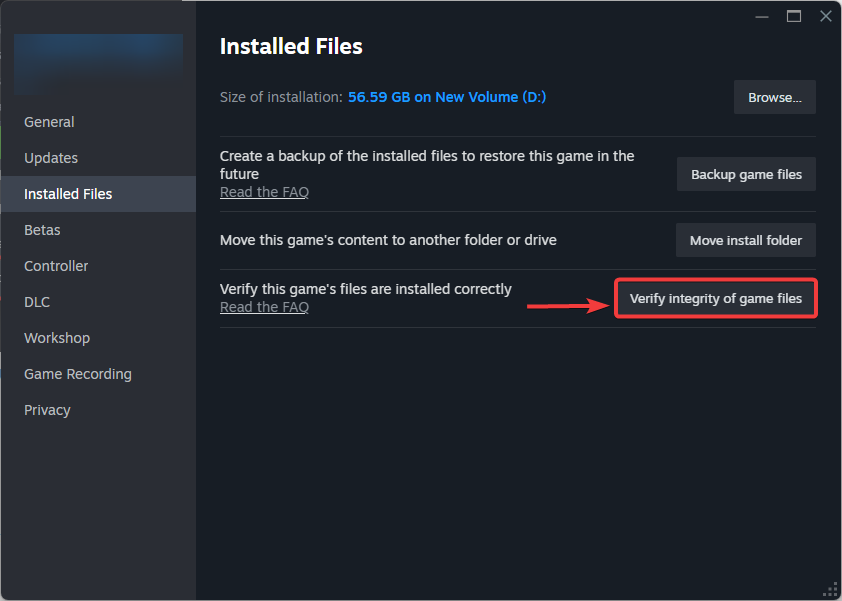
- If it still crashes after verification, reinstall the game.
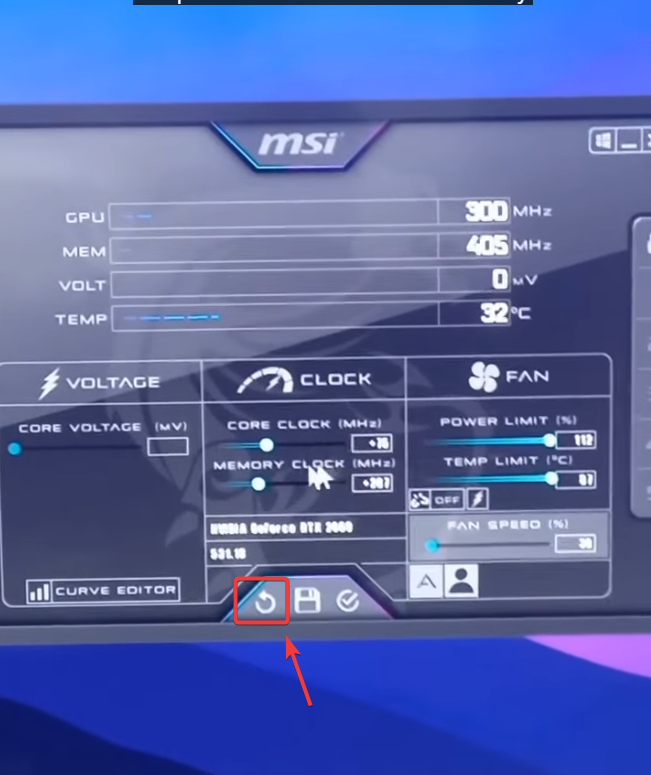
5. Reduce Graphics/Memory Overclocking (ADVANCED USERS)
Overclocks/undervolts on CPU, GPU, or RAM can cause freezes, black screens, and hard crashes. For testing, return everything to stock first.
Also check RAM: Temporarily disable XMP/EXPO (set to Auto/Default) while troubleshooting.
- Open your GPU tuning tool (MSI Afterburner, Precision X1, AMD Adrenalin, Intel Arc Control).
- Reset Core Clock / Memory Clock and any undervolt profiles to defaults.
- Revert aggressive power limits/fan curves to a normal profile.
- Restart your PC and test again.