How to Fix AirPods Setup Incomplete Error?
Find My can show “AirPods Setup Incomplete” even while your AirPods play music normally. Pairing may have finished for only part of the set, leaving some locating features unavailable despite the working Bluetooth connection.
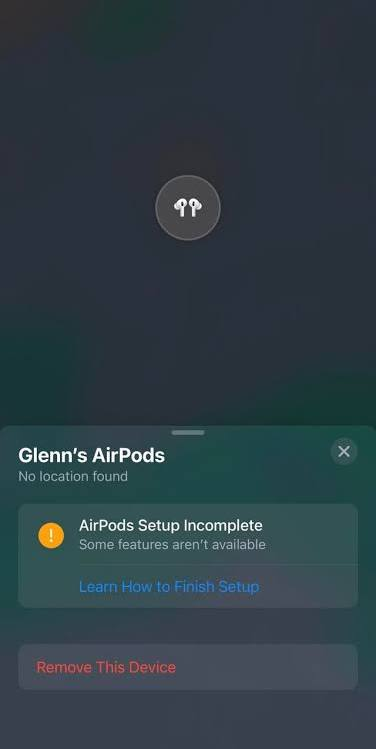
The warning alone does not prove the AirPods are faulty. Disabled Find My settings or unfinished account security can prevent setup. A separate AirPods Mismatch or another-account message needs different attention.
| What Find My shows | What to check |
|---|---|
| Setup Incomplete, with or without working audio | Allow pairing to finish, then check the settings below. |
| AirPods Mismatch or another Apple Account | Check the earbuds and account association before resetting. |
| The warning began after replacing an earbud or case | Use the replacement setup rather than repeating normal pairing. |
These case instructions cover AirPods earbuds, not AirPods Max. Keep the set with you. If it is already lost, leave its Find My entry intact and follow Apple’s lost-AirPods guidance.
1. Let Both AirPods Finish Pairing
The setup card can appear before Find My is ready. Allow a few minutes for pairing before starting over.
- Keep your signed-in iPhone or iPad connected to Wi-Fi or cellular data, with Bluetooth on.
- Put both earbuds in the case. Check their individual charge indicators on the iPhone’s battery card; charge the case if needed. Close the lid briefly.
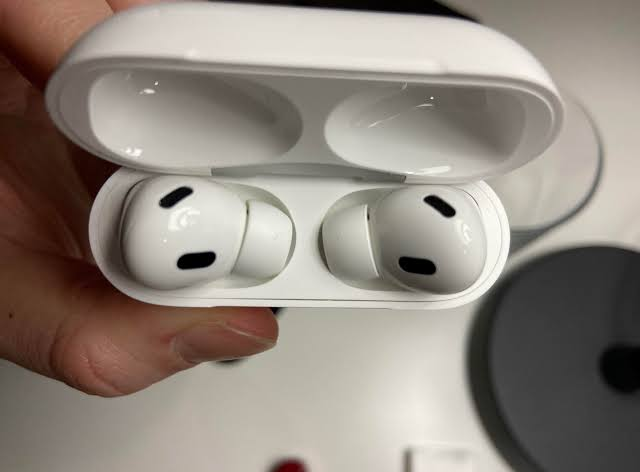
A short reconnect with both earbuds in the case can finish a partial AirPods pairing without a full reset. - Unlock the device, return to the Home Screen, and open the case nearby. Leave both earbuds inside while setup finishes.
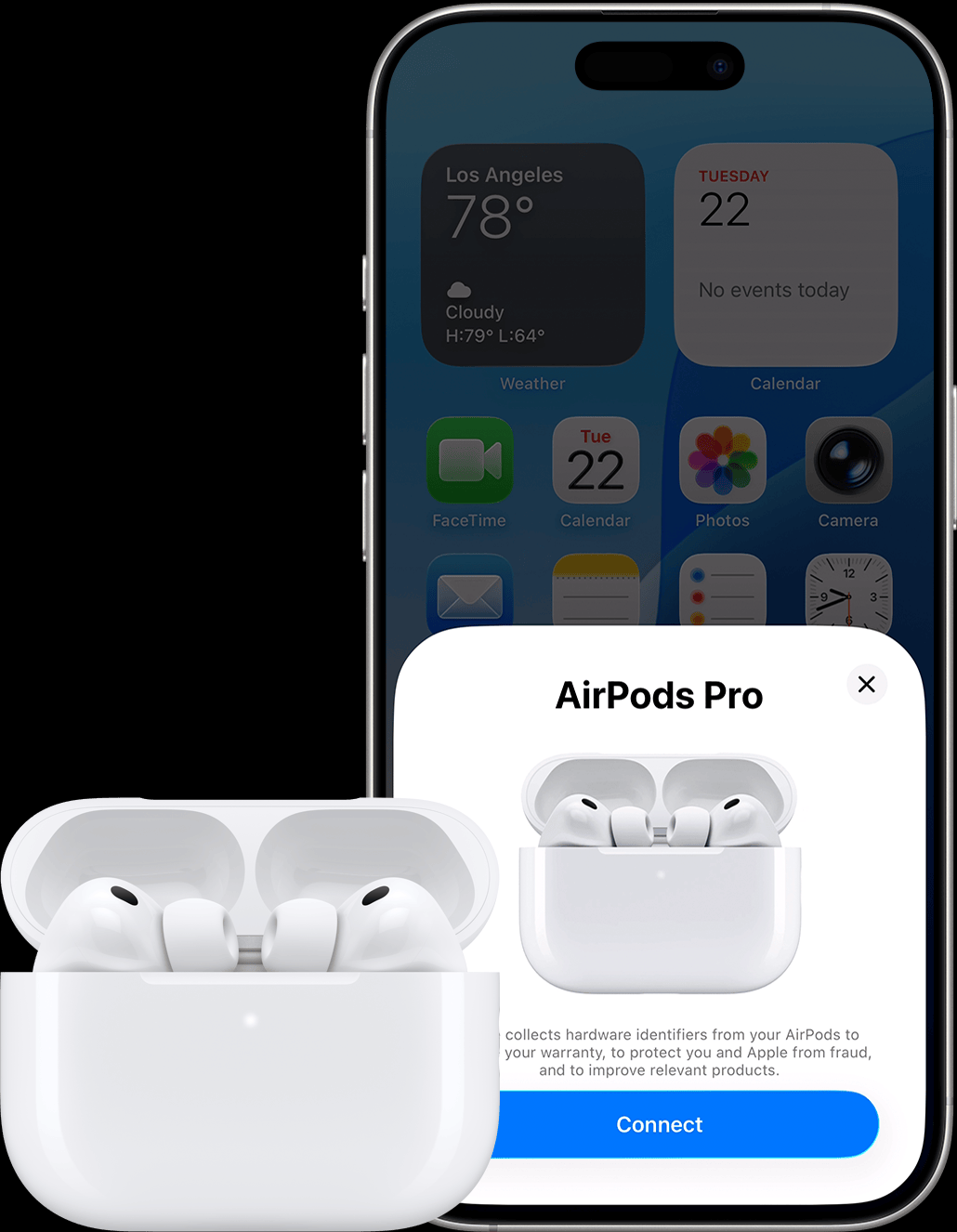
- Complete setup, dismiss the card, and check Find My > Devices > your AirPods.
If Find My now loads without the warning, no reset is needed. For a missing setup card, use manual pairing from Bluetooth.
2. Check Find My on the iPhone and the AirPods
The phone and supported AirPods have separate Find My settings. Enabling only the phone’s switch can leave the earbuds’ network finding disabled.
On the iPhone or iPad
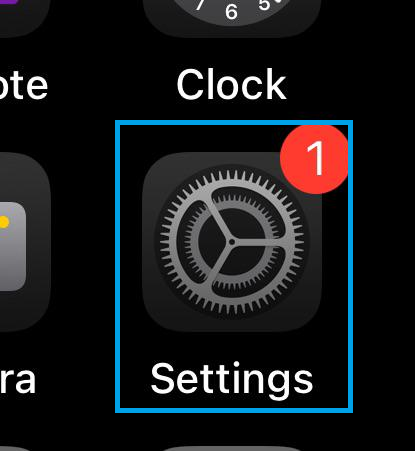
- Open Settings and tap your name.
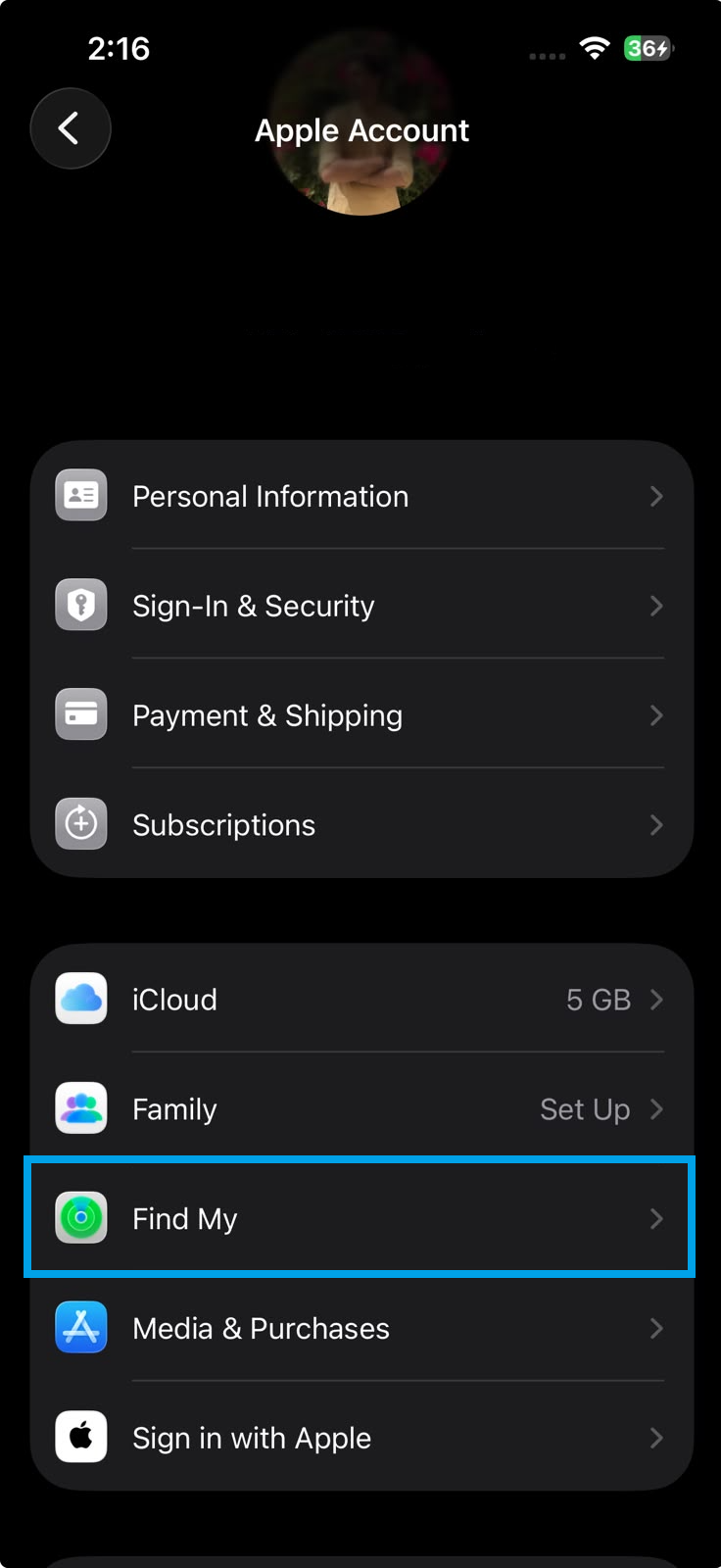
- Open Find My.
- Tap Find My iPhone or Find My iPad, then enable that switch and Find My network.
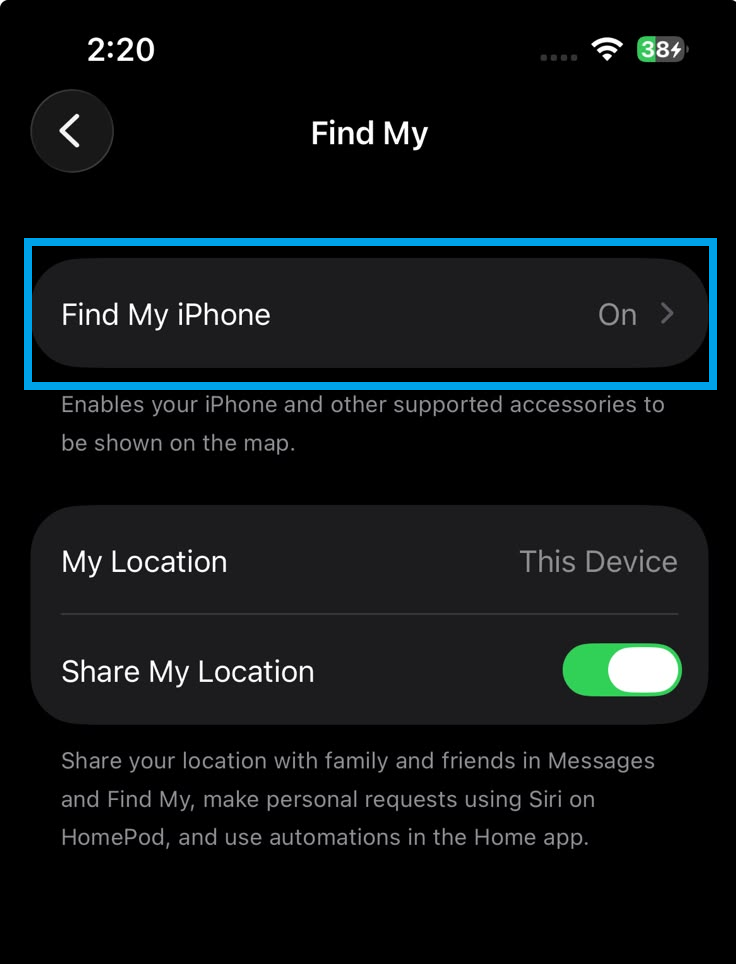
AirPods Find My setup depends on the main Apple device being allowed to use Find My and the Find My network.
On the AirPods
- Open the case near your device. Once connected, take the AirPods out to access their settings.
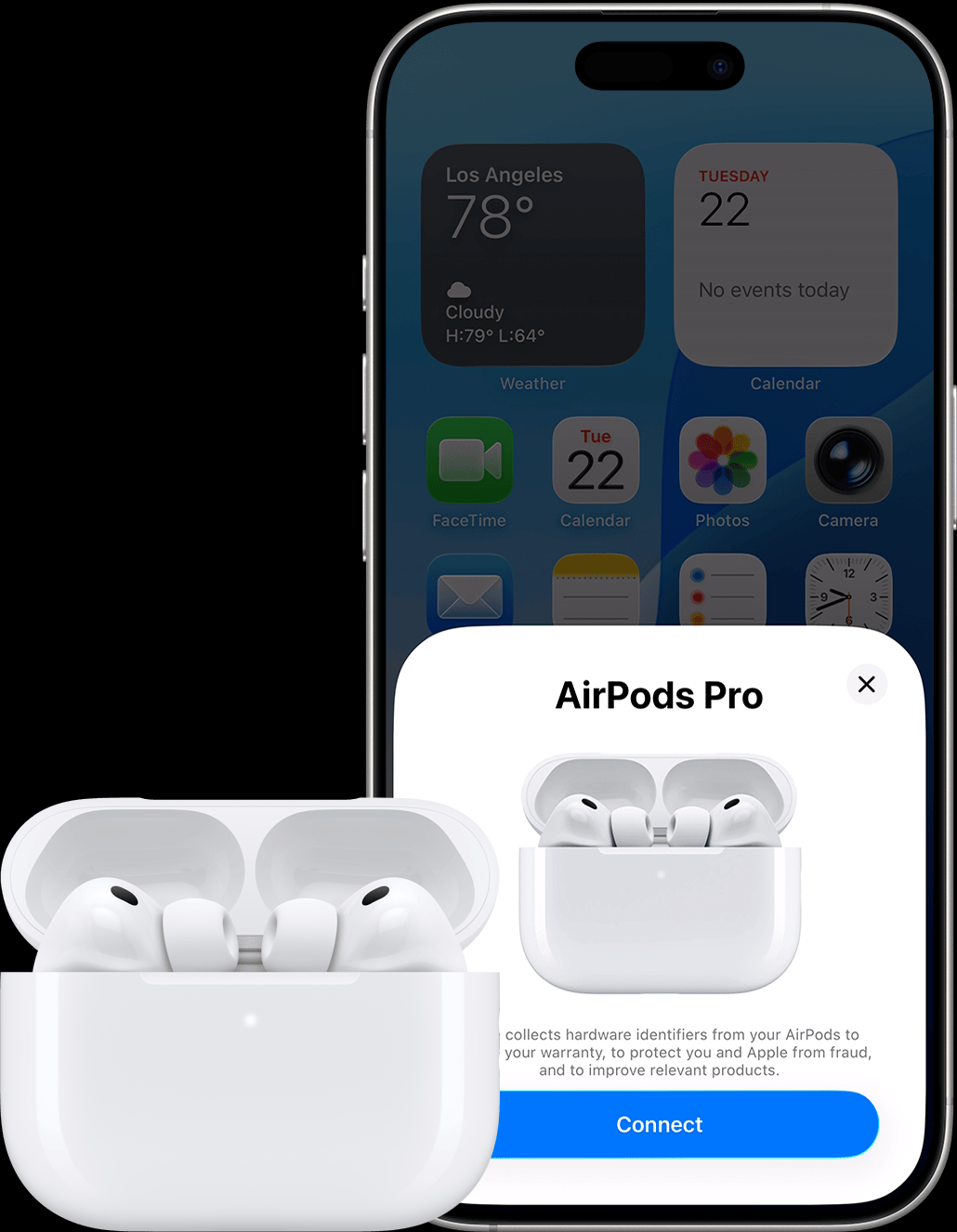
- Open Settings > Bluetooth and check that Bluetooth is on.
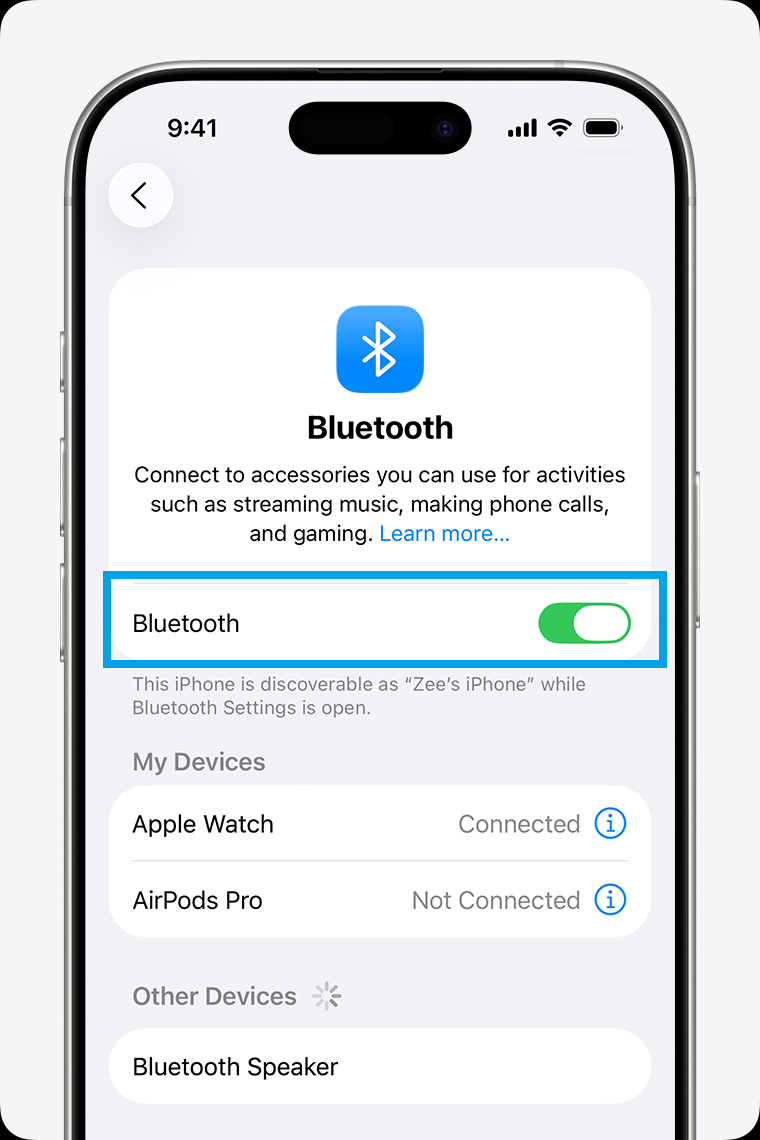
- Tap the More Info button beside the AirPods.
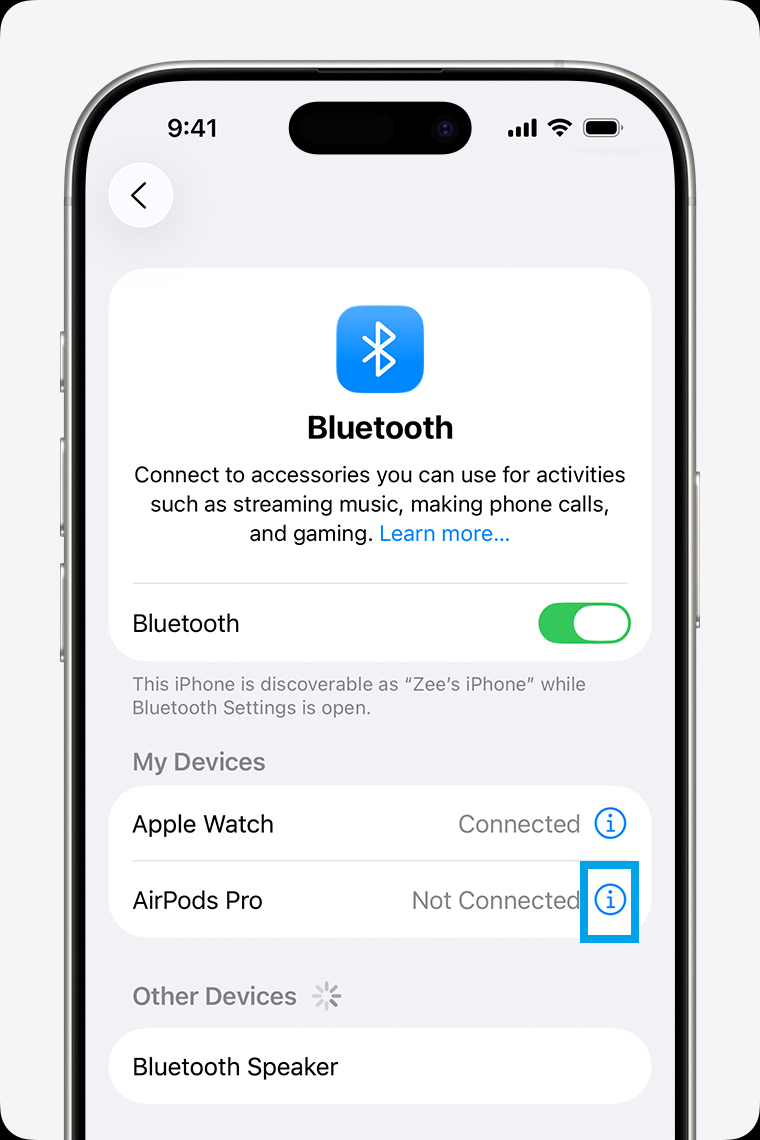
- Open Find My and enable Find My network. On older layouts, the switch appears directly on the AirPods information page.
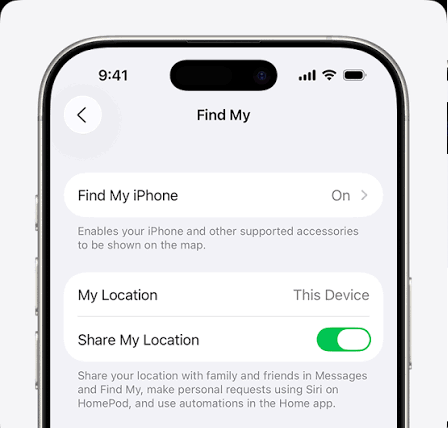
The AirPods-level Find My network switch must be enabled for full Find My setup. - Return both earbuds to the case, close it briefly, then reopen it. Check Find My after about a minute.
This switch supports AirPods 3, AirPods 4 (ANC), AirPods 5 with Wireless Charging Case, and all AirPods Pro. Other case-based AirPods lack this network feature; a missing switch is normal on those models.
If the warning still appears, leave the supported switch enabled. Turning it off can hide the warning while limiting Find My to the last connected location; that is not restored network finding.
3. Finish the Apple Account Security Checks
Bluetooth can connect while Find My waits for account security approval. Complete these checks without signing out of your Apple Account.
- In Settings, complete Update Apple Account Settings if shown. If no account name appears at the top, sign in to your own Apple Account.
- Confirm the device has a passcode. If it does not, open Face ID & Passcode, Touch ID & Passcode, or Passcode, and select Turn Passcode On.
- Open Settings > your name > Sign-In & Security. Enable Two-Factor Authentication if it is not already active, and finish the verification prompts.
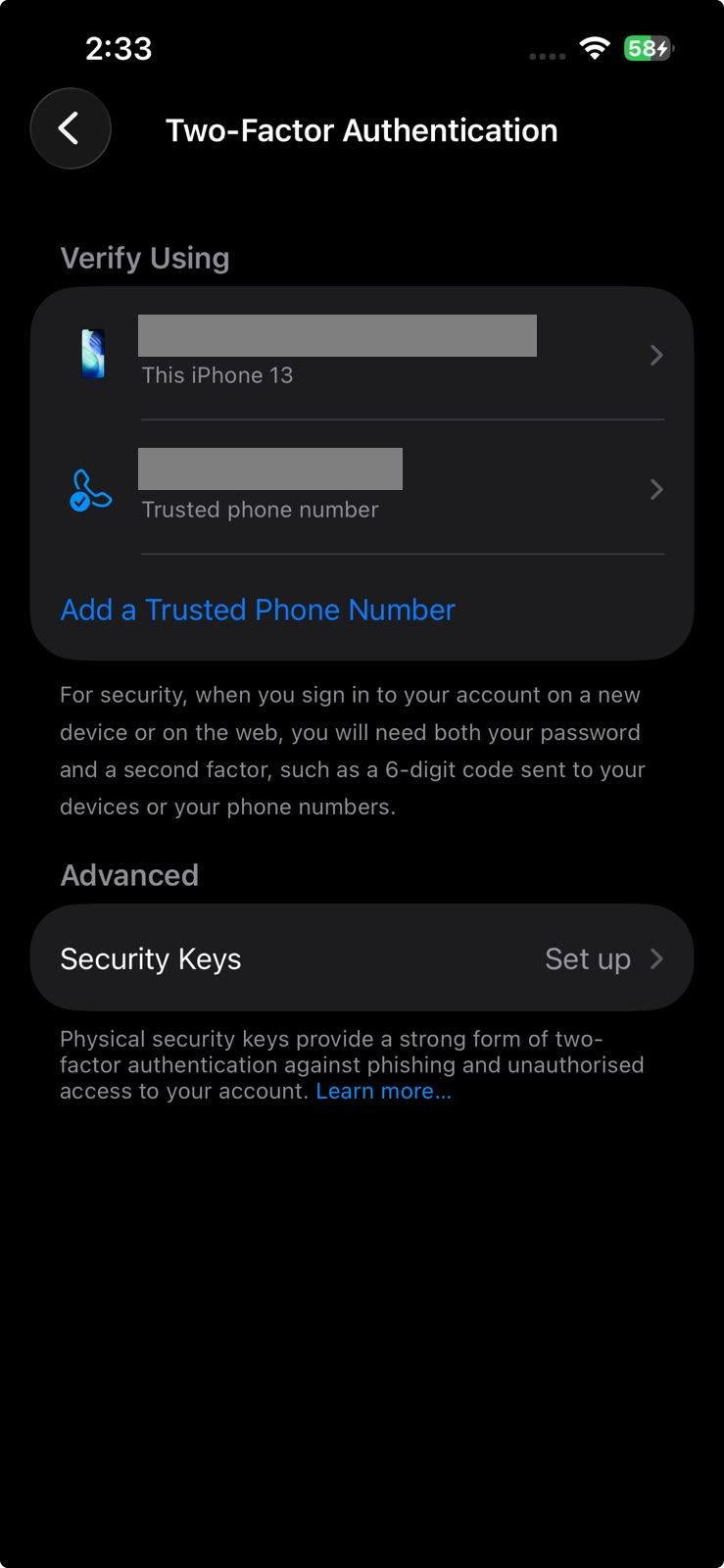
Pending Apple Account security prompts can stop AirPods ownership from completing in Find My. - Open Settings > your name > iCloud > Passwords under Saved to iCloud. On iOS 17 or earlier, choose Passwords and Keychain. Enable Sync this iPhone or Sync this iPad, completing any approval prompts.
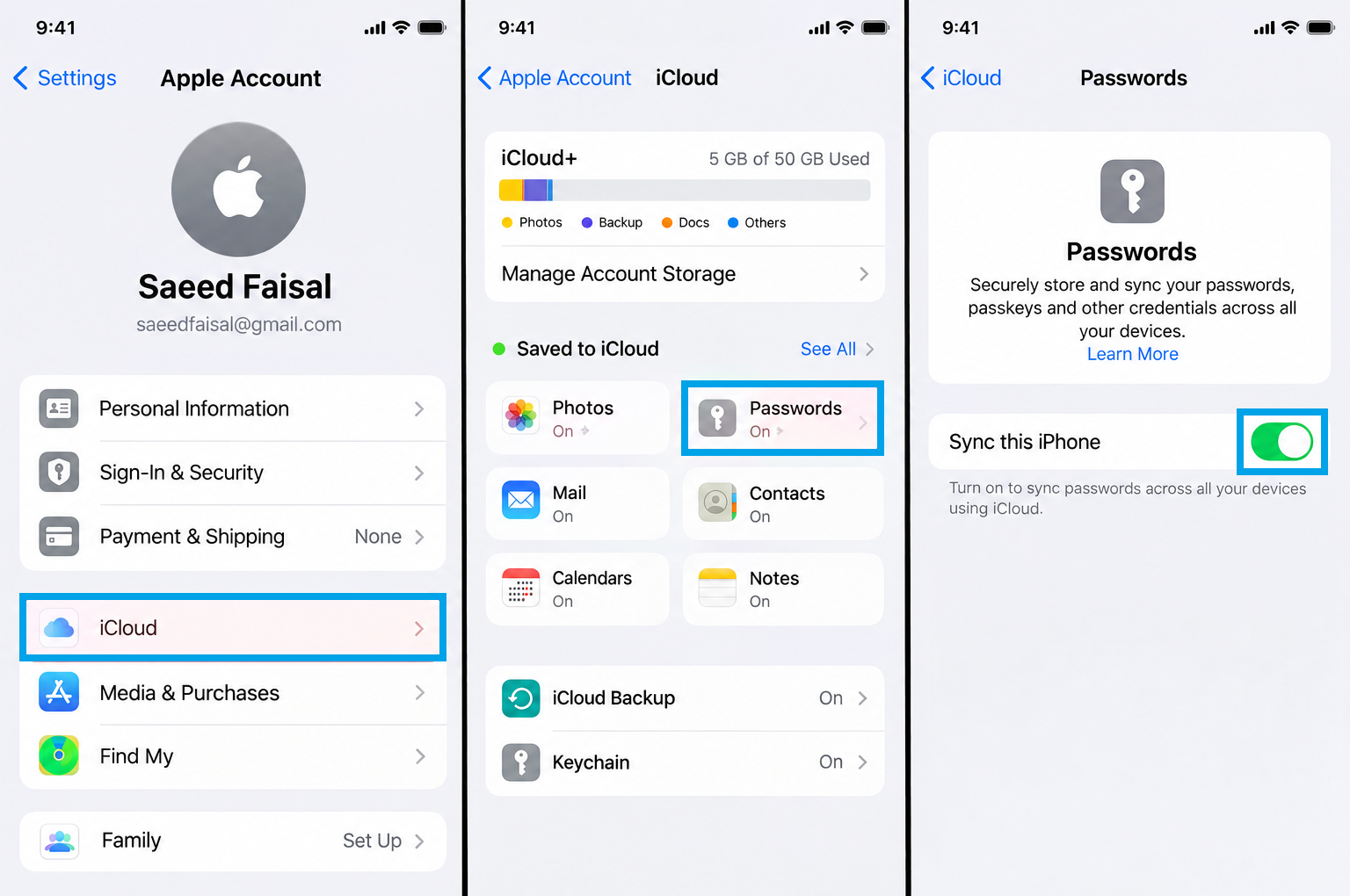
- Reconnect the AirPods and check Find My again.
If Keychain approval still fails, follow Apple’s iCloud Keychain setup instructions; resetting encrypted account data is not an AirPods troubleshooting step. A school or work Managed Apple Account cannot use Find My. Ask the administrator about restricted settings.
4. Update the iPhone and Check AirPods Firmware
Updating iOS can fix Find My problems that survive re-pairing. AirPods firmware installs separately while charging.
- Back up the iPhone or iPad, connect it to power, and install the latest compatible update from Settings > General > Software Update.
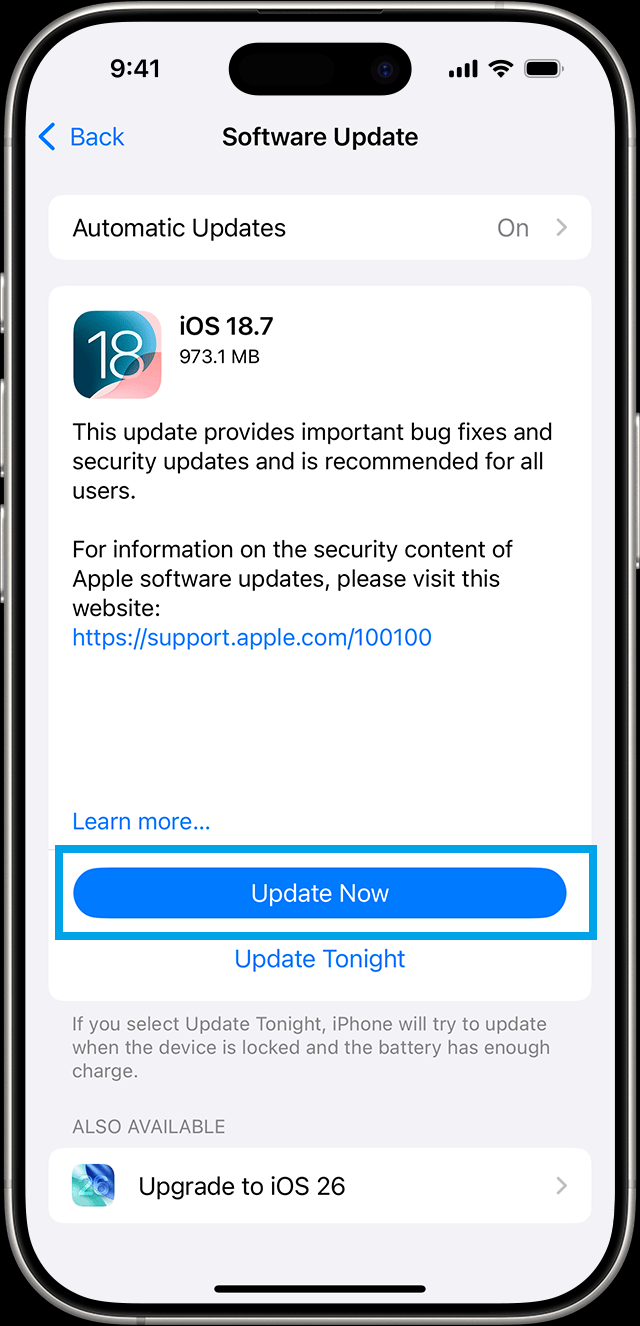
Newer Find My features can fail when the iPhone or AirPods firmware is behind. - Connect the updated device to Wi-Fi.
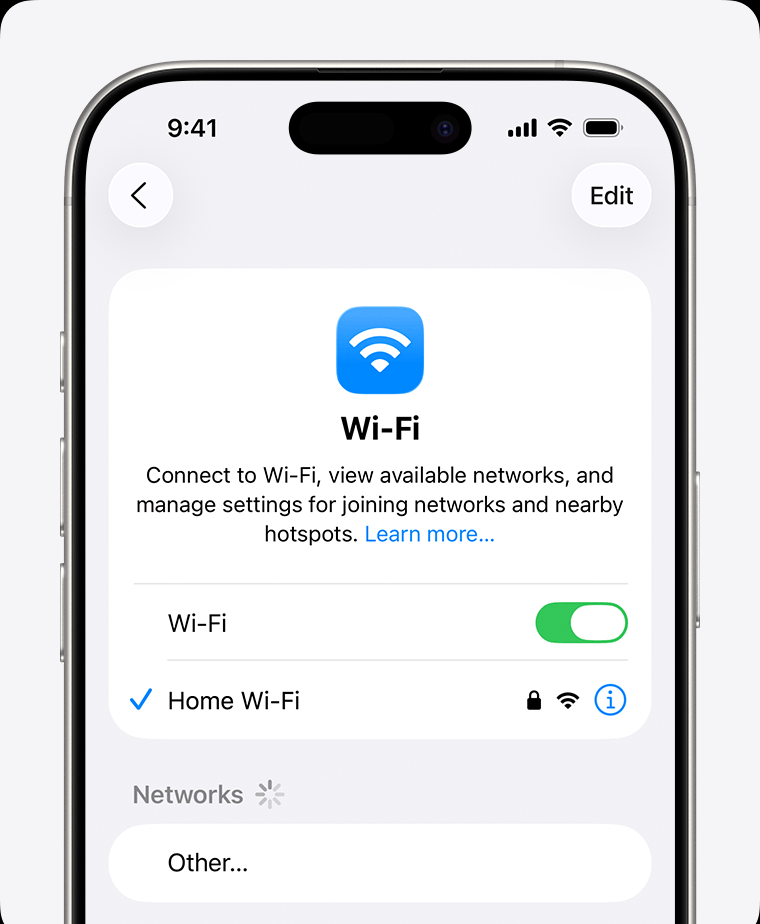
- Make sure the AirPods are connected through Bluetooth.
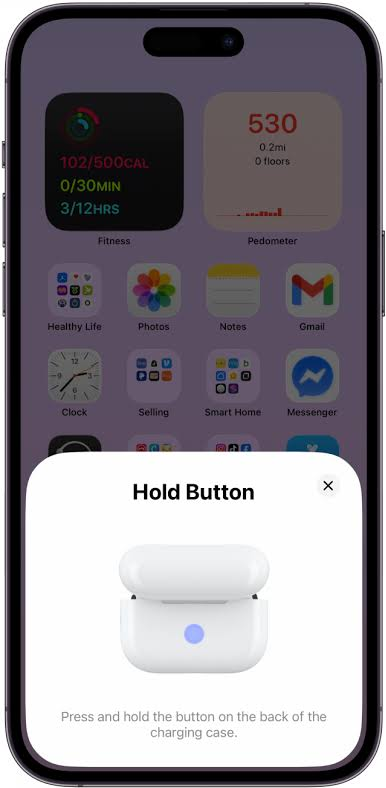
- Put both earbuds in the case, connect the case to power, and close the lid. Keep it within Bluetooth range of the Wi-Fi-connected device for at least 30 minutes.
- Open the lid to reconnect. Under Settings > Bluetooth > More Info beside the AirPods, find Version in the About section.
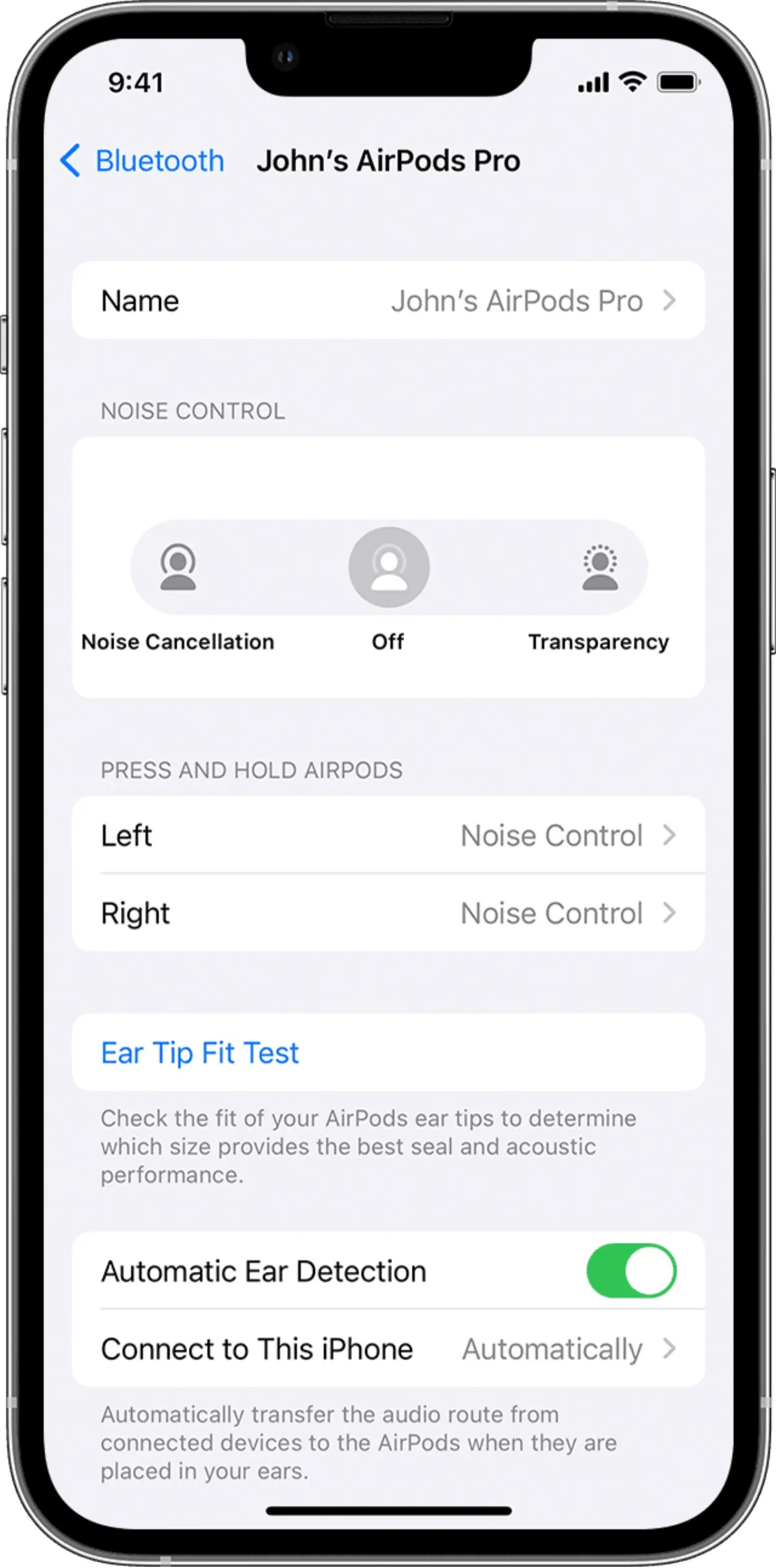
Compare Version with Apple’s firmware list for your model. If the warning still appears after updating, retry pairing below.
5. Remove the Find My Entry and Reconnect
Removing the saved entry lets you repeat Find My setup after the settings checks. Try reconnecting before a factory reset.
- Close the case with both earbuds inside.
- Open Find My > Devices > your AirPods. Open the details or swipe up on the card, then select Remove or Remove This Device and confirm.
Removing the stale Find My record lets iPhone create a fresh AirPods ownership link. - Return to the Home Screen, open the case nearby, and complete the setup prompts.
If the warning disappears, finish here. If it still returns or pairing fails, use the reset below.
A separate Connection Failed message in Bluetooth is covered in our AirPods connection-failure guide.
Reset only if reconnecting fails
- Put both earbuds in the case, close the lid, and wait 30 seconds.
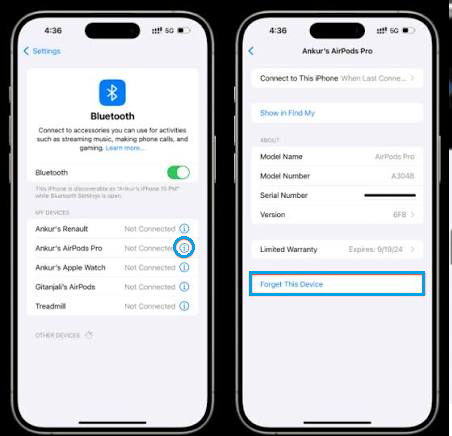
- In Settings > Bluetooth, tap More Info > Forget This Device beside the AirPods and confirm, if they remain listed.
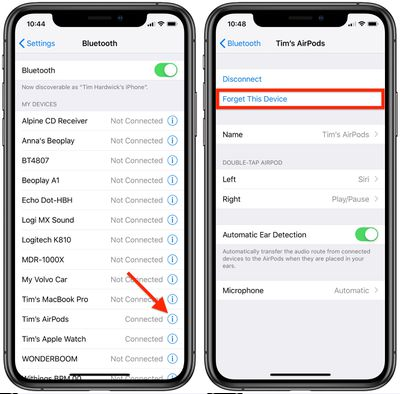
A model-specific reset clears partial pairing data and lets Find My start the setup again. - Open the lid and use the reset control for your model:
| AirPods model | Reset with the lid open |
|---|---|
| AirPods 1, 2, or 3; AirPods Pro 1 or 2 | Hold the rear setup button for about 15 seconds, until the light flashes amber, then white. |
| AirPods 4 or 5; AirPods Pro 3 | Double-tap the case front while the light is on. Double-tap again when it flashes white, then a third time when it flashes faster. Wait for amber, then white. |
Keep the open case beside your device and complete pairing. If white flashes never appear, Apple’s reset instructions recommend closing the lid for 20 seconds and retrying the model-specific sequence.
If Find My still shows incomplete setup after one successful reset, check any replacement or account history rather than repeating resets.
6. Resolve a Mismatched Set or Another Account
AirPods Mismatch can mean different-generation earbuds, someone else’s earbud, or another account association.
Only the associated account’s owner can remove Find My Lock. A factory reset cannot transfer it, and Apple cannot remove it for you.
- If the warning names another account, ask its owner to open Find My > Devices > your AirPods > Remove This Device and confirm. For your own old account, sign into it on another device or iCloud.com/find to remove the AirPods.
- For a mismatched-earbud warning, compare the model numbers under Settings > Bluetooth > More Info, or printed on each earbud, with Apple’s model identification list.
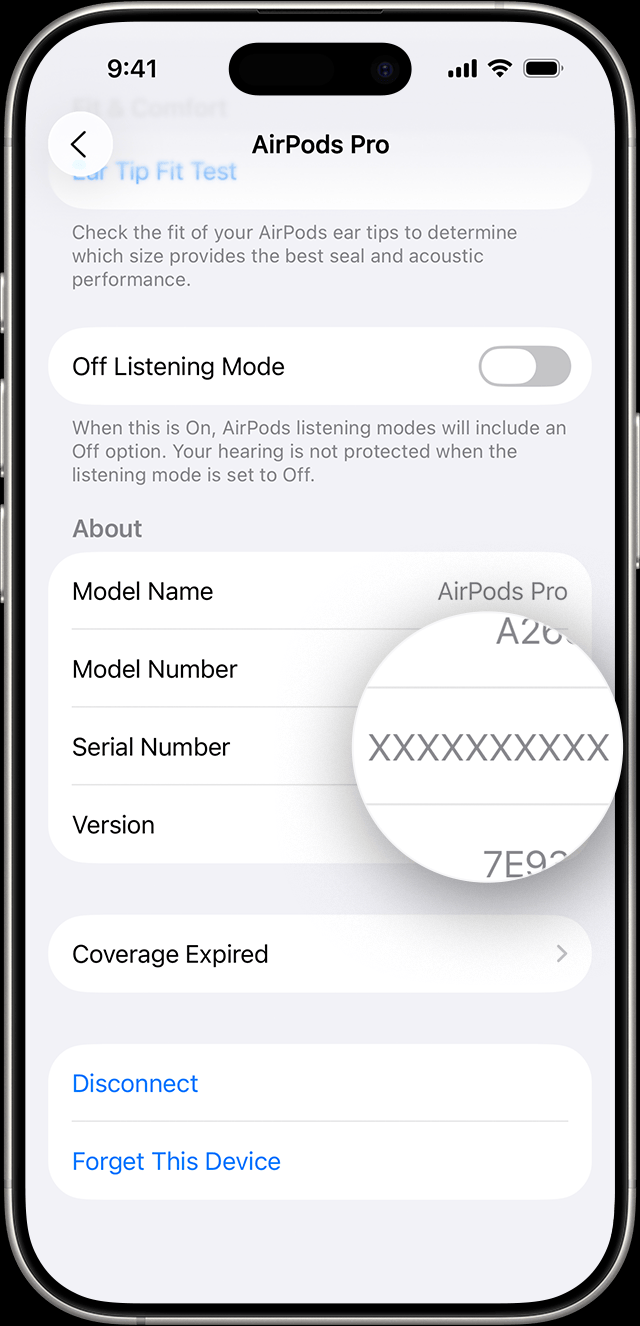
If another Apple Account owns the Find My record, a normal reset cannot fully attach the AirPods to your account. - Recover the matching earbud or obtain a compatible replacement. Pair the correct set after any previous account association has been removed.
If the seller cannot arrange account removal, request a return or exchange. If the warning appeared after an official replacement, complete the replacement procedure below.
7. Complete Replacement-Earbud or Case Setup
Replacement earbuds and cases need setup together, including a powered 20-minute wait before pairing.
- Put both earbuds in the compatible case, connect it to power, close the lid, and wait 20 minutes.
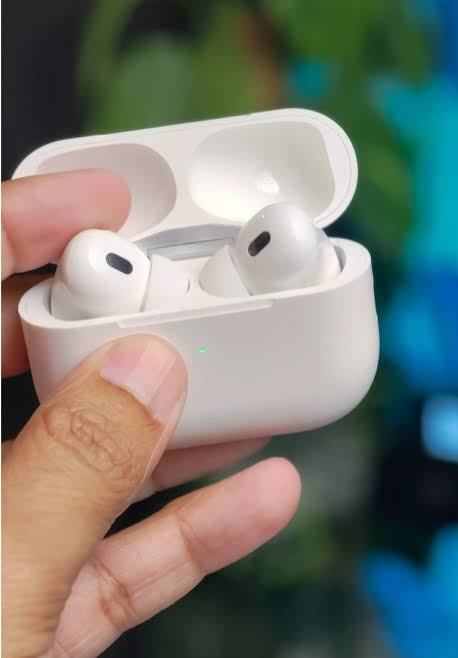
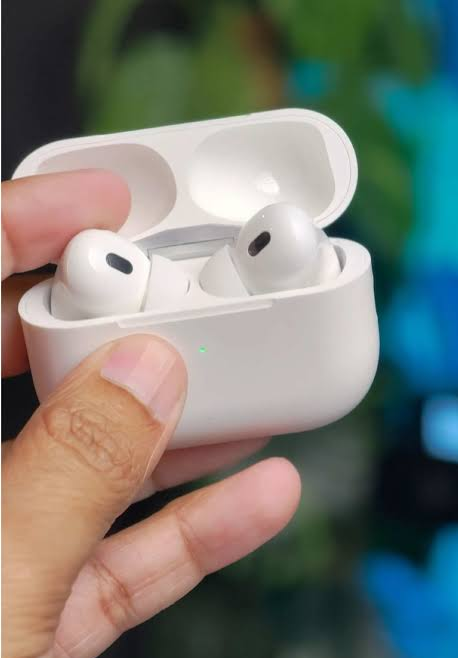
- Open the lid. If the light is not flashing white, use your model’s reset control from the table above until it flashes amber, then white.
- Once the light flashes white, close the lid. Before selecting Connect on any setup card, forget the old AirPods entry in Settings > Bluetooth > More Info > Forget This Device, if present.
- Return to the Home Screen, open the case nearby, and select Connect > Done.
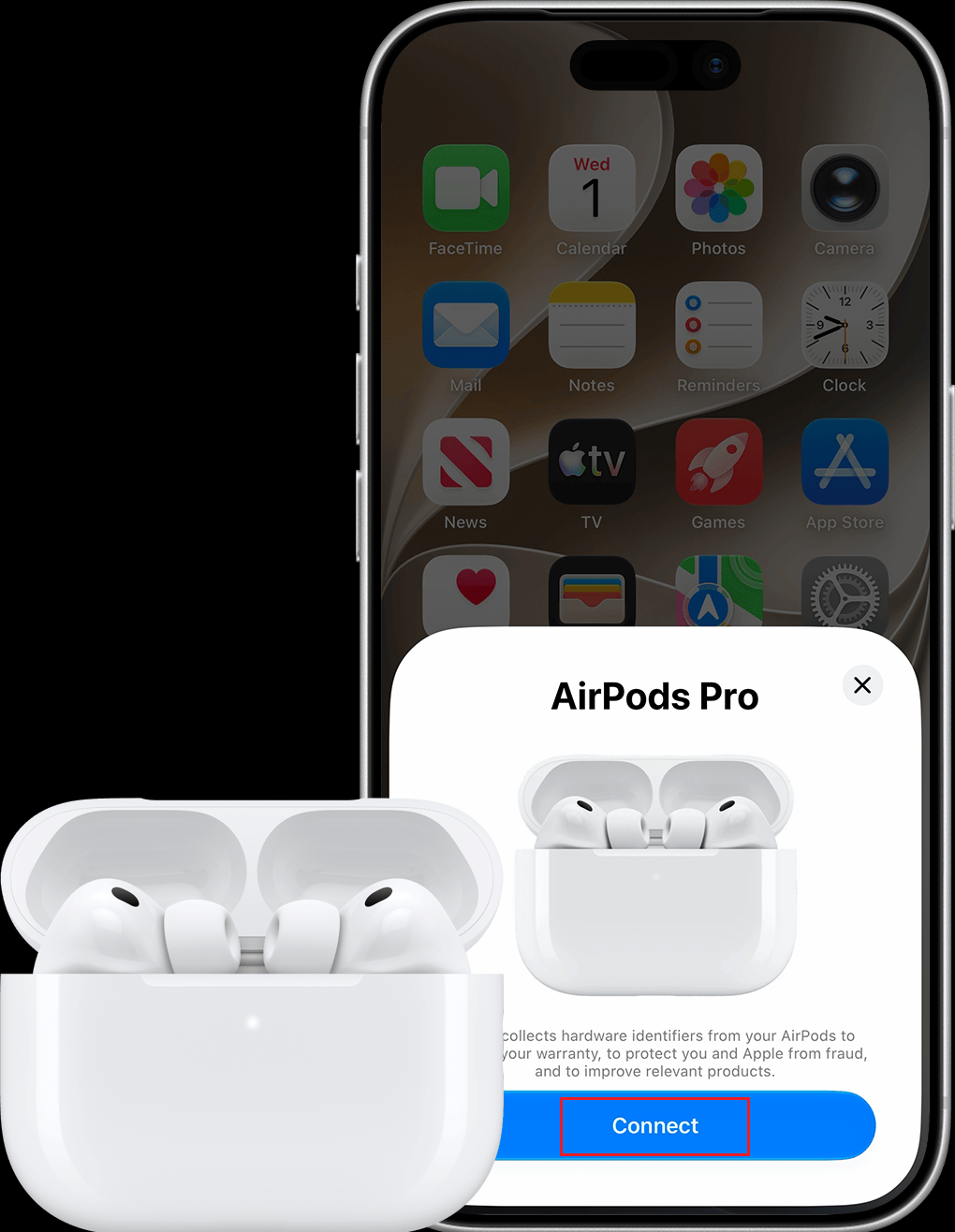
If setup still fails with compatible replacement parts, contact Apple about the replacement. Charging together cannot make incompatible generations work as a set.
8. Try Your Mac if the iPhone Still Cannot Finish Setup
Some users have cleared the warning by pairing through a Mac after removal and reset. This optional workaround is not an Apple-confirmed fix.
- Use a compatible, updated Mac on the same Apple Account, with Find My enabled. Remove the AirPods from Find My, forget their iPhone Bluetooth entry, and reset. Pair to the Mac first.
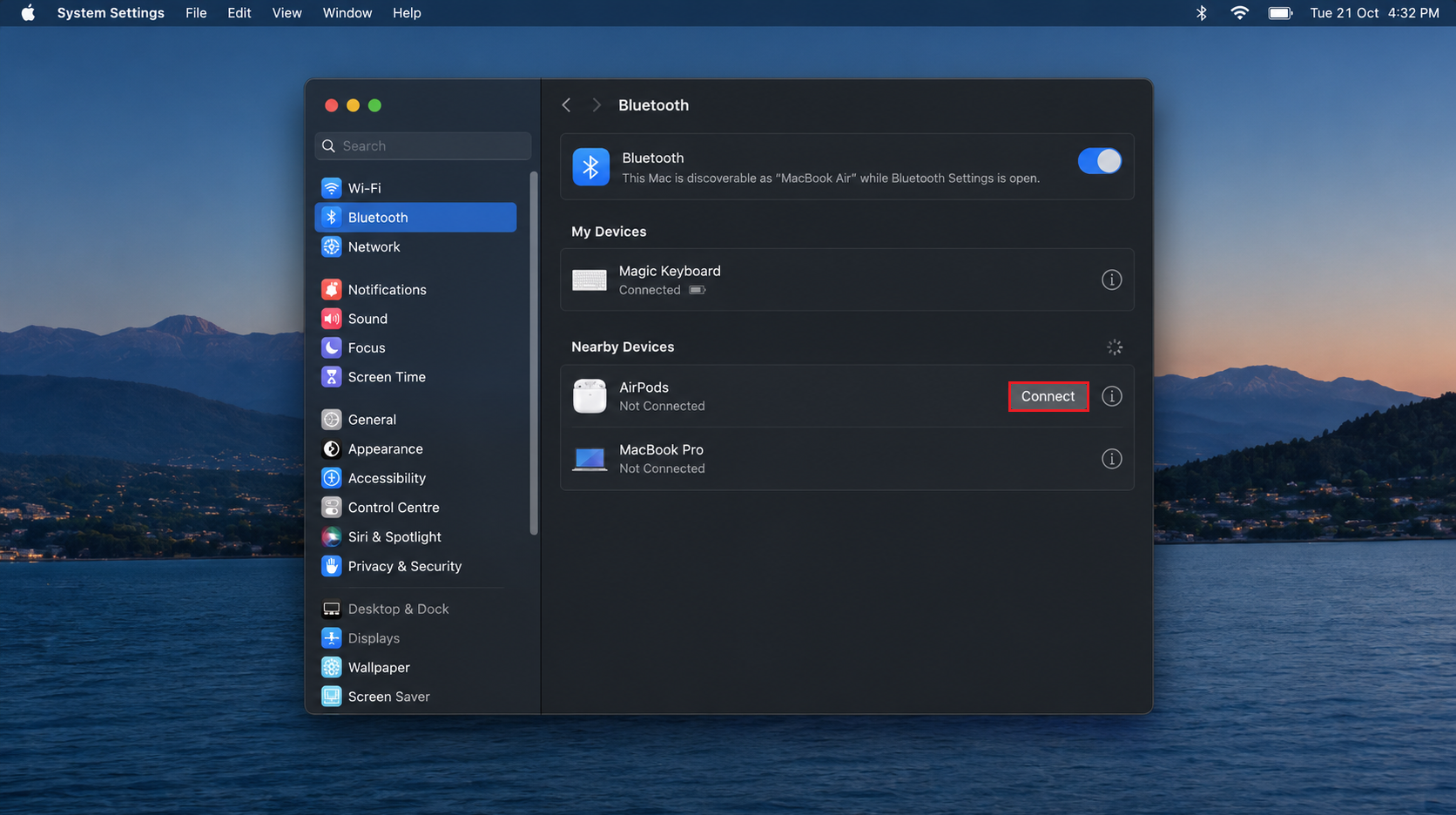
- Open System Settings > Bluetooth. Keep both earbuds in the open case with the light flashing white after reset.
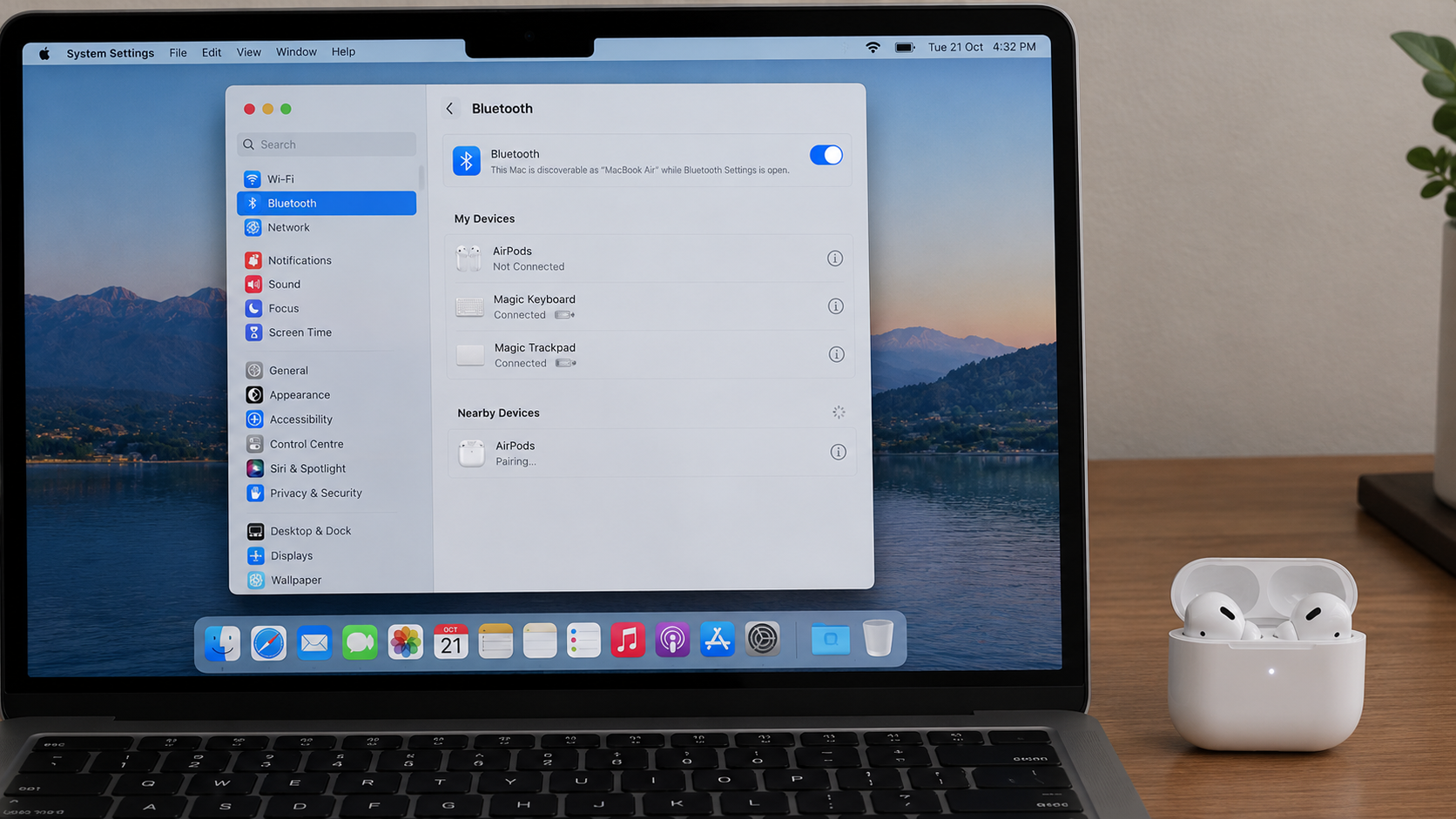
- Select Connect beside the AirPods. Apple’s Mac pairing page lists the required macOS version for each model.
- Reconnect to the iPhone and recheck Find My.
If the warning still appears, contact Apple Support. Include the exact alert, AirPods and iPhone/iPad models, software versions, replacement history, and each earbud’s charging/audio status. This warning alone does not warrant erasing the iPhone.