Fix: “Your Client Needs to Update” in Counter-Strike 2 (CS2)
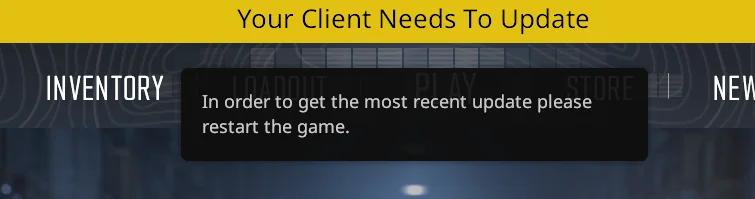
When you launch Counter-Strike 2, you may see a yellow banner saying “Your client needs to update”, which blocks matchmaking and servers. This happens when your installed CS2 build does not match the version currently required by Valve servers (a version mismatch) or when Steam fails to download/apply the update properly.
Common causes include:
- Pending or stuck Steam update that did not finish installing
- Corrupted/missing files after a patch
- Being on a Steam/CS2 beta branch that does not match live servers
- Steam in Offline Mode or not refreshing build info
- Cache/network issues affecting version verification
- Permissions/antivirus blocking Steam from writing update files
First: Check Steam and CS2 server status. If Steam/CS2 services are degraded, your client can look “out of date” even when it is fine. When services recover, restart Steam and try again.
1. Fully Restart Steam
Steam can keep a stale update state. A full restart forces a fresh connection to content servers and often triggers the pending CS2 update.
- Click Steam (top-left) → Exit (do not just close the window).
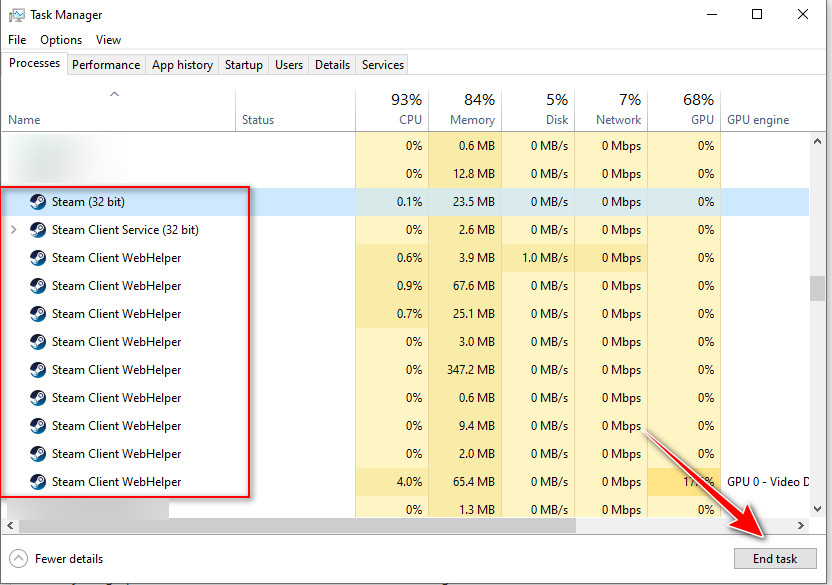
- Open Task Manager and end steam.exe and steamwebhelper.exe (any Steam-related process).
- Open Steam again and sign in.
- Launch CS2 and check if the banner disappears or an update starts.
2. Force the Update to Download (Steam Downloads)
Sometimes the update is available but paused, queued, or stuck. The Downloads page lets you resume or retry so your build matches Valve servers.
- Open Steam and click Downloads (bottom of the Steam window).
- If you see Counter-Strike 2, click Resume or Retry.
- Wait for it to finish, then launch CS2 again.
3. Clear Steam Download Cache
A corrupted download cache can prevent patches from applying. Clearing it removes temporary download data and forces Steam to fetch a fresh update package for CS2.
Note: This logs you out of Steam, so make sure you know your login details.
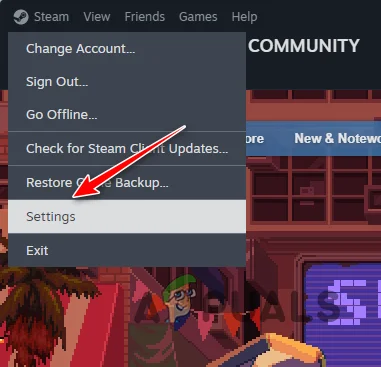
- Open Steam Settings.
- Go to Downloads.
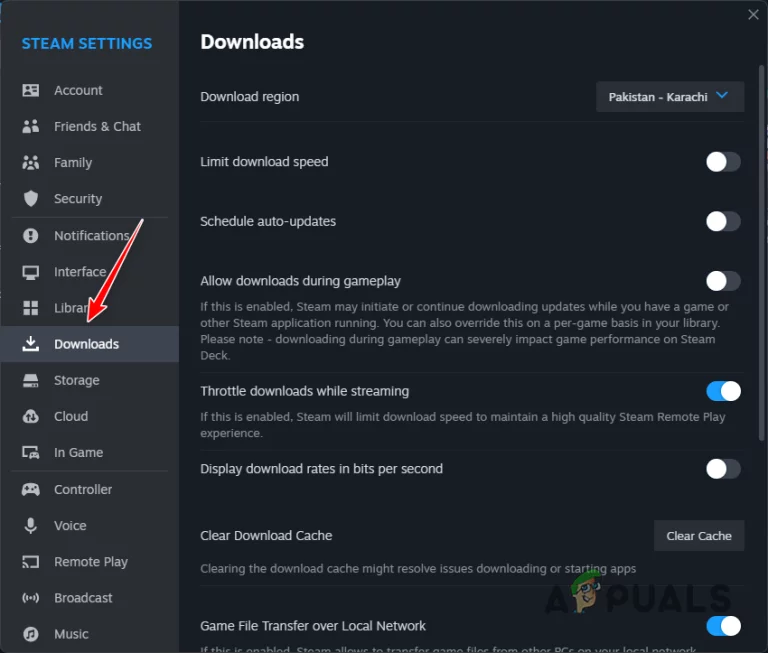
- Click Clear Download Cache.
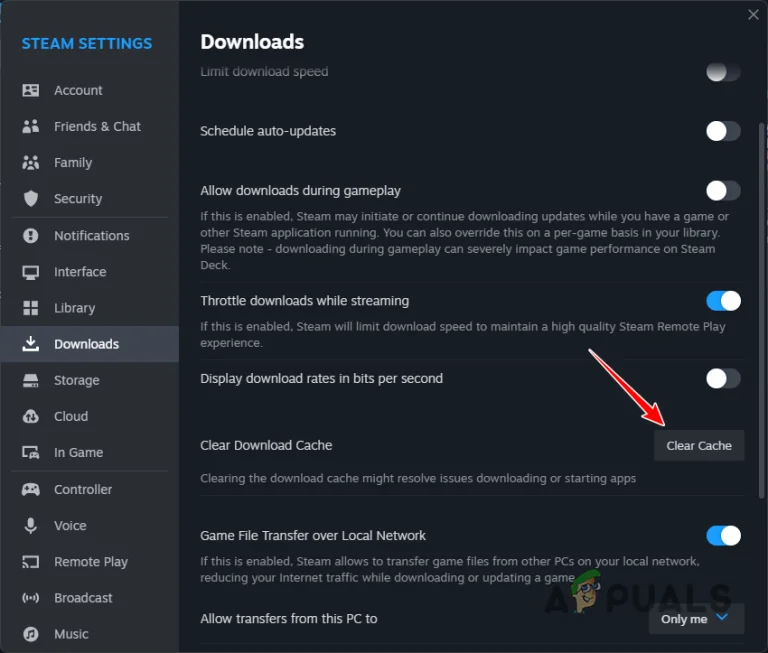
- Sign in again after Steam restarts, then launch CS2.
4. Opt Out of Betas
If you are on a beta branch, your files can be newer/older than live servers. Switching to stable forces Steam to replace beta content with the public release, which fixes mismatches.
Tip: If the Betas dropdown shows anything other than NONE, you are on a branch.
- In Steam Library, right-click Counter-Strike 2 → Properties.
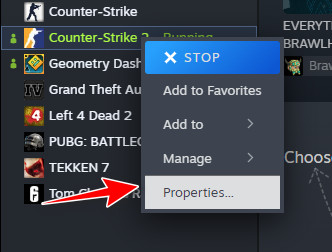
- Open the Betas tab.
- Set the dropdown to NONE.
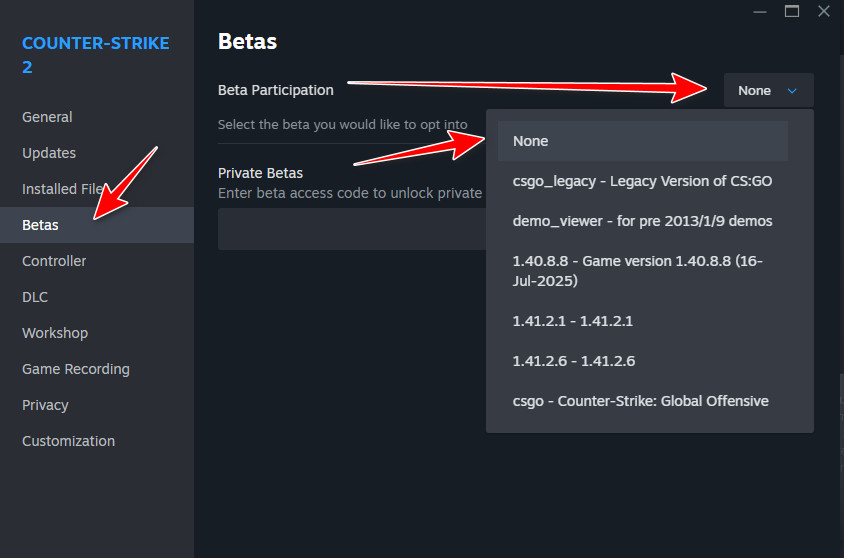
- Restart Steam, then launch CS2.
5. Verify Game Files
If an update applied incorrectly or files are missing, Steam may keep you on the wrong build. Verification compares your install with Steam’s current build and re-downloads broken or outdated files.
Note: If Steam says “1 file failed to validate,” it can be normal. Steam often re-acquires it automatically. Launch CS2 after verification finishes.
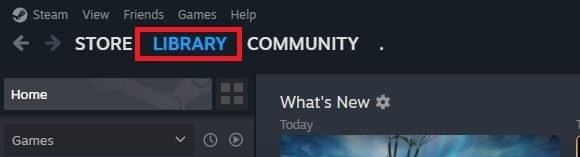
- Open Steam and go to Library.
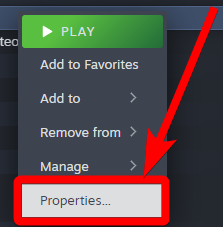
- Right-click Counter-Strike 2 → Properties.
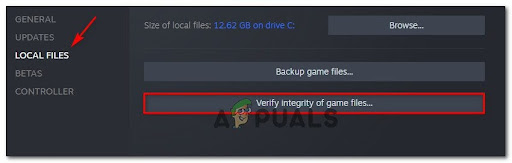
- Go to Installed Files → Verify integrity of game files.
- When it completes, launch CS2 and check if the banner is gone.