Fix: Instagram “Your Account Was Compromised” Error
The “Your Account Was Compromised“ error on Instagram is a security warning that appears when Instagram detects suspicious login activity associated with your account. This means Instagram believes your account may be at risk and has flagged it for security reasons.
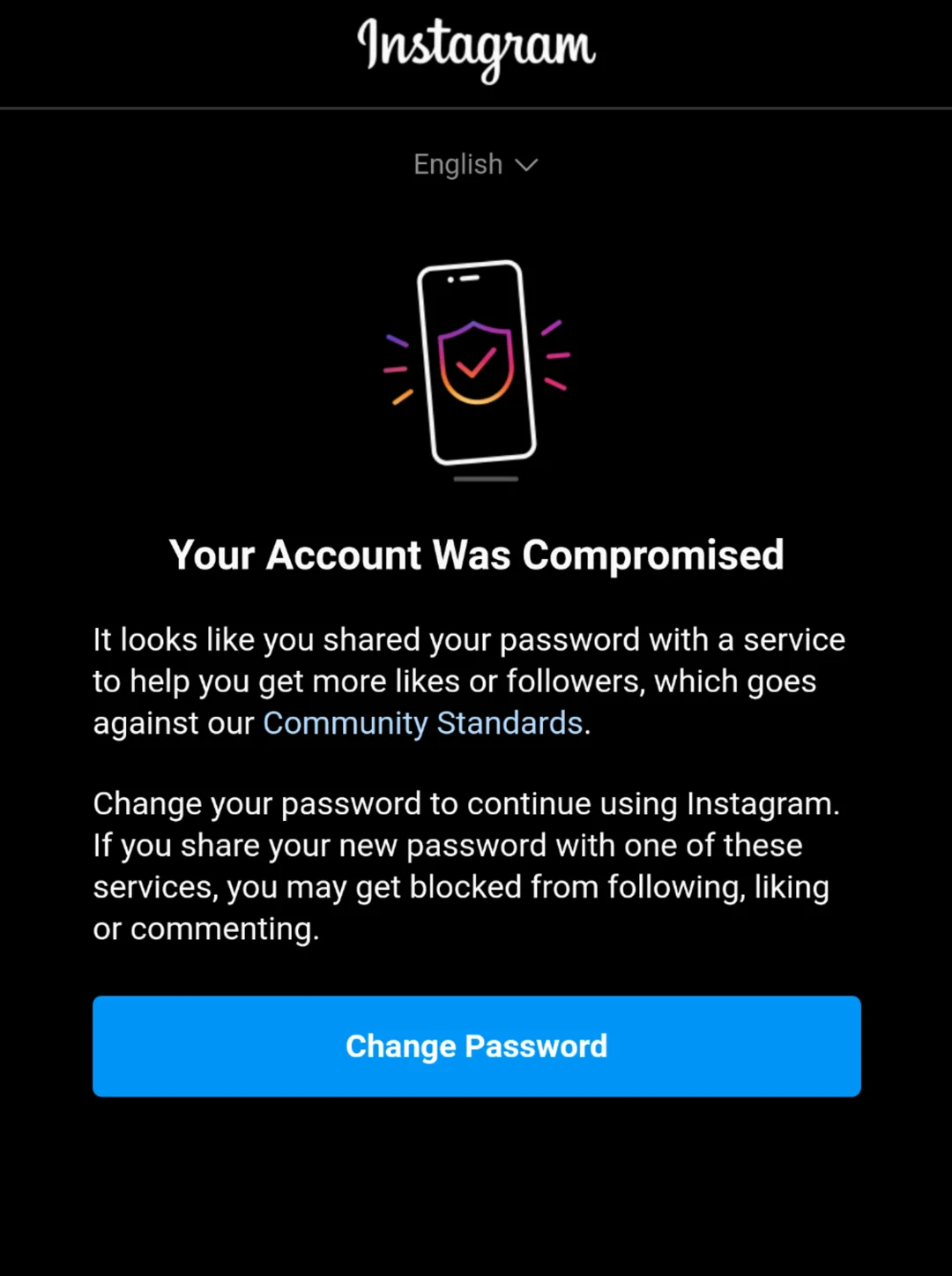
This warning is usually triggered by unusual sign-in behavior, such as logging in from a new device or location, repeated failed login attempts, VPN or proxy usage, or third-party apps requesting account access. These signals can indicate unauthorized access or exposed login details.
As a protective measure, Instagram may temporarily restrict access and require you to change your password before allowing further use of the account. In some cases, Instagram also blocks password changes temporarily while additional security checks are performed.
When this happens, users may encounter a second error while attempting to reset their password, indicating that the process cannot be completed at that time.
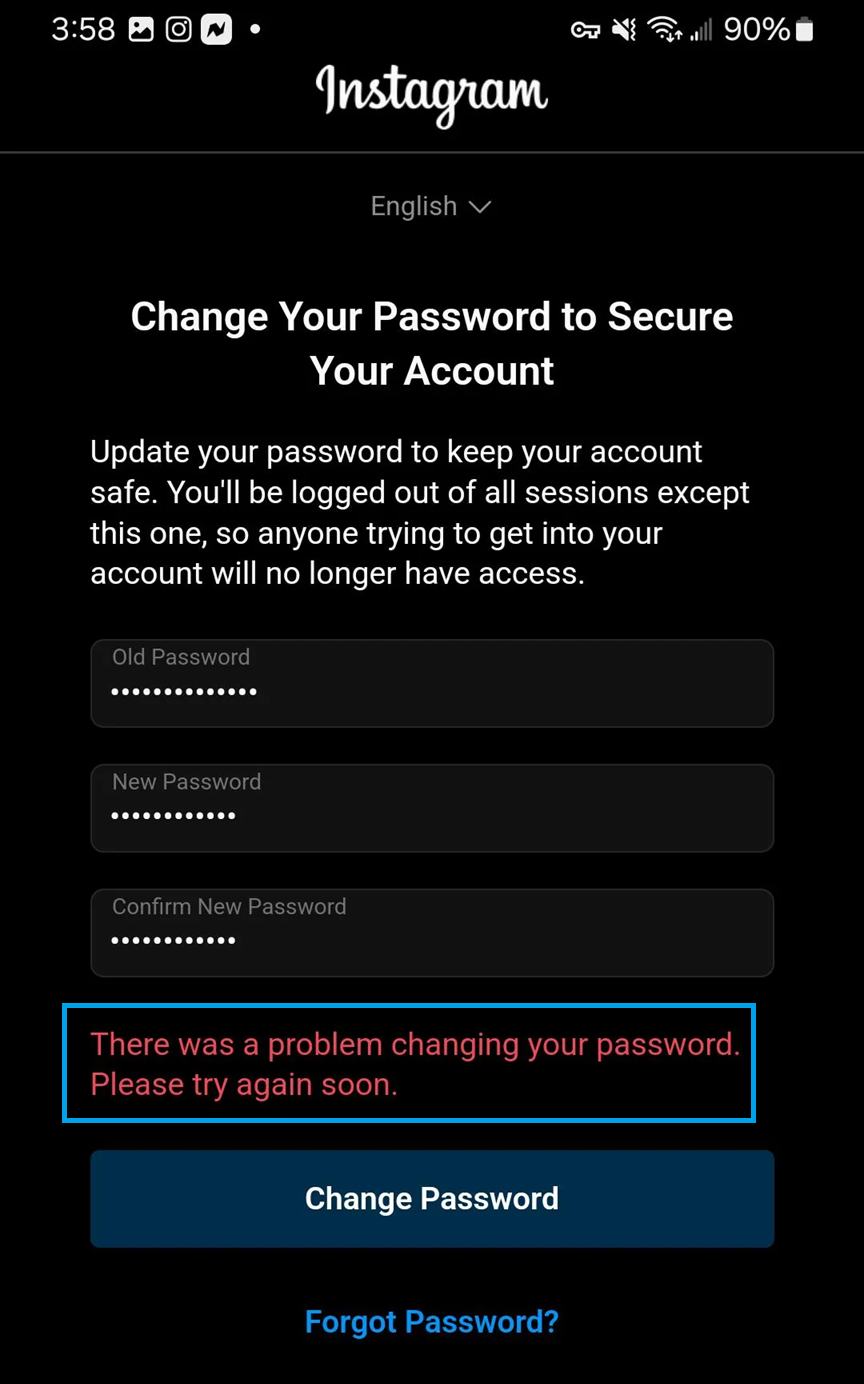
This secondary error typically appears when Instagram still considers the account at risk, or when the current login session is invalid or corrupted. Retrying the reset repeatedly can extend the temporary restriction.
1. Use Instagram’s Recovery Support
Sometimes, when there is an unauthorized login attempt to your account or when someone is trying to change your login details. By using Instagram’s hacked recovery support, you’ll need to verify that you are the real owner of the account and by following the recovery steps, you are able to reset your account’s password.
- Go to Instagram’s Recovery Support.
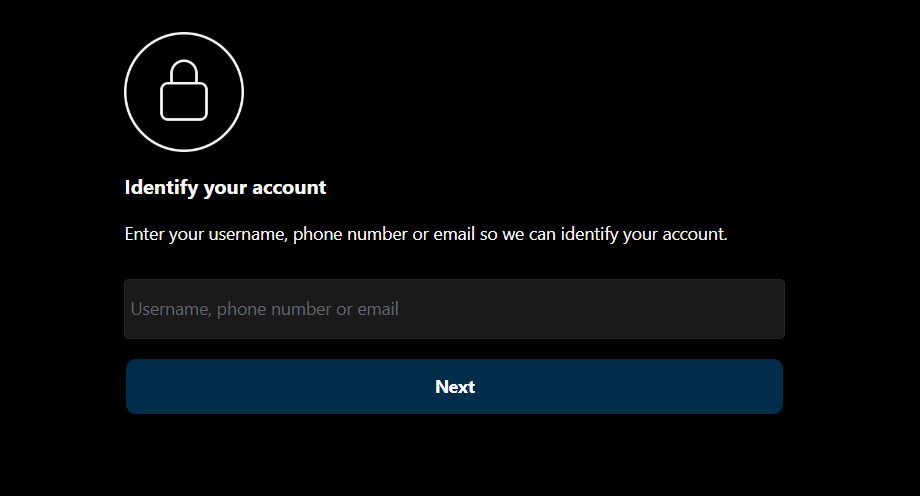
- Enter your username, phone number or email to identify your account.
- Click on I Can’t Log in under Login and Password tab then click on Forgotten password?.
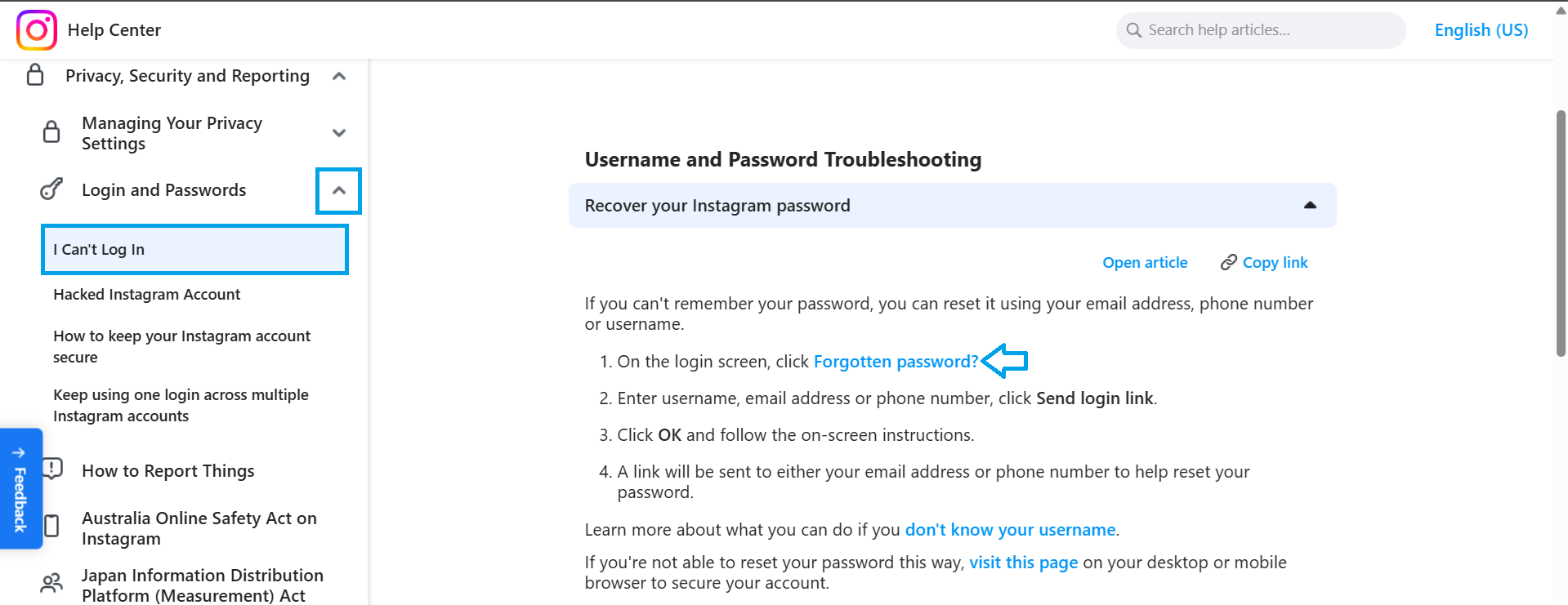
- Click on Send login link.
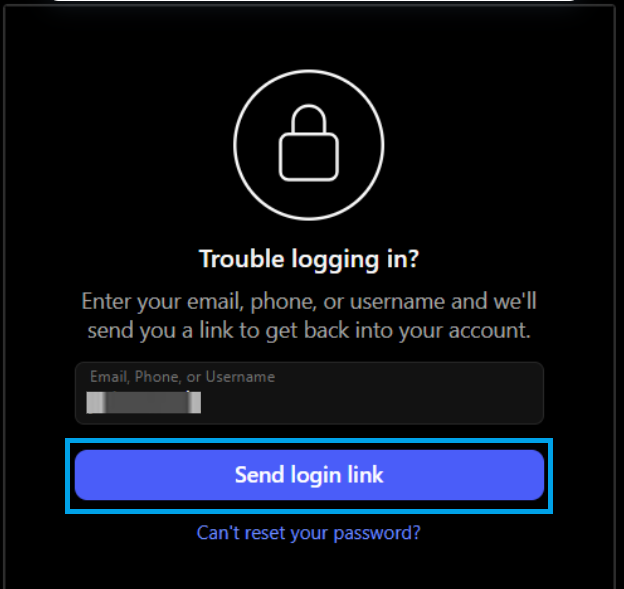
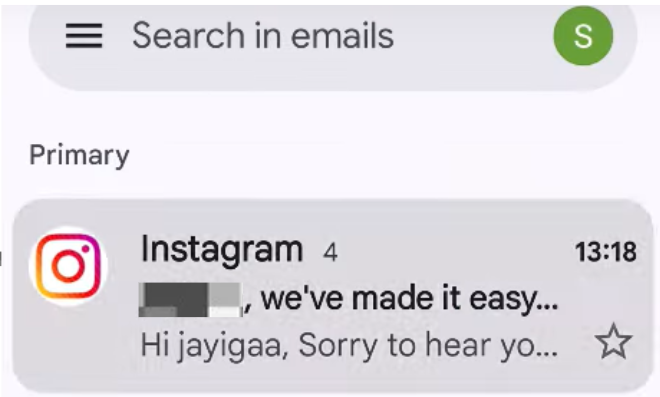
- A login link will be sent to your account.
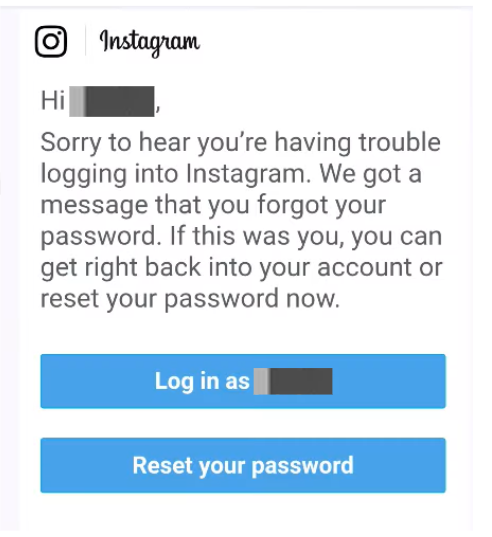
- Click on Reset your password.
- Create a strong password for you account.
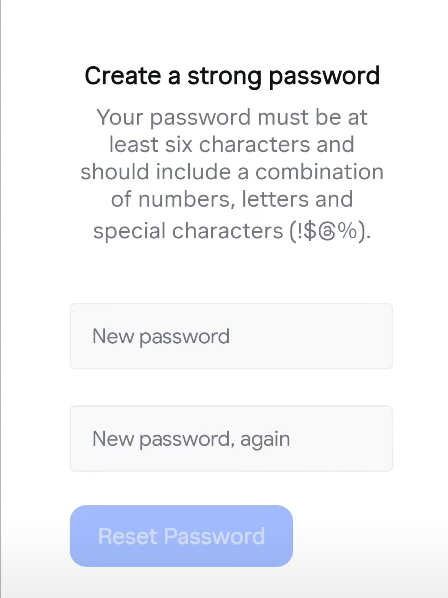
- Once the password is changed, try logging into your account.
2. Delete Instagram and Login Through Browser
Reinstalling Instagram can help often help fixing the problem because it remove the old login details and corrupted cache or app files that can prevent you from changing the password. Resintalling will renew the app files and cache that allow Instagram’s recovery process work smoothly.
Moreover, changing the password while logging throught browser can also help fixing the “There was a problem change your password. Please try again soon.” issue as it will allow you to directly change your password and bypass the app issues that were causing the issue..
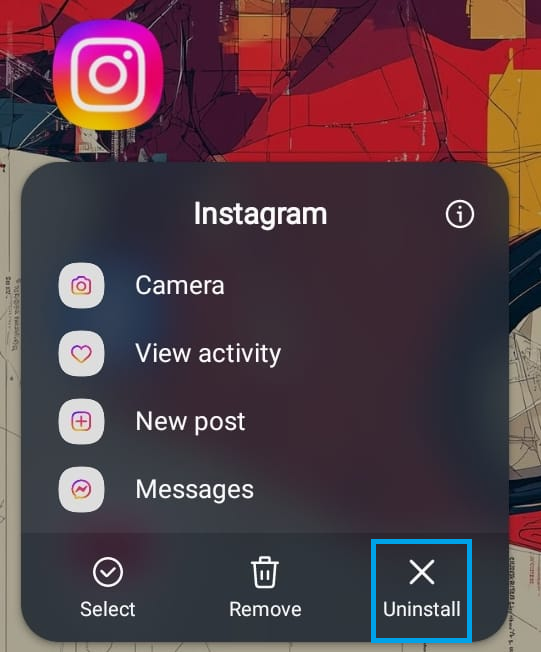
- Hold Instagram’s icon and click on Uninstall.
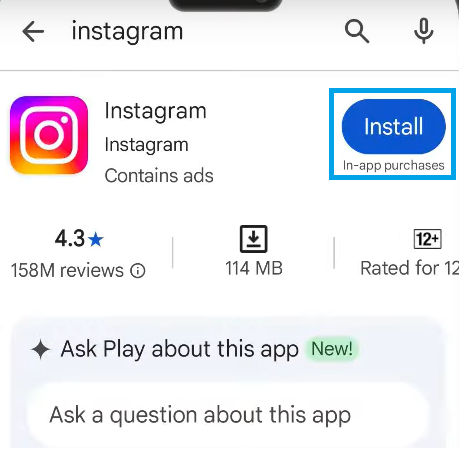
- Reinstall Instagram in your phone.
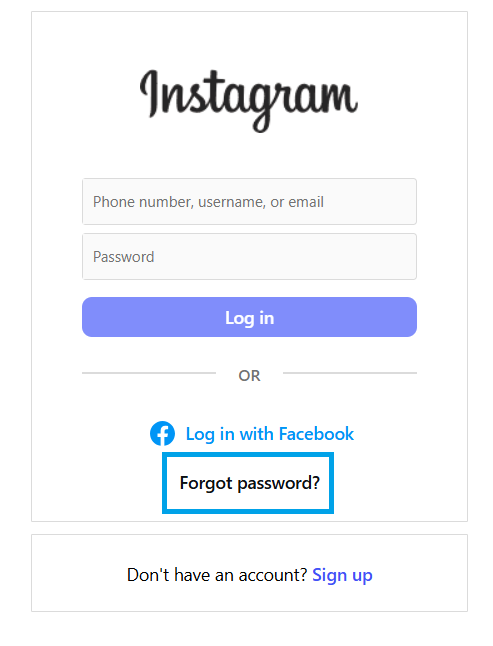
- Go to Instagram’s login page and click on Forgot password?.
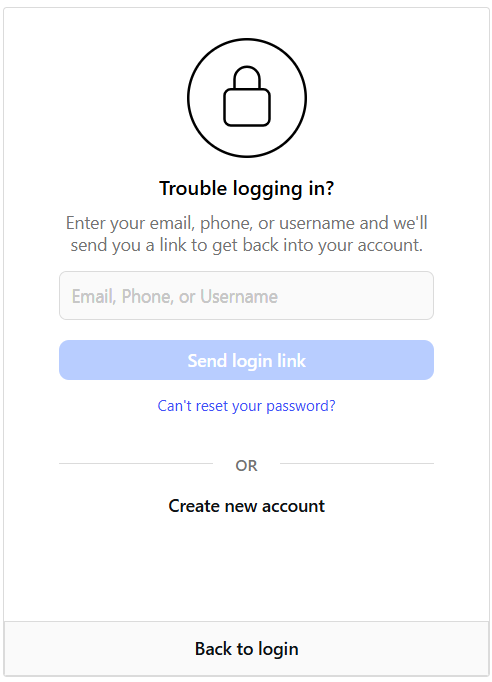
- After that enter your Email, phone number or username and click on Send login link.
- Open Gmail and reset the password or login through the link.
- Once the password is changed, log into your Instagram app.