Fix: FC 26 “You Are No Longer Synced with the Online Match” Error
The error message “An error has occurred, and you are no longer synced with the online match” in EA SPORTS FC 26 appears when your game loses real-time synchronization with EA’s match servers, forcing a disconnection from an ongoing online session. This issue is most commonly reported in online modes such as Rush and Pro Clubs, where continuous server communication is required throughout the match.
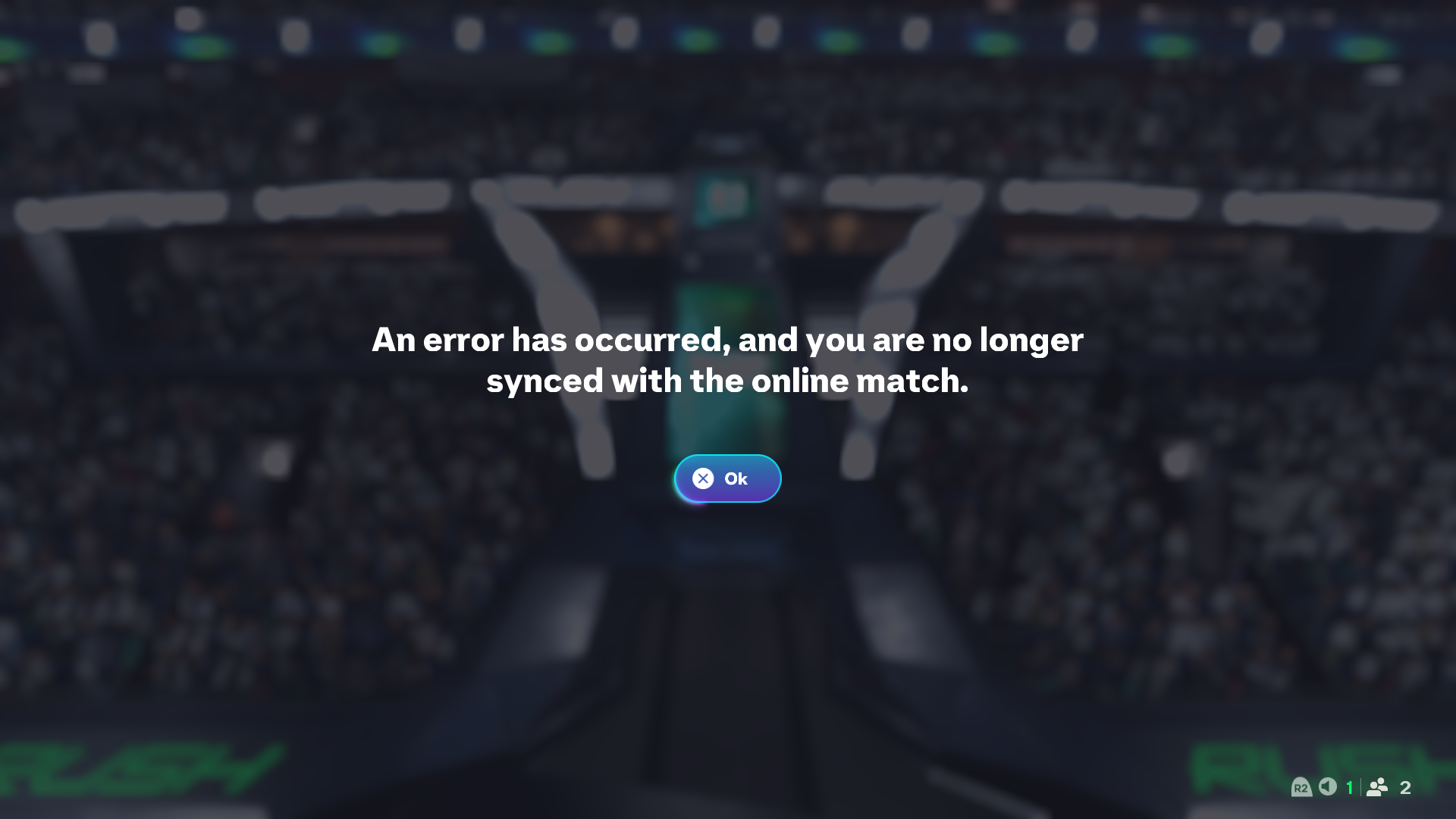
EA SPORTS FC 26 constantly exchanges real-time gameplay data (“match ticks”) with EA servers. If even a brief delay, packet loss, or routing interruption occurs, the server can no longer validate gameplay synchronization and automatically ends the session to prevent unfair match results.
When synchronization fails, the session immediately ends and may result in automatic match loss, reduced skill rating, incomplete progression rewards, or lost match progress depending on the game mode.
1. Check EA Server Status
Before applying any local fixes, confirm whether the issue originates from EA’s servers. If servers are undergoing maintenance or experiencing outages, local troubleshooting will not resolve the problem.
- Open your browser.
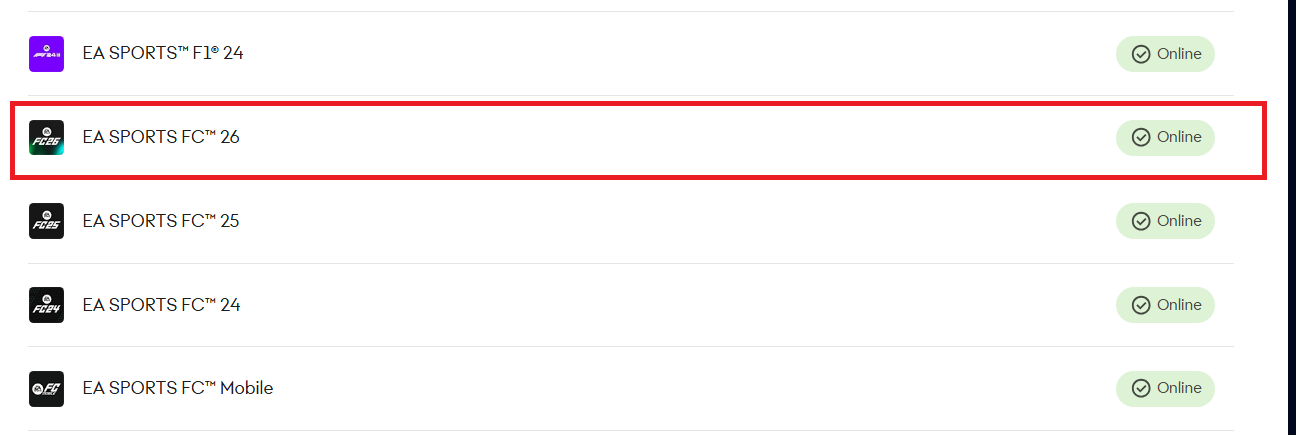
- Visit the official EA Help Server Status page.
- Locate EA SPORTS FC 26 in the Games list.
- Check for outages or service disruptions.
2. Check Network Stability or Switch Connection
Online synchronization errors frequently occur due to unstable connections, packet loss, network congestion, or strict NAT configurations. Even short interruptions can cause FC 26 to lose synchronization with match servers.
- Switch from Wi-Fi to a wired Ethernet connection if possible.
- Pause background downloads, streaming services, or cloud syncing.
- Disable any active VPN or proxy connection.
- Temporarily test using a mobile hotspot to rule out ISP routing issues.
- Ensure your NAT Type is set to Open or Moderate.
Strict NAT types frequently cause online match desynchronization.
3. Power Cycle Your Router
Routers accumulate temporary network states and cached session data over time that may interfere with stable communication with EA servers. Power cycling refreshes your connection with your ISP.
- Unplug your router from the power socket.
- Wait 30–60 seconds.
- Plug the router back in and allow the connection to stabilize.
- Launch FC 26 and check if the issue persists.
4. Clear FC 26 Cache Files
Corrupted or outdated cache files may transmit incorrect session information to EA servers. Clearing cache forces the game to rebuild fresh configuration data.
Note: This process removes only temporary files. Your Ultimate Team progress, Career Mode saves, online profile, and account data are securely stored on EA servers and will not be deleted.
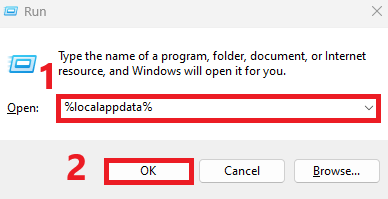
- Press Windows + R to open Run.
- Type the following and press Enter:
%localappdata%
- Locate the folder named EA SPORTS FC 26.
- If the folder is missing, launch the game once, close it completely, and check again.
- Right-click the folder and select Delete.
- Restart the game to regenerate fresh cache files.
5. Allow FC 26 Through Windows Firewall
Firewall restrictions can block network packets required for maintaining live match synchronization. Allowing FC 26 and EA AntiCheat ensures uninterrupted communication with EA servers.
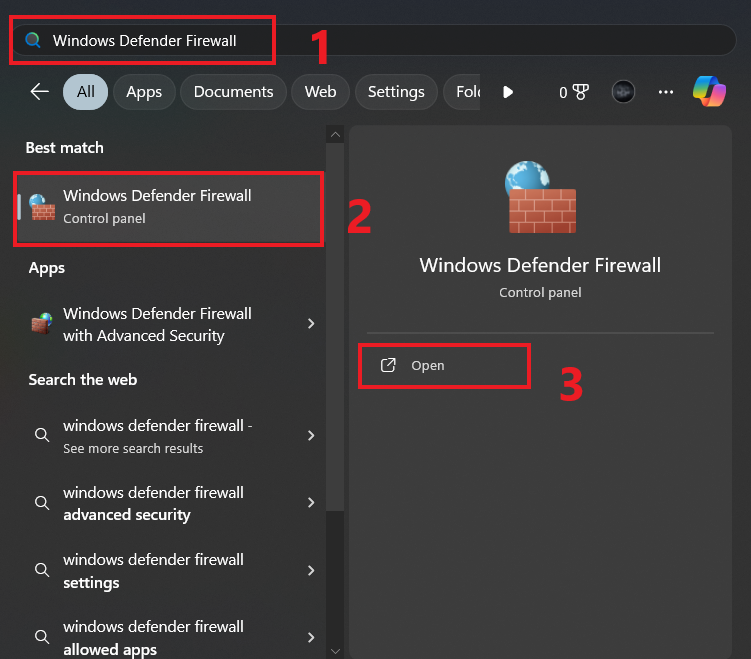
- Search for Windows Defender Firewall from the Start menu.
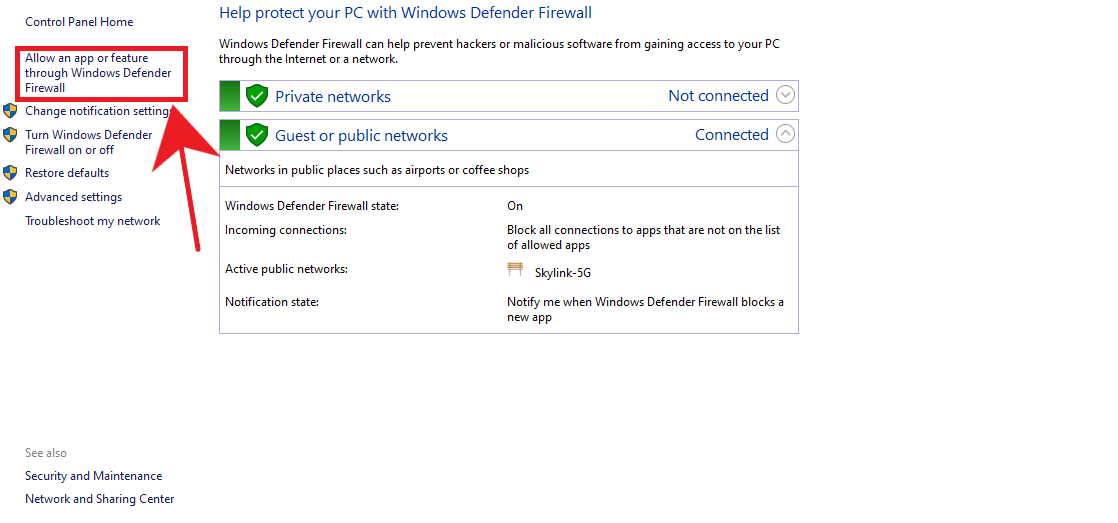
- Select Allow an app or feature through Windows Defender Firewall.
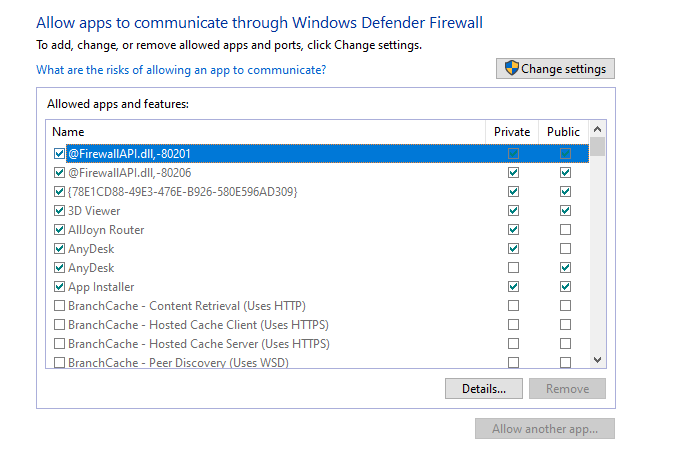
- Ensure the following are allowed on both Private and Public networks:
fc26.exe
EAAntiCheat.GameServiceLauncher.exe
EAAntiCheat.GameService.exe - If missing, click Add another app and browse manually.
- Save changes and restart your PC.
6. Verify Game File Integrity
Missing or corrupted game files can interrupt synchronization processes during live matches. Verifying integrity scans and automatically repairs damaged installation files.
- Launch Steam and open your Library.
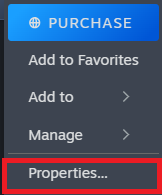
- Right-click EA SPORTS FC 26 and select Properties.
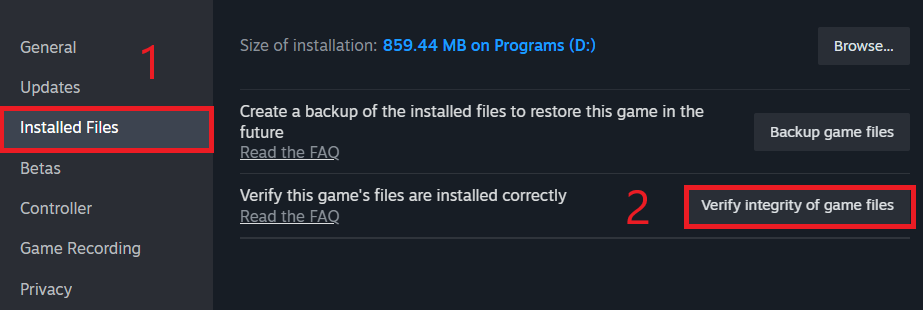
- Open the Installed Files tab.
- Click Verify integrity of game files.
If the synchronization error continues after completing all steps, the issue is most likely related to temporary EA server instability or regional network routing problems rather than a fault with your system.
This error does not indicate an account penalty, suspension, or ban. In most cases, synchronization problems resolve automatically once EA matchmaking servers stabilize or network routing conditions improve.
If the issue occurs mainly during peak hours, try switching networks, using a mobile hotspot for testing,
or playing during lower server-load periods.