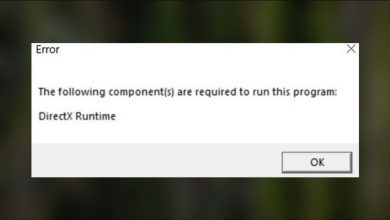
Fix: Xbox App Error 0x80070426 on Windows
When opening the Xbox app, if you see error code 0x80070426, it usually means a required Windows service didn’t start (or is set to Disabled). The Xbox app depends heavily on Microsoft Store components (sign-in, licensing, installs/updates) and Gaming Services (Xbox integration + game install pipeline). If these dependencies can’t start, the Xbox app may fail immediately and show this error.
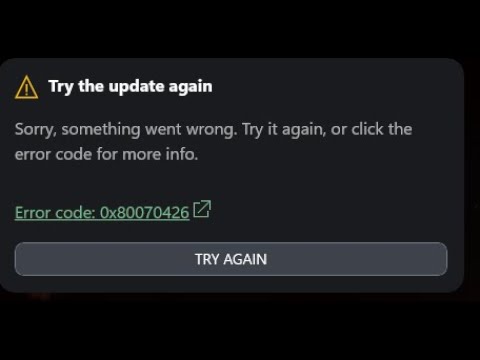
In simple terms: the app is installed, but Windows isn’t providing the background services it needs. Start with app repair/reset, confirm services aren’t disabled, then use the deeper repair steps if needed.
Before You Start
- Admin access: Terminal steps require administrator privileges.
- Work/school PC: If services keep switching back to Disabled, your device may be managed by policy—an admin may need to fix it.
- “Manual (Trigger Start)” is normal: Many services stay stopped until needed. The problem is Disabled or “can’t start.”
1. Repair / Reset the Xbox App
If the Xbox app’s local data or registration becomes inconsistent, it can fail at launch. Repair fixes core files without deleting data. Reset clears local app data and rebuilds the app state (you may need to sign in again).
- Press Windows + I → open Settings.
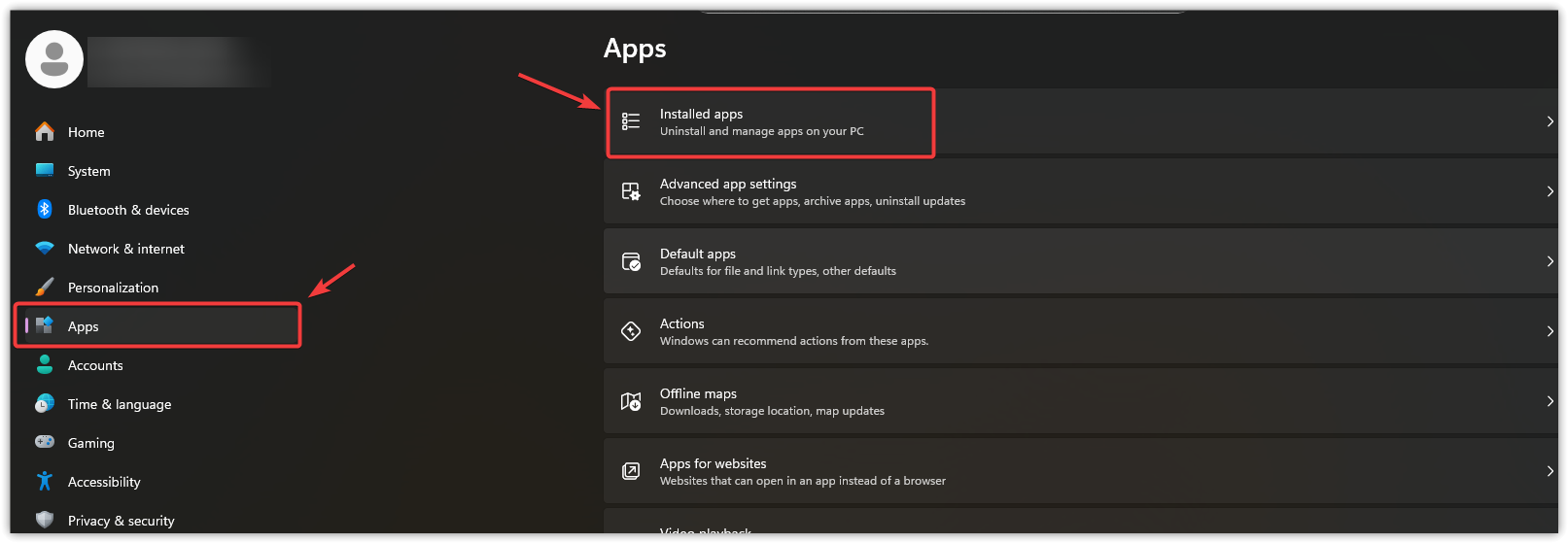
- Go to Apps → Installed apps.
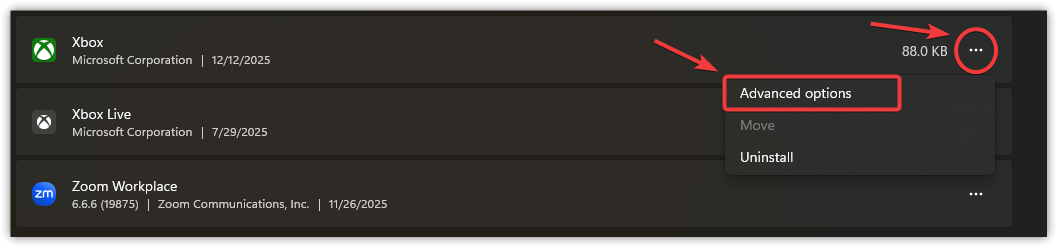
- Search for Xbox.
- Click the three dots → Advanced options.
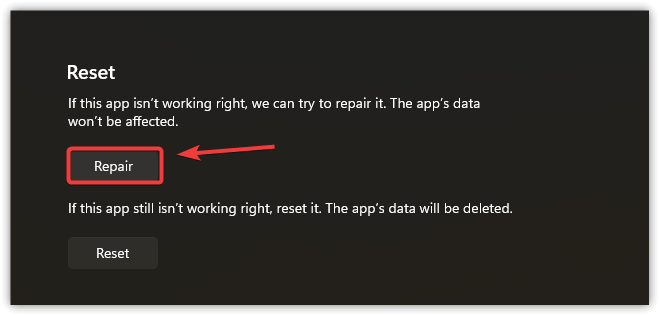
- Click Repair and try opening Xbox.
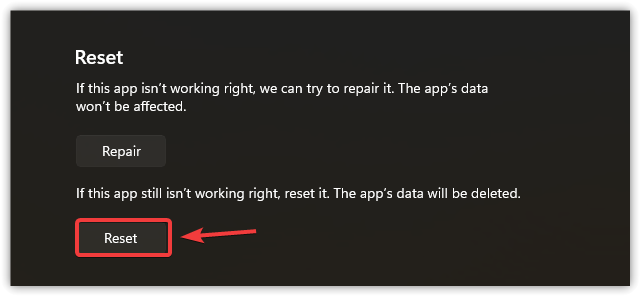
- If it still fails, click Reset.
- Restart your PC and test again.
2. Quick Checks That Commonly Break Microsoft Sign-In
These fixes take a minute and often solve the issue without touching services.
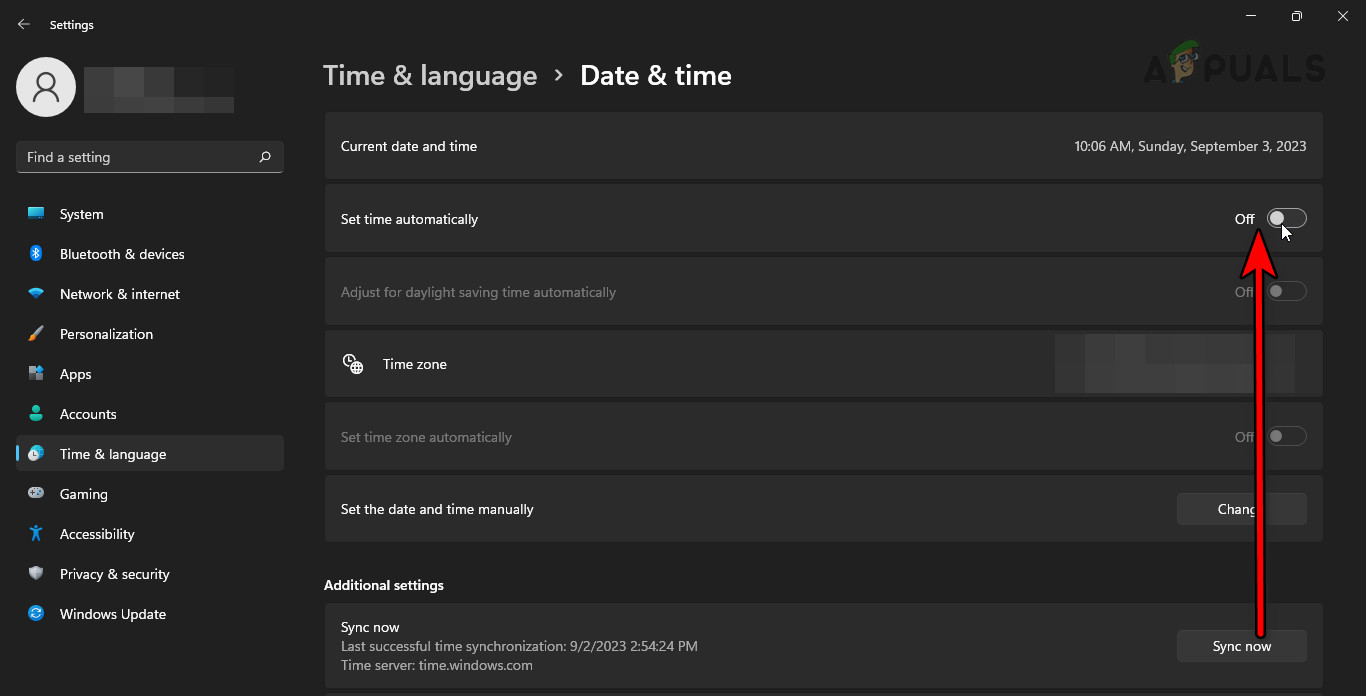
- Fix date/time: Right-click the clock → Adjust date/time → enable Set time automatically and Set time zone automatically, then click Sync now.
- Confirm Microsoft Store works: Open Microsoft Store and try installing/updating a small app. If Store is broken, Xbox usually breaks too (because Xbox relies on Store licensing and installs).
If Store downloads/licensing seem stuck, clear the Store cache:
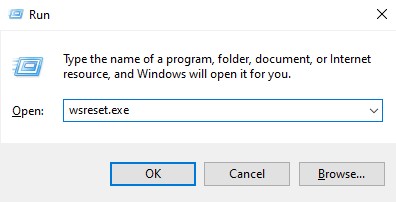
- Press Windows + R → type wsreset.exe → press Enter.
- When Microsoft Store opens, try the Xbox app again.
3. Make Sure Required Services Are Not Disabled
0x80070426 commonly appears when one dependency is Disabled or can’t start. The Xbox app typically relies on services for Store installs, updates, background downloads, and Xbox authentication.
Check these first: Microsoft Store Install Service, Windows Update, BITS, Gaming Services, Xbox Live Auth Manager, and Xbox Live Networking Service.
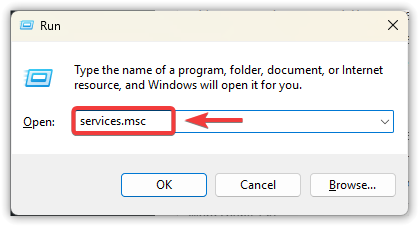
- Press Windows + R → type services.msc → press Enter.
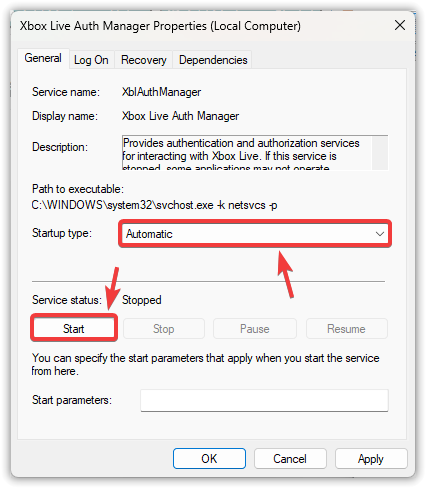
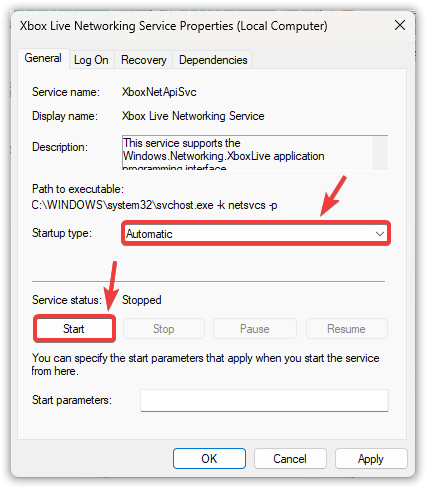
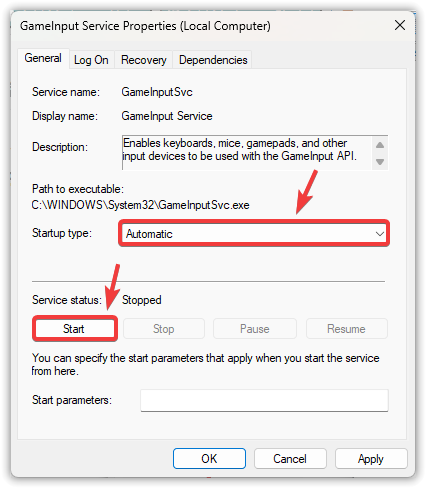
- Open each service below and verify:
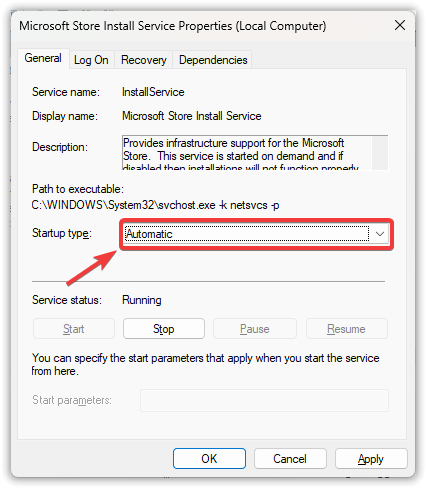
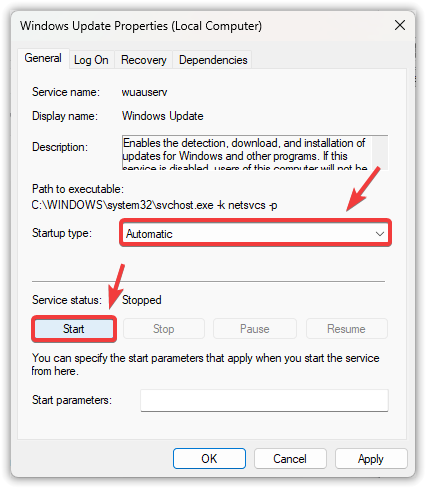
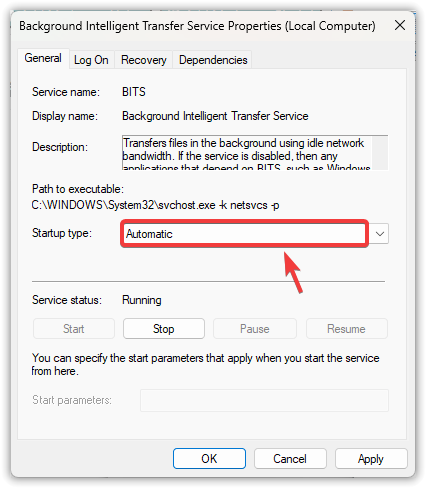
Startup type is not Disabled (set to Manual or Automatic).
If it’s Stopped, click Start (if Start is greyed out or it errors, that’s a strong clue). - Microsoft Store Install Service (aka InstallService)
- Windows Update
- Background Intelligent Transfer Service (BITS)
- Xbox Live Auth Manager
- Xbox Live Networking Service
- Gaming Services
- Restart your PC and test the Xbox app again.
4. Reinstall the Xbox App
If everything above checks out, the Xbox app package itself may be damaged or mis-registered. Reinstalling replaces the package and forces Windows to register it cleanly.
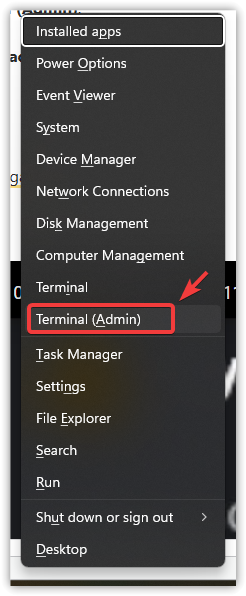
- Press Windows + X → open Windows Terminal (Admin).
- Uninstall Xbox:
get-appxpackage Microsoft.GamingApp | remove-appxpackage
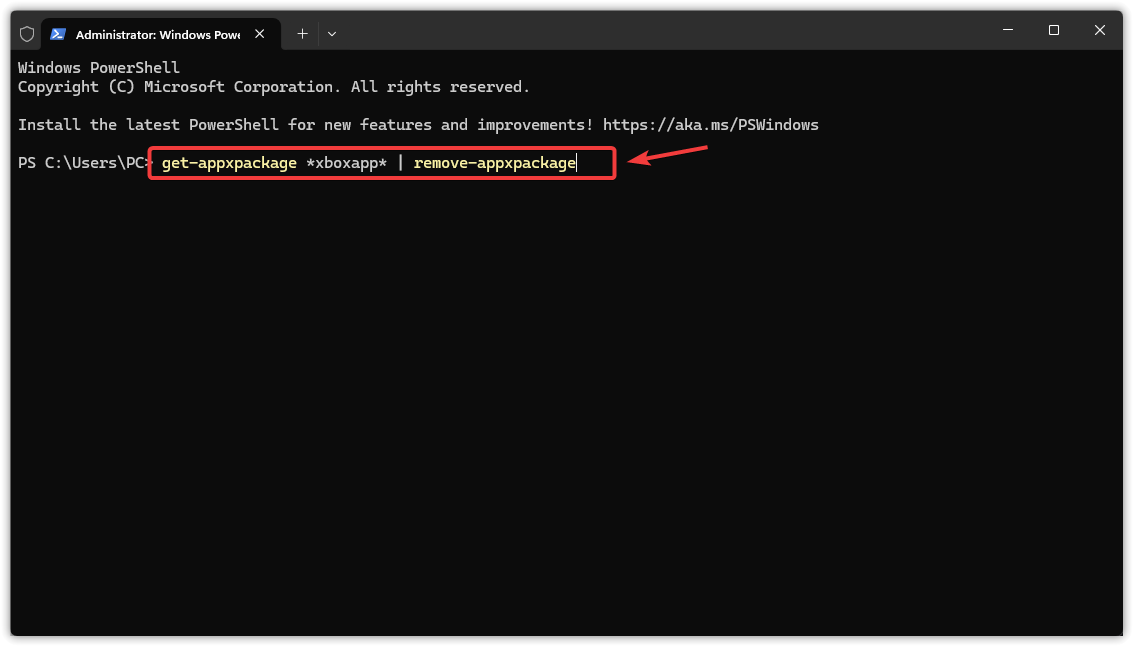
- If the command returns nothing: locate the exact package name first:
get-appxpackage *gamingapp* | select name, packagefullname
If multiple entries appear, remove the one that matches Microsoft.GamingApp.
- Restart your PC.
- Open Microsoft Store → search Xbox → install.
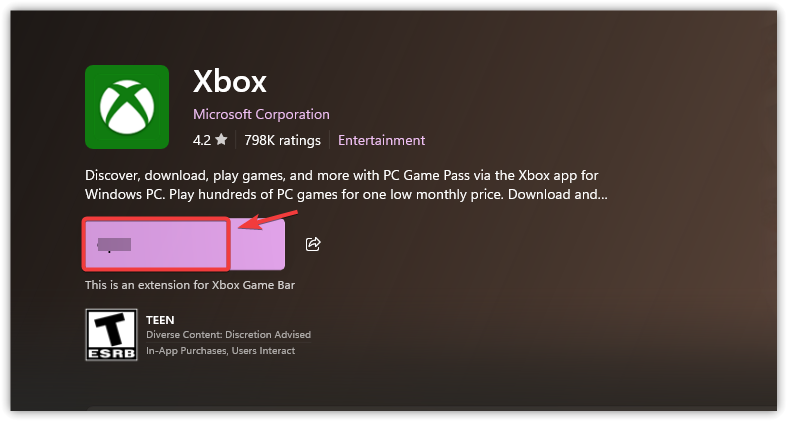
- Launch Xbox and test.
5. Update Windows Using an In-Place Upgrade
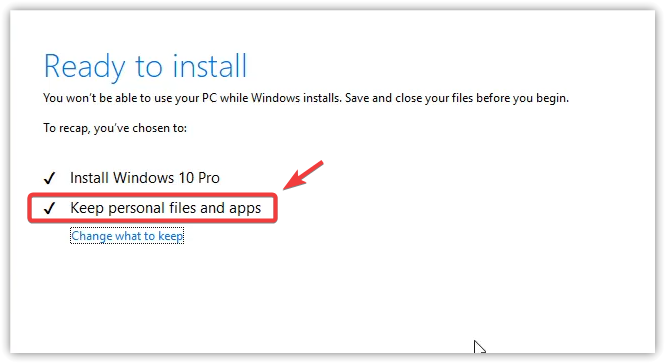
If Xbox/Store components are deeply broken (especially if multiple Microsoft apps fail), an in-place upgrade is often the fastest consistent repair. It refreshes Windows while keeping your files and apps, and commonly restores broken Update/Store infrastructure.
- Windows 10: Use the Media Creation Tool → choose Upgrade this PC now.
- Windows 11: Use the Windows 11 Installation Assistant (or an official ISO upgrade) and keep personal files and apps.
- Search “Download Windows 10” or “Download Windows 11” on Microsoft’s official site.
- Download the upgrade tool.
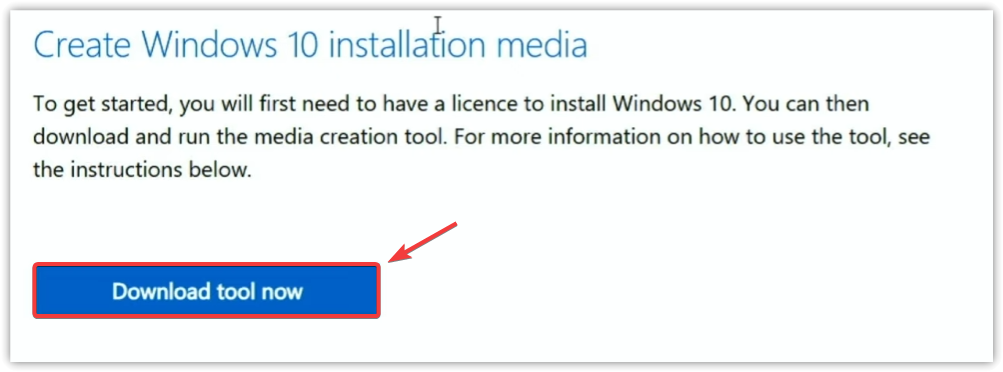
- Run it and follow prompts.
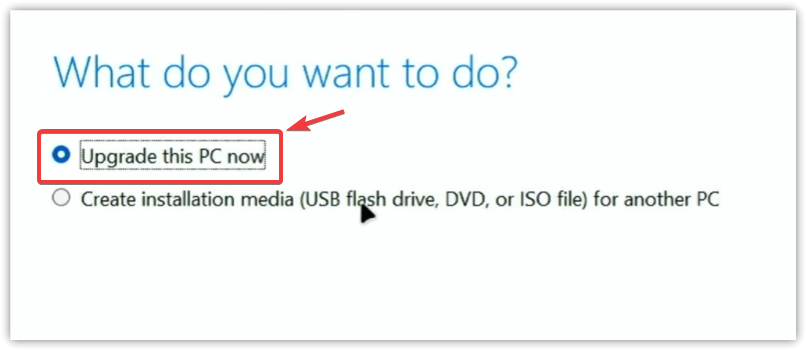
- When asked what to keep, select Keep personal files and apps.
- Finish the upgrade, restart, and test the Xbox app.