Fix: The Windows Security Center Service is Turned Off
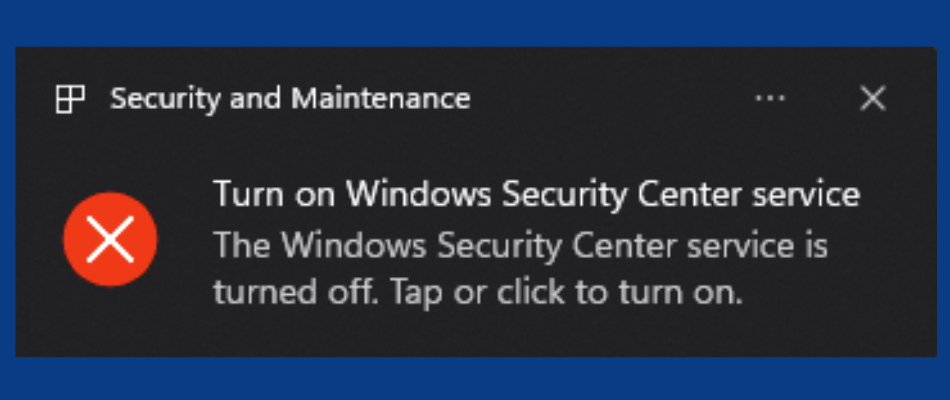
If Security Center is turned off or missing, Windows cannot correctly show your protection status in the Windows Security app. This usually means the Security Center service (wscsvc) is stopped, misconfigured, blocked by policy or tamper protection, or its files/registry entries are damaged. Microsoft Defender can often still run in the background, but Windows will not display or update your security status properly until this is fixed.
Common causes include malware that tries to disable security services, corrupted system files after failed updates or power loss, disk errors, aggressive debloat or privacy tools, and policy settings on work or school PCs.
Before you Start (Quick Checks)
- Restart your PC once. If the service was stuck, a reboot can bring it back.
- If you have a third party antivirus, open it and confirm it is installed, updated, and running. It is normal for Defender to show as off when another antivirus is active. If you recently uninstalled antivirus, restart and check again.
- If you recently used debloat tools, privacy tweakers, or registry cleaners, undo their changes if the option exists.
1. Restore PC using System Restore
Best first option if the problem started recently. System Restore rolls back critical system files and registry settings to a point when Security Center worked, without touching personal files like documents or photos.
Note: System Protection must be enabled and you must have restore points. If none are listed, skip to Step 2.
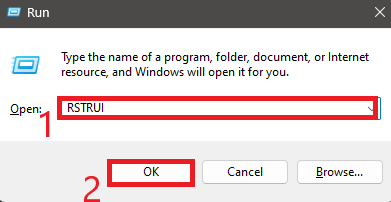
- Press Windows + R to open Run.
- Type rstrui and click OK.
- Click Show more restore points if the option is available.
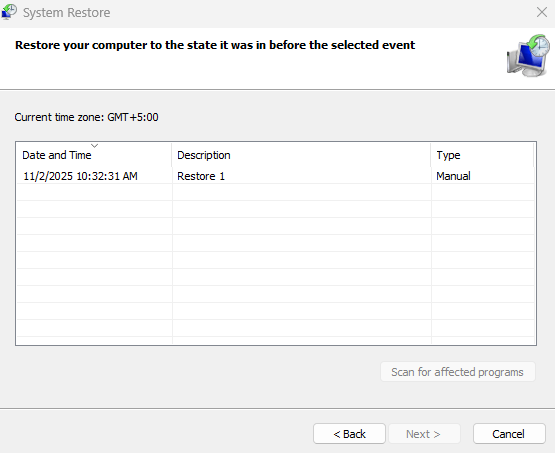
- Select a restore point dated before Security Center stopped working and click Next.
- Follow the on screen instructions and allow the PC to restart.
2. Update Windows
Windows updates can replace missing or corrupted components and services. This is a low risk step that often restores Windows Security reporting after an update problem.
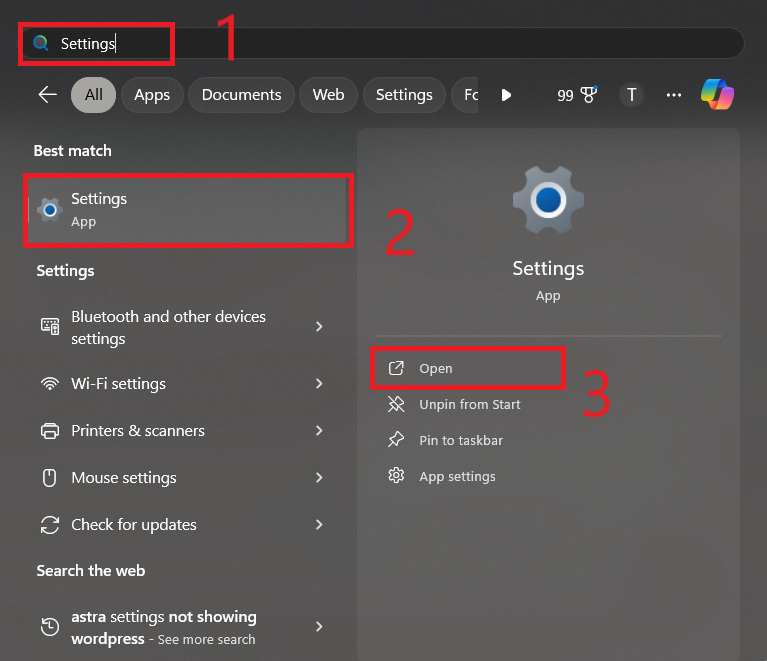
- Open Settings.
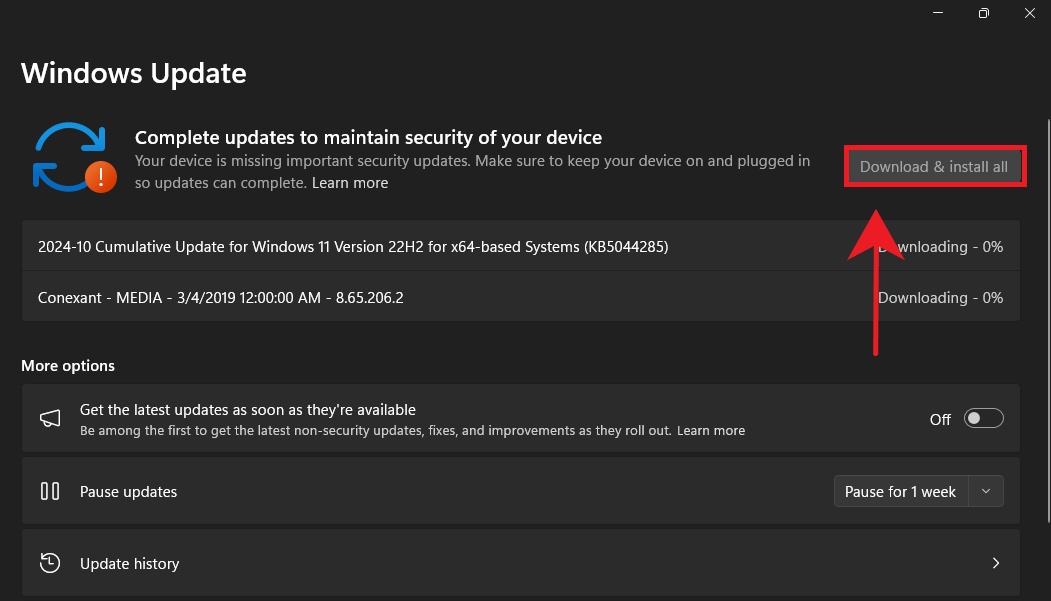
- Windows 11: Click Windows Update in the left sidebar.
Windows 10: Go to Update & Security > Windows Update. - Click Check for updates.
- If updates are found, click Download and install or Download and install all.
- Restart your PC after updates finish.
3. Repair System Files (SFC and DISM)
If Security Center is missing or will not start because of corruption, repairing system files often restores the required components. Run SFC first, then DISM if SFC cannot fix everything.
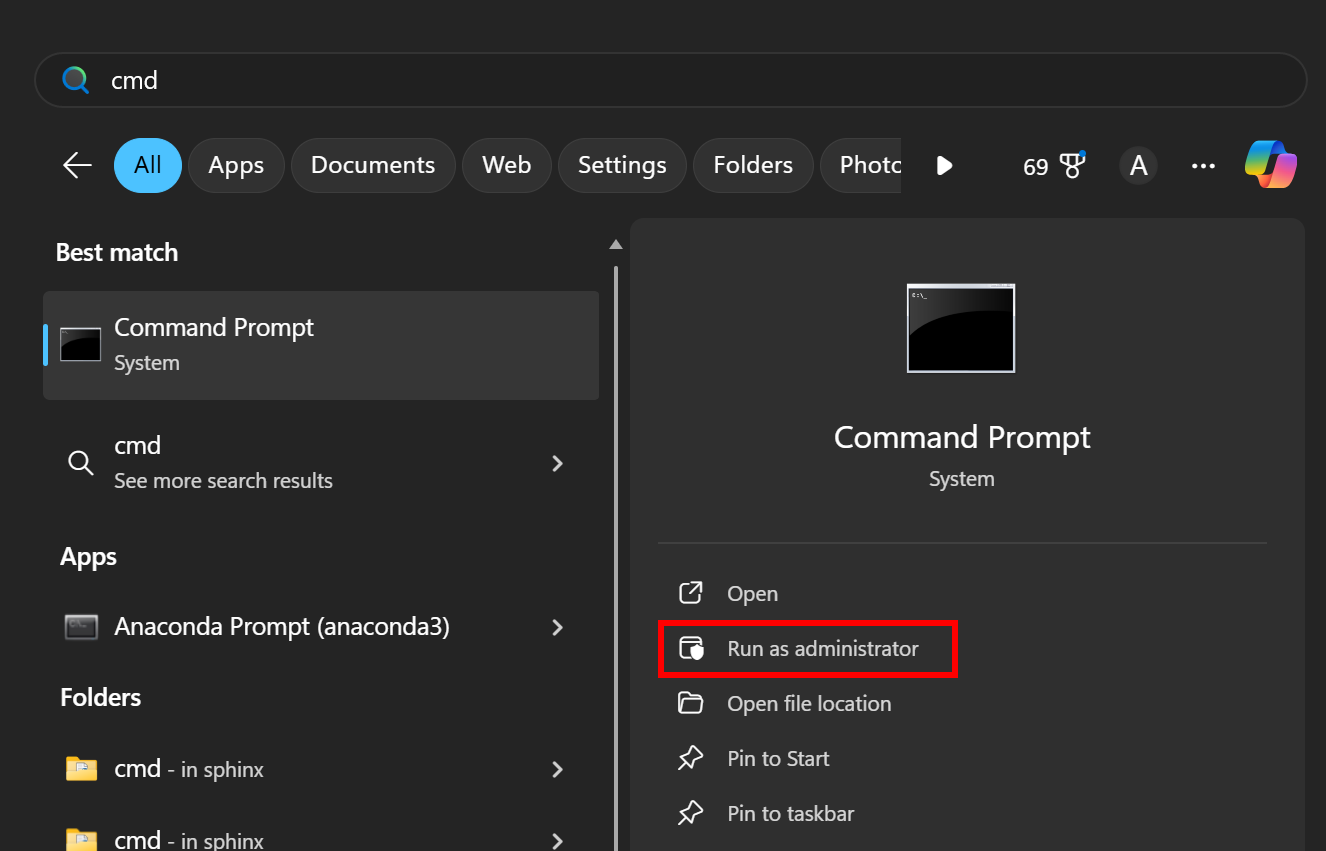
- Search for CMD in Start, then select Run as administrator.
- Run this command and wait until it reaches 100%:
sfc /scannow
- If SFC reports it could not repair some files, run these DISM commands one by one:
DISM /Online /Cleanup-Image /CheckHealth
DISM /Online /Cleanup-Image /ScanHealth
DISM /Online /Cleanup-Image /RestoreHealth
- Restart your PC.
- Open Services again and confirm Security Center exists and is running.
4. Reset or Re Register the Windows Security App
If Windows Security opens blank or specific sections never load, the app interface can be corrupted while the services are still present. Resetting or re registering the app usually restores the UI.
- Open Settings > Apps. Find Windows Security, open Advanced options, then click Repair if available, and then Reset.
- If the UI is still broken, open PowerShell as administrator and run:
$manifest = (Get-AppxPackage *Microsoft.Windows.SecHealthUI*).InstallLocation + '\AppxManifest.xml'
Add-AppxPackage -DisableDevelopmentMode -Register $manifest
- Restart the PC and open Windows Security again.
Tip: If the UI stays blank and you cannot access scan options, continue to Step 6 for alternative ways to scan.
5. Check Services and Startup Settings
After repairing system files and the app, confirm that Security Center and related services are enabled. If options are greyed out, keep reverting, or you see access errors, a policy or security hardening tool may be forcing those settings.
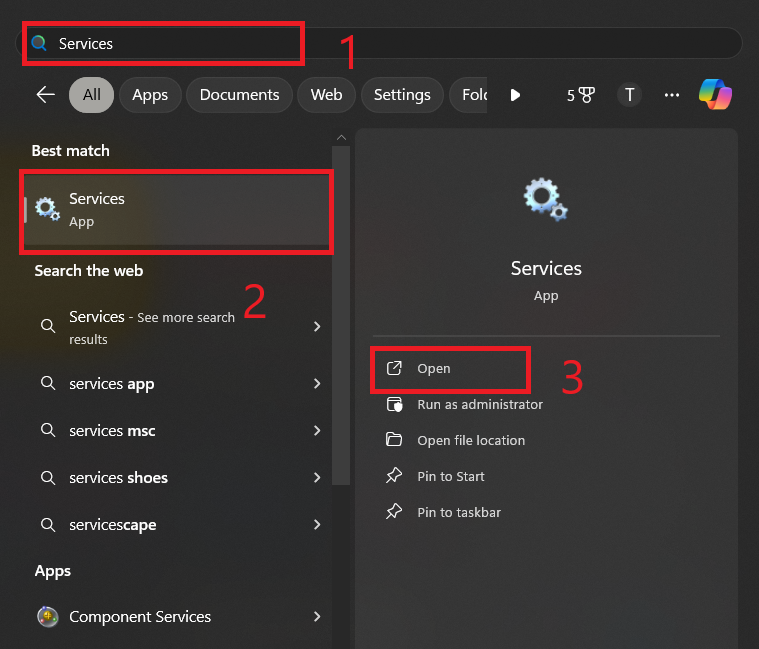
- Open Services from Start.
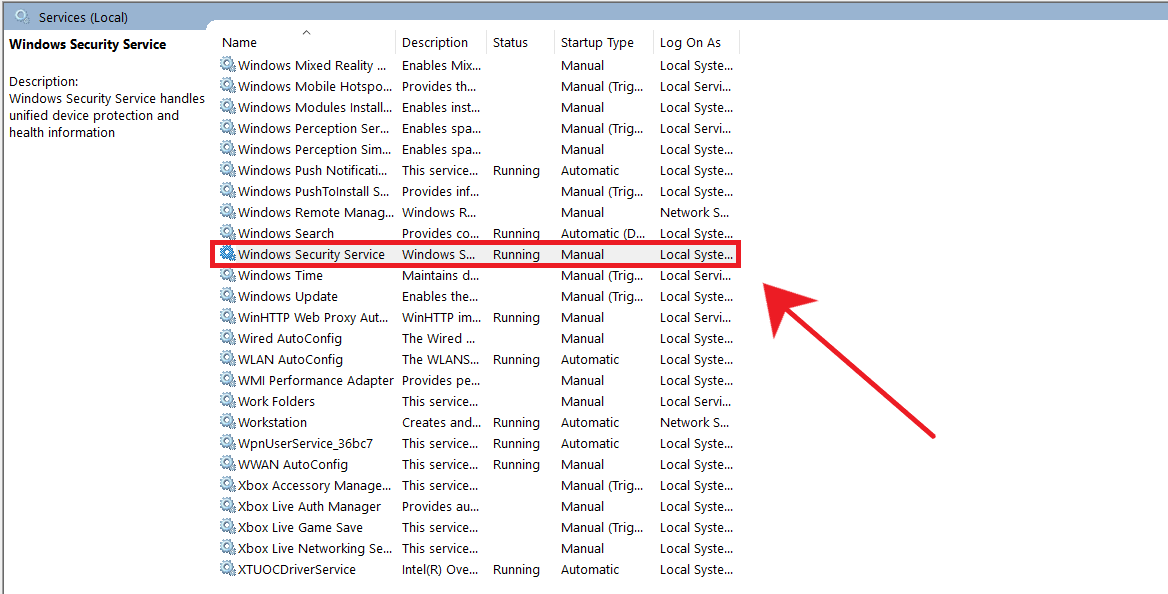
- Find Security Center.
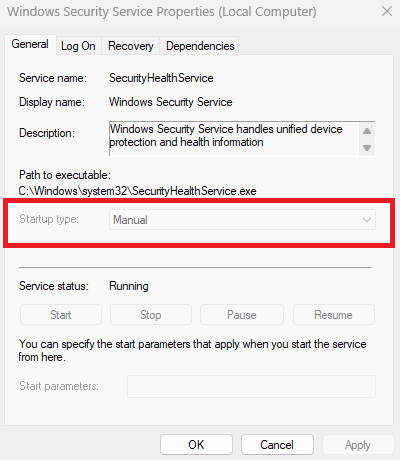
- Double click it to open properties.
- Set Startup type to Automatic (Delayed Start). If that is not available, use Automatic.
- Click Start if the service is stopped. If Start is greyed out, restart your PC and try again.
- Restart the PC once more to apply the change.
6. Run a Malware Scan
If Security Center keeps turning off or changing state without your input, treat it as a possible malware sign. Run a full system scan and, if possible, an offline scan.
- Open Windows Security > Virus & threat protection and run a Full scan.
- If you suspect persistent malware, use Microsoft Defender Offline scan. It restarts the PC and scans before Windows fully loads.
If Windows Security is blank or will not open: update your third party antivirus if installed and run a full scan from there, or use a reputable boot time or offline scanner. After removing malware, run Step 3 again so SFC and DISM can repair remaining damage, then confirm wscsvc stays enabled.
7. Reset Windows
If Security Center is missing because of heavy corruption or repeated malware damage, a reset is usually the most reliable fix.
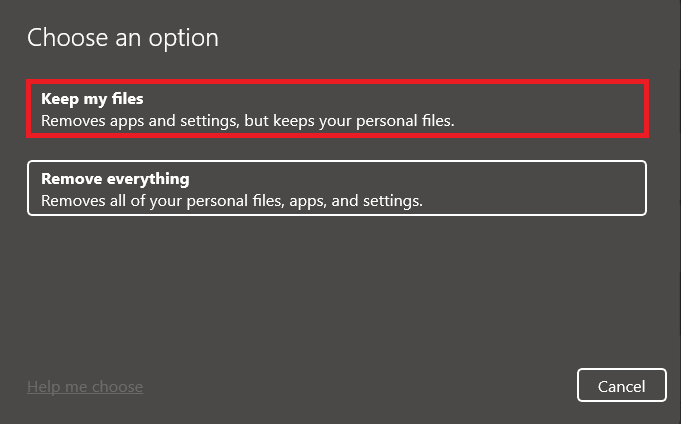
Tip: Use Keep my files to preserve your personal data. This removes apps and resets system settings to defaults.
- Press Windows + I to open Settings.
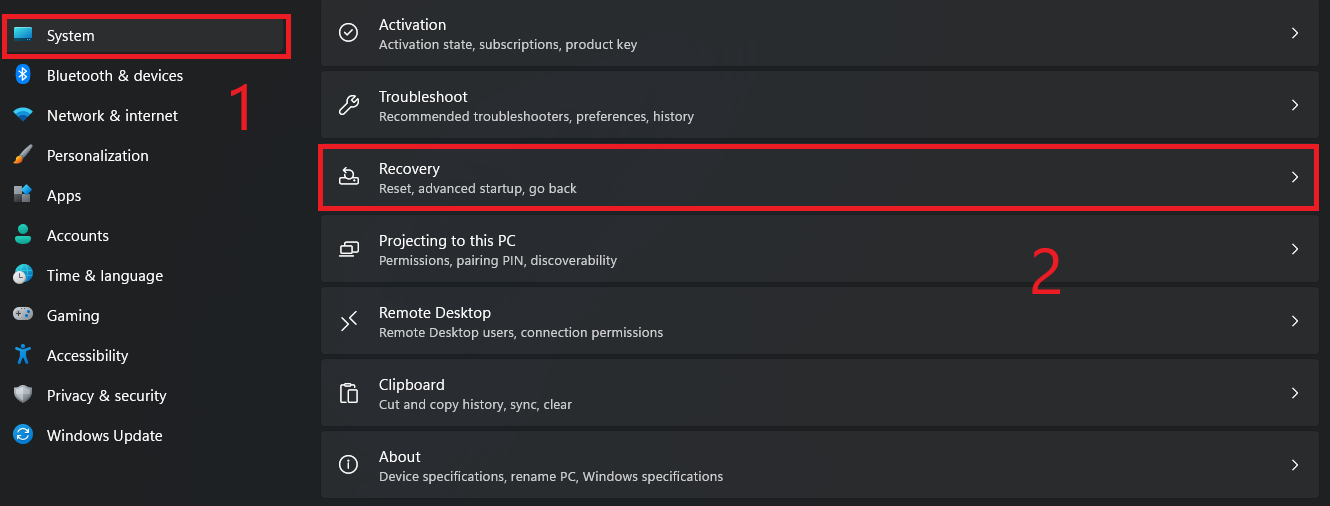
- Go to System > Recovery.
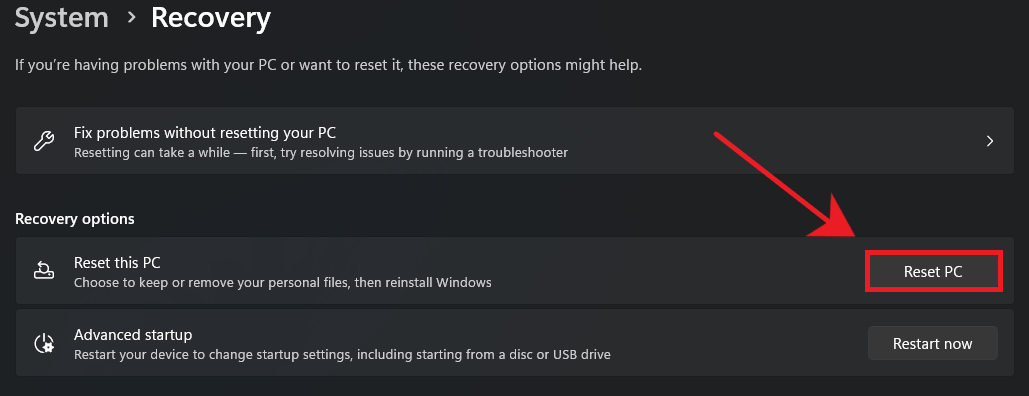
- Under Recovery options, click Reset PC.
- Select Keep my files.
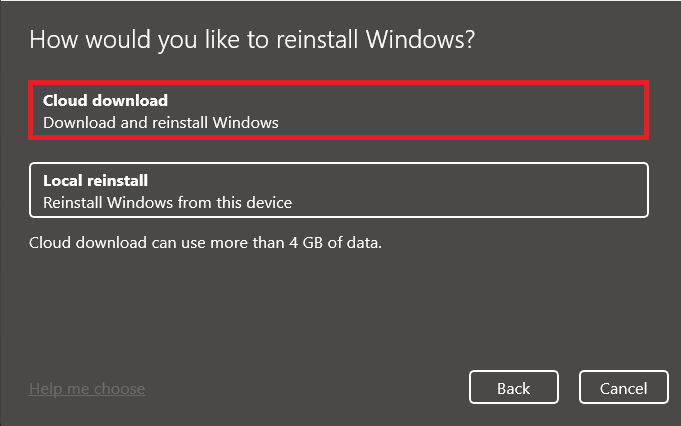
- Select Cloud download or Local reinstall to reinstall Windows.
- Confirm and wait for Windows to finish the reset.