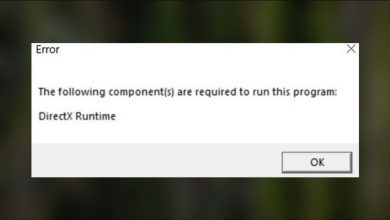
Fix: “User Action Required” in Escape from Tarkov
The “User action required. The connection is too slow.” error appears when the Escape from Tarkov launcher can’t keep a stable connection while downloading, updating, or verifying files.
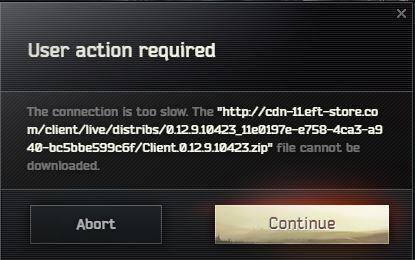
This doesn’t always mean slow internet. The launcher may be hitting unstable routing, packet loss, congested server regions, or security software interruptions even if browsing/streaming works fine.
Common causes:
- ISP routing instability / packet loss
- Regional server congestion
- Launcher speed limit set too low
- Firewall/antivirus scanning or blocking launcher traffic
1) Check Download Speed Limit and Server Region
A low limit can stall downloads; a congested/unstable region can cause timeouts. Switching region changes the CDN endpoint you hit. Pick a nearby region with consistently low ping (not just the lowest once).
- Open the Escape from Tarkov launcher.
- Click Settings (top-right).
- Set Download Speed Limit to 0 (Unlimited).
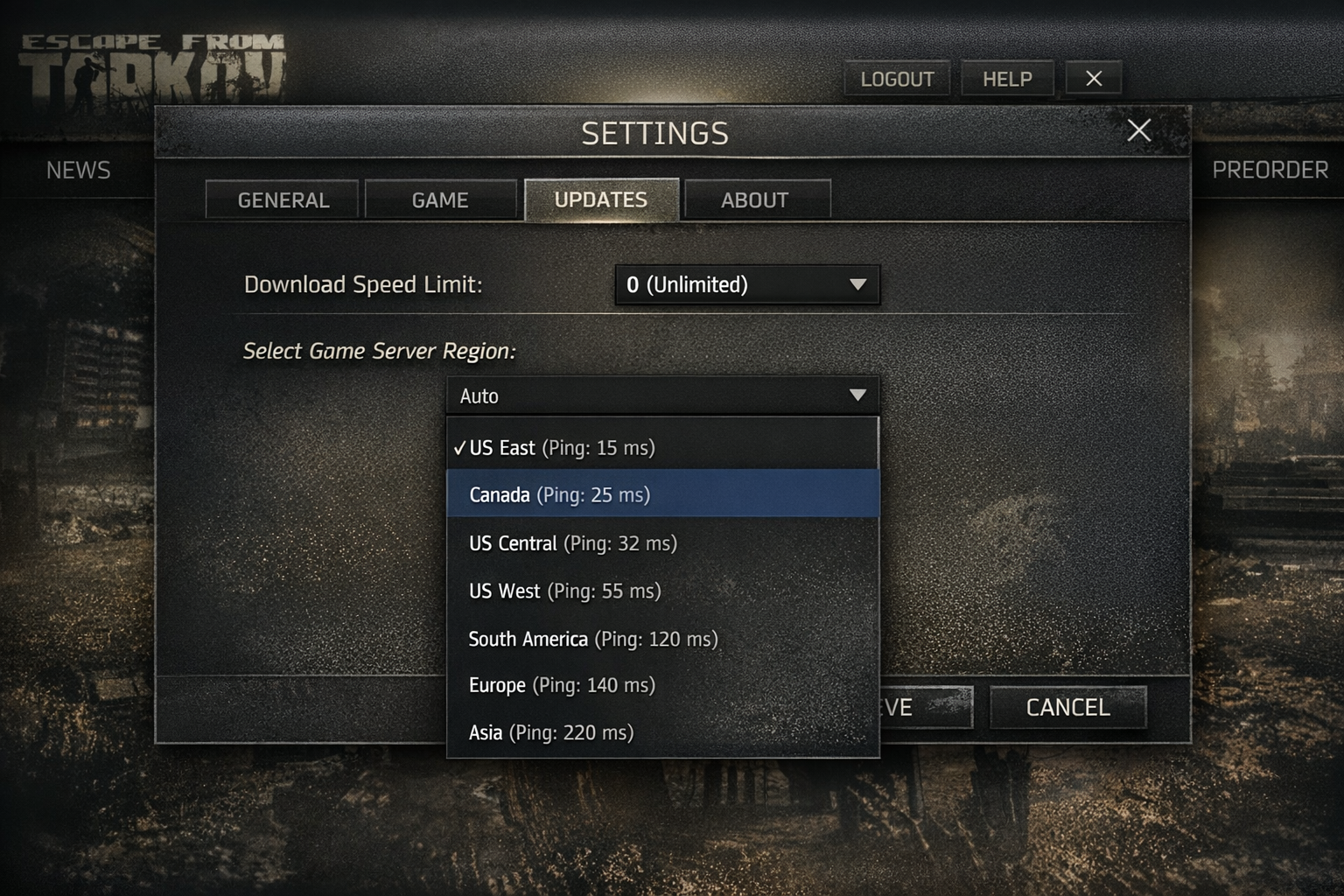
- Select a nearby server region with stable ping.
- Restart the launcher and resume the download.
2) Run the Launcher as Administrator
If Windows blocks write access to certain folders, downloads can fail mid-stream and look like “connection” problems.
This won’t fix real network issues, but it rules out permission-related write failures.
- Close the launcher completely.
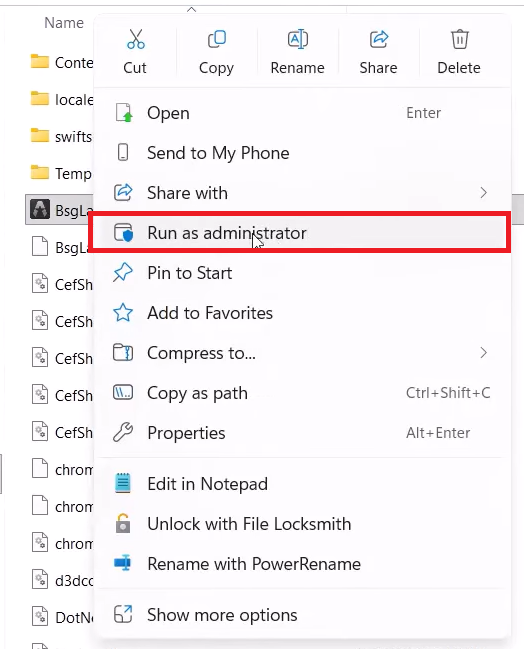
- Right-click the launcher shortcut.
- Select Run as administrator.
- Check if the download continues normally.
3) Add an Exception for Tarkov in Firewall
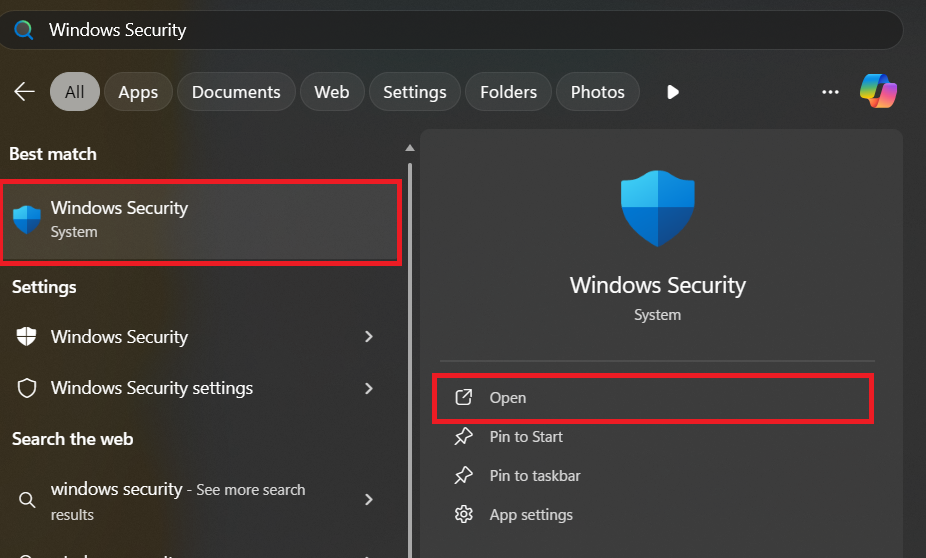
- Open Windows Security.
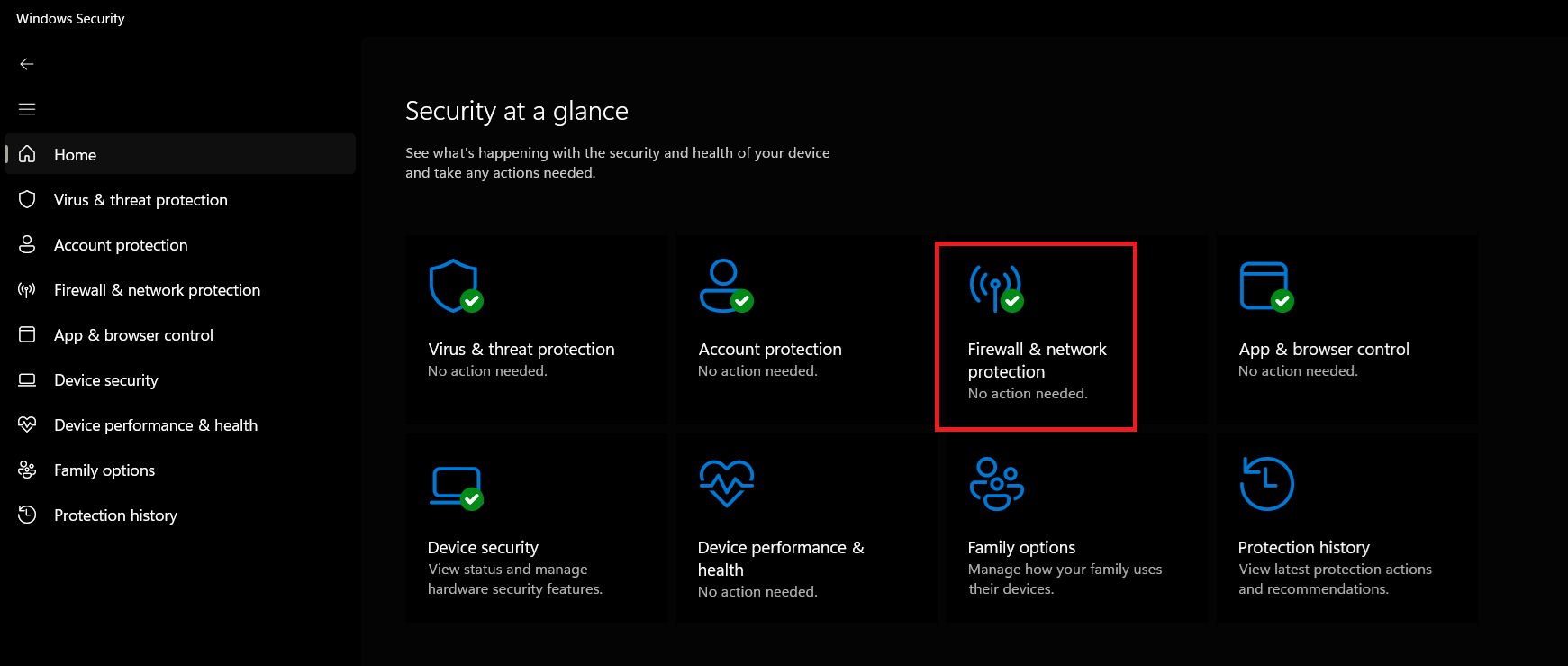
- Go to Firewall & network protection.
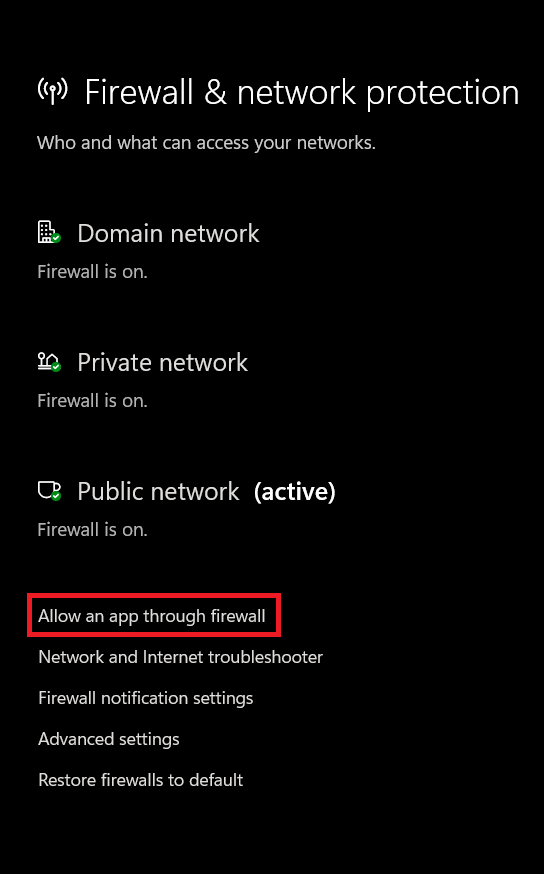
- Click Allow an app through firewall.
- Click Change settings → Allow another app.
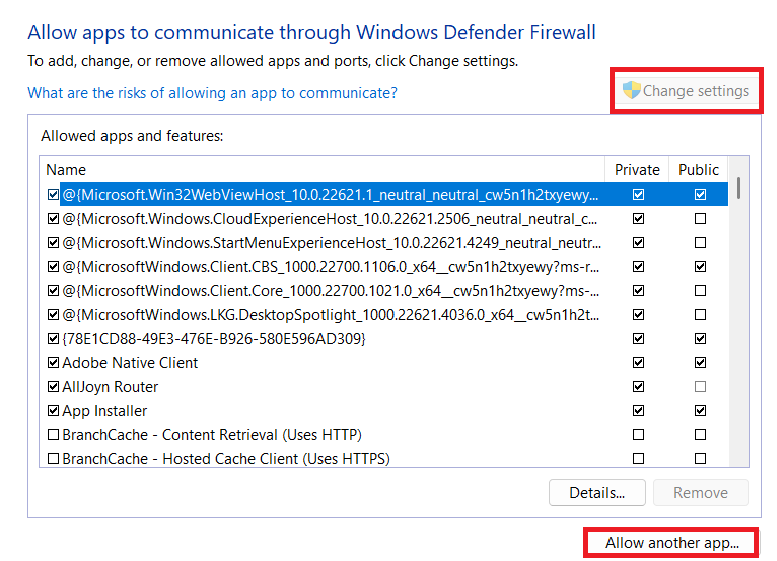
- Add the launcher and game executable. Enable both Private and Public.
4) Clear Launcher Cache and Temporary Files
Corrupted cache/config can cause repeated failed requests. Clearing forces the launcher to rebuild fresh data.
This may log you out. Only delete launcher/cache folders, don’t delete the main game install directory.
- Press Windows + R, type %appdata%, press Enter.
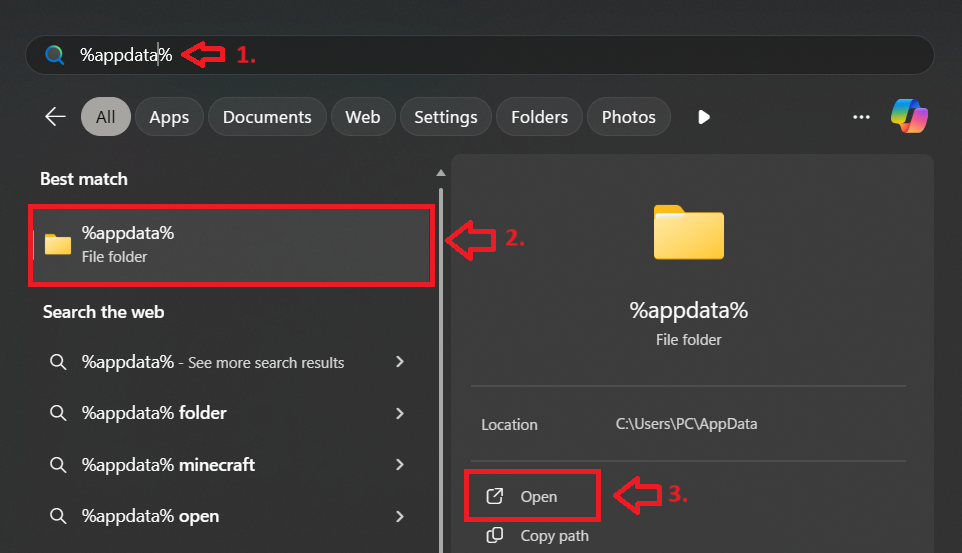
- Open Battlestate Games under Roaming.
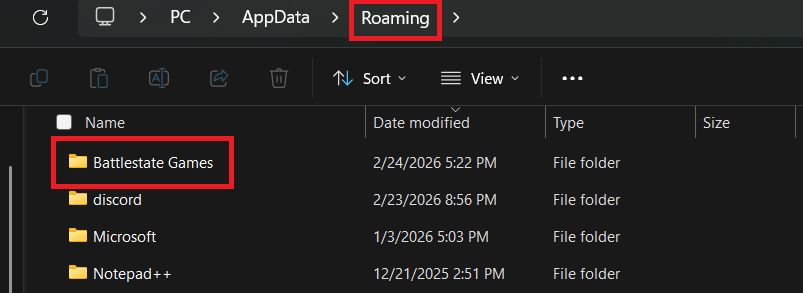
- Delete launcher-related folders like BsgLauncher only.
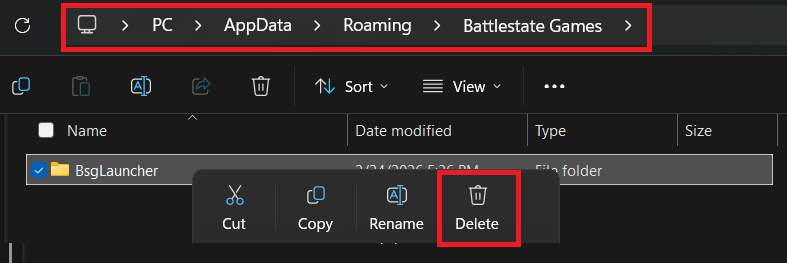
- Check Local and LocalLow for Battlestate launcher cache folders and remove them if present.
- Restart the PC, then run the launcher as administrator and retry.
5) Use a VPN Temporarily (Routing Test)
A VPN can route you through a different network path, bypassing ISP routing issues or congested hops to the CDN.
VPNs can reduce speed/increase latency; use only to test stability and disconnect afterward. Use reputable providers.
- Open a trusted VPN app.
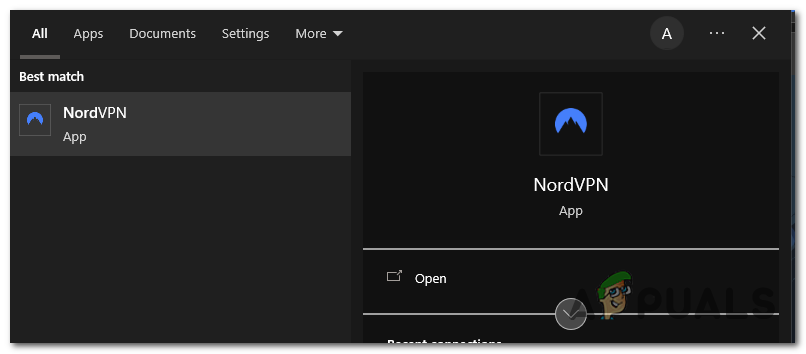
- Select a nearby location with low latency.
- Connect to the VPN.
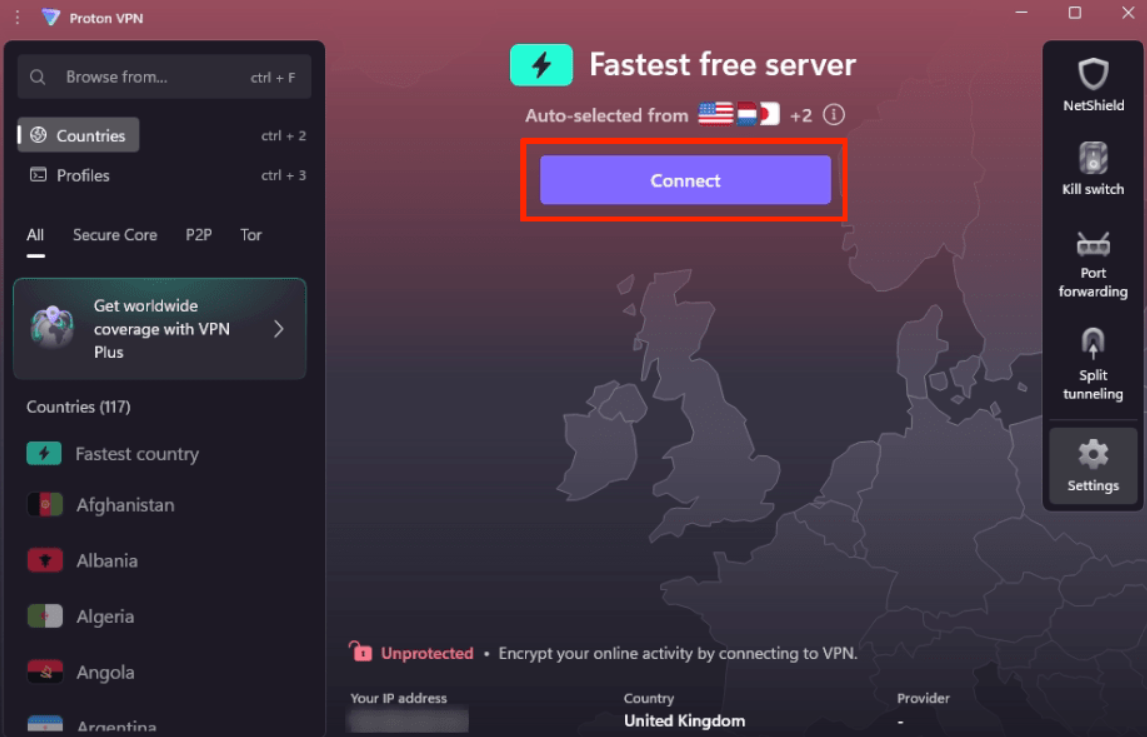
- Open the Tarkov launcher and resume the download.